How to fix
“Failed to load Xgameruntime.dll” error
on Windows
Resolve the "Failed to load Xgameruntime.dll" error on Windows 10 and 11 quickly. Get expert-tested solutions that ensure your system runs smoothly.


What causes How to fix “Failed to load Xgameruntime.dll” error in Windows?
- Faulty or missing DLL files
- Out-of-date Windows operating system
- Issues with Windows' gaming services component
- Cracked game versions
- Corrupted game files
Repairs Windows system files, removes malware, and restores a clean OS state — without reinstalling.
Hi. I have a game I wanted to play on Game Pass but I just can't seem to make it work. Every time I launch it, I receive a pop-up message saying "Failed to load Xgameruntime.dll." How do I resolve this?
Windows operating systems require Dynamic Link Libraries (DLL) as they store shared functions and processes that are utilized by different software programs. Their purpose is to give various applications a method to access shared features without requiring them to be embedded within each one, which conserves system resources and improves productivity all around.
Nevertheless, users could run into problems with these DLL files; the "Failed to load Xgameruntime.dll" error is one such issue. Usually, when trying to run games on Windows systems, this problem occurs. A few titles that could be impacted by this problem are Gears of War, Halo Reach, Starfield, Minecraft, and many others. Moreover, attempting to run game versions that have been cracked may result in the problem.
There are various ways that the error "Failed to load Xgameruntime.dll" can manifest. Messages such as "Untrusted system file (C:\Windows\System32\xgameruntime.dll)," "Could not find Xgameruntime.dll or did not have the proper version installed," or "Error code 126" may appear to users. These variances highlight various facets of the same fundamental issue - a missing DLL.
This problem may have several underlying causes. It can be the result of faulty or missing DLL files, an out-of-date Windows operating system, or issues with Windows' gaming services component. You may need to perform many actions in order to resolve this error. These may involve checking the game files for integrity, making sure your Windows operating system is current, or reinstalling the gaming services to address any inconsistencies.
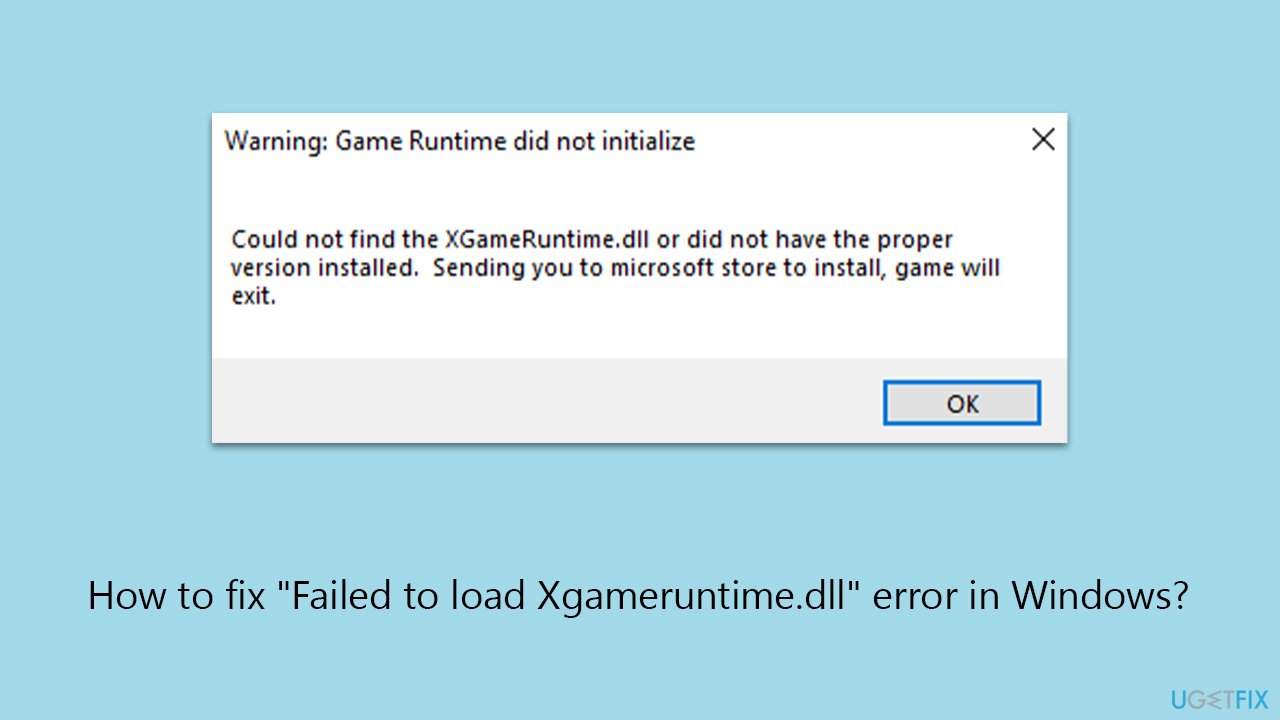
Even though the "Failed to load Xgameruntime.dll" problem can be troubling, it is frequently fixable with a few targeted methods. Furthermore, if you're looking for a simpler resolution, you can try utilizing a PC repair program like [d1], which will automatically resolve underlying Windows problems and possibly fix this error without requiring manual assistance.
Fix 1. Install all Windows updates
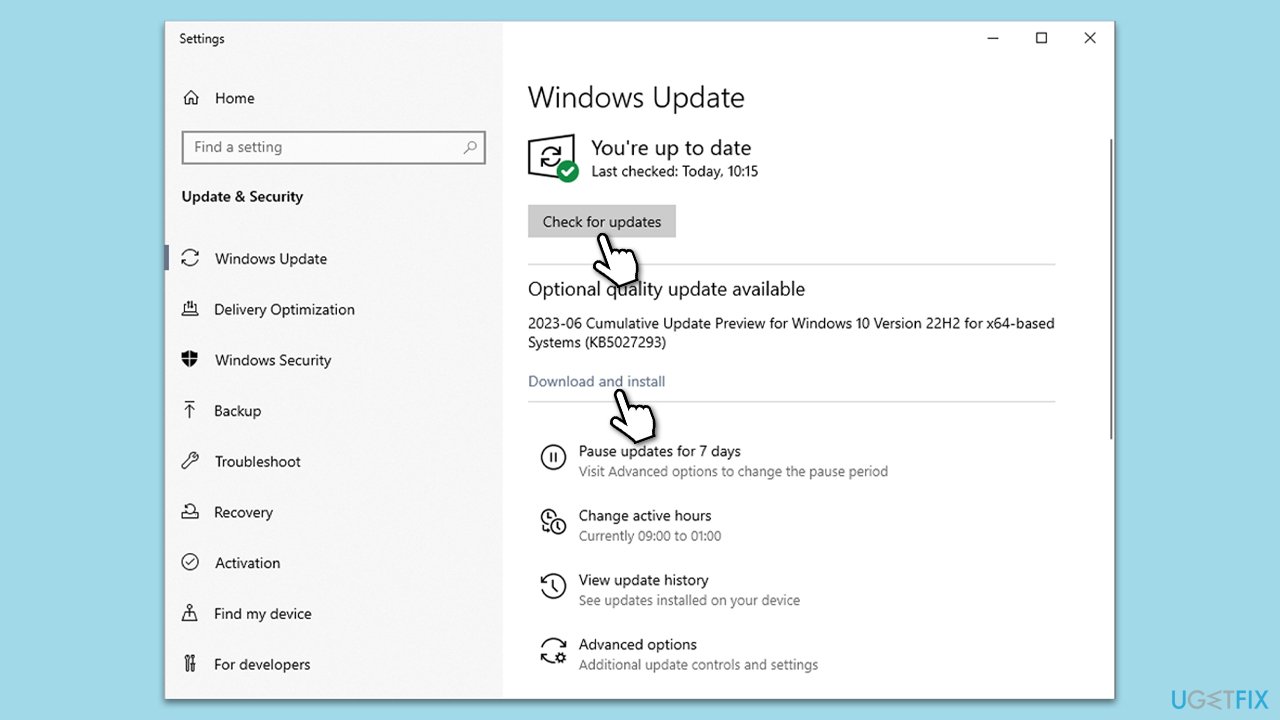
Microsoft often releases updates that improve system stability and fix bugs (including updates for drivers, Visual C++ Redistributable package, and .NET Framework components), so make sure your system is updated.
- Type Updates in Windows search and press Enter.
- In the new window, click Check for updates.
- Wait till all the necessary files are downloaded and installed.
- If optional updates are available, install them as well.
- When done, reboot your system to apply updates.
Fix 2. Verify the integrity of game files
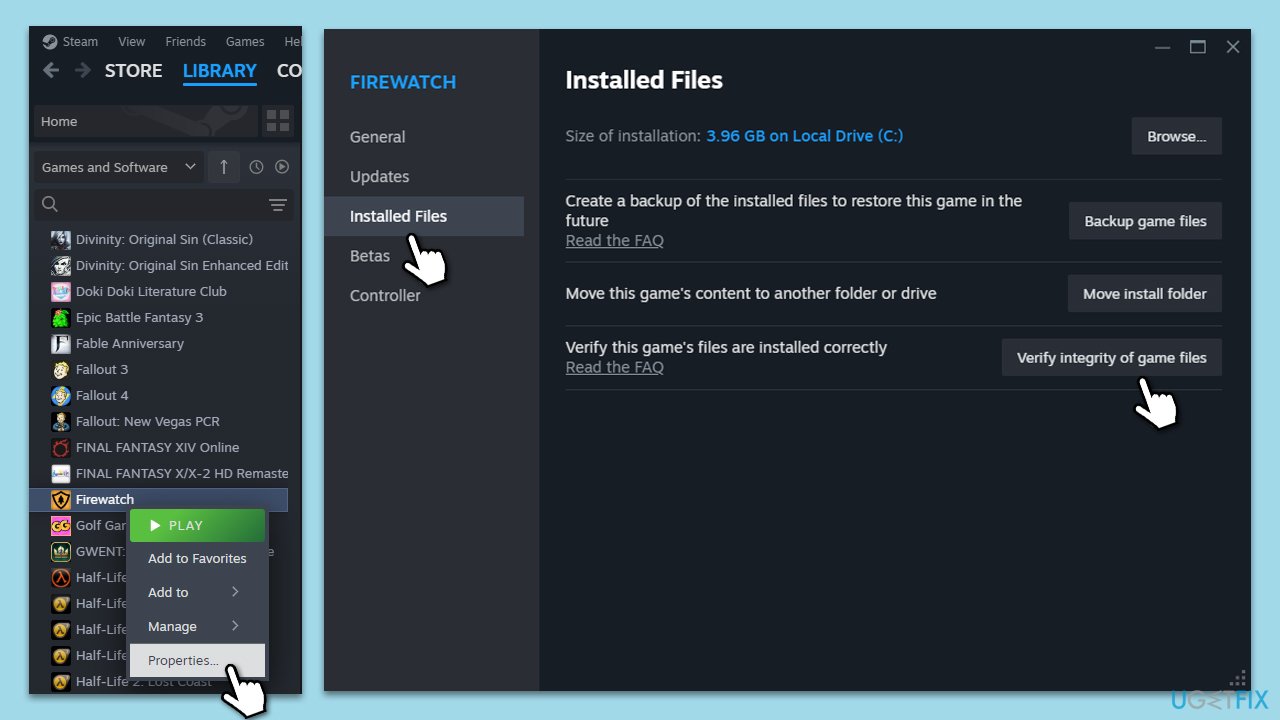
This process checks the game's files against the files stored on the game server, replacing any missing or corrupt files with the correct versions.
- Open Steam and go to your Library.
- Right-click on the game and select Properties.
- Go to the Installed Files section.
- Click Verify integrity of game files and wait till the process is complete.
- Launch the game as normal.
Fix 3. Run the game as an administrator
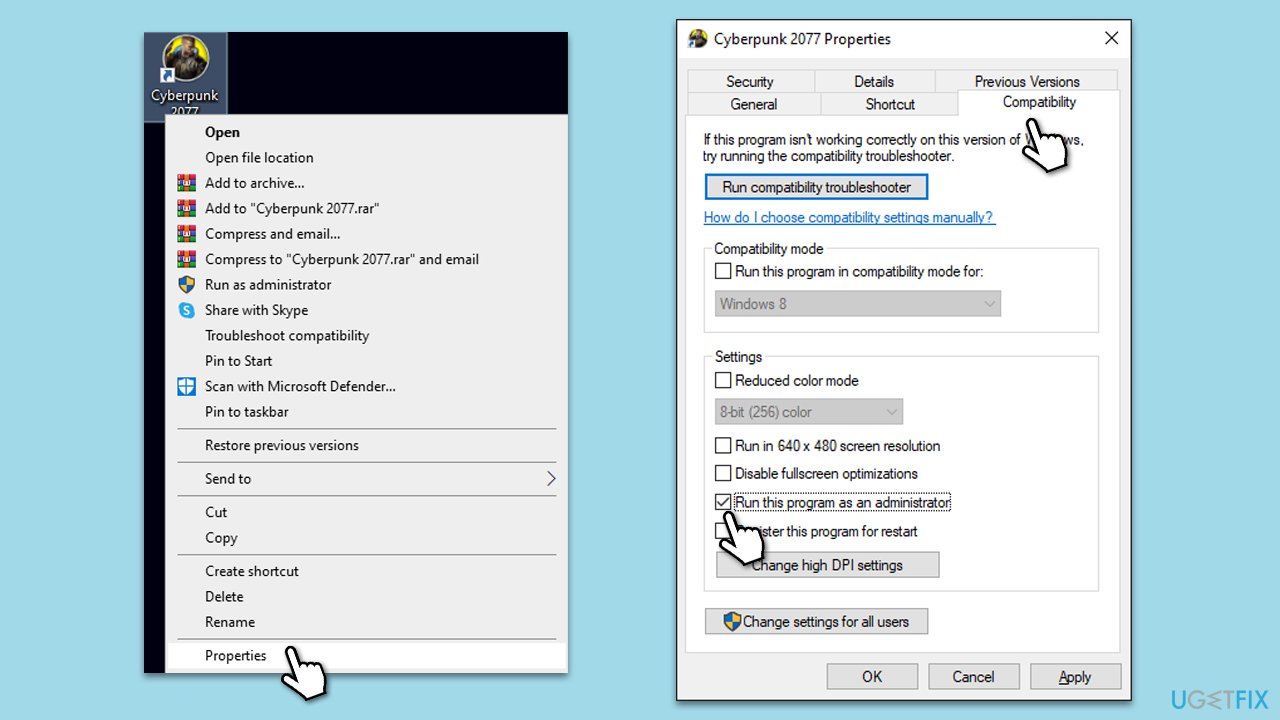
Running the game with administrator privileges allows it to access necessary system files and settings that might be restricted under a standard user account.
- Right-click on the game's shortcut or executable file.
- Select Properties.
- Go to the Compatibility tab.
- Check the box next to Run this program as an administrator.
- Click Apply and then OK.
- Run the game to see if the error persists.
Fix 4. Run SFC and DISM
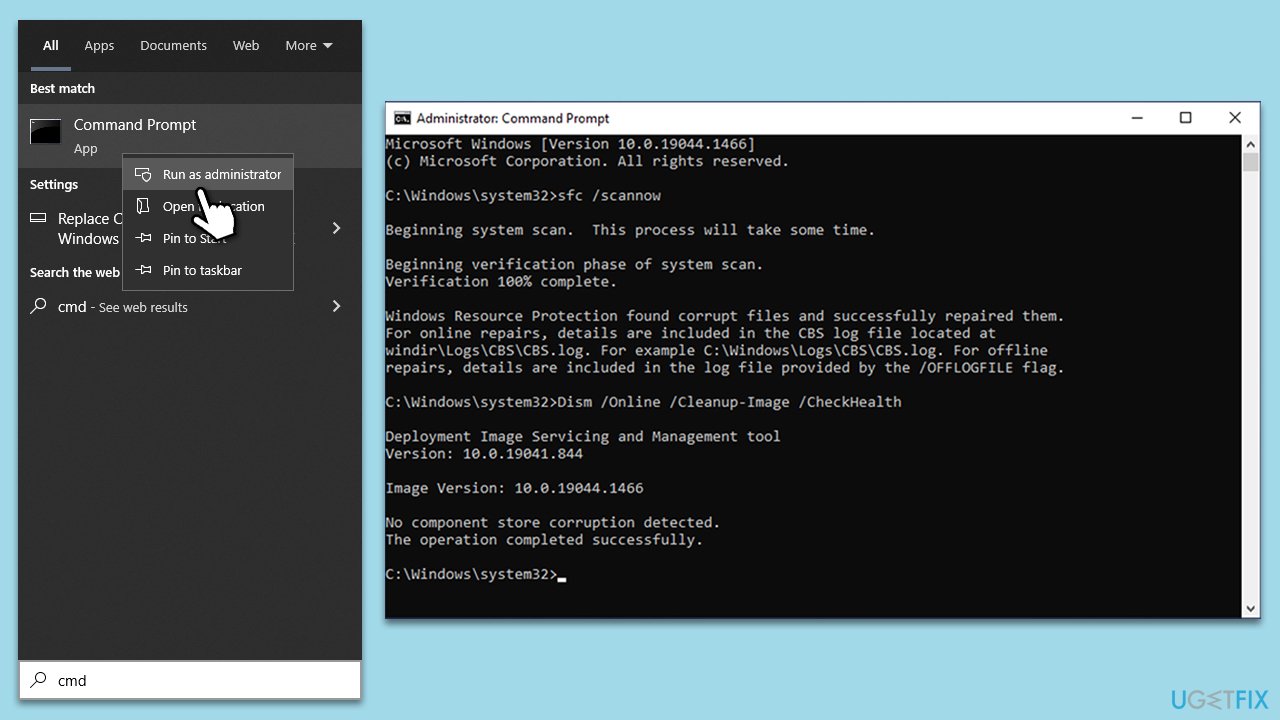
Repairing corrupted Windows files could be one of the solutions that might work for you. You can do so by running commands via elevated Command Prompt.
- Type in cmd in Windows search.
- Right-click on Command Prompt and select Run as administrator.
- When User Account Control shows up, click Yes.
- In the Command Prompt window, paste the following command and hit Enter:
sfc /scannow - Next, use the following commands, pressing Enter each time:
Dism /Online /Cleanup-Image /CheckHealth
Dism /Online /Cleanup-Image /ScanHealth
Dism /Online /Cleanup-Image /RestoreHealth
(Note: if you get an error executing this last command, add /Source:C:\RepairSource\Windows /LimitAccess to it and try again). - Restart your PC.
Fix 5. Reset Gaming Services and other components
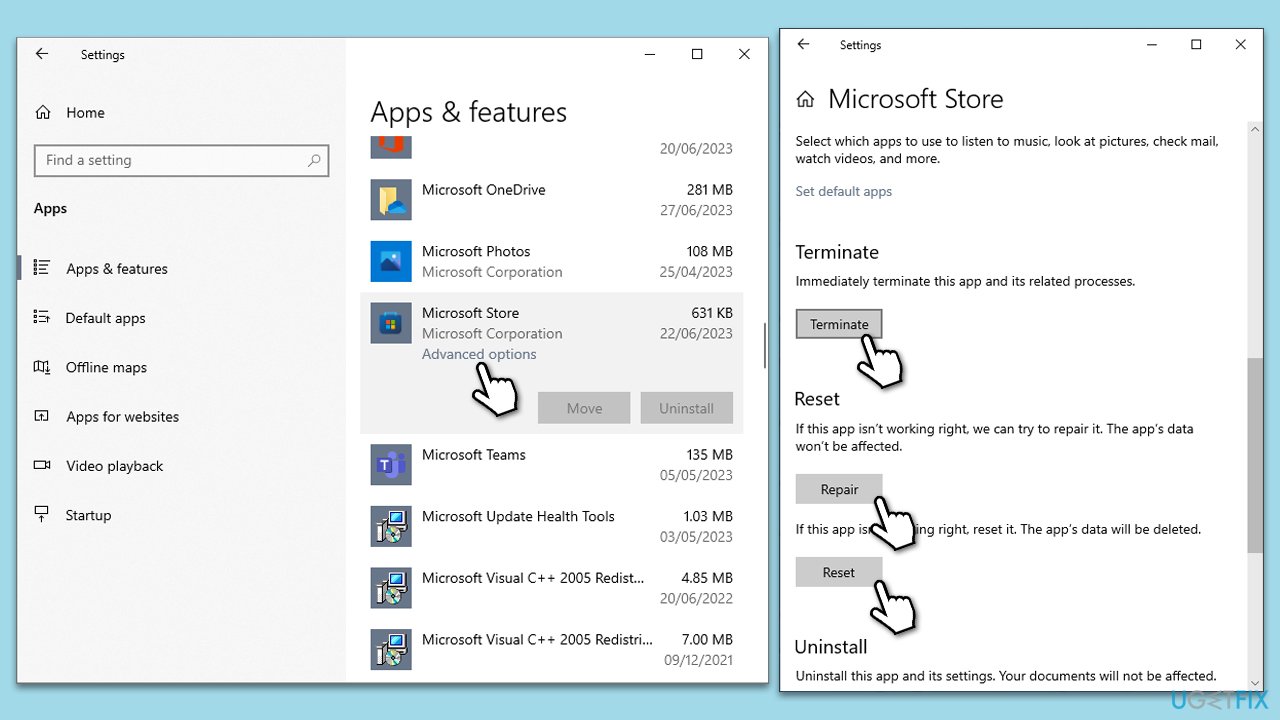
Resetting Gaming Services can resolve issues related to game launches and Microsoft Store integrations.
- Right-click on Start and pick Apps & Features.
- Scroll down to locate Gaming Services and click Advanced options.
- Click Terminate and Repair.
- If that does not help, try the Reset option instead.
- Repeated the process with the Xbox app and Microsoft Store.
Fix 6. Reinstall Gaming Services via PowerShell
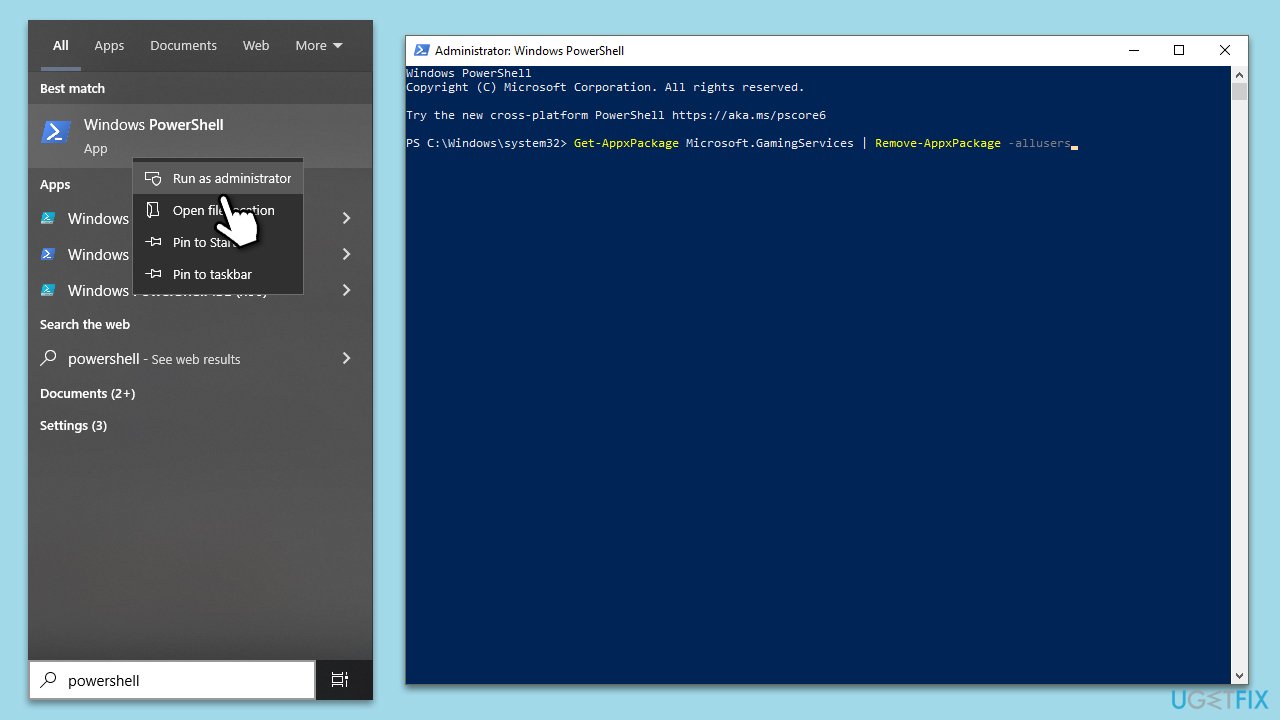
While you can reinstall Gaming Services in the usual way, we recommend using PowerShell to remove the package from the computer completely and then reinstall it.
- Type PowerShell in the Windows search.
- Right-click on the result and select Run as administrator.
- Copy and paste the in the following commands:
Get-AppxPackage Microsoft.GamingServices | Remove-AppxPackage -allusers
Remove-Item -Path "HKLM:\System\CurrentControlSet\Services\GamingServices" -recurse
Remove-Item -Path "HKLM:\System\CurrentControlSet\Services\GamingServicesNet" -recurse - Press Enter after each of them, then restart your PC.
- Open PowerShell (Admin) again, then type:
start ms-windows-store://pdp/?productid=9MWPM2CQNLHN - Press Enter and install Gaming Services from the Microsoft Store page that opens.
Fix 7. Whitelist the game's folder in your antivirus
Sometimes antivirus software can mistakenly identify game files as threats, causing errors. Whitelisting the game folder in your antivirus can prevent this.
- Open your antivirus software.
- Navigate to the settings or exclusion section.
- Add the game's installation folder to the exclusions list.
- Save changes and try running the game again.
Fix 8. Perform in-place Windows upgrade
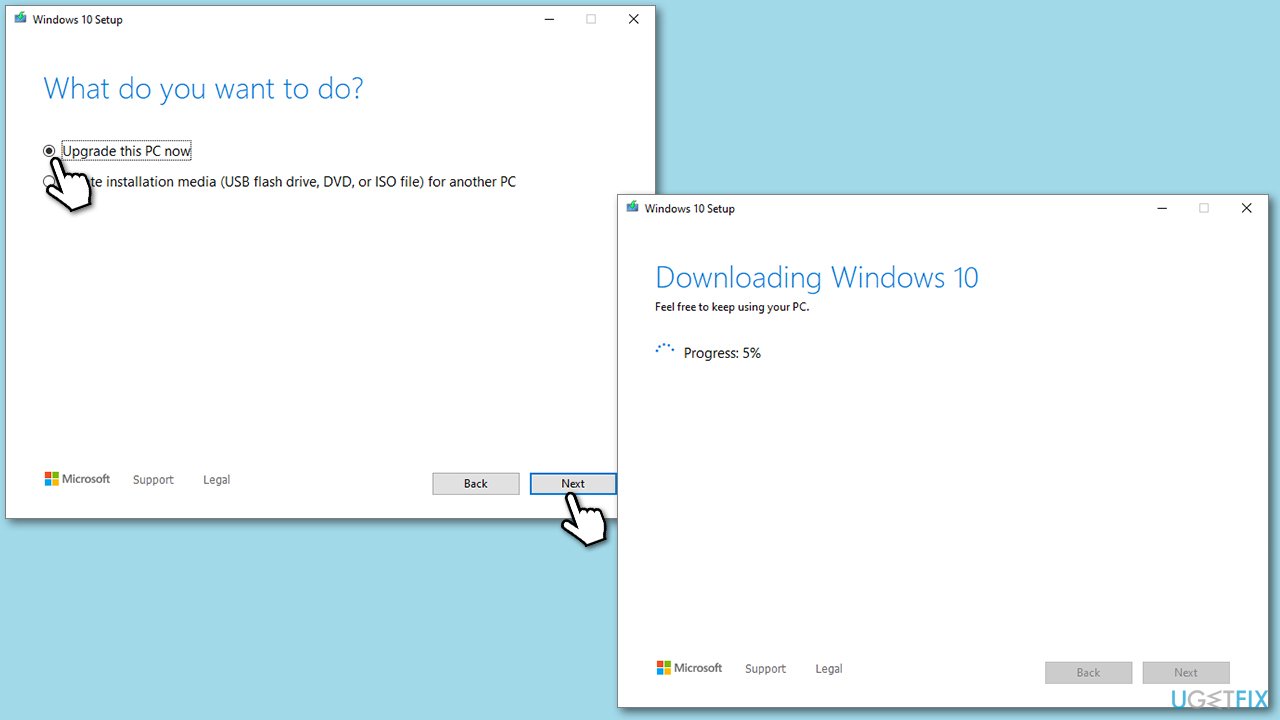
An in-place upgrade reinstalls Windows while keeping your files, settings, and applications intact. This can fix deep-rooted system issues without losing data.
- Visit the official Microsoft website and download Windows 10 installation media (Windows 11 version).
- Double-click the installer, select Yes when UAC shows up, and agree to the terms.
- Select Upgrade this PC now and click Next.
- Windows will start downloading the needed files.
- Agree to the terms once again and click Next.
- Before installing, ensure you are happy with your choices (otherwise, you can click the Change what to keep option).
- Finally, click Install to begin the upgrade process.
Bottom line
To resolve the 'Failed to load Xgameruntime.dll' error, you can check the game files for integrity, ensure your Windows operating system is up to date, or reinstall the gaming services. If these methods do not work, consider using a PC repair program to automatically fix underlying Windows issues.
Frequently asked questions
This error typically occurs due to a corrupted or missing Xgameruntime.dll file, which can happen after a system update or software installation. Additionally, malware infections can also lead to this issue.
You can resolve this error by reinstalling the application that requires the DLL or by downloading and replacing the Xgameruntime.dll file from a reputable source. Running a system file checker scan can also help restore any damaged system files.
While it may be tempting, downloading DLL files from third-party sites can pose security risks, such as malware infections. It's safer to obtain the file through official software sources or by reinstalling the associated application.




Report an issue
What's wrong with this guide? We review every report and update or remove content.
Report received — thank you. We'll review and fix it.
You need a free account to submit a report.
Be the first to comment