How to fix
Fastfat.sys BSOD error
on Windows
Resolve the fastfat.sys BSOD error on Windows 10 or 11 quickly and effectively with expert-tested solutions and clear, detailed screenshots. Fixed in mi…

What causes How to fix fastfat.sys BSOD error in Windows?
- Corrupted or damaged system files
- Issues with the hard drive or storage device
- Outdated or incompatible drivers
- Malware infections
- Recent changes to the system, like installing new software or hardware
Repairs Windows system files, removes malware, and restores a clean OS state — without reinstalling.
Hello. Over the past few days, my Lenovo Ideapad laptop with Windows 11 Home has been experiencing frequent crashes. It often freezes with artifacts appearing briefly on the screen before crashing - this happens approximately every hour or so. The crashes don't seem to be caused by anything particular. The error code is FAT FILE SYSTEM (fastfat.sys).
fastfat.sys BSOD (Blue Screen of Death) error in Windows is an issue that seizes normal operation of the system and forces it to reboot to prevent further damage to it. This failed component always comes with FAT FILE SYSTEM error code, mentioning fastfat.sys in the "What failed" section of the blue screen crash message.
What is fastfat.sys?
In Windows, the FAT (File Allocation Table) file system is managed by a system driver called fastfat.sys. The proper reading and writing of files to and from the storage device is ensured by simplifying communication between the file system and the operating system. It simply means that on systems that use the FAT file system, it is critical to the proper operation of file activities.
When do users encounter the fastfat.sys error?
Users typically encounter the fastfat.sys error during various activities, such as starting up their computer, shutting it down, running specific programs that access the file system intensively, or during the installation and updating of Windows.
fastfat.sys error causes
Several factors can cause the fastfat.sys error, including corrupted or damaged system files, issues with the hard drive or storage device, outdated or incompatible drivers, malware infections, and recent changes to the system, like installing new software or hardware.
Potential solutions
To fix the fastfat.sys error, users can update their system drivers, run the System File Checker to repair corrupted files, use disk-checking utilities to fix hard drive issues, perform a clean boot to isolate software conflicts, or use System Restore to revert to a previous state.
To address the fastfat.sys BSOD error more effectively, using professional repair services like [d1] repair can be extremely effective, as each of case can be different and require different solutions to be solved.
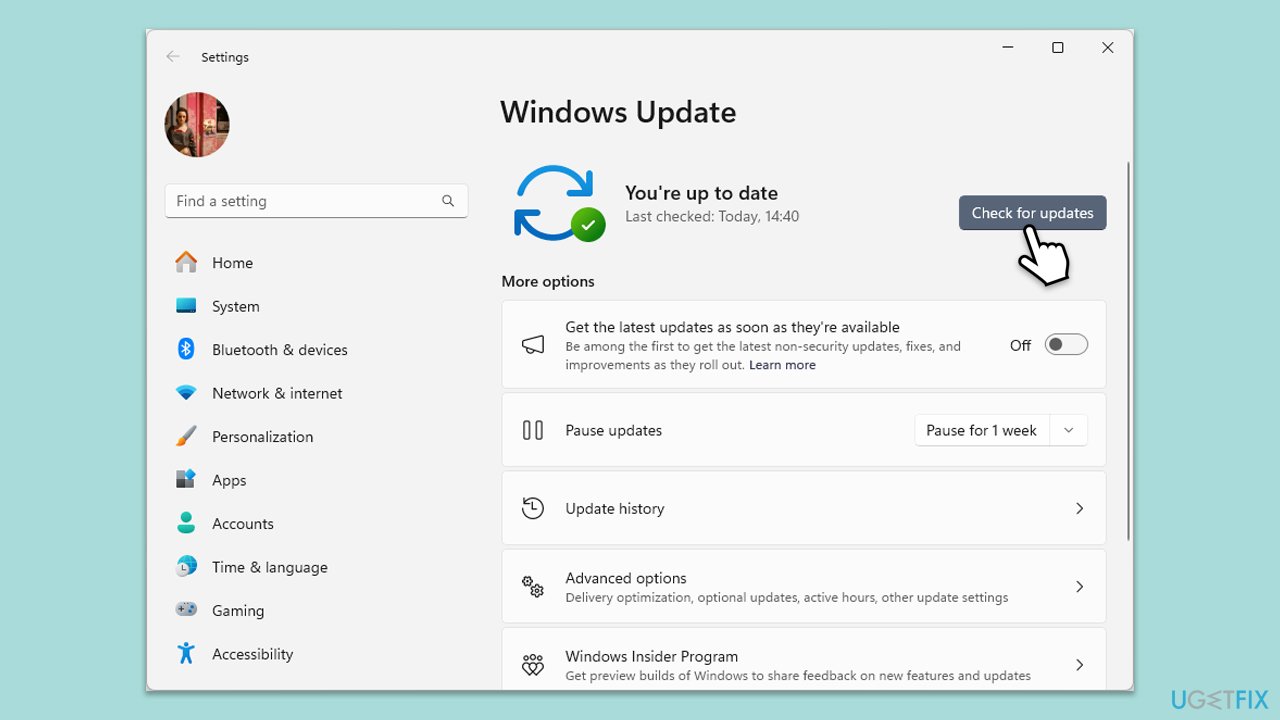
Fix 1. Update Windows
Keeping your operating system up-to-date can resolve compatibility issues and bugs that cause BSOD errors.
- In Windows search, type Updates and hit Enter.
- In the new window, click Check for updates and wait till everything is installed.
- Make sure you also install any available optional updates.
- When done, restart your system to implement the changes.
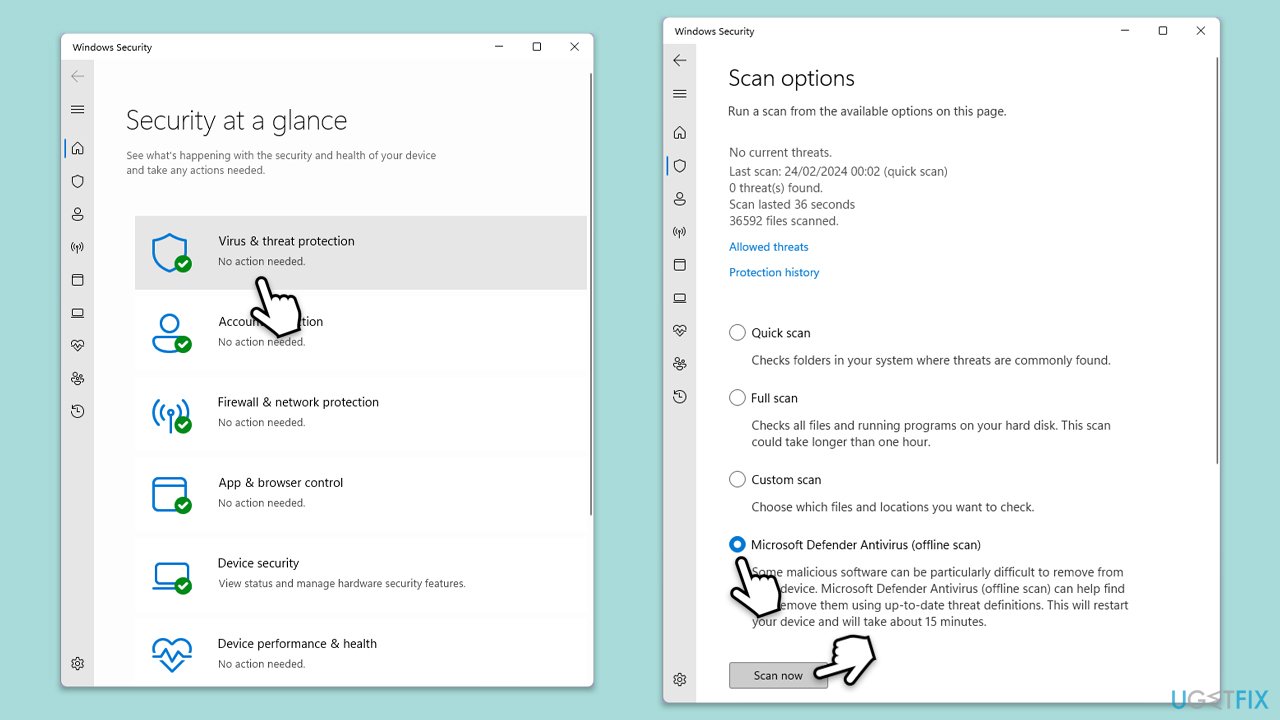
Fix 2. Scan for malware
You can use Microsoft Safety Scanner or the built-in Windows Defender as follows:
- Type Windows Security in the Windows search bar and hit Enter.
- Select Virus & threat protection.
- Pick Scan options.
- Choose Microsoft Defender Offline scan and click Scan now.
- Your computer will immediately reboot and begin a deep scan.
Fix 3. Run SFC and DISM
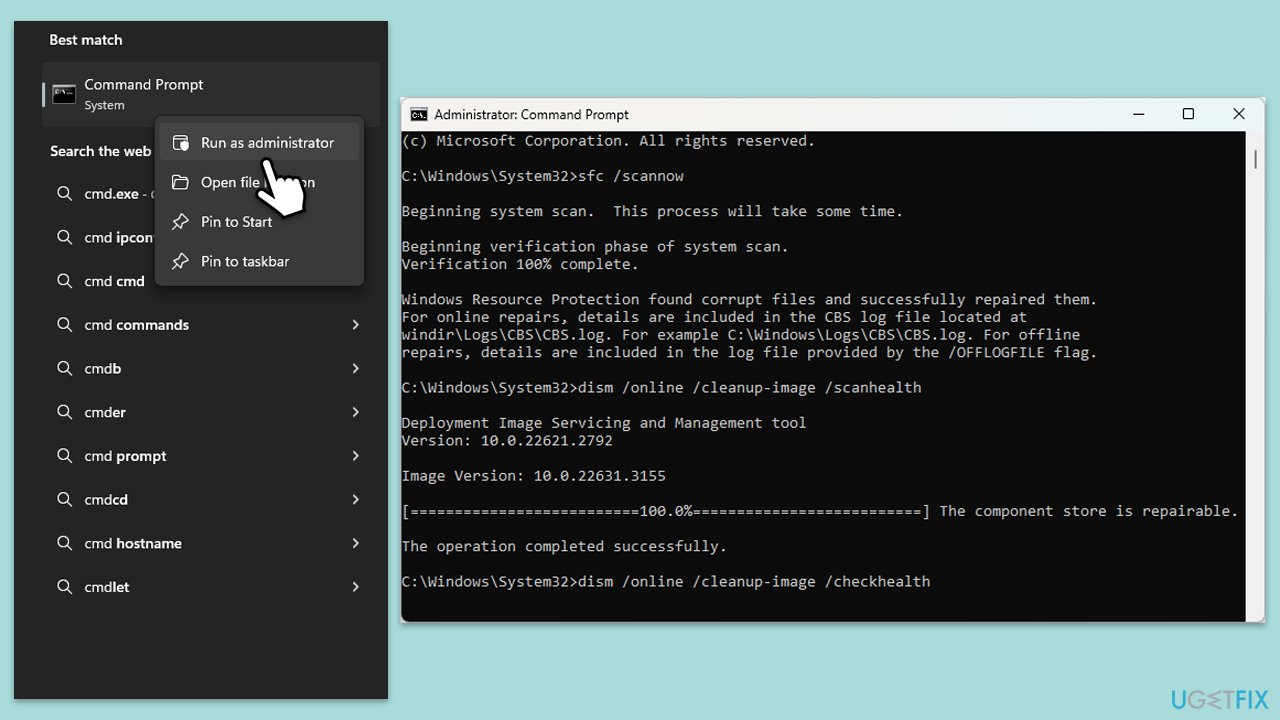
- Type cmd in Windows search.
- Right-click on Command Prompt and pick Run as administrator.
- User Account Control window will show up - click Yes when prompted.
- Then, copy and paste the following command, pressing Enter after:
sfc /scannow - Wait till the scan is finished. If Windows finds system file integrity violations, it will attempt to fix them. After this, use the set of the following commands, pressing Enter each time:
DISM /Online /Cleanup-Image /CheckHealth
DISM /Online /Cleanup-Image /ScanHealth
DISM /Online /Cleanup-Image /RestoreHealth - (Note: if you get an error executing this last command, add /Source:C:\RepairSource\Windows /LimitAccess to it and try again).
- Close down the Command Prompt and restart your computer.
Fix 4. Check the hard drive by running Check Disk
Issues with the hard drive can cause file system errors. Using the built-in check disk utility can identify and fix these issues.
- Open Command Prompt as administrator.
- Click Yes when UAC asks for access.
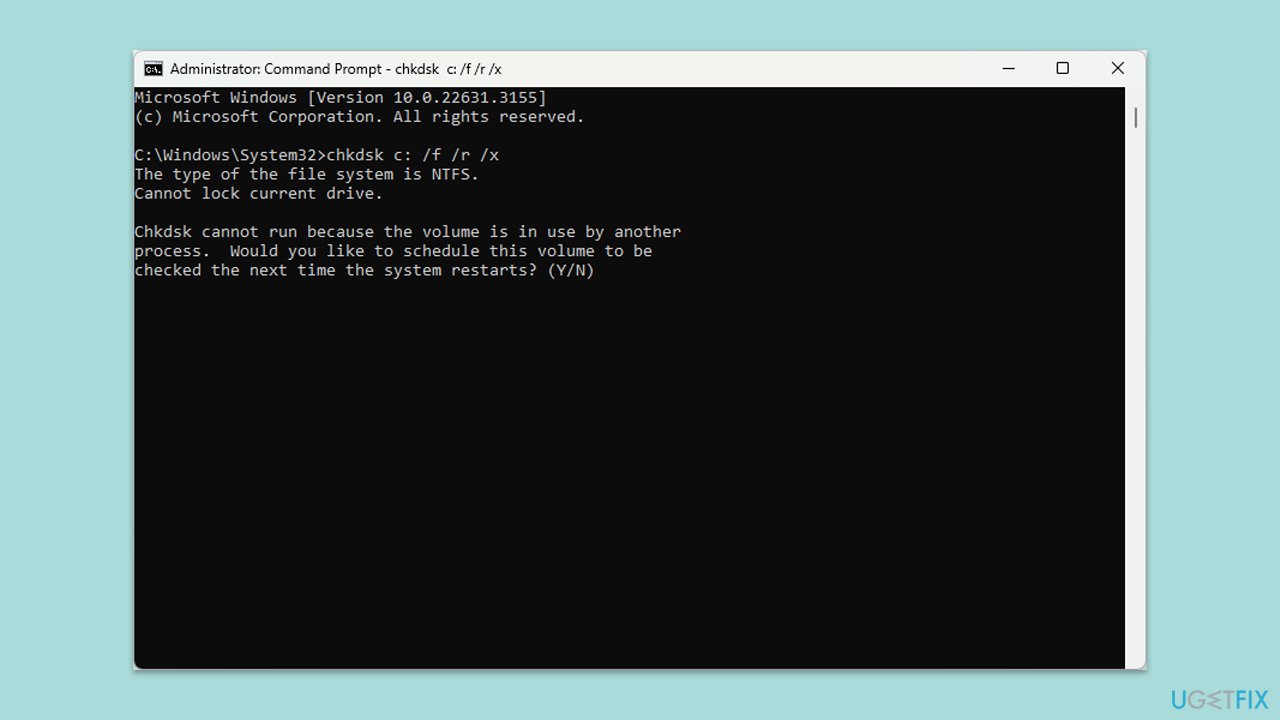
- Type in the following command and press Enter after:
chkdsk c: /f
(Note: use chkdsk c: /f /r /x command if you use SSD as your primary partition). - If you receive an error, type in Y, close down Command Prompt, and restart your computer.
- After a restart, Windows will begin to scan your disk. After your system boots back up, you can find the results in the Event Viewer.
- After completing the disk check, attempt the sfc /scannow command again to see if the problem persists.
Fix 5. Perform a Clean Boot
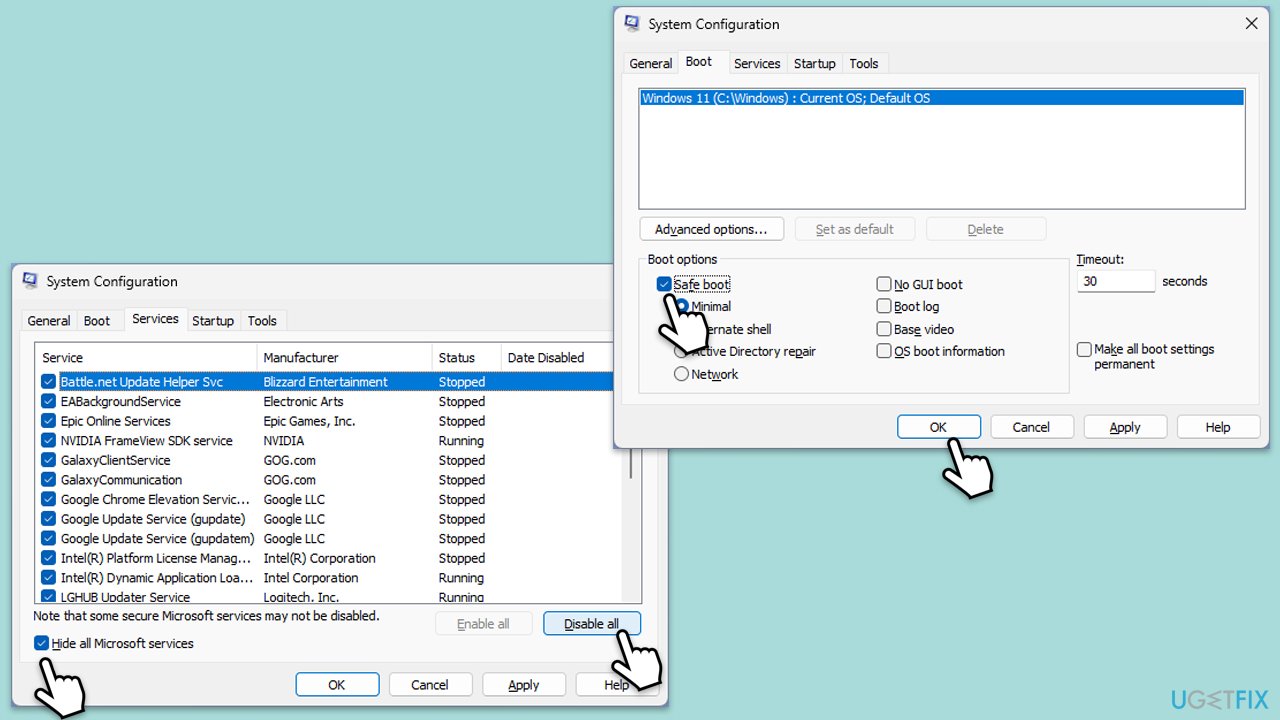
- Type msconfig inWindows Search and press Enter to open the System Configuration window.
- Click on the Services tab and check the Hide all Microsoft Services box.
- Click Disable all to disable non-Microsoft services, then click the Startup tab.
- Open the Task Manager, disable all startup items, and close the Task Manager.
- Go to the Boot tab and mark the Safe boot option.
- Click OK on the System Configuration window and restart your computer.
- If the problem does not exist, third-party software is at fault. To determine which app is causing it try enabling half of the available programs, restarting, and checking if the the problem is still absent. Continue till you find the offending software and either update or uninstall it.
Fix 6. Update drivers
There could be various drivers that are malfunctioning and causing the fastfat.sys BSOD; for example, it could be a third-party driver software or something native to Windows. To avoid a tedious update process, you can always employ an automatic driver updater such as [rev id="Driver Fix"], which can quickly retrieve correct drivers and install them for you. Alternatively, you can proceed with the manual steps:
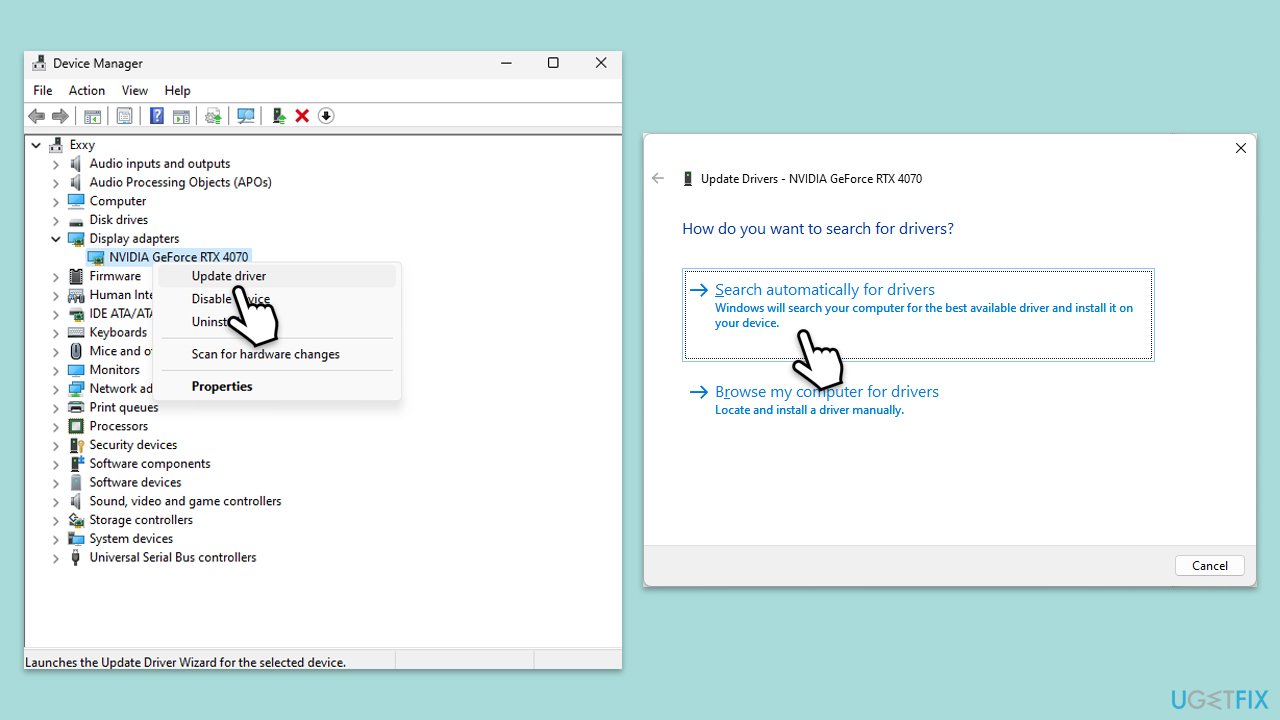
- Right-click on the Start menu and select Device Manager.
- Expand the section you want to update, for example, Display adapters.
- Right-click on your device and choose Update driver.
- Select Search automatically driver.
- Follow the prompts to complete the driver update and restart your computer.
Fix 7. Use System Restore
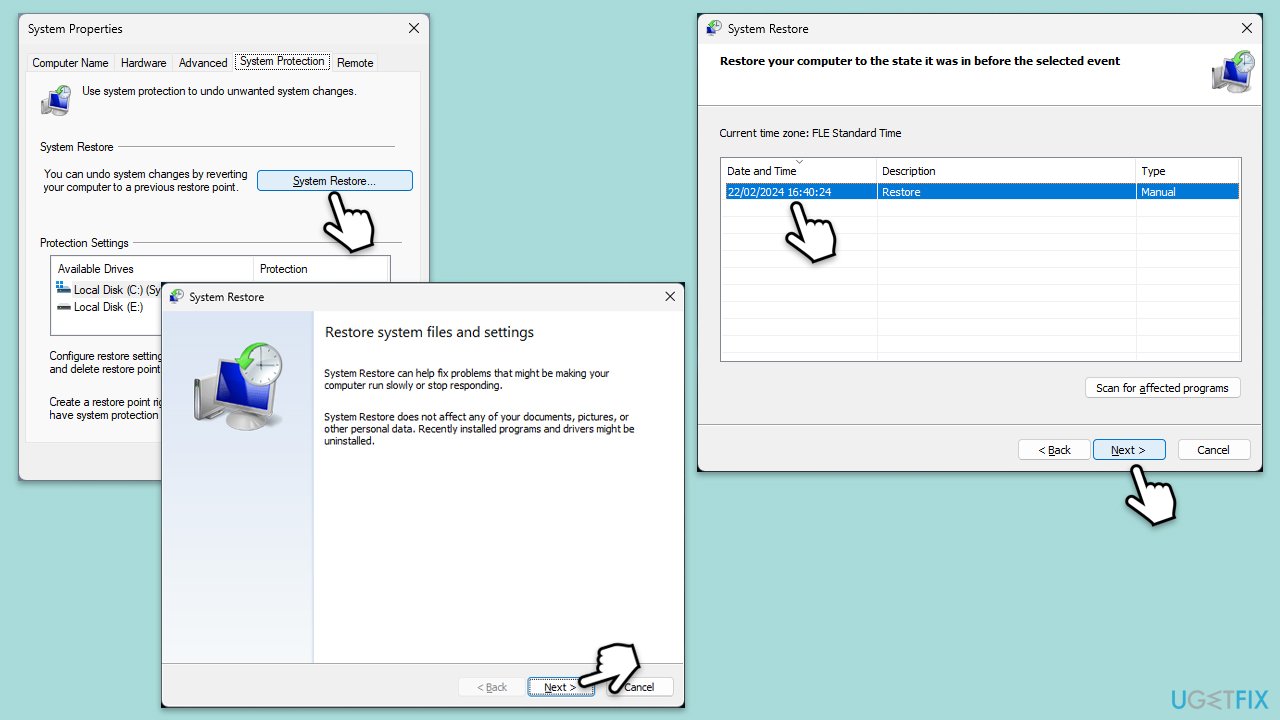
If you are using System Restore, you can take your machine back in time (without losing your personal files) when the problem didn't exist.
- Type in Create a restore point in Windows search and hit Enter.
- Go to System Restore and click Next.
- Mark the Show more restore points option (if available).
- Pick the time when the problem did not exist and click Next.
- Finalize the process - your device will restart.
Fix 8. Reinstall Windows
- Visit the official Microsoft website and download Windows 10 installation media (Windows 11 version).
- Double-click the MediaCreationTool.exe file to launch it.
- When UAC shows up, click Yes.
- Accept license terms.
- Select Language and Edition (make sure it matches the one you have currently installed) or simply mark the Use the recommended options for this PC and click Next).
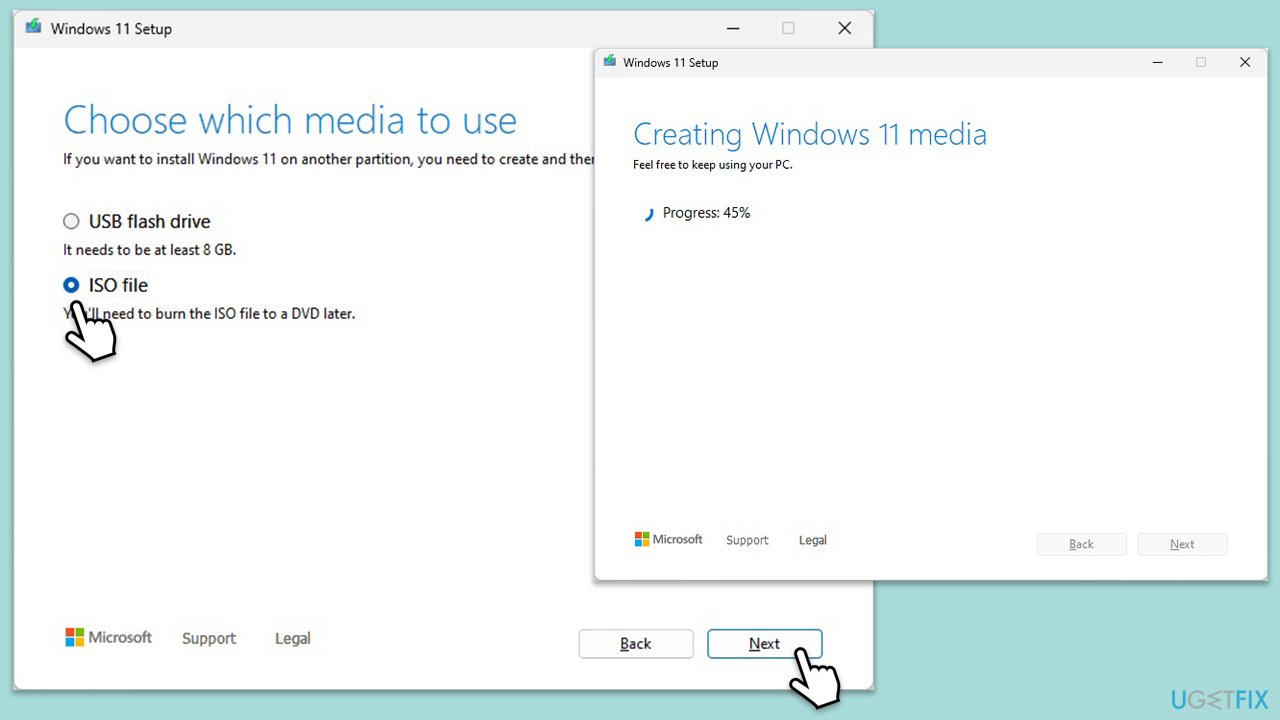
- Select the ISO file and click Next.
- Pick the location for your ISO file and wait till all the needed files are downloaded, then click Finish.
- Go to the location of your ISO file, right-click, and select Mount.
- Run the setup.exe file.
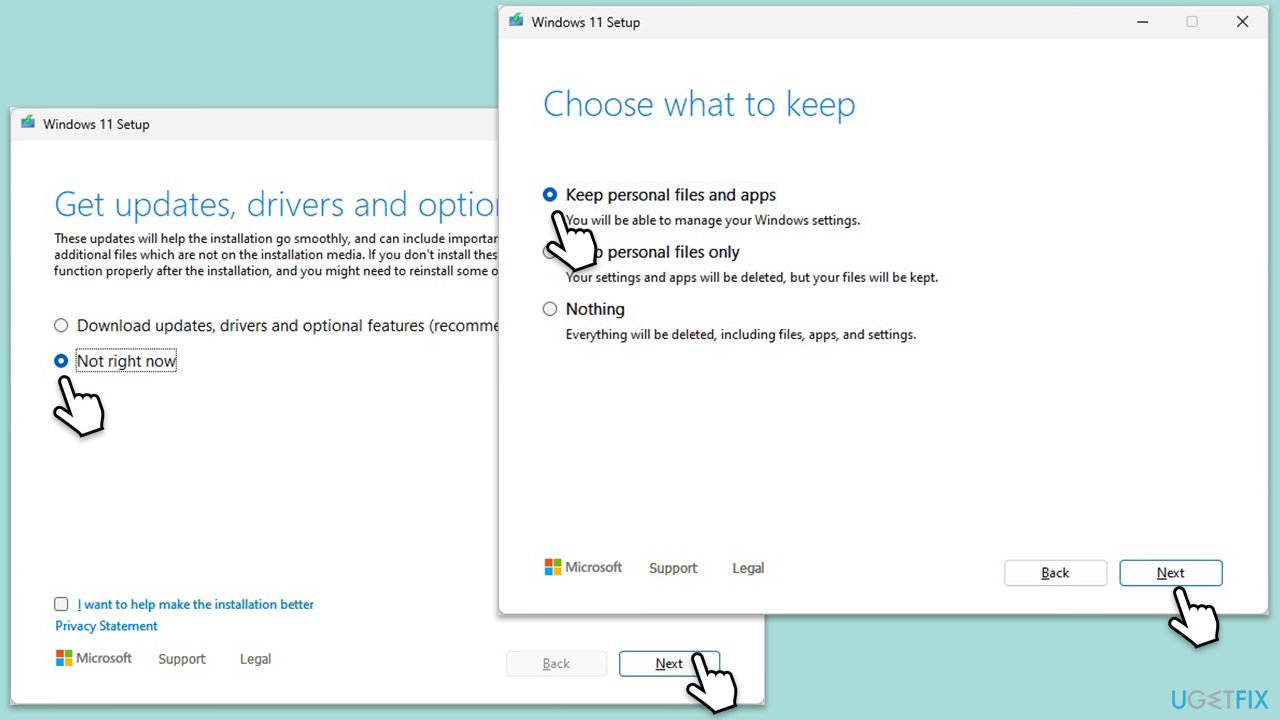
- You will be asked whether you want to update Windows to the latest version - pick Not right now and click Next.
- Accept Terms and Windows will make several checks to ensure everything is fine.
- Click Change what to keep.
- Here, you have several options: Keep your files and apps, Keep files only, or Keep nothing - choose what suits you the best. Click Next.
- Finally, click Install to begin the installation process.
Bottom line
To fix the fastfat.sys BSOD error, users can update their system drivers, run the System File Checker, use disk-checking utilities, perform a clean boot, or utilize System Restore. If these solutions do not resolve the issue, consider seeking professional repair services for tailored assistance.
Frequently asked questions
The fastfat.sys BSOD error in Windows 10 is often caused by issues with the file system, corrupted drivers, or conflicts with third-party software. Running a system file check or updating drivers can often resolve the issue.
To troubleshoot the fastfat.sys BSOD error in Windows 11, you can boot into Safe Mode and perform a system restore or uninstall recent updates that may have triggered the issue. Additionally, checking for disk errors using the CHKDSK utility can help.
Yes, certain antivirus software can interfere with system files and lead to fastfat.sys BSOD errors in Windows. Temporarily disabling or uninstalling the antivirus may help determine if it's the source of the problem.




Report an issue
What's wrong with this guide? We review every report and update or remove content.
Report received — thank you. We'll review and fix it.
You need a free account to submit a report.
Be the first to comment