How to fix
“Fatal error. Code: 00xO4C08”
on Windows
Resolve the “Fatal error. Code: 00xO4C08” on Windows 10/11 swiftly with our expert-tested solutions. Get back on track in minutes!

What causes How to fix “Fatal error. Code: 00xO4C08”?
- Pop-up message from a fake site
- Adware infection
- Installation of suspicious applications
- Scammers trying to trick users
- Technical support number provided in the alert
Repairs Windows system files, removes malware, and restores a clean OS state — without reinstalling.
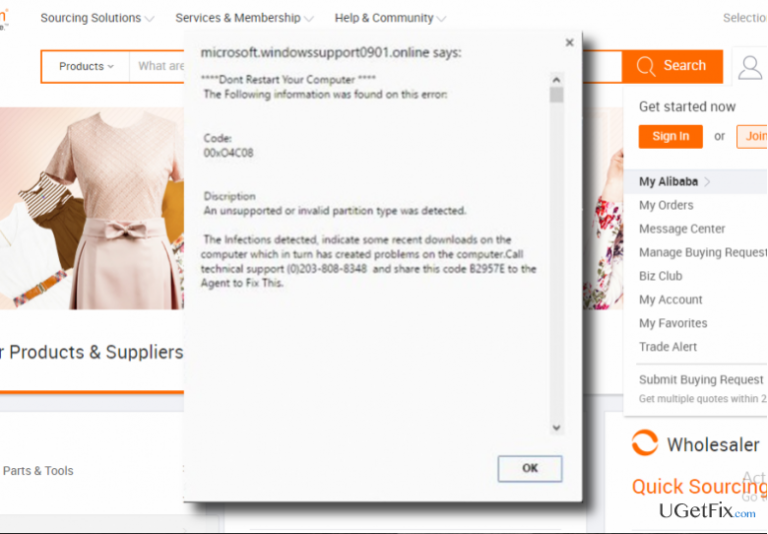
When I browse with Chrome, random pages show me a pop-up message, which reports about an infection and indicates “Fatal error. Code : 00xO4C08.” A have a slight suspect that this may be a scam because the pop-up includes a support number. Could you please advice?
00xo4c08 is a code indicated on a pop-up message that is typically brought by Microsoft.windowssupport0901.online site. The notification is quite intimidating as it prompts the user not to restart the PC claiming that the system has been infected and that “An unsupported or invalid partition type was detected.” The error message also indicates a technical support number and the code (e.g. B2957E), which is to be provided to the technician on the other side of the handset. Seeing Fatal error. Code: 00xO4C08 does mean that your PC is infected. However, it’s very important to understand that the message itself is the result of the infection. Microsoft.windowssupport0901.online is a fake site, which is exploited by scammers who are trying to trick computer users and prompt them to call for the technical support number provided on the alert. Many people have already fallen for this trick. While some of the victims lost a considerable amount of money, the others were tricked into installing dangerous programs, what may lead to even worse problems.
Error code 00xo4c08 is deemed as fake technical support scam. It can show up Google Chrome, Internet Explorer, Microsoft Edge, Mozilla Firefox, and Safari web browsers. However, a recent research has shown that it most frequently affects Google Chrome browser. Microsoft.windowssupport0901.online pop-up virus is triggered by an adware infection, which might have been installed along with a recently installed free application. It means that the only solution to fix 00xO4C08 error code is not to call for a bogus technical support number (usually (0)-203-808-8348, but may vary), but rather to uninstall suspicious apps from the system. This can be done both manually and automatically. Antivirus or third-party optimization tools, such as [d1], are programmed to detect both virus and malware infections, so running a scan with such a tool would help to fix Fatal error. Code : 00xO4C08. If, however, you prefer manual fixes, the guide below can help you.
How to fix “Fatal error. Code: 00xO4C08” on Windows?
Step 1. Boot your PC in Safe Mode with Networking
To fix Fatal error. Code: 00xO4C08 on Windows, it’s a must to boot up in Safe Mode because malware seeks to disable anti-virus program and let the system unprotected. Therefore, in order to get rid of this bogus alert, perform the following steps first:
Windows 7 / Vista / XP
- Click Start and select Shutdown
- Then click Restart and OK
- When the Windows startup window shows up, press F8 until you see Advanced Boot Options window
- Click Safe Mode with Networking
Windows 10 / Windows 8
- Click Power button and press Shift key
- Select Restart and the Troubleshoot
- Click Advanced options and select Startup Settings
- Finally, select Restart
- When the system boots up, select Enable Safe Mode with Networking
Step 2. Remove suspicious applications
Once your PC boots up in a safe mode with networking, remove all suspicious programs from the system. This can be done via Control Panel. However, keep in mind that malware tends to install a bunch of files in diverse locations, which is why you may leave some malicious files and keep receiving support scam error code 00xO4C08. To prevent this from happening, our recommendation would be to uninstall these programs using anti-malware, such as Reimage.
Step 3. Reset web browsers
It might be that the malware installed on your Windows OS modified default web browser's settings. It means that even the removal of the malicious application may not prevent error code 00xO4C08 from appearing. To fix it permanently, you may need to reset each of your web browsers. For this purpose, do the following:
Google Chrome:
- Open Google Chrome, go to Menu by clicking on three-bar button at the top right corner.
- Select Tools and then go to Extensions.
- Look for suspicious browser extensions, select them and click on Trash icon.
- Open menu again and go to Settings. Find On startup part, and click Set pages next to Open a specific page or a set of pages option.
- Remove suspicious websites by clicking on X next to them, and then enter a URL of the site that you would like to set as your homepage.
- Then go to Menu → Settings → Manage Search engines.
- Remove all suspicious entries and leave only the search engine that you would like to use.
- After that, go to Menu → Settings, and then click on Reset Browser Settings..
- Once Reset browser settings window appears, click Reset to proceed.
Mozilla Firefox:
- Open Mozilla Firefox, and click on the three bars icon in the top right corner of the window.
- Then go to Add-ons → Extensions.
- Look for suspicious browser extensions, click on them, and select Remove.
- Then open Mozilla Firefox menu once again, and go to Options → General.
- In the Startup section, click Restore to Default, or just enter another Home Page URL and click OK.
- After that, open Firefox menu, go to Troubleshooting Information and then click Reset Firefox.
- When a pop-up message asking to confirm your choice appears, click Reset Firefox again.
Internet Explorer:
- Open IE browser, click on the Gear icon at the top right corner of the browser, and go to Manage Add-ons.
- Look through all questionable browser extensions, right-click each of them, and then select Disable.
- Open menu once again and go to Internet Options. In General tab, replace the Homepage address with a URL of your choice.
- After that, press Apply to save.
- Now open IE menu one more time, go to Internet Options → Advanced, and click Reset.
- When the Reset Internet Explorer Settings window shows up, put a tick next to option Delete personal settings and hit Reset again.
Microsoft Edge:
- Open Microsoft Edge and click More (three dots at the top right corner).
- Click Settings to open more options.
- Once Settings window shows up, click Choose what to clear button under Clear browsing data option.
- Now select everything that you want to remove and click Clear button.
- Now right-click on the Win logo and select Task Manager.
- Search for Microsoft Edge on the Processes tab, right-click on it and select Go to details option.
- When Details tab shows up, find every entry with Microsoft Edge name in it.
- Right click on each of them and select End Task.
Safari:
- Launch Safari, and then find and click Safari in the menu bar at the top of the screen. Then go to Preferences.
- Go to Extensions tab and look for suspicious entries. Uninstall each of them.
- Then go to General tab and check what URL is entered into Homepage box. If you see a suspicious link, remove it and replace it with a website that you want to set as a homepage. Remember that you must type in http:// before entering a preferred URL.
- Reset Safari. Click Safari, and click on Reset Safari… option.
- When Reset Safari pop-up appears, check all checkboxes and click Reset.
Bottom line
To fix the Fatal error. Code: 00xO4C08, uninstall suspicious apps from your system, either manually or using antivirus or third-party optimization tools. If these solutions do not work, consider seeking professional assistance.
Frequently asked questions
The error code 00xO4C08 typically indicates a failure in the Windows update process or an issue with system files. It can prevent your system from updating or functioning properly.
To fix the 00xO4C08 error, try running the Windows Update Troubleshooter and check for any corrupted system files using the System File Checker tool. This can help restore normal functionality.
To minimize the chances of the 00xO4C08 error reappearing, ensure your Windows 11 system is regularly updated and perform routine maintenance, such as disk cleanup and checking for disk errors.




Report an issue
What's wrong with this guide? We review every report and update or remove content.
Report received — thank you. We'll review and fix it.
You need a free account to submit a report.
Be the first to comment