How to fix
File copying stuck
on Windows
Resolve file copying issues in Windows 10 or 11 effortlessly. Follow our expert-tested solutions and get back to work in minutes, with zero traces left.

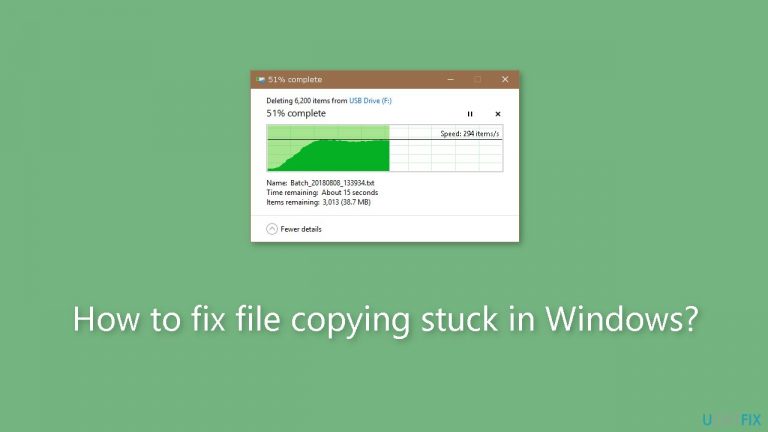
What causes How to fix file copying stuck in Windows?
- Insufficient drive storage space
- Corrupted files on the drive
- Data fragmentation
- Incompatibility with the USB port or drive
- Large file size causing transfer issues
Repairs Windows system files, removes malware, and restores a clean OS state — without reinstalling.
Hello. When I try to copy files from my USB drive to Windows the progress bar keeps freezing and the copying process gets stuck. Is there a way to fix this?
Numerous people have frequently reported the problem of file copying freezing in Windows on various Windows forums. When users try to transfer or move larger files to or from external storage devices, this irritating scenario frequently happens. The copying progress bar in Windows Explorer freezes, usually around halfway through the procedure, showing zero bytes transferred instead of finishing without an issue. This interruption in the transfer of files can be frustrating for users and cause a number of issues.
Users' productivity and data management duties may be significantly impacted if the file copying progress bar freezes. For instance, users may have difficulties when attempting to backup vital files to external storage devices, such as external hard drives or USB flash drives. Similar to this, users wanting to move huge media assets, including videos or high-resolution photographs, may run into problems finding an effective means to do it. Larger file updates or program installations may be hindered by this problem, making it difficult to maintain an efficient system.
This problem has an effect that goes beyond just the postponed chores. Particularly when users employ force to end the copying process, it might result in data fragmentation and inconsistencies. Furthermore, failure to complete the copying process could cause users to suffer serious setbacks if the files being copied are necessary for work, projects, or personal usage.
In this guide, you will find 7 steps that should help you fix file copying stuck in Windows. You can also run a repair tool like [d1] that can fix most system errors, BSODs,[ref en-1] corrupted files, and registry[ref en-2] issues. Otherwise, follow the step-by-step instructions below.
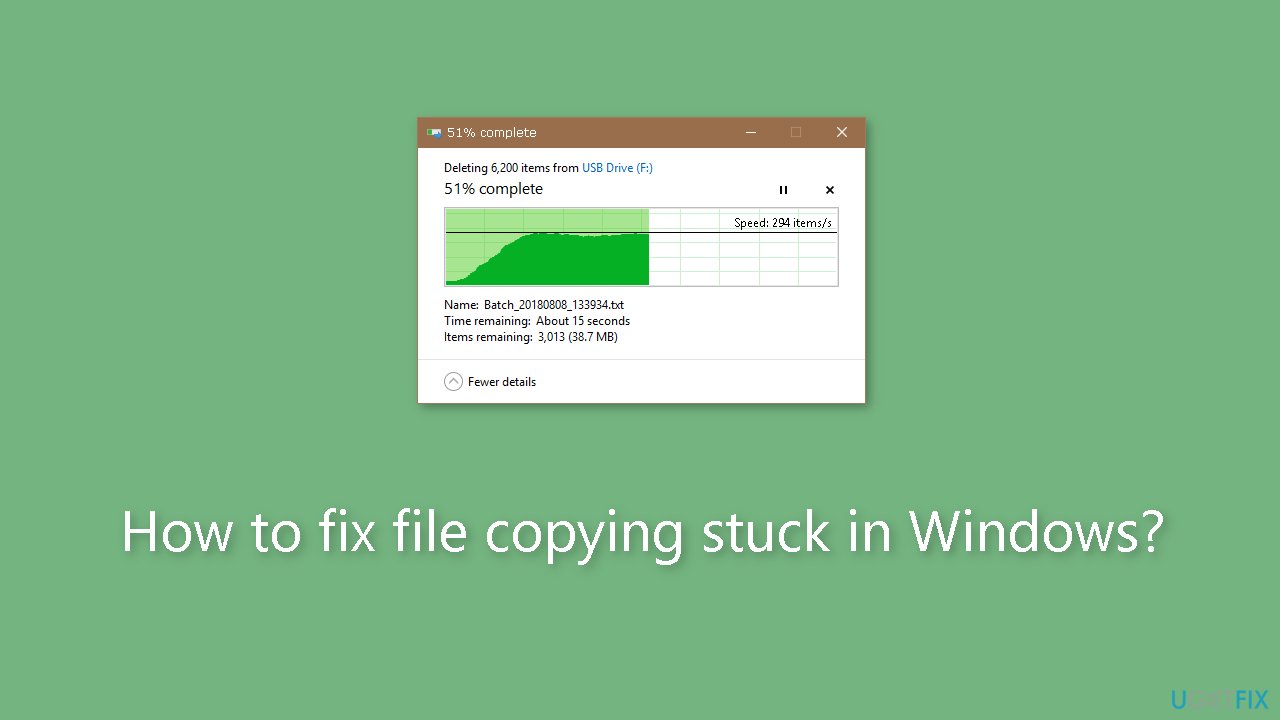
Method 1. Check Drive Storage Space
- Plug the drive you want to copy files between into a USB slot on your PC.
- Press and hold the Windows key on your keyboard.
- While holding the Windows key, press the E key to open File Explorer.
- Locate your external storage drive in the list.
- Right-click on the external storage drive.
- From the context menu, select the Properties option.
- In the Properties window, navigate to the General tab.
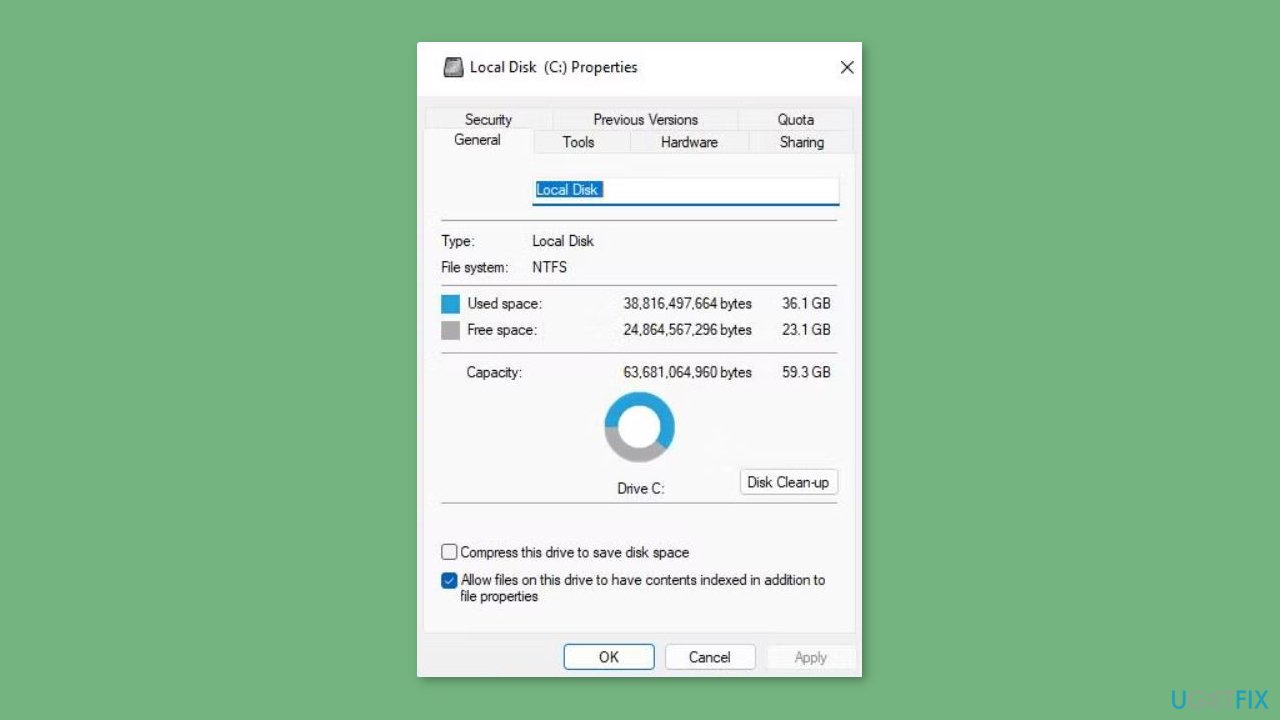
- Look for a ring chart that represents your drive's storage usage.
- Check if the available storage space on the drive is greater than the size of the files you want to copy.
- If the available storage is insufficient, you'll need to free up space on the drive.
Method 2. Check Disk
- Connect your PC to the external drive that you want to scan.
- Press the Windows key + S to access the search tool.
- Inside the search box, type the search phrase cmd.
- Look for the matching Command Prompt search result.
- Right-click on the Command Prompt search result and choose Run as administrator.
- In the Command Prompt window that opens, enter the following command:
chkdsk [drive letter]: /f /r /x
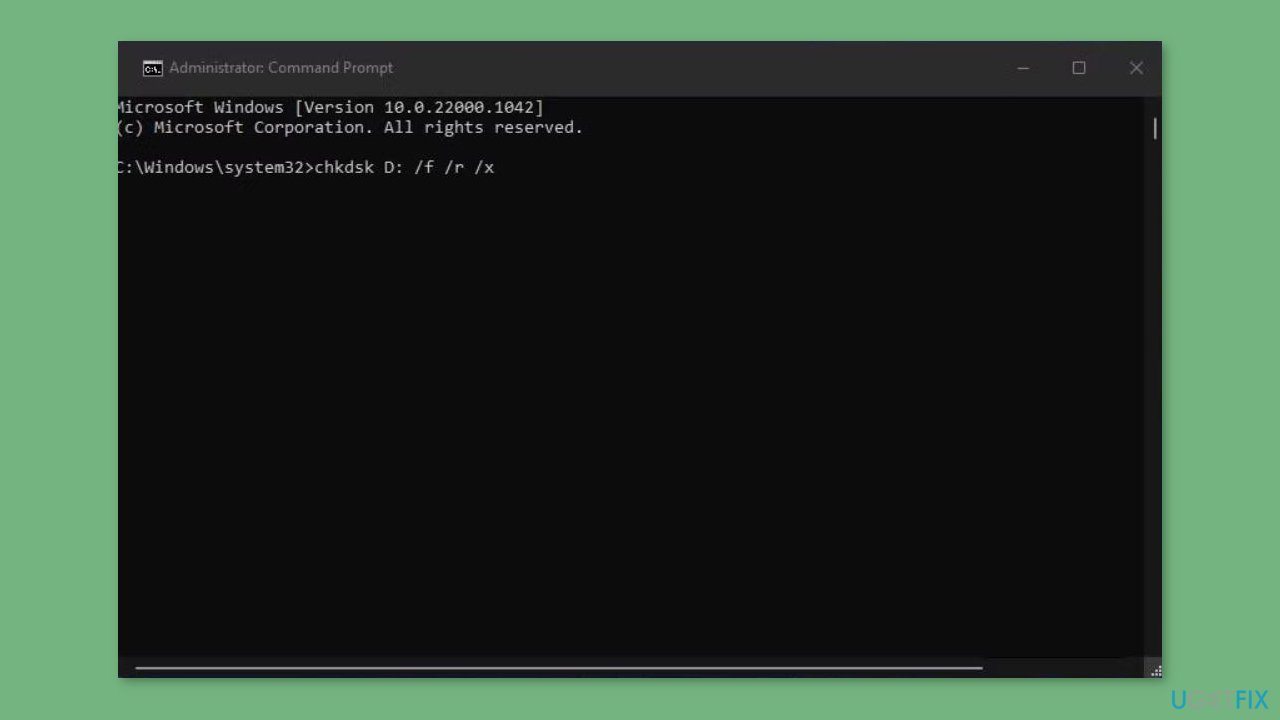
- Replace [drive letter] with the actual drive letter of the external drive.
- Press Enter to execute the scan.
Method 3. Disable the Windows Search Service Indexing
- Open the Run dialog by pressing the Windows key + R.
- Type services.msc and click OK.
- A Services window will appear.

- Locate Windows Search in the list, and double-click on it to access its properties window.
- In the properties window, find the Startup type drop-down menu and select the Disable option.
- Additionally, click on the Stop option to halt the service.
- Click the Apply button to save the new settings for Windows Search.
- Once done, attempt to copy the files with Windows Search disabled.
Method 4. Enable Write Caching
- Ensure that your intended destination drive is connected to your PC.
- Access the Device Manager app.
- In Device Manager, locate and click the arrow next to the Disk drives category to expand it.
- Right-click on your external drive from the list and choose Properties.
- Within the properties window, navigate to the Policies tab.
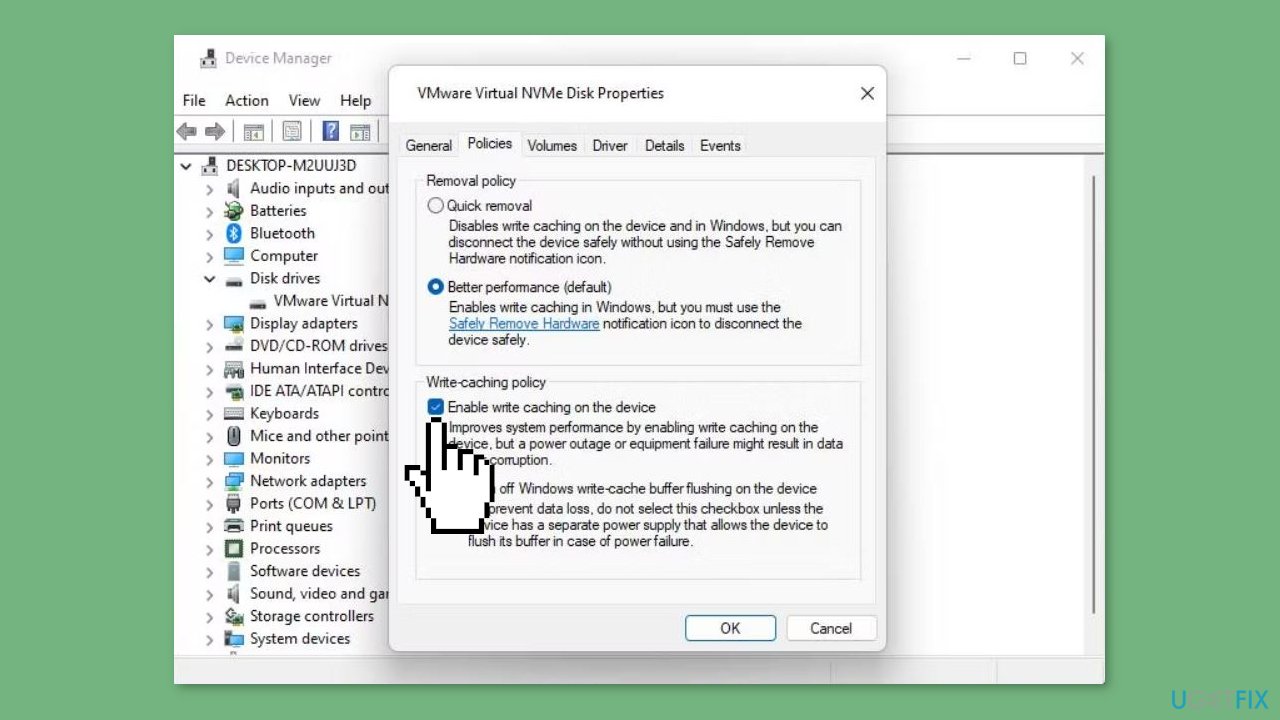
- Check the checkboxes for Better Performance and Enable write caching on the device.
- Click the OK button in the device properties window to apply the changes.
Method 5. Turn off the Remote Differential Compression
- Open the Type here to search box.
- Enter a keyword related to Windows features.
- Choose the search result labeled Turn Windows features on or off.
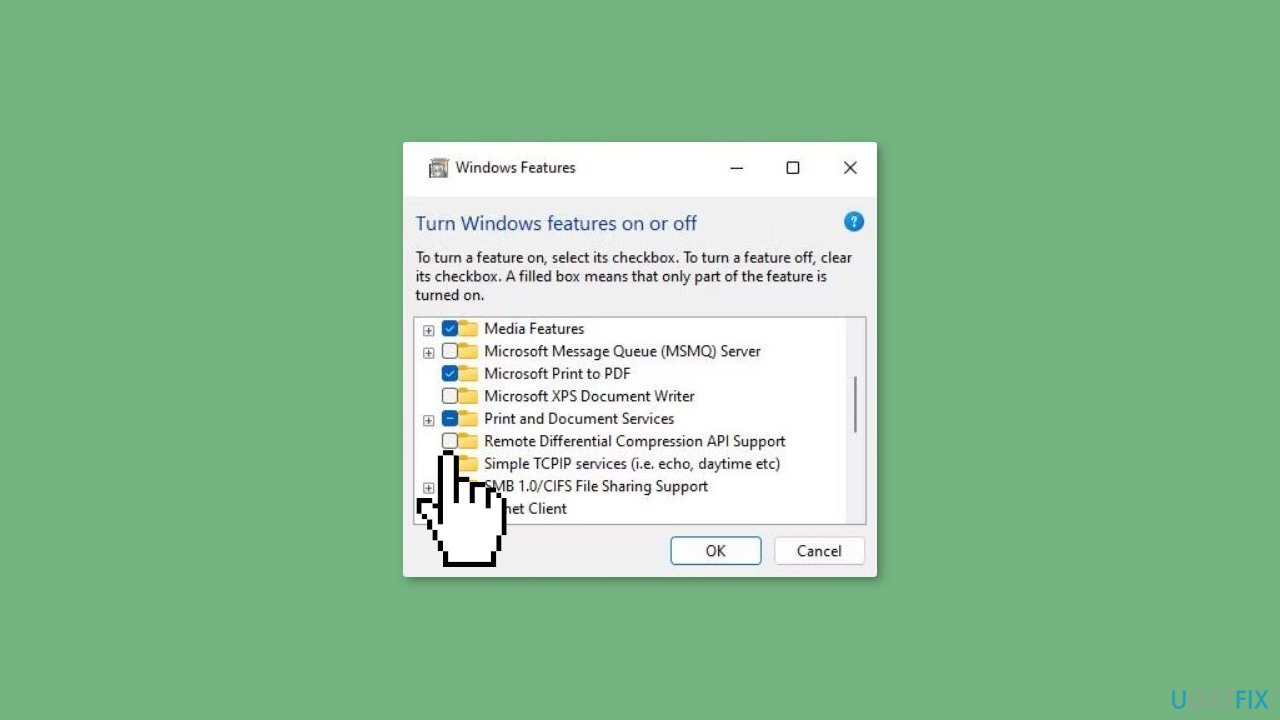
- Uncheck the checkbox next to Remote Differential Compression.
- Click OK to confirm and disable the Remote Differential Compression feature.
- Restart your Windows system after turning off the Remote Differential Compression feature.
Method 6. Update Drivers
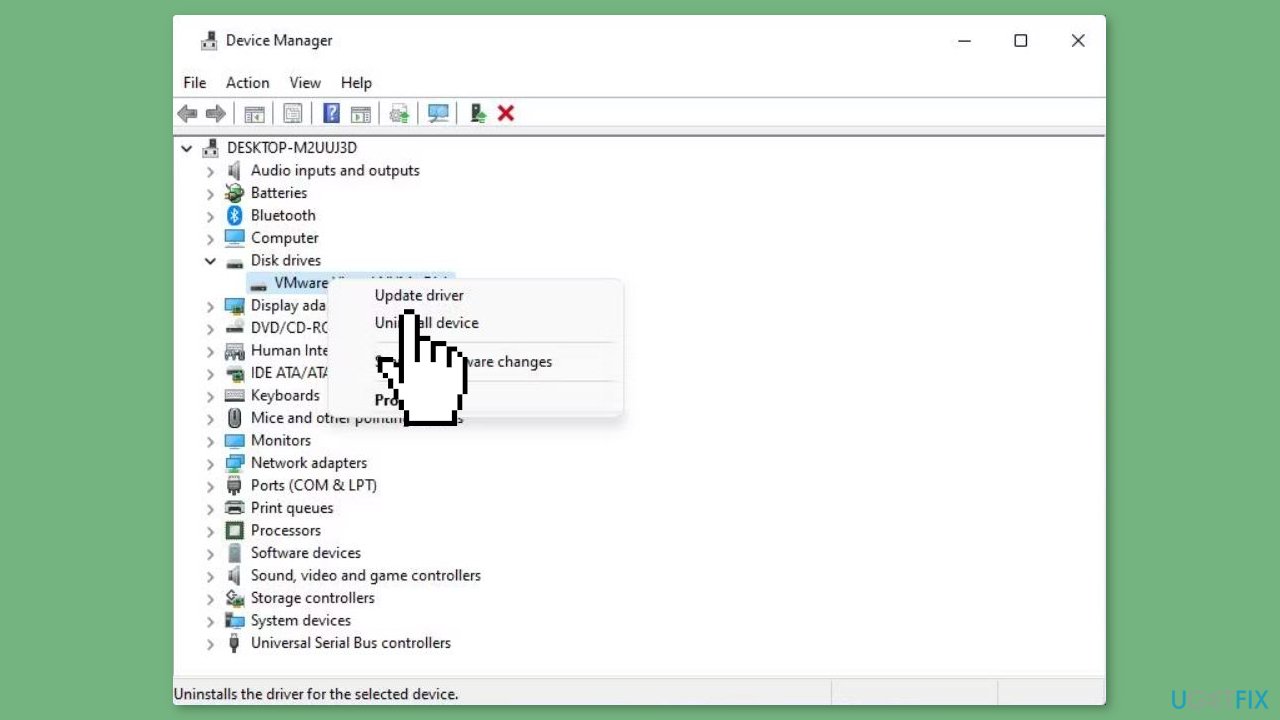
- Open Device Manager.
- Double-click on a Disk drives category to expand and reveal the devices within.
- Right-click on your disk device, then select Properties.
- Within the properties window, click on the Driver tab.
- Click on Update Driver.
- Choose the option to Search automatically for drivers.
- Wait for the driver update process to complete.
You can also use a dedicated utility like [rev id="DriverFix"] that can find the best drivers for your machine and install them automatically.
Method 7. Reformat the Drive to NTFS
- Plug your USB drive into a laptop or desktop.
- Launch the Explorer file management tool.
- Right-click on the USB drive to bring up a context menu.
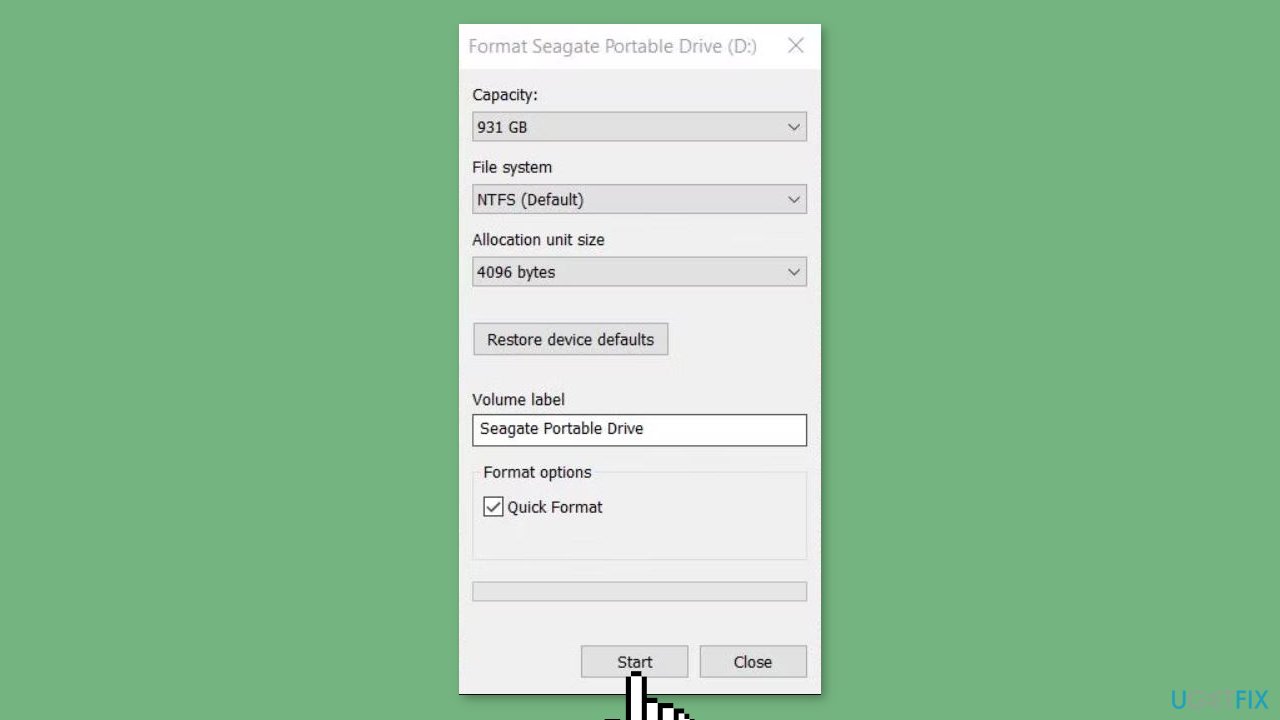
- Choose the Format option from the menu.
- In the format window, select NTFS from the File system drop-down menu.
- Click the Start button to initiate the formatting process for your storage device.
Bottom line
To fix the file copying issue, check the drive storage space, ensure files are not corrupted, and consider using a repair tool. If the problem persists, follow the detailed step-by-step instructions provided in the guide.
Frequently asked questions
Try pausing and then resuming the file transfer, as this can sometimes resolve the issue. If that doesn't work, consider restarting Windows Explorer from the Task Manager.
You can use the built-in Windows troubleshooter for file and folder issues, which may help identify and resolve the problem. Additionally, ensure that your storage device is not experiencing hardware issues.
To prevent future issues, make sure your Windows 10 or Windows 11 system is up to date and consider using a third-party file transfer tool that may handle larger files more efficiently.




Report an issue
What's wrong with this guide? We review every report and update or remove content.
Report received — thank you. We'll review and fix it.
You need a free account to submit a report.
Be the first to comment