How to fix
File Explorer crashing after clicking Home tab
on Windows
Resolve File Explorer crashes in Windows 11 easily with our expert-tested solutions. Get back to seamless browsing in minutes!

What causes How to fix File Explorer crashing after clicking Home tab in Windows 11?
- Files from Office.com option in File Explorer
- Damaged system files
- Outdated graphics driver
- Corrupted Winsock configurations
Repairs Windows system files, removes malware, and restores a clean OS state — without reinstalling.
So, every time I attempt to open the Home tab in File Explorer, it instantly crashes. I am using Windows 11. I hope you can help me with this because it's quite annoying.
File Explorer is a critical application in Windows operating systems that permits users to browse, manage, and organize their files and folders. Windows 11, the latest release from Microsoft, has brought with it several new features and enhancements, including the addition of the Home tab within File Explorer. This Home tab is designed to provide users with quick access to frequently used files and folders, making daily tasks more streamlined.
However, some users have reported a specific issue related to this new addition. Upon clicking the Home tab, File Explorer crashes for certain individuals. This problem is not universal but has been significant enough to attract attention.
The reasons behind this issue could be multifaceted. For many users, the problem was linked to the option within File Explorer to show files from Office.com. By navigating to the File Explorer Options and removing this specific choice, the majority of affected users were able to rectify the problem.
However, this solution may not apply to everyone, as other underlying reasons could contribute to the crashing of File Explorer. Damaged system files, which might have been corrupted due to various reasons, could cause this problem. An outdated or damaged graphics driver might also lead to instability within File Explorer. Additionally, issues with Winsock, a critical component for network communication in Windows, might be a potential cause.
To address these concerns, users need to be willing to explore and investigate various parts of the system. This might involve checking for system file integrity, updating or reinstalling graphics drivers, and resetting Winsock configurations. For some, these tasks might be cumbersome and time-consuming.
If you are facing this issue, detailed instructions and guidelines for addressing these problems can be found below the article. These solutions are tailored to meet different circumstances and can help restore the normal function of File Explorer in Windows 11.
For those looking for a more automated approach, the [d1] PC repair tool is an excellent option that can address most common Windows issues automatically, saving time and effort in troubleshooting.
Fix 1. Clear File Explorer history
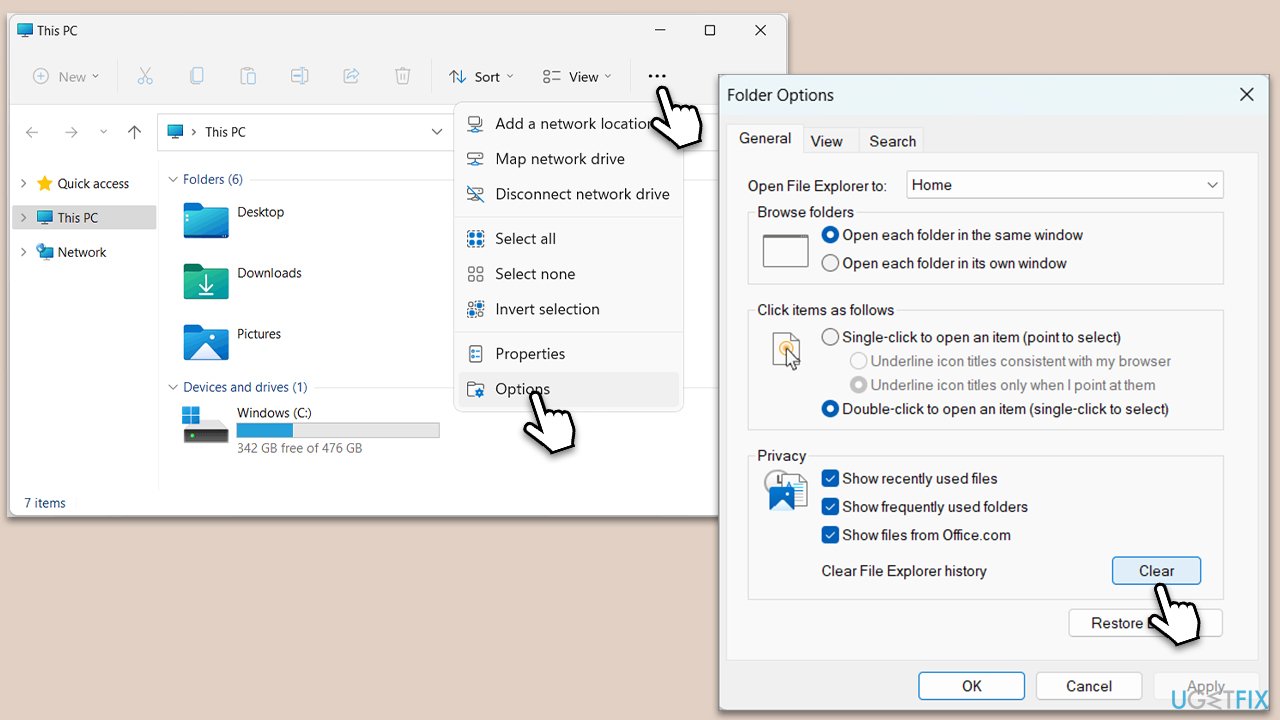
Clearing File Explorer's history can eliminate any cache or temporary files that might be causing conflicts with the Home tab function.
- Press Win + E to open File Explorer.
- At the top, click three horizontal dots and select Options.
- In the General tab, locate the Privacy section at the bottom.
- Click Clear.
Fix 2. Remove the "Show files from Office.com" option
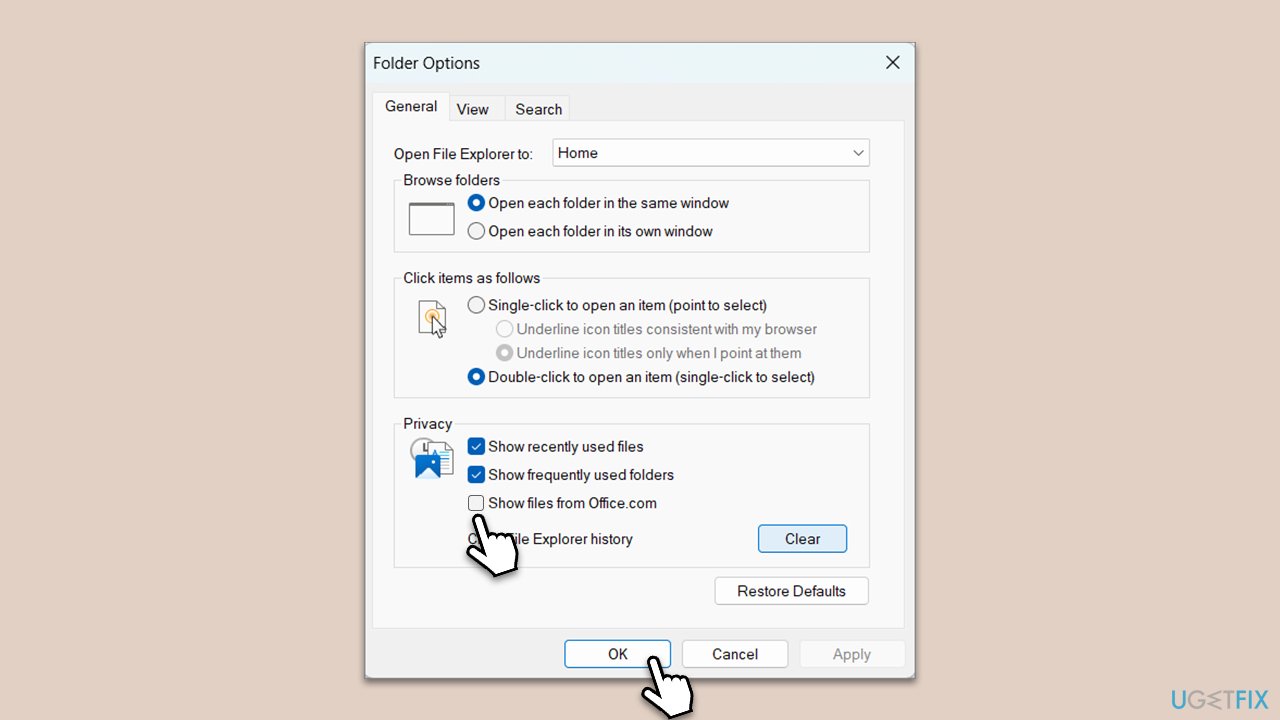
This option may cause File Explorer to crash when interacting with the Home tab. Disabling it has resolved the issue for many users.
- Open File Explorer and then go to Options again.
- Uncheck the Show files from Office.com option.
- Click OK.
Fix 3. Update GPU drivers
Outdated or corrupted graphics drivers may lead to File Explorer crashes. Updating these drivers ensures compatibility with the latest Windows updates. You can do this in several ways. One of the most common ones is downloading the latest driver from your GPU manufacturer's website manually, although this might be troublesome for some. In such case, you could employ an automatic driver updater such as [rev id="DriverFix"]. Alternatively, try updating directly from Windows:
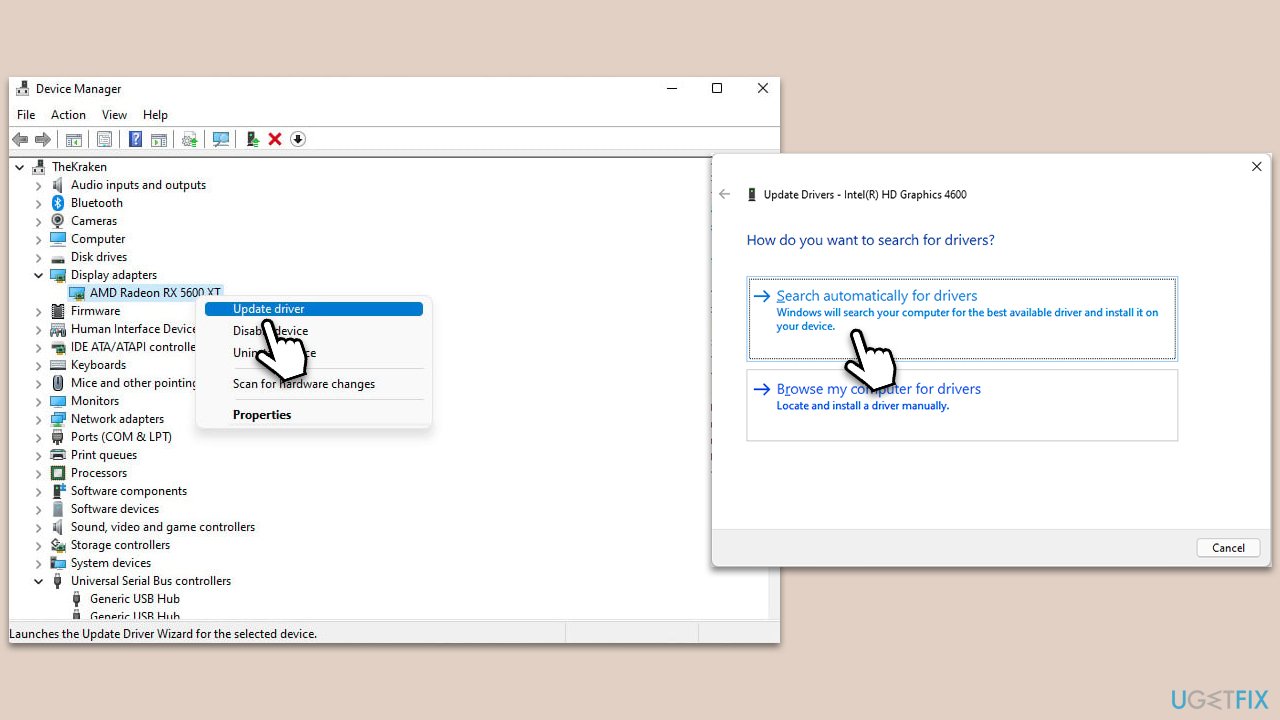
- Right-click on Start and pick Device Manager.
- Expand the Display Adapters section.
- Right-click on your graphics card and select Update Driver.
- Select Search automatically for drivers and wait.
- Once done, restart your device.
Fix 4. Reset Winsock
Winsock is responsible for handling network services. A corrupted Winsock configuration might affect File Explorer's performance.
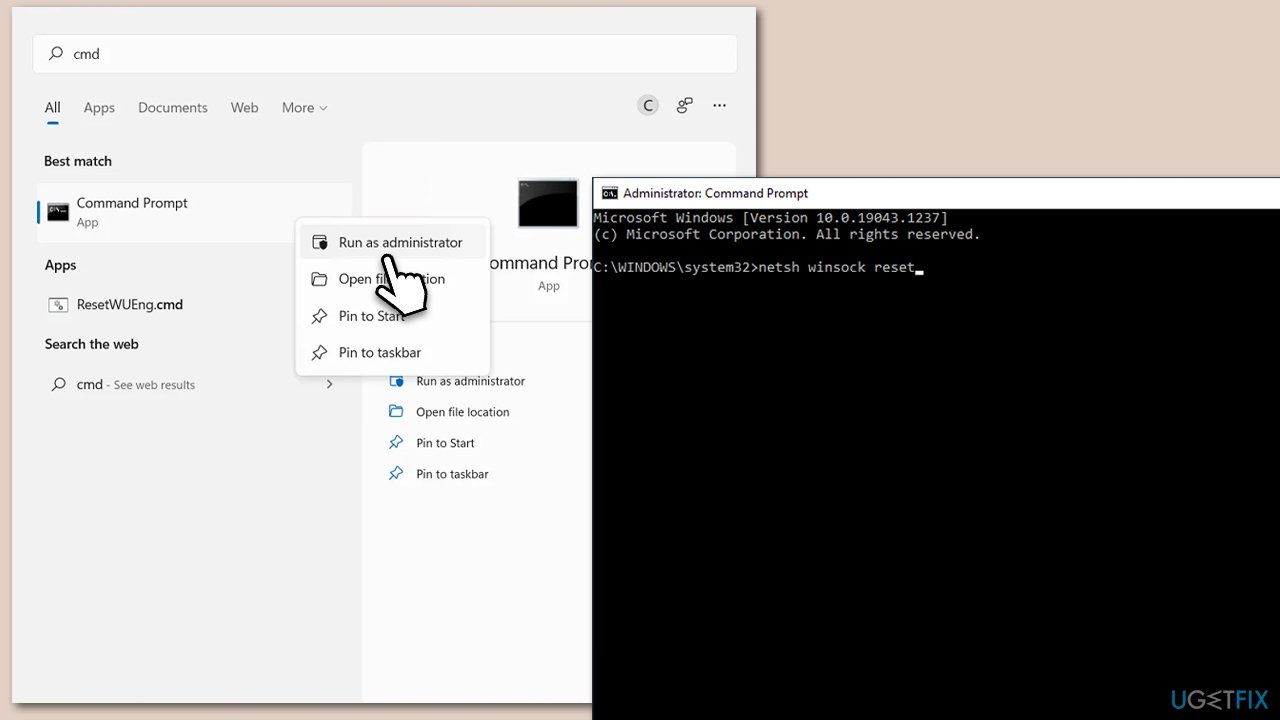
- Type cmd in Windows search bar, right-click on Command Prompt, and select Run as administrator
- When User Account Control shows up, click Yes
- Type in the following command, and press Enter:
netsh winsock reset - Close down everything and restart your PC.
Fix 5. Run SFC and DISM
Running the System File Checker and Deployment Image Service and Management Tool can repair damaged or corrupted system files that may lead to File Explorer crashing.
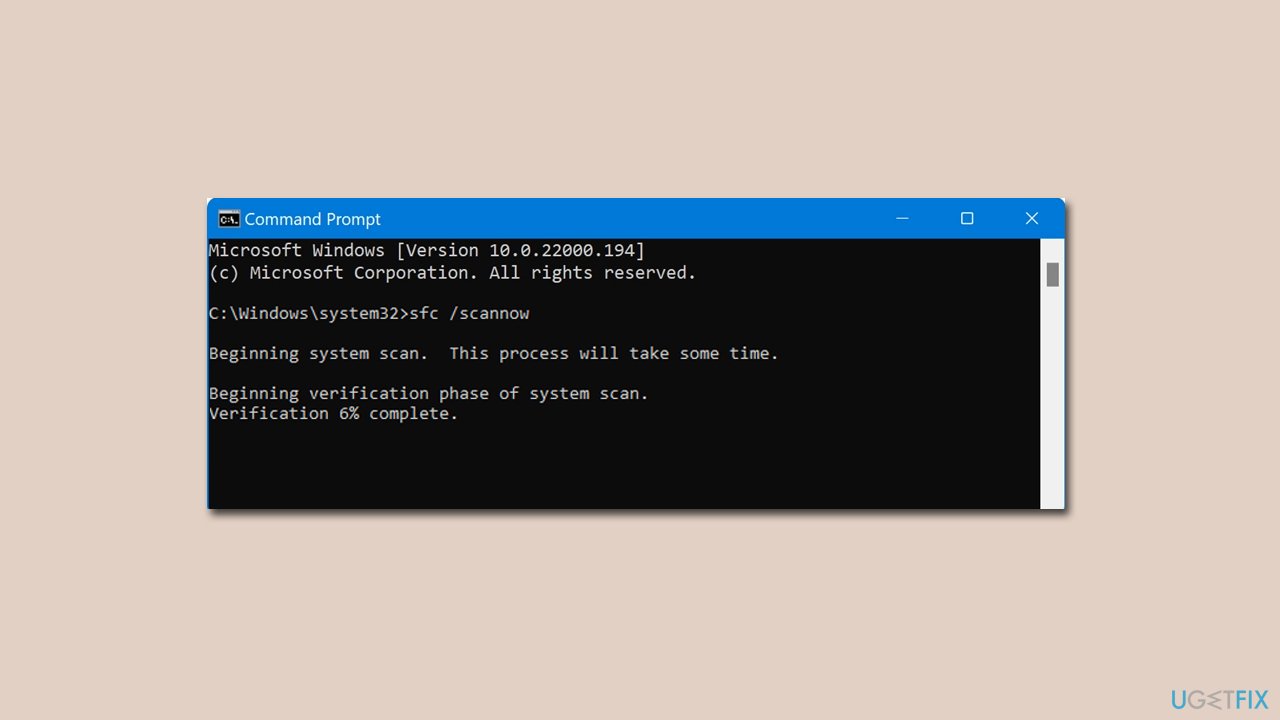
- Open Command Prompt as administrator.
- In the Command Prompt window, paste the following command and hit Enter:
sfc /scannow - Once the scan is complete, use the following commands and press Enter after each:
Dism /Online /Cleanup-Image /CheckHealth
Dism /Online /Cleanup-Image /ScanHealth
Dism /Online /Cleanup-Image /RestoreHealth - (Note: if you get an error executing this last command, add /Source:C:\RepairSource\Windows /LimitAccess to it and try again).
- Restart your PC.
Bottom line
To fix the File Explorer crashing issue, users can remove the option to show files from Office.com, check system file integrity, update or reinstall graphics drivers, and reset Winsock configurations. If these solutions do not resolve the problem, further investigation into other potential causes may be necessary.
Frequently asked questions
Try restarting File Explorer from the Task Manager by selecting it and clicking 'Restart'. If the issue persists, consider running the System File Checker to repair any corrupted files.
Go to Settings > Update & Security > Windows Update and click 'Check for updates' to ensure you have the latest patches that may resolve File Explorer crashes.
You can check your folder options by opening File Explorer, going to View > Options, and then adjusting settings related to the Home tab and navigation pane.




Report an issue
What's wrong with this guide? We review every report and update or remove content.
Report received — thank you. We'll review and fix it.
You need a free account to submit a report.
Be the first to comment