How to fix
File Explorer not highlighting selected files
on Windows
Resolve the File Explorer highlighting issue in Windows 10 or 11 quickly and easily. Expert-tested solutions ensure your files are visible again!

What causes How to fix File Explorer not highlighting selected files in Windows?
- Corrupted system files
- Graphics driver issues
- Recent Windows update causing conflicts
- High Contrast mode settings
- Background color settings affecting visibility
Repairs Windows system files, removes malware, and restores a clean OS state — without reinstalling.
Hello. When I select a file or folder in File Explorer, I cannot see which items I selected. Previously, File Explorer would highlight selected files or folders. How do I fix this?
File Explorer is a file manager application that comes pre-installed with the Windows operating system. It is used to navigate, organize and manage files and folders on a computer. One of the common issues that users face with File Explorer is that it does not highlight the selected files and folders, making it difficult to determine which files are selected. This can be particularly frustrating when trying to copy multiple files, as it becomes hard to tell which files have been selected for copying.
This issue can impact users in various ways, such as making it harder to organize and manage files, leading to confusion and mistakes. It can also lead to wasted time, as users may have to double-check which files have been selected before proceeding with a task.
There are several possible solutions to this issue, such as restarting the Windows Explorer process, using the High Contrast mode, or changing the background color of the system. Other solutions include running the system file checker. Some users have also reported that updating their graphics driver[ref en-1] or uninstalling the latest Windows update has helped them to fix the issue. It is important to note that the solution may vary depending on the cause of the problem.
In this guide, you will find 10 steps that should help you fix File Explorer not highlighting selected files in Windows. Keep in mind that you can also use an automatic solution for a faster process. [d1] is a maintenance tool that can fix most system errors, BSODs,[ref en-2] corrupted files, and registry[ref en-3] issues. Otherwise, follow the step-by-step instructions below.
Solution 1. Fix Corrupted System Files
Use Command Prompt commands to repair system file corruption:
- Open Command Prompt as administrator
- Use the following command and press Enter:
sfc /scannow
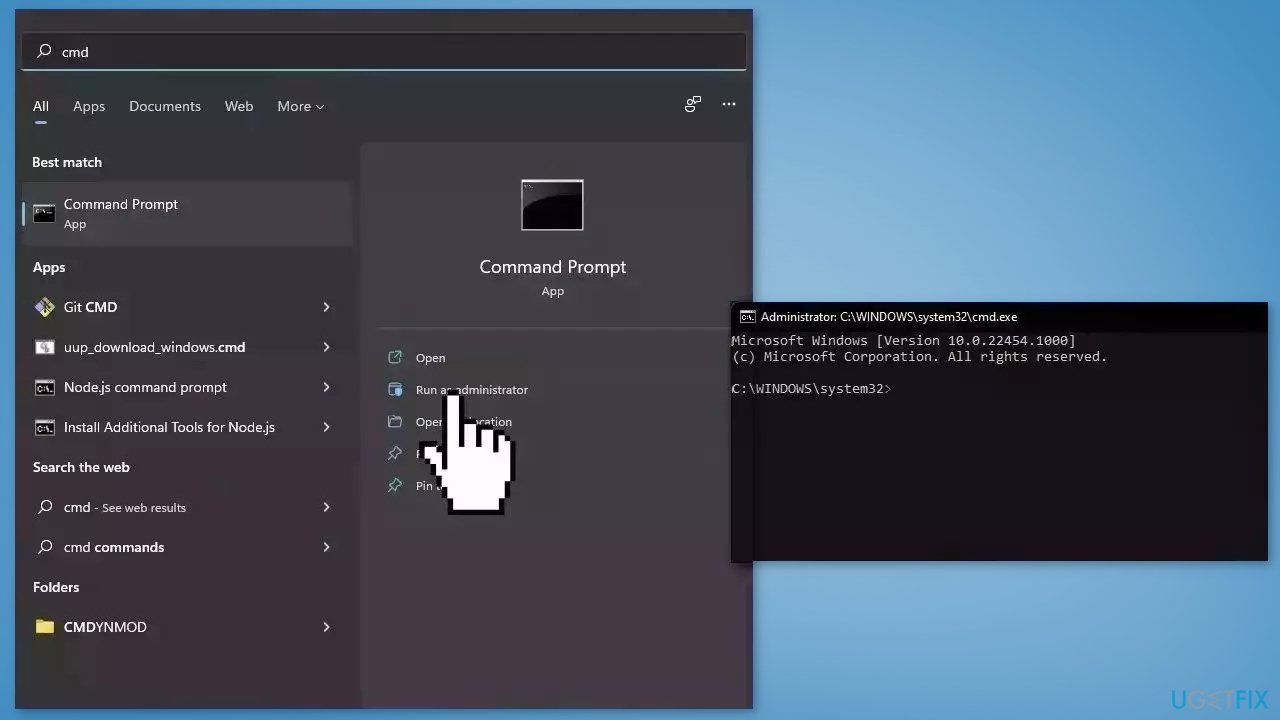
- Reboot your system
- If SFC returned an error, then use the following command lines, pressing Enter after each:
DISM /Online /Cleanup-Image /CheckHealth
DISM /Online /Cleanup-Image /ScanHealth
DISM /Online /Cleanup-Image /RestoreHealth
Solution 2. Restart File Explorer
- Press Ctrl + Alt + Delete keys simultaneously to open the Task Manager
- Switch to the Processes tab
- Locate the Windows Explorer process in the list
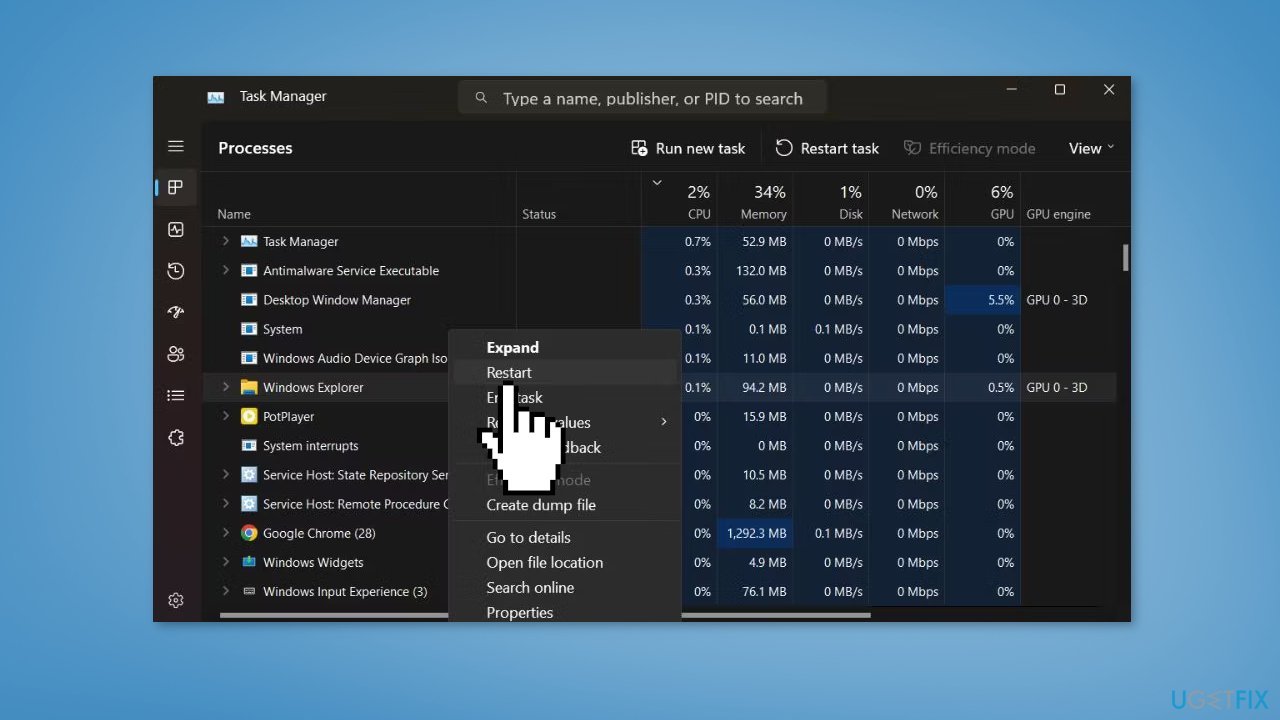
- Right-click on the Windows Explorer process and select Restart from the context menu
- This will close all active File Explorer instances and refresh the Taskbar icons
- Open File Explorer and attempt to select multiple files
- If they still don't highlight, proceed to the next method
Solution 3. Perform a System Shutdown
- Press the Windows key + R to open the Run command box
- Type cmd and press Ctrl + Shift + Enter to launch the utility with administrator privileges
- Enter the command shutdown /s /f /t 0 and press Enter
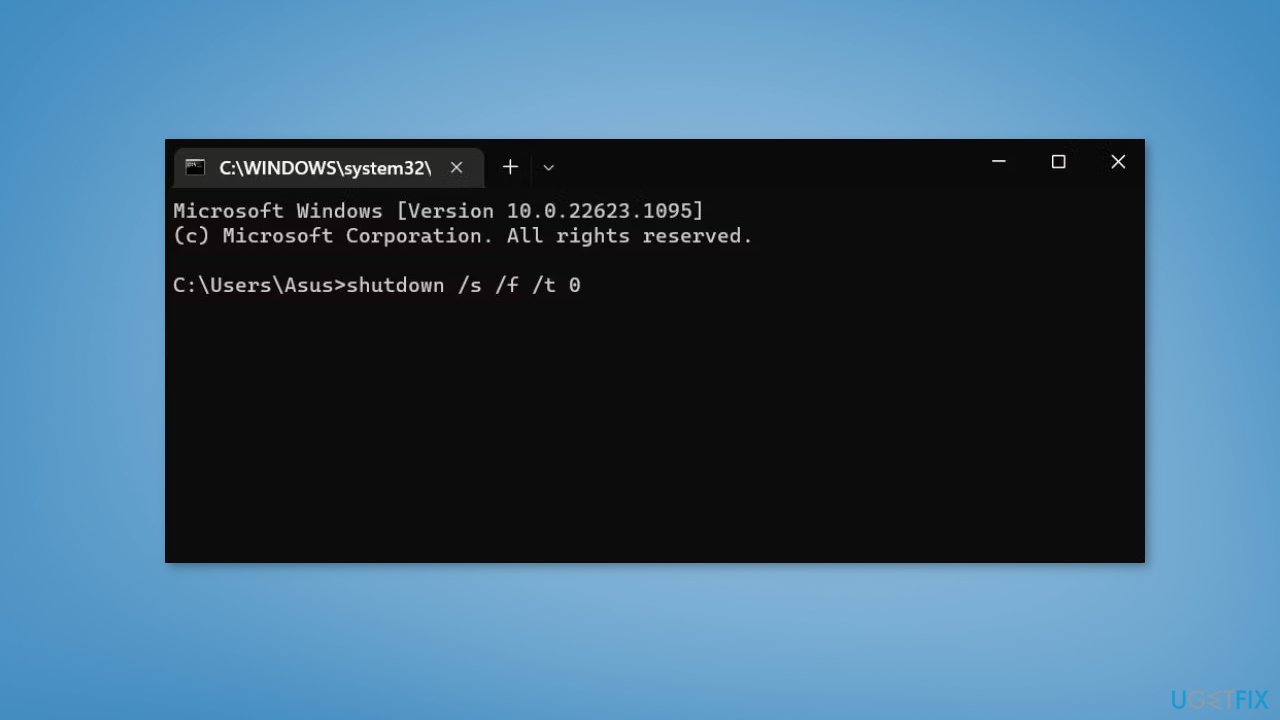
- This will perform a complete system shutdown and may take longer than usual
- After restarting the system, launch File Explorer
- Try selecting multiple files and check if the highlighting issue still persists
Solution 4. Disable Fast Startup
- Open the control panel and search for power options
- From the left pane, click on Choose what the power buttons do
- Choose Change settings that are currently unavailable
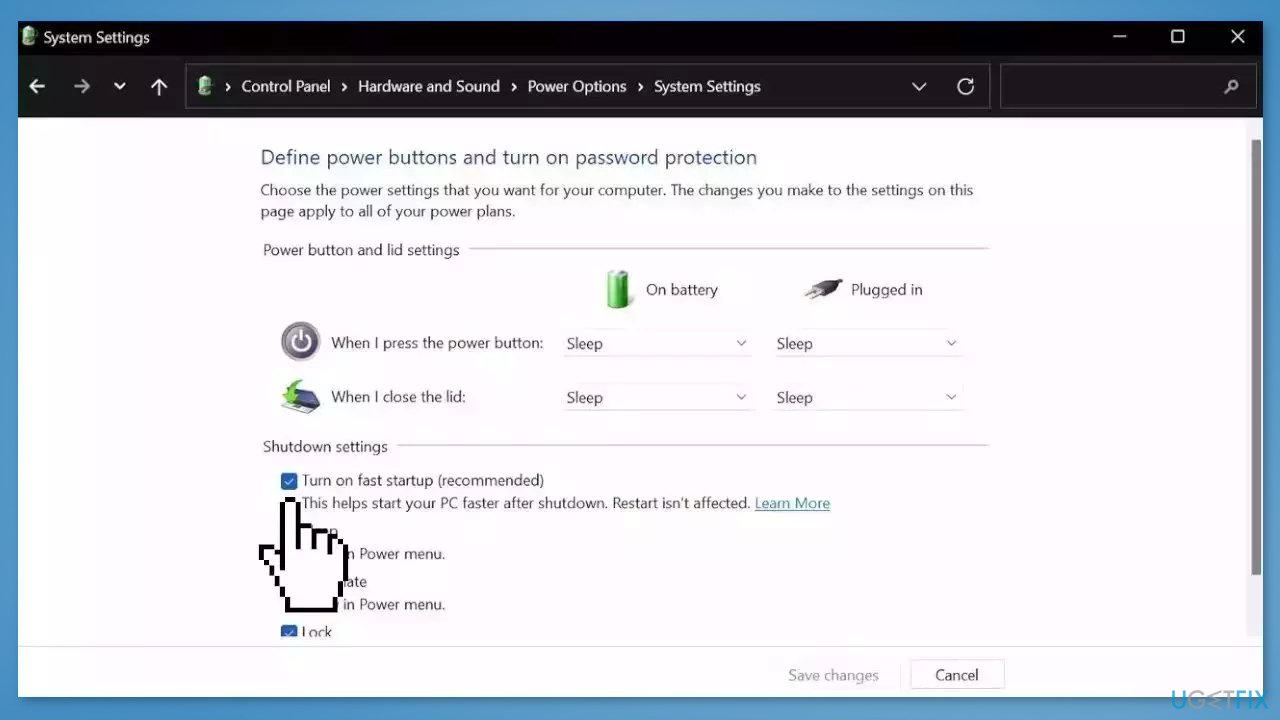
- Make sure the box before Turn on fast startup is unchecked
- Click on Save changes and close the window
Solution 5. Change Background Color
- Press the Windows key + R to open the Run command box
- Type control desktop and press Enter
- Select Background and click on Personalize your background
- Expand the list and choose the Solid color option
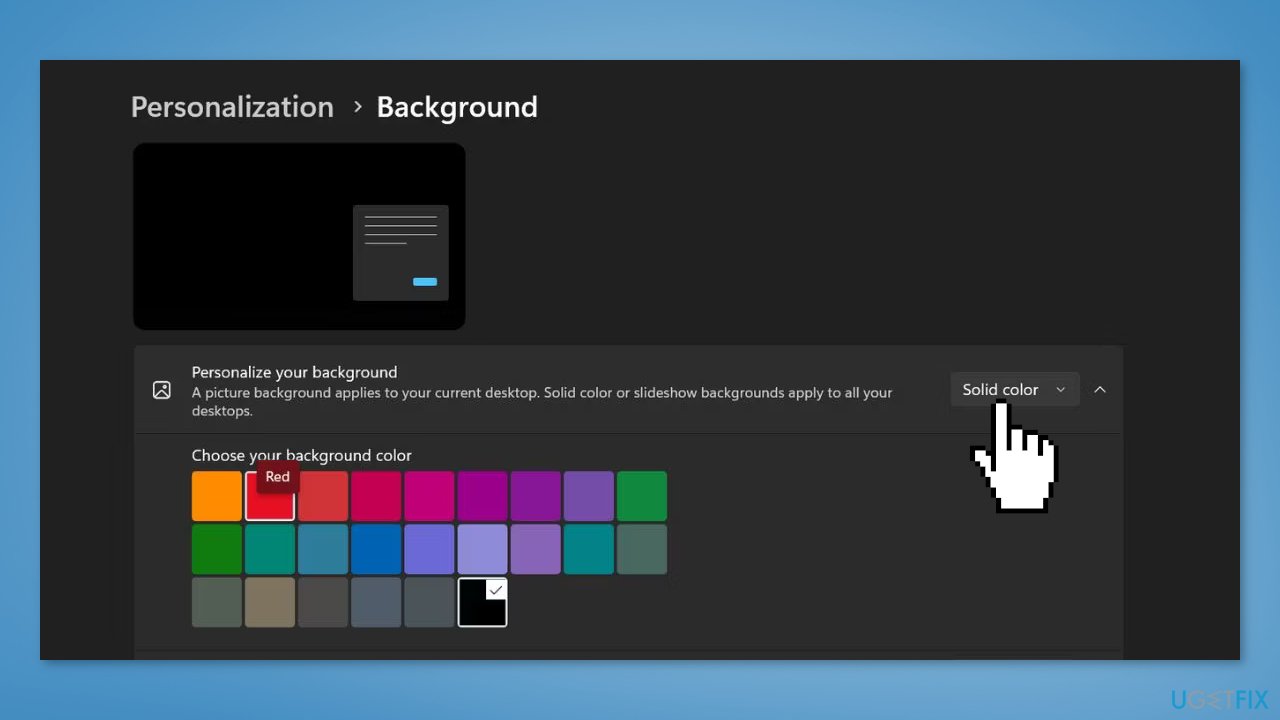
- Select a solid color from the color picker tiles
- Apply the solid color background to the system and exit the settings app
- Launch File Explorer and attempt to select multiple files
- Check if the highlighting issue still persists
Solution 6. Turn on High Contrast Mode
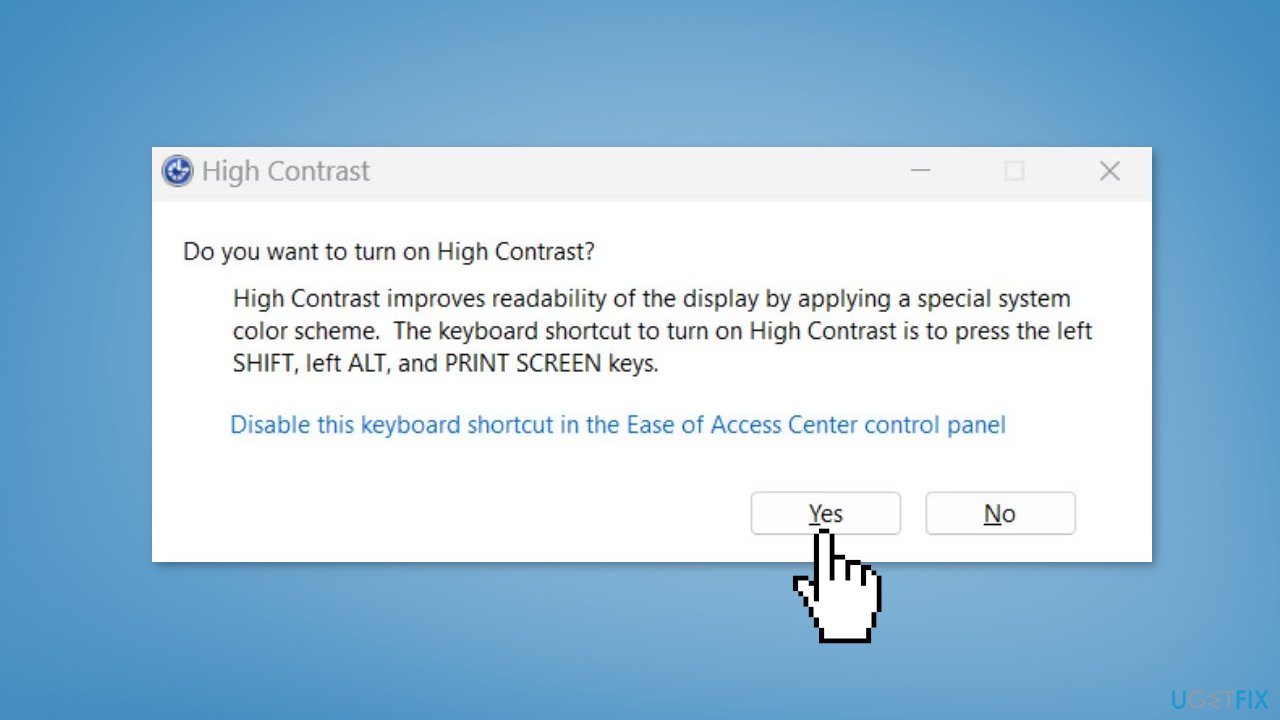
- Press Left Alt + Left Shift + Print Screen keys simultaneously to activate High Contrast mode
- Confirm your selection with the pop-up window
- Press Enter to activate the High Contrast theme on your system
- Attempt to select multiple files on your system
- Check if they are correctly highlighted
Solution 7. Update Display Driver
- Open Device Manager and expand the Display Adapters tab
- Right-click on your graphics driver and select Properties
- Go to the Driver tab and click on Update Driver
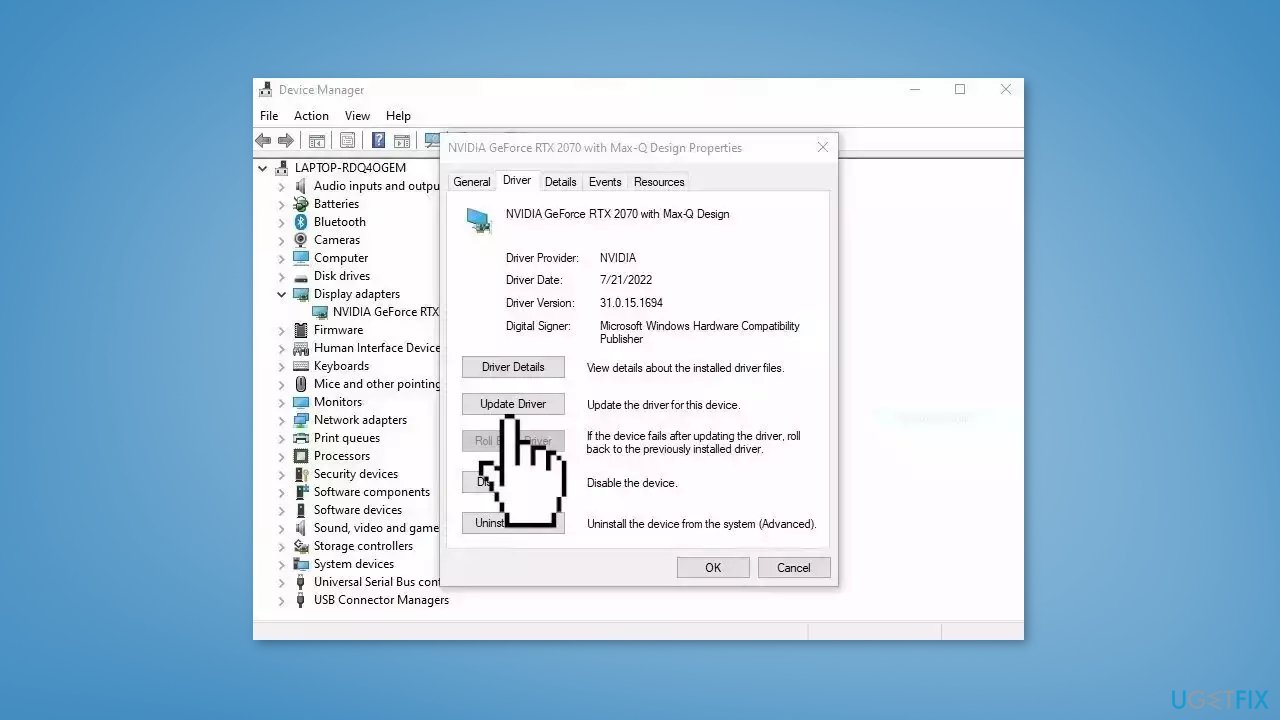
- Press on Search Automatically for Drivers
- If a graphic driver update is available, install it and then restart your PC
- Upon restart, launch File Explorer and check if it fixed the issue.
- You may also use a dedicated utility like [rev id="DriverFix"] that can find the best drivers for your machine and install them automatically
Solution 8. Uninstall the last Windows Update
Some users have reported that they started having issues with File Explorer after installing Windows updates. Try uninstalling the most recent update to see if it fixes the issue:
- Press the Windows key + I on your keyboard to open the Settings app
- Choose the Update & Security option
- Navigate to the Windows Update section and select Update history from the menu that opens
- Now click on Uninstall updates
- Locate the last update in the list
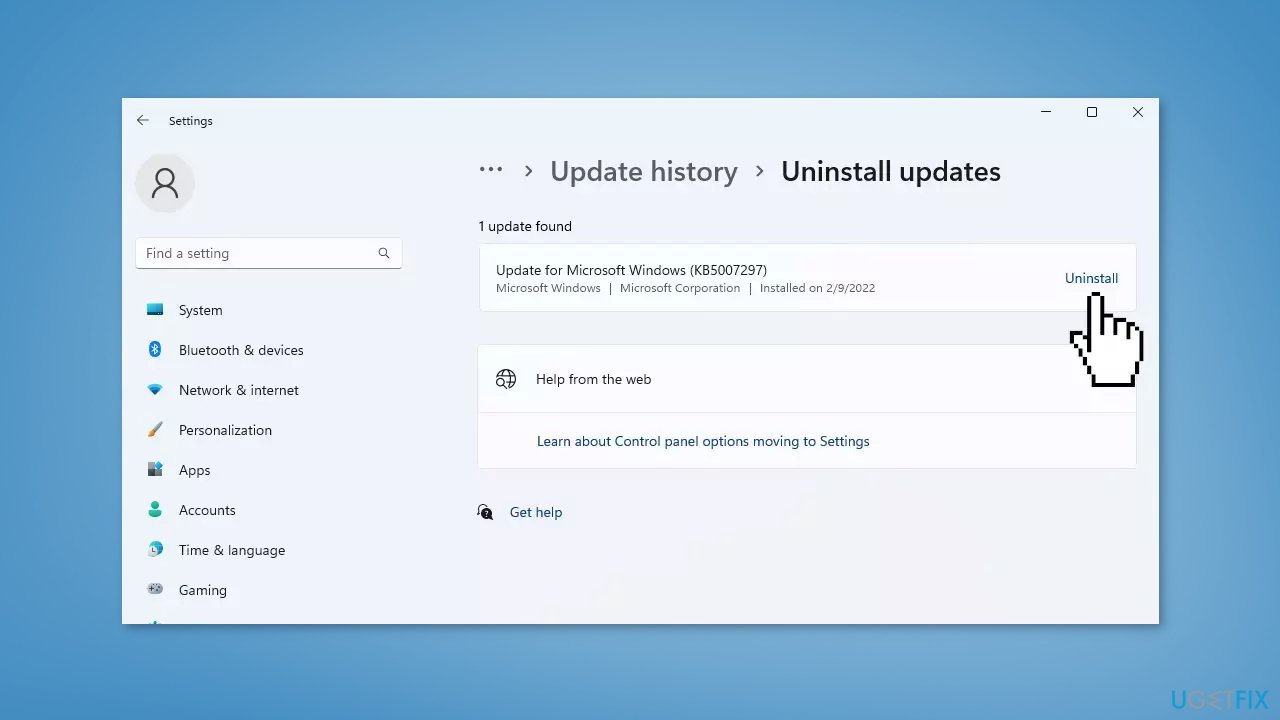
- Click on the Uninstall button next to the update
Note: uninstalling a Windows update may cause problems with your system if the update was designed to fix an issue or provide a new feature. It is generally a good idea to leave updates installed unless you are experiencing a specific issue that you believe the update is causing.
Solution 9. Try Clean Boot
- Open the Search menu, type in system configuration, and press Enter
- Under the Services tab, tick the Hide all Microsoft services box
- Click on Disable all button
- Head over to the Startup tab and click on Open Task Manager
- Select a third-party program and click on Disable at the top
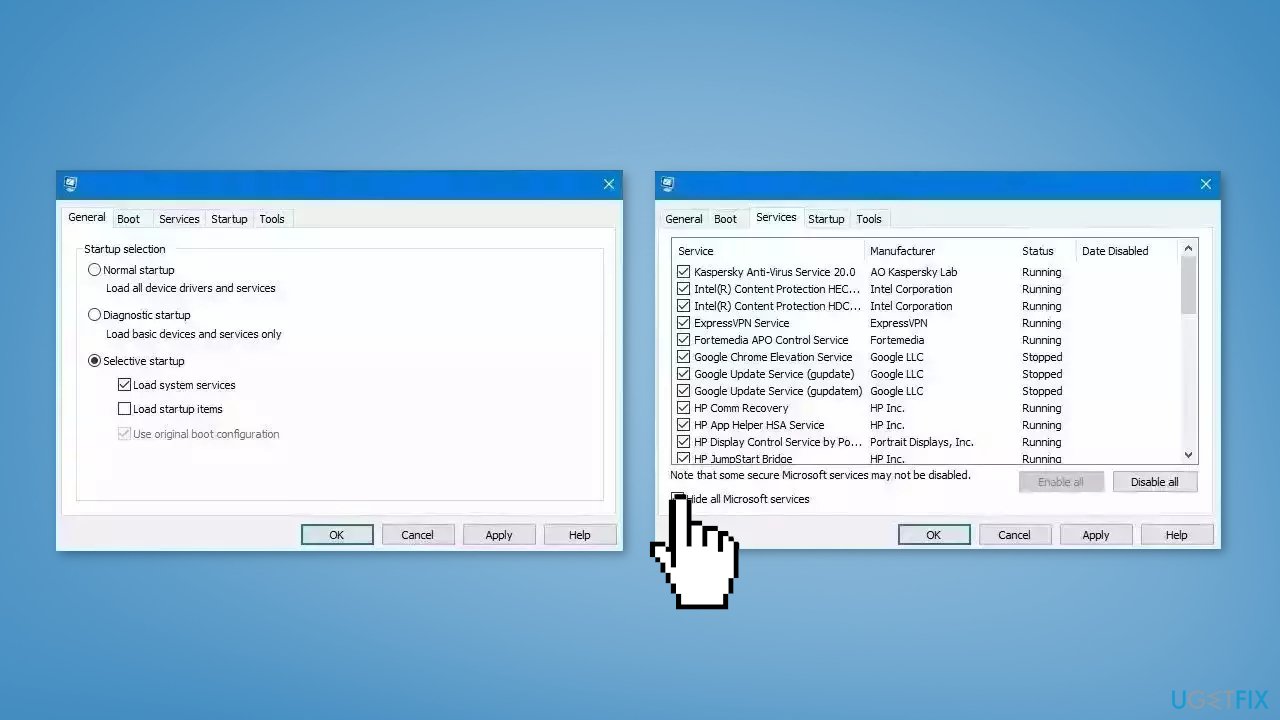
- Repeat this step to disable all third-party apps and programs
- Restart your PC to enter the clean boot state and see if the issue persists
- If the issue disappeared in the clean boot state, then you can be certain that a third-party app is causing it
- Go through all recently installed apps or programs and remove them one by one
Solution 10. Reset Windows
The reset option in Windows will reinstall the operating system but will keep your personal files. However, any apps or drivers that you have installed will be removed, as well as any changes you have made to the settings. The reset option is intended to be used as a last resort when other methods of troubleshooting and repair have failed.
- Click Start and select Settings
- Select Recovery on the System tab
- Next, press the Reset PC button
- Select Keep my files in the Reset this PC window
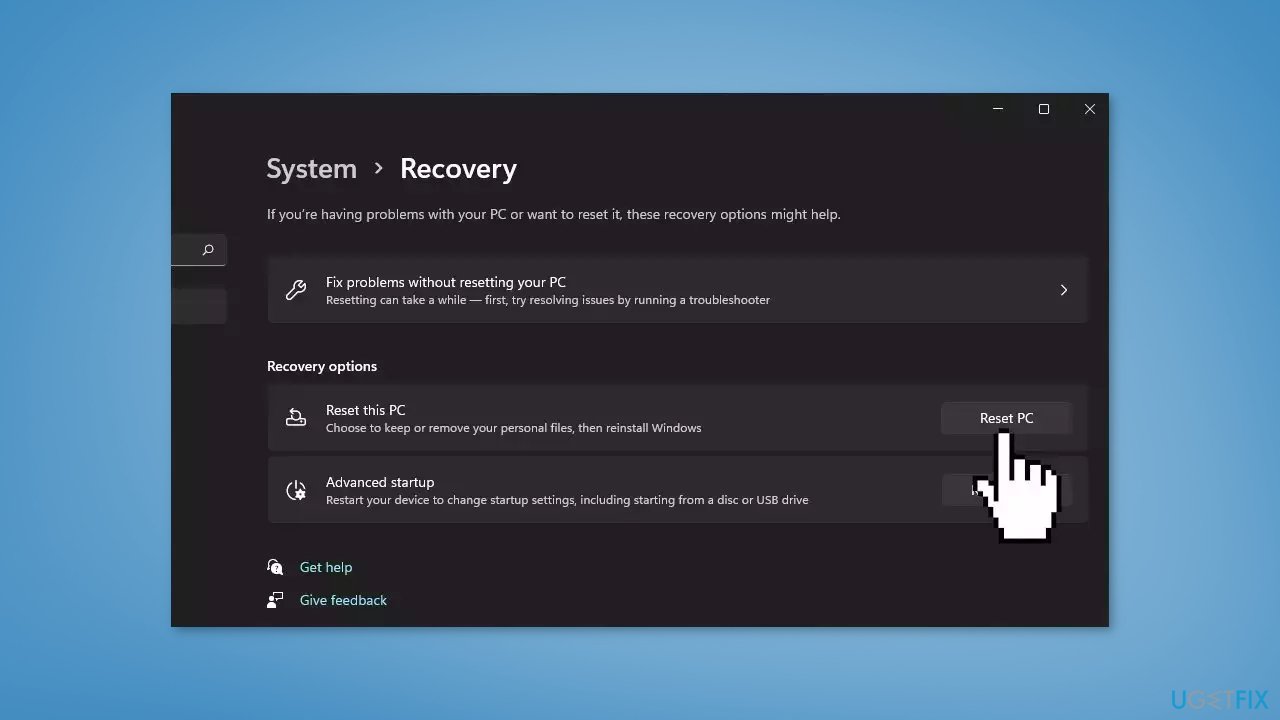
- Choose either the Cloud download or Local reinstall option
- Select the Reset option
- Wait for the process to finish and check if the issue is resolved
Bottom line
To fix the issue of File Explorer not highlighting selected files, you can try repairing corrupted system files using Command Prompt, updating your graphics driver, or changing your system's background color. If these solutions do not work, consider using an automatic maintenance tool or uninstalling the latest Windows update.
Frequently asked questions
First, try restarting File Explorer from the Task Manager. If the issue persists, consider updating your display drivers or running the System File Checker to repair any corrupted system files.
You can reset the File Explorer settings by going to the View menu and selecting 'Options' to restore default settings. Additionally, check for Windows updates as they may contain fixes for this issue.
Yes, check the 'Ease of Access' settings to ensure that visual effects like transparency and animations are enabled, as disabling them can affect highlighting in File Explorer.




Report an issue
What's wrong with this guide? We review every report and update or remove content.
Report received — thank you. We'll review and fix it.
You need a free account to submit a report.
Be the first to comment