How to fix
File Explorer opening in the foreground automatically
on Windows
Solve the annoying issue of File Explorer opening automatically in the foreground on Windows 10 or 11. Expert-tested solutions await you, fixed in minutes!

What causes How to fix File Explorer opening in the foreground automatically in Windows?
- Installation of Windows 11 22H2
- Recent operations within the operating system
- Multiple windows or applications in use
- Screen sharing during presentations or video conferences
Repairs Windows system files, removes malware, and restores a clean OS state — without reinstalling.
Hello. I will open an Explorer window to access a file in another application, and after a few minutes, seemingly without any cause, Windows Explorer will disrupt the application by bringing its Explorer window to the foreground. How do I stop this from happening?
Some Windows 11 22H2 users have noted that File Explorer keeps opening up in the foreground. This issue appears when, following the installation of Windows 11 22H2, any operation within the operating system triggers the most recent File Explorer window to shift itself into the foreground. Users may be greatly impacted by this unintentional action in a number of ways.
First of all, this problem may cause a loss of concentration and productivity. It can be very aggravating to always have the File Explorer window steal focus when working on tasks that require numerous windows or applications. It interferes with the user's workflow and may lead to blunders or errors, particularly if they unintentionally click in the wrong window.
Second, the issue might be a source of irritation and diversion. Rearranging windows frequently might make it difficult to focus on the task at hand, decreasing efficiency and making the user experience less enjoyable overall. Additionally, this problem may become especially difficult when giving presentations or participating in video conferences. When sharing a screen, having File Explorer abruptly appear in the foreground can diminish the presentation's professionalism and interfere with conversation.
To address this issue, users might seek various solutions or workarounds. However, the specifics of these solutions can vary, and they may involve adjustments to system settings, or registry tweaks. In this guide, you will find 4 steps that should help you fix File Explorer opening in the foreground automatically. You can also run a system repair tool like [d1] that can fix most system errors, BSODs,[ref en-1] corrupted files, and registry[ref en-2] issues. Otherwise, follow the step-by-step instructions provided below.
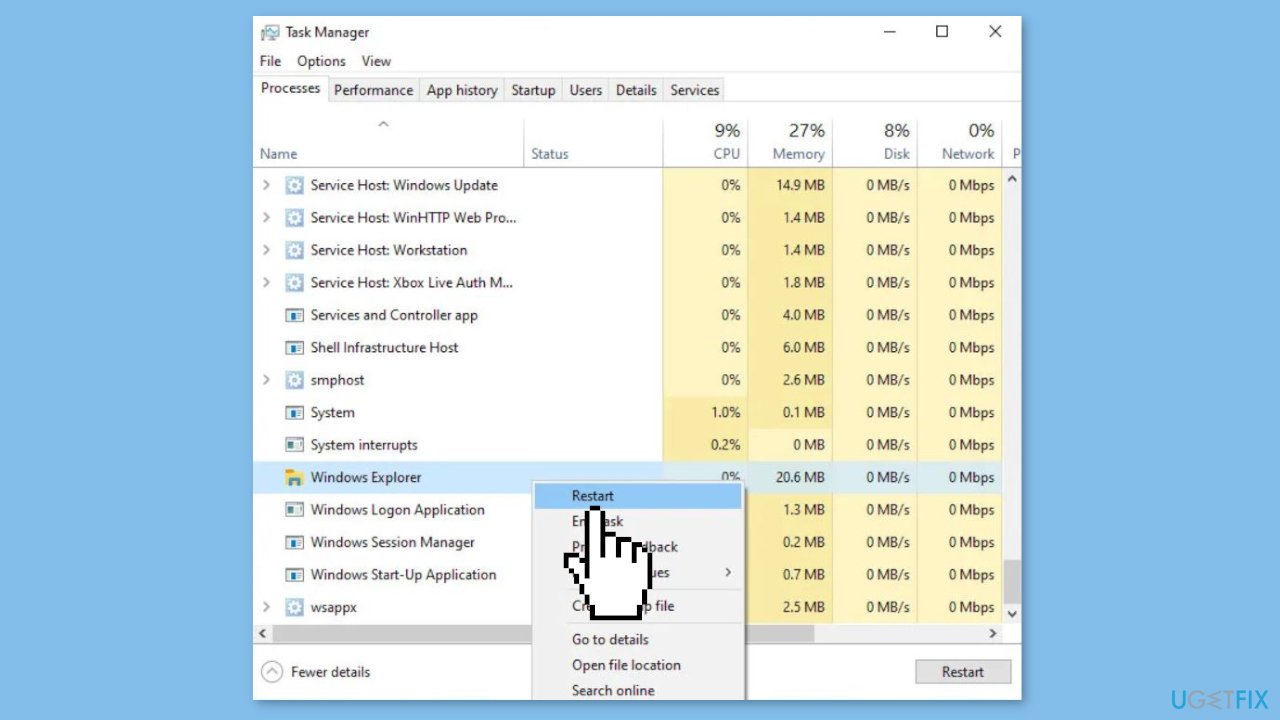
Method 1. Restart File Explorer
- Open the Task Manager by right-clicking on the Start menu.
- Navigate to the Processes tab in Task Manager.
- Locate Windows Explorer in the list of processes.
- Right-click on Windows Explorer.
- From the context menu that appears, select Restart.
Method 2. Uninstall the KB5021255 or KB5022303 Update
- Open the Settings app by simultaneously pressing the Windows key + I.
- In the Settings app, navigate to the Windows Update section, and then select Uninstall updates.
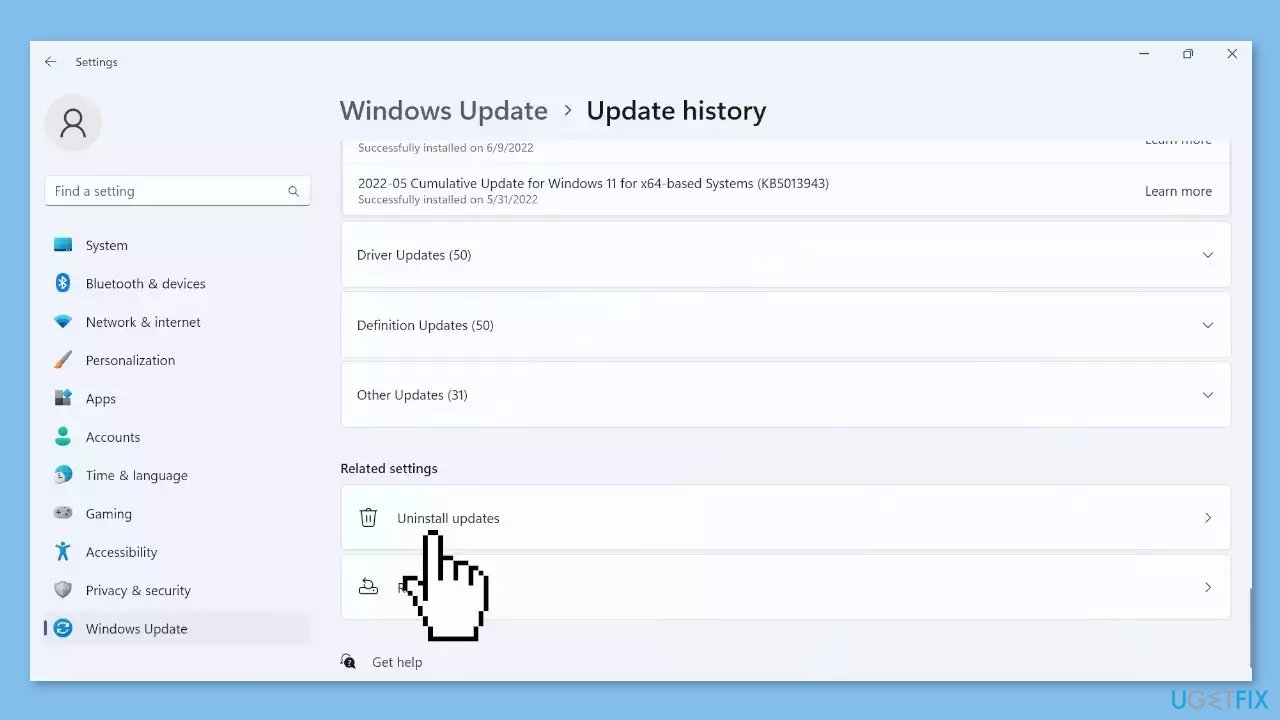
- Check if you have installed updates with the names KB5021255 or KB5022303 in the list of updates.
- If you find either KB5021255 or KB5022303, select them, and then click the Uninstall button to remove them.
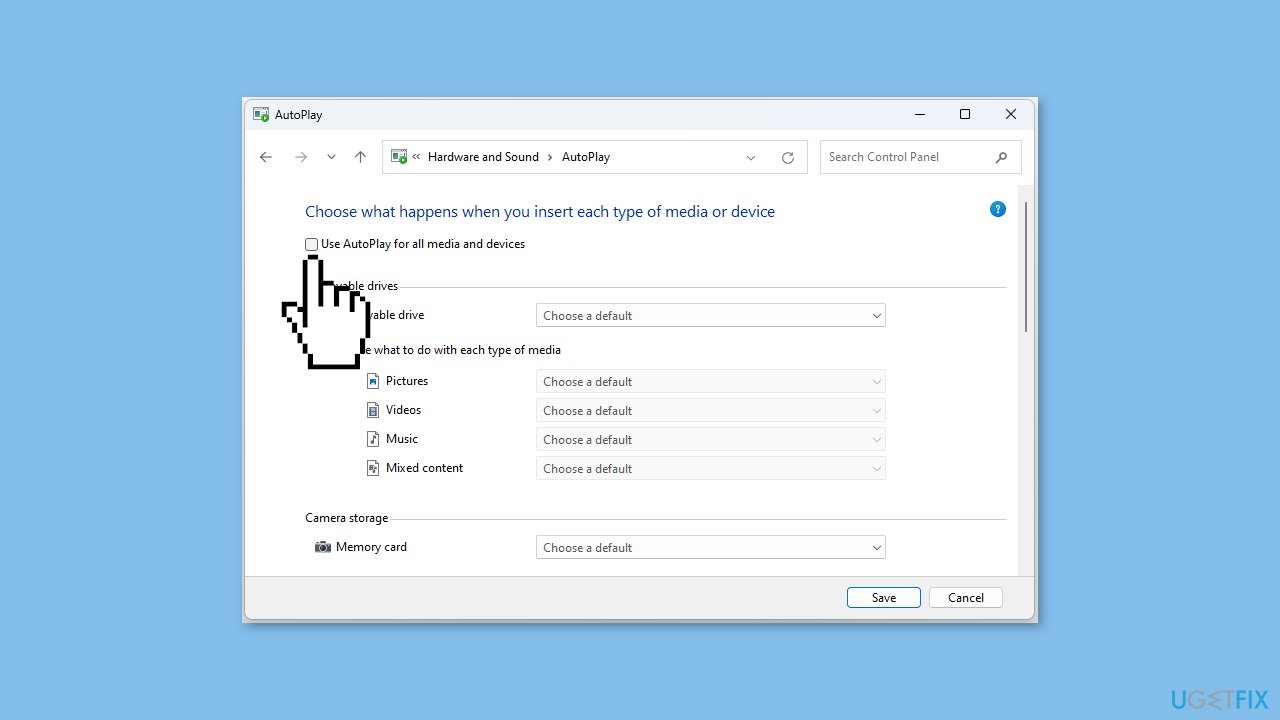
Method 3. Disable Media Autoplay
- Open the Control Panel by typing Control Panel into the Search box and pressing Enter.
- In the Control Panel, click on Hardware and Sound, and then select AutoPlay.
- Uncheck the Use AutoPlay for all media and devices box, and then click the Save button.
Method 4. Try Clean Boot
- Open the Search menu, type in system configuration, and press Enter.
- Under the Services tab, tick the Hide all Microsoft services box.
- Click on Disable all button.
- Head over to the Startup tab and click on Open Task Manager.
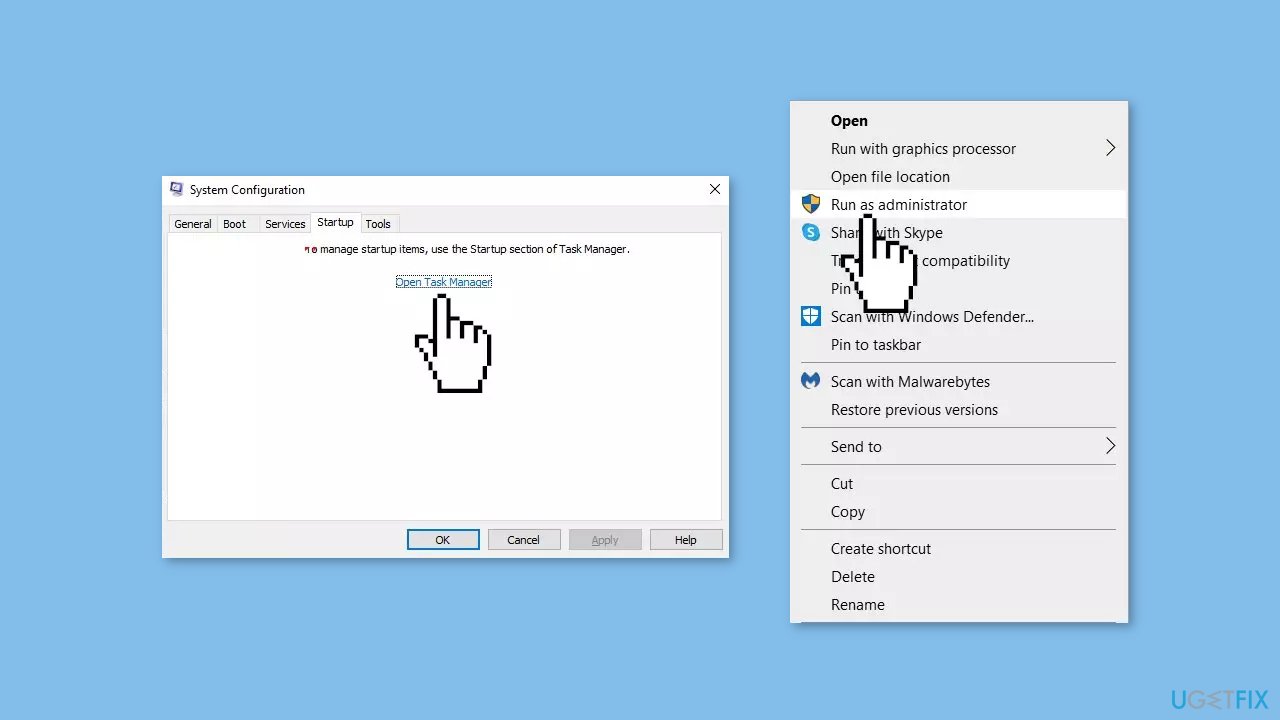
- Select a third-party program and click on Disable at the top.
- Repeat this step to disable all third-party apps and programs.
- Restart your PC to enter the clean boot state and see if the issue persists.
- If the issue disappeared in the clean boot state, then you can be certain that a third-party app is causing it.
- Go through all recently installed apps or programs and remove them one by one.
Bottom line
To fix File Explorer opening in the foreground automatically, you can restart File Explorer, adjust system settings, or perform registry tweaks. If these solutions do not resolve the issue, consider running a system repair tool to address potential system errors.
Frequently asked questions
This issue may occur due to certain applications or settings that trigger File Explorer to launch, often related to startup programs or background tasks. Checking your startup items and running a malware scan can help identify the culprit.
You can prevent File Explorer from opening automatically by disabling any related startup programs through the Task Manager. Additionally, ensure that there are no pending updates for Windows that might resolve this issue.
Yes, you can reset File Explorer settings by opening the Folder Options, going to the View tab, and clicking on 'Reset Folders'. This may help resolve any configuration issues causing the unwanted behavior.




Report an issue
What's wrong with this guide? We review every report and update or remove content.
Report received — thank you. We'll review and fix it.
You need a free account to submit a report.
Be the first to comment