How to fix
File Explorer “Please sign in” message
on Windows
Resolve the "Please sign in" message in Windows 10 or Windows 11 File Explorer effortlessly. Quick fixes with expert-tested solutions await you!

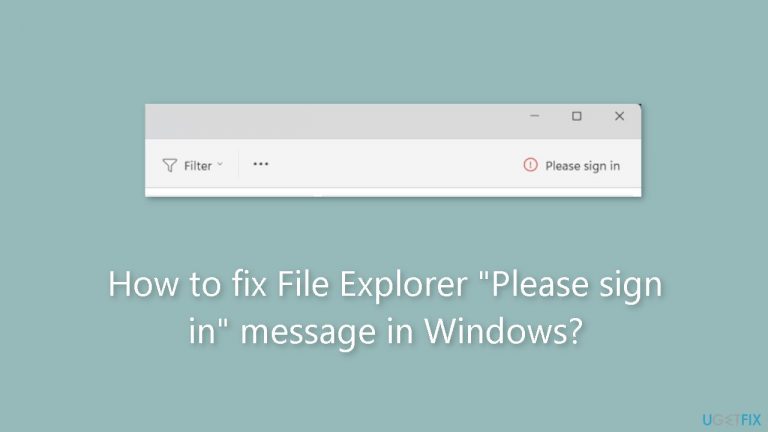
What causes How to fix File Explorer “Please sign in” message in Windows?
- User account configuration issues
- Windows functions settings
- File Explorer settings
- System updates or upgrades
Repairs Windows system files, removes malware, and restores a clean OS state — without reinstalling.
Hello. I keep seeing the "Please sign in" message in File Explorer. What should I do?
Users may find the "Please sign in" display in Windows File Explorer to be confusing and annoying, particularly after upgrading to Windows 11. When users try to access their files and folders in File Explorer, this problem frequently arises. This notice seems to suggest otherwise, even though File Explorer normally permits users to open and access files without requiring a login. This annoying pop-up that asks them to log in even though it's not required for basic file access is something that many users have reported experiencing.
The effects of this problem on users may be very profound. First of all, it interferes with Windows' renownedly easy-to-use interface. Being required to sign in every time a user wants to access their local files could be annoying to them. This may cause them to feel irritated and inconvenienced, which could have an impact on their general productivity and Windows 11 platform experience.
Furthermore, this problem may give rise to security and privacy issues. Users could start to wonder why they are seeing this notification in the first place and whether their files or personal information is in danger. It can cause unwarranted anxiety and perplexity since it departs from File Explorer's typical behavior.
Users frequently look for ways to stop the "Please sign in" message from showing in order to solve this problem. These fixes can involve changing or deactivating particular Windows functions or updating particular settings, such as account configurations. The answer, however, may differ based on the system of the individual and the particular circumstances that gave rise to the issue.
In this guide, you will find 4 steps that should help you fix File Explorer "Please sign in" message in Windows. You can also try using a maintenance tool like [d1] that can fix most system errors, BSODs,[ref en-1] corrupted files, and registry[ref en-2] issues. Otherwise, follow the step-by-step instructions below.

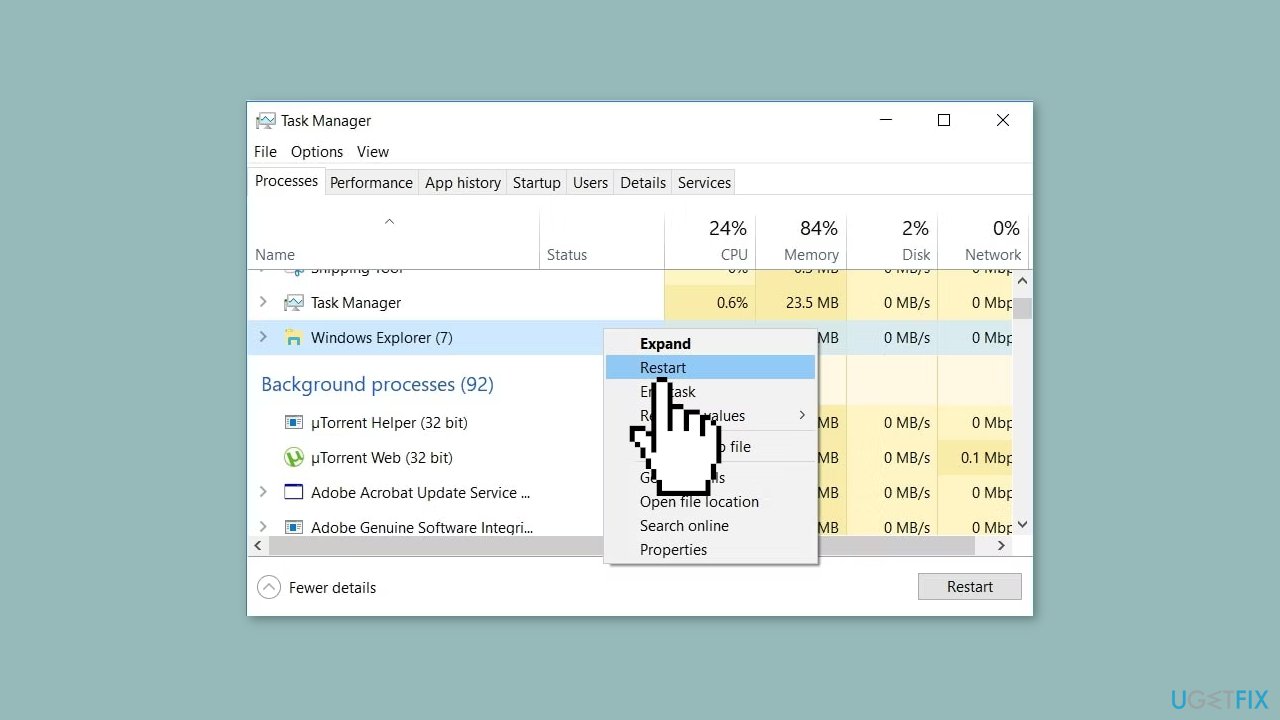
Solution 1. Restart Windows Explorer
Restarting File Explorer process can assist in eliminating the "Please sign in" message.
- Right-click the Start menu and select Task Manager to open it.
- Navigate to the Processes tab. Locate Windows Explorer, right-click it, and select Restart.
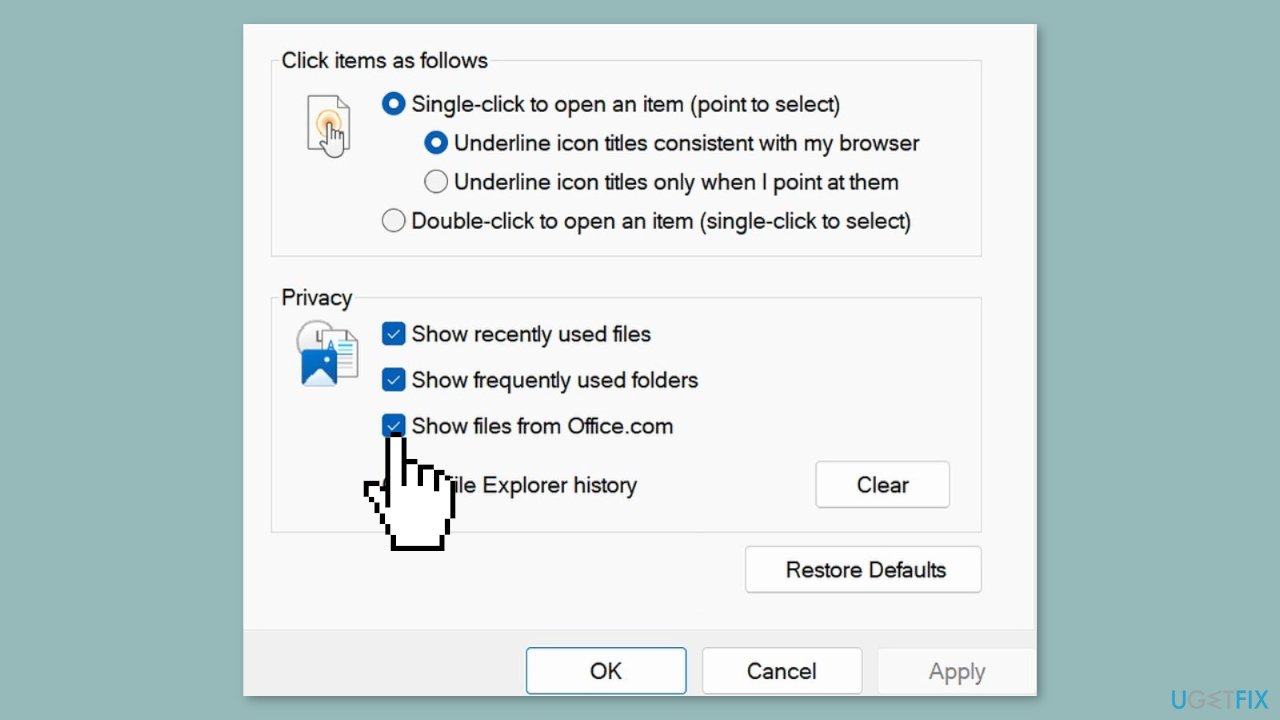
Solution 2. Uncheck the Show Files from Office.com Option
The "Please sign in" link is utilized to showcase OneDrive storage, causing your OneDrive files to be visible under Explorer Home and listed in the Recent section.
- Open File Explorer and click the View tab.
- Select Options. This will open File Explorer Options.
- Under the General tab, locate the Privacy section.
- Uncheck the Show files from Office.com option.
- Click Apply.
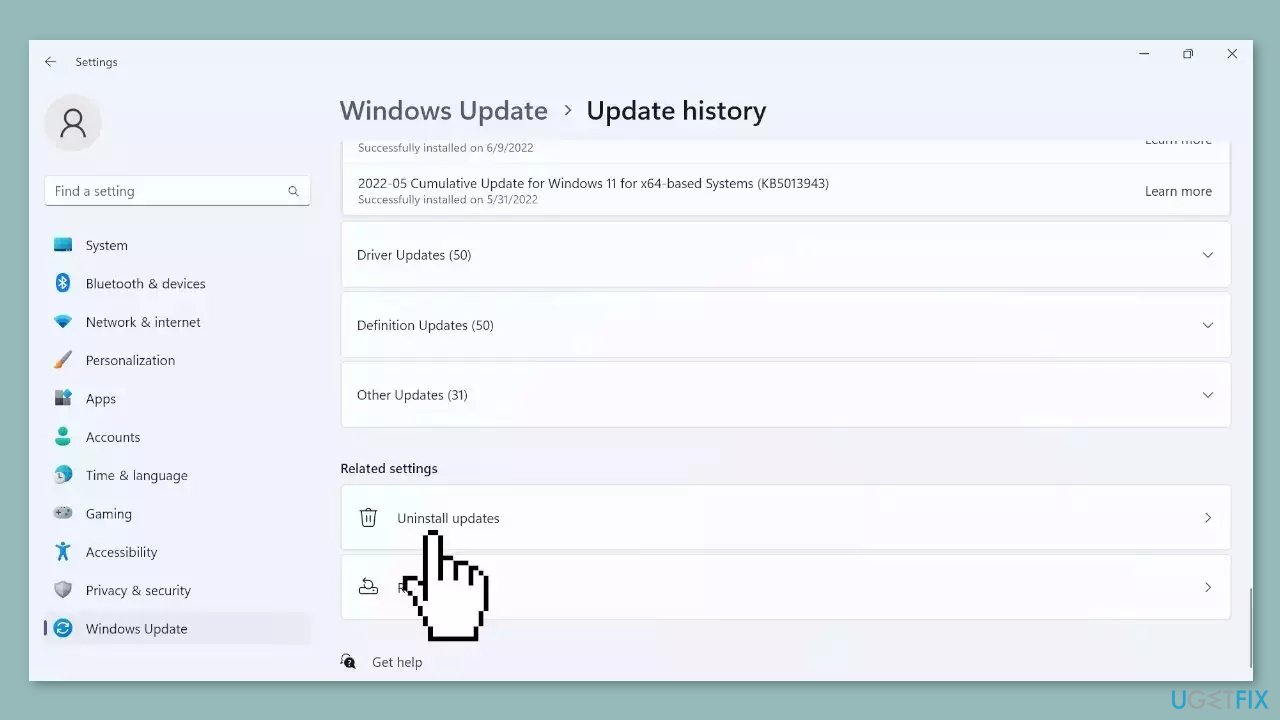
Solution 3. Uninstall the Recent Windows Update
- Press the Windows key + I simultaneously to open Settings.
- Navigate to Windows Update > Uninstall updates.
- Check if you have installed any new updates. If you find them, click the Uninstall button to remove them.
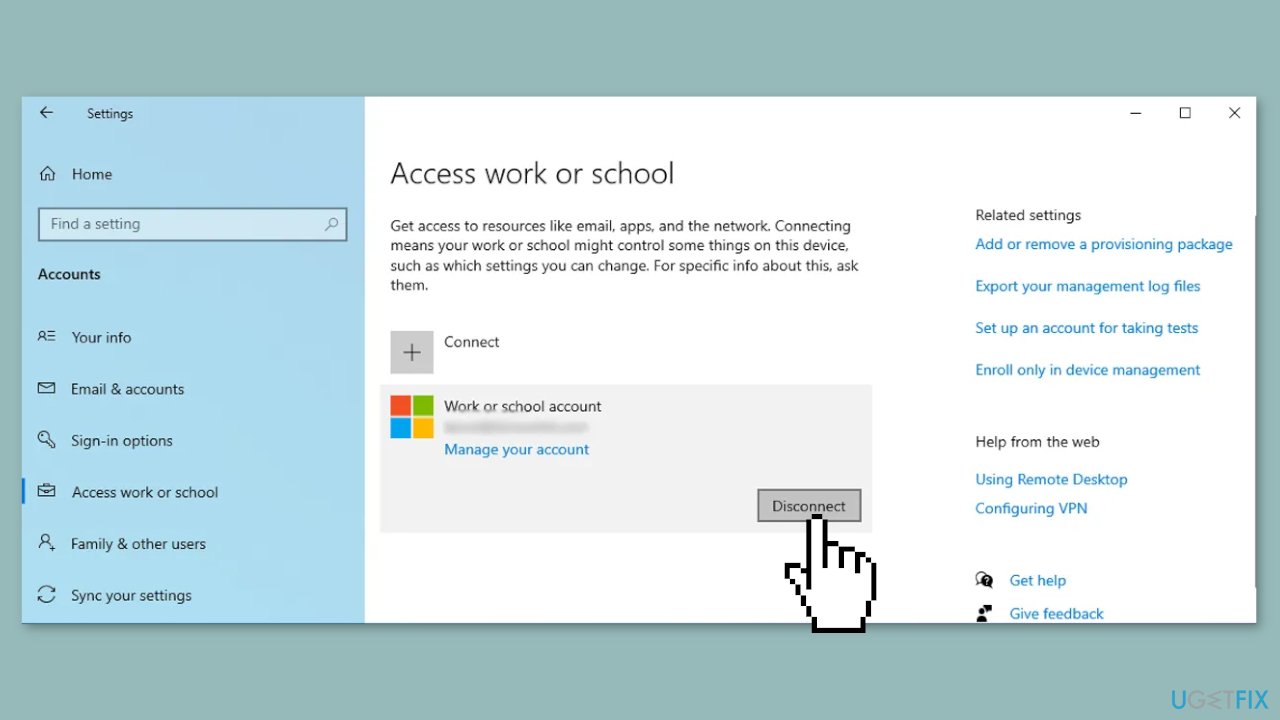
Solution 4. Disconnect All Accounts
To eliminate the "Please sign in" message from File Explorer, you can disconnect all of your accounts.
- Press the Windows key + I simultaneously to open Settings.
- Navigate to Account > Access work or school.
- Disconnect all your accounts from this menu.
Bottom line
To fix the 'Please sign in' message in File Explorer, you can try restarting Windows Explorer, adjusting account settings, or using a maintenance tool to resolve system errors. If these solutions do not work, consider further troubleshooting or seeking professional assistance.
Frequently asked questions
Try signing out of your Microsoft account and then signing back in, as this can often resolve the issue. If that doesn't work, consider resetting the File Explorer settings.
Make sure your Windows 11 is updated to the latest version, as updates can fix bugs related to sign-in issues. Additionally, check your account settings to ensure you're properly signed in.
Yes, you can run the System File Checker tool by executing 'sfc /scannow' in the Command Prompt to repair any corrupted system files. This can help resolve the sign-in error without needing a full reinstall.




Report an issue
What's wrong with this guide? We review every report and update or remove content.
Report received — thank you. We'll review and fix it.
You need a free account to submit a report.
Be the first to comment