How to fix
File Explorer “Working on it” message
on Windows
Resolve the frustrating "Working on it" message in Windows 10/11 File Explorer with effective solutions. Expert-tested fixes await you!

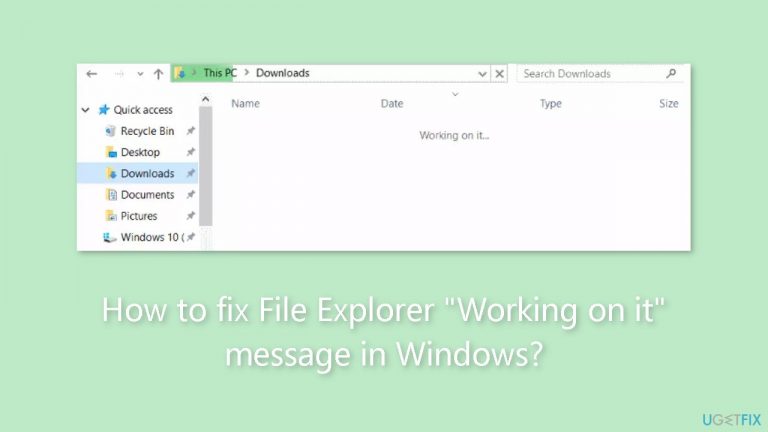
What causes How to fix File Explorer “Working on it” message in Windows?
- Outdated system versions
- Malware infections
- Inadequate hardware connections
- Jumbled or unorganized file system
Repairs Windows system files, removes malware, and restores a clean OS state — without reinstalling.
Hello. When I search for anything using File Explorer on Windows it takes forever, and the "Working on it" message keeps showing. What should I do?
When trying to find files or folders on their computer, a typical and annoying problem that many users run into is the "Working on it" message in Windows File Explorer. Although File Explorer is an essential tool for organizing files and folders, this issue may negatively affect how the user interacts with the application. The notification usually shows up when the system is having trouble finishing the search, and it might stay up for a long time, leaving users waiting without any obvious progress.
This problem has a number of causes. Outdated system versions, particularly the operating system and File Explorer itself, can lead to compatibility problems that result in the "Working on it" message. Malware infections on the system can also cause File Explorer to malfunction and impede search speed. Inadequate hardware connections, like broken hard drives, can also be a part of this issue. Moreover, File Explorer may take longer to process and display search results if the file system is extremely jumbled or unorganized.
Users are greatly impacted because it might interfere with workflow and reduce productivity. File Explorer is frequently used by users to locate and retrieve necessary files or directories fast. Users are left wondering whether their search will eventually provide results or if the process has stuck when they see the "Working on it" message. This can lead to frustration, wasted time, and sometimes even disruptions in work tasks or projects.
Users may need to take many actions to enhance File Explorer's performance in order to resolve this issue. Compatibility difficulties can be resolved by updating File Explorer and the operating system to the most recent versions. It's also crucial to perform in-depth virus scans and make sure the system is safe and secure. The speed and dependability of File Explorer can be increased by examining and fixing any hardware issues. Streamlining and clearing the file system might also result in quicker search results.
In this guide, you will find 6 steps that should help you fix File Explorer "Working on it" message in Windows. You can also run a maintenance tool like [d1] that can fix most system errors, BSODs,[ref en-1] corrupted files, and registry[ref en-2] issues. Otherwise, follow the step-by-step instructions below.

Method 1. Install Windows Updates
- Press the Windows key + I on your keyboard to open the Settings window.
- From the left sidebar, click on the Windows Update tab.
- Click on the Check for updates button.
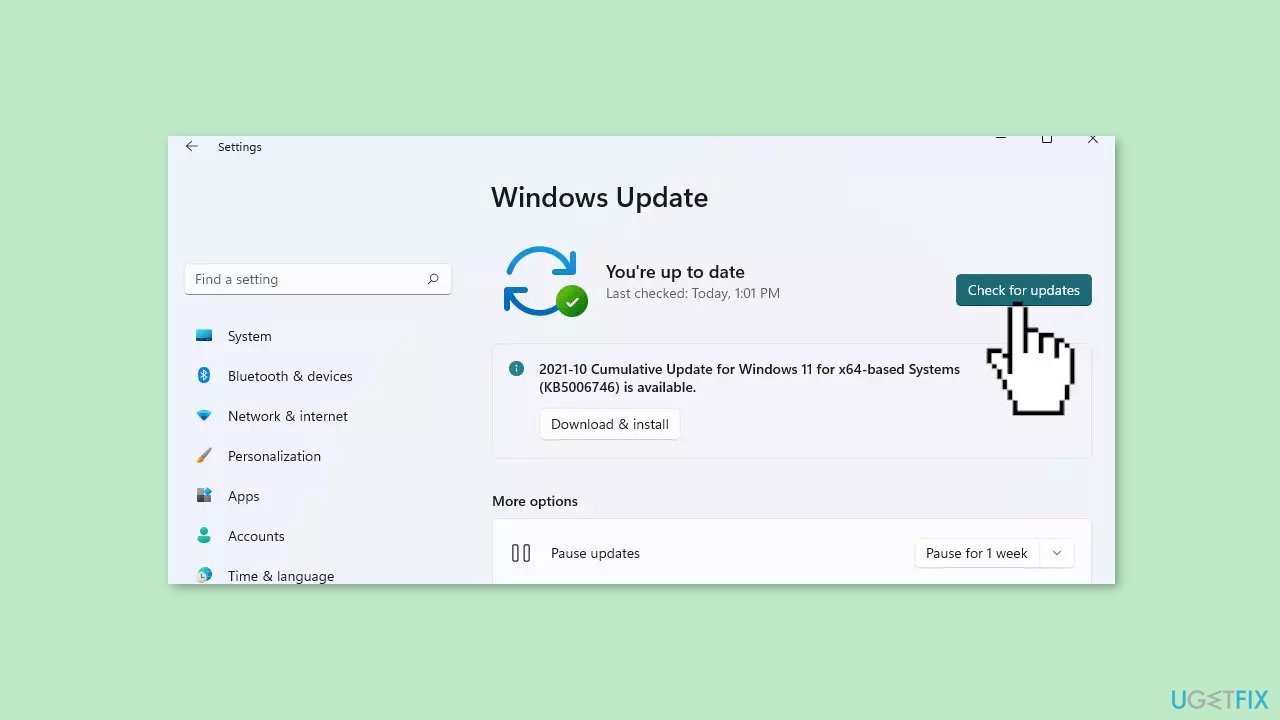
- Wait while Windows checks for available updates.
- If new updates are found, download and install them.
- Follow the on-screen instructions to complete the update process.
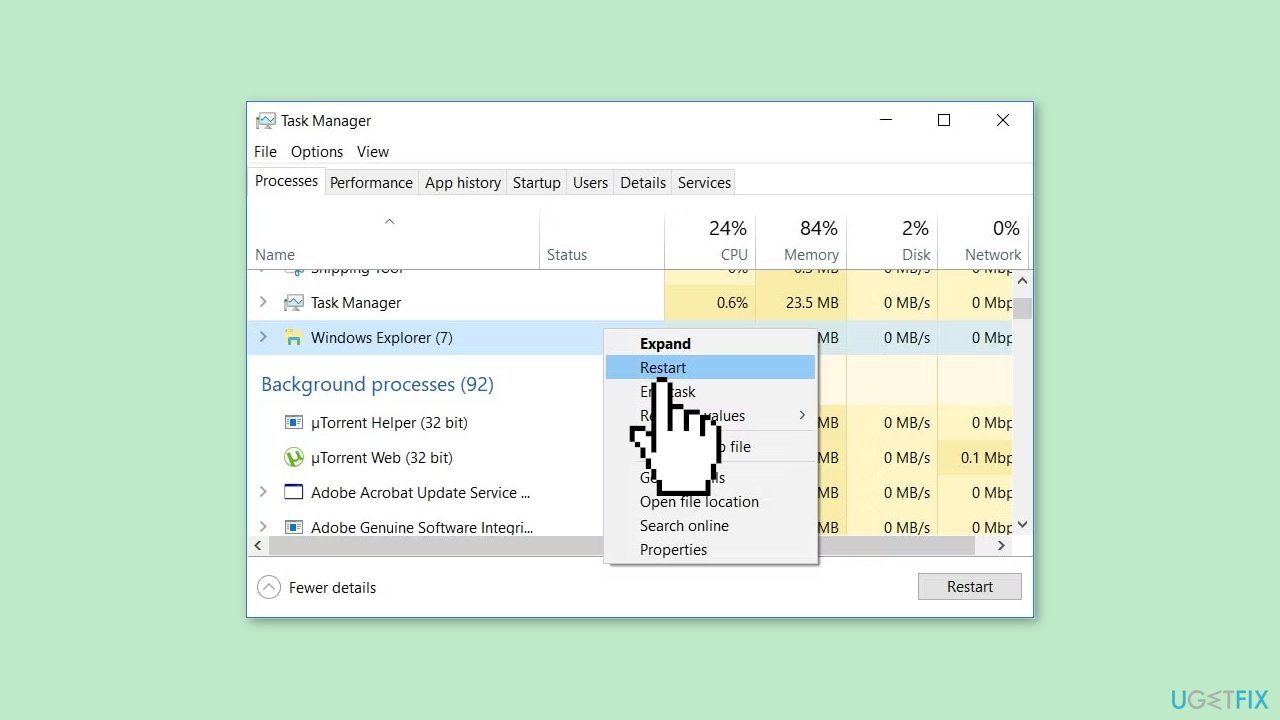
Method 2. Restart File Explorer
- Close all File Explorer windows.
- Press Ctrl + Shift + Esc to bring up Task Manager.
- Right-click File Explorer in the Task Manager.
- Select Restart.
- Relaunch File Explorer.
- Check if the problem is now solved.
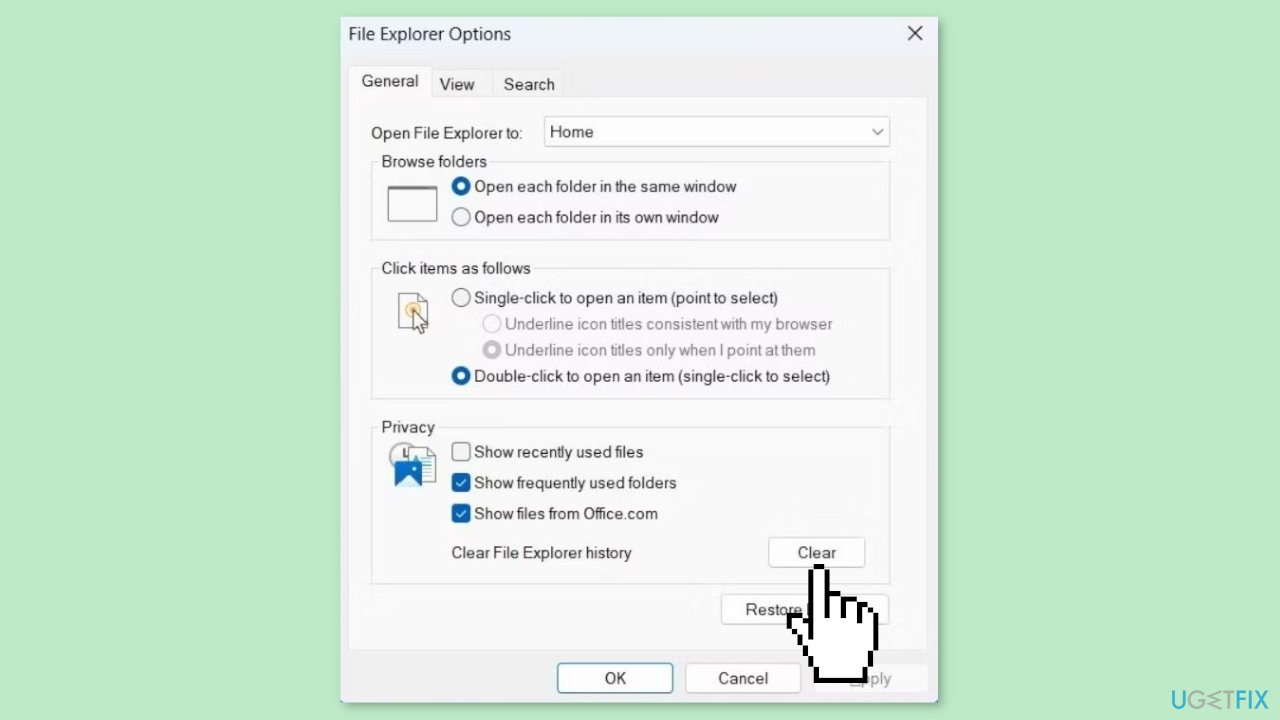
Method 3. Delete File Explorer History
- Click the three-dot icon next to View.
- Select Options.
- Select all options.
- Click on Clear.
Method 4. Run a Malware Scan
It is possible that a malware infection may be the cause of File Explorer "Working on It" message in Windows. It is important to run a comprehensive security scan to rule out this possibility and ensure that the computer is not infected. This can help to prevent further issues with the Windows operating system and ensure that it is functioning properly.
If you have access to a security scanner, or if your organization pays for one, you can use it to scan your entire system to check for a virus infection. Otherwise, you can use Windows Defender to scan your system:
- Click on the Windows Start menu or press the Windows key on your keyboard.
- Type Microsoft Defender in the search bar and click on Microsoft Defender Antivirus to open the application.
- Click on the Virus & threat protection option in the left-hand menu.
- Click on the Quick scan or Full scan option, depending on your preference.
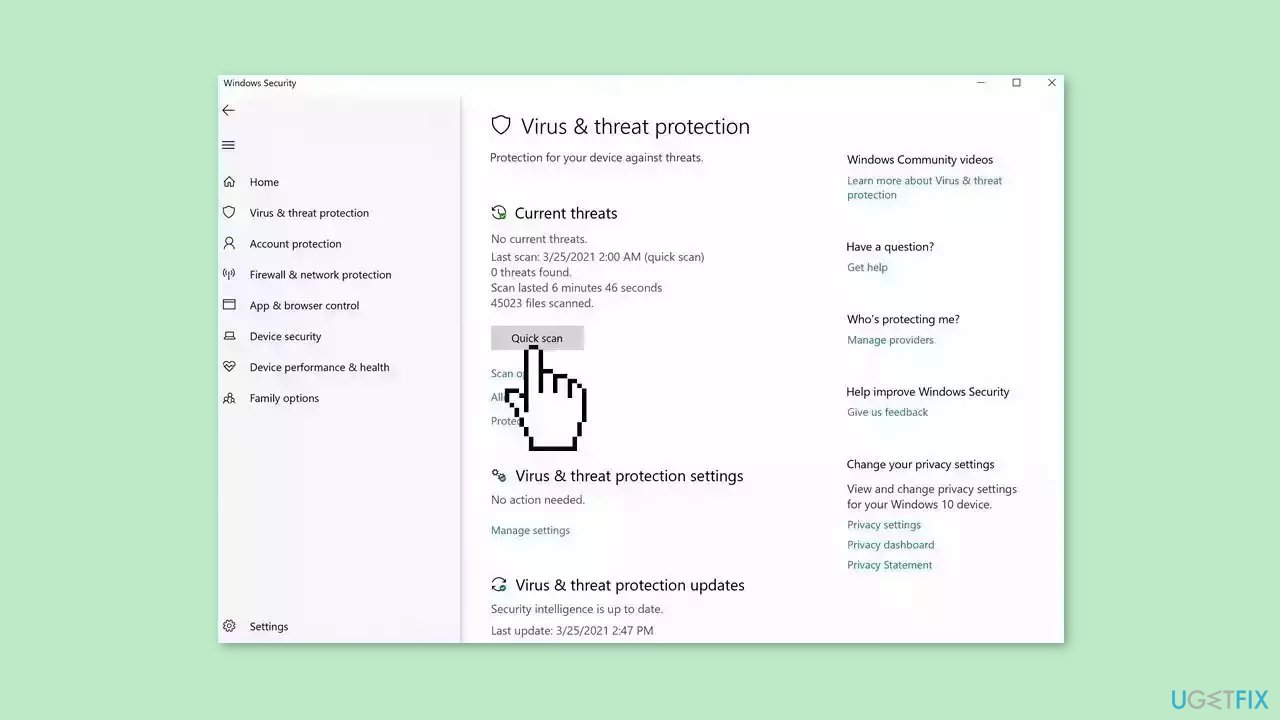
- If you choose Quick scan, Microsoft Defender Antivirus will scan the most vulnerable and commonly infected areas of your computer.
- If you choose Full scan, Microsoft Defender Antivirus will scan your entire computer, including all files, folders, and programs.
- Click on the Scan now button to start the selected scan type and wait for the scan to complete.
- The time it takes will depend on the size of your hard drive and the number of files being scanned.
- Once the scan is complete, you will be informed of any detected threats, and you can choose to quarantine or remove them.
- If no threats are found, Microsoft Defender Antivirus will inform you that your device is secure.
Method 5. Rebuild the Search Index
- Launch Control Panel.
- Set Category to Large items.
- Head to Indexing options.
- Select Advanced.
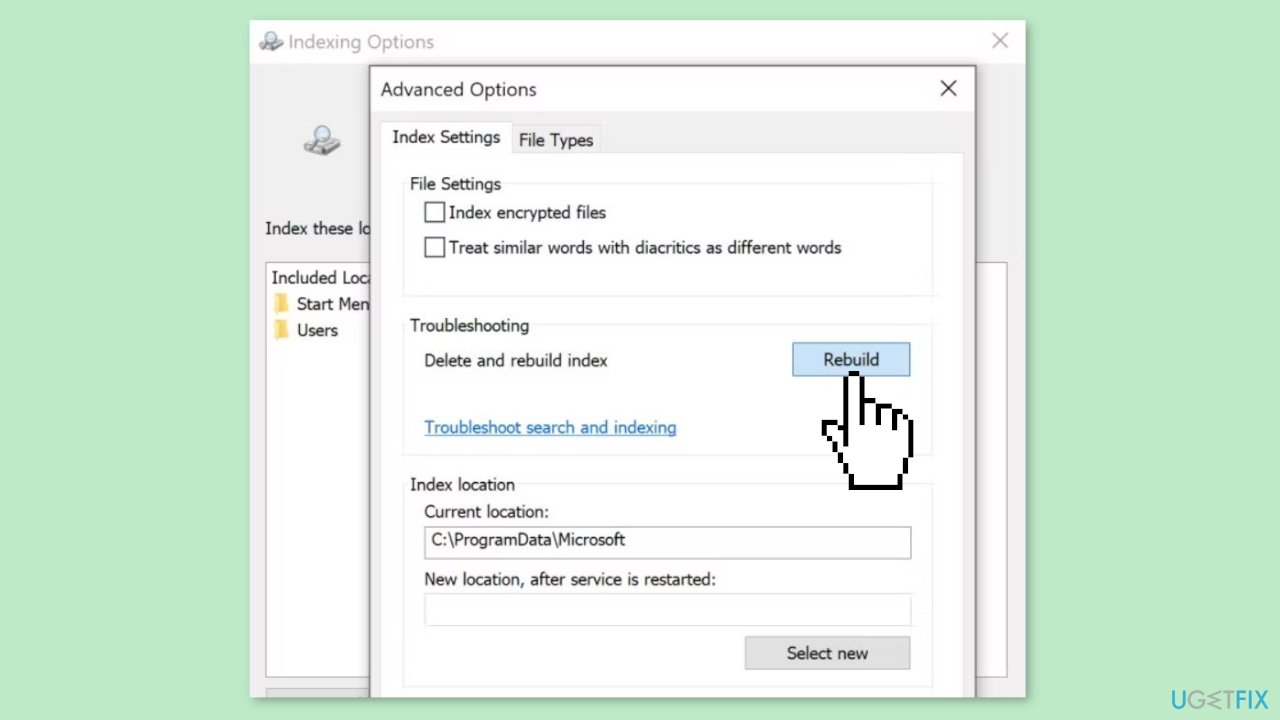
- Click on the Rebuild button.
- Restart your computer and check if the problem is now solved.
Method 6. Optimize the Problematic Folder
- Right-click the problematic folder and head to Properties.
- Open the Customise tab.
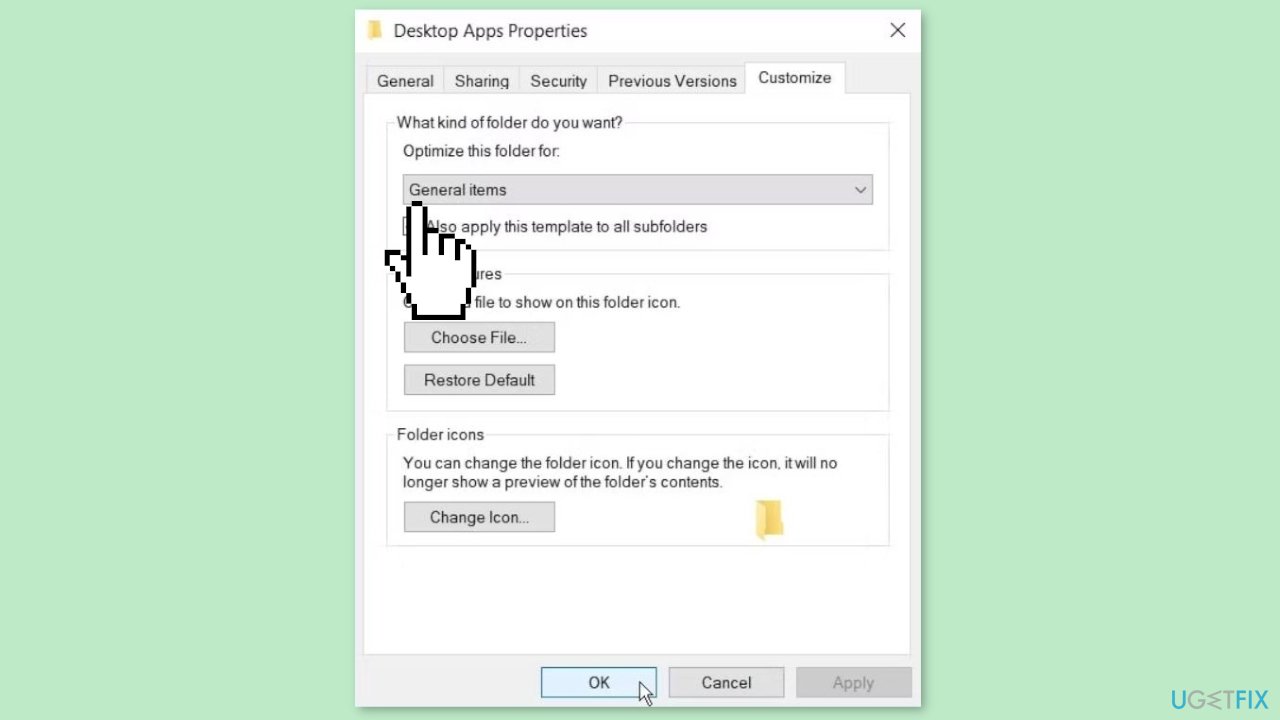
- Extend the menu below Optimize this folder for.
- Choose the General items option.
- Click Apply > OK to save the new changes and restart File Explorer.
Bottom line
To resolve the 'Working on it' message in File Explorer, users should update File Explorer and the operating system, perform virus scans, check for hardware issues, and streamline the file system. If these solutions do not work, further troubleshooting may be necessary.
Frequently asked questions
Try restarting Windows Explorer through the Task Manager, which can often resolve the issue. If that doesn't work, consider running the System File Checker to repair any corrupted system files.
Ensure that your Windows 11 is up to date, as updates often fix bugs that cause this issue. Additionally, disabling unnecessary startup programs may improve File Explorer performance.
Yes, you can try resetting the File Explorer settings or clearing its cache, which usually resolves the problem without the need for a full reinstallation.




Report an issue
What's wrong with this guide? We review every report and update or remove content.
Report received — thank you. We'll review and fix it.
You need a free account to submit a report.
Be the first to comment