How to fix
File History does not work
on Windows
Resolve File History issues on Windows 10 or 11 effortlessly. Get expert-tested solutions to restore your backups quickly, with zero traces left.

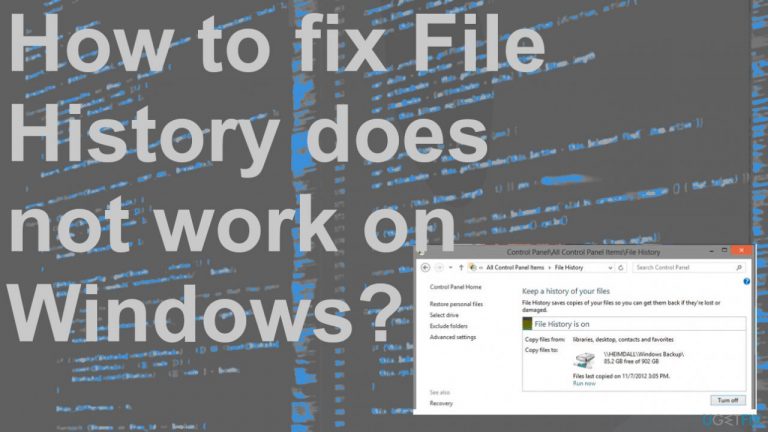
What causes How to fix File History does not work on Windows?
- Incorrectly chosen drive
- Problem finding a usable backup drive
- Third-party application interference
- Protection software interference
- Anti-malware tool interference
Repairs Windows system files, removes malware, and restores a clean OS state — without reinstalling.
Hey. I have the issue with File History not working. I got the message that copies of my files got copied, but my backup drive is empty. This is the new install of Windows OS. There are a lot of files in my PC, and those should be backed up already, but it is not the case. Can I solve this somehow?
File History does not work is an issue that can be frustrating. Backups are linked directly to the file history, so when this feature is not working, Windows 10 file history is not baking up.[ref en-1] The operating system cannot get restored to a previous point, so particular system issues cannot get fixed and errors solved.
Data backup is a great solution for various issues, from system crashes to data loss or more crucial disasters on Windows OS. So when the File History does not work on Windows, it becomes a big deal for the user. These issues can show various errors and indicate particular problems with the feature.
Those errors can state about incorrectly chose driver or a problem while trying to find the drive useable for the backup, for example. The trigger for these errors can be a third-party application, protection software, or even your anti-malware tool. If you try to back up your files and the tool is not working, or the restore feature is not working, it might lead to other issues with the PC.
It is possible to fix File History does not work on various Windows[ref en-2] devices and systems, because the issue appears on Windows 10 and older versions. people state that the problem with file history appears on Windows 8 or 8.1 when the backup cannot happen from the Include folder list or data gets completely deleted.
Since various issues can be the result of system files, affected, or even damaged data, you would benefit from the system check. You can run [d1] and allow the tool to check particular parts or even to fix the file history problems on Windows. Having backups is very important, so it is also crucial to have all of the useful features working on the machine.[ref en-3]
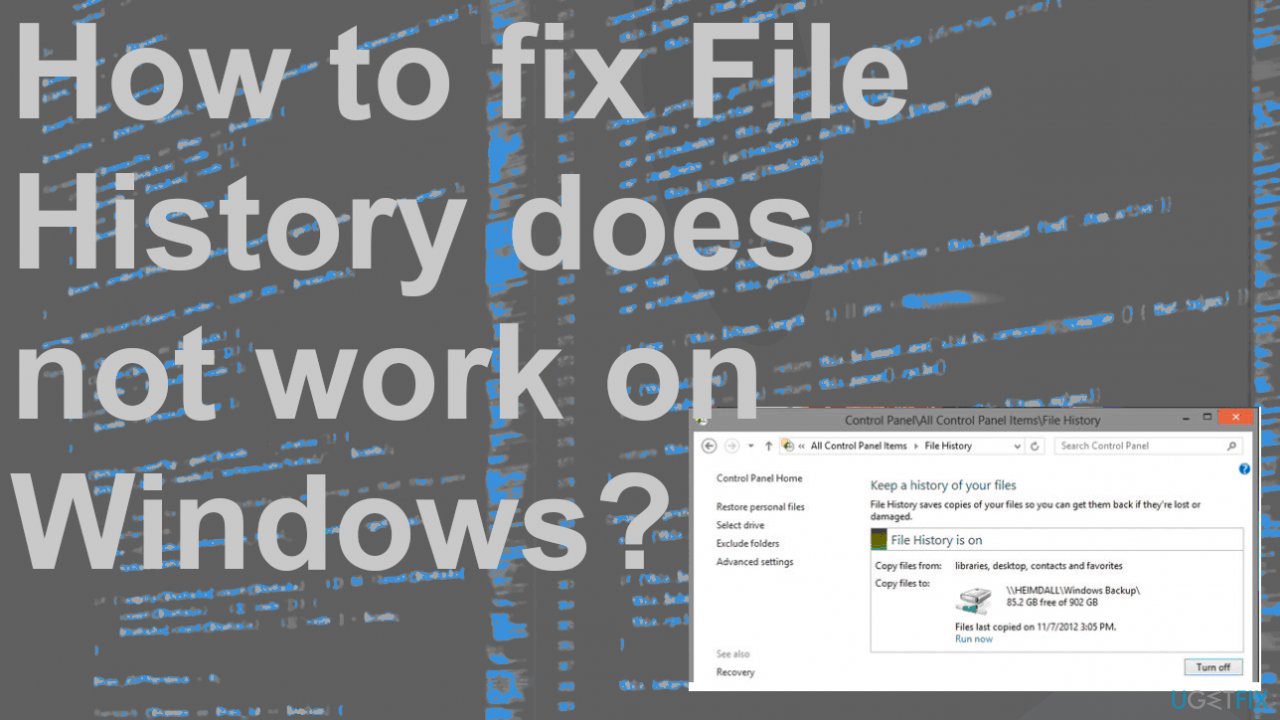
1. Enable File History Service and search
- Click on the search bar, type service.msc.
- Then click Services to open it.
- Find File History Service and Windows Search.
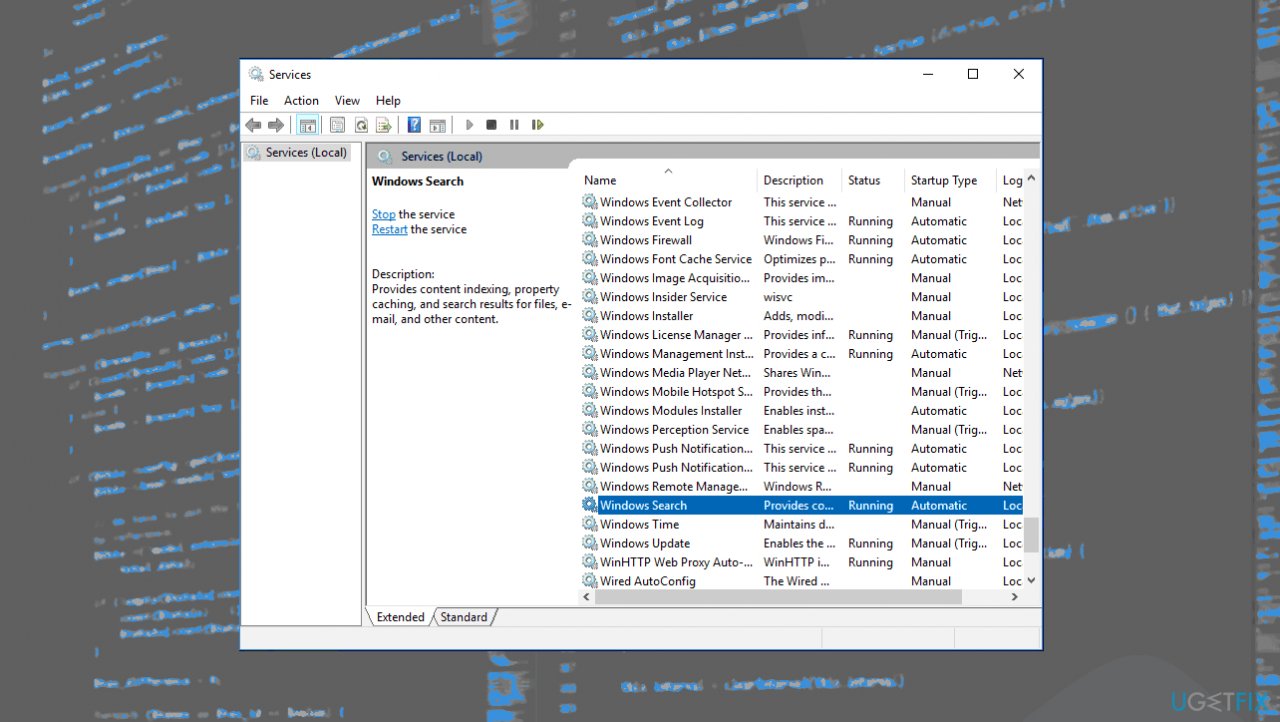
File history not working fix services - Double-click on them and change the Startup type to Automatic.
2. Disable and enable protection
- Go to Control Panel.
- Find System and Security.
- Go to System and then System protection.
- Choose a drive and click on Configure.
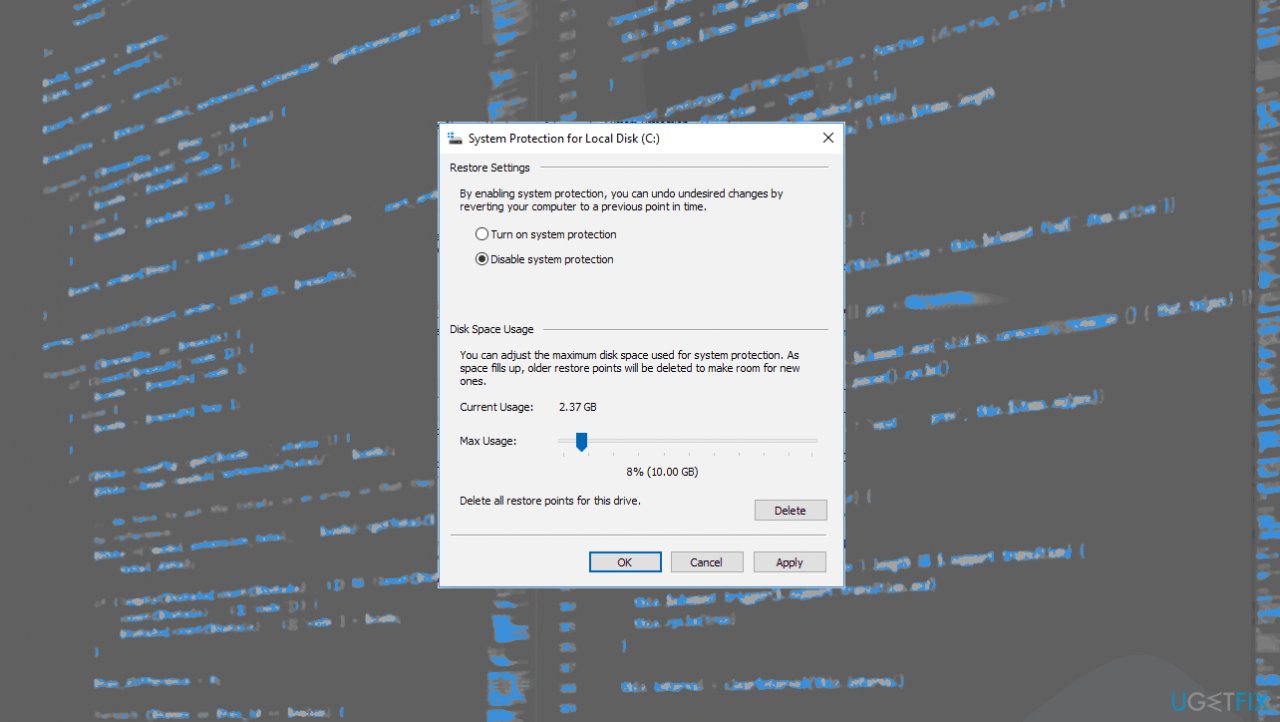
File history not working fix system protection - Click on Disable system protection and Turn on system protection.
3. Turn on File History
- Input File History in the Search box.
- Select the File History to open it.
- Click Turn on button to restart File history to back up your personal files.
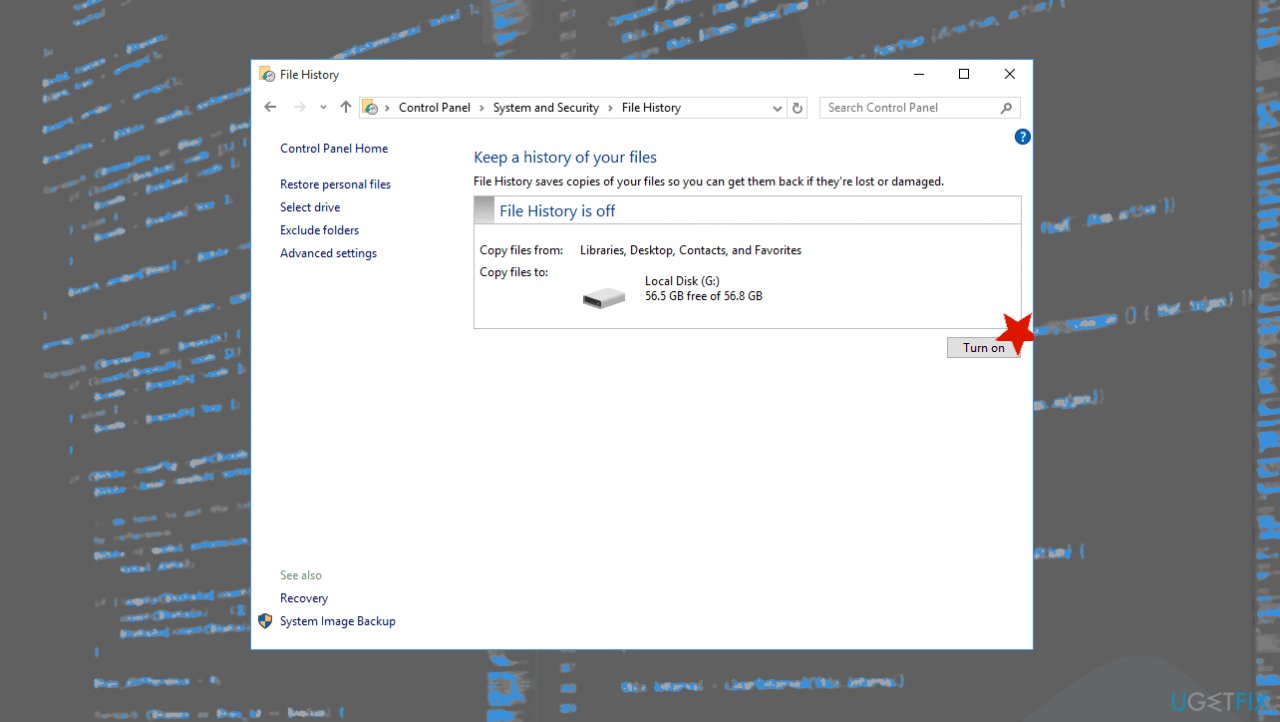
File history not working fix turn on
4. Reconnect the drive to
- Connect the hard drive and choose the Select drive in File History on the left menu,
- Choose either the original drive or select a new one.
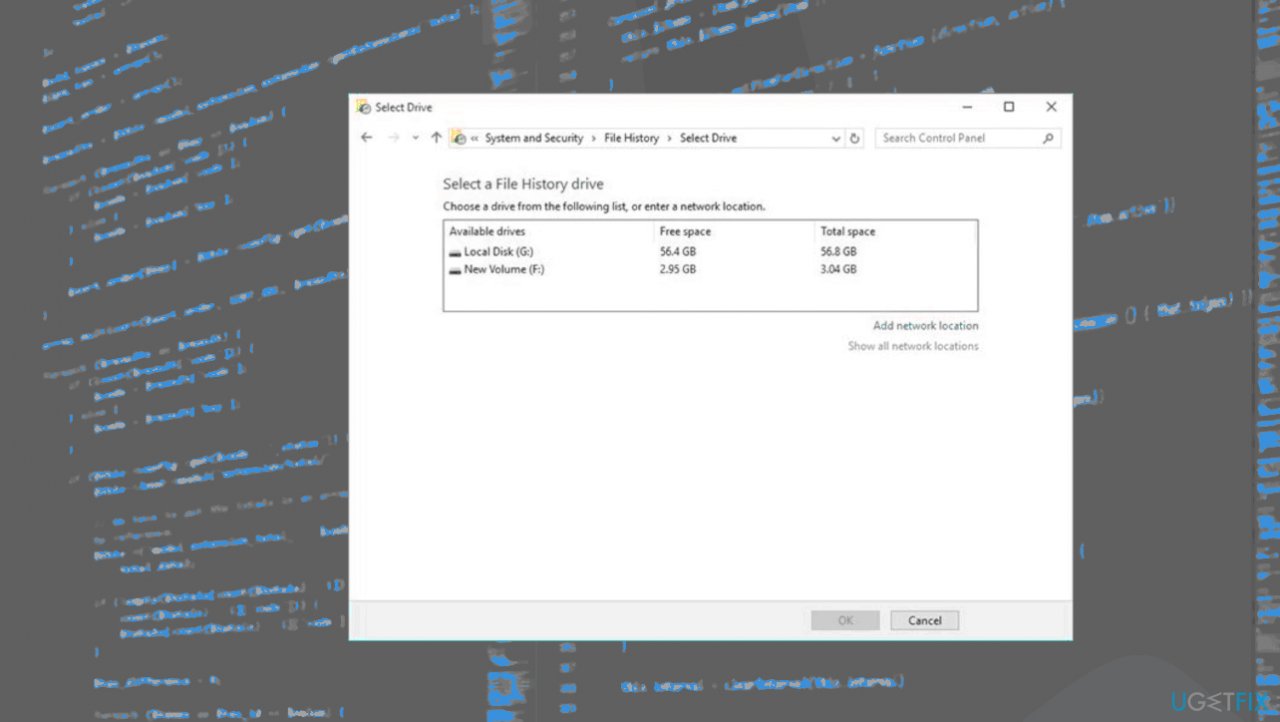
File history not working fix selecting drive - Click next and then choose to select ad network location.
Bottom line
To fix the File History issue, you can run a system check to identify and repair affected system files. Additionally, ensure that the correct backup drive is selected and that no third-party applications are interfering. If none of these solutions work, consider seeking further technical support.
Frequently asked questions
To enable File History, go to Settings > Update & Security > Backup, and then click on 'Add a drive' to select the external drive or network location you want to use for backups.
Check the File History settings and ensure that the drive is connected, then run the 'File History Troubleshooter' found in Settings > Update & Security > Troubleshoot.
Try resetting the File History service by typing 'services.msc' in the Run dialog, locating 'File History Service', and restarting it; also ensure that your Windows is up to date.




Report an issue
What's wrong with this guide? We review every report and update or remove content.
Report received — thank you. We'll review and fix it.
You need a free account to submit a report.
Be the first to comment