How to fix
“File or directory is corrupted and unreadable” error
on Windows
Resolve the "File or directory is corrupted and unreadable" error on Windows 10 and 11 quickly and effectively. Expert-tested solutions await you!

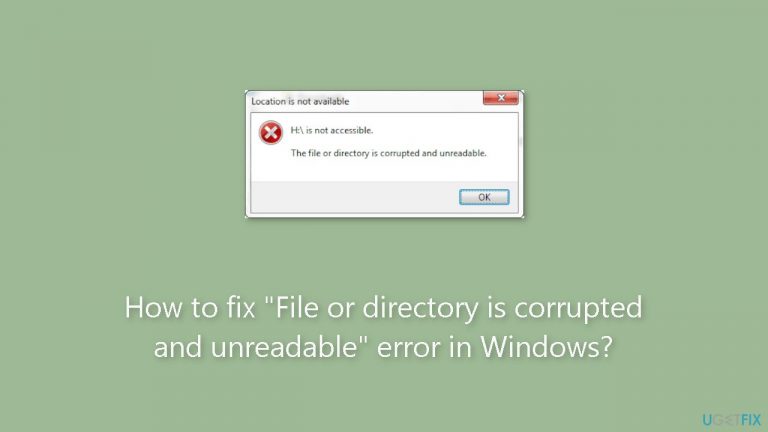
What causes How to fix “File or directory is corrupted and unreadable” error in Windows?
- File system corruption
- Malware or virus infection
- Hardware issues with the external hard drive
- Incompatibility with the operating system
- Improper ejection of the external drive
Repairs Windows system files, removes malware, and restores a clean OS state — without reinstalling.
Hello. When I try to access my hard drive on Windows, I receive the "File or directory is corrupted and unreadable" error. Can you help?
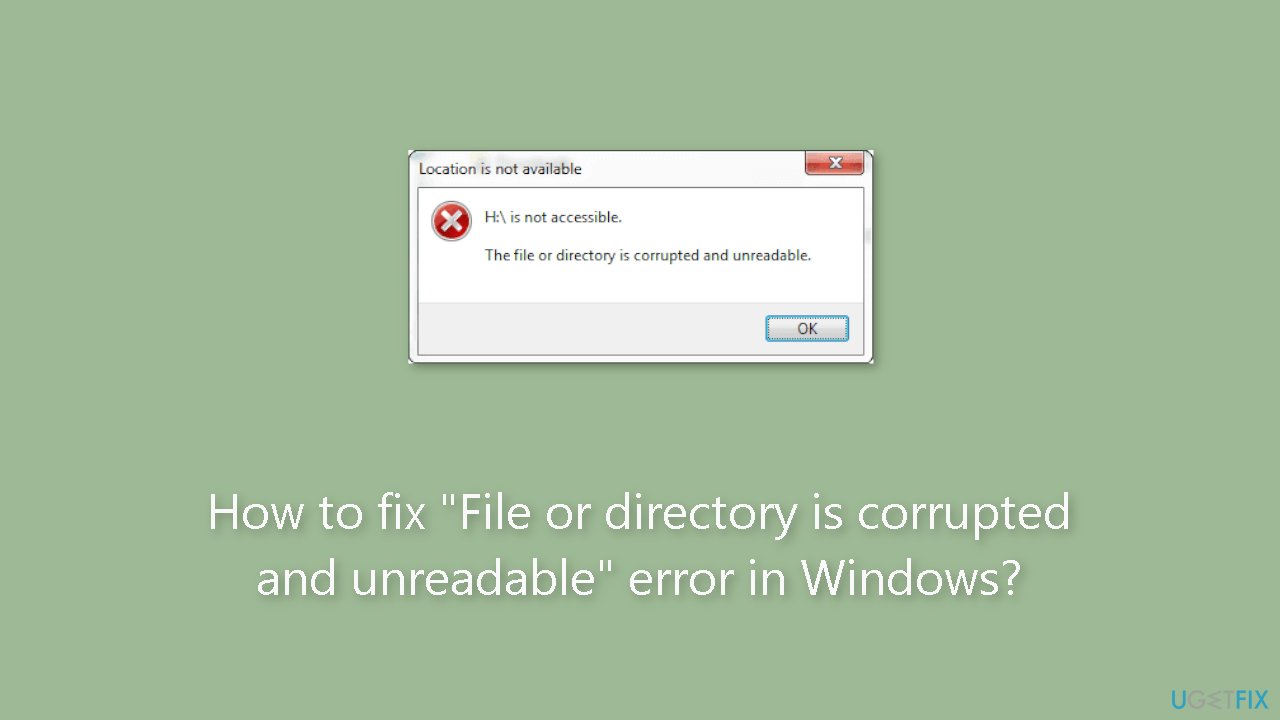
When trying to access data on an external hard drive, Windows users may get the unpleasant "File or directory is corrupted and unreadable" message. This error message indicates that there may be corruption or other problems that prevent the operating system from retrieving the data from the specified file or directory. It may prevent users from accessing their important data and obstruct their workflow, which may result in serious inconveniences and possible data loss.
The effects of this problem may be severe, especially for those who depend on external hard drives to store important data, media, and backups. Lack of access to these resources can cause work projects to fall behind schedule, push back deadlines, and jeopardize the accuracy of crucial documents. Additionally, users could feel fearful of losing treasured personal items like pictures, movies, or crucial documents. For individuals without other backups, being unable to access data saved on an external hard drive might not only be frustrating but also result in real losses.
There are various options available to address this problem. To rule out causes, users may choose to utilize antivirus software to scan for any risks. The security of the files stored on the external hard drive can be improved by running a scan on it. It's also worthwhile to try accessing the affected files from a separate computer to see if the issue is isolated to that system or if the external hard drive is having issues.
In this guide, you will find 9 steps that should help you fix "File or directory is corrupted and unreadable" error in Windows. You can also use a repair tool like [d1] that can fix most system errors, BSODs,[ref en-1] corrupted files, and registry[ref en-2] issues. Otherwise, follow the step-by-step instructions below.
Method 1. Restart your PC
If you've developed the practice of placing your computer into Sleep mode as opposed to shutting it down, you could encounter various problems and reduced performance. Therefore, it's possible that the error stating "file or directory is corrupted and unreadable" is merely a temporary malfunction that should resolve itself once you reboot your computer.
Method 2. Check Disk
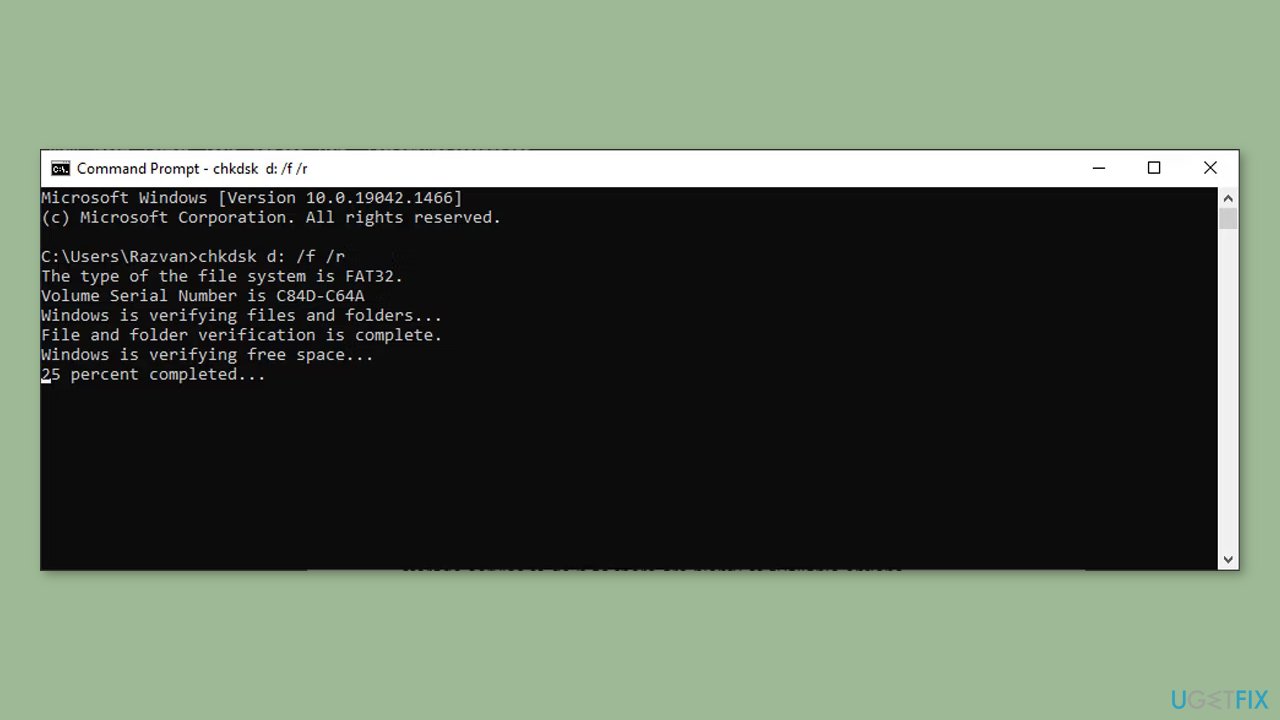
- Open the Start menu and search for Command Prompt.
- Right-click on Command Prompt and choose Run as administrator.
- In the Command Prompt window, type: chkdsk x: /f /r (replace x with your drive letter).
- Press Enter to execute the command.
Method 3. Disable Third-Party Antivirus
In the event that your antivirus identifies a potential threat on the external drive, it might prevent you from gaining access to it. If you are confident that the drive contains no actual threats, you have the option to temporarily deactivate the antivirus while utilizing the external drive.
Method 4. Change the Location of the File
If you encounter the error while attempting to open a particular folder or file, consider relocating it. For example, if you wish to access a file or folder stored on an external drive, duplicate it onto the internal drive and attempt to open it from there.
Method 5. Scan the Drive
Utilizing the Properties menu to conduct a drive scan is a streamlined method for identifying any potential drive issues. Depending on the errors identified by Windows, you can select the appropriate tool for resolution. To initiate the scan, right-click on the drive, opt for Properties, navigate to the Tools tab, and click on Check.
Method 6. Set a New Drive Letter
- Press the Windows key + R to open the Run dialog.
- Type in diskmgmt.msc and click OK.
- In the Disk Management window, right-click on the external drive.
- Choose Change Drive Letter and Paths from the context menu.
- Click on the drive letter and then click the Change button.
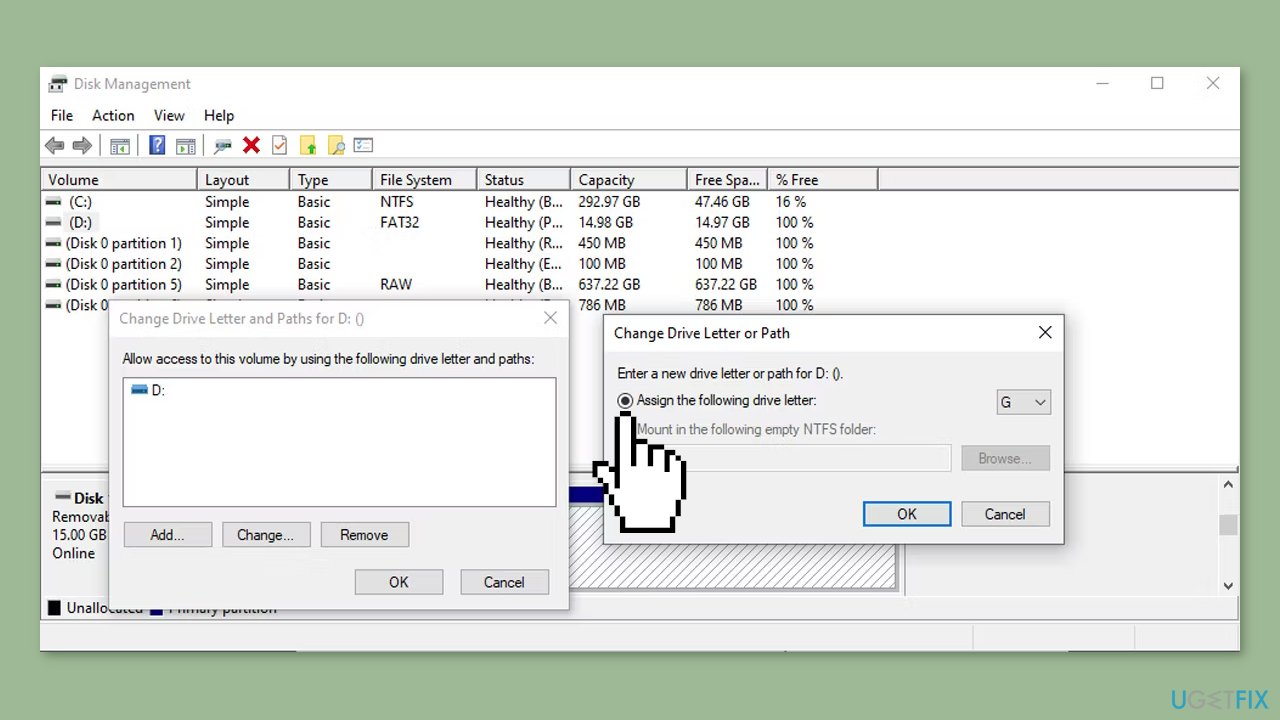
- In the Change Drive Letter or Path window, mark the Assign the following drive letter option.
- Select a new drive letter from the available drop-down menu.
- Confirm the action to apply the changes.
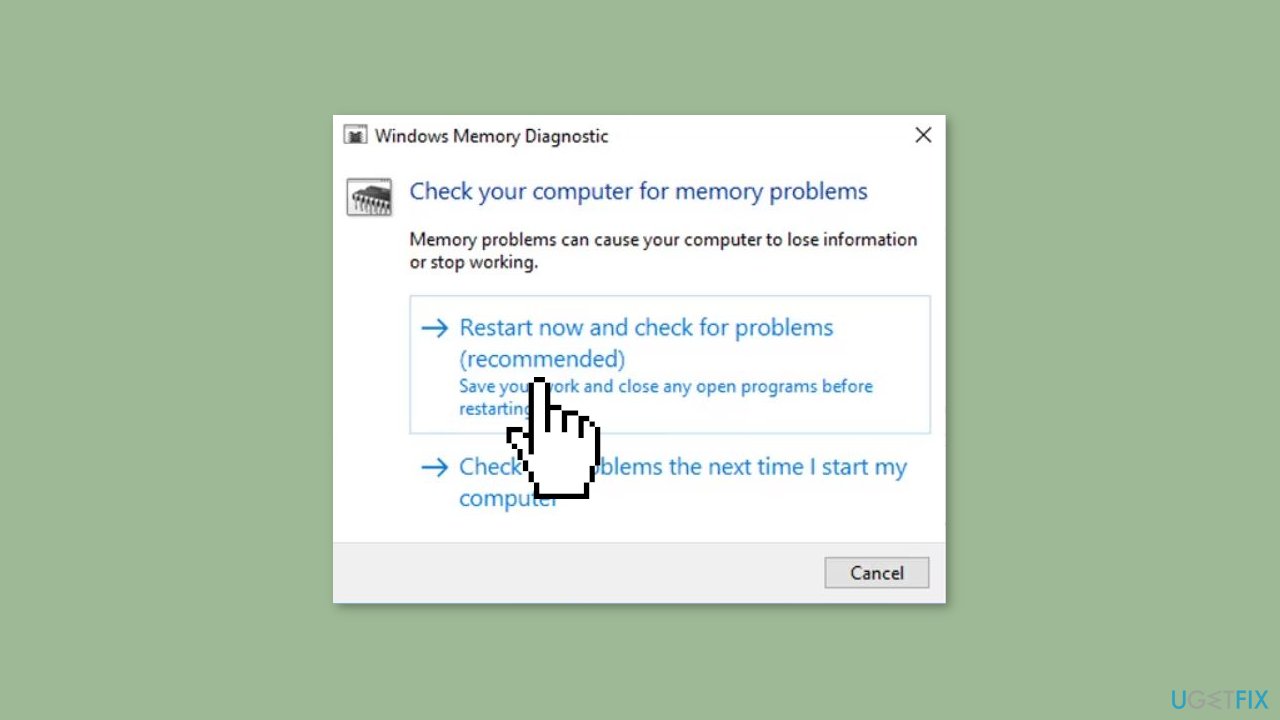
Method 7. Run Windows Memory Diagnostic Tool
- Open the Start menu and type Windows Memory Diagnostic in the search bar.
- From the search results, choose the Best match option related to Windows Memory Diagnostic.
- Select Restart now and check for problems.
Method 8. Scan for Malware
It is possible that a malware infection may be the cause of "File or directory is corrupted and unreadable" error in Windows. It is important to run a comprehensive security scan to rule out this possibility and ensure that the computer is not infected. This can help to prevent further issues with the Windows operating system and ensure that it is functioning properly.
If you have access to a security scanner, or if your organization pays for one, you can use it to scan your entire system to check for a virus infection. Otherwise, you can use Windows Defender to scan your system:
- Click on the Windows Start menu or press the Windows key on your keyboard.
- Type Microsoft Defender in the search bar and click on Microsoft Defender Antivirus to open the application.
- Click on the Virus & threat protection option in the left-hand menu.
- Click on the Quick scan or Full scan option, depending on your preference.
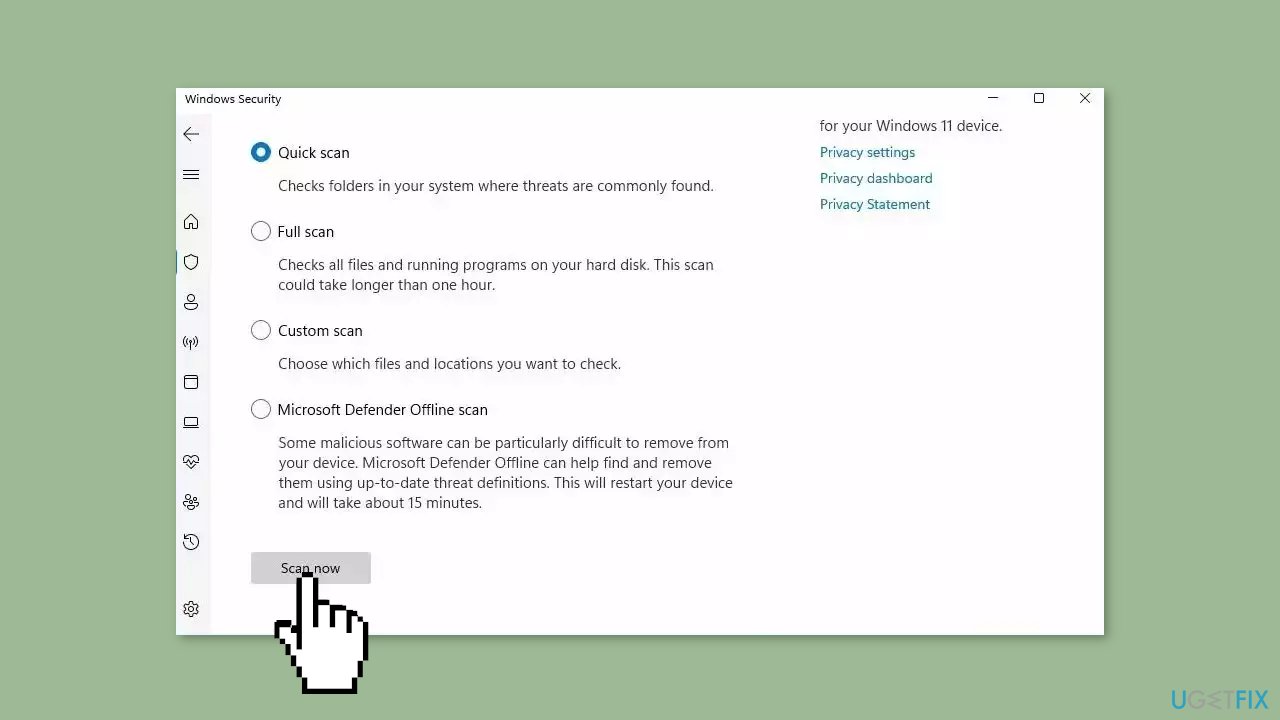
- If you choose Quick scan, Microsoft Defender Antivirus will scan the most vulnerable and commonly infected areas of your computer.
- If you choose Full scan, Microsoft Defender Antivirus will scan your entire computer, including all files, folders, and programs.
- Click on the Scan now button to start the selected scan type and wait for the scan to complete.
- The time it takes will depend on the size of your hard drive and the number of files being scanned.
- Once the scan is complete, you will be informed of any detected threats, and you can choose to quarantine or remove them.
- If no threats are found, Microsoft Defender Antivirus will inform you that your device is secure.
Method 9. Use the Startup Repair Tool
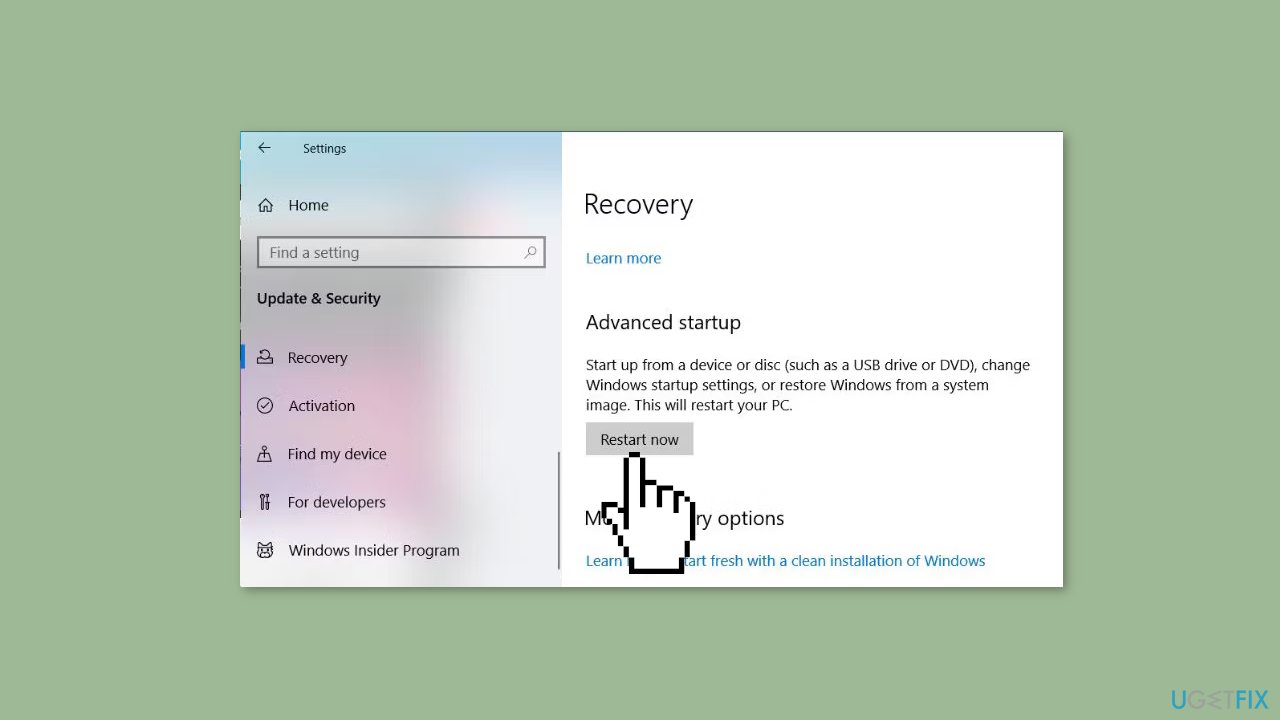
- Press the Windows key + I to open Settings.
- Navigate to Update & security > Recovery.
- Click on Restart now.
- Select Troubleshoot.
- Choose Advanced options.
- Click on Startup Repair.
Bottom line
To fix the 'File or directory is corrupted and unreadable' error in Windows, users can restart their PC, run antivirus scans, and try accessing the files from a different computer. If these methods do not resolve the issue, it may be necessary to use a repair tool or follow additional troubleshooting steps.
Frequently asked questions
This error can be caused by file system corruption, bad sectors on the hard drive, or issues with your storage device. Running a disk check can help identify and fix these problems.
You can resolve this error by using the CHKDSK utility, which scans and repairs file system issues. Open Command Prompt as an administrator and run the command 'chkdsk /f X:', replacing 'X' with your drive letter.
Yes, you can attempt to recover files using data recovery software or by restoring from backups if available. However, if the corruption is severe, professional data recovery services might be necessary.




Report an issue
What's wrong with this guide? We review every report and update or remove content.
Report received — thank you. We'll review and fix it.
You need a free account to submit a report.
Be the first to comment