
How to fix "File record segment is unreadable"?

Prefer to fix it yourself? The manual steps follow.
- 7methods
- 15 minutes to several hours
- Medium
Applies to Windows 11 and Windows 10 with NTFS volumes on hard disks, SATA and NVMe SSDs and external USB disks
7 methods in this guide
Yesterday I thought I would check the news and went to start my computer. When trying to do that, a strange error called "File record segment is unreadable" popped up. What does it mean? Is it harmful to my computer? How can I fix it?
"File record segment is unreadable" is a chkdsk message: Windows could not read one entry of the NTFS Master File Table, most often because of a bad sector. A few such lines can be repaired, while hundreds point to a failing disk. Copy files you cannot lose, then let chkdsk /r finish.
The message means chkdsk could not read part of the NTFS file table, usually because the disk has bad sectors. It is not a virus. If Windows starts, copy important files elsewhere, then run chkdsk C: /r and let it finish (Fix 1). If Windows does not start, run chkdsk from the recovery Command Prompt (Fix 2). Hundreds of such lines mean the disk is failing (Fix 5).
| Error | File record segment 12345 is unreadable. The number changes from line to line and from PC to PC. |
|---|---|
| Where it appears | In the chkdsk report, in a Command Prompt window or on the black screen of a disk check before Windows starts, during Stage 1: Examining basic file system structure. |
| Main cause | Bad sectors under the Master File Table (MFT) of an NTFS volume. Less often a loose cable, a sudden power loss or a failing disk. |
| Fastest fix | Copy irreplaceable files, then run chkdsk C: /r and let it finish without interruption (Fix 1). |
| Also written as | file record segment unreadable, file segment is unreadable, "Deleting orphan file record segment", "Insufficient disk space to hotfix unreadable file"; Russian "не удается прочесть сегмент записи о файле", Italian "impossibile leggere il segmento record file". |
| Affects | Any NTFS volume on Windows 11 and Windows 10: hard disks, SSDs and USB disks. ReFS and FAT32 volumes do not have an MFT. |
| Vendor status | Not a Windows bug and no update fixes it. Microsoft lists bad sectors and failed disk requests as causes of file system corruption and names chkdsk /f /r as the repair. |
| Time to fix | Minutes on an SSD. Several hours for chkdsk /r on a large hard disk, which Microsoft says is normal. |
| Where the cause is logged | Event Viewer, Windows Logs > Application, sources Chkdsk and Wininit (the report); Windows Logs > System, events 55, 98, 129, 153 and 157 (the disk). |
Facts checked on 15 October 2026. Steps written for Windows 11 (25H2 and 26H2) and Windows 10 22H2.
What "File record segment is unreadable" means
Every NTFS volume has a master file table, the MFT. Microsoft describes it as a file with at least one entry for every file on the volume, holding its size, dates, permissions and data or the location of that data. Chkdsk calls each entry a file record segment and gives it a number.
When chkdsk prints File record segment 12345 is unreadable., it tried to read entry 12345 and the disk did not return it. The file that belonged to that entry can lose its name, its folder or its contents. The message appears in Stage 1: Examining basic file system structure, the first stage of an NTFS check.
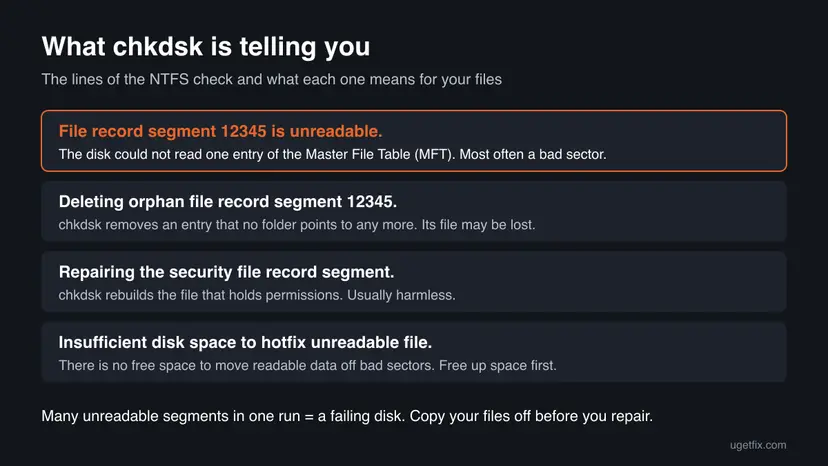
| Line in the chkdsk report | What it means | What to do |
|---|---|---|
| File record segment 12345 is unreadable. | One MFT entry could not be read. | Fix 1 or Fix 2; many lines: Fix 3 and Fix 5. |
| Deleting orphan file record segment 12345. | chkdsk removes an entry that no folder points to. Often follows unreadable segments. | Let it finish; check your files afterwards. |
| Repairing the security file record segment. | chkdsk repairs the record that stores file permissions. | Usually nothing; let it finish. |
| Insufficient disk space to hotfix unreadable file. | No free space to move readable data off a bad cluster. | Free up space, then run chkdsk again. |
The message comes from the disk check itself and describes how the disk answers. No source we read ties it to malware. A malware scan will not make the sectors readable again.
Why chkdsk says a file record segment is unreadable: causes in order
Most often the disk has developed bad sectors in the area where the MFT sits. Less often the link to the disk breaks for a moment, or a power cut left the file system half written. Rarely an old storage driver or firmware makes reads time out. Microsoft names the same two roots for NTFS corruption: bad sectors, and disk requests that do not complete.
| Cause | How often | How to tell | Fix |
|---|---|---|---|
| Bad sectors under the MFT | Most often | A handful of unreadable segments; event 153 or 55 in the System log. | Fix 1, Fix 2 |
| A disk that is failing | Often when there are hundreds of lines | Health shows Warning or Unhealthy, clicking, files vanish, errors come back. | Fix 3, Fix 5, Fix 7 |
| Loose cable, USB hub, weak port or power | Sometimes | External disk, or the PC was moved or opened. Event 157 or 129. | Fix 4 |
| Power loss or forced shutdown during writes | Sometimes | The error came after a crash or power cut; health is fine. | Fix 1 |
| Old storage driver or SSD firmware | Rarely | Event 129 resets; the errors return after a clean check. | Fix 6 |
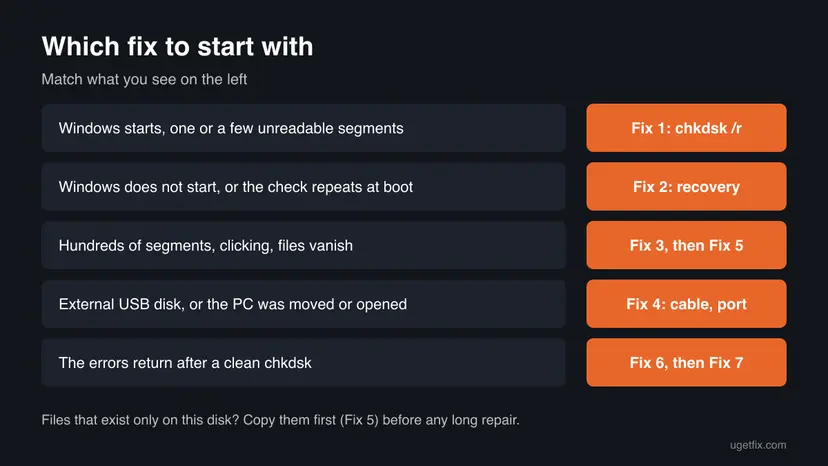
Microsoft's first prerequisite for disk repairs is to back up critical data. A long /r scan strains a weak hard disk, and records chkdsk cannot read may be removed. If your files exist only on this disk, copy them first with Fix 5.
How to fix "File record segment is unreadable" in chkdsk
Fix 1 is the repair most readers need when Windows still starts. Fix 2 does the same from the recovery environment. Fix 3 tells you whether the disk can be trusted, Fix 4 rules out the connection, Fix 5 rescues your files, and Fixes 6 and 7 deal with errors that keep coming back.
| What you see or have | Start with |
|---|---|
| Windows starts and chkdsk showed one or a few unreadable segments. | Fix 1 |
| Windows does not start, or the disk check runs again at every boot. | Fix 2 |
| Hundreds of unreadable segments, clicking sounds, or files disappear. | Fix 3, then Fix 5 |
| An external USB disk, or the PC was moved or opened recently. | Fix 4 |
| chkdsk said "Insufficient disk space to hotfix unreadable file". | Fix 1, after freeing space |
| The errors come back after a clean chkdsk run. | Fix 6, then Fix 7 |
Fix 1. Run chkdsk /r on the volume and let it finish
10 minutes to several hoursRead the warningWindows starts, and chkdsk or a boot check reported one or a few unreadable file record segments.
Microsoft says /r locates bad sectors and recovers readable information, and includes everything /f does. It marks the clusters under the damaged MFT entries as bad and rebuilds what it can, so the next check no longer stops on them.
Entries that stay unreadable are removed, and the files they described may be lost or end up without a name. Copy files you cannot lose to another disk first (Fix 5). Skip this fix if the disk clicks or health shows Unhealthy in Fix 3.
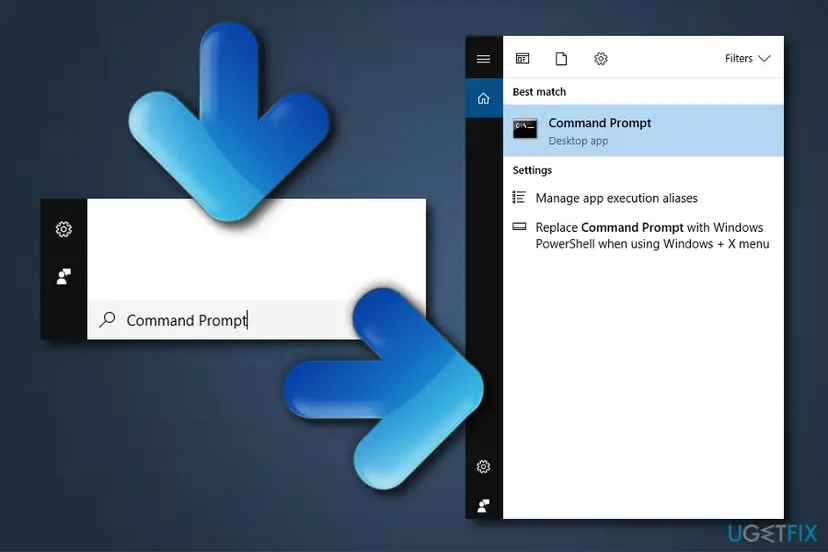
- Type cmd in the taskbar search box, right-click Command Prompt and select Run as administrator.
- Run
chkdsk C: /scanwith the letter of the affected volume. This online scan changes nothing and shows whether NTFS still reports errors. - Run
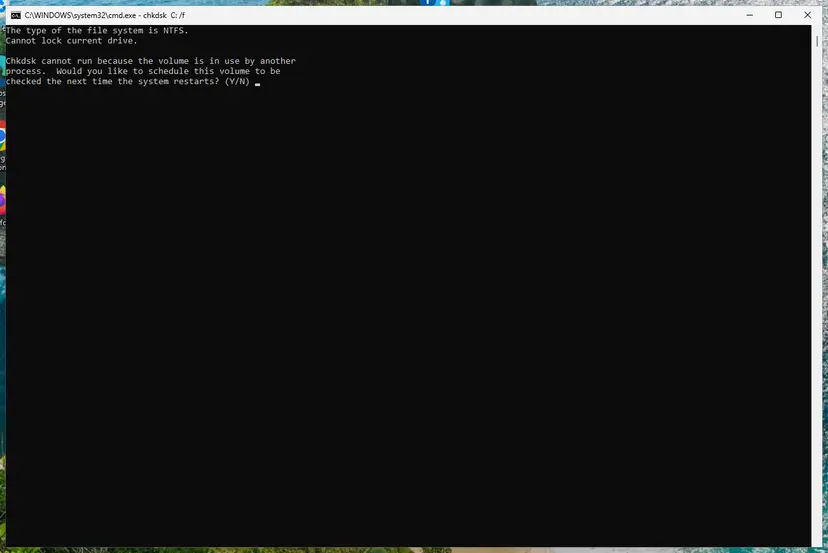
chkdsk C: /rwith the same letter. - On the Windows drive, chkdsk answers that the volume is in use. Type Y, press Enter and restart the PC.
- Let the check finish. On a large hard disk this can take hours. Do not turn the PC off.
- After Windows starts, read the report as shown below and run
chkdsk C: /scanonce more.
Read the report of a check made at startup (PowerShell)
get-winevent -FilterHashTable @{logname="Application"} | ?{$_.providername -match "wininit"} | fl timecreated, messageIf chkdsk said Insufficient disk space to hotfix unreadable file, free several gigabytes first with Free up disk space and delete temporary files, then run chkdsk /r again. Full steps for every chkdsk mode: Check a disk for errors (chkdsk).
It worked if: The second chkdsk /scan reports that Windows found no problems, and the boot check no longer appears.
If not: If Windows does not start, use Fix 2. If the second scan still finds unreadable segments, check the disk with Fix 3.
Fix 2. Run chkdsk from the recovery Command Prompt when Windows does not start
20 minutes to several hoursRead the warningThe error appears at startup and Windows does not load, or the disk check repeats at every boot.
Chkdsk needs to lock the volume to repair it. In the Windows Recovery Environment nothing runs from the Windows drive, so chkdsk can lock it and repair the MFT without Windows starting first.
Here too, chkdsk removes entries it cannot read, and their files may be lost. If the disk holds files that exist nowhere else, read it from another PC and copy them first (Fix 5).
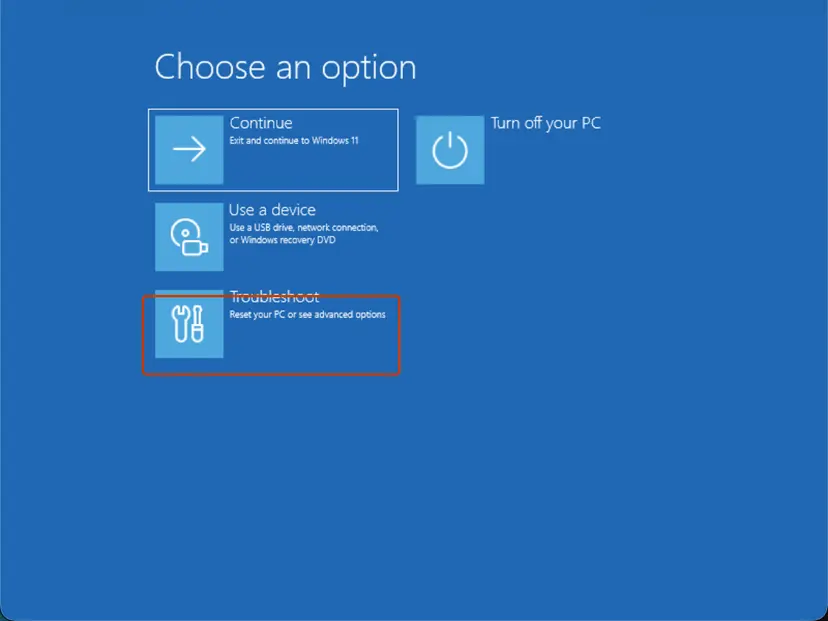
- Turn the PC on and off at the Windows logo three times, or start it from a Windows 11 installation USB and select Repair your computer.
- Select Troubleshoot > Advanced options > Command Prompt.
- Type
bcdeditand look at osdevice to see which letter Windows has here. It is often not C: in recovery. - Run
chkdsk D: /rwith that letter, and let it finish. - Close the window and select Continue to start Windows.
If Windows starts but chkdsk runs at every boot, the volume is still marked dirty. Run fsutil dirty query C: in an administrator Command Prompt. Microsoft uses this command to check whether a volume needs a full repair. Then run Fix 1 once more.
It worked if: Windows starts without a disk check, and fsutil dirty query C: reports that the volume is not dirty.
If not: If chkdsk stops, freezes for hours at one percentage, or prints hundreds of unreadable segments, stop and go to Fix 3 and Fix 5.
Fix 3. Check the disk's health and the System log
10 minutesNo riskYou want to know whether the disk can be trusted, or chkdsk printed many unreadable segments.
Unreadable MFT entries are a symptom. The System log and the disk's health status show whether the cause is a few bad sectors, a weak connection or a disk that is failing, which decides whether repairing makes sense.
- Right-click Start and open Terminal (Admin) or Windows PowerShell (Admin).
- Run the command below and read HealthStatus for each disk.
- Right-click Start, open Event Viewer and go to Windows Logs > System.
- Select Filter Current Log, type
55,98,129,153,157in the event ID box and select OK. - Note which disk the events name and how often they appear.
List the disks and their health (PowerShell)
Get-PhysicalDisk | Format-Table DeviceId, FriendlyName, MediaType, HealthStatus, OperationalStatus| Event ID | Microsoft's text | What it means here |
|---|---|---|
| 55, 98 | "The file system structure on the disk is corrupt and unusable." | NTFS is damaged; chkdsk is needed (Fix 1). |
| 153 | "The IO operation at logical block address 123456 for Disk 2 was retried." | Reads time out. Many for one disk point to a weak disk (Fix 5). |
| 129 | "Reset to device, \Device\RaidPort1, was issued." | Controller timeout: cable, driver or firmware (Fix 4, Fix 6). |
| 157 | "Disk 2 has been surprise removed." | The disk dropped off: cable, port or power (Fix 4). |
It worked if: Health shows Healthy and only a few old events, so a repair with Fix 1 is reasonable.
If not: If health shows Warning or Unhealthy, or event 153 repeats for the same disk, copy your files now with Fix 5.
Fix 4. Reseat the cable and connect the disk directly to the PC
5 to 15 minutesNo riskThe disk is external, sits behind a hub, or the PC was moved or opened shortly before the error.
Microsoft lists I/O requests that do not complete as a cause of NTFS corruption. A loose or worn cable breaks reads for a moment, and chkdsk then reports entries as unreadable although the sectors are fine.
- Shut down the PC with Start > Power > Shut down.
- External disk: remove any hub, dock or extension and use another cable on a rear USB port. Plug in its power adapter if it has one.
- Desktop internal disk: unplug the power cord, then unplug and firmly reconnect the SATA data and power cables at both ends. Try another SATA port.
- NVMe SSD: check that it sits fully in its slot and its screw holds it down.
- Start the PC and run
chkdsk C: /scanwith the disk's letter.
Do not open a laptop under warranty. Skip the internal steps if you are not comfortable working inside a PC, and go on to Fix 5 if the disk holds files you need.
It worked if: The scan finds no unreadable file record segments, and no new event 157 or 129 appears.
If not: If the same errors come back with another cable and port, the disk itself is the cause. Use Fix 5.
Fix 5. Copy your files off the disk, or read it from another PC
30 minutes or moreNo riskYour files exist only on this disk, the disk is failing, or Windows no longer starts from it.
Every read of a failing disk can be one of its last. Copying files before chkdsk removes damaged entries keeps whatever is still readable, which is what the old advice to connect the disk to another PC was for.
- Connect a healthy disk with enough free space.
- If Windows does not start, take the disk out and connect it to another PC with a USB adapter or enclosure, as a second disk.
- Copy the most important folders first, one at a time, with the robocopy command below. It retries a file twice and moves on.
- Read the summary at the end. Files listed as FAILED sit on unreadable areas.
- Do not run chkdsk on the old disk until the copy is done.
Copy a folder with few retries (Command Prompt)
robocopy "D:\Users\You\Documents" "E:\Rescue\Documents" /E /R:2 /W:5If files are already missing after chkdsk, see Recover deleted files (Recycle Bin, backups, OneDrive). For a regular backup on the new disk: Back up your files (Windows Backup, File History, Time Machine). If the disk is no longer detected at all, a data recovery service is the safe choice for files you cannot lose.
It worked if: Your files are on another disk, and the summary lists few or no failed files.
If not: If robocopy fails on most files, stop using the disk and contact a data recovery service.
Fix 6. Update storage controller drivers and the disk firmware
15 to 30 minutesLow riskThe errors return after a clean chkdsk, or the System log shows event 129 resets.
Microsoft's steps for NTFS corruption events include updating storage drivers and firmware. A controller driver or SSD firmware that times out can make reads fail and leave the MFT damaged again.
- Right-click Start, open Device Manager and expand Storage controllers.
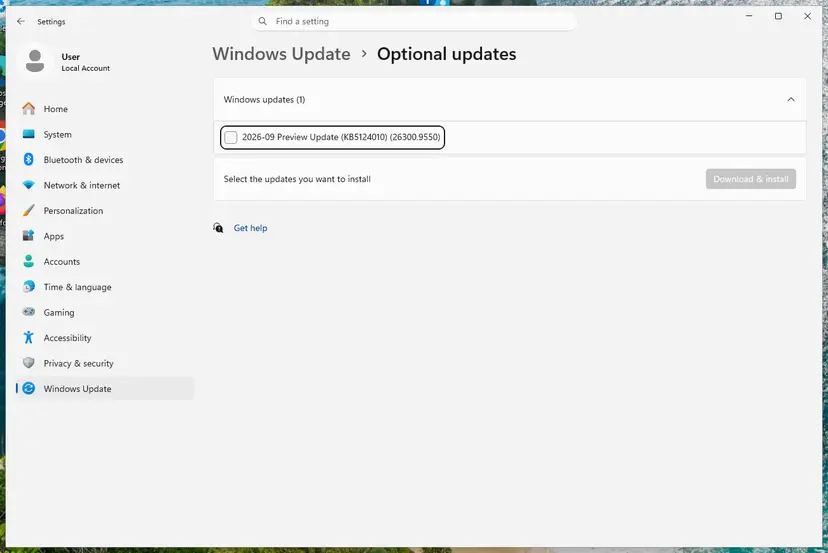
- Install chipset and storage drivers from your PC or motherboard maker, or from Windows Update > Advanced options > Optional updates.
- Look up your disk model (the FriendlyName from Fix 3) on its maker's site and apply any firmware update with the maker's tool.
- Restart and run
chkdsk C: /scan.
Copy your files before a firmware update, because a failed one can make the disk unreadable. Step by step for drivers: Update, roll back or reinstall a driver.
It worked if: Later scans stay clean and no new event 129 appears.
If not: If unreadable segments come back anyway, treat the disk as failing and use Fix 7.
Fix 7. Replace the disk and restore Windows and your files
1 to 3 hoursLow riskHealth shows Warning or Unhealthy, the disk clicks, or unreadable segments return after every repair.
Microsoft's note on failed repairs is plain: if chkdsk does not fix the disk errors, the data has to come back from a backup. A disk that keeps losing sectors will keep damaging its file table.
- Finish Fix 5 so your files are safe on another disk.
- Install the new disk. Check the old one's warranty on its maker's website.
- Install Windows on the new disk, or restore a system image if you have one.
- Copy your files back and set up a regular backup.
If only a data disk failed, no reinstall is needed: format the new disk in Disk Management and copy the files back. For Windows itself, see Reinstall Windows without losing files.
It worked if: chkdsk on the new disk reports no problems and the PC starts without a disk check.
If not: If the new disk shows the same errors, suspect the cable, port or controller (Fix 4, Fix 6) and ask a technician.
If chkdsk still says a file record segment is unreadable
Collect these facts before you contact the disk maker, your PC maker or a technician. They show whether the disk, the connection or the file system is at fault. The same error with a different read error, the I/O device error 1117, has its own guide: error code 1117.
- The chkdsk report from Windows Logs > Application, sources Chkdsk and Wininit, with the number of unreadable segments.
- The disk's make, model and HealthStatus from Fix 3.
- The events 55, 98, 129, 153 and 157 from Windows Logs > System.
- Which cables, ports and PCs you tried (Fix 4).
- Your Windows version: press Win + R and type
winver. - When it is hardware: clicking or grinding, Warning or Unhealthy health, errors on every PC and cable, or a disk that is not detected. No Windows setting fixes those.
How to keep the file record segments readable
- Keep at least one current backup of your files on another disk or in the cloud.
- Run
chkdsk C: /scannow and then; it changes nothing and runs while you work. - Shut down with Start > Power and use a UPS on a desktop in an area with power cuts.
- Look at the System log for event 153 when the PC gets slow while reading files.
- Keep storage drivers and SSD firmware up to date.
- Turn the PC off while chkdsk runs.
- Run
chkdsk /ragain and again on a disk that clicks or shows Unhealthy. - Unplug an external disk without Safely Remove Hardware.
- Keep the only copy of your files on a disk that showed this error.
On an SSD, Microsoft notes that repeated full /r scans add write and erase cycles. An occasional check is fine, but do not schedule /r as routine maintenance.
Frequently asked questions
What does "File record segment is unreadable" mean in chkdsk?
It means chkdsk could not read one entry of the NTFS master file table. Microsoft describes that table as holding at least one entry for every file on the volume, with its size, dates, permissions and data. The number in the message is the entry. The usual cause is a bad sector under it. A few such lines can be repaired with chkdsk /r (Fix 1). Hundreds of them point to a disk that is failing, so copy your files first (Fix 5).
Is my hard drive or SSD dying?
Not always. A power cut or a loose cable can leave a few unreadable entries on a healthy disk. The disk is likely failing when chkdsk prints hundreds of unreadable segments, the errors come back after a clean check, the System log shows many event 153 entries for that disk, or health shows Warning or Unhealthy. Clicking sounds and files that vanish are further signs. In that case copy your files off now (Fix 5) and plan to replace the disk (Fix 7).
What does "Deleting orphan file record segment" mean?
It means chkdsk found an MFT entry that no folder points to any more and removes it. These lines often follow unreadable segments, because the folder entry that listed the file was damaged. The data of an orphaned entry may be lost, or the file may come back without its name. Let chkdsk finish, then check your important folders. Missing files may be recoverable from a backup or with Recover deleted files (Recycle Bin, backups, OneDrive). Many orphan lines mean real damage, so check the disk with Fix 3.
What does "Repairing the security file record segment" mean?
Chkdsk is repairing the NTFS record that stores the permissions of files and folders. It usually follows other repairs in the same run and is not a sign of extra damage on its own. Let the check finish without turning the PC off. If some files show access denied afterwards, their permissions may need resetting, but most readers notice no change. If the line appears at every boot, the volume is still marked dirty, so use Fix 2.
What does "Insufficient disk space to hotfix unreadable file" mean?
Chkdsk wanted to move readable data away from bad clusters but the volume had too little free space for it. The repair of that file is skipped; some reports word this as a failure to hotfix the unreadable file. Free up several gigabytes on the volume with Free up disk space and delete temporary files, or move large files to another disk. Then run chkdsk /r again (Fix 1). If the volume is full because the disk is small, copy files off it first.
Can I fix it on an SSD the same way?
Yes. The message means the same on an SSD and chkdsk /r works the same way, only faster, because an SSD has no moving parts. Microsoft notes that chkdsk marks bad clusters on an SSD logically, and that repeated full /r scans add write and erase cycles, so do not run it again and again. Check the SSD's health with Fix 3 and look for a firmware update from its maker (Fix 6). Repeated errors on an SSD mean it should be replaced.
Will chkdsk /r delete my files?
It can lose files whose entries stay unreadable. Chkdsk removes those entries, and the files they described may disappear or lose their names. That is why you copy important files to another disk before the repair (Fix 5). Microsoft also says that interrupting chkdsk should not leave the volume more corrupt than before, and that running it again repairs remaining corruption. Still, let it finish: on a large hard disk that can take hours.
Why does chkdsk run at every startup?
Windows runs a check at startup while the volume is marked dirty, which means NTFS still has damage it could not repair. Run fsutil dirty query C: in an administrator Command Prompt to see the state. If it is dirty, run chkdsk from the recovery Command Prompt (Fix 2) so it can lock the volume. If the check keeps coming back, the disk is losing more sectors; check its health with Fix 3 and copy your files (Fix 5).
What is "не удается прочесть сегмент записи о файле" or "impossibile leggere il segmento record file"?
Both are the same chkdsk message in Windows set to another language: Russian and Italian for "File record segment is unreadable". The meaning and the fixes are the same as on this page, and the commands are the same in every language. Only the menu names differ. Follow Fix 1 if Windows starts and Fix 2 if it does not. If you only want to know what it is, the first answer in this FAQ explains it.
Do I need Safe Mode to fix this error?
No. The old version of this page told readers to start Safe Mode first, but chkdsk does not need it. On the Windows drive, chkdsk offers to run at the next restart, before Windows loads, which is what locks the volume (Fix 1). When Windows does not start at all, the recovery Command Prompt does the same job (Fix 2). Safe Mode is still useful if you want to copy files from a PC that crashes in normal mode: Start Windows or a Mac in Safe Mode.
Sources
- Microsoft Learn: chkdsk command reference (learn.microsoft.com)
- Microsoft Learn: Master File Table (Local File Systems) (learn.microsoft.com)
- Microsoft Learn: Guidance for troubleshooting data corruption and disk errors (learn.microsoft.com)
Did this fix work?
One click, no account. It tells the next reader which guides are worth their time.
Questions and experiences: fix "File record segment is unreadable"
Still broken, or found a fix we did not cover? Ask here: members and our editors answer. Reading is open; writing needs a free account.
…