
How to fix File System error (-1073741792) in Windows?

Prefer to fix it yourself? The manual steps follow.
- 6methods
- 20 minutes to 2 hours
- Medium
Applies to Windows 11 and Windows 10; Task Manager, Services, installers, uninstallers, Registry Editor and any program started with Run as administrator
6 methods in this guide
Hello. My Windows PC does not let me run any apps as an administrator because of File System error (-1073741792). Is there a way to fix this?
File system error (-1073741792) stops Task Manager, installers and every tool that needs admin rights. It is the Windows code 0xC0000020: Windows could not read a program file it had to load into memory, which usually means damaged Windows files. Repair the disk and system files from the recovery screen first, because that route needs no admin prompt.
File system error (-1073741792) is the Windows status code 0xC0000020, STATUS_INVALID_FILE_FOR_SECTION: Windows could not read a file it needed to start the program. Because admin tools cannot open, repair from the recovery screen: run CHKDSK and an offline SFC from the recovery Command Prompt (Fix 1). If admin tools work in Safe Mode, remove the startup program behind it (Fix 2). A repair install that keeps your files and apps is the last step (Fix 6).
| Error | A box with the program's path in the title bar and on the first line, for example C:\Program Files (x86)\Google\Chrome\Application\chrome.exe, then File system error (-1073741792). and an OK button. |
|---|---|
| Where it appears | When you open Task Manager, Services, an installer or uninstaller, or any program with Run as administrator. Programs that need no admin rights often still start. |
| Main cause | Damaged Windows system files or file system errors on the Windows drive, so a file Windows must load cannot be read. |
| Fastest fix | chkdsk C: /f and an offline sfc /scannow from Troubleshoot > Advanced options > Command Prompt on the recovery screen (Fix 1). |
| Also written as | -1073741792, 1073741792, "error (-1073741792)", "file system error (-10737", 0xC0000020, 0xc0000020. |
| Microsoft's name | STATUS_INVALID_FILE_FOR_SECTION: "{Bad File} The attributes of the specified mapping file for a section of memory cannot be read." |
| Affects | Windows 10 and Windows 11, including Windows 11 22H2 and later. The box looks the same on both. |
| Vendor status | Not a known issue tied to one update. Microsoft Community advisors treat it as a damaged Windows install and point to Safe Mode and a repair install. |
| Time to fix | 20 to 40 minutes for Fix 1, up to 2 hours for a repair install. |
Facts checked on 15 October 2026. Steps written for Windows 11 (25H2 and 26H2) and Windows 10 22H2.
What File system error (-1073741792) means
You open Task Manager, start an installer or right-click a program and choose Run as administrator. Instead of the program, Windows shows a box with the program's path and the line File system error (-1073741792). Users on Microsoft Q&A and Ten Forums describe the same pattern: Task Manager, Services, elevated Command Prompt, installing and uninstalling apps, and even removing updates all fail at once.
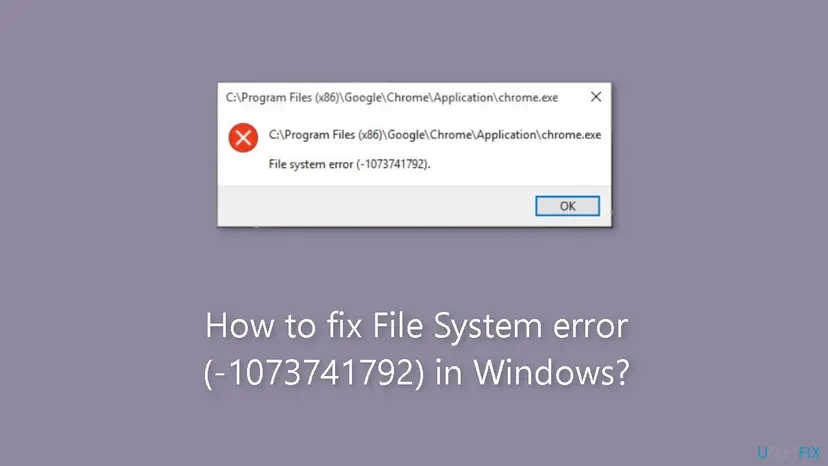
The number is a Windows status code printed as a negative decimal. In hex, -1073741792 is 0xC0000020. Microsoft's list of NTSTATUS values names it STATUS_INVALID_FILE_FOR_SECTION, with the text "{Bad File} The attributes of the specified mapping file for a section of memory cannot be read."
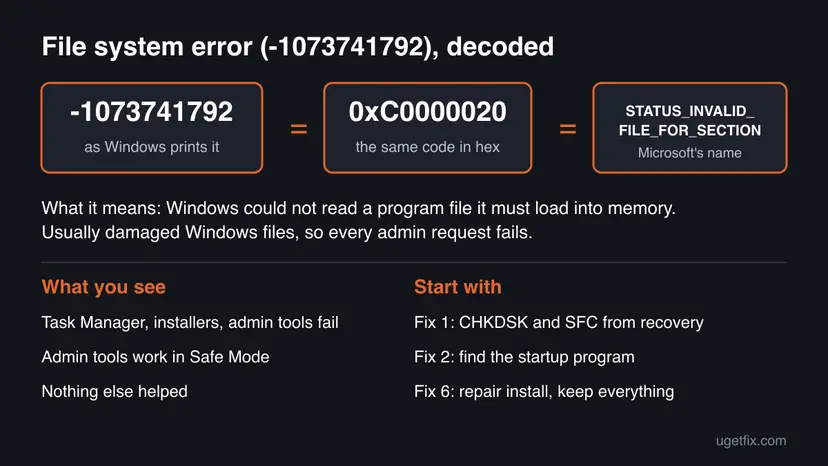
A "section" is how Windows maps a program or library file into memory before it runs. When Windows cannot read that file's attributes, the program never starts. Because all admin tools fail together, the broken file is most likely part of Windows itself, not the program named in the box. We could not confirm in a Microsoft document which file it is.
That is why the usual advice, "open Command Prompt as administrator and run SFC", does not work here: the admin Command Prompt fails with the same box. Every fix below either runs from the Windows recovery screen, which does not use the admin prompt, or from Safe Mode, where users report admin tools still open.
Why the file system error -1073741792 appears
The code says a file could not be read. Rank the reasons like this and start at the top.
| Cause | How often | How to tell | Fix |
|---|---|---|---|
| Damaged Windows system files or file system errors on the Windows drive. | Most often | Several admin tools fail with the same box; a Microsoft advisor called the OS corrupt. | Fix 1 |
| A program or driver that starts with Windows and blocks or damages the load. | Often | Task Manager opens in Safe Mode but not in normal mode. | Fix 2 |
| A recent Windows update that did not install cleanly. | Sometimes | The error began right after an update or a failed feature update. | Fix 3 |
| Changes from the last days you cannot pin down. | Sometimes | You have a restore point from before the error. | Fix 4 |
| A damaged user profile. | Less often | Another administrator account works. | Fix 5 |
| Damage too wide for SFC to repair. | Rarely | Fixes 1 to 5 changed nothing. | Fix 6 |
A failing drive can also cause unreadable files. If the PC also freezes, copies files very slowly or CHKDSK reports bad sectors, back up your files before anything else: Back up your files (Windows Backup, File History, Time Machine)
A similar box with another number is a different error. File system error (-1073740791), for example, is a crashing User Account Control prompt with its own fixes: File system error (-1073740791).
How to fix File system error (-1073741792) in Windows
Fix 1 repairs the disk and system files from the recovery screen and helps most readers. Fix 2 tells you whether a startup program is to blame. Fixes 3 and 4 undo recent changes from the recovery screen. Fix 5 moves you to a fresh account, and Fix 6 reinstalls Windows while keeping your files and apps.
| What you see or have | Start with |
|---|---|
| Task Manager, installers and other admin tools all fail with the box. | Fix 1 |
| Admin tools open in Safe Mode. | Fix 2 |
| The error began right after a Windows update. | Fix 3 |
| You have a restore point from before the error. | Fix 4 |
| Another administrator account works without the error. | Fix 5 |
| Fixes 1 to 5 did not help. | Fix 6 |
Fix 1. Check the disk and repair system files from the recovery Command Prompt
20 to 40 minutesLow riskEveryone, first. It works even when no admin tool opens inside Windows.
The code means Windows could not read a file it had to load, and damaged system files are the usual reason. CHKDSK fixes file system errors that make files unreadable, then SFC replaces damaged Windows files. The recovery Command Prompt already has full rights, so it needs no admin prompt.
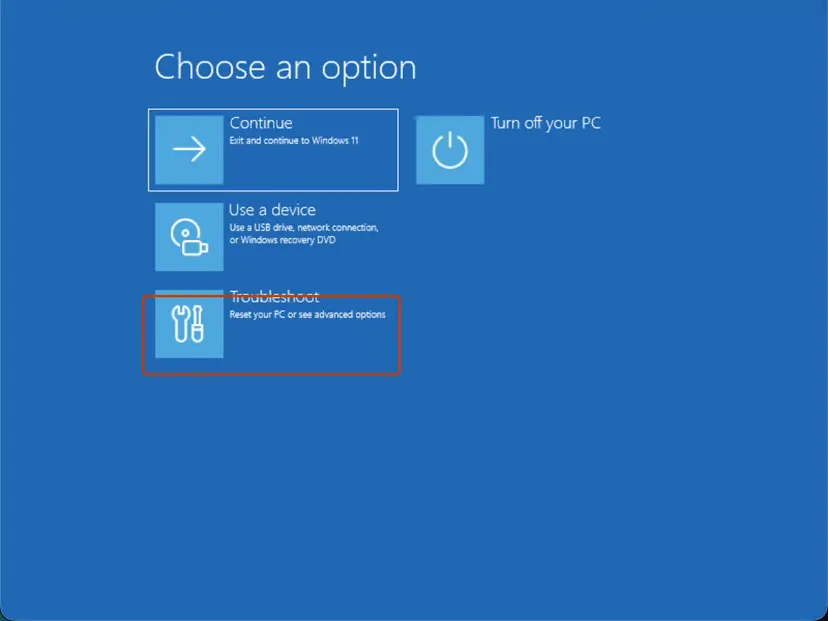
- Select Start > Power, hold Shift and select Restart. This needs no admin rights.
- Select Troubleshoot > Advanced options > Command Prompt. Pick your account and type its password. If Windows asks for the BitLocker recovery key, enter it.
- Type
dir C:\Windowsand press Enter. If it lists files, Windows is on C:. If not, tryD:and use that letter below. - Run
chkdsk C: /fand wait until it finishes. - Run the offline system file check (command below) and wait until it reaches 100 %.
- Type
exit, select Continue to start Windows, and open Task Manager to test.
Offline system file check (recovery Command Prompt)
sfc /scannow /offbootdir=C:\ /offwindir=C:\Windows
What the SFC messages mean: Run DISM and SFC to repair Windows system files More about CHKDSK and how to read its result: Check a disk for errors (chkdsk)
It worked if: CHKDSK finishes, SFC reports that it repaired files or found none damaged, and Task Manager opens after the restart.
If not: If SFC could not repair some files, go to Fix 6. Otherwise test Safe Mode in Fix 2.
Fix 2. Test admin tools in Safe Mode, then find the startup program
15 to 30 minutesLow riskFix 1 did not help, or you installed security, tuning or system tools shortly before the error.
Safe Mode starts Windows with basic drivers and no third-party startup programs. In the Microsoft Q&A thread on this error, Task Manager opened in Safe Mode. If it works there for you too, something that starts with normal Windows is to blame.
- Select Start > Power, hold Shift and select Restart.
- Select Troubleshoot > Advanced options > Startup Settings > Restart.
- Press 4 or F4 for Enable Safe Mode and sign in.
- Press Ctrl + Shift + Esc to open Task Manager, or right-click Command Prompt and select Run as administrator.
- If it opens, uninstall the security, cleaning or system tools you added just before the error, then restart normally.
- If you cannot tell which program it is, set up a clean boot while admin tools work in Safe Mode: How to perform a clean boot in Windows
Full steps with screenshots: Start Windows or a Mac in Safe Mode
It worked if: Admin tools open in Safe Mode, and after you remove the cause they open in normal mode too.
If not: If the box also appears in Safe Mode, the cause is inside Windows. Go to Fix 3.
Fix 3. Remove the latest Windows update from the recovery screen
15 minutesLow riskThe error started right after Windows installed an update, or after a feature update failed.
An update that stopped halfway can leave Windows files in a state the loader cannot read. Removing an update in Settings needs admin rights, and the poster on Microsoft Q&A could not do it. The recovery screen removes the latest update without the prompt.
- Select Start > Power, hold Shift and select Restart.
- Select Troubleshoot > Advanced options > Uninstall Updates.
- Select Uninstall latest quality update first. Use Uninstall latest feature update only if a version upgrade came just before the error.
- Sign in with your account when asked and confirm.
- Let the PC restart and open Task Manager to test.
Windows installs the update again later. If the error comes back with it, pause updates in Settings > Windows Update for a week. Removing updates in Settings, once admin tools work again: How to uninstall a Windows update
It worked if: The PC starts with the previous update level and admin tools open.
If not: Roll Windows back with System Restore in Fix 4.
Fix 4. Roll Windows back with System Restore from the recovery screen
20 minutesRead the warningSystem Restore was on before the error began and Fixes 1 to 3 did not help.
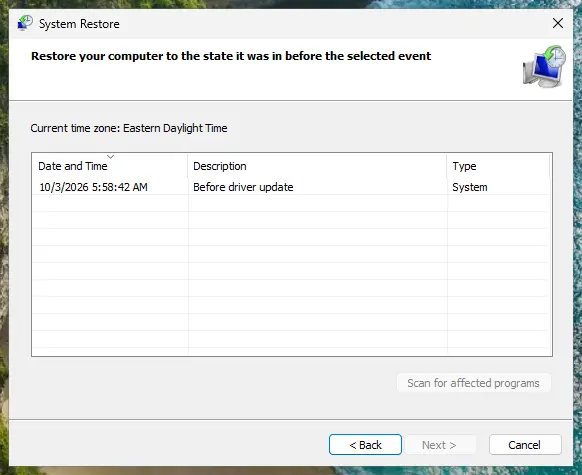
A restore point puts Windows system files, settings and drivers back to a day before the files became unreadable. Opening System Restore inside Windows needs admin rights, so start it from the recovery screen. A Ten Forums user reports that a restore did not help, so treat it as one try, not a sure fix.
Programs and drivers installed after the restore point are removed. Your documents, pictures and other personal files are not changed. Note which programs you installed recently so you can install them again.
- Select Start > Power, hold Shift and select Restart.
- Select Troubleshoot > Advanced options > System Restore and sign in.
- Choose a restore point from before the error started and select Next.
- Select Finish and wait. Do not turn the PC off.
- After the restart, open Task Manager to test.
More on restore points: Undo recent changes with System Restore
It worked if: Windows reports that the restore finished, and admin tools open again.
If not: Try a new administrator account in Fix 5.
Fix 5. Create a new local administrator account in Safe Mode
15 minutesLow riskAdmin tools work in Safe Mode, or you suspect only your account is affected.
A Microsoft Community advisor suggested this step for the same error: a new account starts with clean user settings. Creating an account needs admin rights, so do it in Safe Mode, where they still work. In that thread the new account could not finish its first sign-in, so test it before moving files.
- Start Safe Mode as in Fix 2.
- Open Settings > Accounts > Other users and select Add account.
- Choose I don't have this person's sign-in information, then Add a user without a Microsoft account, and set a name and password.
- Select the new account, then Change account type, and pick Administrator.
- Restart normally, sign in to the new account and open Task Manager to test.
- If it works, move your files from
C:\Users\<old name>to the new account's folders.
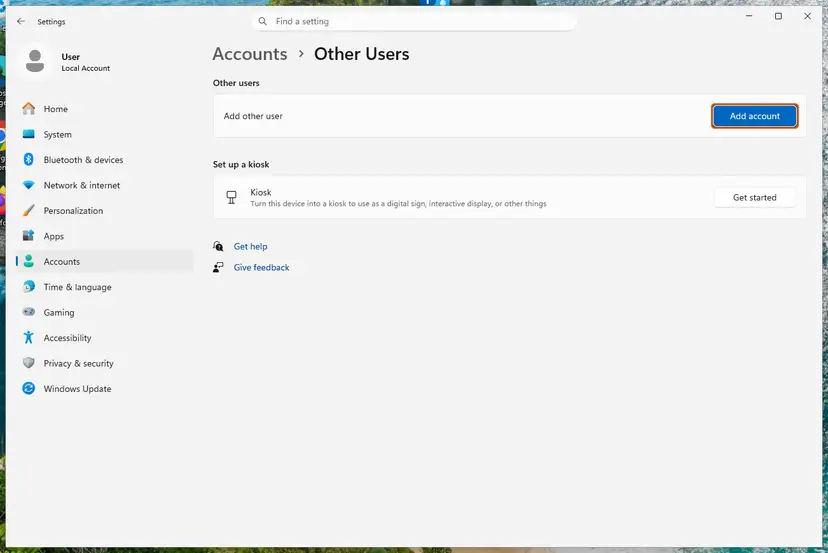
Step by step: Create a new user account to test a problem
It worked if: The new account signs in, and admin tools open without the box.
If not: If the new account fails too, the damage is in Windows. Go to Fix 6.
Fix 6. Reinstall Windows while keeping your files and apps
1 to 2 hoursRead the warningFixes 1 to 5 did not help, or SFC could not repair every file.
This is the fix the Microsoft Community advisor gave for this error: a repair install replaces every Windows file and keeps your apps, settings and files. It reaches files SFC cannot replace.
A repair install keeps your files, but a power cut or a failing drive during setup can lose data. Copy your documents, pictures and other important files to an external drive or cloud storage first: Back up your files (Windows Backup, File History, Time Machine)
- On Windows 11, open Settings > System > Recovery and select Reinstall now next to Fix problems using Windows Update.
- If that option is missing or fails, download the Windows ISO from Microsoft's official download page, double-click it to mount it and run
setup.exe. - Choose Keep personal files and apps when setup asks what to keep, and start the install.
- If setup shows the same File system error box, restart with Shift + Restart and use Troubleshoot > Reset this PC > Keep my files. This keeps your files but removes installed apps.
- After Windows starts, open Task Manager to test.

Full steps for both routes: Reinstall Windows without losing files
It worked if: Windows starts with your files and apps in place, and admin tools open without the box.
If not: Read "If the file system error is still there" below.
If the file system error -1073741792 is still there
Two logs tell you what the repairs found. Read them before you contact support.
- Press Win + R, type
eventvwr.mscand press Enter. - Open Windows Logs > Application and filter by the sources Chkdsk and Wininit to read the CHKDSK result.
- Open
C:\Windows\Logs\CBS\CBS.logand search for lines with[SR]to see which files SFC could not repair. - If CHKDSK reports bad sectors, or the same files stay damaged after Fix 6, suspect the drive.
- What to send to support: the full message with the path, the CHKDSK and SFC results, the Windows version from Settings > System > About, and what Fixes 1 to 6 showed.
- Where to ask: Microsoft Q&A or Microsoft Support, since the failing files are part of Windows.
- When it is not software: clicking noises, very slow copying, bad sectors or files that vanish point to a failing drive. Back up and replace the drive; no Windows repair fixes that.
- If the PC also freezes or shows blue screens: test the memory, since bad RAM can damage files as they are written: How to test your RAM with Windows Memory Diagnostic
How to keep Windows files readable
- Shut Windows down from Start > Power, and let updates finish before you turn the PC off.
- Keep System Restore on for the Windows drive, so Fix 4 has a point to return to.
- Keep a second local administrator account for emergencies.
- Back up your files regularly to an external drive or cloud storage.
- Do not hold the power button during an update or a CHKDSK run.
- Do not use "registry cleaners" or tools that delete files from
C:\Windows. - Do not lower User Account Control to get around the error; that removes a key protection and does not fix the files.
Windows 10 left support on 14 October 2025. The fixes above work the same on Windows 10 22H2, but it no longer gets most security and repair updates, so an upgrade to Windows 11 is the lasting route.
Frequently asked questions
What is File system error (-1073741792)?
It is the Windows status code 0xC0000020, written as a negative decimal number. Microsoft names it STATUS_INVALID_FILE_FOR_SECTION: the attributes of the file Windows had to map into memory could not be read. In practice it means a file needed to start the program is damaged or unreadable. When every admin tool fails, the damaged file is most likely part of Windows. Start with Fix 1: CHKDSK and SFC from the recovery screen.
Why can't I open Task Manager or install anything?
Because the failing part is shared by all of them. Task Manager, Services, installers and Registry Editor all start with admin rights, and in the reports we read they all fail with the same box at once. Programs that need no admin rights often keep working. That is why the fixes on this page run from the recovery screen or Safe Mode, where the broken route is not used.
How do I fix it when no admin tool opens?
Use the recovery screen. Select Start > Power, hold Shift and select Restart; that needs no admin rights. Under Troubleshoot > Advanced options you get a Command Prompt with full rights (Fix 1), Uninstall Updates (Fix 3) and System Restore (Fix 4). Startup Settings leads to Safe Mode (Fix 2), where users report Task Manager still opens and where you can create a new admin account (Fix 5).
Is my hard drive failing?
Usually not, but it is possible. The code says a file could not be read, and the most common reason is damaged Windows files after a crash or a broken update. A failing drive shows other signs too: clicking noises, very slow copying, files that vanish, or CHKDSK reporting bad sectors. If you see those, back up your files at once and check the drive before you spend time on Windows repairs.
Why does the box name Chrome or another normal program?
The box always shows the program you tried to start, not the file that failed. The code means Windows could not read a file it had to load for that program. When the same box appears for several unrelated programs, the shared file is part of Windows, which is why this guide repairs Windows rather than reinstalling the named program. If only one program shows it, reinstall that program first.
What is File system error (-1073741819)?
It is a different code. In hex, -1073741819 is 0xC0000005, which Microsoft's list names STATUS_ACCESS_VIOLATION: a program tried to use memory it was not allowed to. It is usually a crash inside one program, not unreadable Windows files. Update or reinstall that program, update your graphics driver and run SFC. The fixes on this page help only if every admin tool fails in the same way.
What are File system error (-1073741189) and (-805306367)?
They are other codes with their own causes. In hex, -1073741189 is 0xC000027B, a crash code that often hits Store apps: error code 0xc000027b. In hex, -805306367 is 0xD0000001; we could not confirm what it means for this box. Searches like "failed to open file system with id" are not about this error either; this page covers -1073741792 only.
Does this error happen on Windows 10 and Windows 11?
Yes. The Ten Forums thread about this message comes from Windows 10, and the Microsoft Q&A thread from Windows 11, where it also blocked the 22H2 update. The fixes are the same on both. Only some paths differ: Reinstall now in Settings > System > Recovery exists on Windows 11, while on Windows 10 you start the repair install from the Windows ISO.
Will a repair install delete my files?
No, when you choose Keep personal files and apps. Setup replaces Windows files and keeps your documents, settings and installed programs. Reset this PC with Keep my files also keeps your documents but removes installed apps, so you reinstall them afterwards. Back up your important files first in either case, because a power cut or a failing drive during setup can still cause loss.
Sources
- Microsoft Learn [MS-ERREF]: NTSTATUS Values, entry 0xC0000020 STATUS_INVALID_FILE_FOR_SECTION (learn.microsoft.com)
- Microsoft Q&A: File system error -1073741792, unable to run services, install new apps, run Task Manager; advisor answers with Safe Mode, new local admin account and repair install (learn.microsoft.com)
- Ten Forums: File system error (-1073741792), user report on Windows 10 where admin tools failed and System Restore did not help (tenforums.com)
Did this fix work?
One click, no account. It tells the next reader which guides are worth their time.
Questions and experiences: fix File System error (-1073741792) in Windows
Still broken, or found a fix we did not cover? Ask here: members and our editors answer. Reading is open; writing needs a free account.
…