How to fix
File System error (-2018374631)
on Windows
Resolve File System error (-2018374631) on Windows 10 and 11 effortlessly. Our expert-tested guide ensures quick fixes and zero traces left.

What causes How to fix File System error (-2018374631) in Windows?
- Improper shutdowns
- Hardware failures
- Corrupted data
- Software conflicts
Repairs Windows system files, removes malware, and restores a clean OS state — without reinstalling.
How do I fix the File System error (-2018374631) on Windows? I can't open any photos because of it.
Windows is a highly popular operating system, and many people choose it for its broad application, especially when it comes to the corporate environment. It is highly configurable and allows power users to customize it as they please. However, there are some issues that come with it, mainly, errors or even system crashes.
File System errors are among the most common reasons why users are unable to access certain files or applications. These errors can result from various factors, such as improper shutdowns, hardware failures, corrupted data, or software conflicts.
One example we're talking about today is File System error (-2018374631), which can occur whenever users attempt to open files (usually image files). This is usually related to the apps used to open them, such as Photos or Paint. In some cases, the issue can be more broad and people can encounter Windows instability or even folder corruption.
In order to fix the File System error (-2018374631), you can employ several solutions we provide below. Running Windows Store apps troubleshooter, repairing the associated app, updating Windows, and several other solutions helped users to address this issue. All the instructions on how to perform these and other fixes can be found below.
If you would like to try resolving the (-2018374631) error automatically, we highly recommend trying to run a scan with [d1] repair software, which is designed to find and repair damaged Windows files.
Fix 1. Update Windows
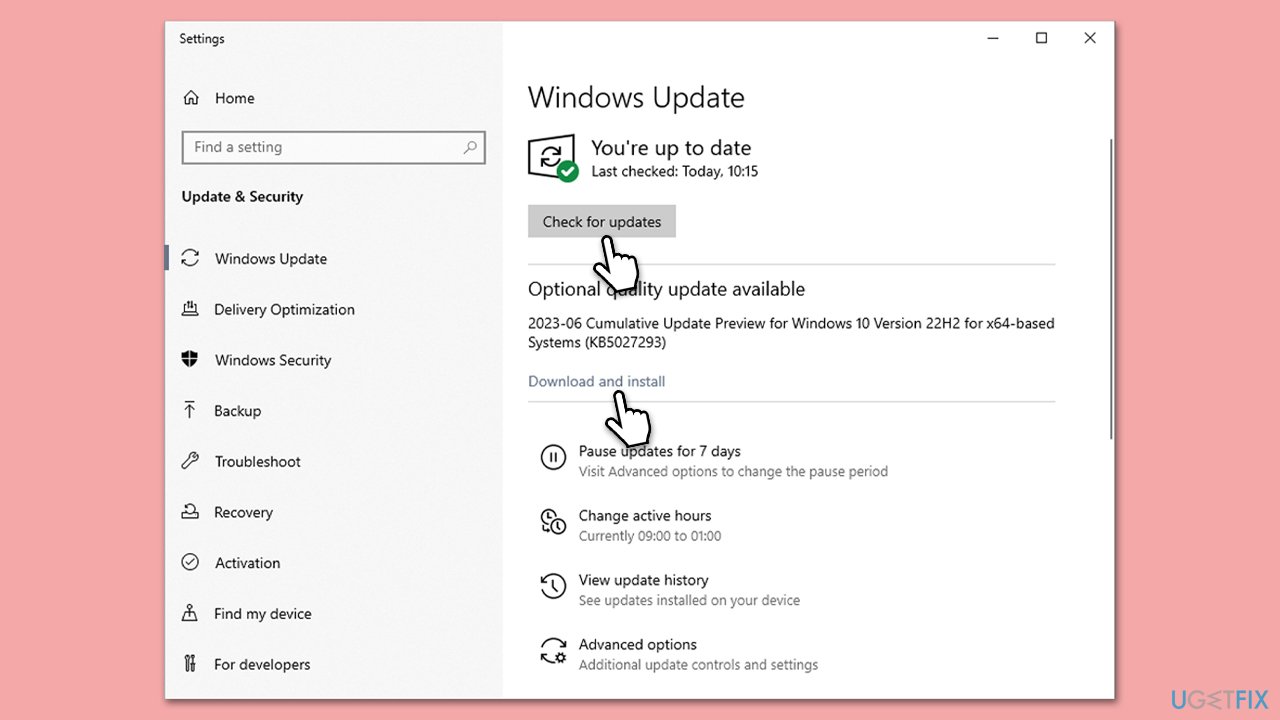
Updating Windows ensures that your system is up-to-date with the latest features and bug fixes, which can resolve the File System error (-2018374631).
- Type Updates in Windows search and press Enter.
- Here, click Check for updates.
- Wait till Windows downloads and installs all the files.
- If optional updates are available, install them as well.
- Reboot your device.
Fix 2. Employ Windows Store apps troubleshooter
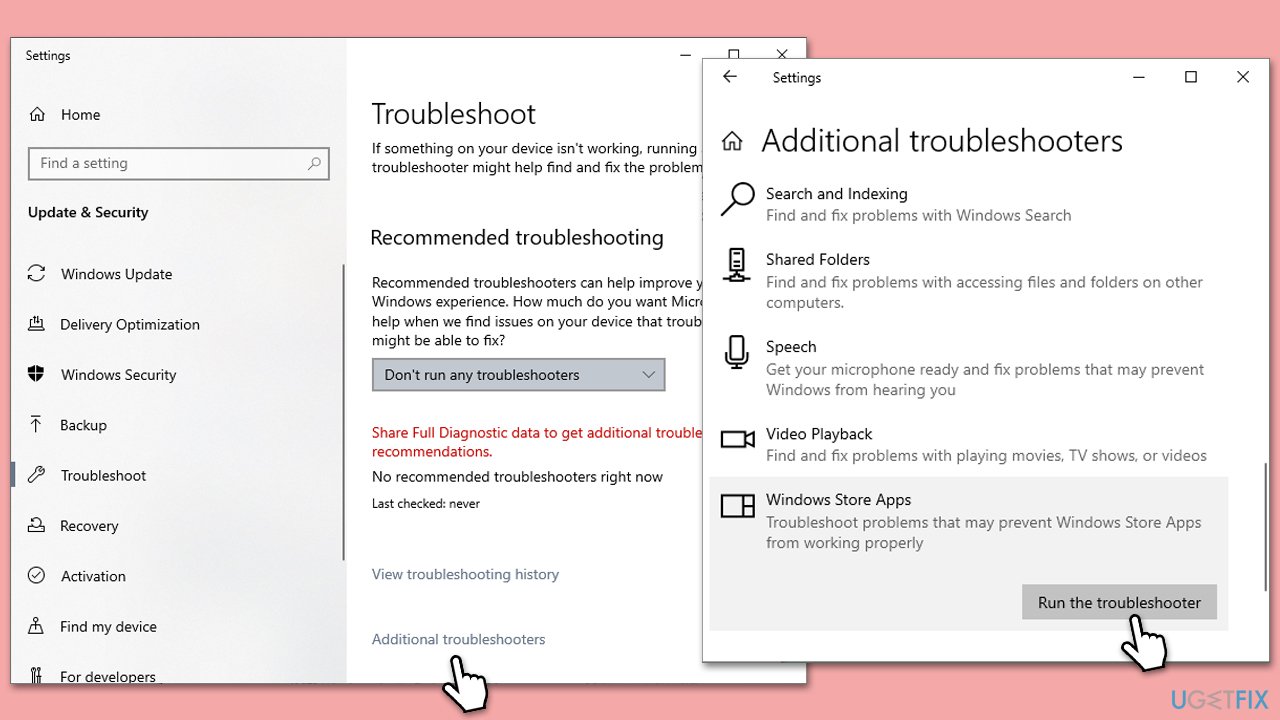
The Windows Store Apps Troubleshooter can automatically detect and fix issues with apps that may be causing the File System error.
- Type troubleshoot into the Windows search bar, then press Enter.
- In the options that appear, select Additional troubleshooters or Other troubleshooters (depending on your Windows version).
- Scroll through the list until you locate Windows Store Apps, then click on Run the troubleshooter/Run.
- Wait as the process runs to completion, then apply any recommended changes to resolve the issue.
Fix 3. Reset/repair the associated app
Resetting the app you're using to open the file can resolve any errors or corruption within the app itself.
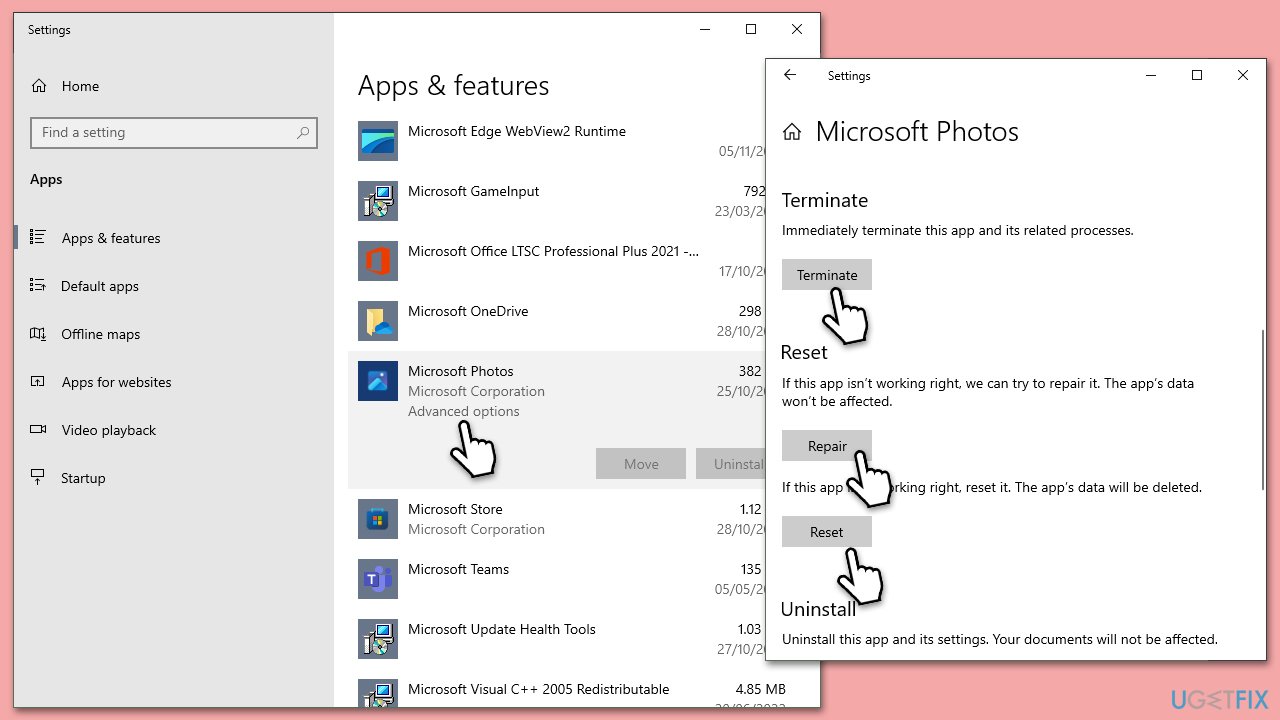
- Right-click on Start and pick Apps and Features.
- You will see the list of the installed applications.
- Scroll down to find an app in question, for example, Microsoft Photos.
- Select and click Advanced options.
- Here, scroll down and click Terminate.
- Then, click Repair.
- If that doesn't work, select the Reset option instead.
Fix 4. Run SFC and DISM scans
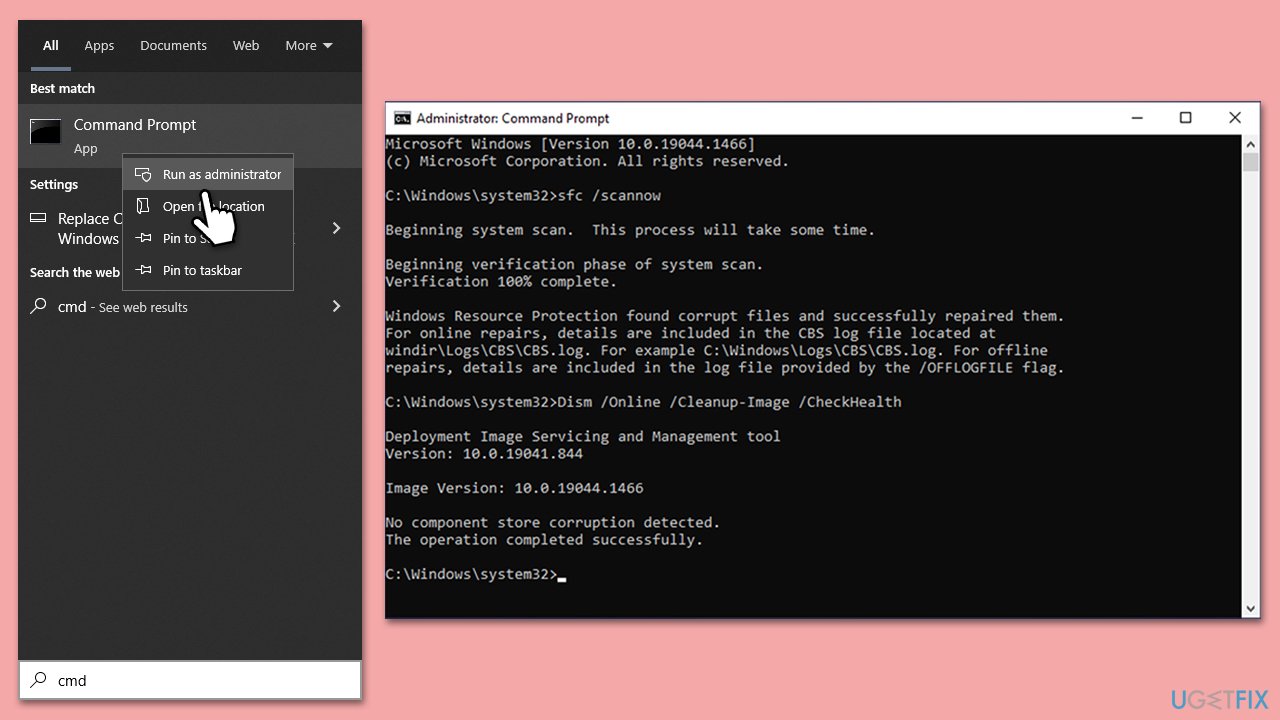
To fix corrupted files and repair Windows images, you can run several commands in the elevated Command Prompt
- Type in cmd in Windows search.
- Right-click on Command Prompt and select Run as administrator.
- When User Account Control shows up, click Yes.
- In the Command Prompt window, paste the following command and hit Enter:
sfc /scannow - Next, use the following commands, pressing Enter each time:
Dism /Online /Cleanup-Image /CheckHealth
Dism /Online /Cleanup-Image /ScanHealth
Dism /Online /Cleanup-Image /RestoreHealth
(Note: if you get an error executing this last command, add /Source:C:\RepairSource\Windows /LimitAccess to it and try again). - Reboot your computer.
Fix 5. Perform Clean Boot
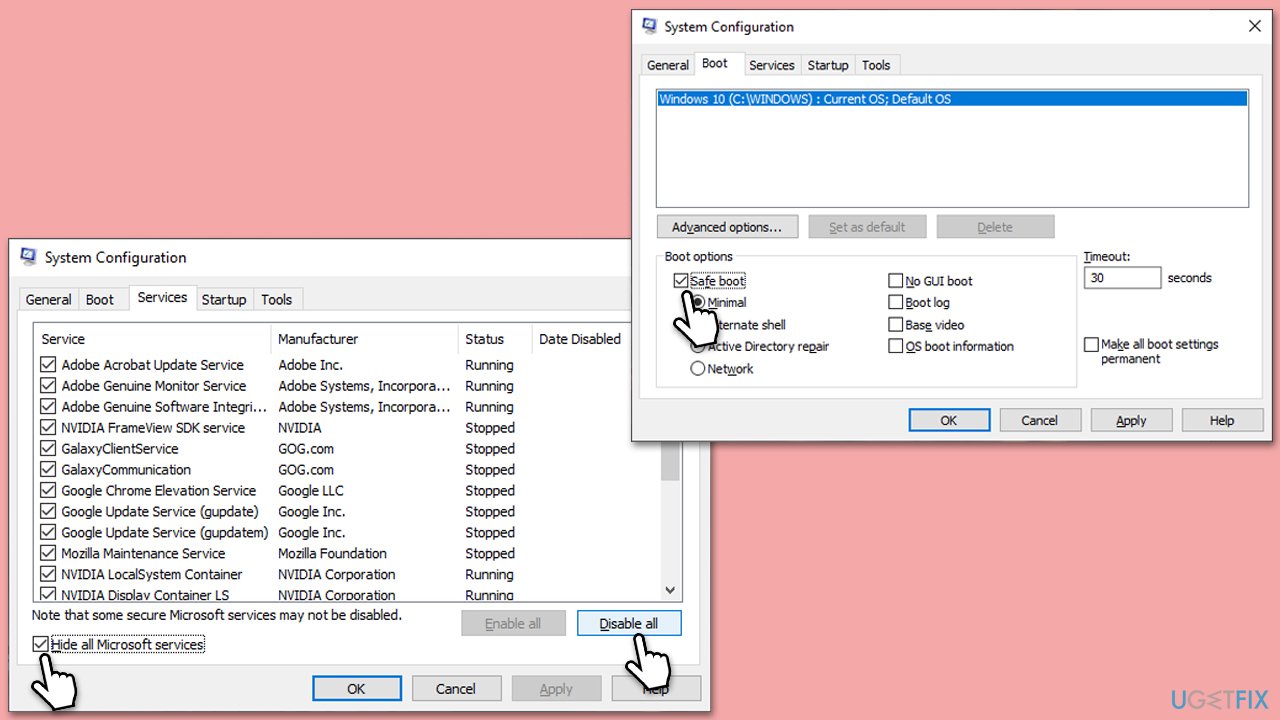
- Press Win + R, type msconfig, then press Enter.
- Select the Services tab and tick the Hide all Microsoft services checkbox.
- Pick Disable all.
- Go to the Startup tab and click Open Task Manager.
- Here, right-click on each of the non-Windows entries and select Disable.
- Close down the Task Manager.
- Go to the Boot tab and tick the Safe boot option.
- Once the computer is restarted, try the action that was causing the error.
- If resolved, you can start enabling services and startup items one by one (or in groups) to identify the culprit.
Fix 6. Reinstall the associated app
Reinstalling the app ensures you have a fresh, uncorrupted version of it.
- Open Settings and go to Apps > Apps & features.
- Find the app, click on it, and select Uninstall.
- Restart your computer.
- Reinstall the app from the Microsoft Store or the official website.
Fix 7. Use Media Creation Tool to repair Windows
Using the Media Creation Tool to repair Windows can fix underlying system issues without affecting your personal files.
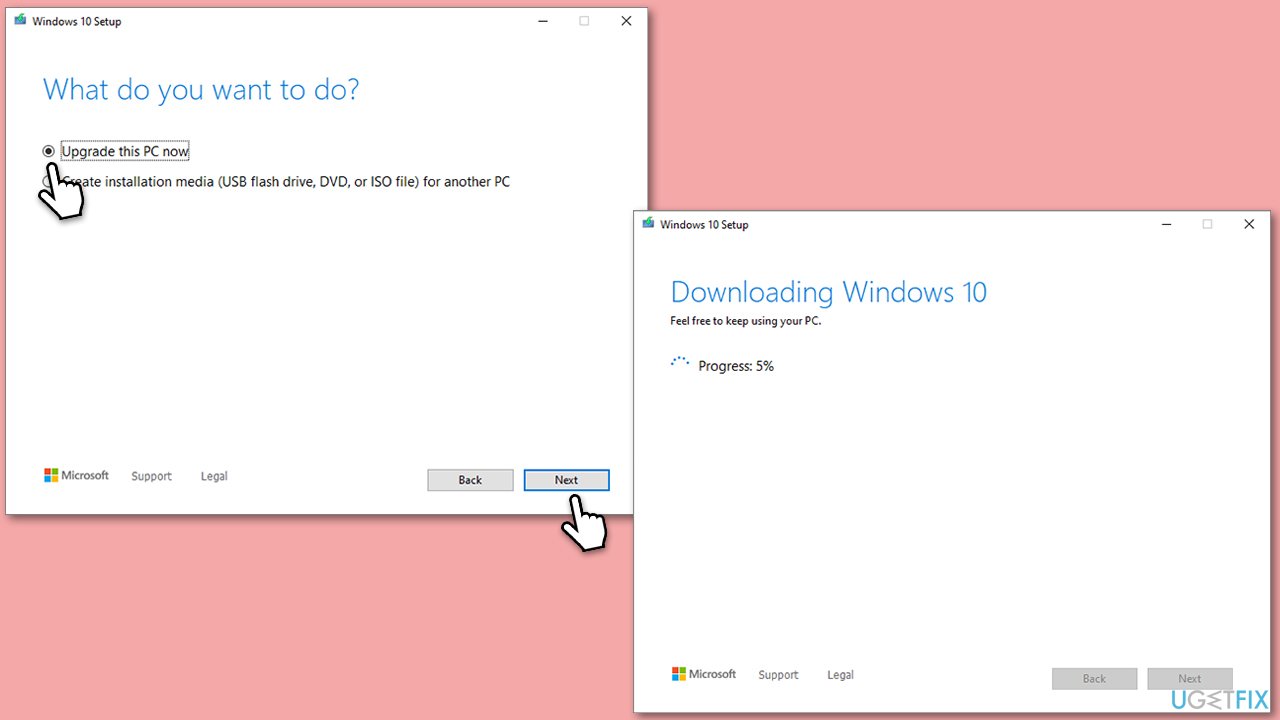
- Visit the official Microsoft website and download Windows 10 installation media (Windows 11 version).
- Double-click the installer, select Yes when UAC shows up, and agree to terms.
- Select Upgrade this PC now and click Next.
- Windows will start downloading the needed files.
- Agree to the terms once again and click Next.
- Before installing, make sure that you are happy with your choices (otherwise, you can click Change what to keep option).
- Finally, click Install to begin the upgrade process.
Bottom line
To fix the File System error (-2018374631), you can try updating Windows, employing the Windows Store apps troubleshooter, or repairing the associated app. If these solutions do not resolve the issue, consider running a scan with repair software designed to find and repair damaged Windows files.
Frequently asked questions
This error is often caused by corrupted system files or issues with the Windows update process. It can also occur due to problems with the disk drive where the operating system is installed.
You can fix this error by running the System File Checker tool and the DISM command to repair corrupted files. Additionally, checking for Windows updates and performing a disk check can help resolve the issue.
To prevent this error in Windows 10 or 11, regularly update your system and run disk maintenance tools. Keeping your drivers updated and avoiding abrupt shutdowns can also help minimize risks.




Report an issue
What's wrong with this guide? We review every report and update or remove content.
Report received — thank you. We'll review and fix it.
You need a free account to submit a report.
Be the first to comment