How to fix
File System Error (-2143322101) in Minecraft
on Windows
Resolve the File System Error (-2143322101) in Minecraft on Windows 10 and 11 effortlessly. Follow our expert-tested guide for quick solutions!

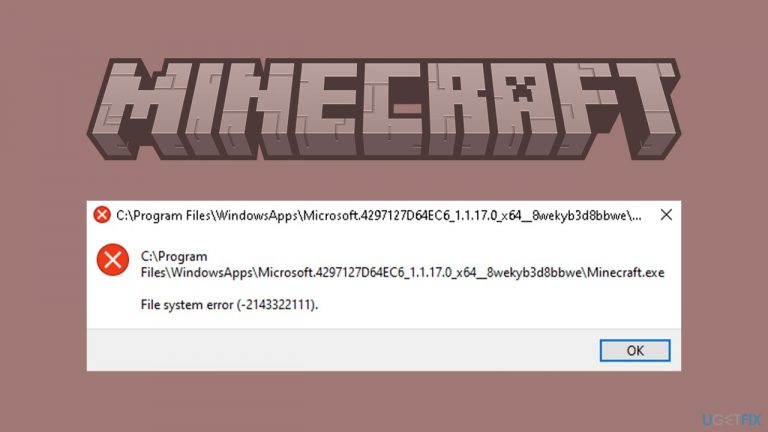
What causes How to fix File System Error (-2143322101) in Minecraft?
- Corrupted system files
- Damaged hardware
- Incorrect Microsoft account settings
- Bugged installer
Repairs Windows system files, removes malware, and restores a clean OS state — without reinstalling.
Hello, I have been trying to install and play Minecraft Java edition on my Windows laptop, but I keep getting an error message "File system error (-2143322101)" every time. Any tips on how to fix this?
Minecraft Java Edition is the original version of Minecraft that was first released in 2011 by Mojang Studios. It is a sandbox video game that allows players to explore and create virtual worlds made up of various blocks. In the game, players can gather resources, build structures, craft items, and engage in combat with monsters.
Minecraft Java Edition offers a wide range of features and customization options, such as mod support, custom skins, and multiplayer support via servers. The game is popular among players of all ages and has a thriving community that creates and shares mods, maps, and other content.
Minecraft Java Edition can be played on Windows, macOS, and Linux operating systems and is regularly updated with new features, bug fixes, and optimizations to improve the gameplay experience for its players. Despite this, players run into various technical issues with the game on a regular basis, and File System Error (-2143322101) is one of them.
According to multiple reports online, users receive File System Error 2143322101 whenever they try to install Minecraft Launcher or whenever they attempt to launch the game for the first time. This issue can occur due to multiple reasons, including corrupted system files, damaged hardware, incorrect Microsoft account settings, bugged installer, etc.
Below we provide 7 ways to fix File System Error (-2143322101) in Minecraft. If you rather perform the troubleshooting automatically, we recommend using [d1] PC repair instead.
1. Check for corrupted system files
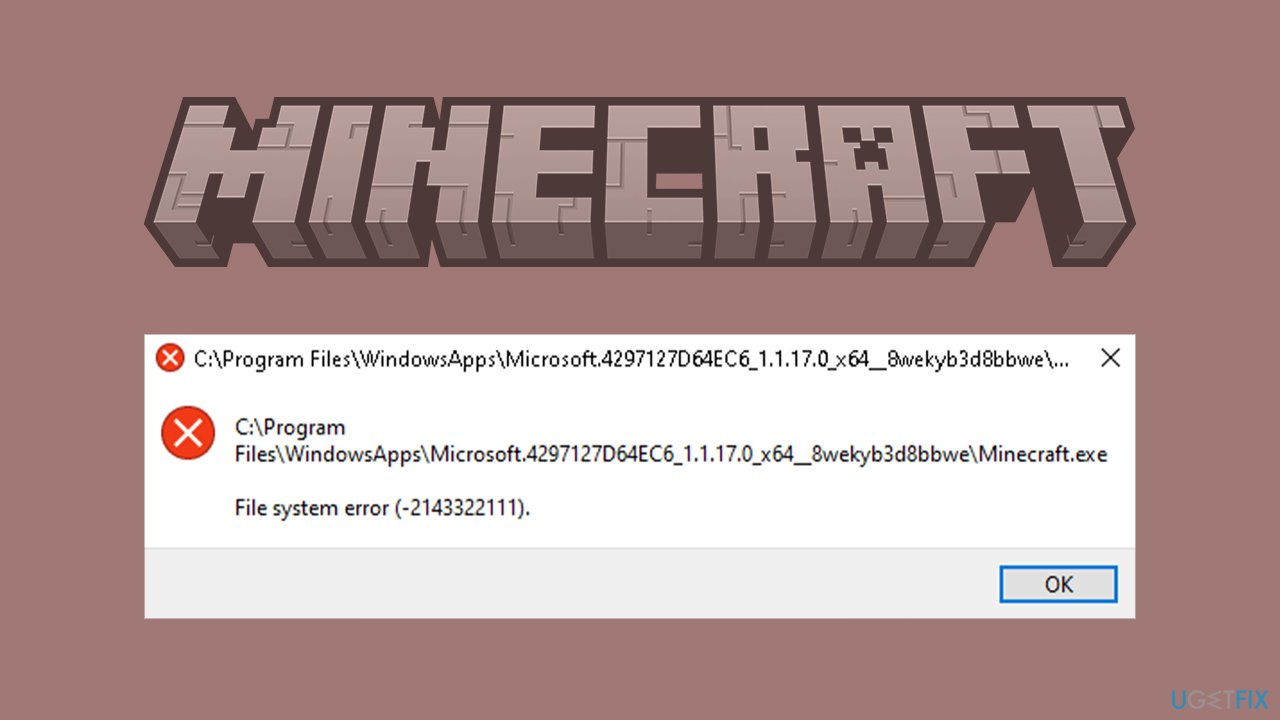
We recommend checking system files for corruption - you can do that via the elevated Command Prompt:
- Type cmd in Windows search.
- Right-click on Command Prompt and select Run as administrator.
- User Account Control will ask you whether you want to make changes - click Yes.
- Use the following command lines, pressing Enter each time:
sfc /scannow
DISM /Online /Cleanup-Image /CheckHealth
DISM /Online /Cleanup-Image /ScanHealth
DISM /Online /Cleanup-Image /RestoreHealth - Restart your computer.
2. Make sure you are using the correct Microsoft account
One of the primary reasons behind this error is when different accounts are used on the Xbox App and Microsoft Store. The solution to this problem is simple - use the same Microsoft account on both the Xbox App and Microsoft Store.
To do this, sign out from both apps and then sign in again with the same Microsoft account. Once you have signed in, check if the game runs without any issues. Additionally, if you are playing through Xbox Game Pass, make sure that you have an active subscription; otherwise, you may also encounter a File System Error (-2143322101) when launching Minecraft.
3. Uninstall or disable your third-party security software
Third-party security software, such as antivirus programs or firewalls, can sometimes prevent Minecraft from launching. This is because they may see the Minecraft launcher or game executable as a potential threat or virus and block it from running.
To fix this issue, you can try temporarily disabling your security software and then relaunching Minecraft. If this works, you may need to add an exception or allow Minecraft through your security software's settings to ensure it doesn't get blocked again in the future.
4. Repair or reset the installation
If you are using Windows 7 or 8, you should download the MSI launcher [direct download from Majong site] and select the Repair option. In newer Windows versions, follow these steps:
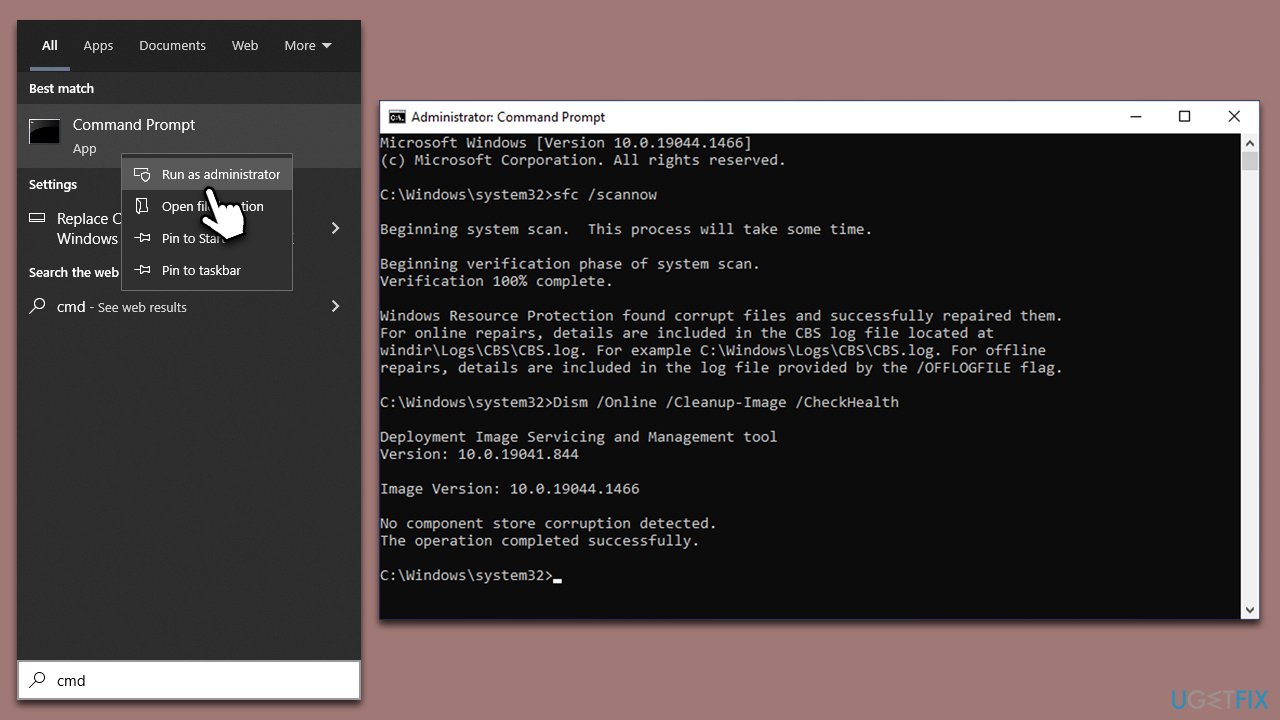
- Right-click on Start and pick Apps and Features.
- Scroll down to find the Minecraft installation.
- Click Advanced options (Win10) and More > App settings (Win11).
- Now, click Terminate, Repair, and Reset.
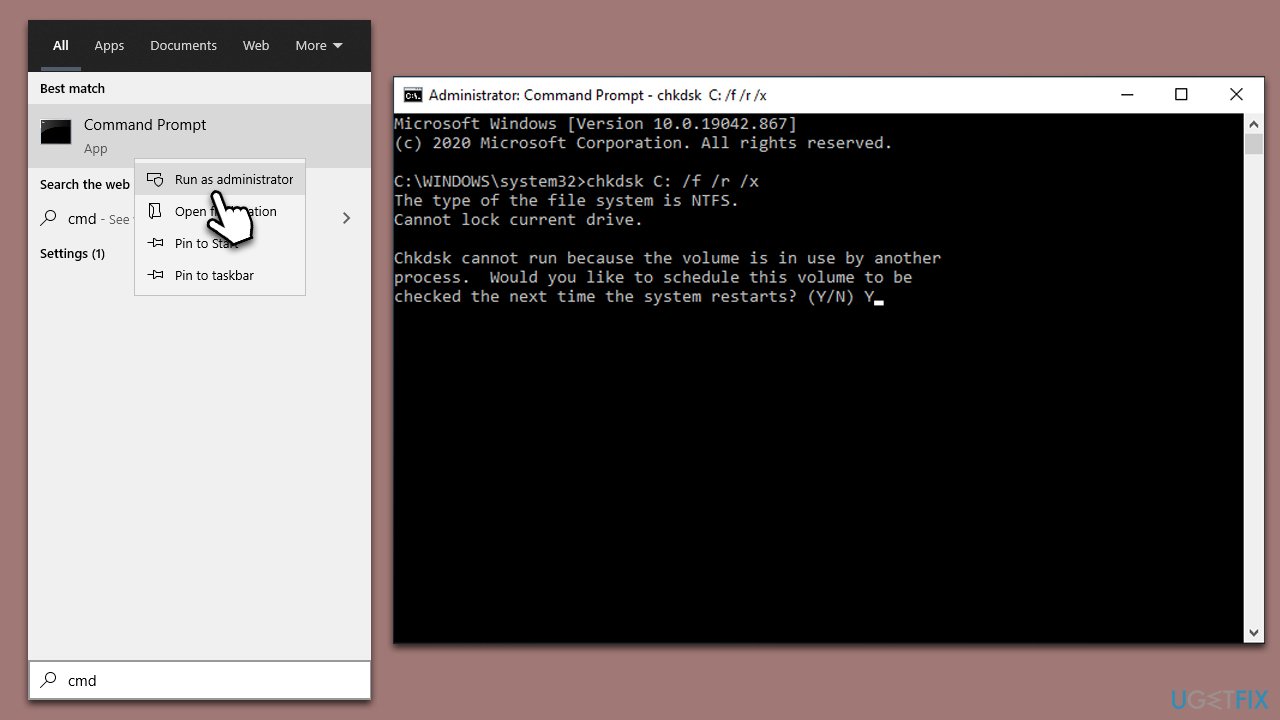
5. Check your disk
- Open Command Prompt as administrator, as explained previously.
- In the new window, type in the following command and press Enter after:
chkdsk c: /f
(Note: use chkdsk c: /f /r /x command if you are using SSD as your primary partition) - If you receive an error, type in Y, close down Command Prompt, and restart your computer.
- Wait till the scan is finished - you can then find the results in the Event Viewer.
6. Reinstall Gaming Services
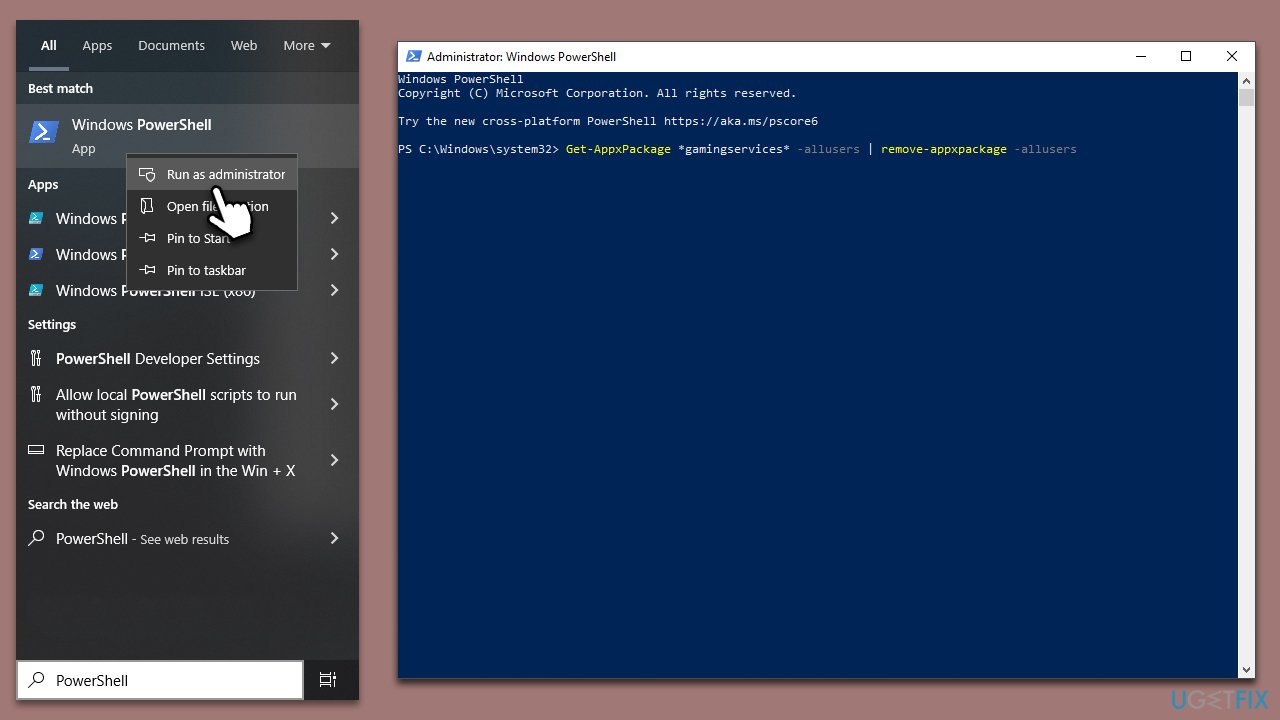
Gaming Services are directly related to all Microsoft games, so reinstalling them helped many users to fix Minecraft System Error 2143322101.
- Type PowerShell in Windows search.
- Right-click on the result and select Run as administrator.
- When User Account Control shows up, click Yes.
- In the new window, copy and paste the following command and press Enter:
get-appxpackage Microsoft.GamingServices | remove-Appxpackage –allusers - Close down PowerShell and restart your computer.
- Next, install Gaming Services from the Microsoft Store.
7. Reinstall the game
Another option is to reinstall the game.
- Right-click on Start and select Apps and Features.
- Scroll down to locate Minecraft.
- Select Uninstall and then confirm with Uninstall.
- Follow on-screen instructions to remove the game.
- Restart your computer.
- Visit the official website to re-download and re-install the game.
Bottom line
To fix File System Error (-2143322101) in Minecraft, you can check for corrupted system files using the Command Prompt, ensure your hardware is functioning properly, verify your Microsoft account settings, and reinstall the game if necessary. If these solutions do not resolve the issue, consider using a PC repair tool for automated troubleshooting.
Frequently asked questions
This error typically occurs due to corrupted game files or issues with the Windows operating system's file handling. Ensuring your game files are intact and your Windows 10 system is updated can help resolve the issue.
You can repair corrupted game files by launching the Microsoft Store, navigating to your library, finding Minecraft, and selecting the 'Repair' option. Additionally, using the built-in Windows 11 tools like the System File Checker can also help.
Yes, you can try resetting the Minecraft app through Windows Settings by going to Apps > Apps & features, selecting Minecraft, and choosing the 'Advanced options' to reset it. This method can resolve the error without the need for a complete reinstallation.




Report an issue
What's wrong with this guide? We review every report and update or remove content.
Report received — thank you. We'll review and fix it.
You need a free account to submit a report.
Be the first to comment