How to fix
File system error (-2147219200)
on Windows
Resolve the File system error (-2147219200) in Windows 10 and 11 quickly. Follow our expert-tested solutions for a hassle-free fix!

What causes How to fix File system error (-2147219200) in Windows?
- Corrupt system files
- Hardware problems
- Software bugs
- Power outages
- Improper shutdowns
Repairs Windows system files, removes malware, and restores a clean OS state — without reinstalling.
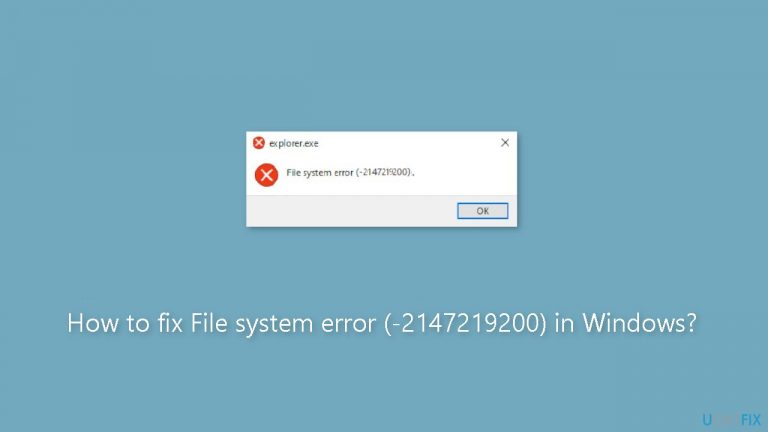
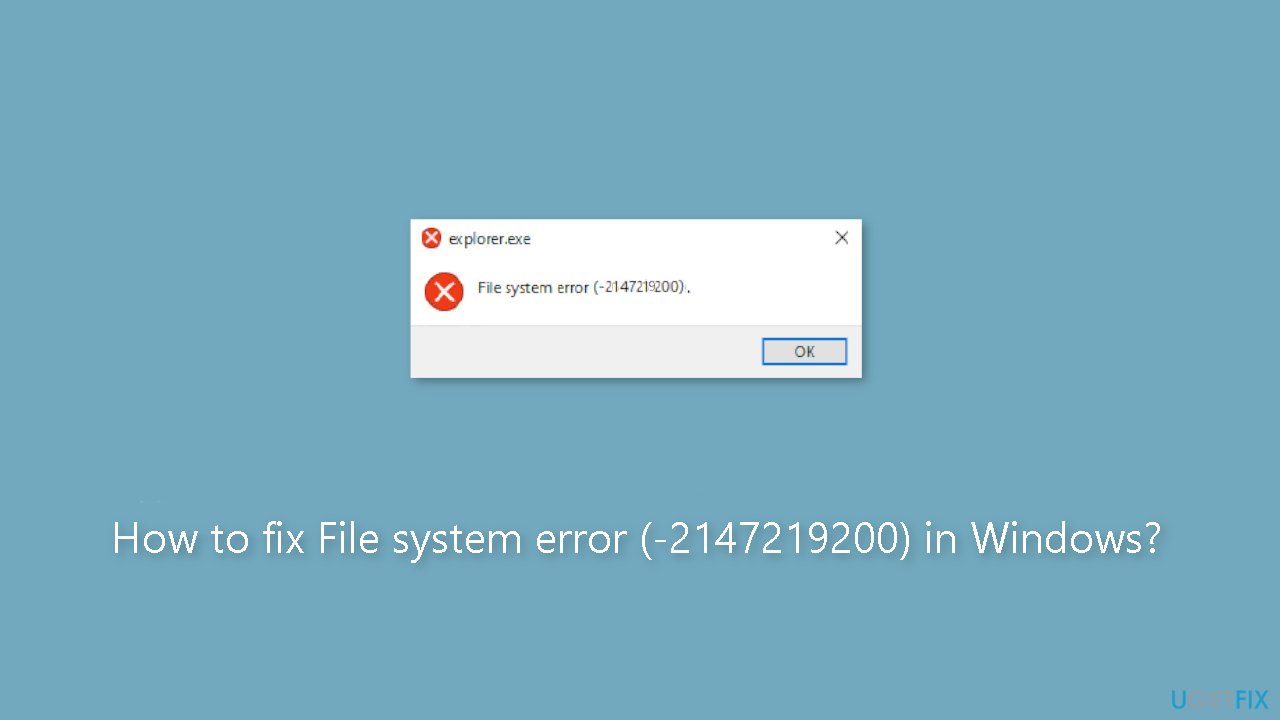
Hello. When I click on anything on my Windows taskbar, I keep getting the "File system error (-2147219200)" message. Is there a way to fix this?
Any problem that occurs within the file system of a computer's storage device, such as a hard drive or an SSD, is referred to as a file system error. These errors can occur for a number of reasons, including corrupt system files, hardware problems, software bugs, power outages, or improper shutdowns.
The -2147219200 error code is a common File System error that can occur in Windows operating systems. It usually means that there is a problem with the file system and that the computer is unable to access or write data to a specific file or folder. This can result in a variety of issues for the user, including program crashes, corrupted files, and the computer slowing down or freezing.
A File System error can have serious consequences, including data loss or corruption, system instability, and even hardware failure. Users may experience inconvenience and frustration as a result of this, especially if they have important files or data stored on their computers.
There are several possible solutions to File System errors, depending on the root cause of the problem. Running system scans and repairs, updating drivers[ref en-1] and software, checking for hardware issues, and performing a system restore or a clean install of the operating system are examples of these. To avoid data loss, it is always advisable to back up important files before attempting any troubleshooting steps.
In this guide, you will find 7 steps that should help you fix File system error (-2147219200) in Windows. However, you can also try a system repair tool like [d1] that can fix most system errors, BSODs,[ref en-2] corrupted files, and registry[ref en-3] issues. Otherwise, follow the step-by-step instructions below.
Solution 1. Install Windows Updates
- Click Start on the taskbar.
- Select the Setting app pinned to the Start menu.
- Click Windows Update on the left side of Settings.
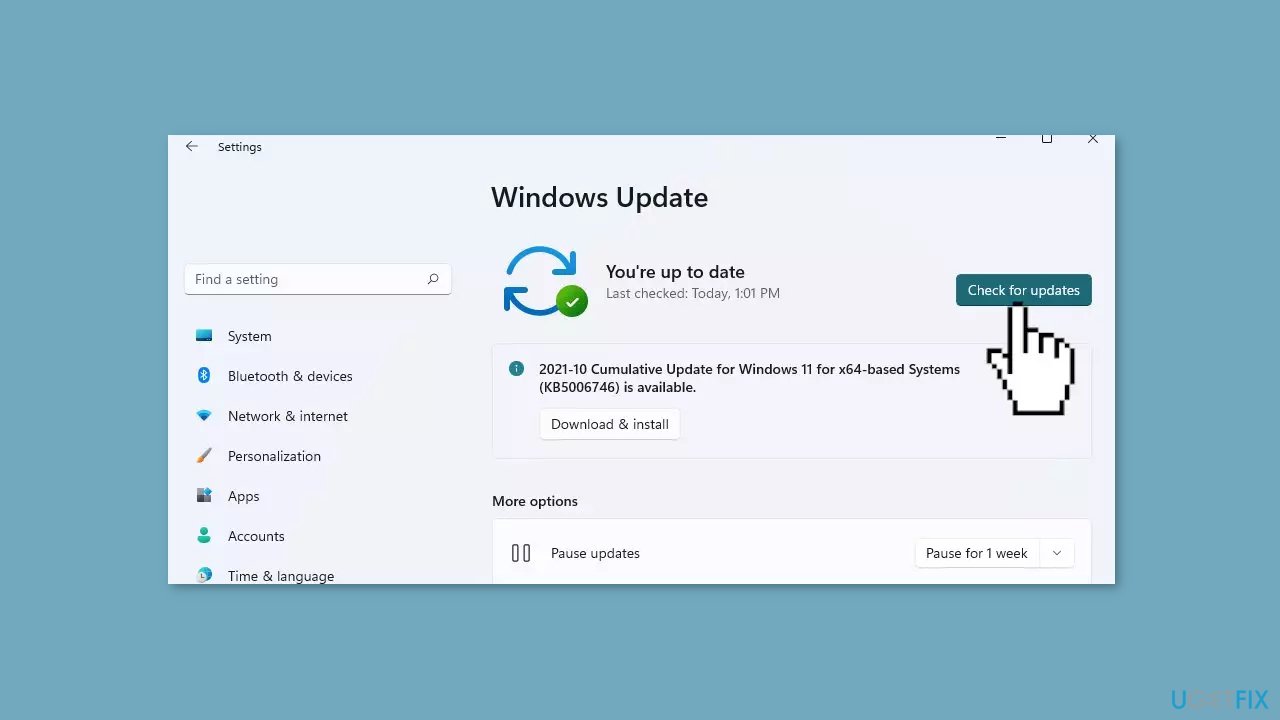
- Press the Check for updates button to download and install new patch updates.
Solution 2. Fix Corrupted System Files
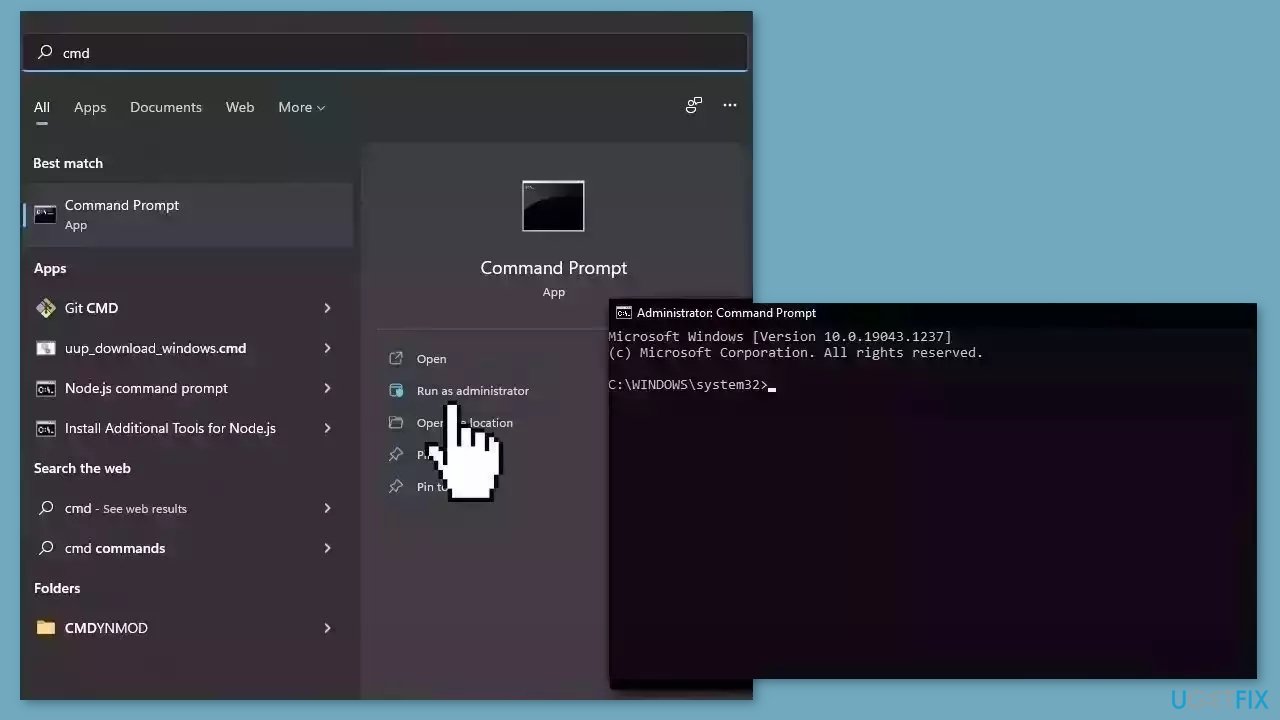
Use Command Prompt commands to repair system file corruption:
- Open Command Prompt as administrator
- Use the following command and press Enter:
sfc /scannow
- Reboot your system
- If SFC returned an error, then use the following command lines, pressing Enter after each:
DISM /Online /Cleanup-Image /CheckHealth
DISM /Online /Cleanup-Image /ScanHealth
DISM /Online /Cleanup-Image /RestoreHealth
Solution 3. Run Microsoft Store Apps Troubleshooter
- Press the Windows key + I to open Windows Settings.
- Select the System section and scroll down until you see Troubleshoot and click on it.
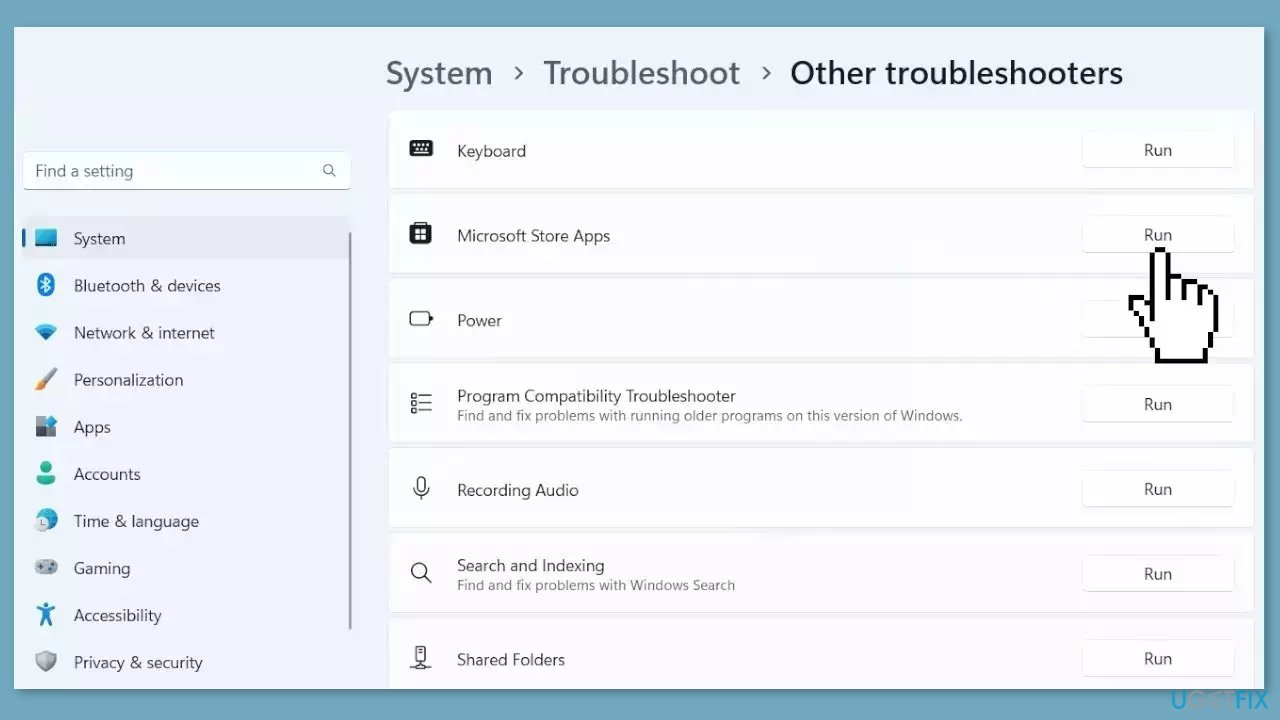
- Click on Other troubleshooters to see more troubleshooters available on your computer.
- Scroll down at the bottom until you see Microsoft Store Apps.
- Click on Run to start the troubleshooting process.
- Wait until the process is complete.
Solution 4. Run a Malware Scan
It is possible that a malware infection may be the cause of the File system error (-2147219200). It is important to run a comprehensive security scan to rule out this possibility and ensure that the computer is not infected. This can help to prevent further issues with the Windows operating system and ensure that it is functioning properly.
If you have access to a security scanner, or if your organization pays for one, you can use it to scan your entire system to check for a virus infection. Otherwise, you can use Windows Defender to scan your system:
- Click on the Windows Start menu or press the Windows key on your keyboard.
- Type Microsoft Defender in the search bar and click on Microsoft Defender Antivirus to open the application.
- Click on the Virus & threat protection option in the left-hand menu.
- Click on the Quick scan or Full scan option, depending on your preference.
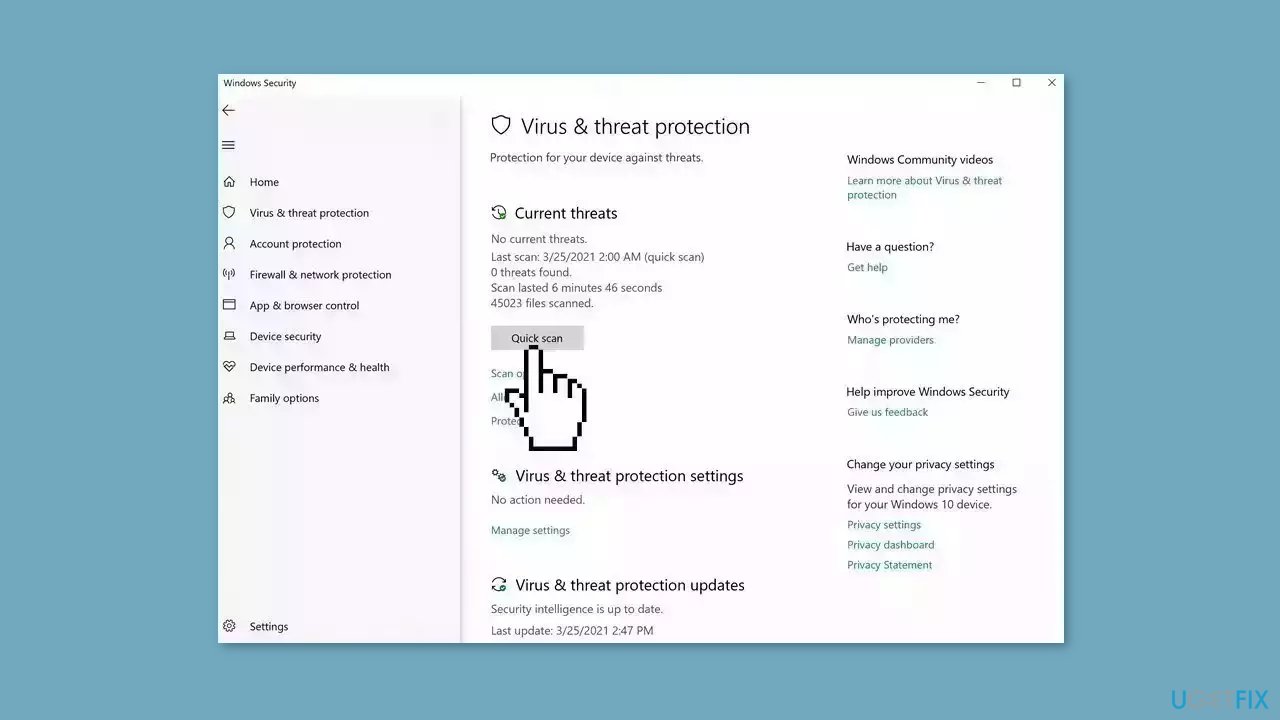
- If you choose Quick scan, Microsoft Defender Antivirus will scan the most vulnerable and commonly infected areas of your computer.
- If you choose Full scan, Microsoft Defender Antivirus will scan your entire computer, including all files, folders, and programs.
- Click on the Scan now button to start the selected scan type and wait for the scan to complete.
- The time it takes will depend on the size of your hard drive and the number of files being scanned.
- Once the scan is complete, you will be informed of any detected threats, and you can choose to quarantine or remove them.
- If no threats are found, Microsoft Defender Antivirus will inform you that your device is secure.
Solution 5. Use System Restore
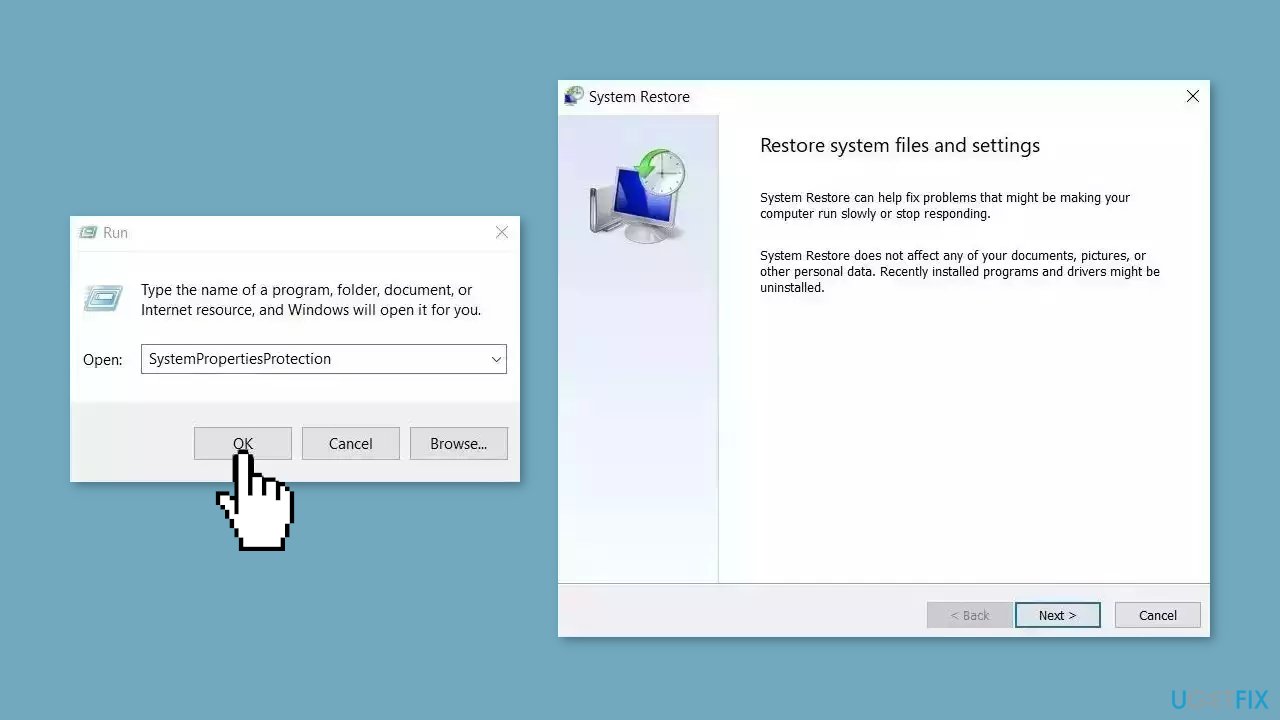
System Restore is a feature in Microsoft Windows that allows users to revert their computer's state to a previous point in time. This can be helpful if you have made changes to your system that are causing problems.
- Go to the Start menu, type restore, and click on Create a restore point.
- Click System Restore, then follow the prompts until you can select a restore point.
- Select the one you want (ideally before the issue started occurring) and go ahead with the process.
Solution 6. Use a System Repair Tool
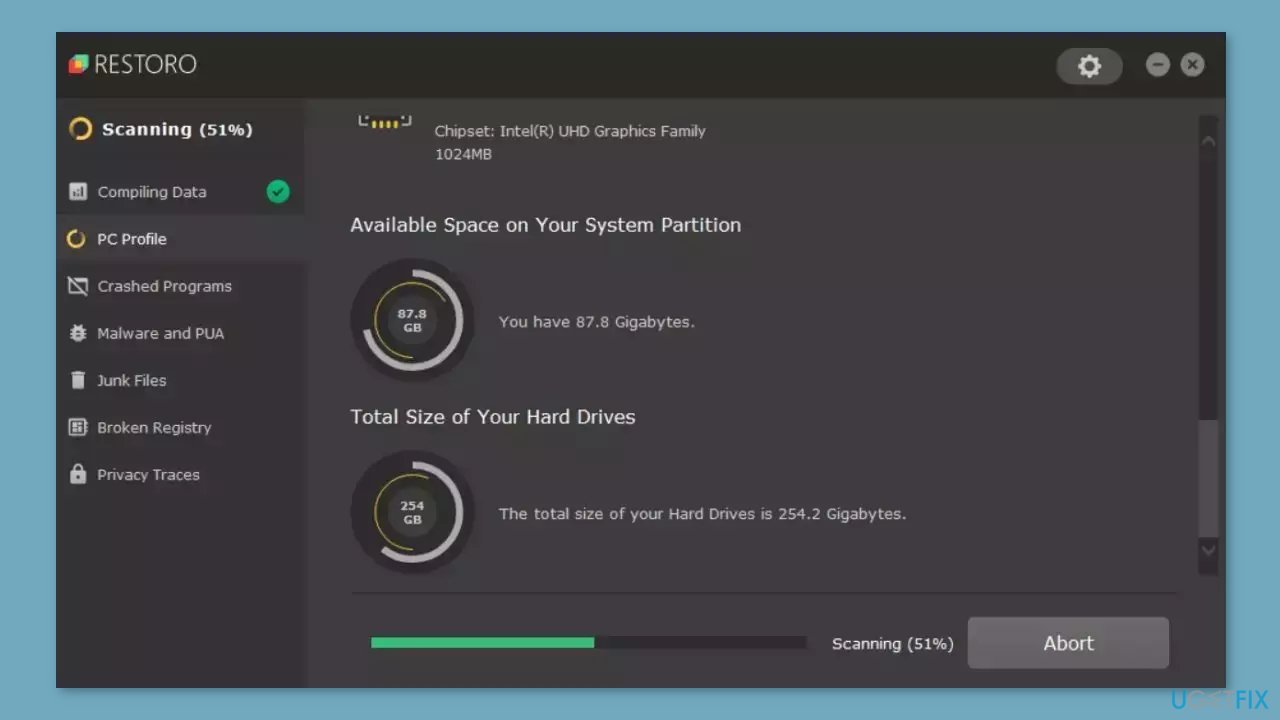
[d1] is a system repair utility that can help fix the File system error (-2147219200) and other similar issues in Windows. The software is designed to scan the entire system, including the operating system, installed software, and registry, to identify any issues or errors that may be causing system instability or performance problems.
It can also help to improve the overall performance of the system by removing unnecessary files, optimizing the registry, and repairing any damaged system components. This can result in faster boot times, improved application performance, and fewer system crashes.
Solution 7. Clean Install Windows
Performing a clean install wipes out data from the PC, so please create backups before you proceed.
- Download the ISO file for Windows 10 or Windows 11.
- Select Create installation media for another PC and click Next.
- Select ISO file and click Next.
- Click Finish.
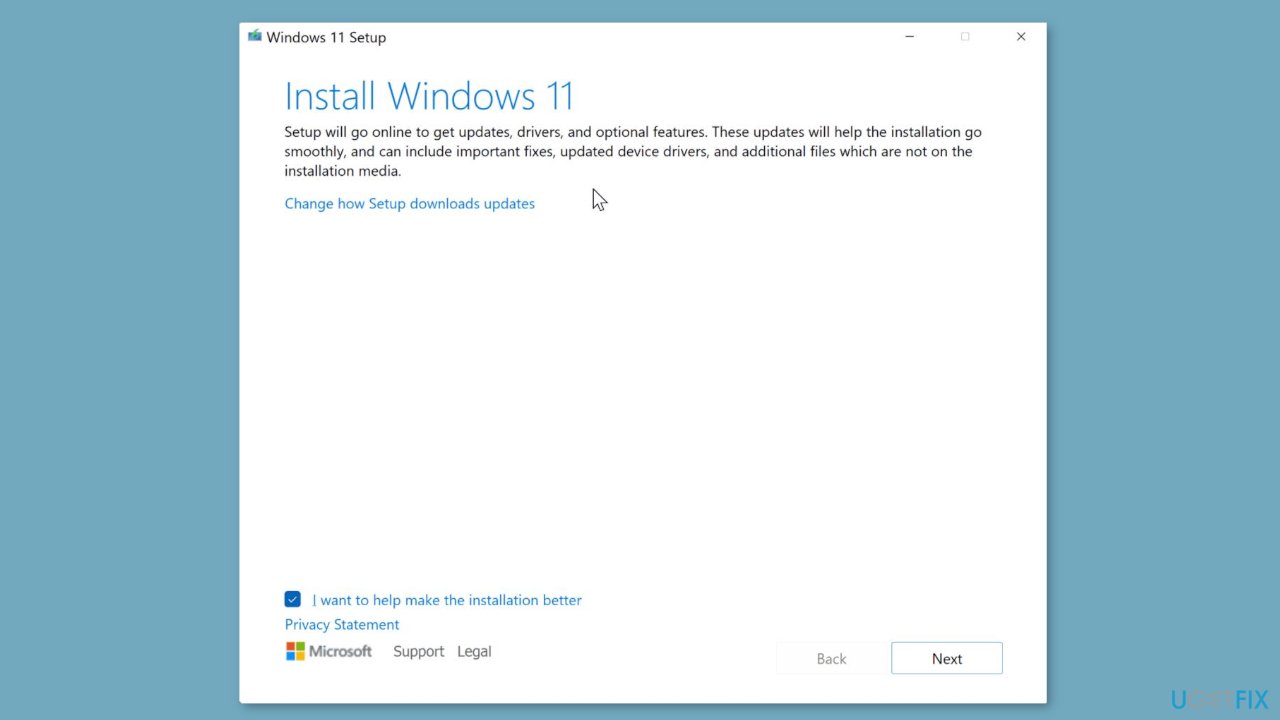
- Open the Windows ISO file you downloaded.
- Open Setup and click Next.
- Click Accept (Be prepared to wait; this next part may take a while).
- Click Install.
- Wait for your system to restart and install Windows.
Bottom line
To fix the File system error (-2147219200), you can try installing Windows updates, running system scans and repairs, updating drivers, checking for hardware issues, or performing a system restore. If these solutions do not resolve the issue, consider using a system repair tool or performing a clean install of the operating system.
Frequently asked questions
This error often occurs due to corrupted system files or issues with the Windows registry. Running a system file checker scan can help identify and fix these problems.
Yes, you can attempt several troubleshooting steps such as running the DISM tool and using the System File Checker to resolve this error without needing to reinstall Windows 11.
To prevent this error, ensure that your Windows 10 or Windows 11 system is regularly updated and run periodic disk checks to maintain system integrity.




Report an issue
What's wrong with this guide? We review every report and update or remove content.
Report received — thank you. We'll review and fix it.
You need a free account to submit a report.
Be the first to comment