How to fix
“Files failed to validate and will be reacquired” Steam error
on Windows
Resolve the "Files failed to validate" error on Steam for Windows 10 and 11 quickly and easily. Expert-tested solutions await you!

What causes How to fix “Files failed to validate and will be reacquired” Steam error in Windows?
- Outdated game files
- Corrupted game files
- Discrepancy between local files and Steam's servers
- Issues caused by installed mods
- Malfunctions during the verification process
Repairs Windows system files, removes malware, and restores a clean OS state — without reinstalling.
One of the games on Steam kept crashing for me, so I tried to verify game files, which resulted in "Files failed to validate and will be reacquired" error. Any advice on this, please?
Steam, developed by Valve Corporation, is the premier platform for digital distribution of video games. With millions of users worldwide, it allows individuals to purchase, download, and play a vast range of games from various genres. The platform is widely recognized for its user-friendly interface and a host of features designed to enhance the gaming experience, including game file verification.
Game file verification is a valuable feature provided by Steam for its users. This utility helps players who experience malfunctions or inconsistencies while playing games. It works by scanning the game files, identifying and rectifying any that are damaged or corrupted, and ensuring that the game runs smoothly thereafter. It is especially useful for players who often download and install mods, as these can sometimes lead to game files becoming corrupted or unstable.
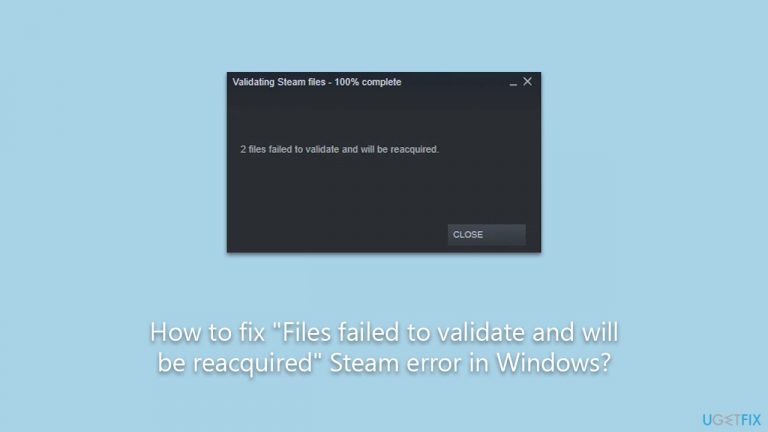
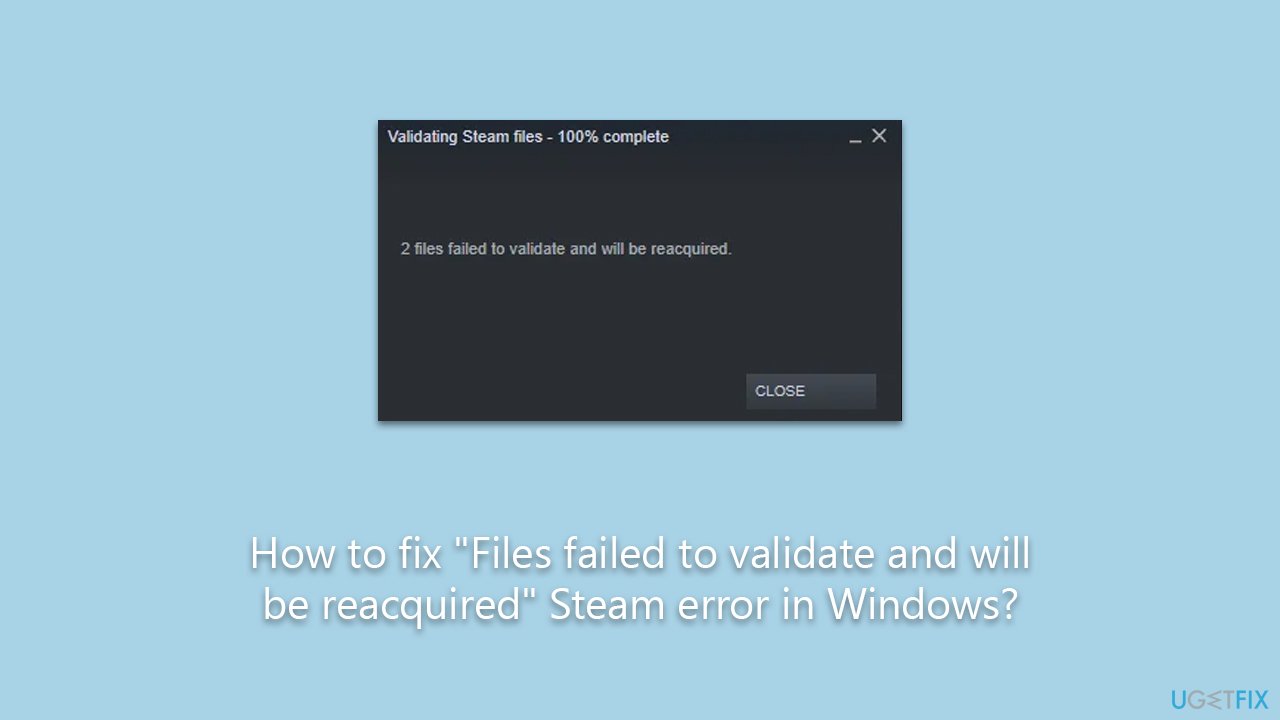
However, some users encounter an error message stating, "Files failed to validate and will be reacquired" when running the game file verification tool. This error prevents the successful completion of the verification process and affects games like Call of Duty Modern Warfare/Warzone, CS: GO, Xcom, Command & Conquer, Skyrim, and others.
Several factors can contribute to the "Files failed to validate and will be reacquired" error. One possible reason could be the presence of outdated or corrupted game files, which the verification tool fails to recognize as valid. Alternatively, this error may also appear if there is a discrepancy between the files installed on the user’s PC and those present on Steam’s servers.
Despite being a relatively common issue, there are various ways to fix the "Files failed to validate and will be reacquired" error. Users are advised to look for specific instructions below this article, which detail the steps needed to address this problem effectively. Following these guidelines should help in most cases.
For those seeking an alternative to manual troubleshooting, the [d1] PC repair tool is a viable option. This tool is designed to simplify the resolution process of common PC errors, making it a great alternative to manual solutions. With its help, users can quickly get back to enjoying a seamless gaming experience on Steam.
Fix 1. Run network troubleshooter
Network troubleshooter is a utility embedded in Windows designed to identify and rectify network issues.
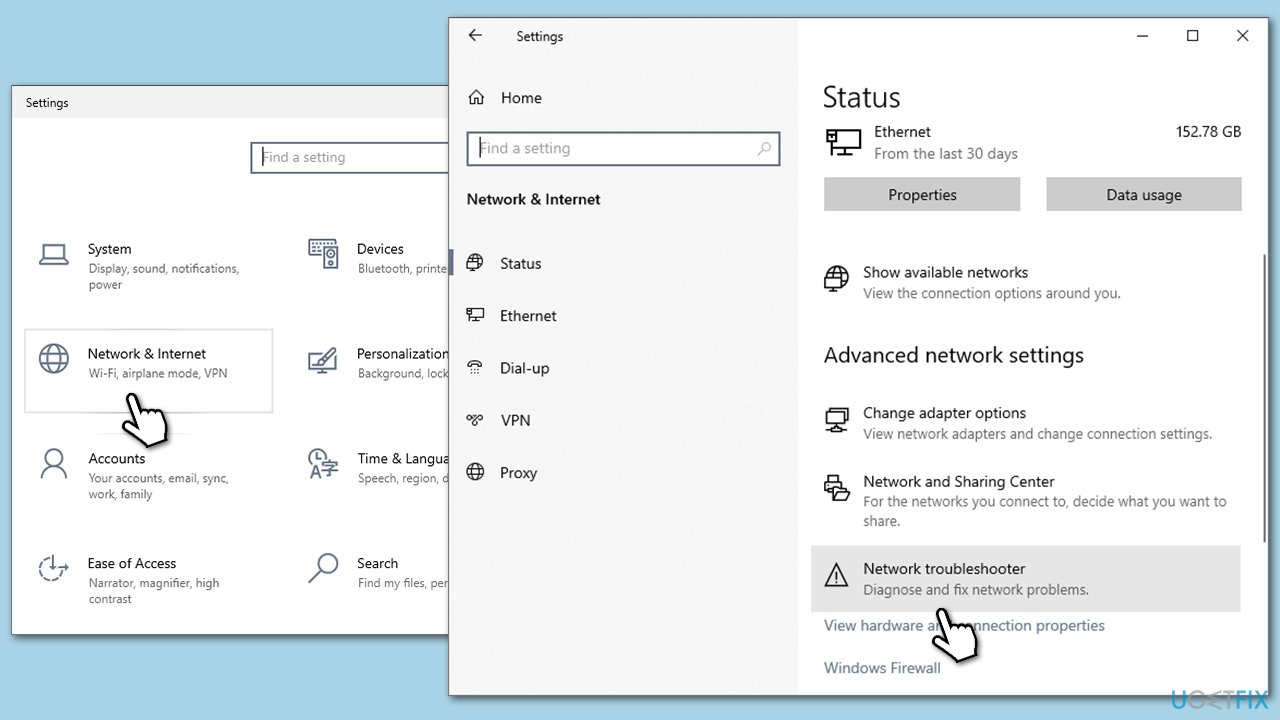
- Right-click on Start and pick Settings.
- Go to Network & Internet section.
- On the right side, find the Advanced network settings section.
- Click Network troubleshooter and wait.
- The fixes will be automatically applied.
Fix 2. Perform Check Disk
Check Disk is a utility that scans and rectifies disk-related errors that might be affecting the game files.
- Type cmd in Windows search.
- Right-click on Command Prompt and select Run as administrator.
- When the User Account Control window shows up, click Yes.
- In the new window, type in the following command and press Enter:
chkdsk c: /f
(Note: use chkdsk c: /f /r /x command if you are using SSD as your primary partition) - If you receive an error, type in Y, close down Command Prompt and restart your computer.
- Wait till the scan is finished - you can then find the results in the Event Viewer.

Fix 3. Allow the game through Firewall
Ensuring the game has permission to pass through the firewall prevents it from being blocked.
- Type Control Panel in Windows search and press Enter.
- Click on System and Security.
- Select Windows Defender Firewall.
- On the left-hand side, click on Allow an app or feature through Windows Defender Firewall.
- Click on Change settings.
- Scroll down the list to find the game on the list. If it is not present, click on Allow another app, locate it, and add it to the list.
- Ensure both Private and Public checkboxes are ticked
- Finally, click OK to save changes.

Fix 4. Temporarily disable third-party antivirus and similar software
Some antivirus programs may wrongly identify and block game files, causing the error.
- Locate the antivirus icon in your system tray.
- Right-click the icon; there should be options to disable or exit the program.
- Choose to disable the antivirus temporarily.
Fix 5. Verify game files in Clean Boot
Clean Boot starts Windows with minimal drivers and startup programs, reducing interference with the game file verification process.
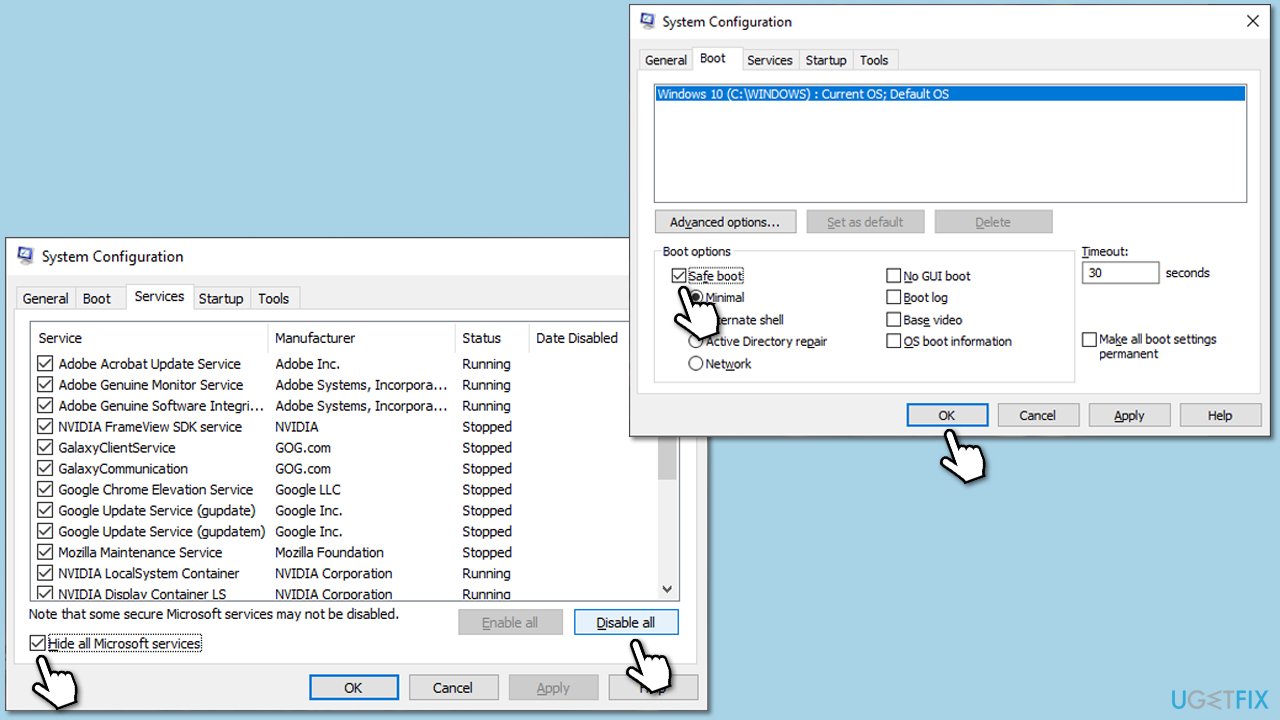
- Press Win + R, type msconfig, and hit Enter.
- Go to the Services tab and tick the Hide all Microsoft services checkbox.
- Select Disable all.
- Go to the Startup tab and click Open Task Manager.
- Here, right-click on each of the non-Windows entries and select Disable.
- Close down the Task Manager.
- Go to the Boot tab and tick the Safe boot option.
- Restart your computer and run Steam to verify the game files.
Fix 6. Delete game files in the Documents folder
Corrupted game files in the Documents folder may lead to validation errors.
- Press Win + E to open File Explorer.
- Navigate to the Documents folder on your computer.
- Find and open the folder of the affected game (sometimes, the game folder might be within the game developer folder, for example, Square Enix).
- Delete all files within this folder, but be sure to back up any saved game data first.

Fix 7. Reinstall the affected game
Reinstalling the game ensures you have a fresh set of game files, potentially resolving the error.
- Open Steam and navigate to your Library.
- Right-click the affected game and select Uninstall.
- Confirm the uninstallation and wait for the process to finish.
- Once uninstalled, reinstall the game through Steam.

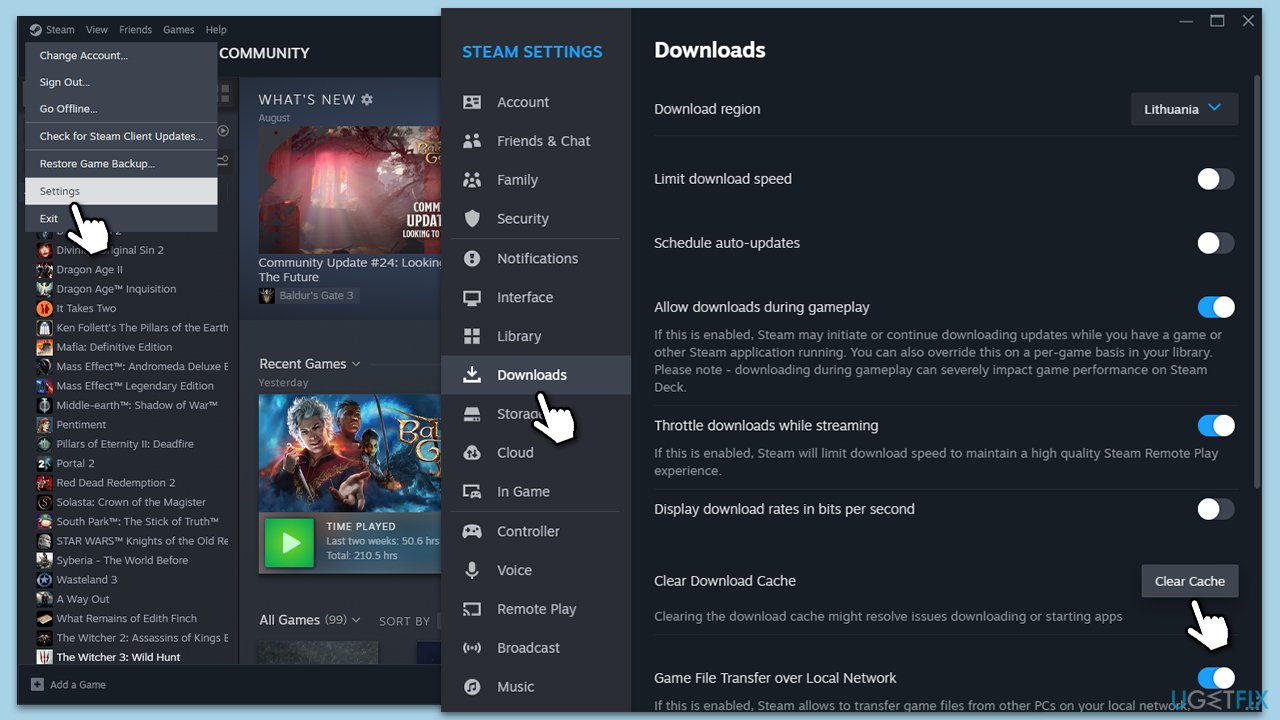
Fix 8. Clear Steam cache
Clearing Steam’s cache helps eliminate data that might be corrupt or outdated, which may be causing the validation error. This process does not delete your installed game files.
- Open Steam.
- Click Steam at the top-left corner and select Settings.
- Go to the Downloads section you can find on the left side.
- On the right side, click the Clear download cache button.
- Click OK and restart Steam.
Bottom line
To fix the 'Files failed to validate and will be reacquired' error, users can try verifying game files again, reinstalling the game, or checking for updates. If these solutions do not resolve the issue, it is recommended to seek further assistance from Steam support.
Frequently asked questions
This error typically occurs due to corrupted game files or issues with the Steam client itself. Running a file integrity check or reinstalling the game can often resolve the issue.
You can try verifying the integrity of game files through Steam's settings by right-clicking the game, selecting Properties, and clicking on 'Verify Integrity of Game Files.' This process will automatically replace any corrupted files.
Yes, Windows Defender or third-party antivirus software can sometimes mistakenly flag Steam files, leading to validation errors. Ensure that Steam and its game folders are whitelisted in your security software settings.




Report an issue
What's wrong with this guide? We review every report and update or remove content.
Report received — thank you. We'll review and fix it.
You need a free account to submit a report.
Be the first to comment