How to fix
Find function in Excel not working
on Windows
Resolve the Find function issue in Excel on Windows 10 or 11 with expert-tested solutions. Get back to work in minutes, guaranteed!


What causes How to fix Find function in Excel not working?
- Hidden rows or columns
- Merged cells
- Conditional formatting
- Incorrect search options
- Corrupted Excel files
- Outdated software or conflicting add-ins
Repairs Windows system files, removes malware, and restores a clean OS state — without reinstalling.
So I use giant Excel spreadsheets for work and for some reason, Find is no longer working for me. This is a real problem for me because I know that the data I am looking for is somewhere there, but the search simply returns the "We couldn’t find what you were looking for. Click Options for more ways to search" message. I am using Windows 11 Home.
The Find function in Microsoft Excel constitutes an essential feature that facilitates the swift identification of specific data within spreadsheets. Nevertheless, a number of users have reported experiencing difficulties with this function, frequently encountering the message, "We couldn’t find what you were looking for. Click Options for more ways to search."
The problem usually arises due to specific elements that interfere with the find operation of Excel. The existence of hidden rows or columns, merged cells, or conditional formatting may lead the Find tool to skip relevant entries.
Moreover, incorrect search options, such as "Match entire cell contents" or "Match case," can sometimes exclude findings inadvertently. In some cases, corrupted Excel files, outdated software, or add-ins that clash with Excel can also cause the "Find function not working" issue.
Individuals encountering this issue frequently describe symptoms including the search box becoming unresponsive, persistent "No results found" notifications, or the function overlooking apparent data. This phenomenon is especially prevalent in documents characterized by extensive formatting, complex formulas, or external hyperlinks.
Furthermore, the prompt advising users to select Options for alternative search methods may contribute to confusion rather than providing a resolution to the problem.
There are a few different solutions to fix Find in Excel not working issue, ranging from changing search options to rearranging the structure in a workbook. Among the most effective are unhiding rows and columns, unmerging cells, and making sure there is no conflict with add-ins. Repairing corrupted files or updating Excel will also often restore normal functioning.
In the case where these measures fail to solve the problem that pertains to Find function failure, you are likely to have a problem with system files or software conflicts. You could address such inherent flaws automatically using an all-in-one tool, [d1] repair, which allows you to operate Excel and fix all errors quickly.

Fix 1. Adjust search options
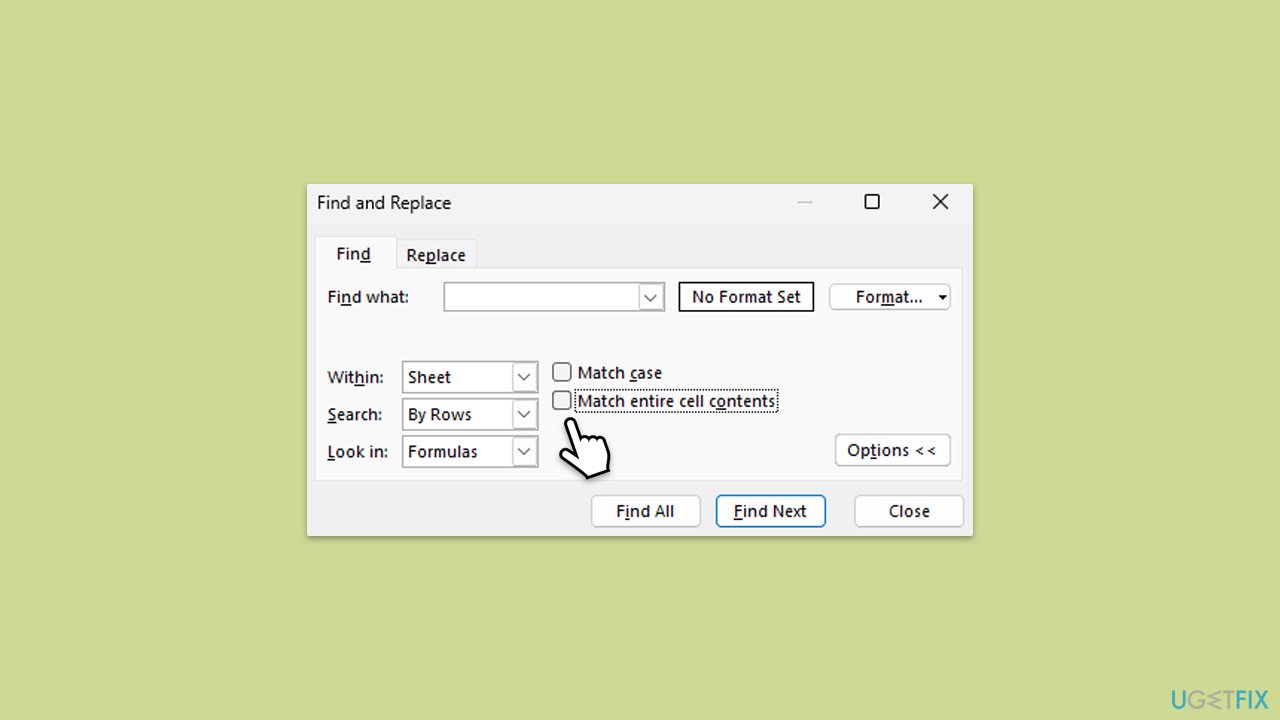
Incorrect search settings in Excel can prevent the Find function from returning accurate results. These settings may filter out matching data inadvertently, especially when options like "Match entire cell contents" or "Match case" are enabled.
- Open Excel and press Ctrl + F to open the Find and Replace dialog box.
- Click the Options button to expand the search parameters.
- Clear the "Match entire cell contents" and "Match case" checkboxes.
- Try your search again to see if the issue is resolved.
Fix 2. Unhide rows and columns
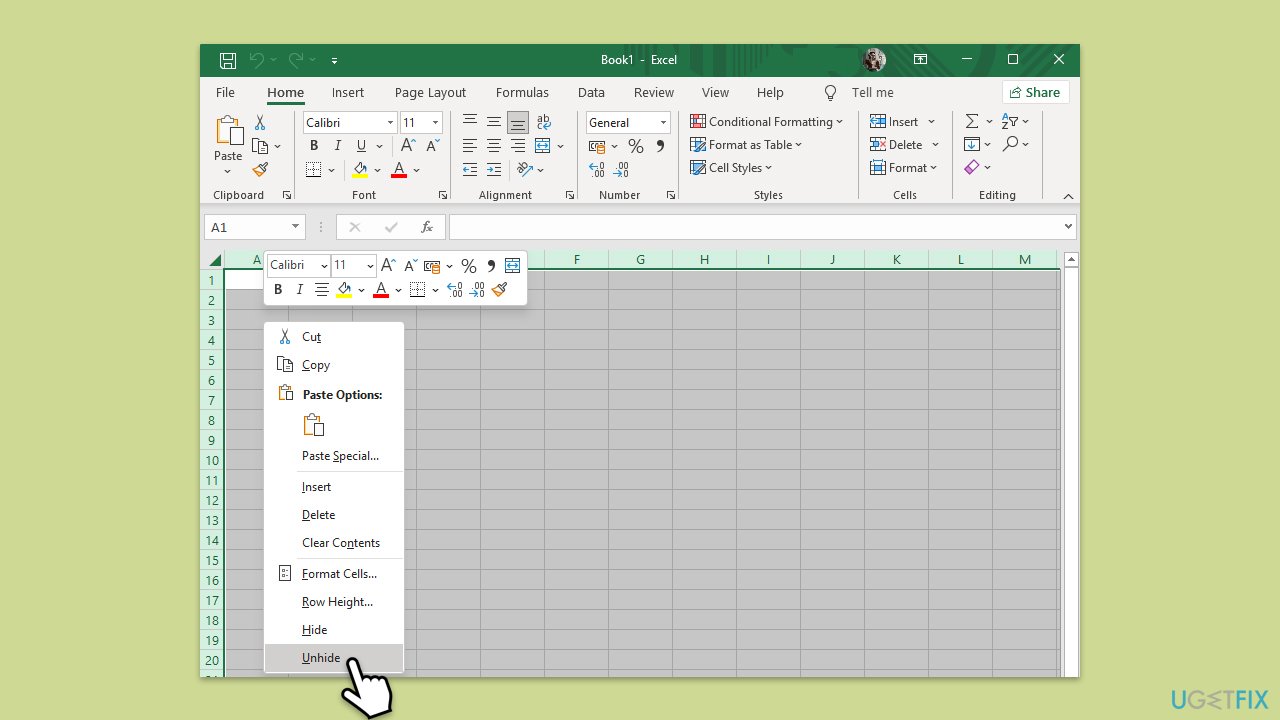
The Find function cannot detect values in hidden rows or columns, which can cause the search to fail.
- Select the entire sheet by clicking the corner button between the row numbers and column letters.
- Right-click anywhere and choose Unhide from the context menu.
- Run your search again to confirm if the hidden data was causing the problem.
Fix 3. Unmerge cells
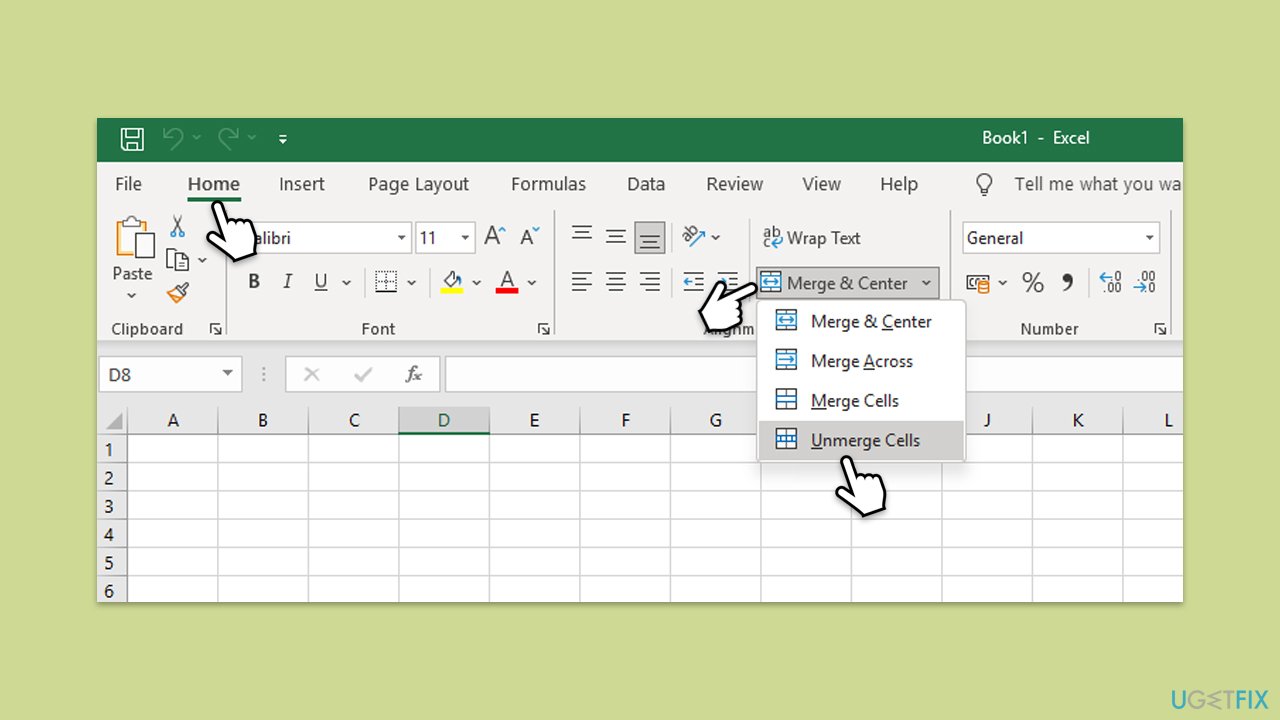
Merged cells in Excel often interfere with the Find function, as it cannot detect content spread across merged areas.
- Highlight your worksheet or select merged cells.
- Go to the Home tab and click the Merge & Center dropdown in the Alignment group.
- Choose Unmerge Cells to separate them.
- Perform the search again.
Fix 4. Repair the Excel workbook
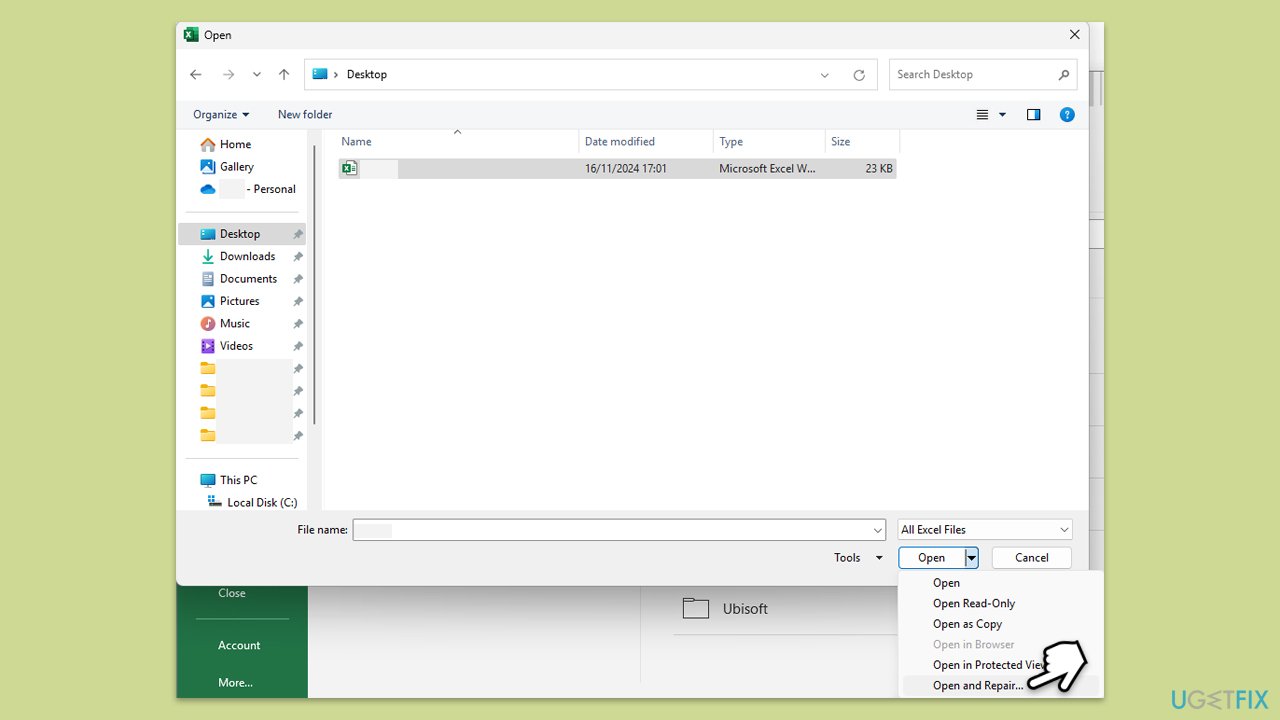
If your workbook is corrupted, the Find function may behave abnormally. Repairing the file can resolve these issues.
- Open Excel and click File > Open.
- Locate your file, click the dropdown arrow next to the Open button, and select Open and Repair.
Fix 5. Verify data formatting
Data formatted inconsistently in cells can lead to the Find function not working as expected. For instance, numbers stored as text or unusual date formats can confuse the search tool.
- Select the problematic cells or the entire sheet.
- Go to the Home tab, then click on the Number Format dropdown in the Number group to choose an appropriate format.
- Retry your search to check if the issue is resolved.
Fix 6. Clear filters
If filters are applied to your worksheet, the Find function may skip data that is currently hidden. Removing filters can allow the search to work correctly.
- Click Data > Clear in the Sort & Filter group to remove all filters from the worksheet.
- Perform the search again to see if it now identifies the missing values.
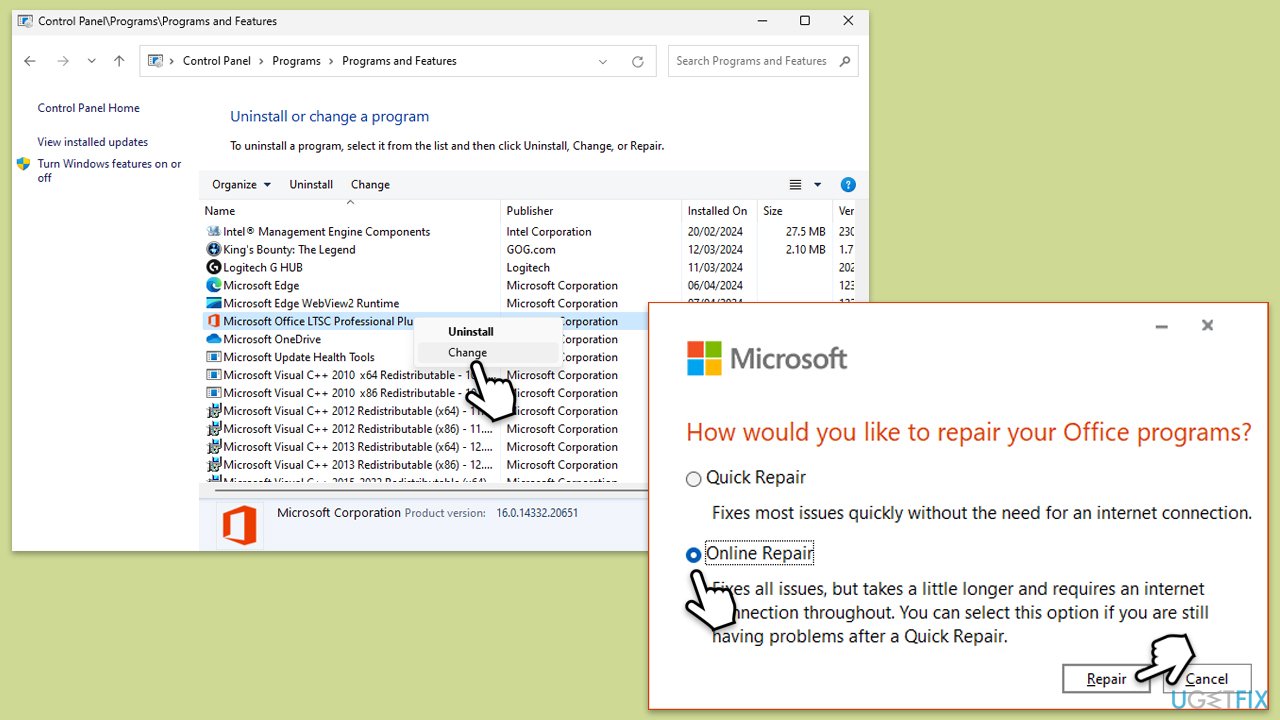
Fix 7. Repair Office
Issues with the Office installation, such as missing or outdated components, can disrupt Excel's functionality, including the Find function.
- Type Control Panel in Windows search and press Enter.
- Select Programs > Programs and Features.
- Select Microsoft Office and click on Change.
- Choose the option for Online Repair and click Repair.
- Follow the prompts to finish the process.
Fix 8. Disable add-ins
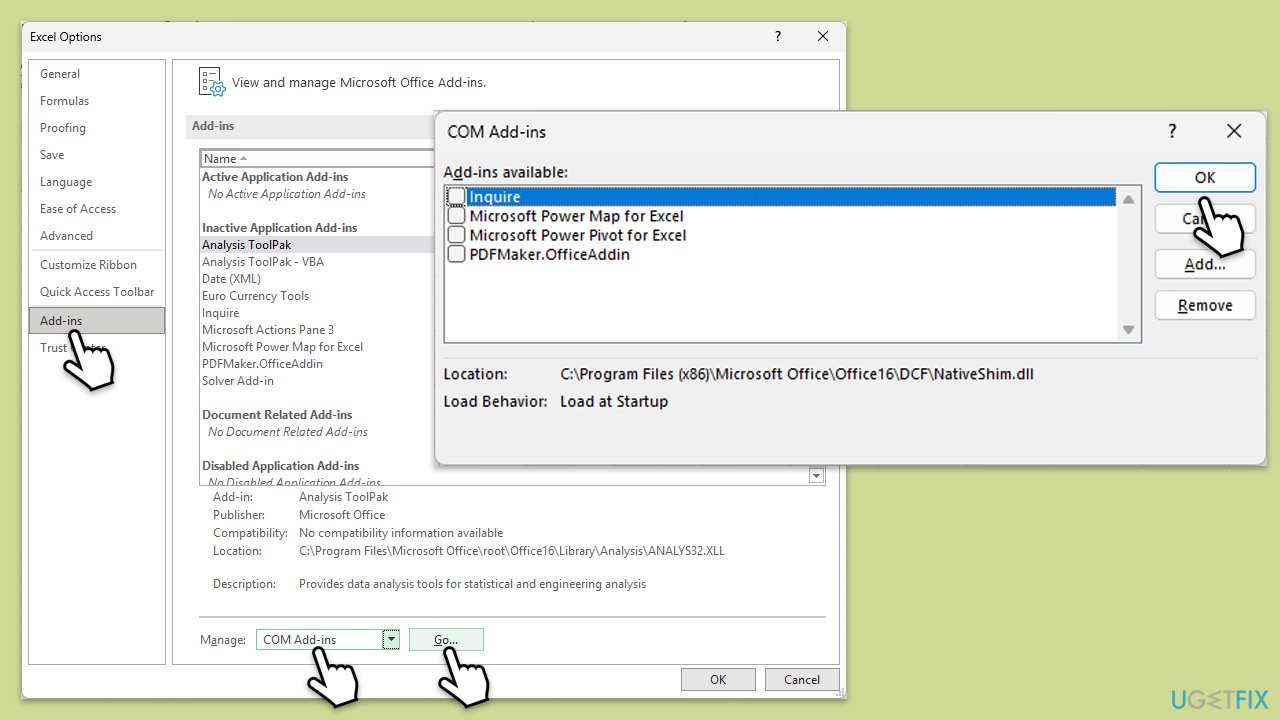
Problematic add-ins can interfere with Excel's default behavior, causing functions like Find to fail. Disabling them can help identify and resolve the conflict.
- Press Win + R to launch the Run dialog.
- Type excel /safe and hit Enter.
- If Outlook sends the emails normally, add-ins may be causing the issue.
- Go to File > Options > Add-ins, select COM Add-ins, and click Go. Disable all add-ins and restart Outlook normally to see if the problem is resolved.
Fix 9. Reset Excel settings
Corrupted or misconfigured settings in Excel can prevent the Find function from operating correctly. Resetting Excel to its default configuration can resolve such issues.
- Close Excel.
- In Windows search, type regedit, and press Enter.
- User Account Control will ask you to allow changes - click Yes.
- Navigate to the following location:
HKEY_CURRENT_USER\Software\Microsoft\Office\XX.0\Excel (replace "XX.0" with your Office version). - Right-click the Excel folder and select Export to back up the registry key.
- Delete the Excel folder and restart Excel to recreate default settings.
Bottom line
To fix the Find function in Excel not working, try unhiding rows and columns, unmerging cells, and ensuring there are no conflicts with add-ins. Additionally, repairing corrupted files or updating Excel may restore normal functionality. If these measures do not resolve the issue, there may be a problem with system files or software conflicts.
Frequently asked questions
The Find function in Excel may not respond due to a corrupted Excel installation or an issue with the Office software. Try repairing your Office installation through the Control Panel to resolve the issue.
If the Find function is disabled, check if your Excel is in 'Protected View' or if any add-ins are interfering. You can disable add-ins by going to File > Options > Add-ins and unchecking them.
If the Find dialog box is not appearing, ensure that your Excel application is updated to the latest version. You can also try resetting your Excel settings by going to File > Options > Advanced and clicking on 'Reset' under the General section.




Report an issue
What's wrong with this guide? We review every report and update or remove content.
Report received — thank you. We'll review and fix it.
You need a free account to submit a report.
Be the first to comment