How to fix
Fingerprint (Biometric) not working after Windows update
on Windows
Fix Fingerprint issues after your Windows 10 or Windows 11 update. Enjoy seamless logins again with expert-tested solutions and zero traces left.

What causes How to fix Fingerprint (Biometric) not working after Windows update?
- Device drivers may become outdated or incompatible after an update
- Biometric services may become disabled during the updating process
- Power management settings can interfere with the fingerprint sensor
- BIOS or TPM setup changes can affect fingerprint recognition
- Fingerprint sign-in option may disappear from settings
Repairs Windows system files, removes malware, and restores a clean OS state — without reinstalling.
So recently I updated to Windows 11 and everything was fine until I noticed that Biometric login with Fingerprint is not working. Any ideas as to why?
For the average user, Windows Hello and biometric login is an essential part of their daily work routine. It is not just fast, but it is also an extra level of security. Things do go wrong sometimes—especially following system updates. Some Windows users have in recent times complained that their fingerprint reader didn't work following a Windows update, making them unable to sign in using biometric login.
This is not a new issue. Big and even minor Windows updates tend to interfere with device drivers and services, particularly those related to biometric devices. In our scenario, users complain that the fingerprint sign-in option either completely disappears from settings or remains there but does not work when trying to use it. On a few occasions, Windows Hello still appears in the list, but the fingerprint reader is no longer detected by the system at all.
Although the problem seems to occur abruptly, it is generally a function of how Windows handles drivers and security options after an update. System components or biometric services may become disabled during the updating process and fail to reactivate. Sometimes, the drivers of fingerprint readers can become outdated or incompatible with the latest version of Windows, especially if a feature update was performed.
On more particular cases, power management settings can interfere with the operation of the fingerprint sensor after a reboot or wake-up from sleep, which may result in the system not detecting any biometric signal. BIOS or TPM setup changes on some systems can affect fingerprint recognition indirectly on some occasions, particularly after major security updates.
If your Windows Hello fingerprint sign-in stopped working after an update, don't worry, you're not the only one. And though it's frustrating, the issue is usually resolvable through some adjustments. Before going to manual solutions, you can also attempt to use a utility like [d1], which can help identify and fix system-level issues that may be blocking biometric devices.
Fix 1. Re-enable Windows Hello Fingerprint
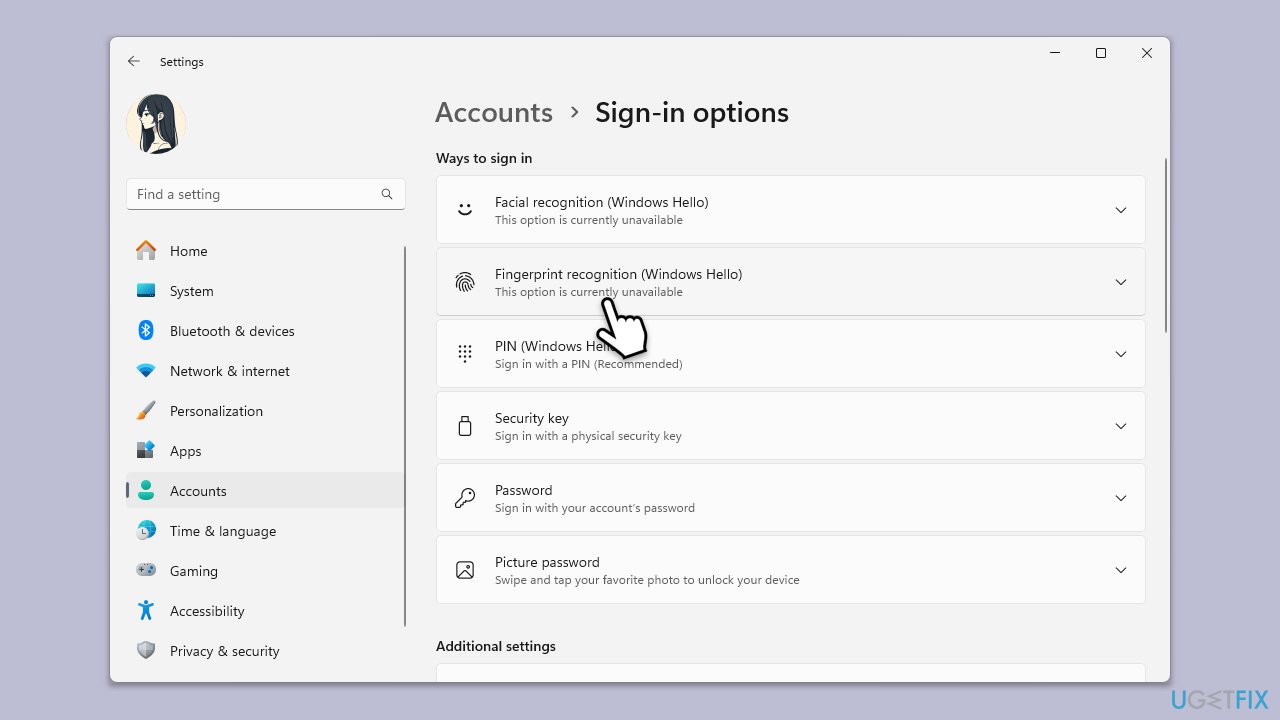
In some cases, Windows updates may disable biometric sign-in options or reset related settings. Re-enabling Windows Hello can restore access to fingerprint login.
- Right-click on Start and select Settings.
- Go to Accounts.
- Select Sign-in options.
- Click on Fingerprint Recognition (Windows Hello).
- Choose Remove if an old fingerprint is listed.
- Click Set up to register your fingerprint again.
- Follow on-screen instructions to complete setup.
Fix 2. Check Biometric Device in Device Manager
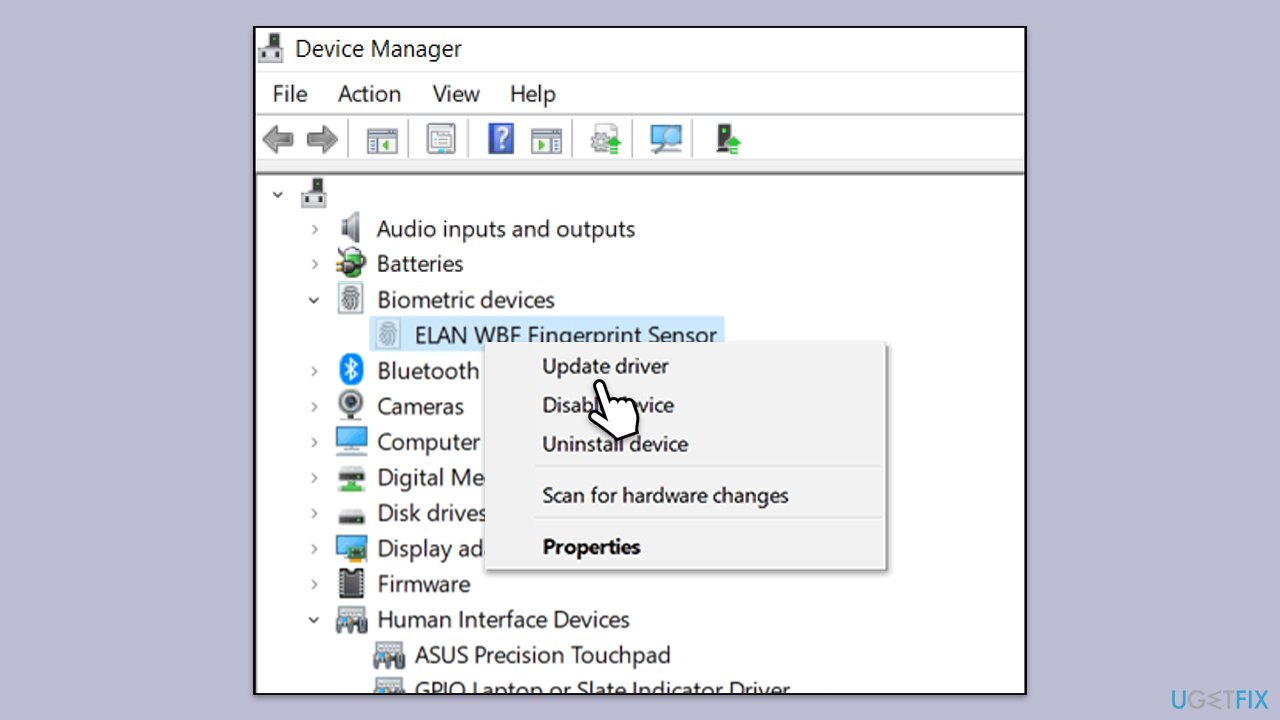
Windows might stop recognizing the fingerprint reader after an update, so verifying the device status can help pinpoint the issue.
- Right-click on the Start menu and select Device Manager.
- Expand the Biometric devices section to find your Fingerprint sensor.
- Right-click on the fingerprint sensor and select Update driver.
- Select Search automatically driver.
- Follow the prompts to complete the driver update and restart your computer.
- If the device is missing, click Action > Scan for hardware changes.
Fix 3. Restart Windows Biometric Service
Fingerprint functionality relies on background services that may be disrupted or disabled during a system update.
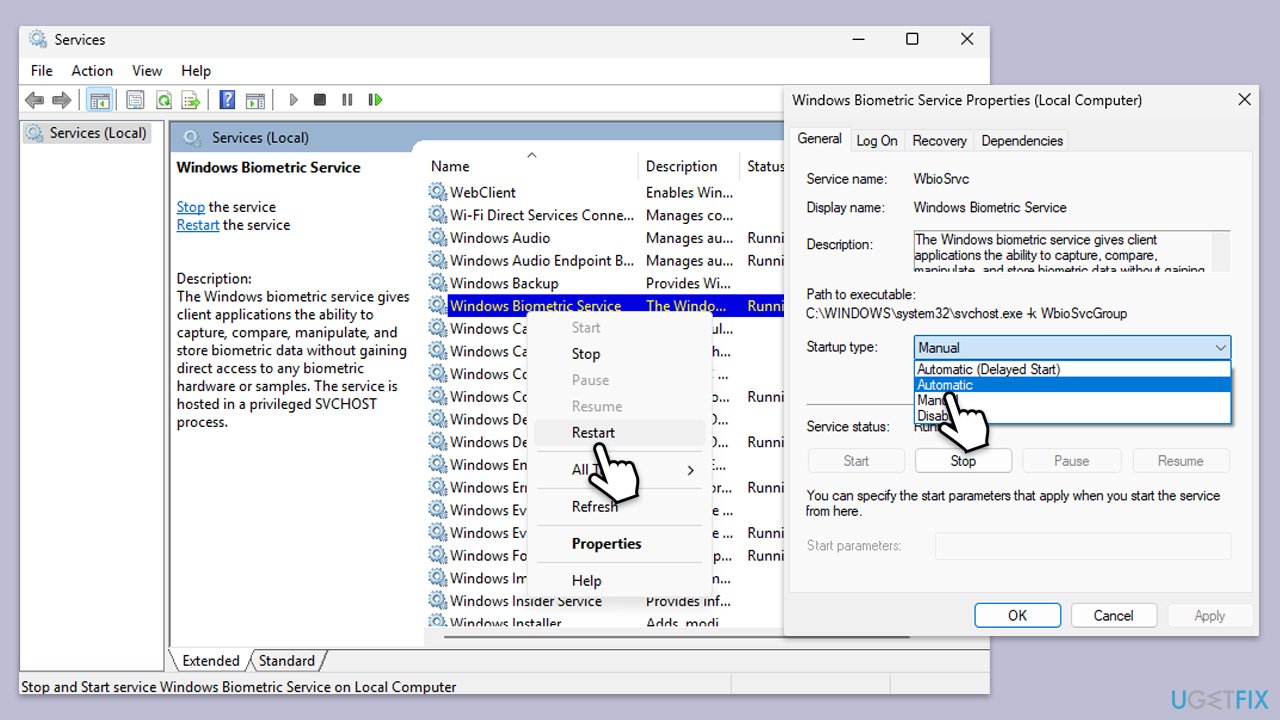
- Type Services in Windows search and press Enter.
- Find Windows Biometric Service in the list.
- Right-click it and select Restart.
- Double-click the service and ensure the Startup type is set to Automatic.
- Click Apply, then OK.
Fix 4. Disable USB Power Saving (for USB fingerprint readers)
If you're using an external fingerprint reader, power-saving features could interfere with its operation after sleep or restart.
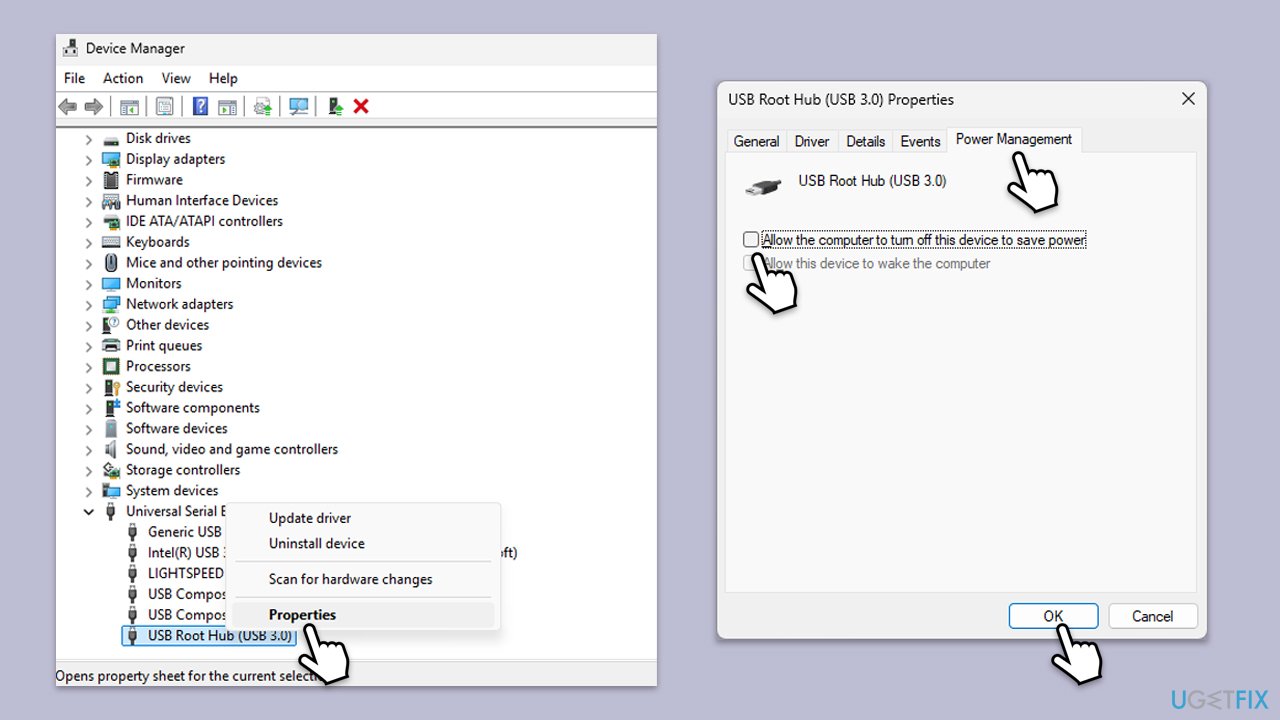
- Right-click on Start and pick Device Manager.
- Expand the Universal Serial Bus controllers section.
- Right-click each USB Root Hub and choose Properties.
- Go to the Power Management tab.
- Uncheck Allow the computer to turn off this device to save power.
- Click OK and reboot the system.
Fix 5. Disable and re-enable fingerprint driver
Users on community forums reported that disabling and re-enabling the fingerprint driver helped restore Windows Hello functionality. This method can refresh how the device is initialized after system changes.
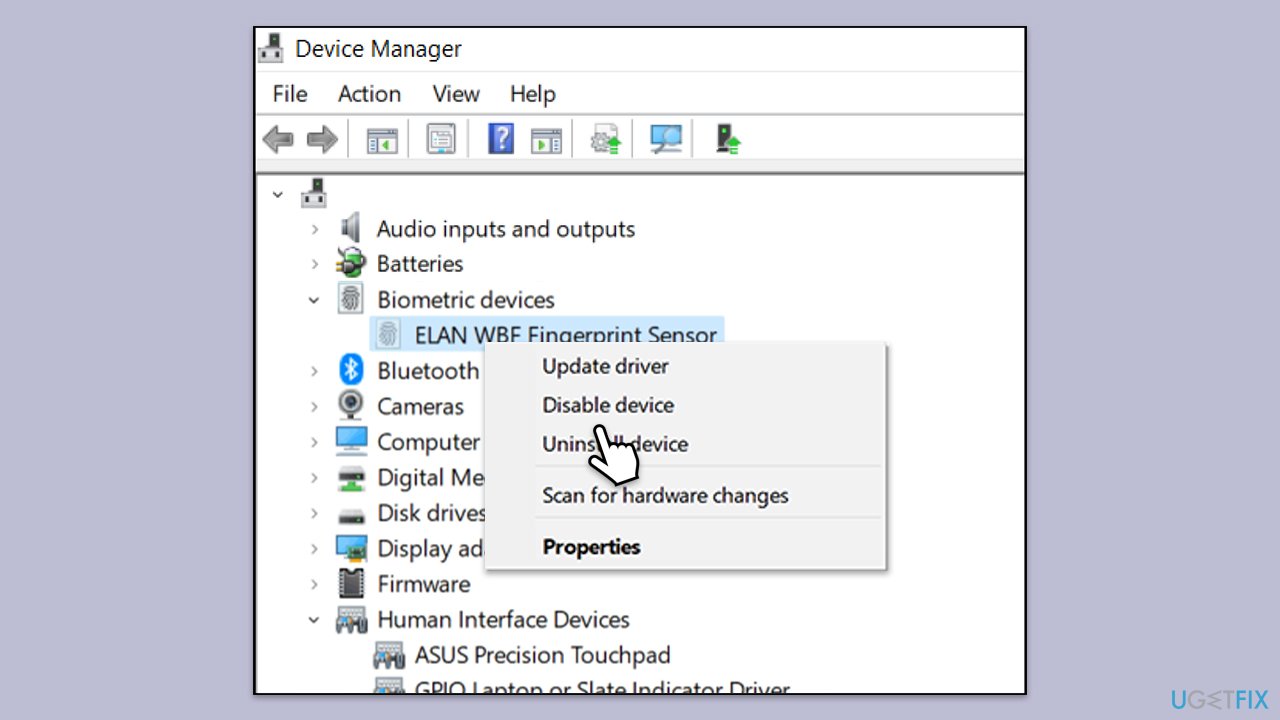
- Open Device Manager.
- Expand the Biometric Devices section.
- Right-click the fingerprint driver and select Disable device.
- Restart your laptop.
- Go back to Device Manager, right-click the driver, and choose Enable device.
- Open Settings > Accounts > Sign-in options.
- Set up a new fingerprint.
- Try using fingerprint to log in again.
Fix 6. Clear Biometric data
Clearing biometric data deletes all saved fingerprint records from your device. This solution may appear complex, but if you follow the instructions carefully, you should be able to complete it with ease. Make sure you're using an Administrator account.
- Type Services in Windows search and hit Enter.
- Scroll down to Windows Biometric Service.
- Right-click and select Stop.
- Next, press Win + E to open File Explorer and ensure that hidden files are visible.
- Navigate to the following location:
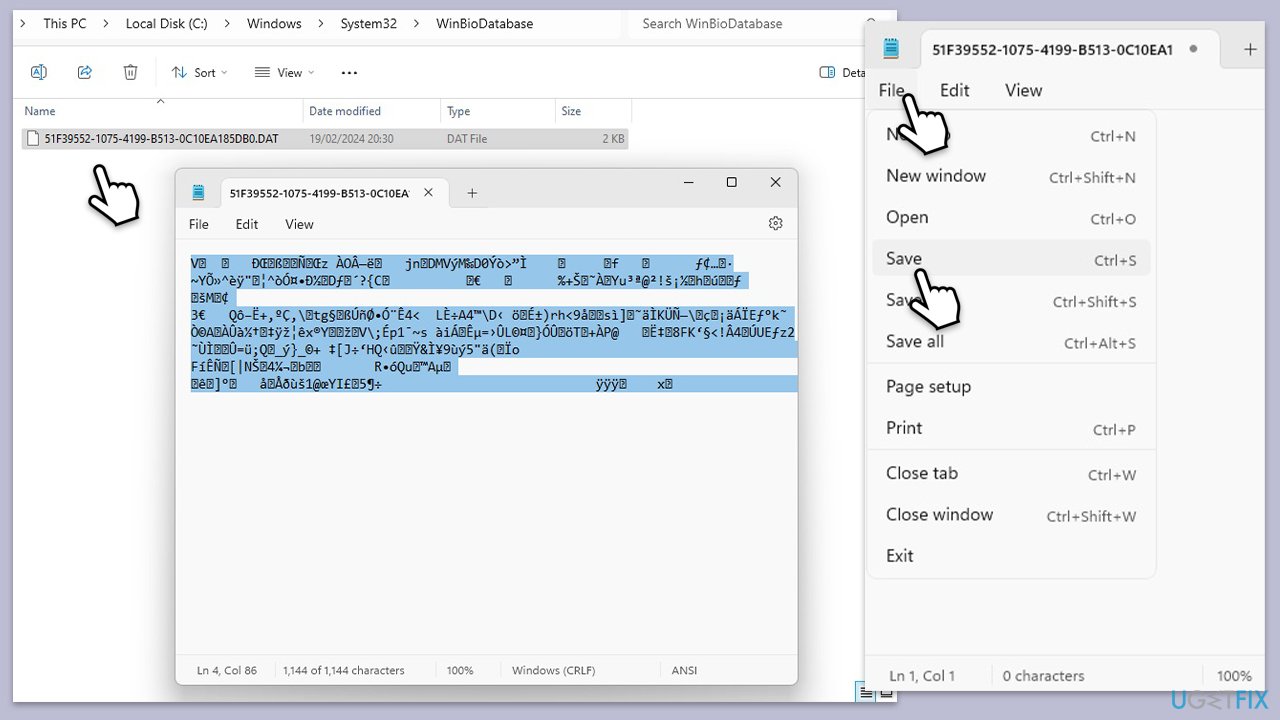
C:\Windows\System32\WinBioDatabase - Here you should find a DAT file(s).
- Right-click on it and select Open with > Notepad.
- Press Ctrl + A and then press Delete to remove all the data.
- Once empty, press File > Save and close the window.
- Go to Services window again, and scroll down to Windows Biometric Service again.
- Right-click on the service and select Start.
- Now simply set up the fingerprint as usual.
Bottom line
If your Windows Hello fingerprint sign-in stopped working after an update, you can try updating drivers, checking power management settings, or adjusting BIOS settings. If these solutions do not resolve the issue, consider using a utility to identify and fix system-level problems.
Frequently asked questions
The latest Windows 10 update may have caused compatibility issues with your fingerprint scanner driver, requiring you to update or reinstall the driver to restore functionality.
You can reinstall the fingerprint driver by navigating to Device Manager, locating the biometric devices section, right-clicking on your fingerprint scanner, and selecting 'Uninstall device,' then restarting your computer to allow Windows 11 to reinstall the driver automatically.
If the fingerprint recognition feature is missing after a Windows update, check for additional updates, and ensure that the Windows Hello feature is enabled in the sign-in options under Settings.




Report an issue
What's wrong with this guide? We review every report and update or remove content.
Report received — thank you. We'll review and fix it.
You need a free account to submit a report.
Be the first to comment