
That fingerprint is too similar to one that's already set up: how to fix it in Windows 11

Prefer to fix it yourself? The manual steps follow.
- 6methods
- 3 to 30 minutes
- Easy
Applies to Windows 11 and Windows 10 laptops and keyboards with a Windows Hello fingerprint reader
6 methods in this guide
Hello, I had to reset the fingerprint for Windows 11 because I had problems with the previous one, but every time I try to set up a new one I receive an error "Fingerprint looks too similar to the one that is already set up." What can I do to fix this?
That fingerprint is too similar to one that's already set up. means Windows Hello still holds an old scan of the same finger, often one you can no longer see. Remove every fingerprint in Sign-in options, restart and set it up again. If that fails, look for the print on another account, in the sensor driver or on the sensor itself.
Windows Hello believes the finger is already enrolled, so it refuses to save it twice. Sign in with your PIN, open Settings > Accounts > Sign-in options > Fingerprint recognition (Windows Hello), select Remove, restart and select Set up (Fix 1). If the message comes back, remove the finger from any other account on the PC (Fix 2), then update the fingerprint driver from your PC maker (Fix 3).
| Error | That fingerprint is too similar to one that's already set up. Try a different finger. Older guides, this one included, quoted it as fingerprint looks too similar to the one that is already set up. |
|---|---|
| Where it appears | In Settings > Accounts > Sign-in options > Fingerprint recognition (Windows Hello), during Set up or Add a finger, after the first touches of the sensor. |
| Main cause | An earlier scan of the same finger is still stored: in your account, in another account on the PC, or by the sensor after a reset, an update or a Windows reinstall. |
| Fastest fix | Remove the fingerprint in Sign-in options, restart, then Set up again (Fix 1). |
| Also written as | That fingerprint has already been set up on another account, fingerprint too similar, fingerprint already registered, can't add the same finger again. |
| Not the same as | Your fingerprint couldn't be recognized. Try using a different finger. That one appears at sign-in, when the scan does not match. Microsoft's advice there is to clean the reader and re-register. |
| Affects | Windows 11 and Windows 10. Windows 10 left support on 14 October 2025. |
| Vendor status | Dell lists it as a known issue on 16 Inspiron and Vostro models, fixed by the Goodix fingerprint driver 20.8.0.9, A06 or later (Dell article 000222961, checked 15 October 2026). |
| Time to fix | 3 minutes for Remove and Set up. Up to 30 minutes with a driver update or a database reset. |
Facts checked on 15 October 2026. Steps written for Windows 11 (25H2 and 26H2) and Windows 10 22H2, read against Microsoft's Windows Hello troubleshooting page and Dell's knowledge base article on this message.
What "That fingerprint is too similar to one that's already set up" means
Windows Hello refuses to store the same finger twice. While you set up a fingerprint, it compares the new scan with the prints it already knows. When the match is close enough, it stops and shows That fingerprint is too similar to one that's already set up. Try a different finger.
The check itself works as designed. The problem is that the old print is often one you cannot see any more. Dell says the message can appear after a Windows Update, a driver, firmware or BIOS update, or after an OS recovery that did not delete the enrolled fingerprints. It can even survive a Windows reinstall.
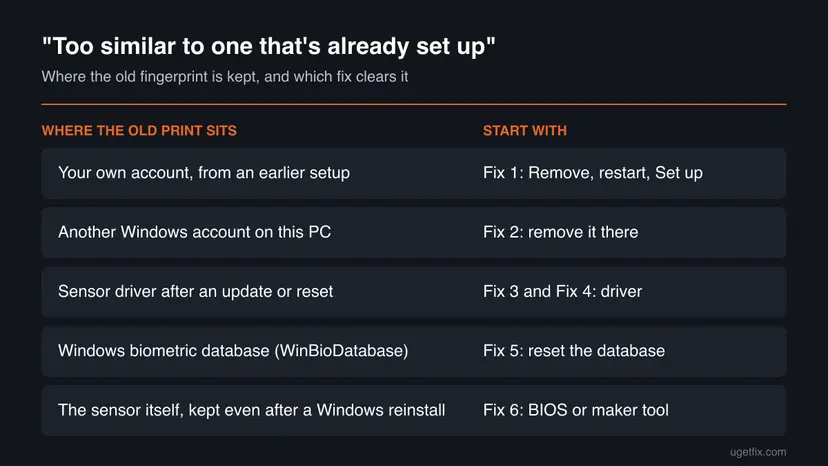
| What you see | What it means | Start with |
|---|---|---|
| That fingerprint is too similar to one that's already set up. during Set up | Windows already holds a print of this finger | Fix 1 |
| The same message, but Sign-in options shows no fingerprint | The old print sits outside your account settings | Fix 2, Fix 3, Fix 5 |
| That fingerprint has already been set up on another account | Another Windows account on the PC has this finger | Fix 2 |
| Your fingerprint couldn't be recognized. Try using a different finger. at sign-in | Setup is fine, the scan did not match | Clean the reader, Add a finger |
| This option is currently unavailable under Fingerprint recognition | Windows sees no working fingerprint reader | Fix 4 |
Why Windows says the fingerprint is too similar, from the most common cause
The ranking below is our reading of Microsoft's and Dell's guidance together with what users report on Microsoft Q&A and Dell's forum. It is not a statistic. Each cause points to the fix that answers it.
| How often | Cause | Typical sign | Fix |
|---|---|---|---|
| Most often | The finger is still enrolled in your own account from an earlier setup | You reset or re-added fingerprints without removing the old ones | Fix 1 |
| Often | Another account on the PC, or an old account, enrolled the same finger | Several people or a second profile use the laptop | Fix 2 |
| Often | A driver, firmware or BIOS update left the sensor and Windows out of step | It started after an update; Dell's listed models | Fix 3, Fix 4 |
| Less often | Stale records in the Windows biometric database | Sign-in options shows no fingerprint, yet the message stays | Fix 5 |
| Rarely | The print is stored on the sensor and survived a reset or reinstall | The message is back even on a fresh Windows | Fix 6 |
Dell writes that Windows thinks the user is on a different profile, and it does not let the same finger be enrolled for several profiles. In plain words: the old enrollment still counts as someone else's, even when that someone was you.
How to fix "That fingerprint is too similar to one that's already set up" in Windows
Start at the top: the first two fixes take minutes and change nothing outside Windows Hello. You are done when Set up asks you to lift and touch the sensor until it says your fingerprint is ready.
| Your situation | Start with | Then |
|---|---|---|
| You see a fingerprint listed in Sign-in options | Fix 1 | Fix 3 |
| More than one Windows account on the PC, or the message names another account | Fix 2 | Fix 1 |
| It started after a Windows, driver or BIOS update | Fix 3 | Fix 4 |
| A Dell Inspiron or Vostro from the list in the summary | Fix 3 | Fix 1 |
| No fingerprint listed anywhere, message still there | Fix 5 | Fix 6 |
| The message survived a Windows reinstall | Fix 6 | Still stuck section |
Fix 1. Remove the fingerprint in Sign-in options, restart and set it up again
3 minutesLow riskEveryone, and first when Sign-in options still shows a fingerprint for your account.
Remove deletes the prints stored for your account, so the new setup no longer finds a twin. Microsoft's own advice for fingerprint problems is to sign in with a PIN or password and re-register the fingerprints.
- Select Cancel or Close to leave the failed setup.
- Press Win + I and open Accounts > Sign-in options.
- Expand Fingerprint recognition (Windows Hello) and select Remove. Confirm with your PIN or password if Windows asks.
- Restart the PC.
- Back in Sign-in options, expand Fingerprint recognition (Windows Hello) and select Set up, then Get started.
- Wipe the sensor with a soft dry cloth, dry your finger, and lift and touch as the screens ask, changing the angle a little each time.
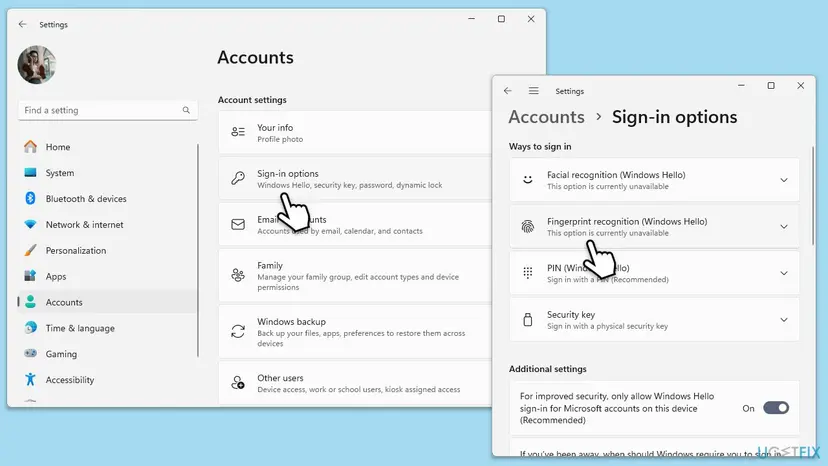
Fingerprint sign-in sits on top of a Windows Hello PIN, and the PIN is your way in while the fingerprint is gone. If the PIN itself fails, see our guide on the incorrect PIN message.
It worked if: Set up runs through all the touches and ends with a message that you can use your fingerprint to sign in.
If not: If there was no Remove button, or the message comes back, check the other accounts on the PC with Fix 2.
Fix 2. Remove the same finger from the other Windows accounts on the PC
5 minutesLow riskThe PC has a second account, a family member's account, or an old account you created before a reset.
Dell says Windows does not let the same finger be enrolled for more than one profile. A print saved under another account therefore blocks yours until it is removed there.
- Open Settings > Accounts > Other users (on Windows 11 also Family) and note every account listed.
- Sign out, then sign in to the other account that may hold your finger.
- Open Settings > Accounts > Sign-in options > Fingerprint recognition (Windows Hello) there and select Remove.
- Sign out and sign in to your own account again.
- Run Fingerprint recognition (Windows Hello) > Set up in your account.
If the other account is an old one you no longer use, you can delete it under Other users > Remove. Copy anything you need from its files first, because removing the account deletes its data on this PC.
It worked if: Your account accepts the finger, and the message about another account is gone.
If not: If there is no other account, or removing the print there changed nothing, update the fingerprint driver with Fix 3.
Fix 3. Update the fingerprint driver from your PC maker
10 minutesLow riskThe message began after a Windows, driver, firmware or BIOS update, or you own one of the Dell models listed in the summary.
Dell names a driver fix for this exact message: the Goodix Fingerprint Sensor Driver 20.8.0.9, A06 or later. Microsoft also lists driver updates among its steps for fingerprint problems.
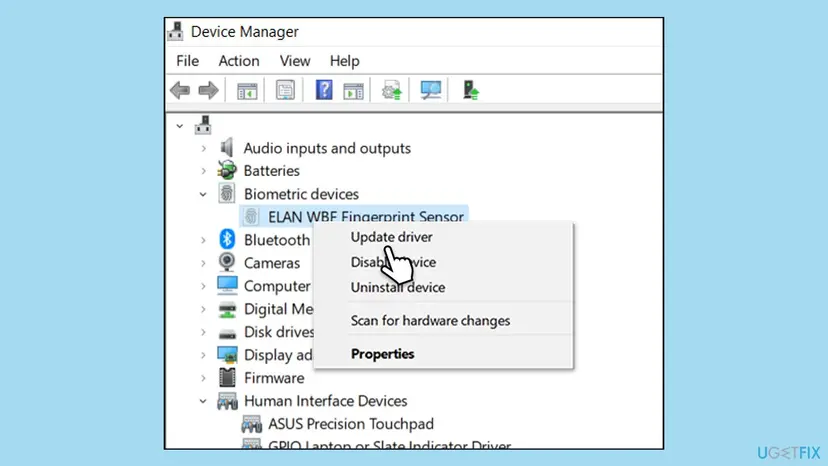
- Right-click Start and select Device Manager.
- Expand Biometric devices and note the name of your sensor, for example a Goodix, ELAN, Synaptics or Validity fingerprint sensor.
- Open your PC maker's support site or support app, enter your exact model and download its newest fingerprint driver.
- Install it and restart the PC.
- Run Fix 1 again: Remove, restart, Set up.
Windows Update may offer the same driver as an optional update under Settings > Windows Update > Advanced options > Optional updates. The maker's site is still the safer source for the newest version.
It worked if: Device Manager shows the sensor without a warning sign, and Set up finishes after the driver update.
If not: If the newest driver is already installed, reinstall the device with Fix 4.
Fix 4. Uninstall the fingerprint sensor and let Windows install it again
10 minutesLow riskThe driver is current but the message stays, or the sensor shows a warning sign in Device Manager.
Uninstalling the device clears its driver setup in Windows, and the restart detects the sensor as new. It also helps when an update left a broken driver behind.
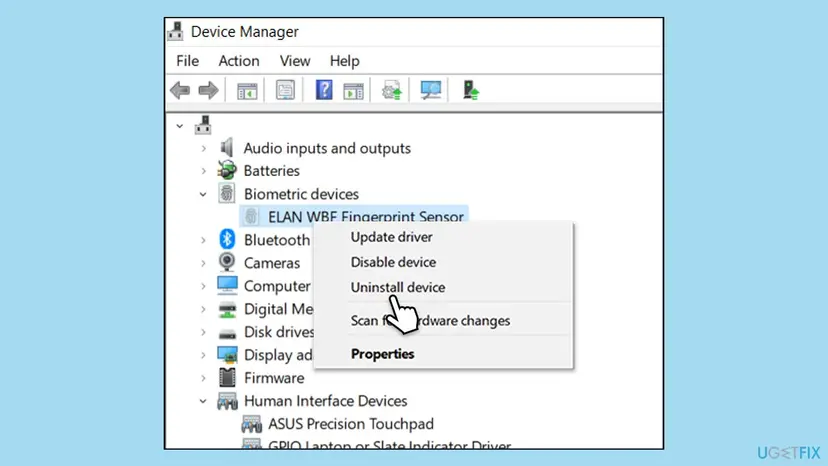
Use the driver procedure on the entry under Biometric devices. Select Uninstall device, restart, and Windows installs the sensor again. Step by step: Update, roll back or reinstall a driver.
- Or reinstall the driver. Select Uninstall Device. Tick Attempt to remove the driver for this device only if you want Windows to delete the driver package too, then select Uninstall.
- Restart. Restart the PC. Windows detects the device again and installs a driver for it.
These steps were written for Windows 11 24H2 and later. The full page with the other versions and what each result means: Update, roll back or reinstall a driver
It worked if: After the restart the sensor is back under Biometric devices, and Set up accepts your finger.
If not: If the sensor did not come back, install the maker's driver from Fix 3. If it came back and the message stays, reset the biometric database with Fix 5.
Fix 5. Reset the Windows biometric database
10 minutesRead the warningSign-in options shows no fingerprint on any account, yet the message stays. Use an administrator account.
The Windows Biometric Service keeps its records in C:\Windows\System32\WinBioDatabase. When an old record survives there, Set up keeps finding it. A fresh database removes every stored record.
All Windows Hello fingerprint and face sign-ins of every account stop working until they are set up again. Make sure each user knows their PIN or password first. Microsoft does not document this step; it is the method users report on its Q&A forum. We rename the file instead of emptying it, so you can put it back.
- Press Win + R, type
services.mscand press Enter. - Find Windows Biometric Service, right-click it and select Stop.
- Open File Explorer and go to
C:\Windows\System32\WinBioDatabase. Select Continue if Windows asks for permission. - Right-click each
.DATfile there, select Rename and add.oldto the end of its name. - Back in Services, right-click Windows Biometric Service and select Start.
- Restart the PC and run Fingerprint recognition (Windows Hello) > Set up.
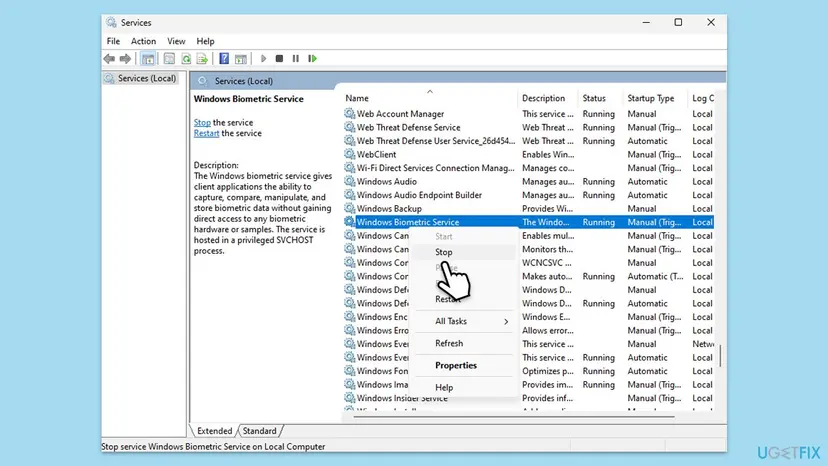
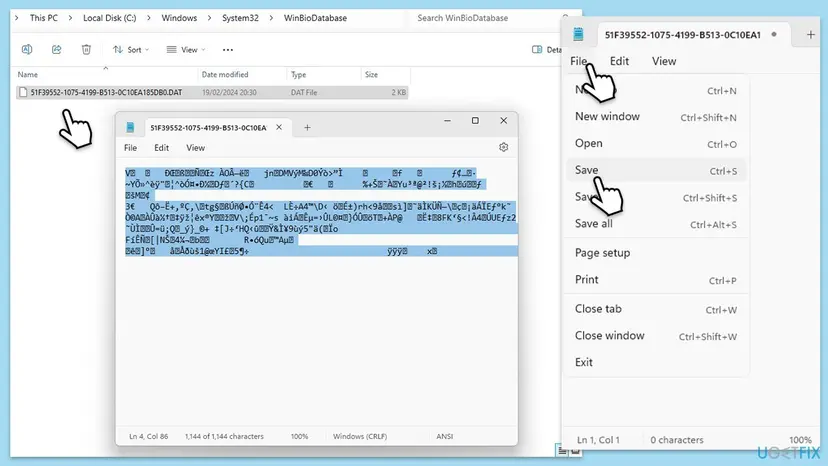
More on starting and stopping services: Check and restart Windows services. To undo, stop the service again, delete the new .DAT files Windows created and remove .old from the old names.
It worked if: Sign-in options shows no fingerprints, and the new setup accepts the finger that was refused.
If not: If the message comes back even with a fresh database, the print is stored by the sensor itself: go to Fix 6.
Fix 6. Clear the fingerprints stored on the sensor in the BIOS or the maker's tool
10 minutesRead the warningThe message survived a Windows reinstall or a database reset, or the sensor also works for BIOS or power-on sign-in.
Dell says the message can persist after reinstalling the operating system. That means the old record is kept outside Windows, which on many laptops is the sensor's own memory, cleared from the BIOS setup or the maker's tool.
A wrong BIOS change can stop the PC from starting normally. Touch only the fingerprint or biometric entry, and choose Exit without saving if you are unsure. On a work or school PC, ask IT.
- Look up your model in the maker's manual or support site for a fingerprint reset, often called reset fingerprint data or clear fingerprints.
- Restart the PC and press the maker's BIOS key during start-up (often F2, F10, F1 or Del).
- Find the fingerprint or biometric section, usually under Security, and run the reset the manual names.
- Save, exit and start Windows.
- Run Fix 1: Remove if anything is listed, restart, Set up.
We could not confirm one menu name across makers, and some laptops have no such option. In that case the maker's support can clear the sensor or tell you whether it needs a service.
It worked if: After the sensor reset, Windows accepts the finger on the first Set up.
If not: Read the section below to decide whether to contact the maker.
If Windows still says the fingerprint is too similar
Windows writes no plain log that names this message. Use the clues below to decide what to try or whom to ask.
- Use a different finger for now. The message itself suggests it, and Microsoft recommends registering more than one finger anyway.
- A Dell Inspiron or Vostro from Dell's list: the Goodix driver 20.8.0.9, A06 or later is Dell's fix. Install it before anything else.
- A work or school PC: ask IT. Windows Hello can be managed centrally, and a policy may decide where prints are stored.
- The sensor shows errors in Device Manager after a new driver: contact the PC maker's support while the warranty runs.
- For support, have ready: the PC model, the Windows version from Settings > System > About, the sensor name under Biometric devices, the driver version and the date the message started.
Dell writes that this issue may persist after reinstalling the operating system or trying another account. Do not reset the PC for this message alone. Try the driver and the sensor reset first.
How to avoid the too similar message next time
- Remove fingerprints in Settings before you reset the PC, reinstall Windows or use the maker's recovery. Dell names recovery without deleting the prints as a trigger.
- Use Add a finger to add more fingers rather than setting up the same one again.
- Keep each finger on one account only. Windows does not allow the same finger on two profiles.
- Install the maker's fingerprint driver after a big Windows update, and test fingerprint sign-in once.
- Keep a PIN you remember. It is the way in whenever the fingerprint fails.
Frequently asked questions
What does "That fingerprint is too similar to one that's already set up" mean?
It means Windows Hello already has a stored print of the finger you are scanning, so it refuses to save it a second time. The old print can be in your own account, in another account on the PC, in the Windows biometric database or on the sensor itself. Remove the fingerprint in Sign-in options, restart and set it up again. If it stays, follow the other fixes on this page.
How do I fix it when no fingerprint is listed in Settings?
Then the old print is outside your account settings. Check the other accounts on the PC first and remove the finger there. Next, update the fingerprint driver from your PC maker and reinstall the sensor in Device Manager. If the message stays, reset the Windows biometric database by renaming the DAT files in WinBioDatabase, and as a last step clear the sensor in the BIOS.
What does "That fingerprint has already been set up on another account" mean?
A different Windows account on this PC has the same finger enrolled. Dell explains that Windows does not let the same finger be enrolled for several profiles. Sign in to the other account, open Settings, Accounts, Sign-in options, Fingerprint recognition and select Remove. Then sign back in to your account and run Set up. If the other account is an old one, you can remove it after saving its files.
Can I just use a different finger?
Yes, and it is a fair workaround while you sort out the old print. The message itself says Try a different finger, and Microsoft recommends registering more than one finger anyway. Use Add a finger under Fingerprint recognition (Windows Hello). Your preferred finger stays blocked until the old record is removed, so come back to Fix 1 to Fix 6 when you have time.
Why did this start after a Windows or BIOS update?
Dell says the message may appear after a Windows Update, a driver, firmware or BIOS update, or after an OS recovery that kept the enrolled fingerprints. After such a change, Windows and the sensor can disagree about who owns the stored print. Install the newest fingerprint driver from your PC maker, restart, then remove the fingerprint in Settings and set it up again.
Does reinstalling Windows remove old fingerprints?
Not always. Dell writes that this issue may persist after reinstalling the operating system or trying another account. On many laptops the record that blocks you is kept outside Windows. A reinstall therefore costs you time and may not help. Remove the prints in Settings before any reset, and clear the sensor from the BIOS or the maker's tool if the message survives.
Is it safe to delete the WinBioDatabase files?
It works for many users, but Microsoft does not document it, and it removes every fingerprint and face sign-in on the PC. That is why this page renames the DAT files rather than deleting or emptying them. Stop the Windows Biometric Service first, rename the files, start the service and restart. Every user then sets up Windows Hello again with their PIN.
What is the difference from "Your fingerprint couldn't be recognized"?
The too similar message appears while you set up a finger. Your fingerprint couldn't be recognized. Try using a different finger. appears at sign-in, when a scan does not match. For that one Microsoft advises a clean, dry reader, re-registering the finger at different angles, driver updates and enrolling more than one finger. It does not mean a duplicate is stored.
I searched for "supplied fingerprint does not match current metadata fingerprint". Is it the same?
No. That text comes from developer tools that compare key or certificate fingerprints, not from Windows Hello sign-in. This page is about the fingerprint reader on a Windows 11 or Windows 10 PC. Likewise, fingerprint has already been taken and fingerprint mismatch messages from apps or websites are not covered here. Check the tool or service that showed the message.
Sources
- Microsoft Support: Windows Hello common issues and troubleshooting tips (fingerprint recognition failures, Add a finger, driver updates) (support.microsoft.com)
- Dell Support: Inspiron and Vostro Laptop Biometrics Recognition Failure, article 000222961 (the too similar message, cause, Goodix driver 20.8.0.9 A06) (dell.com)
Did this fix work?
One click, no account. It tells the next reader which guides are worth their time.
Questions and experiences: That fingerprint is too similar to one that's already set up: how to fix it in Windows 11
Still broken, or found a fix we did not cover? Ask here: members and our editors answer. Reading is open; writing needs a free account.
…