How to fix
Firefox error SEC_ERROR_BAD_SIGNATURE
on Windows
Resolve the Firefox SEC_ERROR_BAD_SIGNATURE error on Windows 10 or 11 effortlessly. Follow our expert-tested guide for quick fixes and smooth browsing.


What causes How to fix Firefox error SEC_ERROR_BAD_SIGNATURE in Windows?
- Certificate mismatches
- Antivirus interference
- Odd network settings
- Corrupted certificate files
- Outdated system clock
- Rogue extensions
Repairs Windows system files, removes malware, and restores a clean OS state — without reinstalling.
I keep getting SEC_ERROR_BAD_SIGNATURE error on almost every website I try to visit. I am using Firefox browser and my system is Windows 10. Could you help, maybe?
Firefox users in Windows often have hiccups that spoil their browsing experience, and one of the most infuriating problems is the SEC_ERROR_BAD_SIGNATURE error. The bug occurs when the browser struggles to verify a website's security certificate, blocking access to the page and leaving users stuck with a "Secure Connection Failed" message.
Chatter from online forums suggests it's not just dodgy websites responsible - common websites such as Google or Facebook can also get the bug, typically due to certificate mismatches, antivirus interference, or odd network settings. It's a browser-specific bug, so Chrome or Edge might get through to the same website just fine.
Pinpointing the fix for SEC_ERROR_BAD_SIGNATURE can feel confusing since the culprits vary. For some, it’s as simple as tweaking proxy settings in Firefox to "No Proxy" to sidestep network issues. Others find that third-party antivirus tools, like Avast or Bitdefender, are blocking connections - disabling HTTPS scanning in those apps often clears the path. If corrupted certificate files are to blame, renaming the cert9.db file in your Firefox profile folder can prompt a fresh start.
Digging deeper, this error ties into how Firefox handles SSL certificates, and a misstep anywhere - be it an outdated system clock or a rogue extension - can trip it up. With SEC_ERROR_BAD_SIGNATURE stalling your browsing, patience and a bit of trial-and-error are key to getting back online.
The [d1] repair tool can provide a more automatic lifeline by addressing system-level anomalies such as corrupted files or certificate issues that may be driving the SEC_ERROR_BAD_SIGNATURE error, all just within a few minutes.

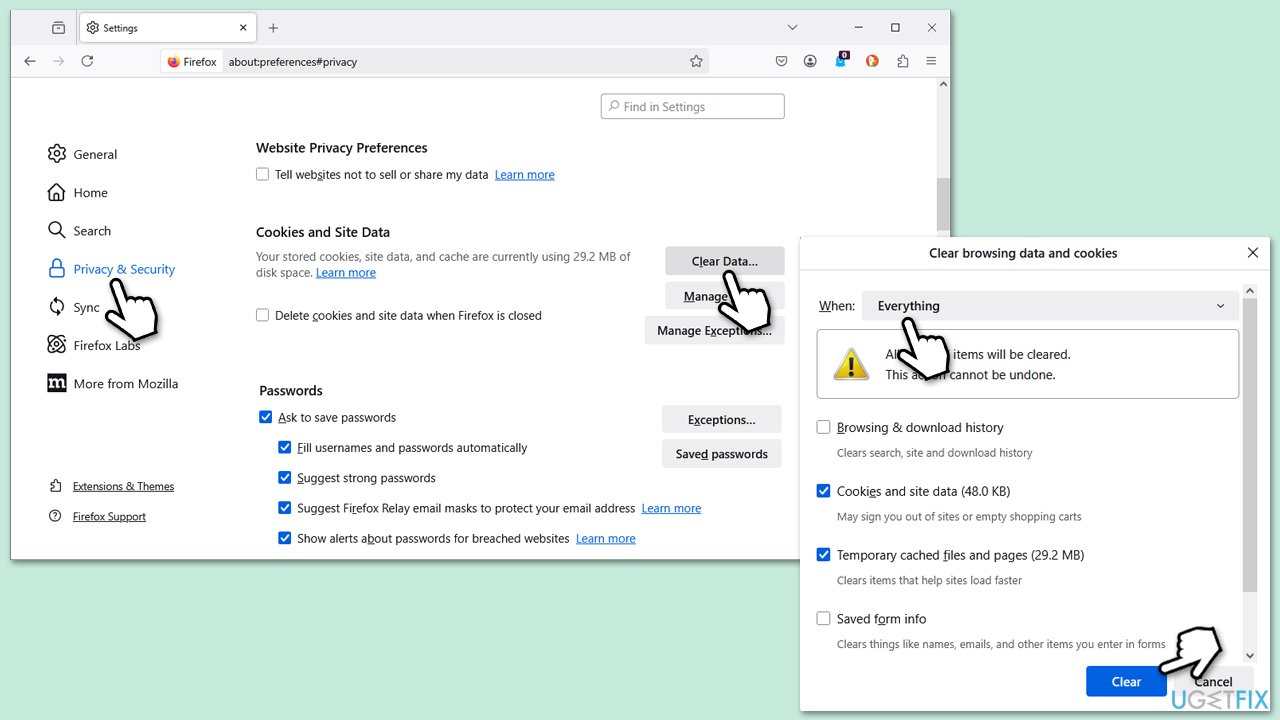
Fix 1. Clear Firefox cache
A cluttered cache can interfere with secure connections, and clearing it might fix SEC_ERROR_BAD_SIGNATURE.
- Click on the menu button (three horizontal lines) in the upper-right corner of the Firefox window.
- Select Settings from the drop-down menu.
- From the panel on the left side, click on Privacy & Security.
- Scroll down to the Cookies and Site Data section, and click on Clear Data.
- Ensure both boxes for Cookies and Site Data and Cached Web Content are checked, and then click on Clear.
Fix 2. Update Firefox to latest version
Outdated browser versions may struggle with modern certificates. Update your browser to address this.
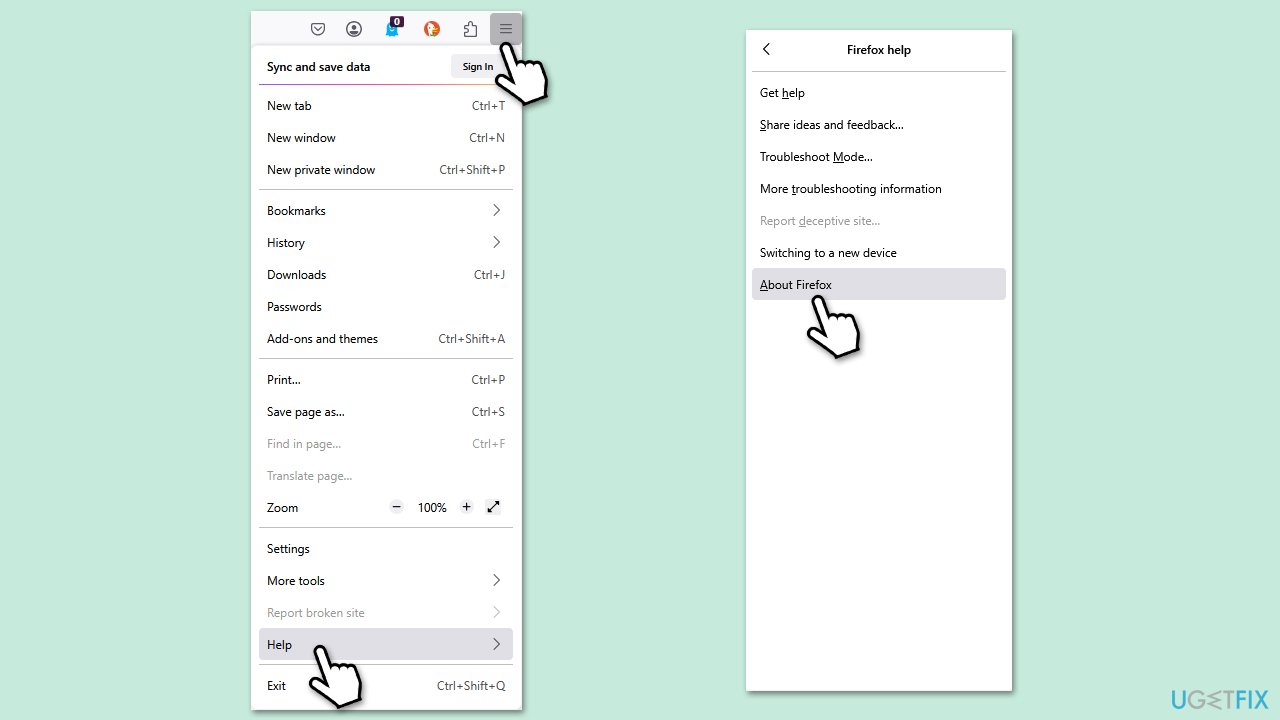
- Open Firefox and click on the menu button (three horizontal lines) in the upper-right corner of the window.
- Select Help from the drop-down menu, which is represented by a question mark symbol.
- In the Help menu, select About Firefox.
- Firefox will automatically check for updates and download them. If an update is available, click on Restart to update Firefox.
Fix 3. Disable proxy via Windows
Firefox’s proxy settings can sometimes interfere with secure connections, causing the error, and resetting them can bypass network issues.
- Right-click on Start and pick Network connections.
- Navigate to the VPN section and disable it if it's connected.
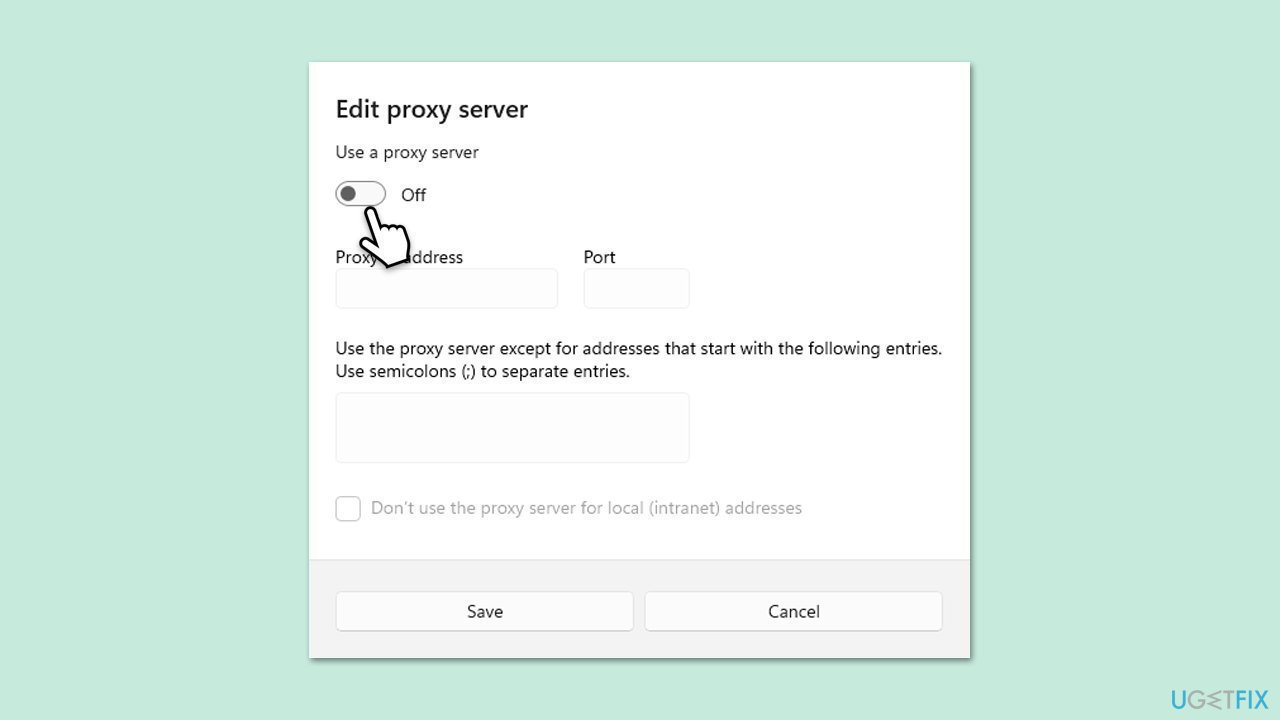
- Then back and select Proxy.
- Here, disable Proxy if it's enabled.
- If using a VPN, disconnect it and try logging in again.
Fix 4. Disable antivirus HTTPS scanning
Overprotective antivirus programs might block certificate verification - turning off this feature should resolve it.
- Open your antivirus program.
- Navigate to Settings or Advanced options.
- Find HTTPS scanning or SSL/TLS filtering under Web Shield or similar.
- Disable the feature and save changes.
Fix 5. Rename cert9.db file
Renaming one of the files known as cert9.db forces a corrupted certificate database to rebuild.
- Close Firefox completely.
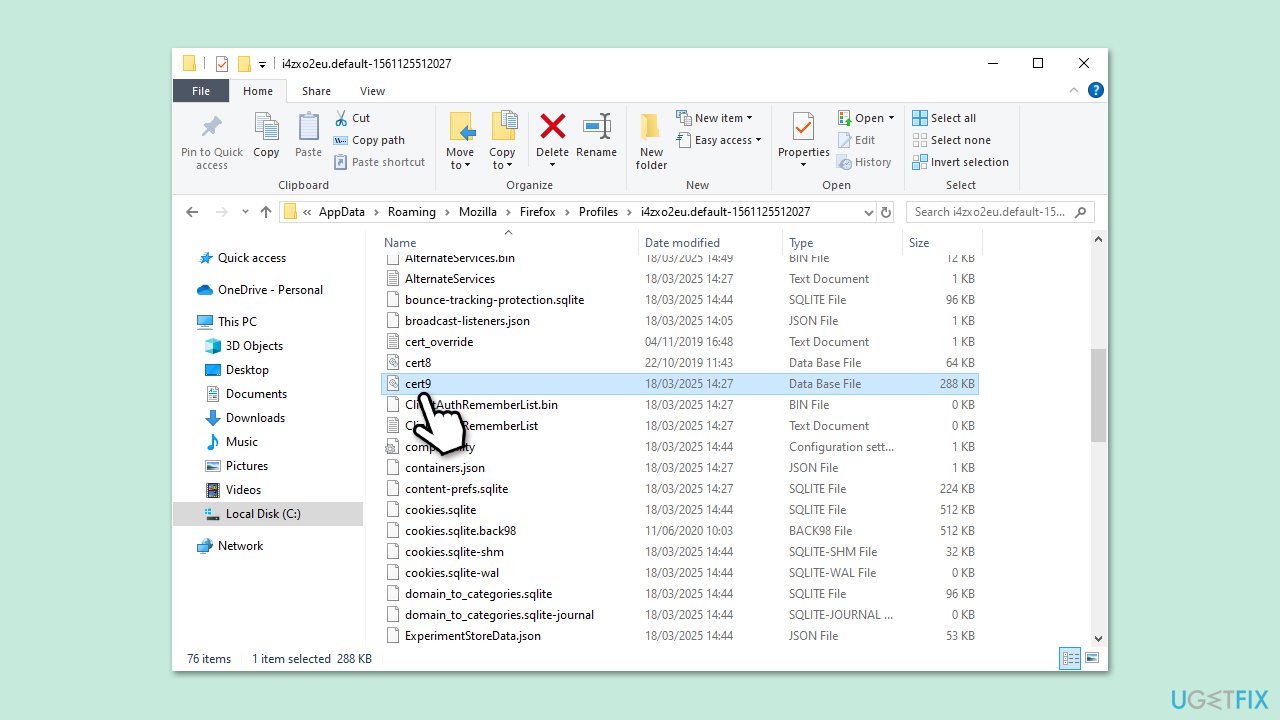
- In Windows search box, type %appdata%, and press Enter.
- Go to Mozilla > Firefox > Profiles and open your profile folder.
- Locate cert9.db, right-click, and rename it to cert9.db.old.
- Restart Firefox to regenerate the file.
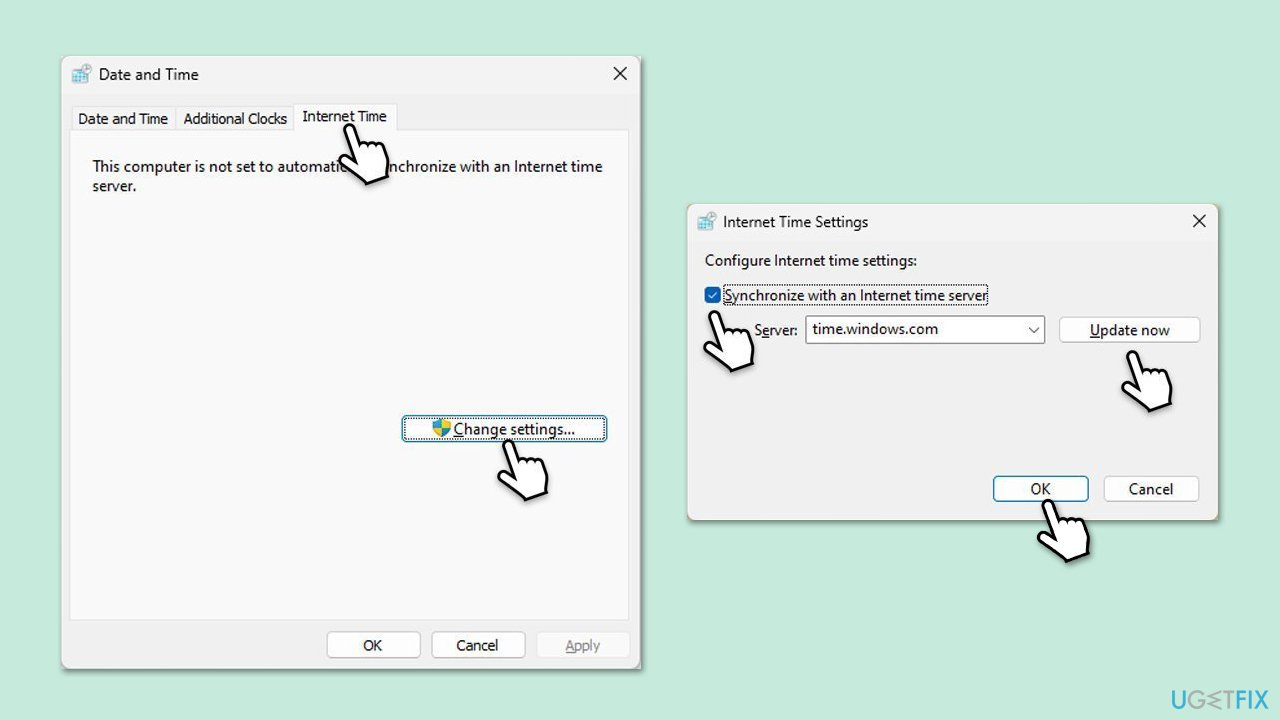
Fix 6. Synchronize system date and time
An incorrect system clock can invalidate certificates, so make sure your time and date are set correctly.
- Type in Control Panel in Windows search and press Enter.
- Go to Clock and Region and click on Date and Time.
- Pick the Internet Time tab and select Change Settings.
- Make sure that the Synchronize with an Internet time server box is ticked.
- Click Update now and OK.
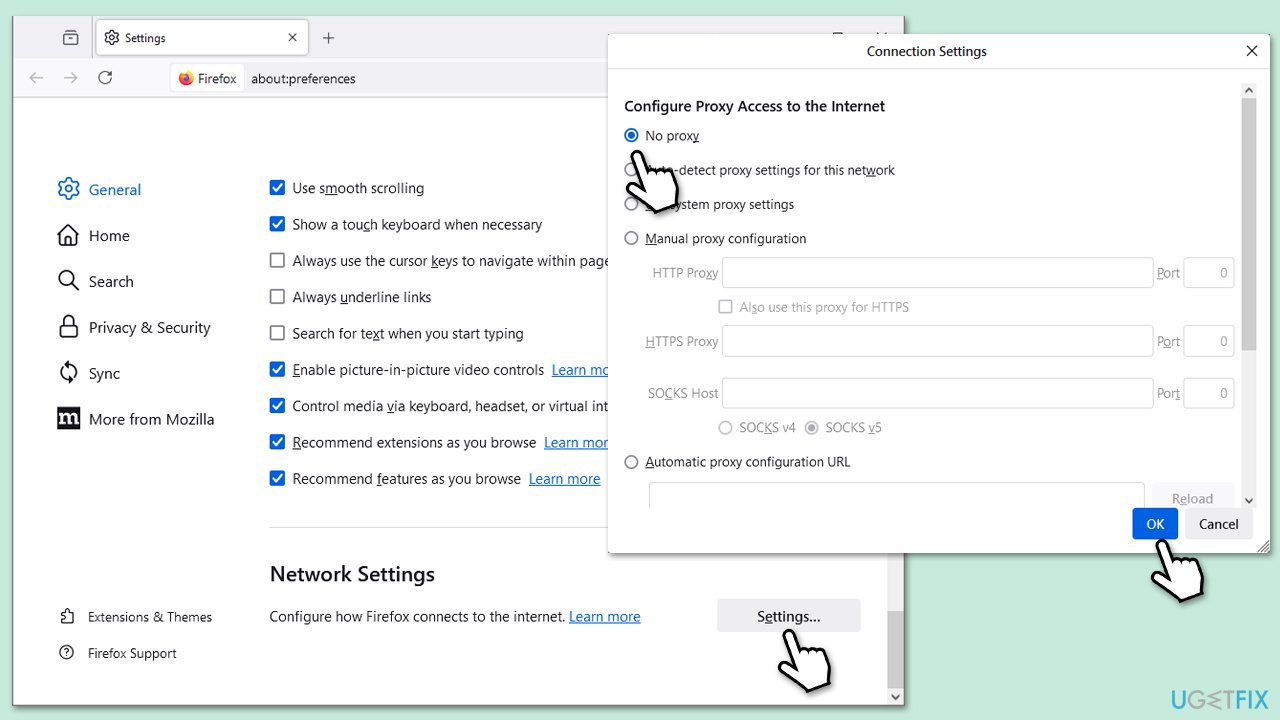
Fix 7. Remove proxy settings from Firefox browser
Incorrect proxy settings within Firefox itself could be the reason you can't reach any of the websites. Here's how to remove it:
- Click the Menu button on the Firefox browser and select Settings.
- In the General section, scroll down to Network Settings and click Settings next to it.
- Shift the radio button for Configure Proxy Access to the Internet to No proxy.
Click OK to save changes.
Bottom line
To fix the SEC_ERROR_BAD_SIGNATURE error in Firefox, you can try adjusting proxy settings, disabling HTTPS scanning in antivirus software, or renaming the cert9.db file in your Firefox profile. Additionally, clearing the Firefox cache may help resolve the issue. If none of these solutions work, consider using a repair tool to address potential system-level anomalies.
Frequently asked questions
This error typically occurs due to issues with the website's SSL certificate or outdated Firefox settings on Windows 10. It may also be caused by corrupted browser data or an incorrect system date and time.
To clear the cache in Firefox on Windows 11, go to the menu, select 'Options', then 'Privacy & Security', and under 'Cookies and Site Data', click on 'Clear Data' to remove cached files.
Yes, you can update Firefox by clicking on the menu, selecting 'Help', and then 'About Firefox'; this will automatically check for updates and install the latest version compatible with Windows.




Report an issue
What's wrong with this guide? We review every report and update or remove content.
Report received — thank you. We'll review and fix it.
You need a free account to submit a report.
Be the first to comment