How to fix
Firefox using too much memory
on Windows
Struggling with Firefox consuming excessive memory on Windows 10 or 11? Discover effective fixes and regain smooth performance, expert-tested!

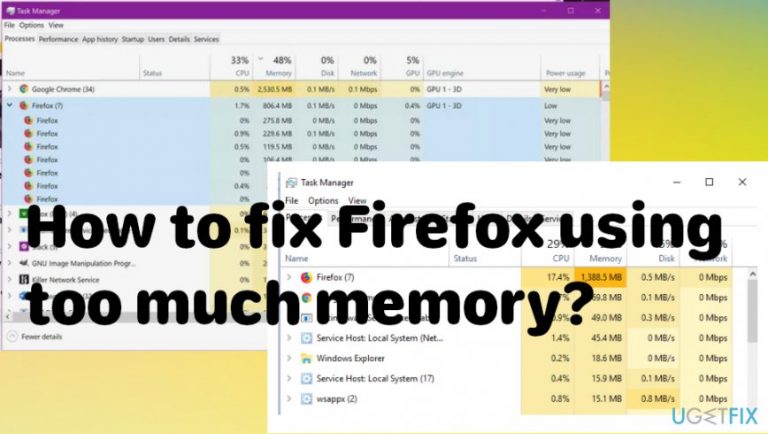
What causes How to fix Firefox using too much memory?
- High memory usage due to extensions
- Older versions of Firefox causing lag
- System performance errors
- Memory consuming themes
- Presence of potentially unwanted programs (PUPs)
Repairs Windows system files, removes malware, and restores a clean OS state — without reinstalling.
Hello. I have an issue with my Firefox browser and Firefox quantum memory usage. It uses my RAM and other resources, so I can't use the device properly because of this. I tried to run other browsers at the same time and the Task Manager shows how much more memory it uses when compared with Chrome, for example. Can I do something about it? I like Mozilla Firefox more than other tools, so I would like to use this browser instead of other ones
Firefox Quantum memory usage is a common thing that users[ref en-1] tend to search in forums and discussion platforms that revolve around web browsers' issues. Mozilla Firefox is one of the most popular web browsers that is open-source.
The newest version of the web browser is the Firefox Quantum that goes by the number of 60.[ref en-2] The browser offers various features that are valuable and customizable for secure and fast browsing.
However, the issue with Firefox high memory usage is causing many problems for users, even though the tool is excellent and performance is satisfactory. This problem requires intervention because browser issues may be caused by system-based performance errors. The troubleshooting indicates possible issues and may offer some solutions like removing extensions, and so on.
Disabling memory consuming extensions and themes can help because some additional features trigger the high usage of the memory, CPU, other resources. There is a way to fix Firefox using too much memory. A few of them actually because there are many reasons for the issue, so solutions too.
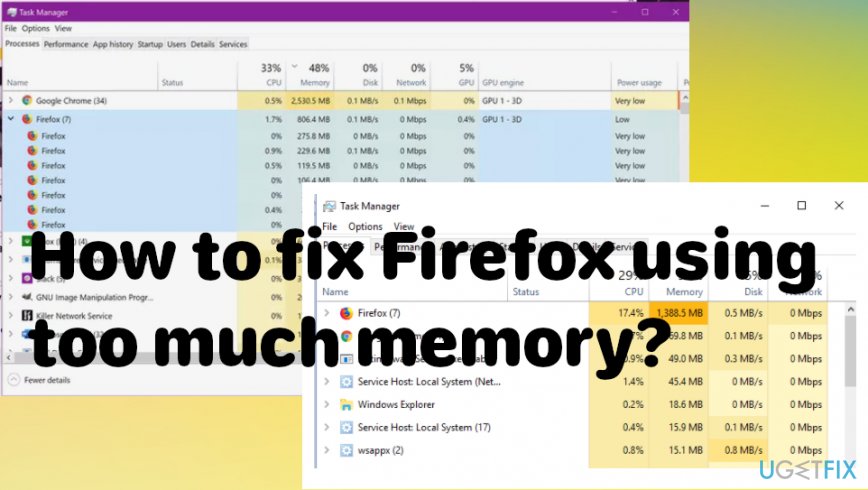
How to fix Firefox using too much memory
When Mozilla Firefox uses too much memory a browser or the system update can work as a solution because some bugs and errors trigger issues in various parts of the device. Sometimes older versions of the program are laggy and cause problems for no other reason. So renew the browsing tool that you use and if that is not helping go through other methods. In the case of the affected system files or programs, or even PUPs[ref en-3] you can try running the [d1], so those issues get fixed automatically for you.
Update the browser
- Click the lines on the right and open the menu.
- Choose Options and then Preferences.
- Select the General tab and scroll to Firefox Updates.
- Check for updates and restart the browser if needed.
Check for resources using extensions or themes
- Put about:support in the address bar on the Firefox and press Enter.
- Click Restart with Add-ons Disabled under Try Safe Mode.
- Click Start in Safe mode when Firefox restarts.
- Use Firefox while checking your memory usage.
Disable extensions to fix Firefox using too much memory
- Open the menu and select Add-ons.
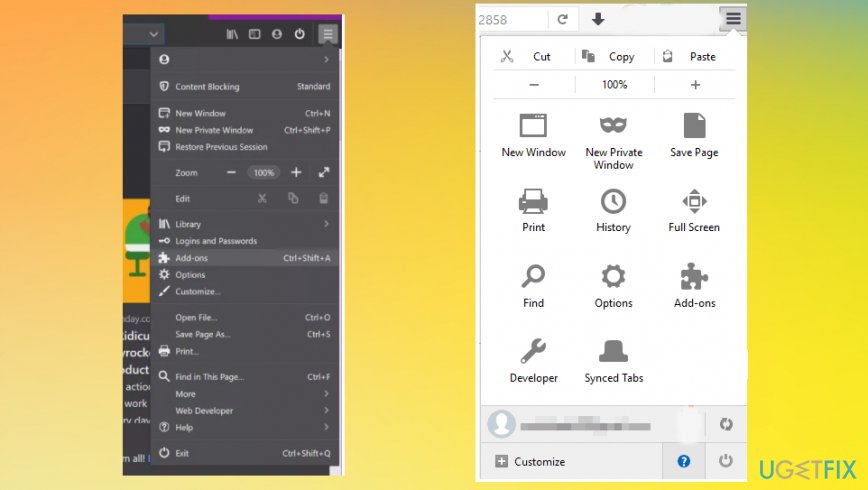
How to fix firefox using too much memory add ons menu - Select Extensions.
- Click three-dot icon
- Select Disable on the drop-down menu.
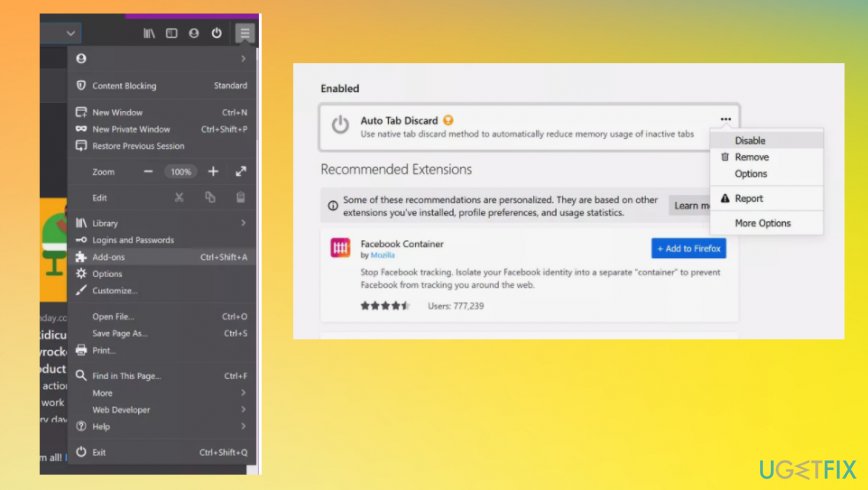
How to fix firefox using too much memory add ons - Repeat with others.
Disable memory consuming themes
- Open the Firefox menu.
- Select Add-ons.
- Choose Themes and then three-dot button next to Default listed under Disabled.
- Select Enable.
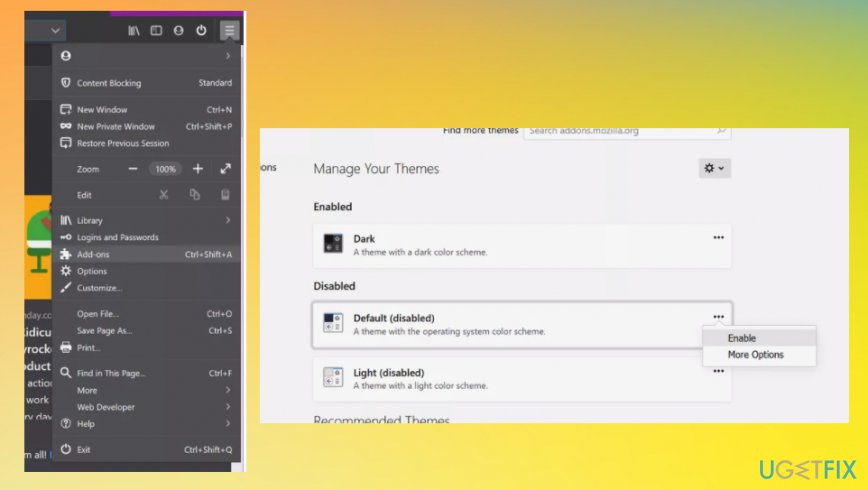
How to fix firefox using too much memory themes - Go to menu.
- Select Exit to close the browser.
Toggle hardware acceleration to fix Firefox using too much resources
- Go to menu.
- Choose Options.
- Preferences page opens with the General category loaded by default. Scroll down to Performance.
- Firefox enables the Use recommended performance settings option automatically.
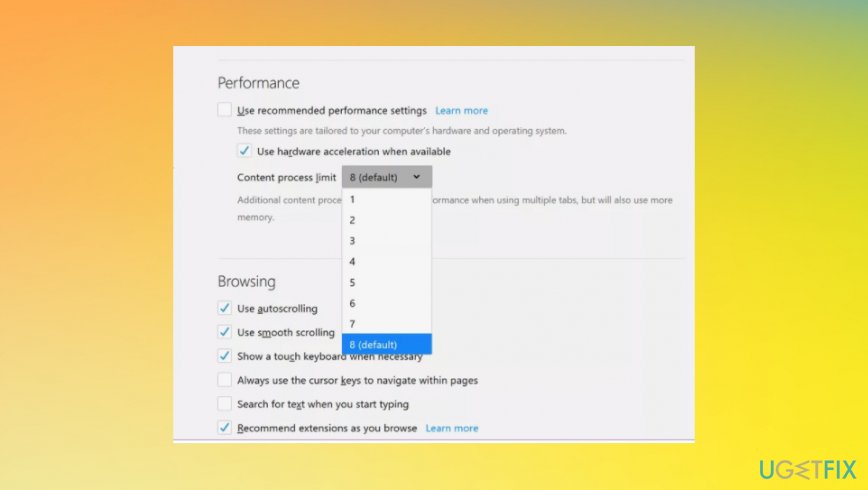
How to fix firefox using too much memory hardware acc - Uncheck the Use hardware acceleration when available feature.
Bottom line
To fix Firefox using too much memory, consider updating the browser, disabling memory consuming extensions and themes, and checking for system performance issues. If these solutions do not resolve the problem, further investigation into system files or other installed programs may be necessary.
Frequently asked questions
You can try disabling unnecessary extensions and reducing the number of open tabs, which helps lower memory consumption in Firefox on Windows 10.
Yes, you can reset Firefox to its default settings by going to the Help menu, selecting Troubleshooting Information, and clicking on 'Refresh Firefox'.
If Firefox continues to consume excessive memory after an update, consider checking for memory leaks or using the built-in Task Manager to identify problematic tabs or extensions.




Report an issue
What's wrong with this guide? We review every report and update or remove content.
Report received — thank you. We'll review and fix it.
You need a free account to submit a report.
Be the first to comment