How to fix
“Firewatch has stopped working” crash error
on Windows
Resolve the "Firewatch has stopped working" error on Windows 10 and 11 effortlessly. Follow our expert-tested solutions for quick fixes!

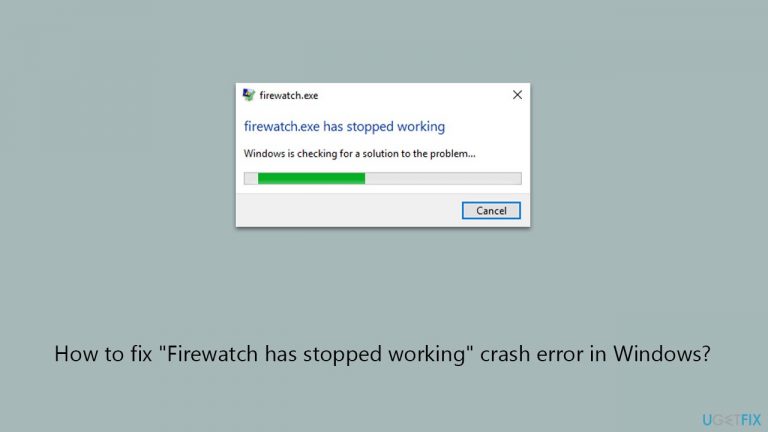
What causes How to fix “Firewatch has stopped working” crash error in Windows?
- Compatibility issues with system hardware or software
- Requires running on an older version of DirectX
- Outdated graphics card drivers
- Corrupted game files
- Software conflicts
Repairs Windows system files, removes malware, and restores a clean OS state — without reinstalling.
I have recently got Firewatch on Gamepass (PC) and I can't play it due to the "Firewatch has stopped working" error, which crashes the game. In some cases, I can't even access it at all, as I receive the crash immediately. Any idea of how to fix this annoying error?
Firewatch, developed by Campo Santo and released in 2016, is an adventure video game that continues to attract a significant player base worldwide. As a single-player game, it offers a distinct experience, yet some users might face technical challenges, specifically the "Firewatch has stopped working" error. This issue generally results in the game crashing, either during gameplay or sometimes before the game even launches.
The root of this problem can vary, but it often relates to compatibility issues with the system's hardware or software environment. In some instances, the game might require running on an older version of DirectX, such as DirectX 9, to function correctly. If you encounter this error, launching the game with DirectX 9 compatibility mode could be a viable solution.
Furthermore, outdated or corrupted graphics card drivers are a common cause of many game-related errors. Regularly updating your GPU drivers can prevent such issues and may resolve the "Firewatch has stopped working" error. Similarly, reinstalling the game can also be effective. This process ensures that any corrupt game files are replaced, potentially eliminating the source of the crash.
Additionally, various other troubleshooting steps, such as checking for Windows updates or verifying the integrity of game files, might provide a solution. Each of these steps addresses different potential causes of the error, from software conflicts to corrupted data.
Finally, for a comprehensive approach to resolving this and other Windows-related issues, you might consider using a professional PC repair tool. Such tools are designed to automatically diagnose and fix a range of common problems in the Windows operating environment, potentially offering a straightforward resolution to the "Firewatch has stopped working" error.
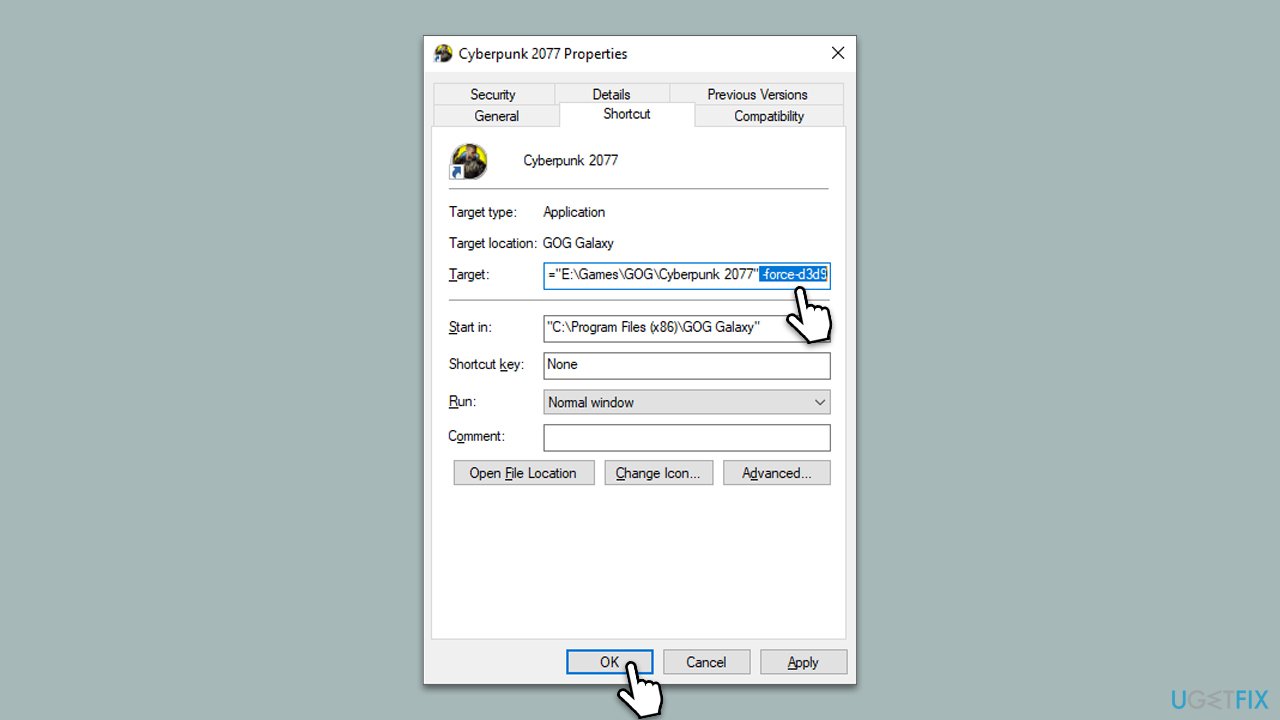
Fix 1. Start the game with DirectX 9
DirectX 9 compatibility mode can solve issues where newer DirectX versions cause conflicts with the game. This mode forces the game to use DirectX 9, which is often more compatible with older games like Firewatch.
- Right-click on the Firewatch shortcut and select Properties.
- Ensure you are in the Shortcut tab.
- Check the Target - click anywhere in the field and press End on your keyboard.
- Now press space once and type in the following:
-force-d3d9 - Click Apply and OK.
- Try launching the game as usual.
Fix 2. Install all Windows updates
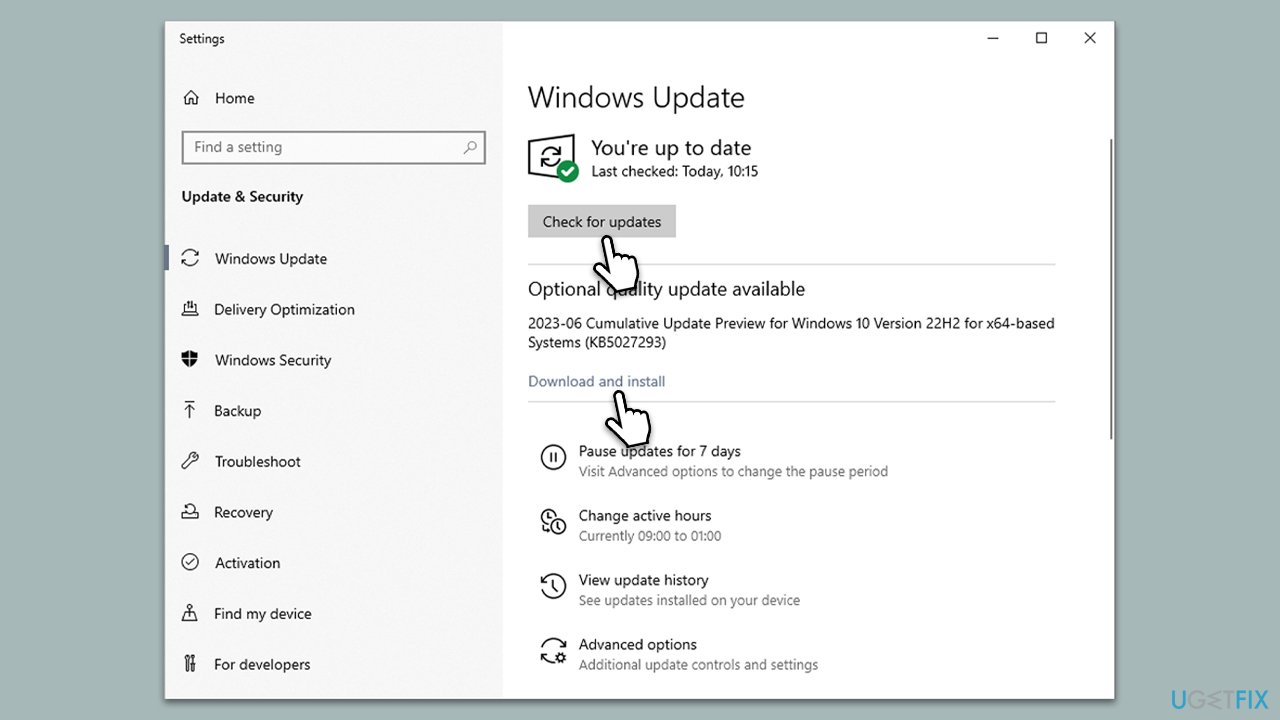
Keeping Windows up to date ensures that your system has the latest security patches and performance improvements, which can resolve compatibility issues with games.
- Type Updates in Windows search and press Enter.
- Here, click Check for updates.
- Wait till Windows downloads and installs all the files.
- If optional updates are available, install them as well.
- Reboot your system.
Fix 3. Update your GPU drivers
Outdated or corrupt GPU drivers can lead to performance issues and crashes. Updating them ensures optimal compatibility and performance with games. If you would rather update all drivers automatically, you can always resort to tools such as [rev id="DriverFix"].
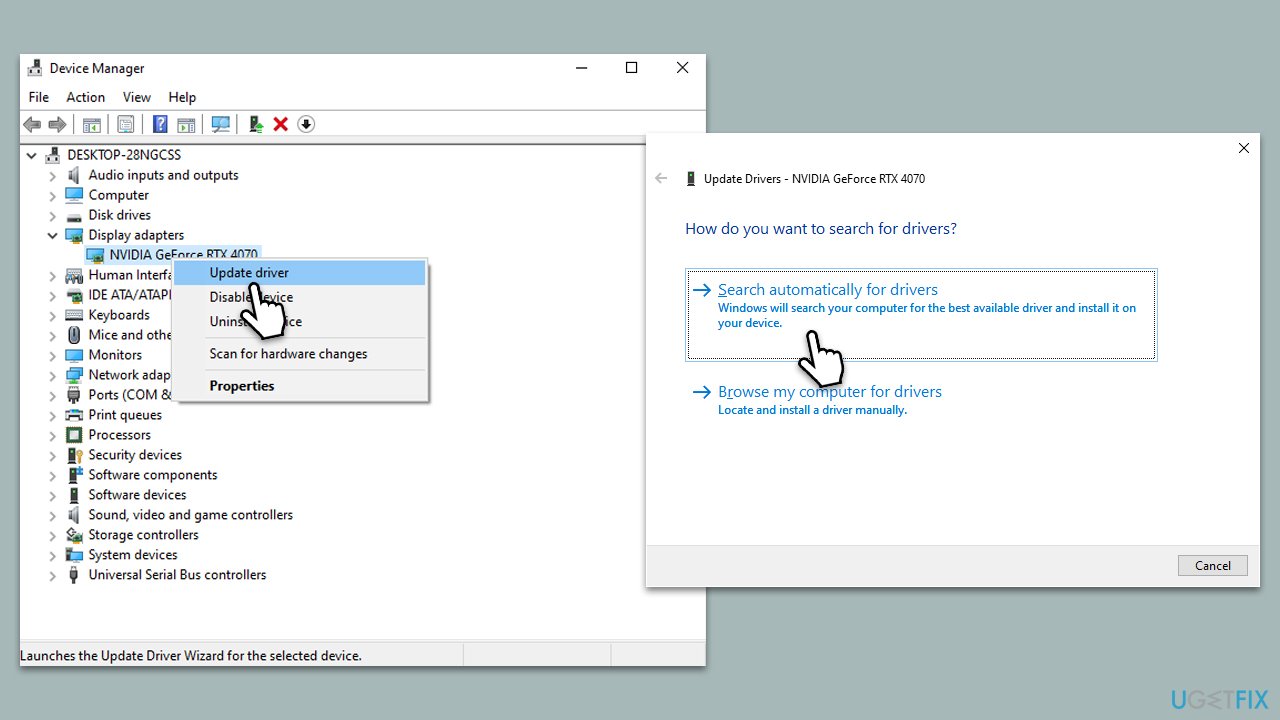
- Right-click on Start and pick Device Manager.
- Expand Display adapters.
- Right-click on it and choose Update driver.
- Select Search automatically for drivers.
- Follow the on-screen instructions and then restart your system.
Fix 4. Verify integrity of game files
This process checks for corrupted or missing game files and replaces them, which can resolve crashes and errors.
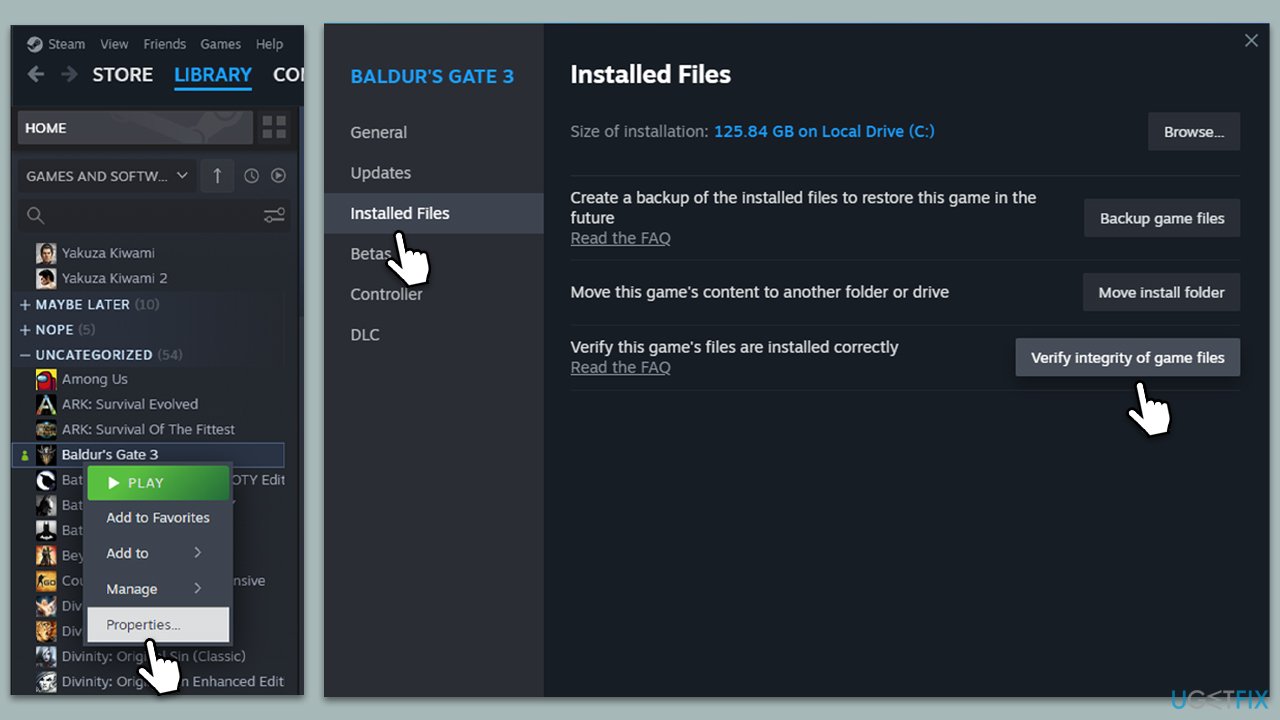
- Open Steam.
- Go to your game library and right-click on Firewatch.
- Select Properties and go to the Installed Files tab.
- Click on Verify integrity of game files and wait for the process to complete.
Fix 5. Reinstall the game
Sometimes, a fresh installation of the game can resolve persistent issues by replacing all game files with new copies.
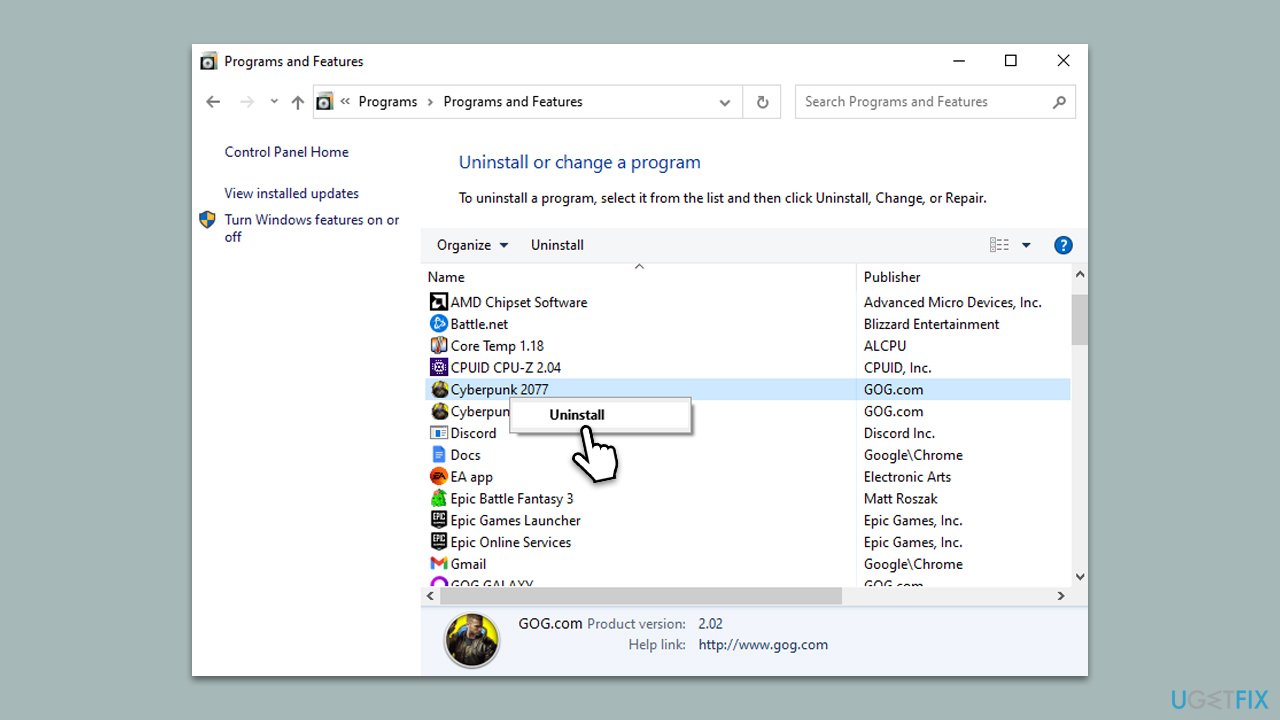
- Uninstall Firewatch through the Steam client or Windows Control Panel.
- Restart your computer.
- Reinstall Firewatch via Steam or the original installation media.
- Launch the game to see if the issue is resolved.
Fix 6. Run the game as an administrator
Running the game with administrative privileges can resolve issues related to permissions and access to system resources.
- Right-click on the Firewatch shortcut.
- Select Properties.
- Go to the Compatibility tab.
- Check the box for Run this program as an administrator.
- Click Apply and then OK.
- Launch the game.
Fix 7. Disable fullscreen optimizations
Fullscreen optimizations can sometimes interfere with how the game displays and performs, causing crashes.
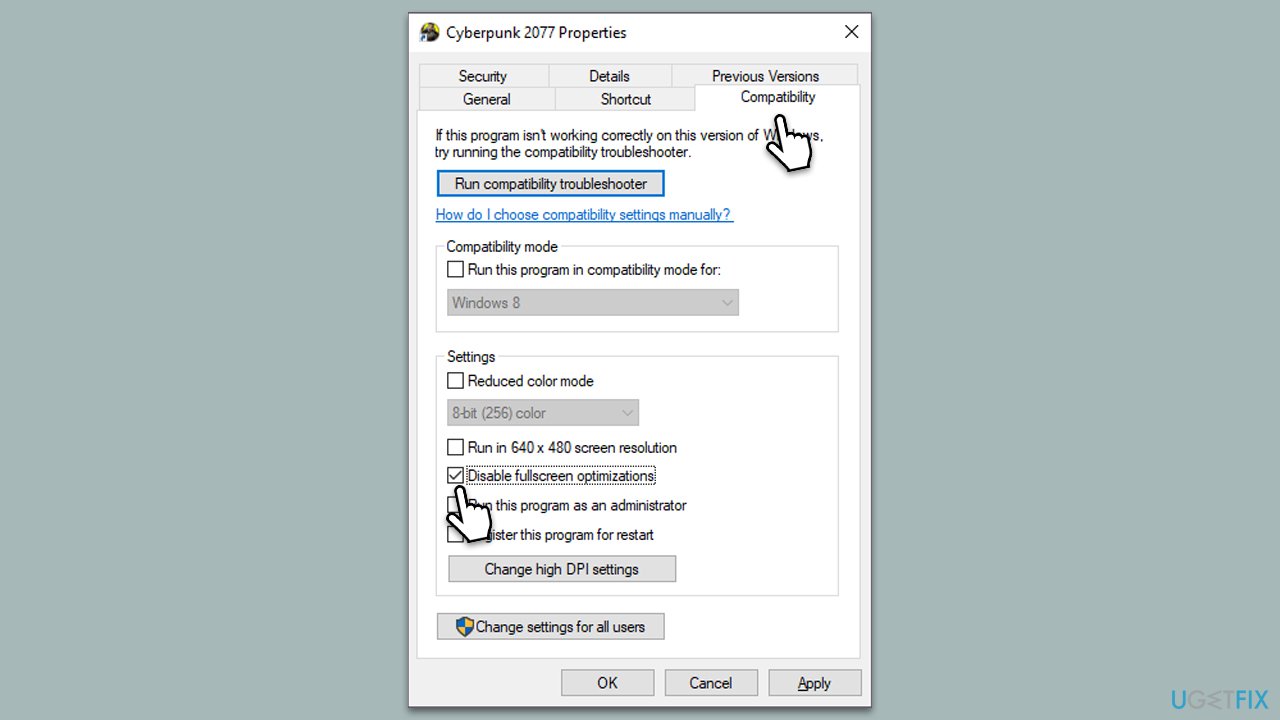
- Right-click on the Firewatch shortcut.
- Select Properties.
- Go to the Compatibility tab.
- Check the box for Disable fullscreen optimizations.
- Click Apply and then OK.
- Restart the game.
Bottom line
To fix the 'Firewatch has stopped working' error, you can try launching the game with DirectX 9 compatibility mode, updating your GPU drivers, or reinstalling the game to replace any corrupt files. Additionally, checking for Windows updates and verifying the integrity of game files may help. If none of these solutions work, consider using a professional PC repair tool for further assistance.
Frequently asked questions
Try verifying the game files through Steam to ensure all files are intact, then restart your PC and launch the game again.
Ensure your graphics drivers are up to date and consider running the game in compatibility mode for Windows 10.
You can reinstall DirectX or update it to the latest version, as this often resolves compatibility problems that lead to crashes.




Report an issue
What's wrong with this guide? We review every report and update or remove content.
Report received — thank you. We'll review and fix it.
You need a free account to submit a report.
Be the first to comment