How to fix
Flashing folder question mark issue
on Windows
Resolve the flashing folder question mark issue on Windows 10 or Windows 11 swiftly. Expert-tested solutions with screenshots for quick fixes!

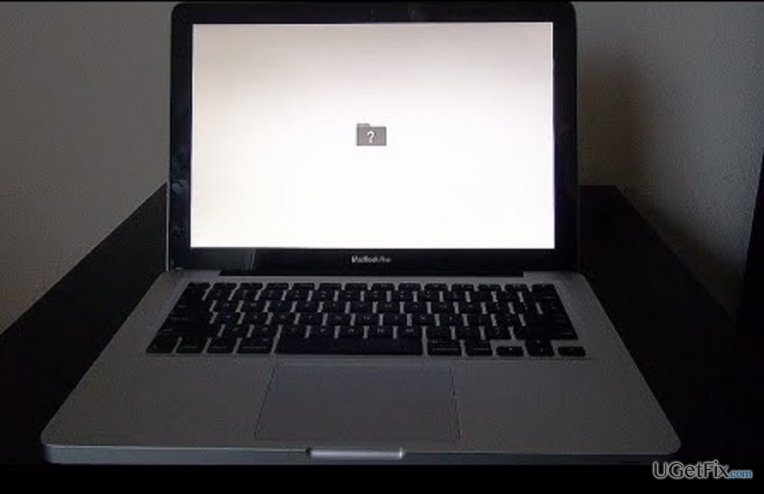
What causes How to fix flashing folder question mark issue on Mac OS?
- Inefficiencies of bootable drives
- Faulty startup disk
- Incorrectly configured USB drive
- Cyber infections
- Inability to find an installed bootable drive
Repairs Windows system files, removes malware, and restores a clean OS state — without reinstalling.
A flashing folder with a question marks appears every time I try to start up to Mac OS. Rebooting the device and reinstalling hard drives did not help. Any ideas how to solve this?
The issue of flashing question folder mark might take different forms. Some users report the problem to take only several seconds; other complain of not being able to enter the operating system at all. Though there are different speculations about the main reason for such behavior, there is a prevailing opinion that the problem is related with the inefficiencies of bootable drives. The majority of users who encounter this problem cannot proceed further since this bug prevents from loading the screen permanently. Solve the problem by using one or several solutions provided below. Alternatively, startup disk might be at fault for this recurrence. Proceed further by reviewing one of these options.
Option 1. Reselecting startup disk on the system
- Opt for System Preferences from the Apple menu.
- Click on the Startup Disk icon.
- Select the icon of the volume you normally use to start up the device.
- Exit the System Preferences window.
- Reboot the system. Afterward, the device should start normally without any disturbances.
Option 2. If you cannot find an installed bootable drive
Boot the computer from a bootable USB flash drive. Press and hold down the option key while restarting the device. In te newly opened list, locate all available drives for rebooting. If this method is ineffective, then the USB drive might be configured incorrectly. We also suggest running MacKeeper [rev id=”MacKeeper”] to check the system for cyber infections which might cause such phenomenon.
Option 3. Mac fails to startup, flashing question mark remains
- Turn off the device by pressing and holding the power button for a few seconds.
- Press the power button once to turn your Mac back on. After hearing the startup sound, immediately press and hold the Command and R keys to initiate Mac OS X Recovery. Keep holding the two keys held until you notice an Apple logo.
- Choose a wi-fi network to connect to the Internet as part of a startup.
- When the recovery screen emerges, navigate to the Apple menu and click Startup Disk.
- Choose the one you would prefer and initiate the process with clicking Restart.
Bottom line
To fix the flashing folder question mark issue, you can reselect the startup disk, boot from a bootable USB drive, or initiate Mac OS X Recovery. If these solutions do not resolve the problem, consider checking for cyber infections or further diagnosing the startup disk.
Frequently asked questions
Yes, if you have shared files between Mac OS and Windows, the flashing folder question mark can indicate issues that may affect accessibility on both operating systems.
Try reconnecting to the shared drive and ensure that the network connection is stable; if the issue persists, check the drive's settings on the Mac.
While Windows 11 cannot directly fix Mac-specific issues, you can verify network settings and ensure that the Mac is properly configured to share files.




Report an issue
What's wrong with this guide? We review every report and update or remove content.
Report received — thank you. We'll review and fix it.
You need a free account to submit a report.
Be the first to comment