How to fix
Flexrelease_x64.dll missing or not found error
on Windows
Resolve the flexrelease_x64.dll missing error in Windows 10 or 11 quickly and effectively. Get expert-tested solutions to fix it in minutes!

What causes How to fix flexrelease_x64.dll missing or not found error in Windows?
- Corrupted game files
- Problems with the initial installation
- Missing DLL file
- System file corruption
- Outdated graphics drivers
Repairs Windows system files, removes malware, and restores a clean OS state — without reinstalling.
Hello. When I try to launch Fallout 4 on my Windows PC, I receive the "flexrelease_x64.dll is missing" error. What should I do?
Fallout 4 is a post-apocalyptic action role-playing game set in a fictional post-nuclear-war world. Players can explore an open world, interact with non-playable characters, complete quests, and engage in combat with enemies in the game. Its gameplay, storyline, and world-building have all received critical acclaim.
Flexrelease_x64.dll is a dynamic link library (DLL) file required for Fallout 4 to run. The DLL file was created specifically for this game and is required for it to function properly. If the DLL file is missing or not found, it could be due to a number of factors, including corrupted game files or problems with the initial installation. This problem can cause the game to crash or fail to load, preventing users from playing it.
However, there are a few options, including reinstalling the game, updating the graphics drivers,[ref en-1] or copying the DLL file from another computer that is running the game. To avoid further problems with the game or the computer system, it is critical to carefully follow the appropriate steps.
In this guide, you will find 5 steps that should help you fix flexrelease_x64.dll missing or not found error in Windows. Keep in mind that you can try running a maintenance tool like [d1] that can fix most system errors, BSODs,[ref en-2] corrupted files, and registry[ref en-3] issues. Otherwise, follow the step-by-step instructions below.
Solution 1. Fix Corrupted System Files
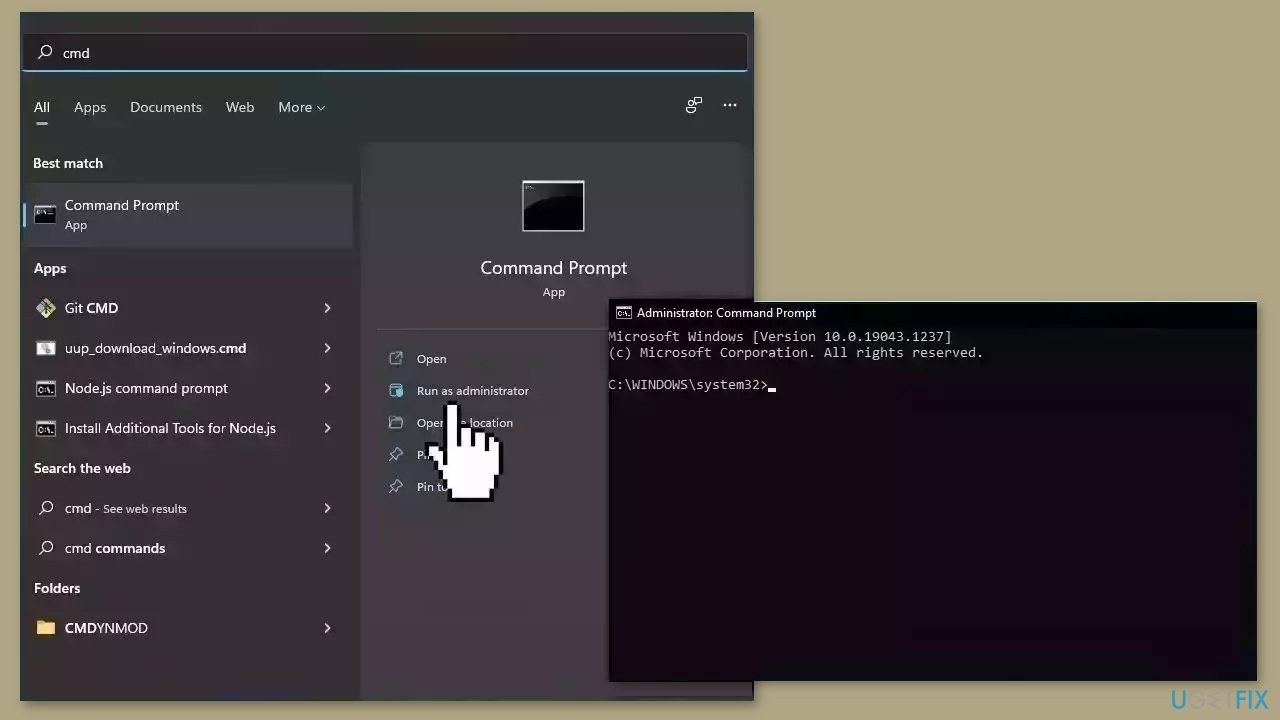
Use Command Prompt commands to repair system file corruption:
- Open Command Prompt as administrator
- Use the following command and press Enter:
sfc /scannow
- Reboot your system
- If SFC returned an error, then use the following command lines, pressing Enter after each:
DISM /Online /Cleanup-Image /CheckHealth
DISM /Online /Cleanup-Image /ScanHealth
DISM /Online /Cleanup-Image /RestoreHealth
Solution 2. Verify Integrity of Game Files
- Open Steam and navigate to your Library.
- Locate Fallout 4 from the list of games in your library.
- Right-click on the game title to open the context menu.
- From the context menu, select Properties > Local Files.
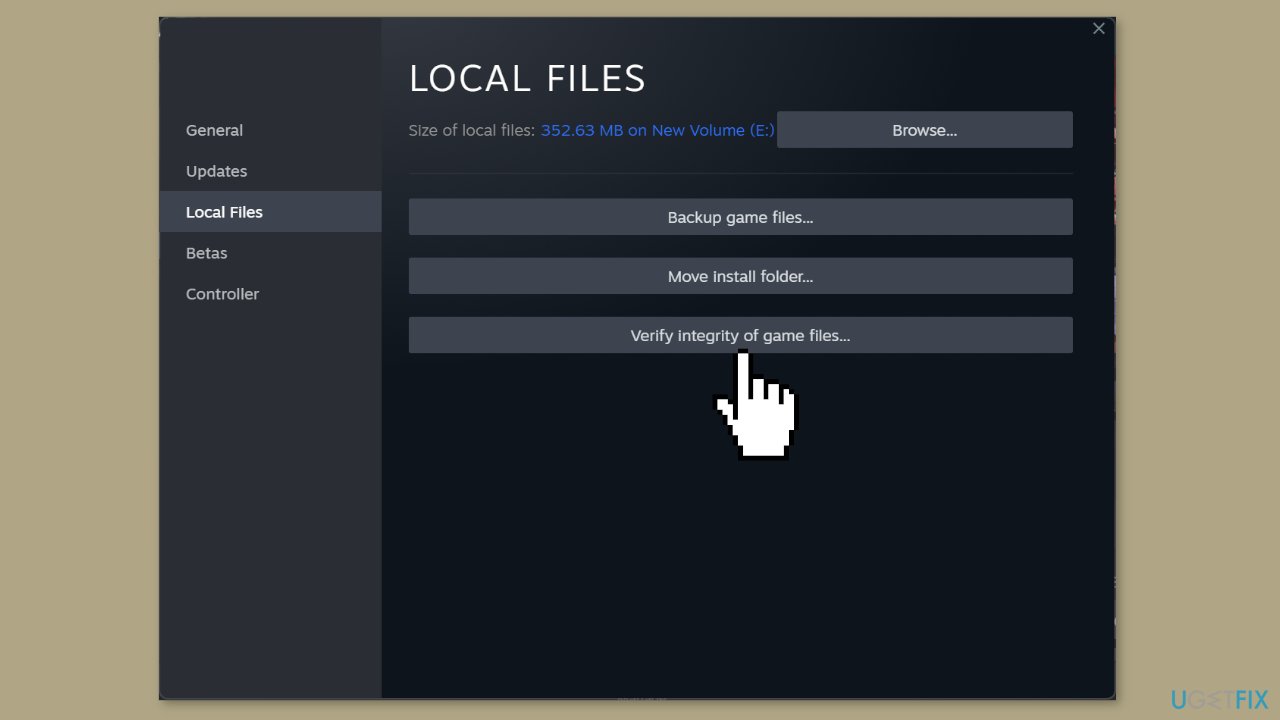
- Within the Local Files tab, click on the Verify Integrity of Game Files button.
- Wait for the verification process to complete. This may take some time depending on the size of the game files and your system's performance.
Solution 3. Move the missing file from another PC
Many users have reported success by copying the missing DLL from another computer and pasting it into the game's directory on the affected machine. If default installation settings have not been changed, the path for the game directory should be:
C:\Program Files (x86)\Steam\steamapps\common\Fallout 4
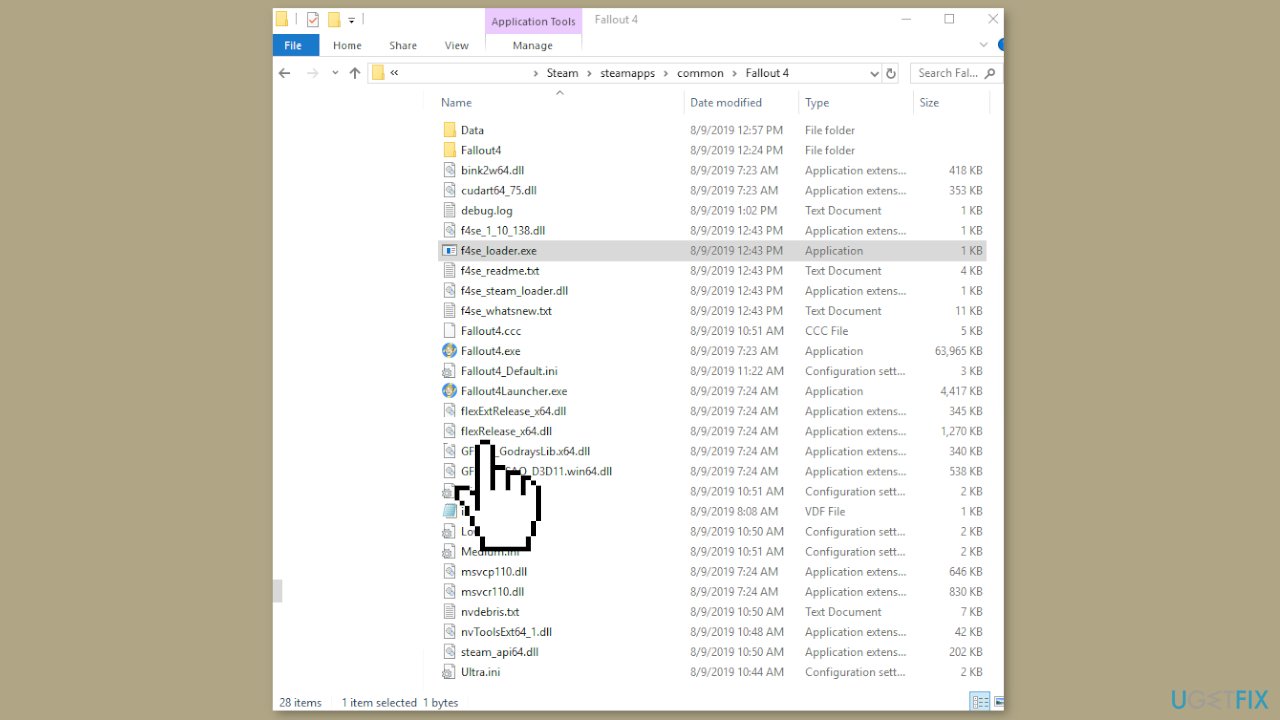
In certain instances, the flexRelease_x64.dll file may be located in the Program Files folder instead of the Program Files (x86) folder. If this is the case, copy the file from a computer running Fallout 4 and paste it into the appropriate folder. This should allow the game to run without issues.
Solution 4. Reinstall the Game
- Press the Windows key + R to open the Run dialog box.
- Type appwiz.cpl in the text field and hit Enter.
- Select Fallout 4 from the list of programs
- Click Uninstall.
- Follow the on-screen instructions to complete the process.
- Depending on the drive Steam is installed in, delete any files in the following locations:
\Steam\SteamApps\Common\Fallout 4
\Documents\My Games\Fallout 4
- Restart the computer for the changes to come into effect.
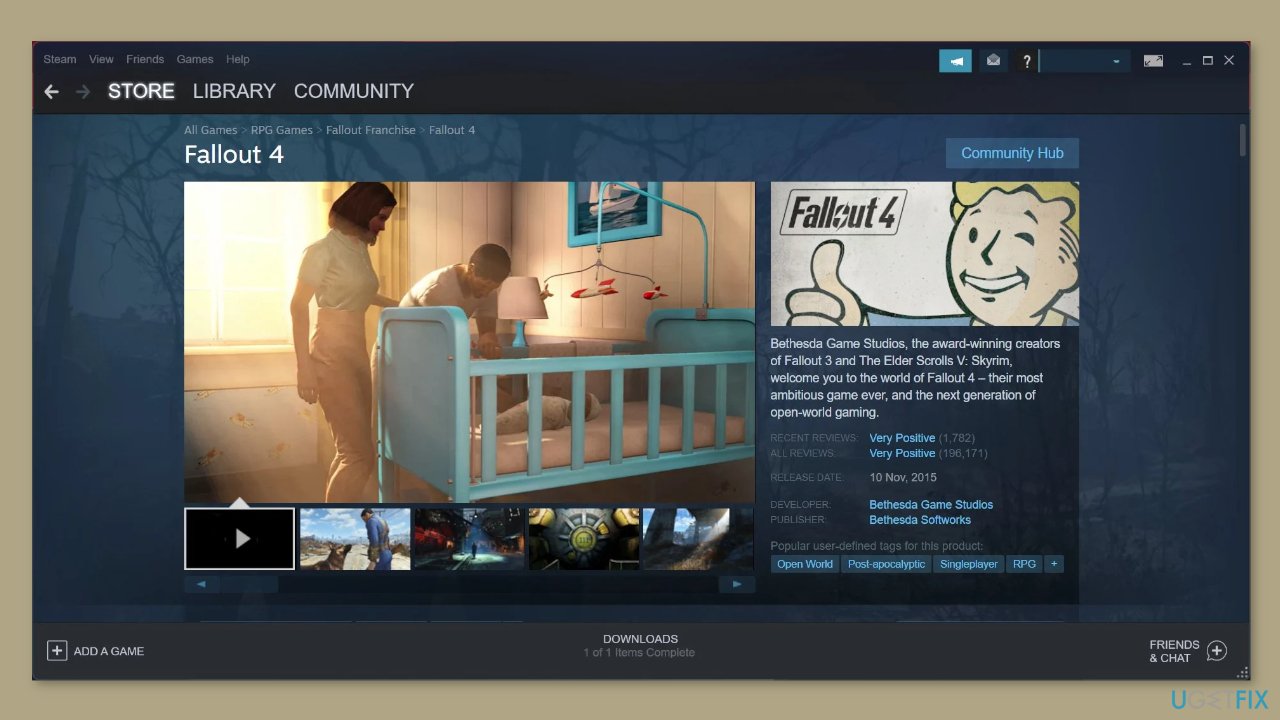
- Download Fallout 4 on Steam again.
- The game should run without throwing an error.
Solution 5. Use System Restore
System Restore is a feature in Microsoft Windows that allows users to revert their computer's state to a previous point in time. This can be helpful if you have made changes to your system that are causing problems.
- Press the Windows key + R on your keyboard to open the Run box.
- Type SystemPropertiesProtection and press Enter.
- Go to the System Protection tab.
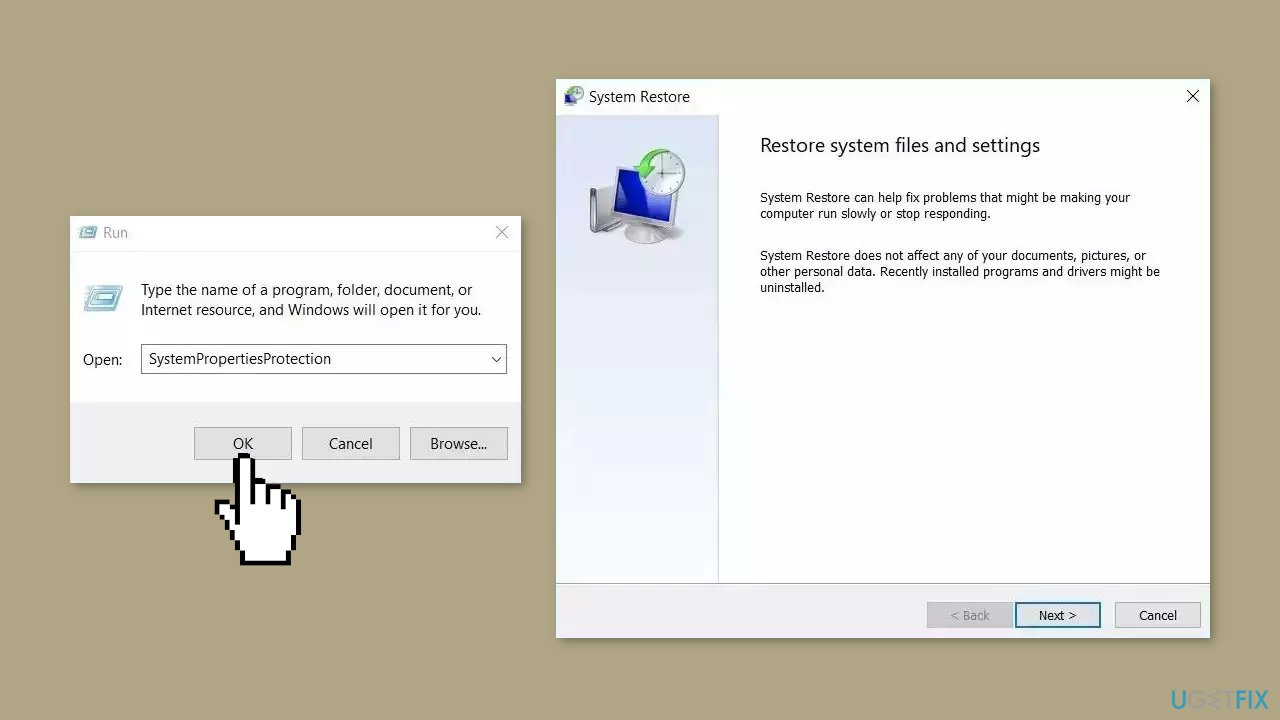
- You will see the System Restore… button. Click it to run System Restore.
- Follow the prompts until you can select a restore point.
- Select the one you want (ideally before the issue started occurring) and go ahead with the process.
Bottom line
To fix the flexrelease_x64.dll missing error, you can try repairing corrupted system files using Command Prompt, verifying the integrity of game files through Steam, or reinstalling the game. If these solutions do not resolve the issue, consider updating your graphics drivers or using a maintenance tool to address system errors.
Frequently asked questions
You can try reinstalling the application that is prompting the error, as it may restore the missing DLL file. Alternatively, running a system file check with the command 'sfc /scannow' in Command Prompt can help fix any corrupted system files.
Yes, you can download the flexrelease_x64.dll file from a reputable DLL download site, but be cautious to avoid malware. After downloading, place the file in the application's installation directory or in the C:\Windows\System32 folder.
To avoid future occurrences, ensure your Windows 10 or Windows 11 system is up to date and regularly run antivirus scans to eliminate malware that might affect DLL files. Additionally, keeping your software and drivers updated can also help prevent such errors.




Report an issue
What's wrong with this guide? We review every report and update or remove content.
Report received — thank you. We'll review and fix it.
You need a free account to submit a report.
Be the first to comment