How to fix
“fltlib.dll is either not designed for Windows or it contains an error”
on Windows
Resolve the "fltlib.dll is either not designed for Windows" error on Windows 10 and 11 with expert-tested solutions. Fix it in minutes!


What causes How to fix “fltlib.dll is either not designed for Windows or it contains an error”?
- Corrupted fltlib.dll file
- Missing fltlib.dll file
- Incompatible fltlib.dll file with Windows version
- Errors in applications relying on fltlib.dll
- Bad Image error indicating invalid DLL
Repairs Windows system files, removes malware, and restores a clean OS state — without reinstalling.
Hello. I tried to open an application on my Windows PC that I use every day but I received the "fltlib.dll is either not designed for Windows or it contains an error" message. What should I do?
The error message "fltlib.dll is either not designed for Windows or it contains an error" is a common issue encountered by Windows users. It indicates that the fltlib.dll file, which is a dynamic link library (DLL)[ref en-1] file, is either corrupted, missing, or incompatible with the version of Windows being used.
DLL files are an essential part of the Windows operating system. They contain a set of functions and resources that multiple applications can use at the same time. This shared functionality reduces the size of programs and makes them more efficient. DLL files are loaded into memory only when required, making the overall performance of the system faster and smoother.
The issue with fltlib.dll can impact users in several ways. If the DLL file is missing or corrupted, it can cause errors in any application that relies on it. The error message can also prevent the affected application from running properly or launching altogether. The error message may also appear as a "Bad Image error," which indicates that the DLL file is not valid.
There are several possible solutions to this issue, depending on the cause. One common solution is to perform a system file check (SFC) to repair any corrupted system files. Another option is to reinstall the affected application or program that uses the fltlib.dll file. Users may also try to update their Windows operating system or update their device drivers.
In this guide, you will find 6 steps that should help you fix the "fltlib.dll is either not designed for Windows or it contains an error" issue. However, if you want to avoid the lengthy troubleshooting process, you can use a maintenance tool like [d1]. It can fix most system errors, BSODs,[ref en-2] corrupted files, and registry[ref en-3] issues. Otherwise, follow the step-by-step instructions below.

Solution 1. Fix Corrupted System Files
Use Command Prompt commands to repair system file corruption:
- Open Command Prompt as administrator
- Use the following command and press Enter:
sfc /scannow
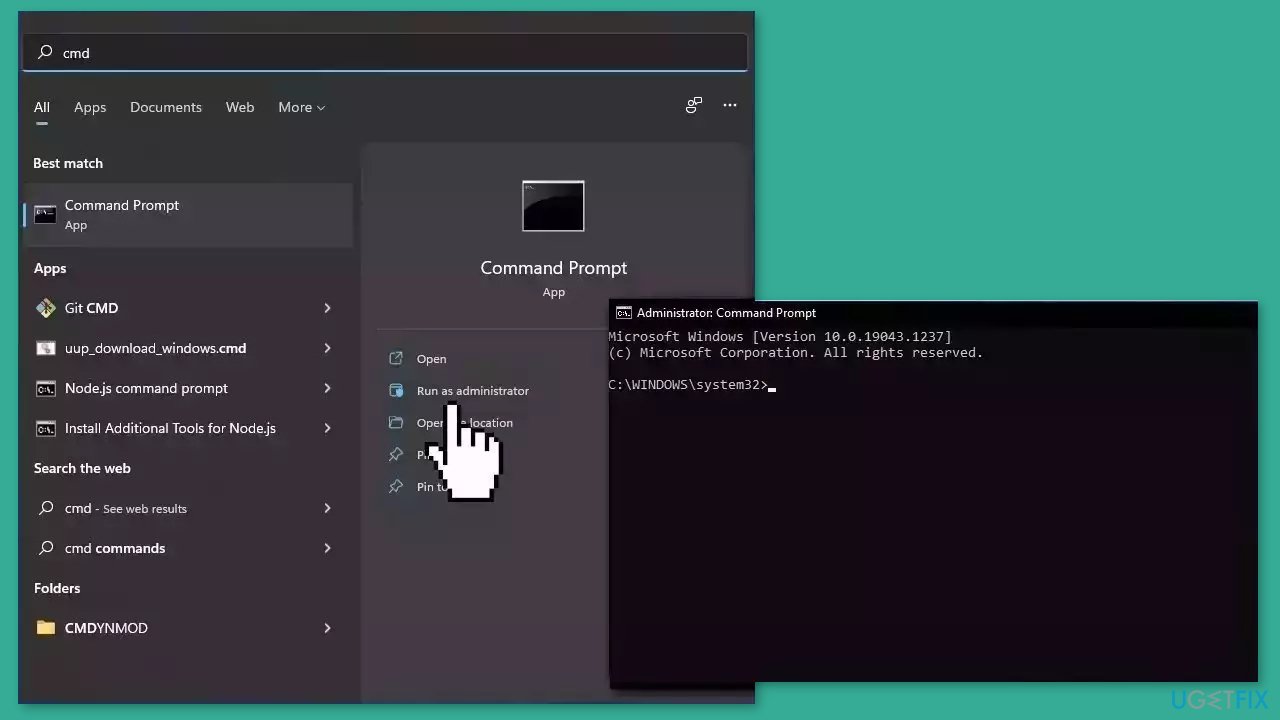
- Reboot your system
- If SFC returned an error, then use the following command lines, pressing Enter after each:
DISM /Online /Cleanup-Image /CheckHealth
DISM /Online /Cleanup-Image /ScanHealth
DISM /Online /Cleanup-Image /RestoreHealth
Solution 2. Install Windows Updates
- Press the Windows key + R to open the Run box
- Type ms-settings:windowsupdate in the text box and press Enter
- Click the Check for updates button
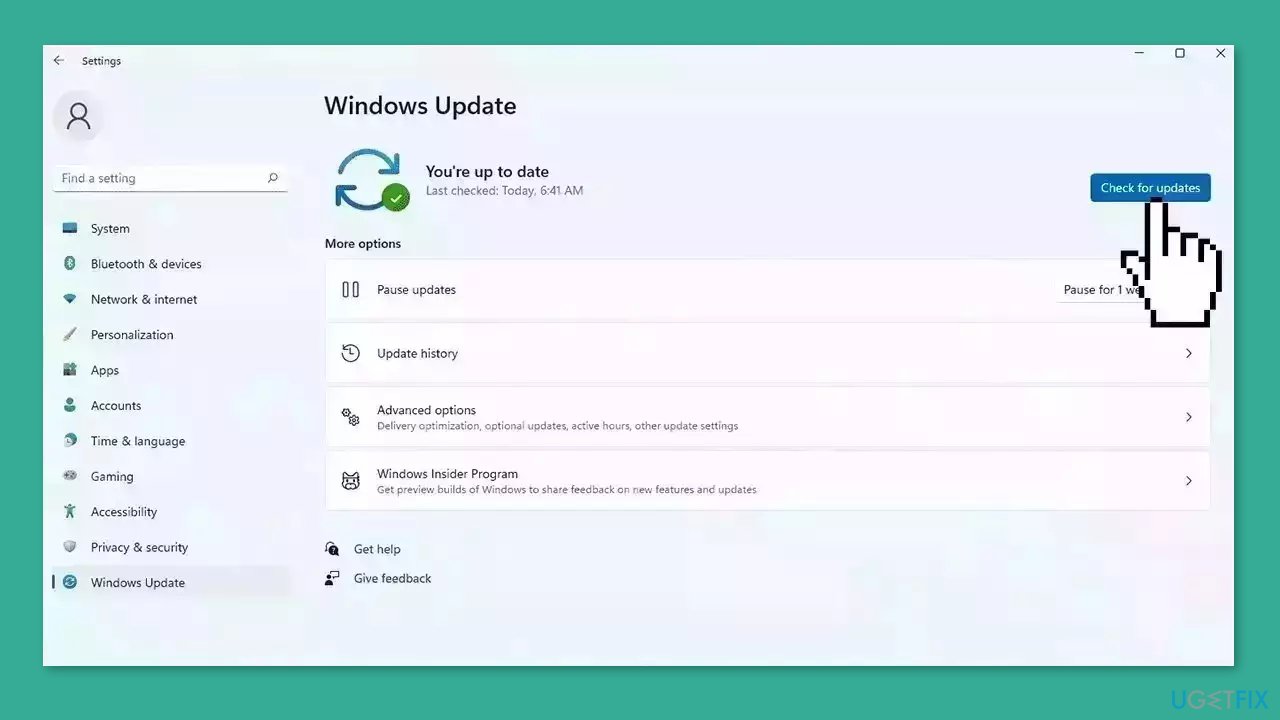
- If a new update is available, click the Download & Install all button.
- Restart your computer after the process is finished and check to see if the problem is fixed
Solution 3. Perform a Malware Scan
It is possible that a malware infection may be the cause of "fltlib.dll is either not designed for Windows or it contains an error" message. It is important to run a comprehensive security scan to rule out this possibility and ensure that the computer is not infected. This can help to prevent further issues with the Windows operating system and ensure that it is functioning properly.
If you have access to a security scanner, or if your organization pays for one, you can use it to scan your entire system to check for a virus infection. Otherwise, you can use Windows Defender to scan your system:
- Click on the Windows Start menu or press the Windows key on your keyboard
- Type Microsoft Defender in the search bar and click on Microsoft Defender Antivirus to open the application
- Click on the Virus & threat protection option in the left-hand menu
- Click on the Quick scan or Full scan option, depending on your preference
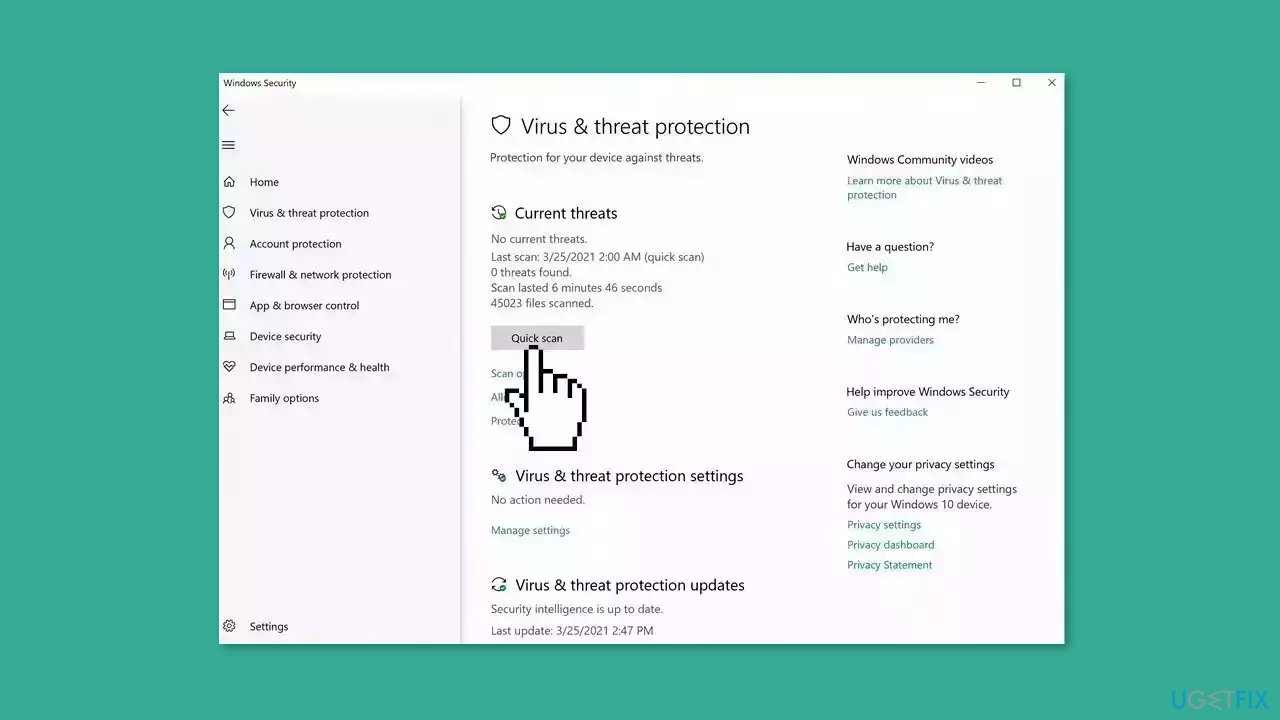
- If you choose Quick scan, Microsoft Defender Antivirus will scan the most vulnerable and commonly infected areas of your computer
- If you choose Full scan, Microsoft Defender Antivirus will scan your entire computer, including all files, folders, and programs
- Click on the Scan now button to start the selected scan type and wait for the scan to complete
- The time it takes will depend on the size of your hard drive and the number of files being scanned
- Once the scan is complete, you will be informed of any detected threats, and you can choose to quarantine or remove them
- If no threats are found, Microsoft Defender Antivirus will inform you that your device is secure
Solution 4. Try Clean Boot
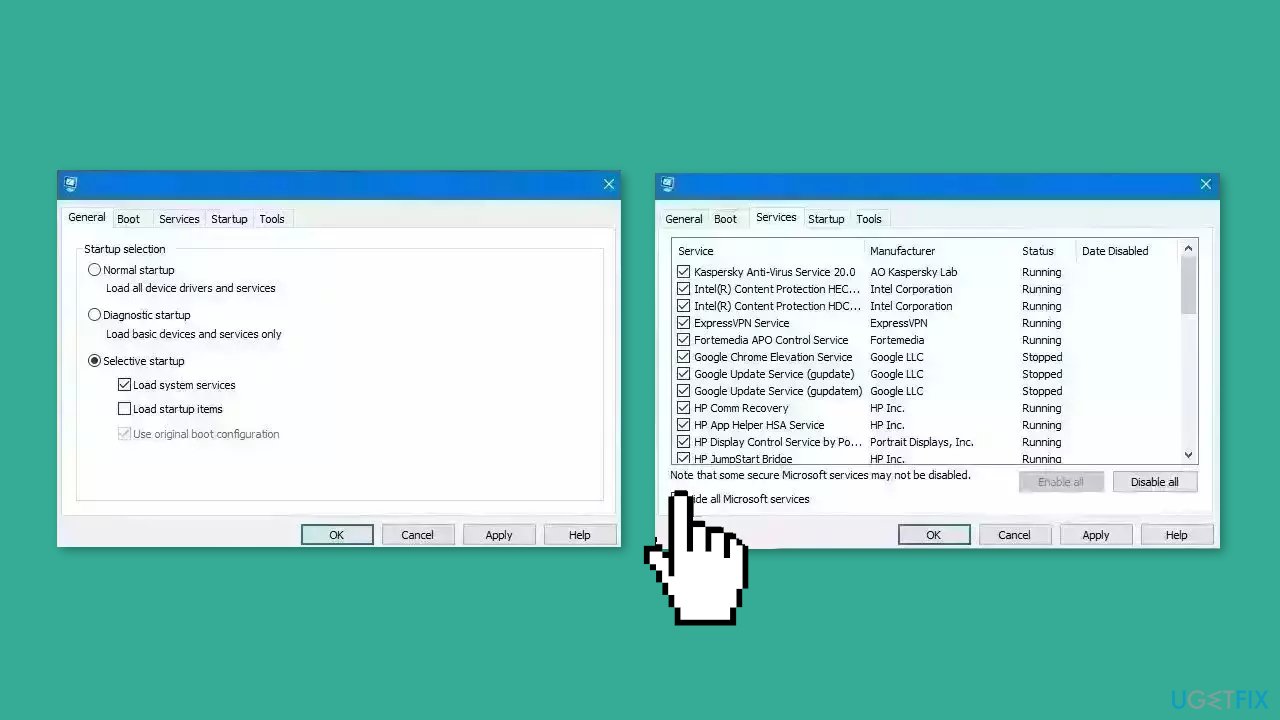
- Open the Search menu, type in system configuration, and press Enter
- Under the Services tab, tick the Hide all Microsoft services box
- Click on Disable all button
- Head over to the Startup tab and click on Open Task Manager
- Select a third-party program and click on Disable at the top
- Repeat this step to disable all third-party apps and programs
- Restart your PC to enter the clean boot state and see if the issue persists
- If the issue disappeared in the clean boot state, then you can be certain that a third-party app is causing it
- Go through all recently installed apps or programs and remove them one by one
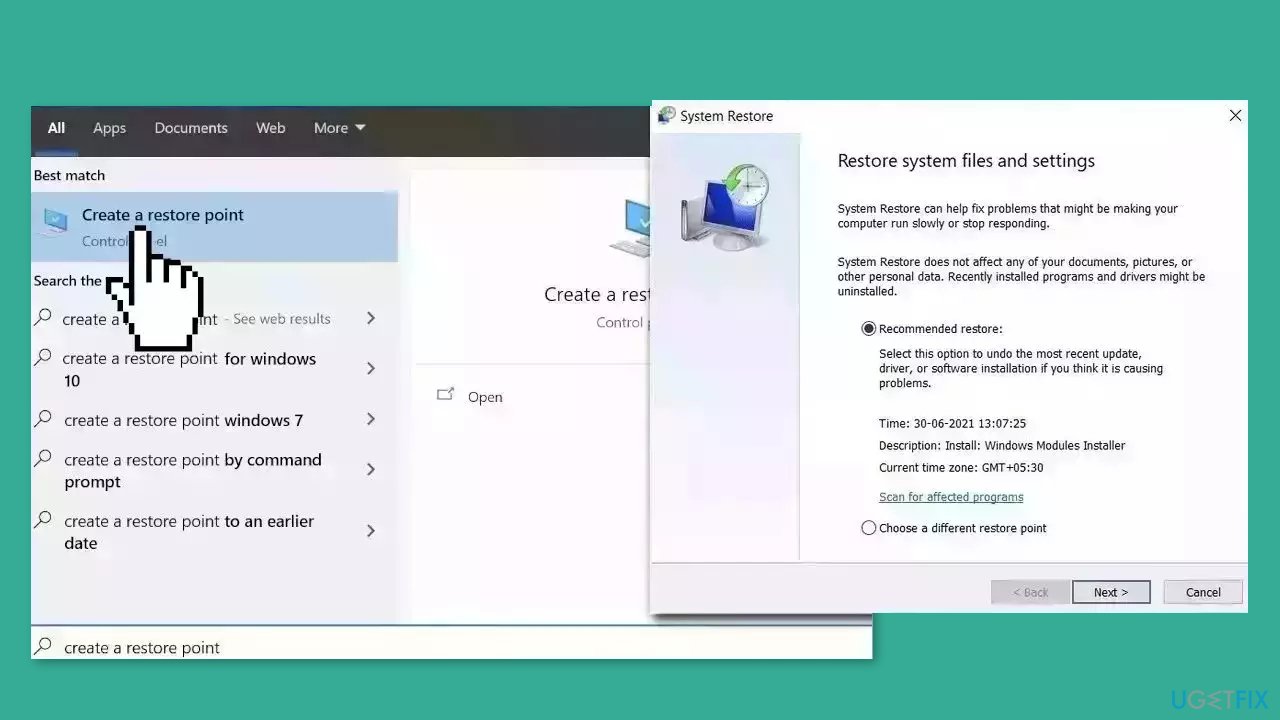
Solution 5. Use System Restore
System Restore is a feature in Microsoft Windows that allows users to revert their computer's state to a previous point in time. This can be helpful if you have made changes to your system that are causing problems.
- Go to the Start menu, type restore, and click on Create a restore point
- Click System Restore, then follow the prompts until you can select a restore point
- Select the one you want (ideally before the issue started occurring) and go ahead with the process
Solution 6. Repair Install Windows
- Visit the official Microsoft website to download Windows 11 or Windows 10 Installation Media
- Run the Media Creation Tool and select Create Installation Media for another PC
- Select your USB drive
- Let the Process complete of writing the Installation files to the USB drive
- Click Finish
- On the PC you wish to upgrade, Press Windows + E to open the File Explorer
- Open the Removable drive and click Setup.exe
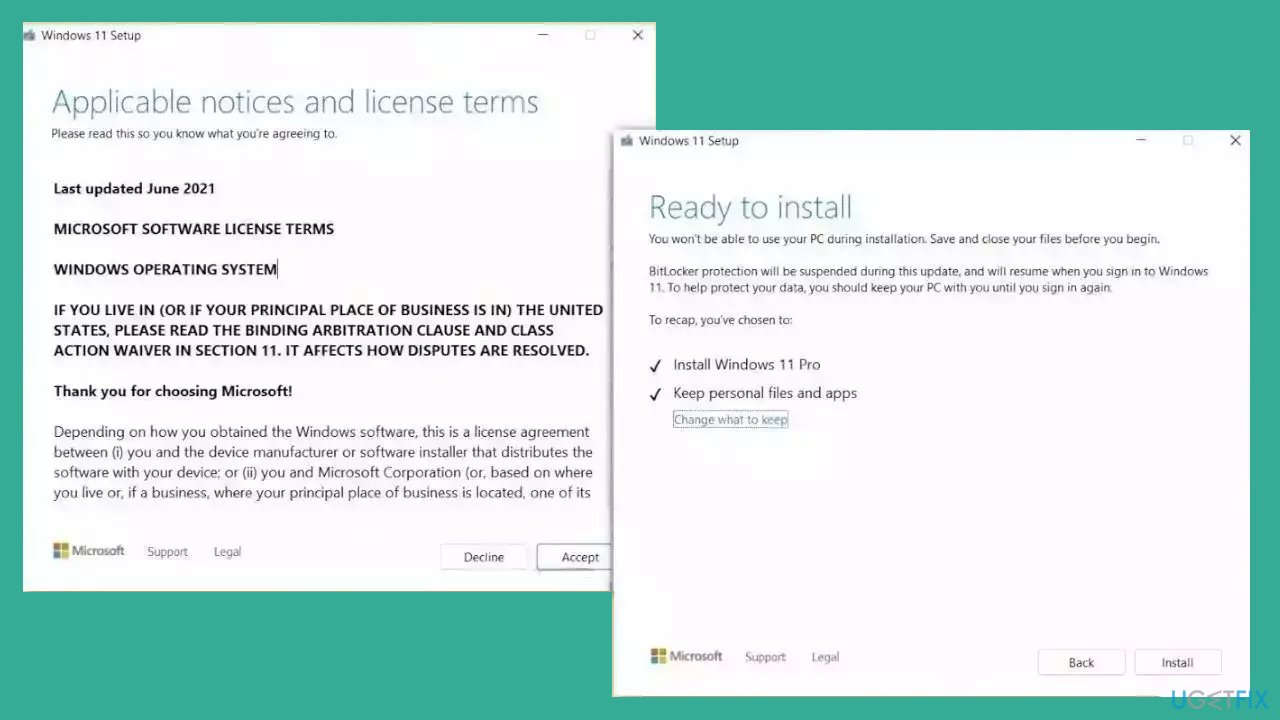
- Accept the license terms on the next screen
- Confirm the Upgrade options – Files, apps and Settings are kept
- Click Install, and the upgrade should start
Bottom line
To fix the 'fltlib.dll is either not designed for Windows or it contains an error' issue, you can perform a system file check (SFC), reinstall the affected application, or update your Windows operating system and device drivers. If these solutions do not resolve the problem, consider using a maintenance tool to fix system errors.
Frequently asked questions
You can try to replace the corrupted fltlib.dll file with a new one from a trusted source or run the System File Checker tool by executing 'sfc /scannow' in the Command Prompt.
Yes, reinstalling the application may resolve the issue by replacing any damaged or missing files related to fltlib.dll.
Absolutely, you can perform a repair installation of Windows or use the DISM tool to fix any underlying system issues that might be causing the error.




Report an issue
What's wrong with this guide? We review every report and update or remove content.
Report received — thank you. We'll review and fix it.
You need a free account to submit a report.
Be the first to comment