How to fix
Fmod_event64.dll missing or not found error
on Windows
Resolve the fmod_event64.dll missing error on Windows 10 or 11 quickly and easily. Expert-tested methods guarantee a hassle-free fix, zero traces left.

What causes How to fix fmod_event64.dll missing or not found error in Windows?
- File is missing or was never installed
- File is corrupted
- Antivirus program quarantined the DLL
- Faulty game installation
- Missing dependencies like DirectX or Visual C++ Redistributables
- Broken file path
Repairs Windows system files, removes malware, and restores a clean OS state — without reinstalling.
One of the games (Manhunt 2) I am trying to play is not launching for me. I am using Windows 11. Whenever I try to launch it, I always get the "fmod_event64.dll" error, which says that the file is missing. How do I fix this?
The fmod_event64.dll file is a component of the FMOD audio engine, a sound system that many video games and multimedia applications use to produce complex audio effects. When Windows displays a "fmod_event64.dll is missing" or "fmod_event64.dll was not found" error, it indicates that a program - a game - tries to access this file but can't locate it. This issue can stop the program from starting or functioning.
People often report this problem when they launch games that depend on FMOD older titles, or those with faulty installations. Some users face this error after they move a game folder or when an installation fails. The error might also pop up right after someone reinstalls Windows or cleans up their system, deleting supporting DLLs like fmod_event64.dll.
What's causing the fmod_event64.dll error to pop up?
This DLL error can show up for a few reasons. The file might be missing—maybe it never got installed or someone deleted it by accident. Sometimes, the file is there but it's messed up. Antivirus programs can also cause trouble sometimes thinking DLL files are bad and putting them in quarantine.
If the game didn't install right, that could be the problem too. When the installer doesn't set up the needed files, or if stuff like DirectX or Visual C++ Redistributables isn't there, you might see this error. There's also a chance the file path is broken, meaning the program is looking for the DLL in the wrong place.
What can you do about it?
To fix the fmod_event64.dll error, try to reinstall the game or software that causes it. This often brings back the missing DLL. Sometimes, getting the original fmod_event64.dll file from the official website or copying it from a trusted game folder can help. You might also want to check your antivirus program to see if it got rid of the file.
Broken system files or missing runtime parts could also play a role. In this case, fixing Windows system files or installing needed redistributables might solve the issue. For a simpler approach, you can use the [d1] PC repair tool. It looks for and fixes missing or damaged DLLs on its own.
Fix 1. Reinstall the affected program
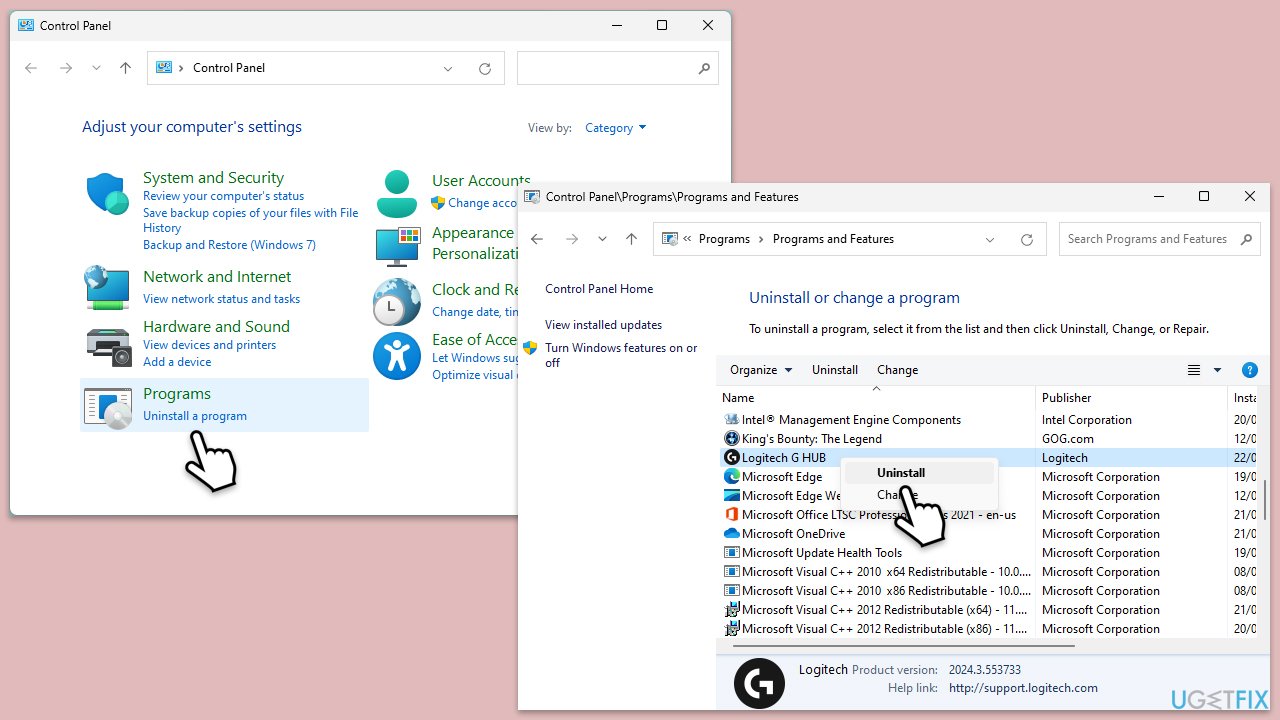
Reinstalling the program can restore the missing fmod_event64.dll file.
- Type Control Panel in Windows search and press Enter.
- Navigate to Programs > Uninstall a program.
- Select the program related to the error (for example, Dark Souls), then click Uninstall.
- Restart your computer.
- Download the latest version of the program from the official website or use the original installation media.
- Install the program following the on-screen instructions.
Fix 2. Run SFC and DISM scans
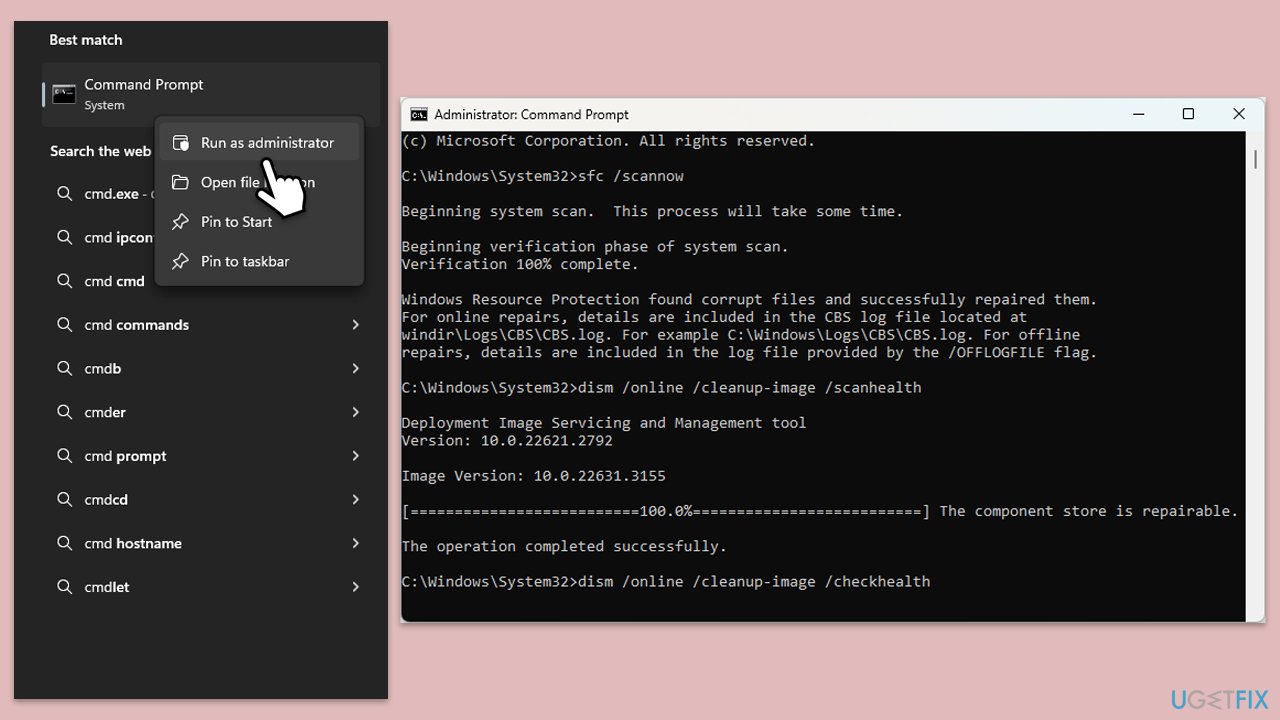
Corrupted system files can contribute to DLL errors like fmod_event64.dll missing.
- Type cmd in Windows search.
- Right-click on Command Prompt and select Run as administrator.
- When User Account Control window shows up, click Yes.
- Paste the following command into the new window:
sfc /scannow - Press Enter and wait till the scan is executed.
- As soon as the scan finishes, Windows will report whether integrity violations were found and if they could be fixed. Regardless of the outcome, use these commands next, pressing Enter after each:
DISM /Online /Cleanup-Image /CheckHealth
DISM /Online /Cleanup-Image /ScanHealth
DISM /Online /Cleanup-Image /RestoreHealth
(Note: if you get an error executing this last command, add /Source:C:\RepairSource\Windows /LimitAccess to it and try again). - Restart your computer.
Fix 3. Replace the DLL file
Manually replacing fmod_event64.dll can resolve the missing file issue.
- Open a web browser and search for a trusted DLL download site.
- Download the 64-bit version of fmod_event64.dll.
- Extract the file and copy it to C:\Windows\System32.
- If prompted, overwrite the existing file.
- Restart your computer and try launching the program.
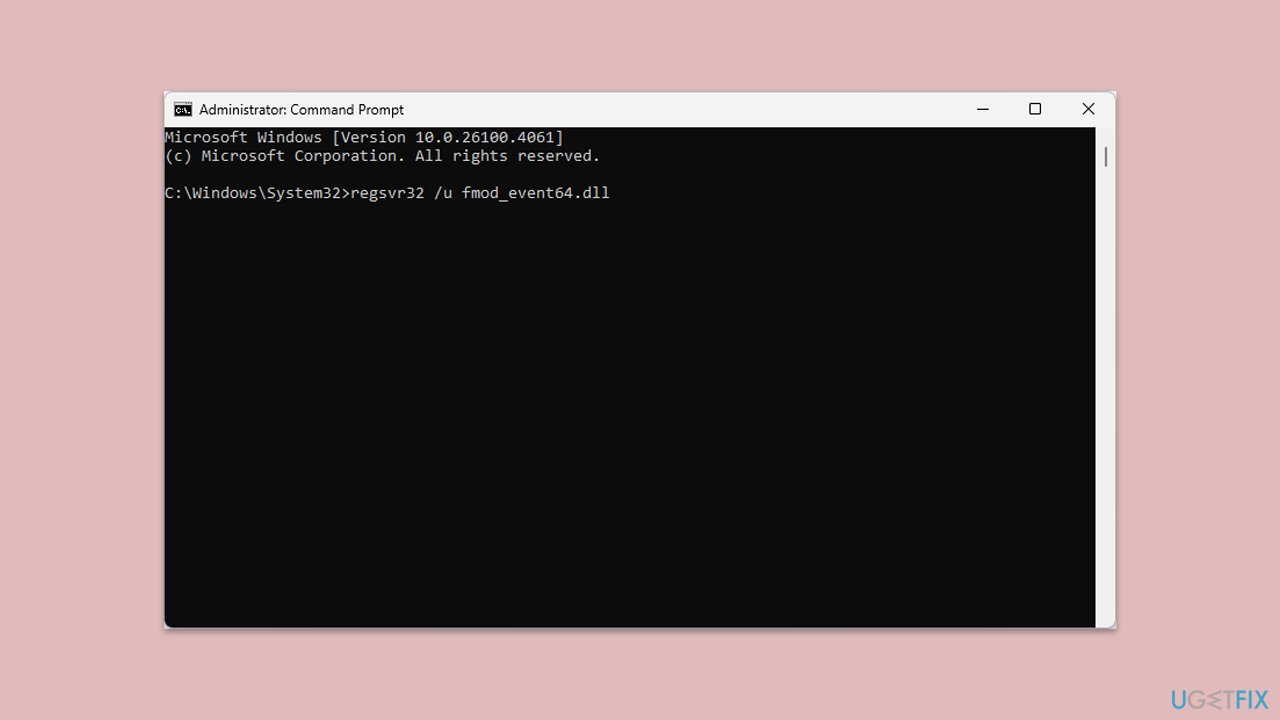
Fix 4. Register the DLL file
Registering fmod_event64.dll ensures it’s properly recognized by the system.
- Open Command Prompt as administrator.
- Type in the following commands and press Enter after each:
regsvr32 /u fmod_event64.dll
regsvr32 fmod_event64.dll - Close down everything and restart your computer.
Fix 5. Clear Microsoft Store cache
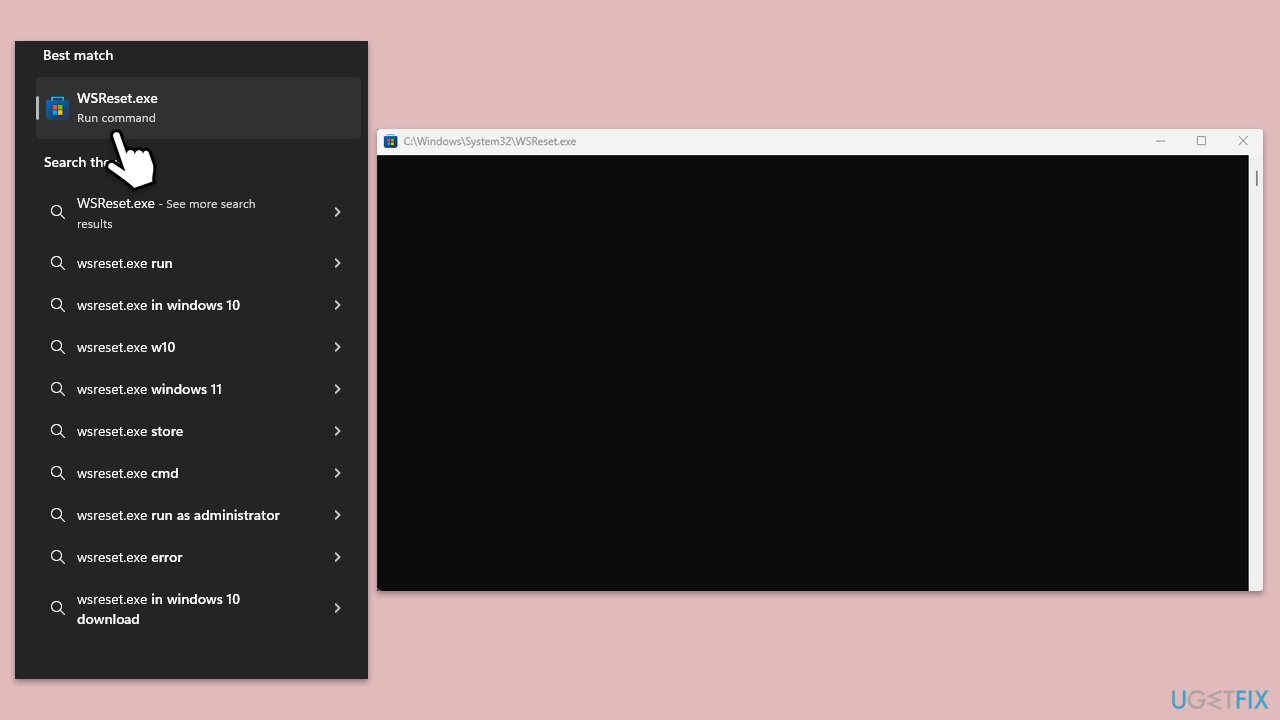
If the program was installed via the Microsoft Store, a corrupted cache can cause issues.
- Type wsreset.exe in the Windows search box and press Enter.
- Wait till a black window shows up – do not close it.
- Once it's gone, Microsoft Store should restart.
- Try using the Store again.
Fix 6. Update Visual C++ Redistributables
Outdated Visual C++ components can cause DLL errors.
- Type Control Panel in Windows search and press Enter.
- Go to Programs > Uninstall a program.
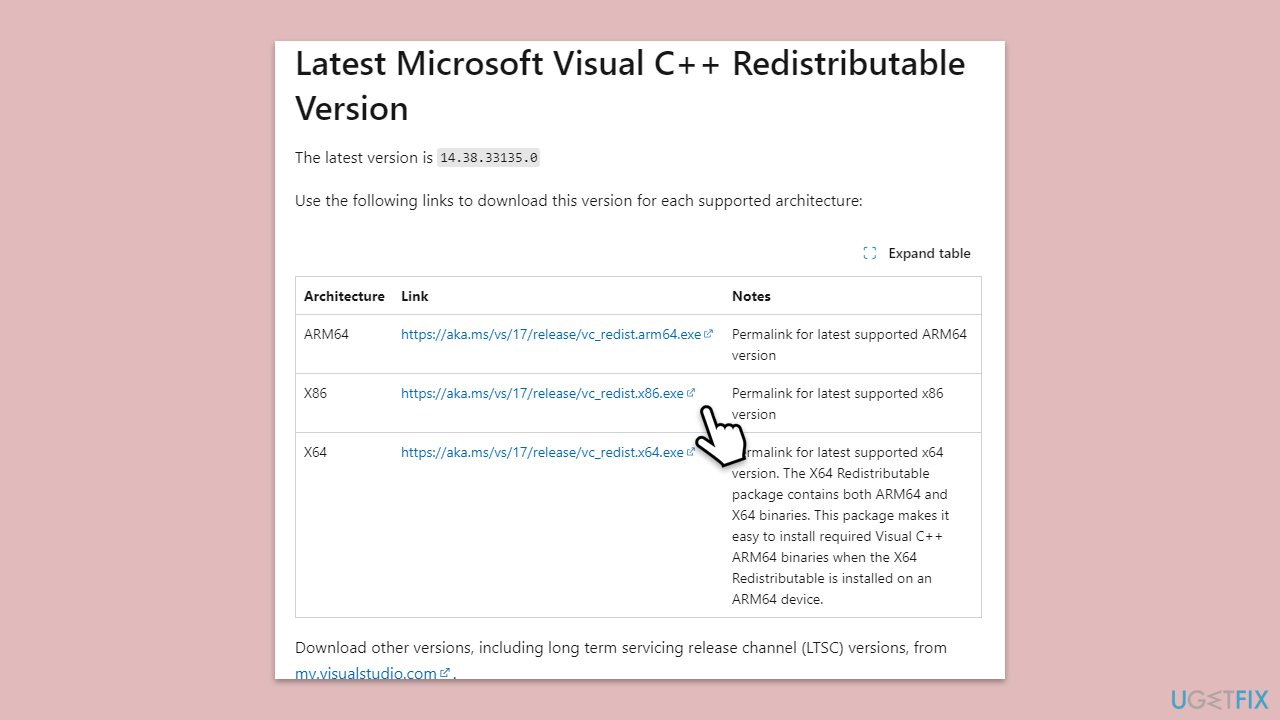
Here, scroll down and check the list of installed versions of Visual C++.
Open any browser and head over to the official Microsoft Visual C++ download page. - Download and install all the missing versions of Visual Studio (note: if you are using a 64-bit system, install both x86.exe and x64.exe files)
- Restart your PC and check whether the problem is resolved.
- If not, try reinstalling each of the following components:
Microsoft Visual C++ 2010 Redistributable Package (x86)
Visual C++ Redistributable for Visual Studio 2012
Visual C++ Redistributable Packages for Visual Studio 2013
Visual C++ Redistributable Packages for Visual Studio 2015, 2017, 2019, and 2022. - Restart your computer.
Fix 7. Disable third-party antivirus
Antivirus software might quarantine fmod_event64.dll, causing the error.
- Locate your antivirus icon in the system tray (bottom-right corner).
- Right-click and select Disable protection.
- Launch the affected program to check if the error persists.
- Add the app to the antivirus exclusion list if successful.
Fix 8. Verify game files (if applicable)
For games on platforms like Steam, verifying files can restore missing DLLs.
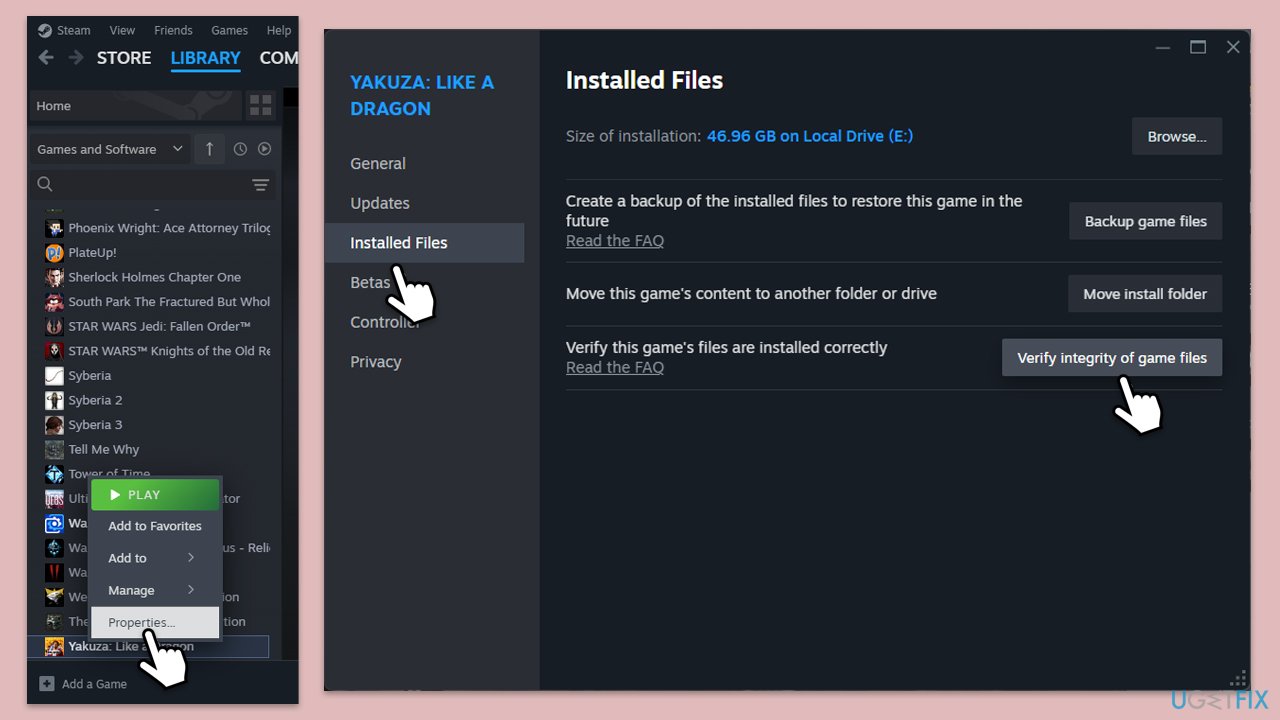
- Open Steam and go to your Library.
- Right-click on the affected game and pick Properties.
- Go to Installed Files and click Verify integrity of game files.
- Allow the process to complete and then start the game.
Bottom line
To fix the fmod_event64.dll error, you can try reinstalling the game or software, obtaining the DLL from the official website, or copying it from a trusted game folder. Additionally, check your antivirus settings to ensure it hasn't removed the file. If none of these solutions work, further troubleshooting may be necessary.
Frequently asked questions
The fmod_event64.dll missing error often occurs due to corrupted game files, improper installation of applications, or malware infections that may delete or damage the DLL file.
You can restore the fmod_event64.dll file by reinstalling the application that requires it or by downloading the DLL file from a reliable source and placing it in the appropriate system folder.
Yes, you can use the System File Checker tool by running 'sfc /scannow' in the Command Prompt to repair corrupted system files that may be causing the fmod_event64.dll error.




Report an issue
What's wrong with this guide? We review every report and update or remove content.
Report received — thank you. We'll review and fix it.
You need a free account to submit a report.
Be the first to comment