How to fix
Folder keeps reverting to Read only
on Windows
Resolve the frustrating issue of folders reverting to 'Read-only' in Windows 10 and 11. Expert-tested solutions guaranteed to fix it in minutes.


What causes How to fix Folder keeps reverting to Read only on Windows?
- System permissions overriding user settings
- Inherited attributes from parent directories
- Security policies enforcing read-only states
- Third-party applications locking the folder
- Corrupted system files
- Misconfigured user account controls
Repairs Windows system files, removes malware, and restores a clean OS state — without reinstalling.
A folder I need to edit on Windows 11 keeps reverting to "Read only" in its properties. I uncheck it, but after a while, it switches back, blocking my changes.
File management is a fundamental aspect of Windows, allowing users to organize, modify, and store data efficiently within folders. However, an issue emerges when a folder persistently reverts to a "Read only" status, thwarting attempts to alter its contents.
Users typically notice this when they access the folder’s properties, uncheck the "Read only" attribute, and apply the change, only to find it reverts shortly after - sometimes within minutes or upon the next system interaction. For users experiencing this issue, a simple computer restart rarely yields any results.
When a folder keeps reverting to Read-only, it restricts the ability to edit, delete, or add files, disrupting workflows that depend on consistent folder access. The cause often lies in system permissions that override user settings, possibly due to inherited attributes from parent directories or security policies enforcing read-only states.
Alternatively, third-party applications, such as antivirus software, might lock the folder to prevent modifications, while corrupted system files or misconfigured user account controls could also contribute. Without an immediate indicator of the root issue, users face a challenge in maintaining folder accessibility.
This persistence can lead to frustration, lost productivity, or the need for repeated manual adjustments, undermining the reliability of file management on Windows 11. To resolve this, multiple approaches are detailed below, with [d1] available to address underlying Windows issues that may perpetuate the problem, ensuring folders remain editable as intended.

Fix 1. Modify folder permissions
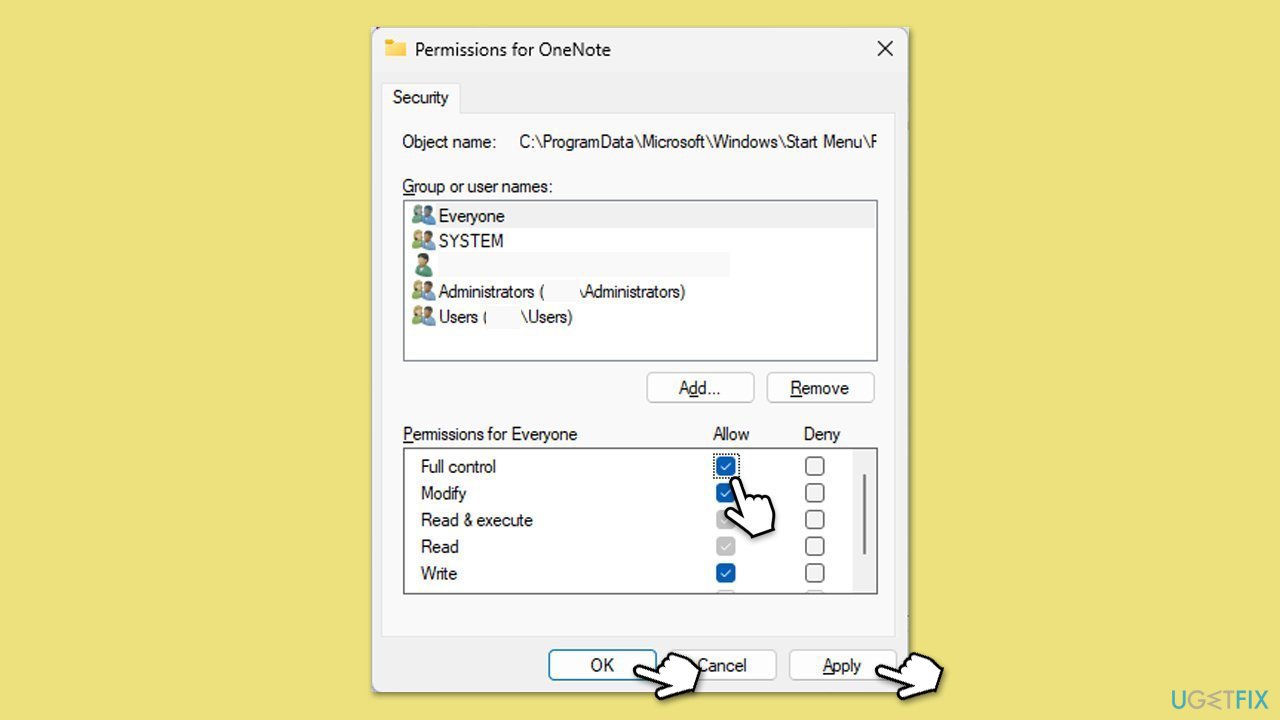
Ensuring you have full control over a folder can prevent it from slipping back into read-only mode due to restrictive permissions.
- Right-click the folder and select Properties.
- Go to the Security tab and click Edit.
- Select your user account, check Full control under Allow, and click Apply.
- Click OK to close all dialogs.
Fix 2. Take ownership of the folder
When you don’t own a folder, Windows might reset its attributes - taking ownership could lock in your changes.
- Right-click on the folder in question and pick Properties.
- Go to the Security tab and select Advanced.
- Under Owner, click the Change button.
- In the new window, type in your account name (Microsoft account email) or simply use Administrator (make sure you are logged in as one) and click Check Names.
- When shown, select your account and click OK.
- Mark the Replace owner on subcontainers and objects checkbox and click Apply and OK.
- Now go back to Properties > Security tab of the folder and select Edit under Permissions.
- Select the group that you are using (for example, User group) and make sure that Full control is selected.
- Click Apply and OK.

Fix 3. Update Windows
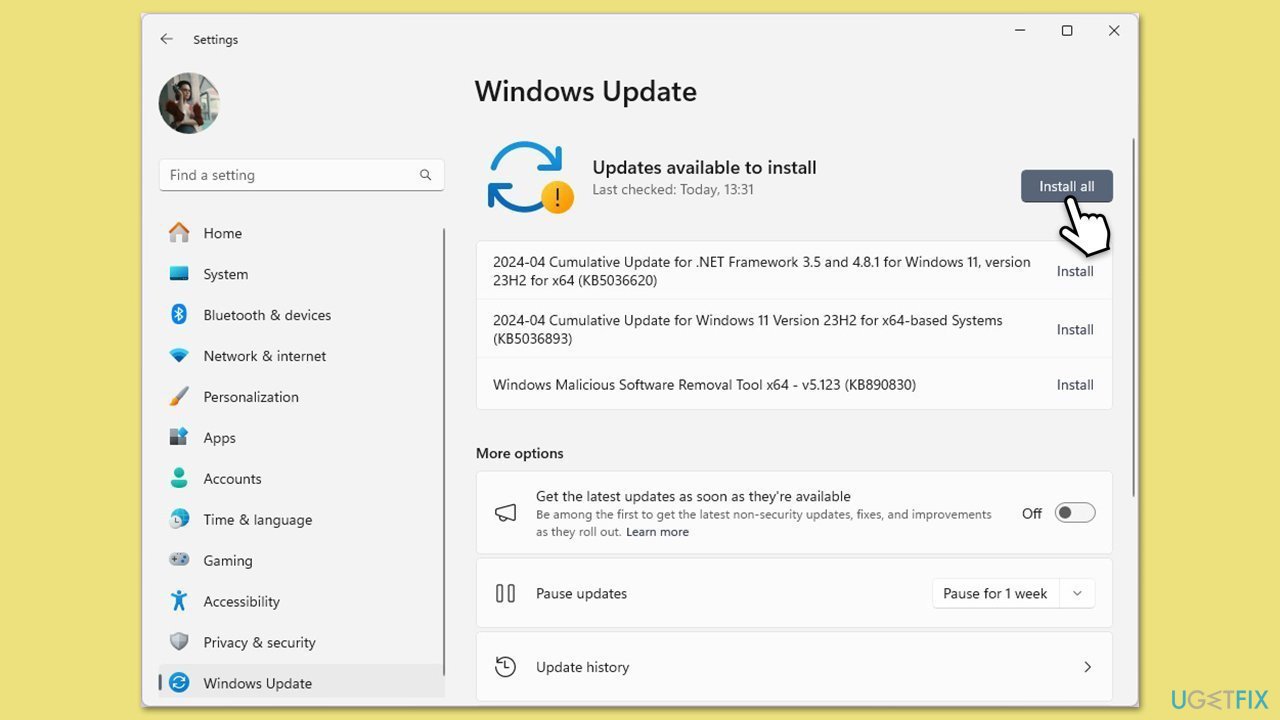
Keeping Windows current ensures that attribute handling works as intended, potentially halting the read-only loop.
- Type Updates in Windows search and hit Enter.
- If updates are available, click Install updates.
- Otherwise, click Check for updates.
- If optional updates are available, install them as well.
- When all the update processes are complete, restart your computer.
Fix 4. Disable controlled folder access
Windows Security’s Controlled Folder Access feature sometimes enforces read-only status to protect files, and disabling it might free up the folder.
- In your taskbar, open the system tray and click on Windows Security.
- Go to the Virus & threat protection section.
- Under Virus & threat protection settings, select Manage settings.
- Scroll down to Controlled folder access and click Manage Controlled folder access.
- Toggle the switch to the left to disable the setting and restart your system.

Fix 5. Run in Clean Boot
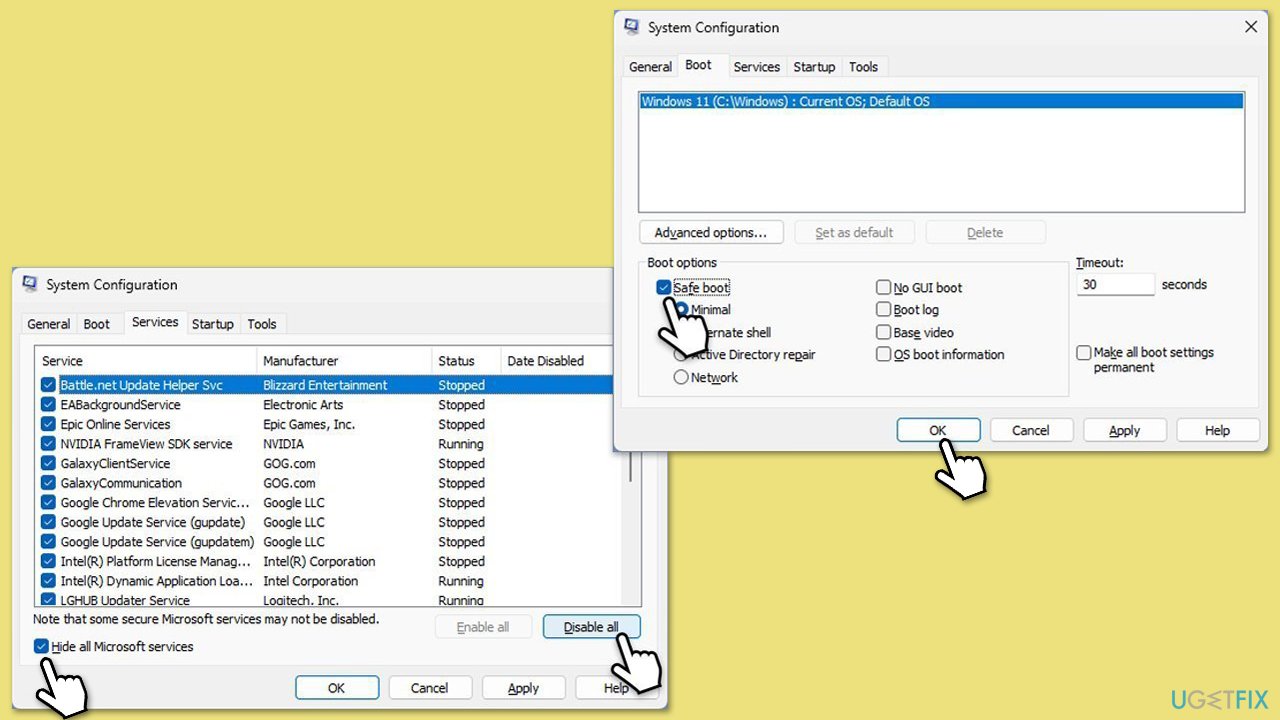
Could third-party software be meddling with folder settings? Clean Boot offers a way to test this by minimizing external influences.
- Type msconfig in Windows search and press Enter.
- Go to the Services tab.
- Mark Hide all Microsoft services and select Disable all.
- Go to the Startup tab and click Open Task Manager.
- In the Task Manager, right-click on each of the items and select Disable, then close the Task Manager.
- Go to the Boot tab, and tick Safe Boot.
- Click Apply and OK, and restart your PC.
- To find out which app(s) is causing conflicts, enable each of the processes (or you can do it in groups), restart, and see if the problem persists. Repeat until you find the faulty app, then either update or uninstall it.
Fix 6. Check antivirus settings
Antivirus tools often guard folders against changes - adjusting their settings might stop the read-only reversion.
- Open your antivirus software’s main interface.
- Look for settings related to file protection or real-time scanning.
- Add the folder to an exclusion list if available.
- Save changes and restart the computer.
Fix 7. Run SFC and DISM
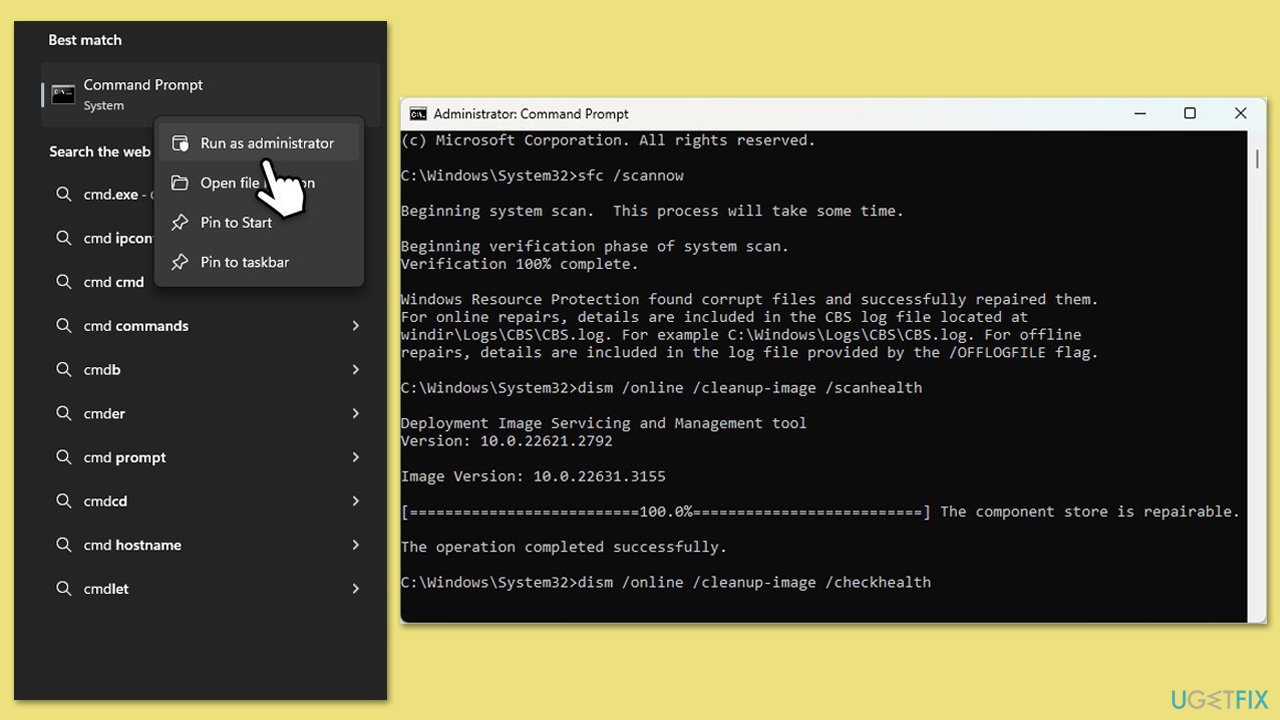
A system file glitch could be quietly resetting folder attributes, but a thorough scan can catch and fix these errors.
- Type cmd in Windows search.
- Right-click on Command Prompt and select Run as administrator.
- When User Account Control window shows up, click Yes.
- Paste the following command into the new window:
sfc /scannow - Press Enter and wait till the scan is executed.
- Once done, run this set of commands, pressing Enter after each:
DISM /Online /Cleanup-Image /CheckHealth
DISM /Online /Cleanup-Image /ScanHealth
DISM /Online /Cleanup-Image /RestoreHealth
(Note: if you get an error executing this last command, add /Source:C:\RepairSource\Windows /LimitAccess to it and try again). - Restart your system.
Fix 8. Use Command Prompt
Sometimes, a direct command-line tweak proves more effective at overriding stubborn folder settings than GUI adjustments.
- Open Command Prompt as administrator.
- Type attrib -r +s "full folder path" (replace with your folder’s path) and press Enter.
- Close the Command Prompt.
- Check the folder’s properties in File Explorer.
Bottom line
To resolve the issue of a folder reverting to read-only, users can modify folder permissions to ensure full control or take ownership of the folder. If these fixes do not work, further investigation into system settings or third-party software may be necessary.
Frequently asked questions
This issue may be due to user permissions or system settings that override your changes. Check your folder properties and ensure that your user account has the necessary permissions to modify it.
You can remove the read-only attribute by right-clicking the folder, selecting 'Properties,' and unchecking the 'Read-only' box. If the issue persists, consider checking for interfering applications or system settings.
Yes, certain security settings or third-party software may impose restrictions on folder properties, causing them to revert. Make sure to review your system's security settings and any installed software that could affect file management.




Report an issue
What's wrong with this guide? We review every report and update or remove content.
Report received — thank you. We'll review and fix it.
You need a free account to submit a report.
Be the first to comment