How to fix
Fortnite high CPU usage
on Windows
Tackle Fortnite's high CPU usage on Windows 10 and 11 with expert tips and proven fixes. Enjoy smoother gameplay today! Expert-tested solutions.

What causes How to fix Fortnite high CPU usage in Windows?
- High processing and graphics requirements
- Outdated graphics drivers
- Game not being up to date
- Background programs using too many resources
Repairs Windows system files, removes malware, and restores a clean OS state — without reinstalling.
Hello. Sometimes when I play Fortnite on my Windows PC it starts using high amounts of CPU. Is there a way to fix this?
Epic Games created the well-known online video game Fortnite, which is renowned for its fusion of action, tactical, and building features. The game is playable on a variety of devices and has become incredibly famous thanks to its battle royale mode, in which many players compete against one another until only one is left. Players are dumped off on an island, where they must scrounge for tools and supplies, construct fortifications, and fight to remain alive.
High CPU use is a problem that certain Windows users frequently experience while playing Fortnite. This indicates that the computer's central processing unit (CPU) is being significantly consumed by the game, which frequently results in performance issues and decreased system responsiveness. Input latency, frame rate decreases, choppy gameplay, and even system freezes or crashes can all be caused by a high CPU load. Both the game experience and the computer's general usefulness may be impacted by the problem.
Fortnite's high CPU consumption can be fixed by combining a number of troubleshooting techniques. Changing the in-game settings to reduce the processing and graphics requirements, installing the most recent graphics drivers,[ref en-1] and making sure the game is up to date are some potential fixes. It can also be useful to look for background programs that might be using too many resources. It's important to keep in mind that the precise solution may change depending on the hardware, software configuration, and unique circumstances of the user.
In this guide, you will find 4 steps that should help you fix Fortnite high CPU usage in Windows. You can also run a maintenance tool like [d1] that can fix most system errors, BSODs,[ref en-2] corrupted files, and registry[ref en-3] issues. Otherwise, follow the step-by-step instructions below.
Solution 1. Disable Background Apps
- Press the Windows key + I simultaneously to open the Settings app.
- Click on Apps from the available options.
- Select Installed apps within the Apps settings.

- Choose the desired app from the list.
- Click on the three dots for more options related to the app.
- Select Advanced options from the menu that appears.
- Locate the Background app permissions section.
- Click on the drop-down button next to Background app permissions.
- Choose the option labeled Never from the dropdown menu.
- Repeat the same process for other apps if needed.
Solution 2. Update Graphics Drivers
- Right-click the Start button.
- From the context menu that appears, select Device Manager.
- Locate and expand the Display adapter entry in the Device Manager.
- Right-click on the specific device driver related to your display adapter.
- From the right-click menu, choose Update driver.
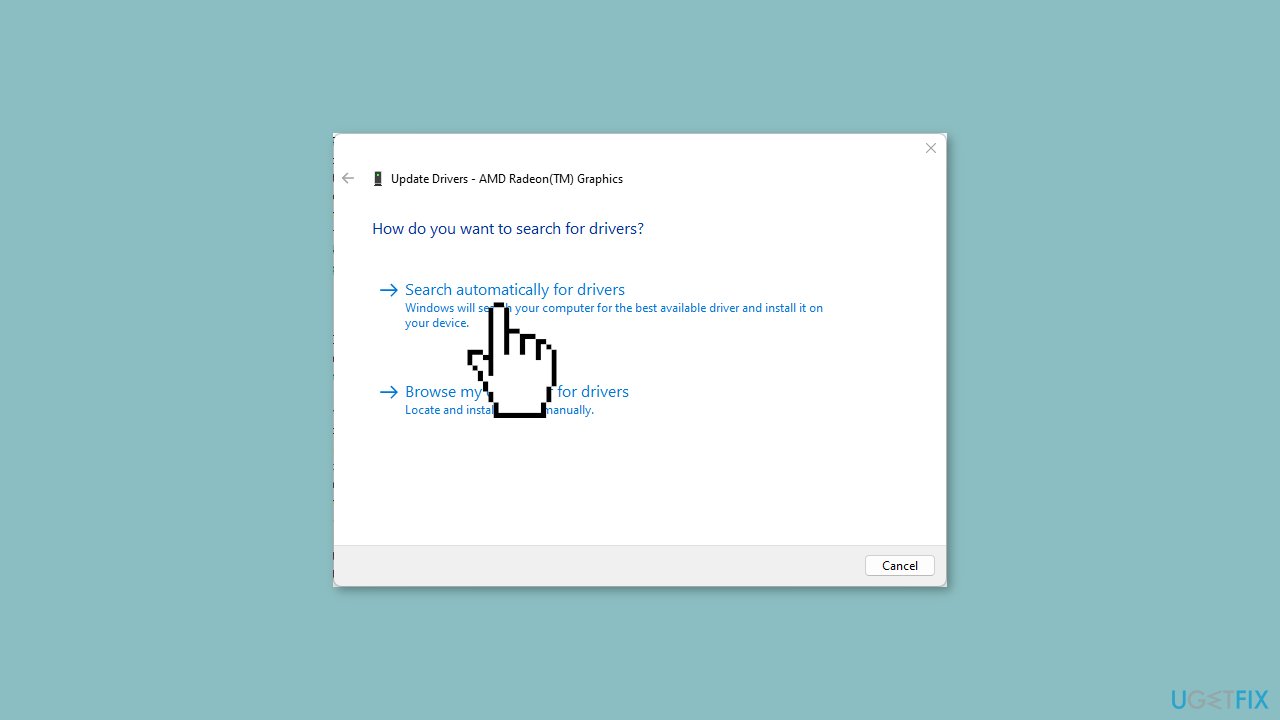
- Select the option that reads Search automatically for updated driver software.
- Allow the system to search for and install any available driver updates.
- After the update process completes, restart your PC to apply the changes.
Solution 3. Verify Fortnite Game Files
- Left-click the Start button.
- In the search bar, type Epic Games Launcher and press Enter.
- Click on the Epic Games Launcher app in the search results to open it.
- Within the launcher, go to the Library section.
- Locate the game you want to manage.
- Click on the 3-dot icon to access the menu options.
- From the menu, select Manage.
- In the Manage menu, navigate to the Verify Files tab.
- Click on the Verify button.

- Follow the on-screen prompts as necessary.
- The verification process checks for missing or corrupt game files and ensures their integrity.
Solution 4. Install Epic Games Launcher Update
- Left-click the Start button.
- Type Epic Games Launcher in the search bar and press Enter.
- Click on the Epic Games Launcher in the search results to launch the application.
- Locate the Profile icon situated in the top-right corner.
- Click on the Profile icon.
- From the drop-down menu, select Settings.
- Click on the Install Now button.

- If a User Account Control (UAC) confirmation appears, click Yes.
- Allow the update process to complete.
- After the update, open the Fortnite game.
- Monitor to see if the issue of high CPU usage persists.
Bottom line
To fix Fortnite's high CPU usage in Windows, you can disable background apps, update your graphics drivers, and ensure the game is up to date. If these solutions do not resolve the issue, consider running a maintenance tool to address system errors and corrupted files.
Frequently asked questions
Common reasons include background applications consuming resources, outdated graphics drivers, and high in-game settings that strain your CPU.
Lowering the graphics settings, disabling V-Sync, and reducing the resolution can help decrease CPU usage while playing Fortnite.
Yes, you can use the Task Manager or Resource Monitor to track CPU usage in real-time while playing Fortnite.




Report an issue
What's wrong with this guide? We review every report and update or remove content.
Report received — thank you. We'll review and fix it.
You need a free account to submit a report.
Be the first to comment