How to fix
Fsulgk.sys Blue Screen error
on Windows
Resolve the fsulgk.sys Blue Screen error on Windows 10 and 11 quickly with our expert-tested solutions. Fix it in minutes, zero traces left!


What causes How to fix fsulgk.sys Blue Screen error in Windows?
- Problems with the computer’s hardware
- Issues with the driver software
- Third-party security software
- Corrupted files
- F-Secure security software
Repairs Windows system files, removes malware, and restores a clean OS state — without reinstalling.
Hello. I have experienced a fsulgk.sys Blue Screen error in Windows. I have no idea what caused the crash. Any suggestions would be appreciated.
Experiencing a BSOD (Blue Screen of Death)[ref en-1] error can be very frustrating. It often appears unexpectedly and interrupts users' work. Unfortunately, if they were working and had not saved the progress, it would be gone. BSOD errors can be caused by problems with the computer’s hardware or issues with the driver software.[ref en-2] Some people even have to replace some parts.
A particular error that users have been experiencing lately is the fsulgk.sys Blue Screen error in Windows. It can be caused by many other things, including third-party security software, and corrupted files. Thousands of components running in the background are responsible for keeping the system working smoothly. However, you should not start to worry about buying and replacing parts of your PC without completing the troubleshooting guide first.
Simple steps like a system file scan could be able to fix the fsulgk.sys crash. But if you want to avoid a lengthy troubleshooting process, you can use a repair tool like [d1] that can fix various system errors (including BSODs), corrupted files, and registry[ref en-3] issues. Otherwise, you can start with the steps below if you want to try to fix fsulgk.sys Blue Screen error in Windows manually.
Method 1. Uninstall Third-Party Security Software
The BSOD error was reported to occur due to F-Secure security software so users should try uninstalling it to fix the issue. Other third-party security programs could also be the reason for the error.
- Press Windows key + R and type appwiz.cpl
- Hit Enter to open the Programs and Features window
- Find the security program and select it
- Click on – Uninstall
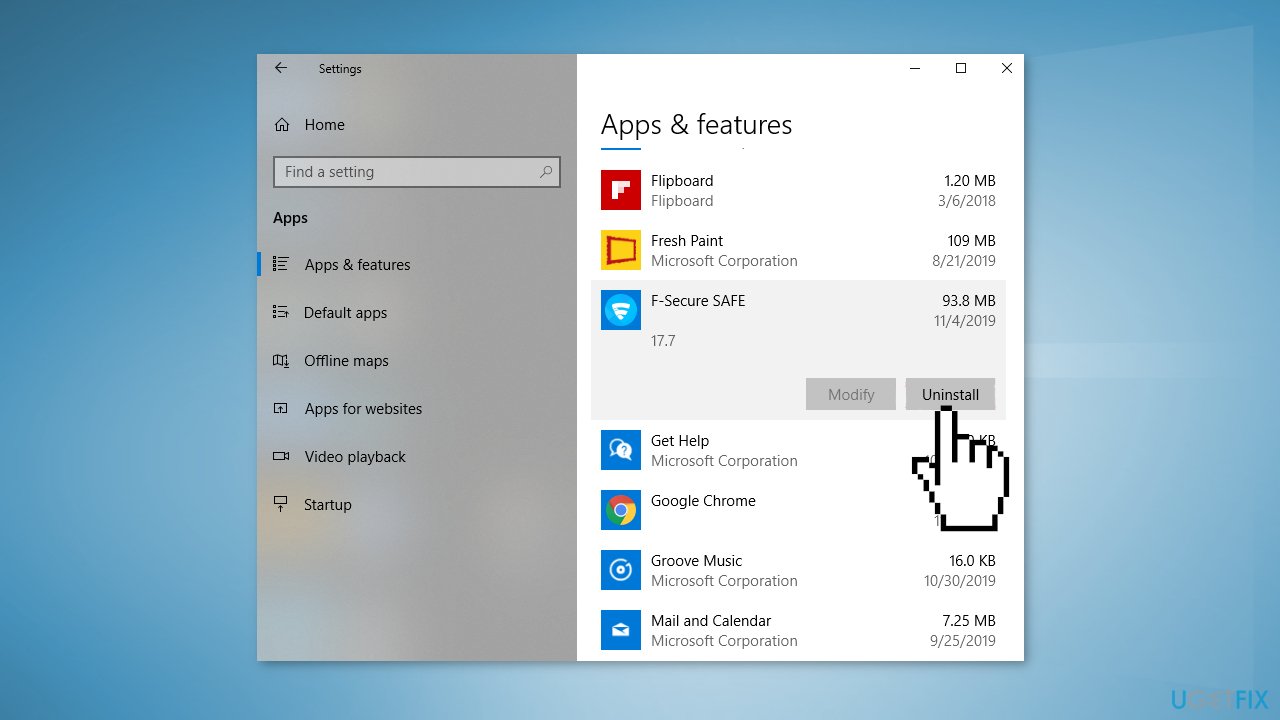
- Select Yes on the confirmation prompt
- On the Uninstaller wizard, click on Uninstall and follow the further guidelines
- Restart the computer and you should get rid of this blue screen now
Method 2. Fix Corrupted System Files
Use Command Prompt commands to repair system file corruption:
- Open Command Prompt as administrator
- Use the following command and press Enter:
sfc /scannow
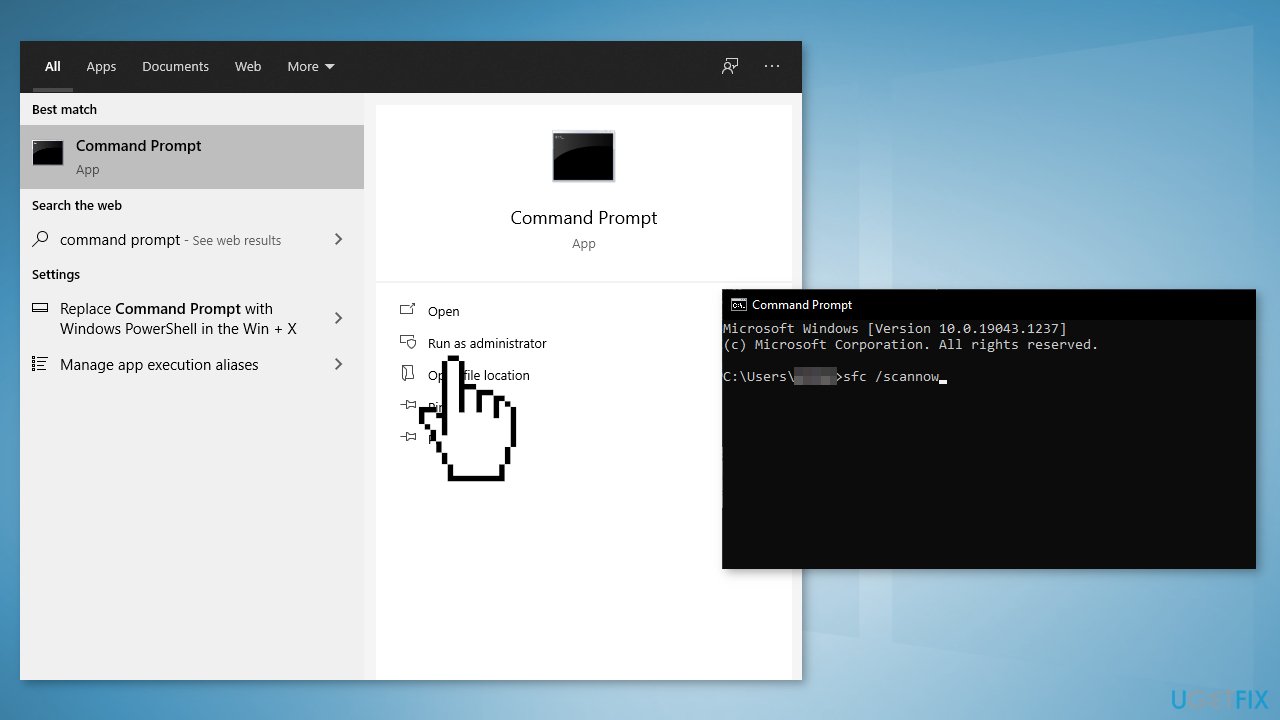
- Reboot your system
- If SFC returned an error, then use the following command lines, pressing Enter after each:
DISM /Online /Cleanup-Image /CheckHealth
DISM /Online /Cleanup-Image /ScanHealth
DISM /Online /Cleanup-Image /RestoreHealth
Method 3. Update Graphics Drivers
- Click on the Start menu and type in the words Device Manager, click on it
- Look for an entry in the list that’s related to your graphics card. It could be graphics, Standard VGA Controller, Intel Graphics, AMD Radeon, NVIDIA GeForce
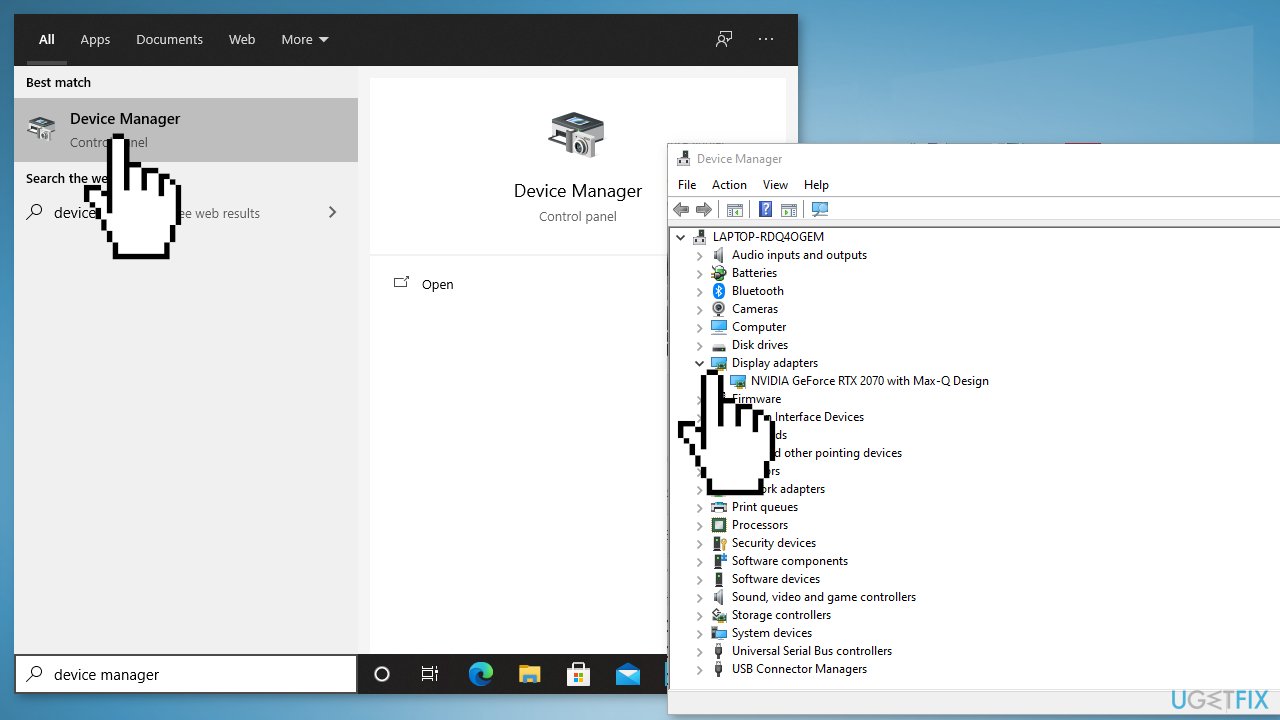
- Click on Driver tab and press on Update Driver
- Select Search automatically for updated driver software
- You can also use an automatic driver update and installation utility, like [rev id="DriverFix"] that can take care of it
Method 4. Use System Restore Point
System Restore can roll back the system back to a previous point when the error was not present. Use this utility and choose a restore point before the error started appearing.
- Search for Control Panel in your taskbar
- Change the view mode to Large icons
- Click on Recovery, then Open System Restore
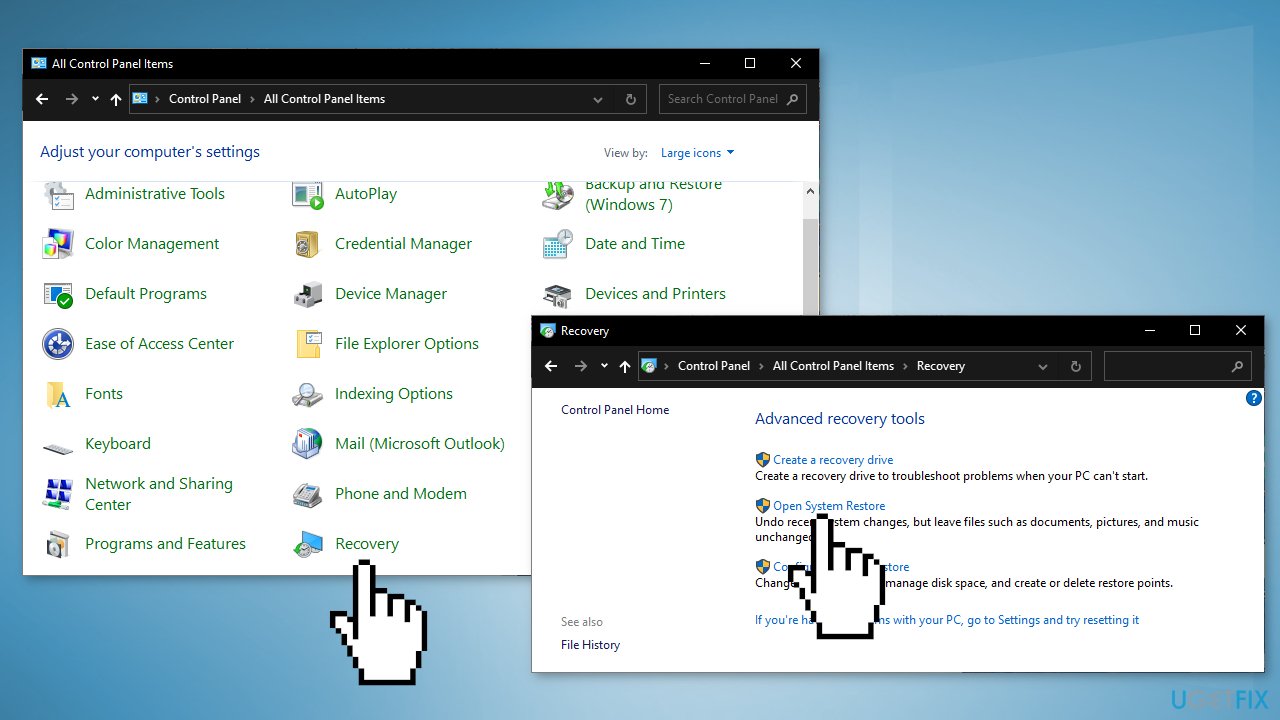
- If prompted, enter your user password
- Follow the on-screen instructions and wait for the wizard to complete the restoration
- Restart your computer
Method 5. Clean Install Windows
Performing a clean install wipes out data from the PC, so please create backups before you proceed.
- Download the ISO file
- Select Create installation media for another PC and click Next
- Select ISO file and click Next
- Click Finish
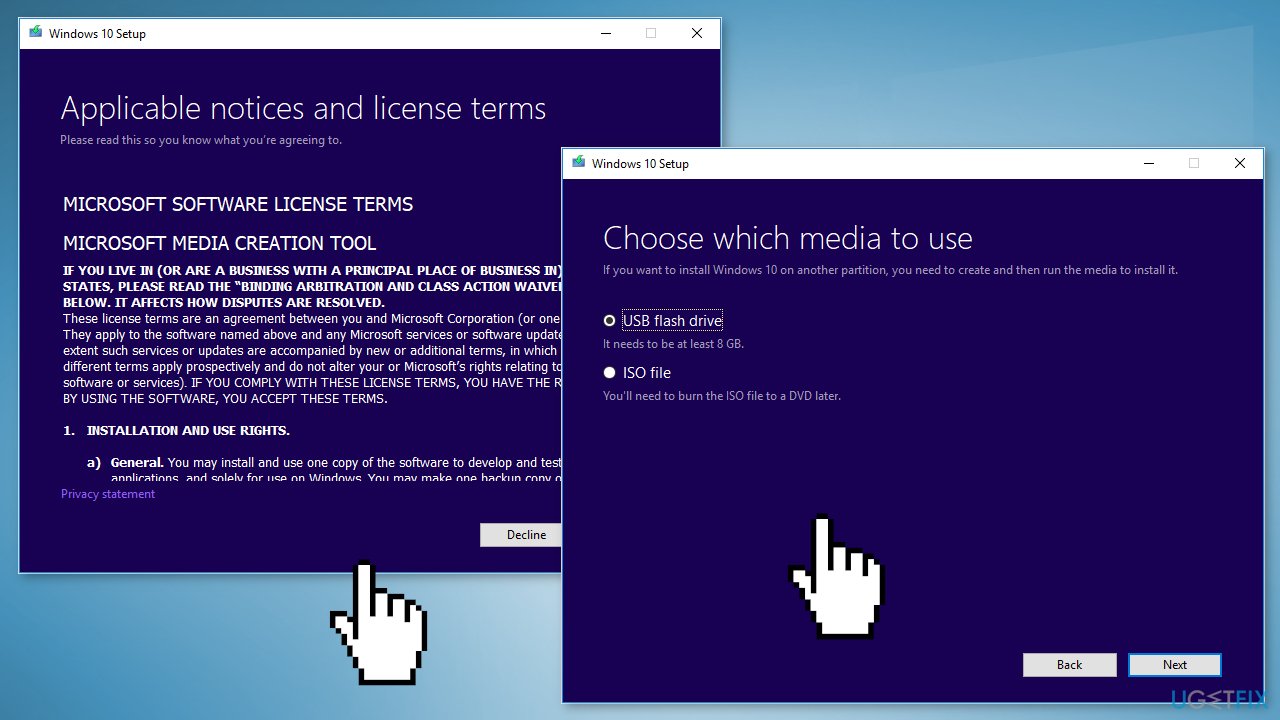
- Open the Windows ISO file you downloaded
- Open Setup and click Next
- Click Accept (Be prepared to wait; this next part may take a while)
- Click Install
- Wait for your system to restart and install Windows
Bottom line
To fix the fsulgk.sys Blue Screen error, you can uninstall third-party security software and repair corrupted system files using Command Prompt. If these methods do not resolve the issue, consider using a repair tool or completing further troubleshooting steps.
Frequently asked questions
The fsulgk.sys Blue Screen error typically indicates a problem with device drivers or corrupted system files in Windows 10 or Windows 11.
You can troubleshoot the fsulgk.sys error by updating your drivers, running a system file check with 'sfc /scannow', or performing a clean boot in Windows 10 or Windows 11.
No, removing the fsulgk.sys file is not recommended as it may lead to further system instability; instead, focus on updating or repairing the associated drivers.




Report an issue
What's wrong with this guide? We review every report and update or remove content.
Report received — thank you. We'll review and fix it.
You need a free account to submit a report.
Be the first to comment