How to fix
Game Bar recording error 0x8232360F
on Windows
Resolve the Game Bar recording error 0x8232360F on Windows 10/11 effortlessly. Follow our expert-tested guide for quick solutions. Fixed in minutes!

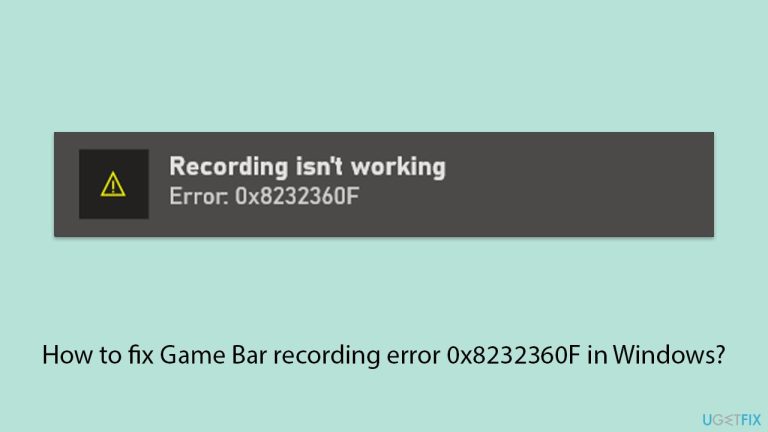
What causes How to fix Game Bar recording error 0x8232360F in Windows?
- Corrupted or misconfigured Game Bar settings
- Old or missing graphics drivers
- Bugs introduced by recent Windows updates
- App permissions or privacy settings preventing access
- Conflicts with other apps like overlays or screen recording tools
Repairs Windows system files, removes malware, and restores a clean OS state — without reinstalling.
When I try to use Captions function in Windows Game Bar, I keep getting an error which says "Recording isn't working. Error 0x8232360F." Any idea what this means and how can I fix it? I want to be able to record my gameplay footage.
0x8232360F error in the Windows Game Bar stops users from recording games or screen actions. This problem usually happens on both Windows 10 and 11 - the error disrupts the recording tool, which many gamers and content creators rely on. The problem usually arises for a few reasons, and finding the exact cause can be difficult without trying different solutions.
A major reason for the 0x8232360F error is corrupted or misconfigured Game Bar settings. Over time, files or settings within the app may get damaged, stopping it from working properly. Old or missing graphics drivers might also cause the error, as the recording feature depends on smooth communication between the system and the graphics card.
In some cases, bugs introduced by recent Windows updates can also trigger the 0x8232360F error, especially if those updates interfere with built-in apps like the Game Bar. To make matters worse, the app's permissions or privacy settings may also prevent access to essential parts like the microphone. Another common reason why the Game Bar doesn't work properly is conflicts with other apps, like overlays or screen recording tools.
Fixing the 0x8232360F error usually involves several steps, including resetting or repairing the Game Bar and updating graphics drivers. Ensuring that Windows is up to date can also resolve the issue. Adjusting privacy settings or permissions and disabling other screen recording software may help, and if standard methods fail, reinstalling the Game Bar or manually updating key drivers could be the solution.
For those seeking an automated fix, a trusted [d1] optimization and repair utility can detect and resolve underlying system issues that may contribute to the error, ensuring that the Game Bar works properly again.
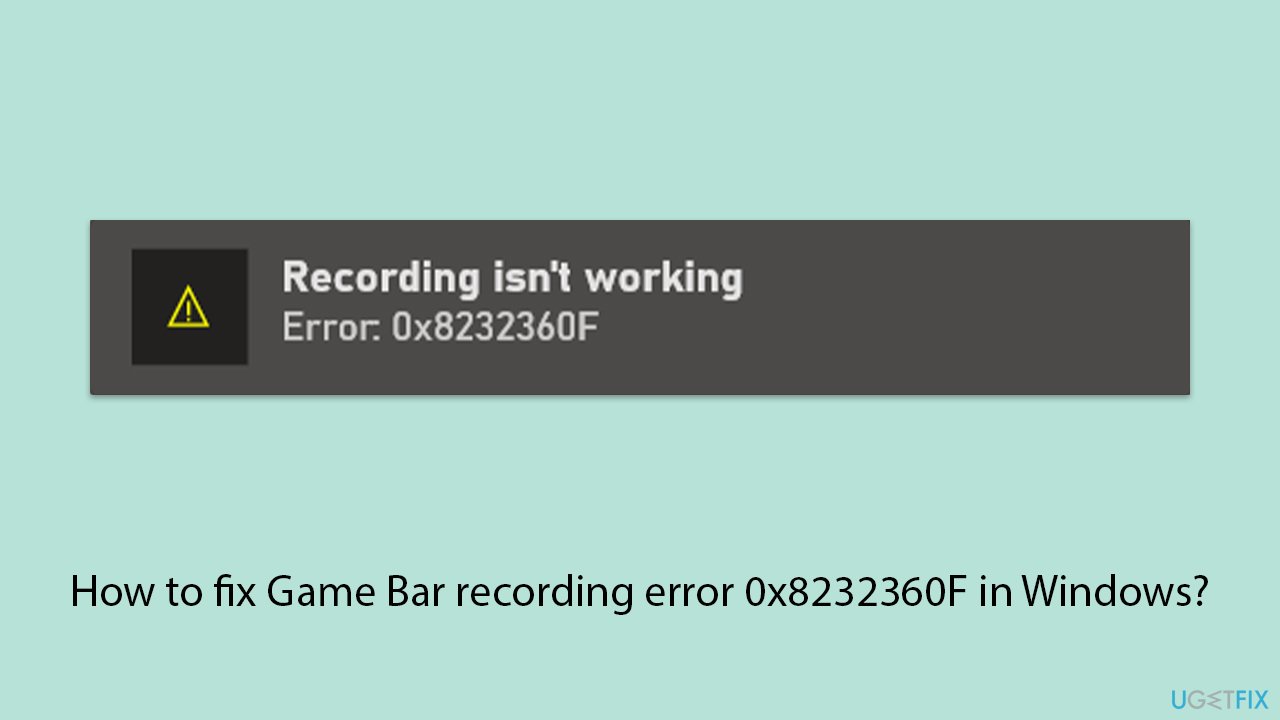
Fix 1. Repair or reset the Game Bar
Resetting the Game Bar helps restore its default settings, which can fix corrupted configurations causing the error.
- Right-click on Start and pick Apps & Features/Installed apps. In Windows 11, you will find Game Bar in Settings > System > System Components.
- Scroll down to locate the Game Bar and click (three dots) Advanced options.
- Click Terminate and Repair.
- If that does not help, try the Reset option instead.
- Repeat the same with the Gaming Services.
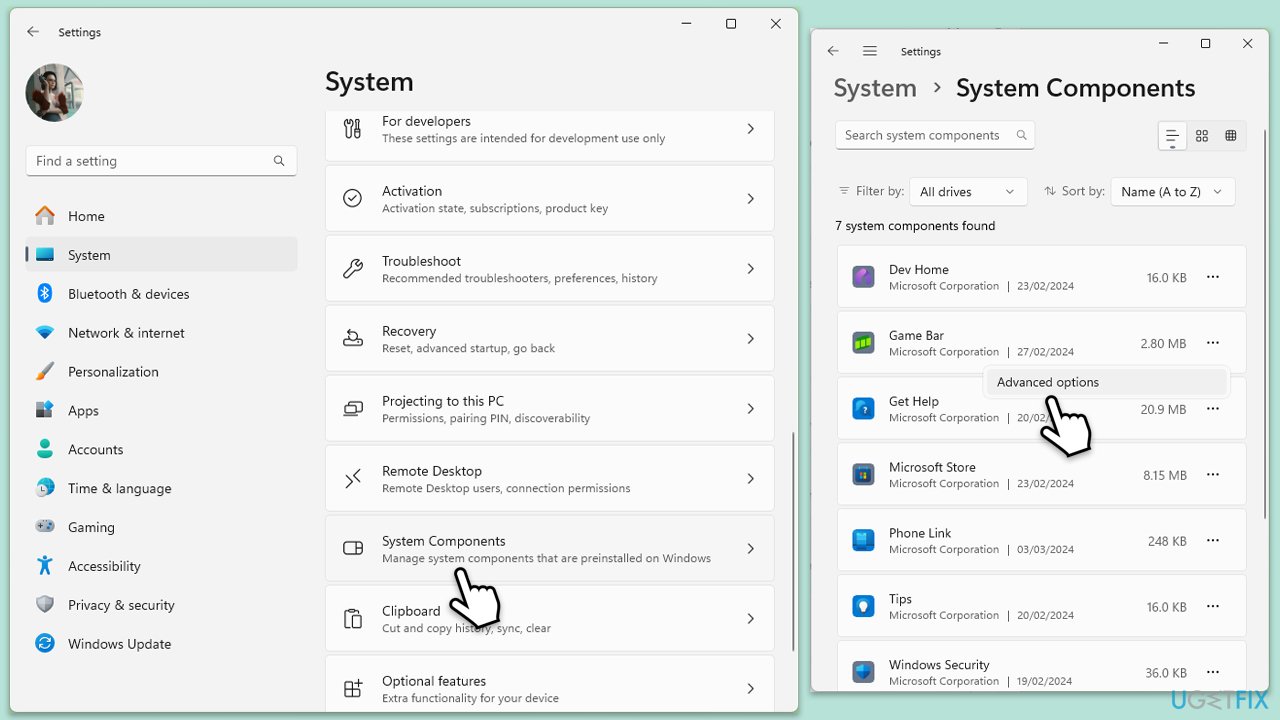
Fix 2. Update graphics drivers
Outdated or faulty graphics drivers can prevent the Game Bar from recording properly.
- Right-click on the Start button and select Device Manager from the menu.
- Expand the Display adapters section.
- Right-click on your graphics card and select Update driver.
- Pick Search automatically for drivers.
- If updates are found, allow them to install.
- Restart your computer after.
Fix 3. Check privacy settings
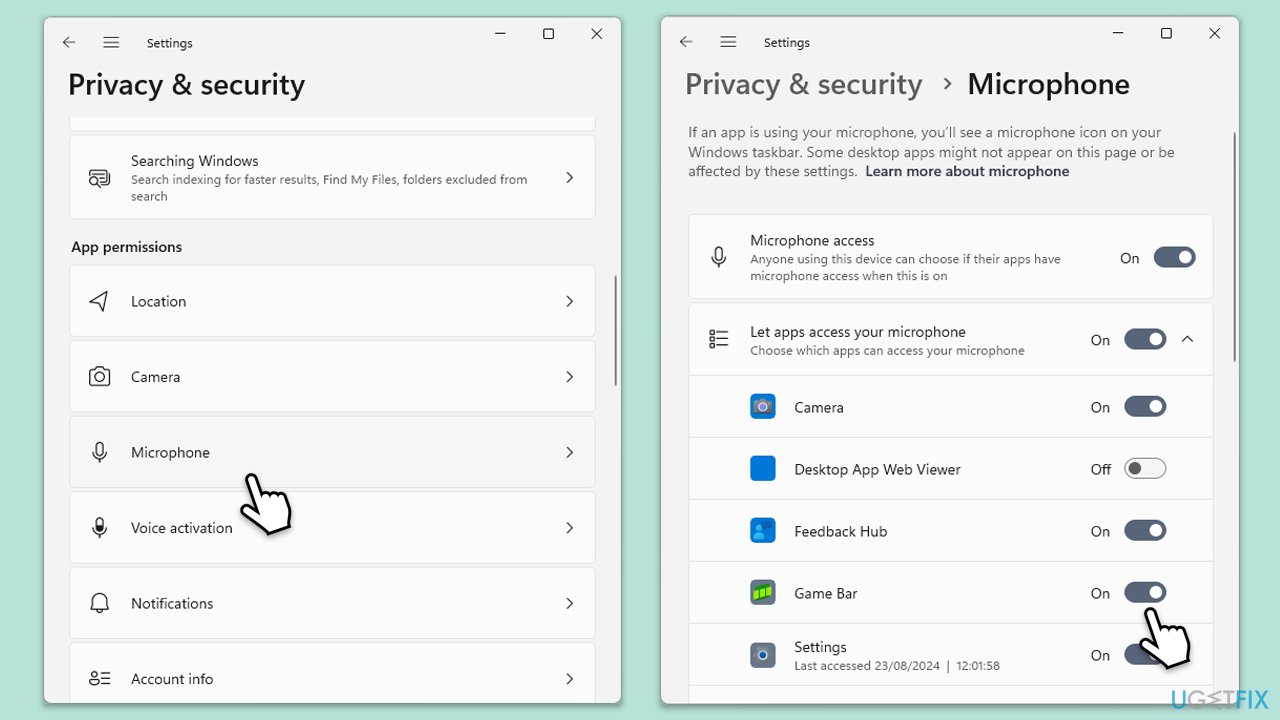
Windows privacy settings might block the Game Bar from accessing necessary components like your microphone, leading to the error.
- Press Win + I to open Settings.
- Go to Privacy, then select Microphone.
- Make sure Allow apps to access your microphone is toggled on.
- Scroll down and ensure Xbox Game Bar has permission.
Fix 4. Update Game Bar
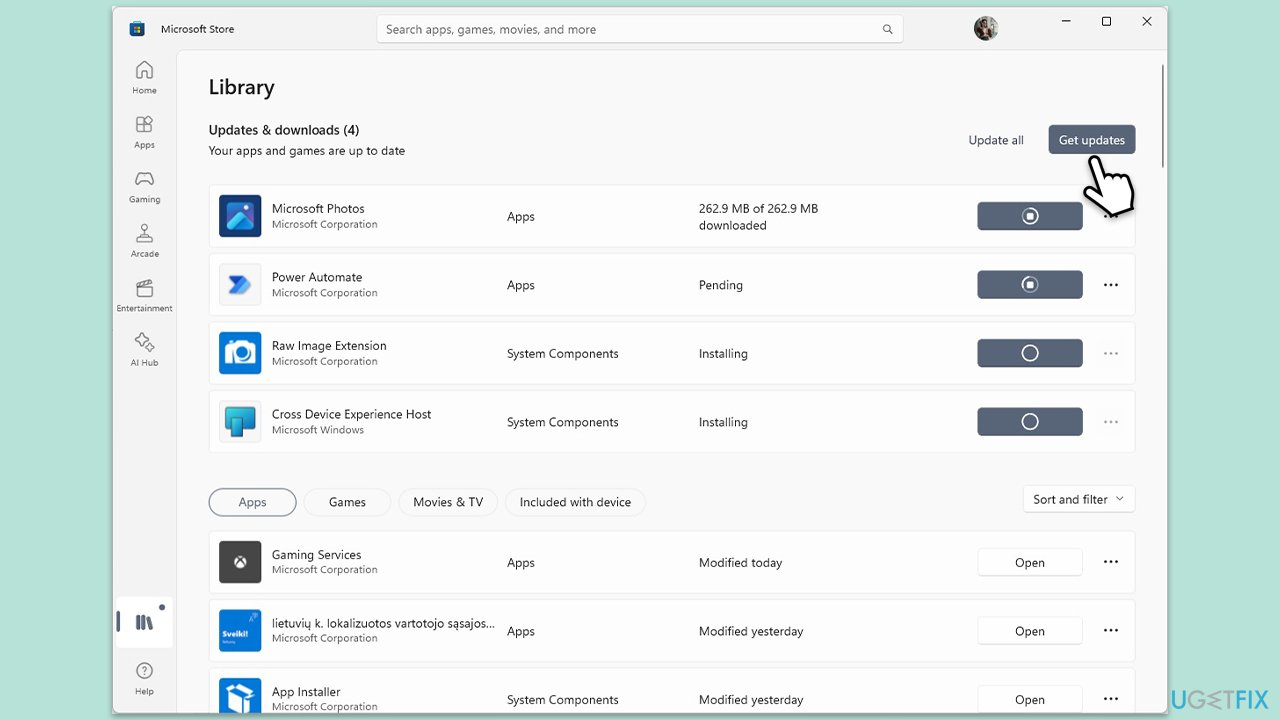
- Open the Microsoft Store from the Start menu or search bar.
- At the bottom, click on Library.
- Click Get updates to search for available updates.
- Once the update is installed, restart your computer.
Fix 5. Check for Windows updates
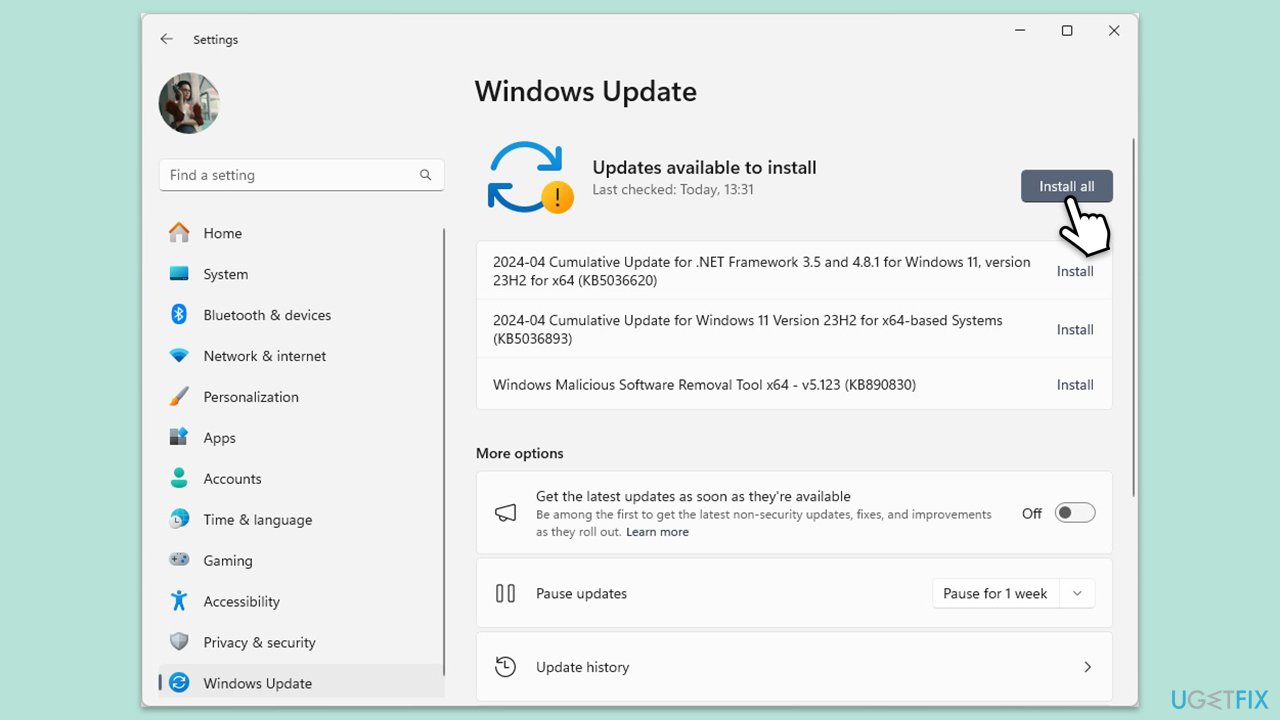
Installing the latest Windows updates often fixes bugs that could be causing issues with the Game Bar’s recording feature.
- Type Updates in Windows search and press Enter.
- Here, click Check for updates or Install updates (if available).
- Wait till Windows downloads and installs all the nescessary files.
- If optional updates are available, install them as well.
- Reboot your device.
Fix 6. Adjust game bar settings
Sometimes, a misconfiguration in the Game Bar settings can cause recording errors. Checking these settings can help resolve the issue.
- Press Win + G to open the Game Bar.
- Click the gear icon to open settings.
- Under Capturing, make sure Record in the background while I’m playing a game is enabled.
- Ensure the correct audio and video settings are selected.
Fix 7. Reinstall the Game Bar
Sometimes, reinstalling the Game Bar can resolve deeper issues with the app’s core files that might not be fixed by a reset.
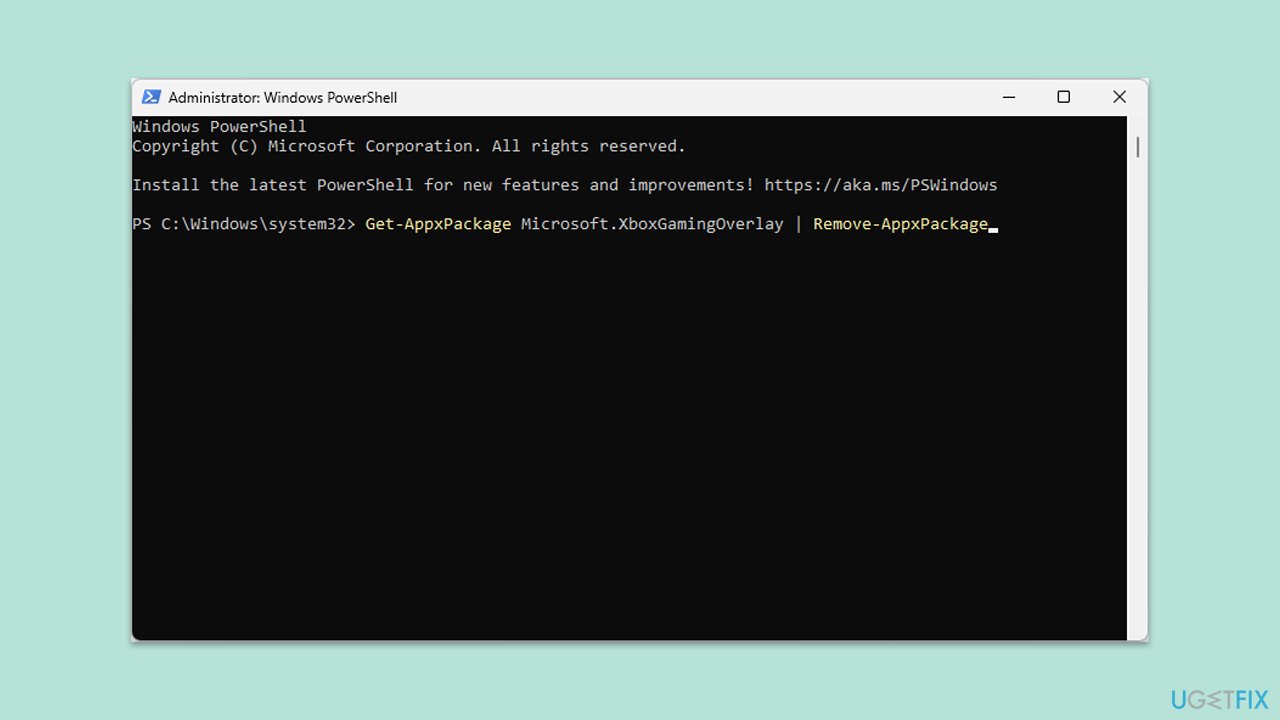
- Type PowerShell in Windows search.
- Right-click on the result and select Run as administrator.
- When UAC shows up, click Yes.
- Type the following command and press Enter:
Get-AppxPackage Microsoft.XboxGamingOverlay | Remove-AppxPackage - Restart your PC.
- After a reboot, download and install Game Bar from the MS Store.
Fix 8. Disable third-party screen recorders
Other screen recording tools can conflict with the Game Bar, causing recording issues. Disabling them may fix the error.
- Open Task Manager by pressing Ctrl + Shift + Esc.
- Under the Processes tab, look for any third-party screen recording software.
- Select the software and click End task.
- Try recording with the Game Bar again.
Bottom line
To fix the 0x8232360F error, you can repair or reset the Game Bar, update graphics drivers, ensure Windows is up to date, adjust privacy settings, and disable other screen recording software. If these methods do not resolve the issue, consider reinstalling the Game Bar or using an optimization and repair utility.
Frequently asked questions
The error 0x8232360F typically occurs due to issues with the Game Bar settings, graphics drivers, or insufficient storage space for recordings.
To check if Game Bar is enabled, go to Settings > Gaming > Xbox Game Bar and ensure the toggle is turned on.
Yes, updating your graphics drivers to the latest version can help resolve error 0x8232360F, especially on Windows 10 and Windows 11.




Report an issue
What's wrong with this guide? We review every report and update or remove content.
Report received — thank you. We'll review and fix it.
You need a free account to submit a report.
Be the first to comment