How to fix
Game Security Violation Detected error
on Windows
Fix the Game Security Violation Detected error on Windows 10 and 11 effortlessly. Get back to gaming quickly with our expert-tested solutions.


What causes How to fix Game Security Violation Detected error?
- Easy Anti-Cheat service is disabled
- Antivirus programs interfering
- In-game security breaches
- Compatibility issues
- RGB controllers causing conflicts
- Input device errors
Repairs Windows system files, removes malware, and restores a clean OS state — without reinstalling.
I have an issue with Game Security Violation Detected error. It keeps me from playing Fortnite and other games. It also has a code with zeros and random numbers. It is not the same every time I get it. It pops up when I am playing the game. Can I fix it somehow? I am not doing any things that could violate the security or other rules. Help!
Game Security Violation Detected error is the interruption that shows up when users are trying to play a game. It shows p regardless of the particular program, so the message window comes right to your screen. It is not related to any violations and game crashes, but users[ref en-1] may start to panic when the pop-up window appears put of nowhere.
As gamers report the issue appears with the particular Game Security Violation Detected error message and the code consisting of a number of zeros (#00000006; #000000010; #00000008; #0000000d) and might change each time. The problem is occurring on personal computers when Fortnite, Wildlands, and other similar games are played.
Such violation error should mean that the Easy Anti-Cheat service is disabled that often is caused by antivirus programs. Other common causes for this Game Security Violation Detected error could be in-game security breaches or issues with compatibility, RGB controllers, input device errors.[ref en-2]
It is possible to fix Game Security Violation Detected error by troubleshooting common issues or updating games, anti-virus programs, other software. The error prevents from playing the game and is coming with a random error code that is not identified. It might raise questions or fears, but don't panic. This is not a malware[ref en-3] issue or the result of a faulty Windows update.
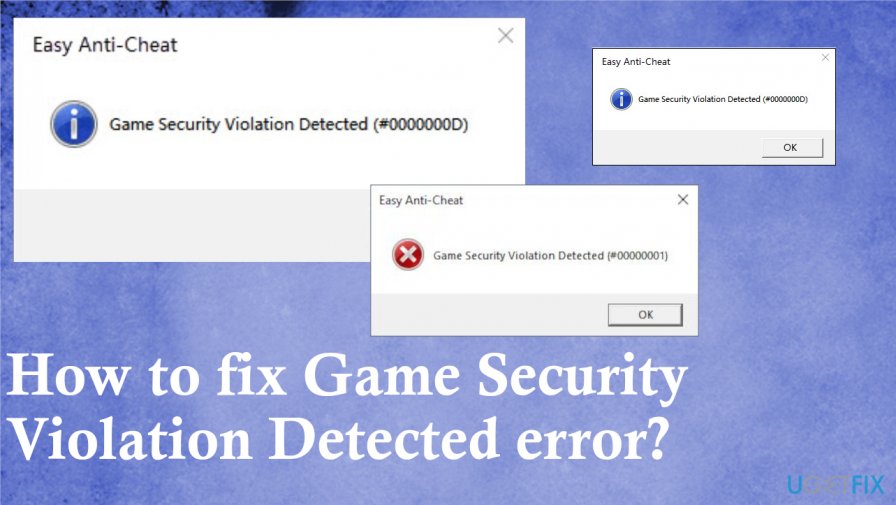
How to fix Game Security Violation Detected error
As with any other computer issues, Game Security Violation Detected error triggers interruption to normal activities, so it can create problems, but the error is not crucial or related to your device, OS, or any other more major issues. You can solve the additional problems with the machine if you notice any speed or performance issues. The error related to games shouldn't affect any functions, so run [d1] to ensure that the machine is running properly.
It might be helpful to solve any computer problems, file issues, or PUP infections before you decide to fix Game Security Violation Detected error. You can focus on the guide that shows various methods and steps that you need to take to solve the problem with your video game. Don't skip through steps since the combination of some can be the solution in your case.
Uninstall RGB software
- Press Windows and R keys to launch Run box.
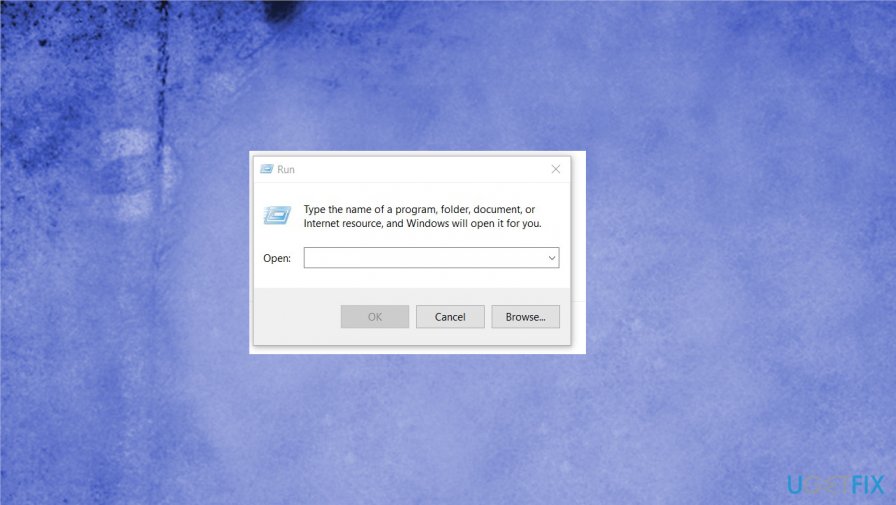
Game security violation detected error run - Then type control and hit OK.
- Control Panel opens.
- Find Programs and Features option.
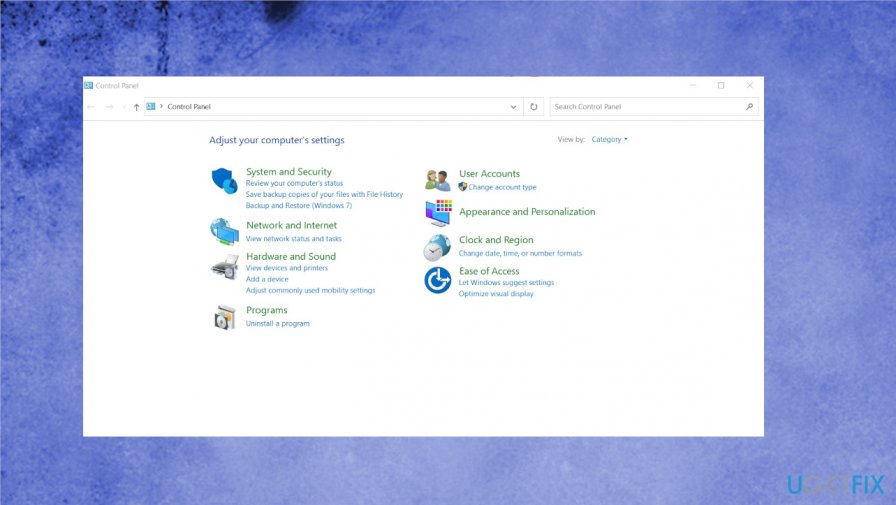
Game security violation detected error control panel - Once there, find RGB software and right-click it to choose Uninstall function.
- Run the game to see if the issue persists.
Close the lighting control software to fix Game Security Violation Detected error
- Right-click the taskbar to open Task Manager.
- Close programs that you use to customize lighting. Those might be related to processes like RGB program, Lightservices.exe, mycolor2.exe.
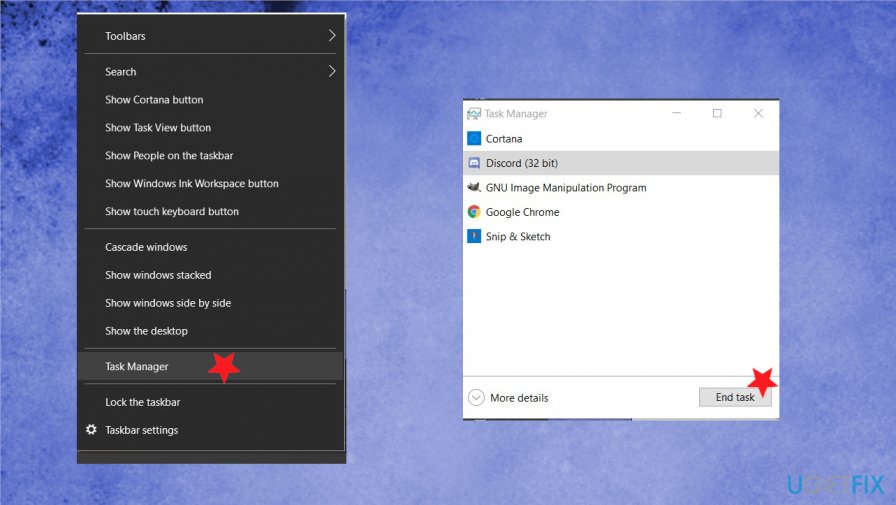
Game security violation detected error end task - Click End task to close them.
- Relaunch the game.
Update your graphics driver
Updating such pieces like drivers can fix various issues with display and errors, but it can be done manually by going to the manufacturer's site. You can get the recent driver there and install the piece yourself. It is important to use proper sources and a driver that is compatible with your version of Windows.
You can also rely on tools like [rev id="Driverfix"] that do the trick automatically.
Disable AV tools temporarily
- Find your antivirus tool icon in Windows notification section.
- Right-click on it and choose Disable.
- Run the game again.
Update Game and Game Launcher to fix Game security violation detected error
- Run your Game launcher and go to Settings.
- Find Help in the About section.
- Search for Check for updates.
- Open the Game properties and hit Update.
- Restart the launcher and force the update.
Bottom line
To fix the Game Security Violation Detected error, you can troubleshoot common issues, update games, and ensure your antivirus programs are not blocking necessary services. If the problem persists, consider checking for compatibility issues or device errors. If none of these solutions work, further investigation may be needed.
Frequently asked questions
To fix the Game Security Violation Detected error on Windows 10, ensure that your game files are verified for integrity and check if any third-party applications are interfering with the game's operation.
On Windows 11, make sure to disable any overlays from applications like Discord or GeForce Experience, as these can trigger the Game Security Violation Detected error.
Check for updates to your anti-cheat software and ensure it is properly installed; this is crucial for resolving the Game Security Violation Detected error on both Windows 10 and Windows 11.




Report an issue
What's wrong with this guide? We review every report and update or remove content.
Report received — thank you. We'll review and fix it.
You need a free account to submit a report.
Be the first to comment