How to fix
Games not using GPU
on Windows
Fix GPU issues in Windows 10 and 11 for smoother gaming. Follow these expert-tested solutions to ensure your games run at peak performance.


What causes How to fix games not using GPU in Windows?
- Old or incompatible drivers
- Improper power settings
- Incompatible applications
- Driver faults
Repairs Windows system files, removes malware, and restores a clean OS state — without reinstalling.
Hello. The video games are not utilizing my graphics card on Windows. How do I fix this?
Games not using the GPU on Windows computers is an annoying and frequent issue that can have a big influence on consumers' gaming experiences. Modern computers typically have a dedicated GPU in addition to integrated graphics, which are typically delivered by the CPU. More graphically intensive tasks, like gaming, can be handled by the dedicated GPU with increased performance and fluid images. The dedicated GPU, however, might not always be recognized or used by games, which would lead to subpar performance, frame rates, and visual quality.
The effects of this problem on users can vary. Even on computers that can run the games smoothly, gamers may first notice a considerable decline in performance and visual quality. Games that have these issues are less engaging and immersive. They may lag, stutter, or have graphical abnormalities. This can be particularly troublesome for competitive gamers because it has an impact on their responsiveness and overall gameplay experience. Furthermore, the GPU use issue may prevent users who purchase high-performance hardware to play visually appealing games from taking full advantage of their system.
This issue may be caused by a number of things, such as old or incompatible drivers,[ref en-1] improper power settings, incompatible applications, or driver faults. Fortunately, there are potential fixes for this problem, but they might differ based on the particular system and circumstances.
In this guide, you will find 6 steps that should help you fix games not using GPU in Windows. You can also run a repair tool like [d1] that should help you fix most system errors, BSODs,[ref en-2] corrupted files, and registry[ref en-3] issues. Otherwise, follow the step-by-step instructions below.
Method 1. Install Windows Updates
- Press the Windows key + R to open the Run box.
- Type ms-settings:windowsupdate in the text box and press Enter.
- Click the Check for updates button.

- If a new update is available, click the Download & Install all button.
- Restart your computer after the process is finished and check to see if the problem is fixed.
Method 2. Upgrade Graphic Performance Settings
- Press the Windows key + I to open Settings.
- Click on System in the left pane, then select Display.
- Under Related settings, click on Graphics.
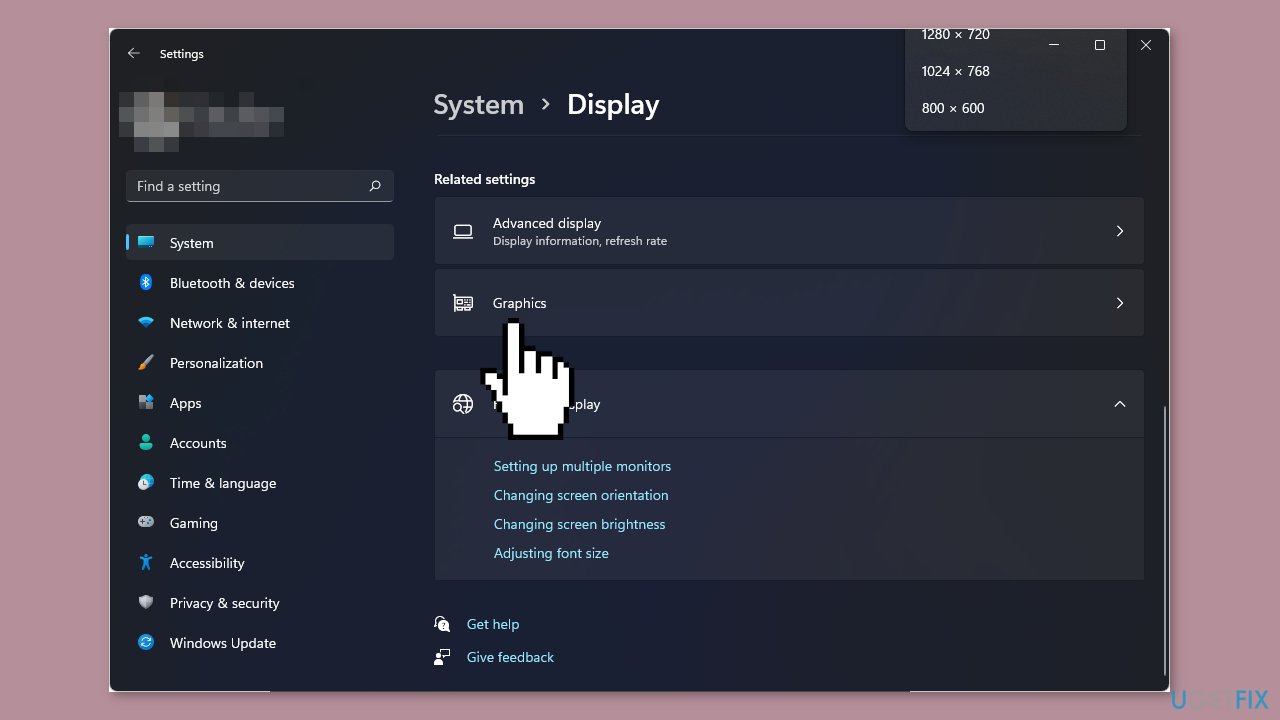
- From the list, select your preferred game.
- Click on Options.
- Choose High Performance.
- Click Save.
Method 3. Update Graphics Driver
- Click the Windows key.
- Type Device Manager in the search bar.
- Click on Device Manager to open it.
- In Device Manager, navigate to Display adapters and expand it.
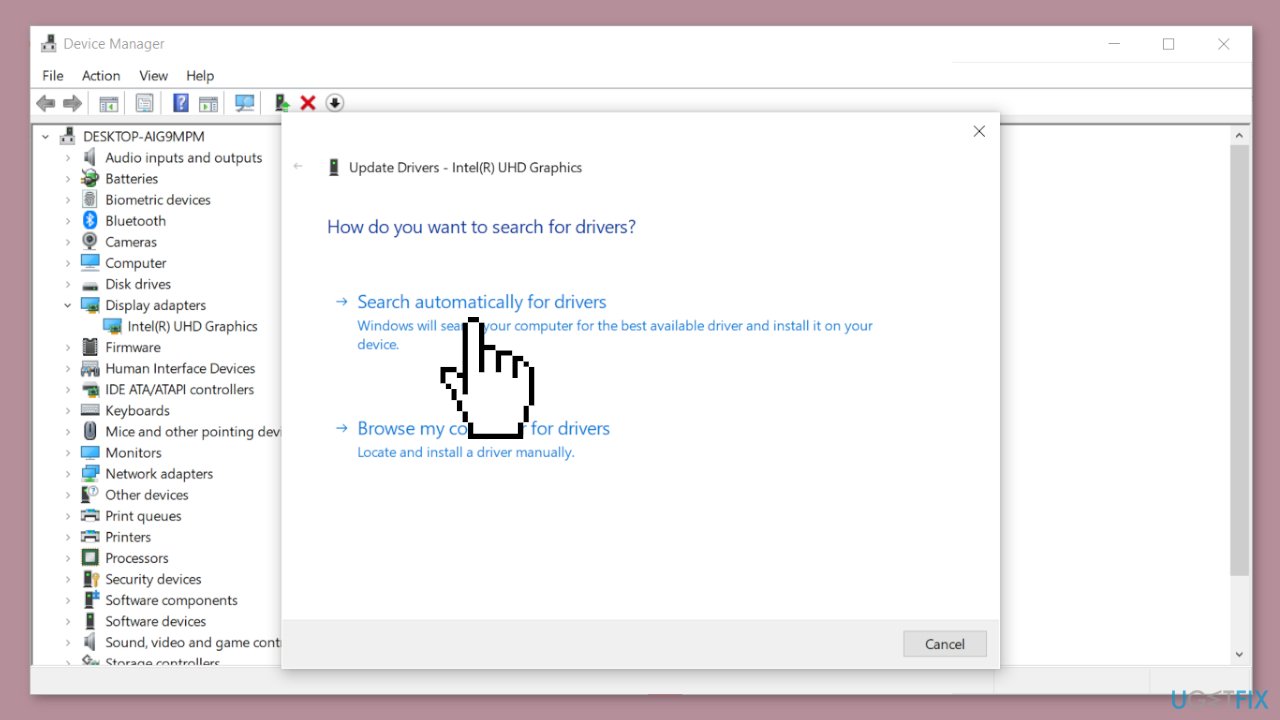
- Right-click on your graphics card.
- Select Update driver from the context menu.
- Choose Search automatically for drivers.
You can also use a dedicated utility, like [rev id="DriverFix"] that can find the best drivers for your machine and install them automatically.
Method 4. Reinstall the Graphics Card
- Click the Windows key.
- Type Device Manager in the search bar.
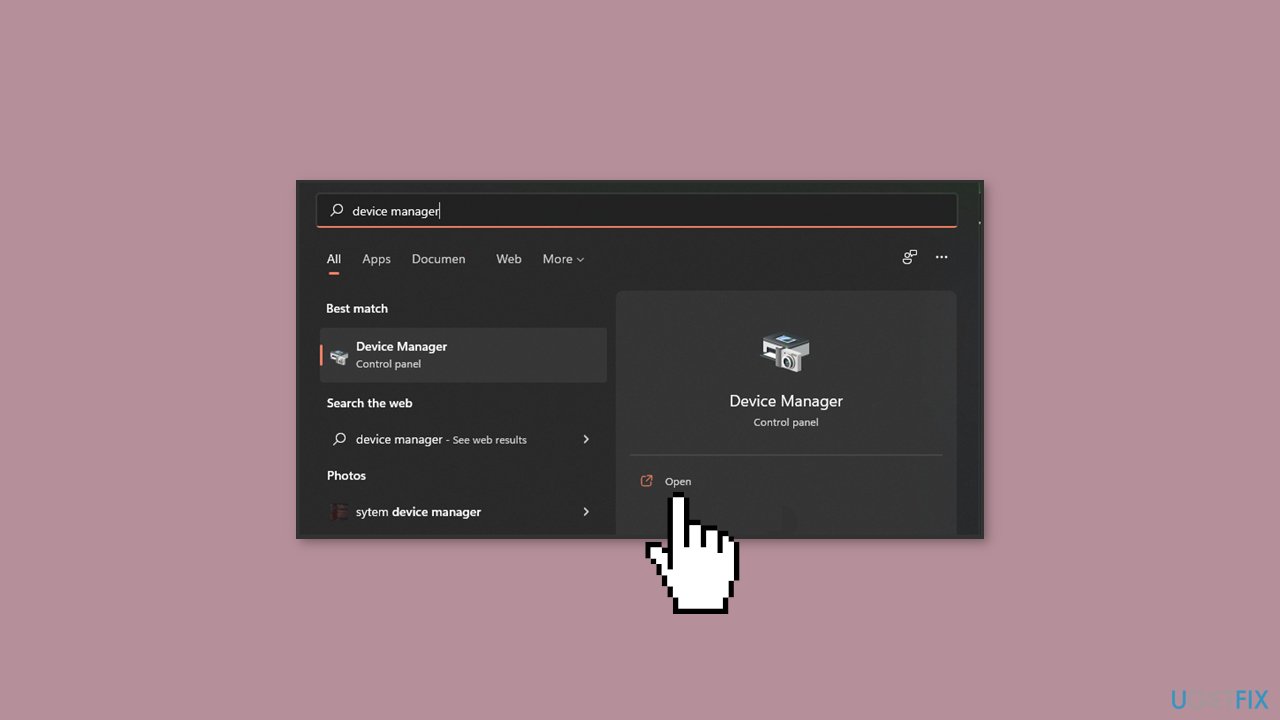
- Click on Device Manager to open it.
- In Device Manager, locate and click on Display adapters to expand the category.
- Right-click on your graphics card.
- Select Uninstall device from the context menu.
- Restart your PC.
- The drivers will be automatically reinstalled after the restart.
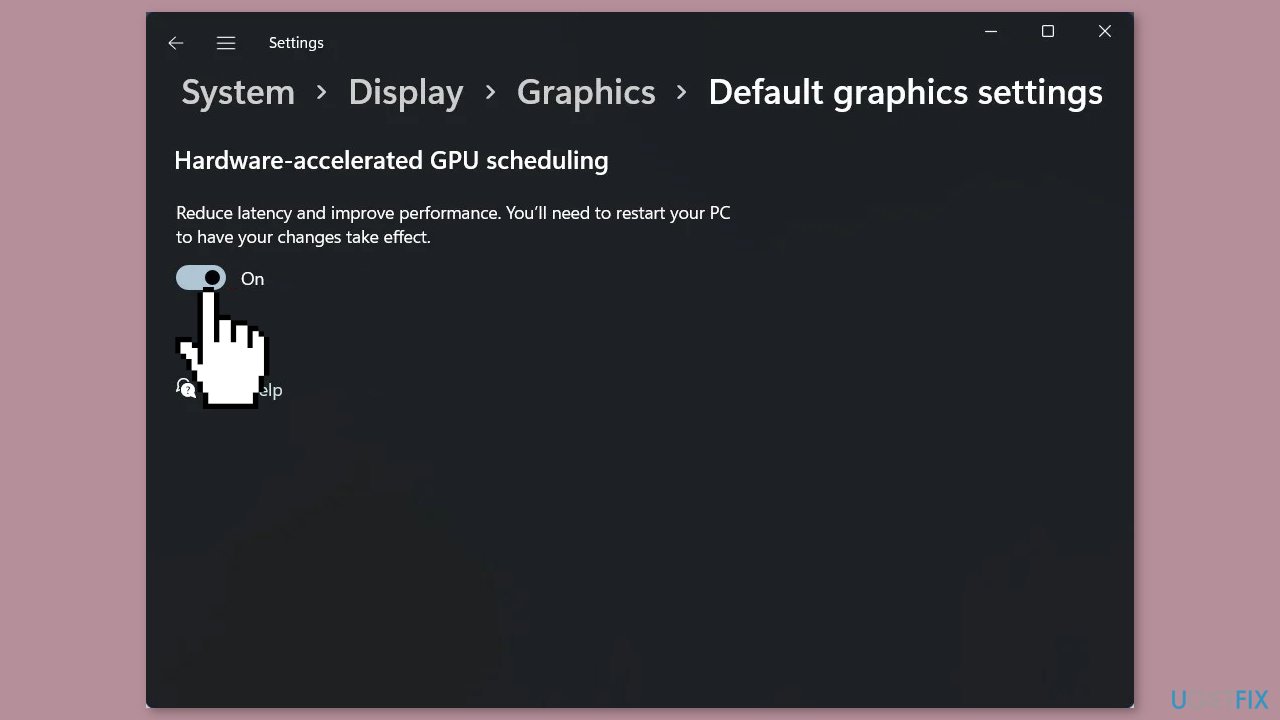
Method 5. Enable Hardware Acceleration
- Press the Windows key.
- Select Settings.
- Click on System in the left pane.
- Click on Display in the right pane.
- Scroll down and choose Graphics.
- Select Change default graphics settings.
- Toggle on the Hardware-accelerated GPU scheduling option.
Method 6. Use a Dedicated GPU
- Click on the Start Menu icon.
- Type Device Manager in the search bar.
- Click on Device Manager to open it.
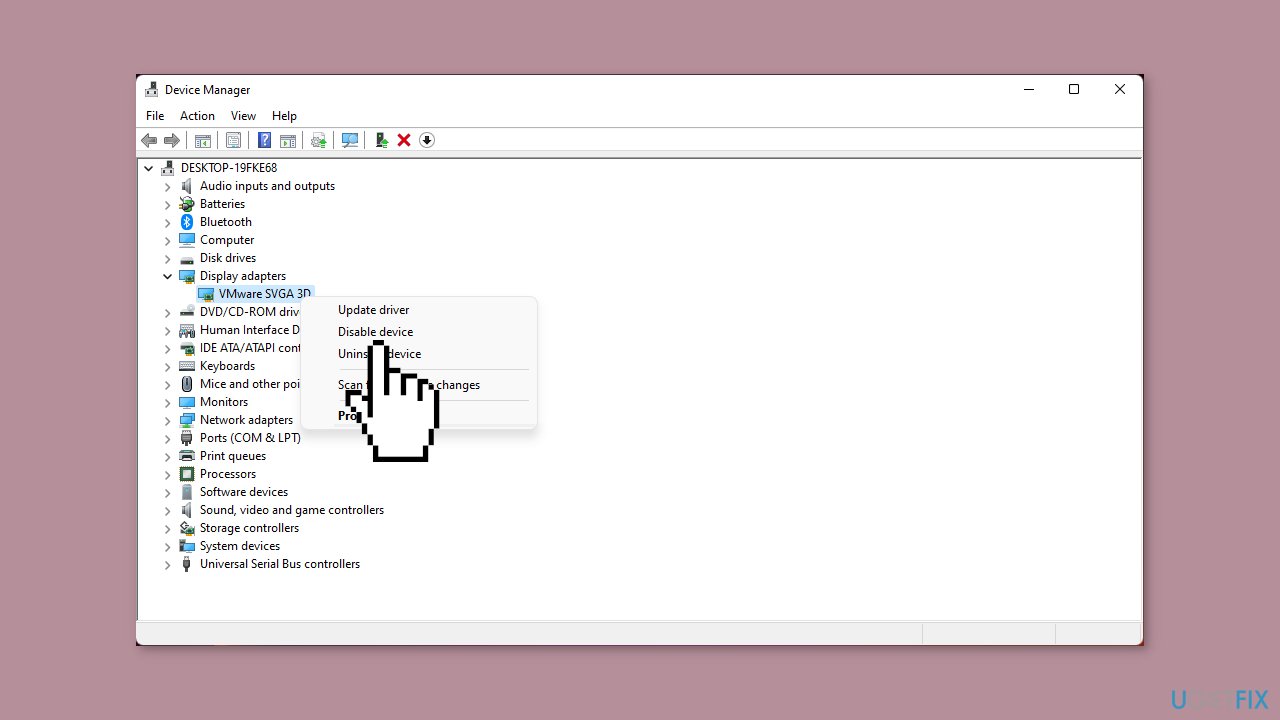
- In Device Manager, find and click on Display adapters to expand it.
- Right-click on your graphics card.
- Select Disable device from the context menu.
- Next, open your dedicated graphics card control panel (e.g., Nvidia Control Panel).
- From the navigation pane on the left, select Manage 3D settings.
- Choose High-performance NVIDIA processor from the Preferred graphics processor dropdown menu.
Bottom line
To fix games not using the GPU in Windows, you can install Windows updates, check for driver updates, and adjust power settings. If these steps do not resolve the issue, consider running a repair tool to address system errors.
Frequently asked questions
You can check GPU usage by opening the Task Manager, going to the 'Performance' tab, and selecting 'GPU'. This will show you the percentage of GPU usage while the game is running.
Go to 'Graphics Settings' in Windows 10 or Windows 11, select your game, and set it to use 'High performance' to force it to utilize the dedicated GPU.
If the game doesn't recognize the GPU, ensure that your graphics drivers are updated, and check the game’s internal settings to select the GPU manually if available.




Report an issue
What's wrong with this guide? We review every report and update or remove content.
Report received — thank you. We'll review and fix it.
You need a free account to submit a report.
Be the first to comment