How to fix
Gaming features aren’t available for Windows desktop or File Explorer error
on Windows
Resolve the "Gaming features aren't available" error on Windows 10 or 11 effortlessly. Get back to gaming quickly with expert-tested solutions!


What causes How to fix Gaming features aren’t available for Windows desktop or File Explorer error?
- Missing Windows updates
- Disabled Game Mode
- Disabled Game DVR
- Incorrect installation of Windows Media Pack
Repairs Windows system files, removes malware, and restores a clean OS state — without reinstalling.
Hello. I tried to record my screen using the Xbox Game Bar. However, when I open it the record option is unavailable. What could be the problem?
The Xbox Game Bar is a gaming overlay built into Windows 10 and Windows 11. With a simple keyboard shortcut - Windows key + G, users get access to many widgets that let them capture game clips, take screenshots, monitor and manage performance, communicate with friends, and so on, without having to exit the game they are playing.
However, some users have difficulties with one particular function of Game Bar - screen capturing. People say that when they open Game Bar and want to press the record button, it is grey, which means it is unavailable for use. It is unknown why exactly this issue appears, there are multiple possibilities.
The Gaming features may be unavailable because of missing Windows updates, disabled Game Mode, and Game DVR. In this guide, you will find 6 steps that could help you fix the Gaming features aren't available for Windows desktop or File Explorer error.
Manual troubleshooting can be a lengthy process, so you can also try to scan your machine with a maintenance tool like [d1]. This powerful software can fix various system errors, BSODs,[ref en-1] corrupted files, and registry[ref en-2] issues. Otherwise, follow the step-by-step instructions below.
Solution 1. Install Available Updates
- Right-click on Start and pick Settings
- Go to the Update & Security section
- Click Check for updates
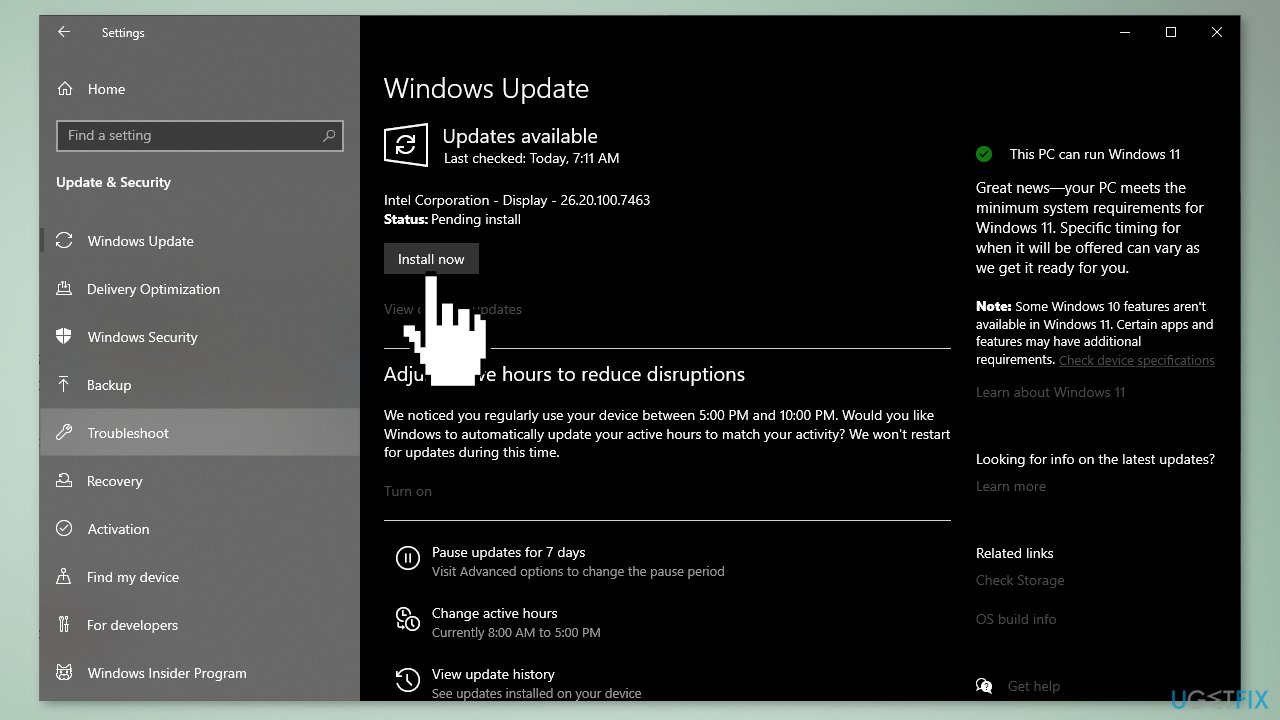
- You might see the View optional updates option – click it
- Select everything you want and then pick Download and install
Solution 2. Add the Windows Media Pack
- Open the Windows Media Pack page
- Click the Download button
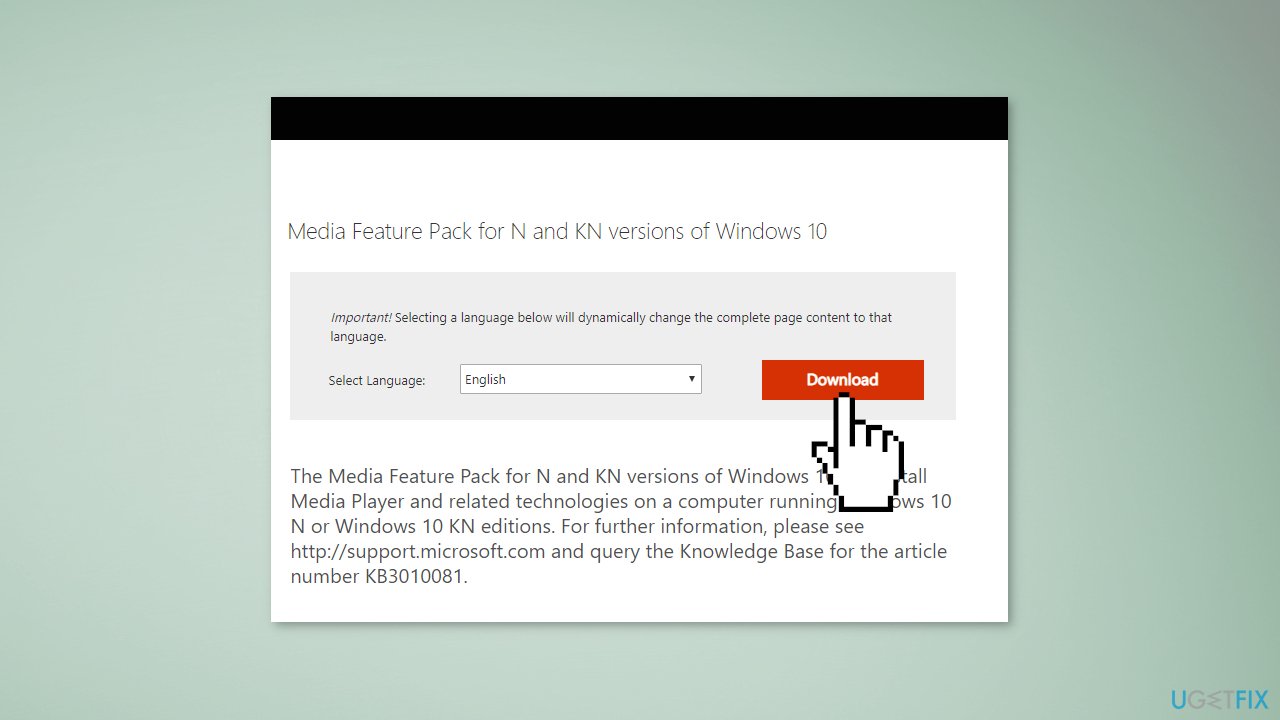
- Select an installation pack for either 32 or 64-bit Windows, and press the Next button
- Then open the downloaded installer to install the media pack
Solution 3. Enable Game DVR
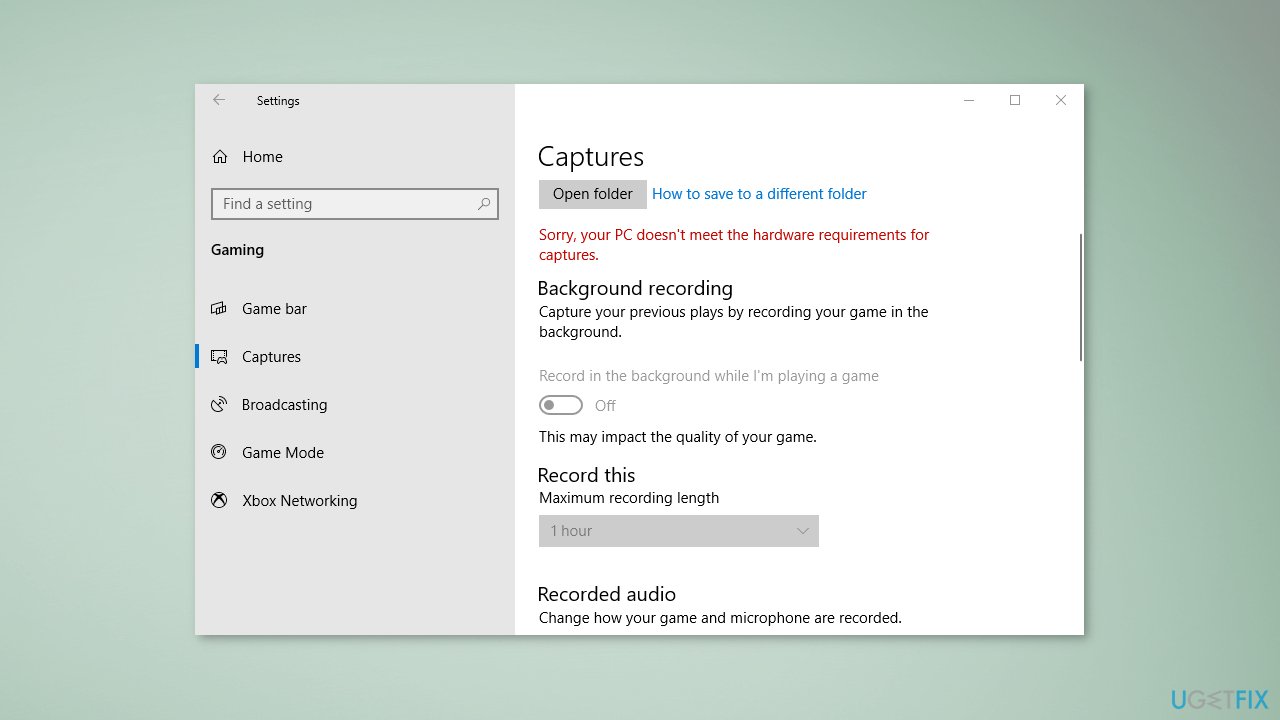
- Go to the Game Bar Settings
- Click on the Capturing tab
- Toggle on Record in the background while I’m playing a game
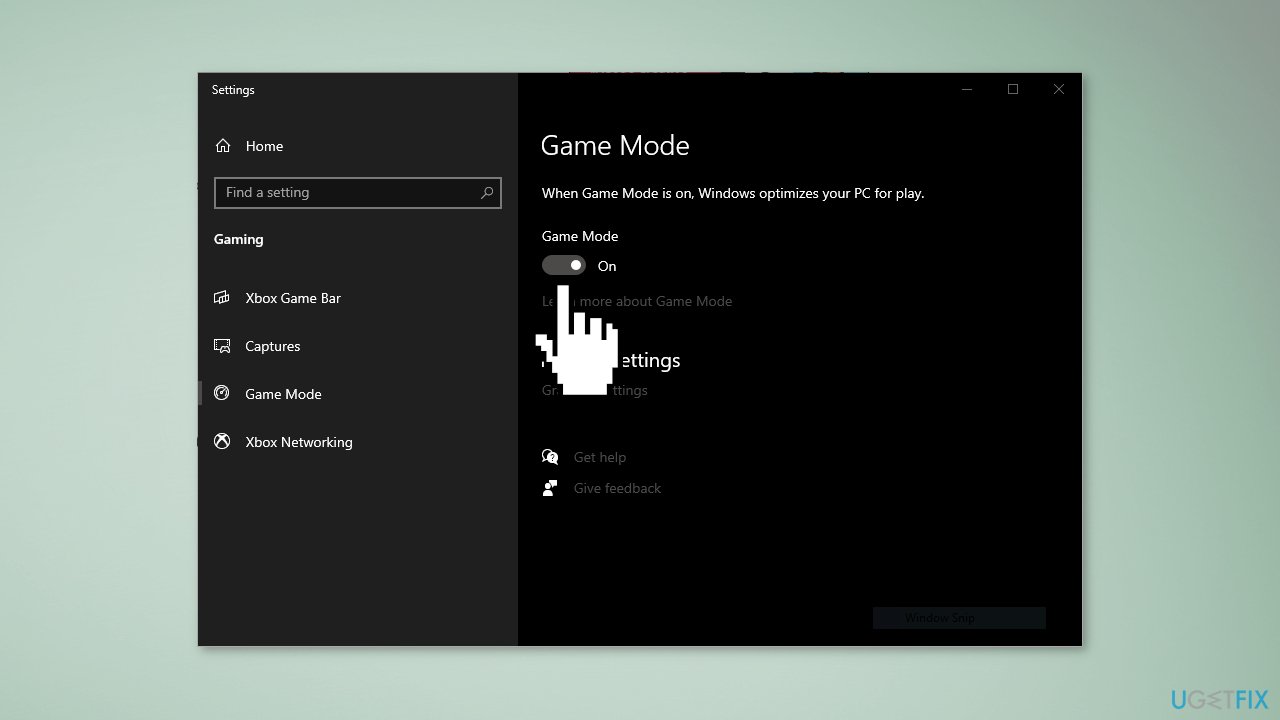
Solution 4. Turn on Game Mode
- Go to Windows Settings and click on Gaming
- Go to the Game Mode tab and toggle Game Mode on
Solution 5. Open Game Bar from the Windows Store
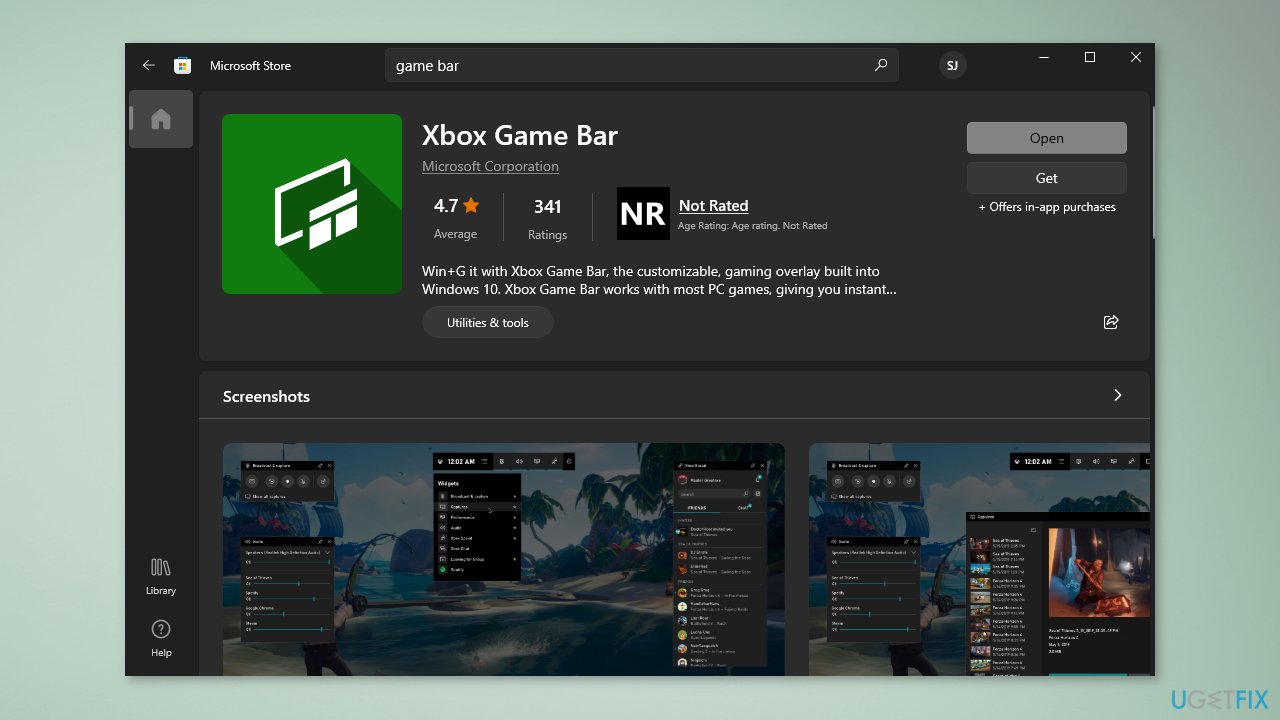
- Open Game Bar from Windows Store. Make sure that the recording button is activated.
- Click on the screen to hide the Game bar tools
- Navigate to the window you want to capture
- Hit the Windows key + G to reopen Game Bar. Make sure that the recording button is still activated.
- Make a video
Solution 6. Reinstall Xbox Game Bar
- Press Windows key + X
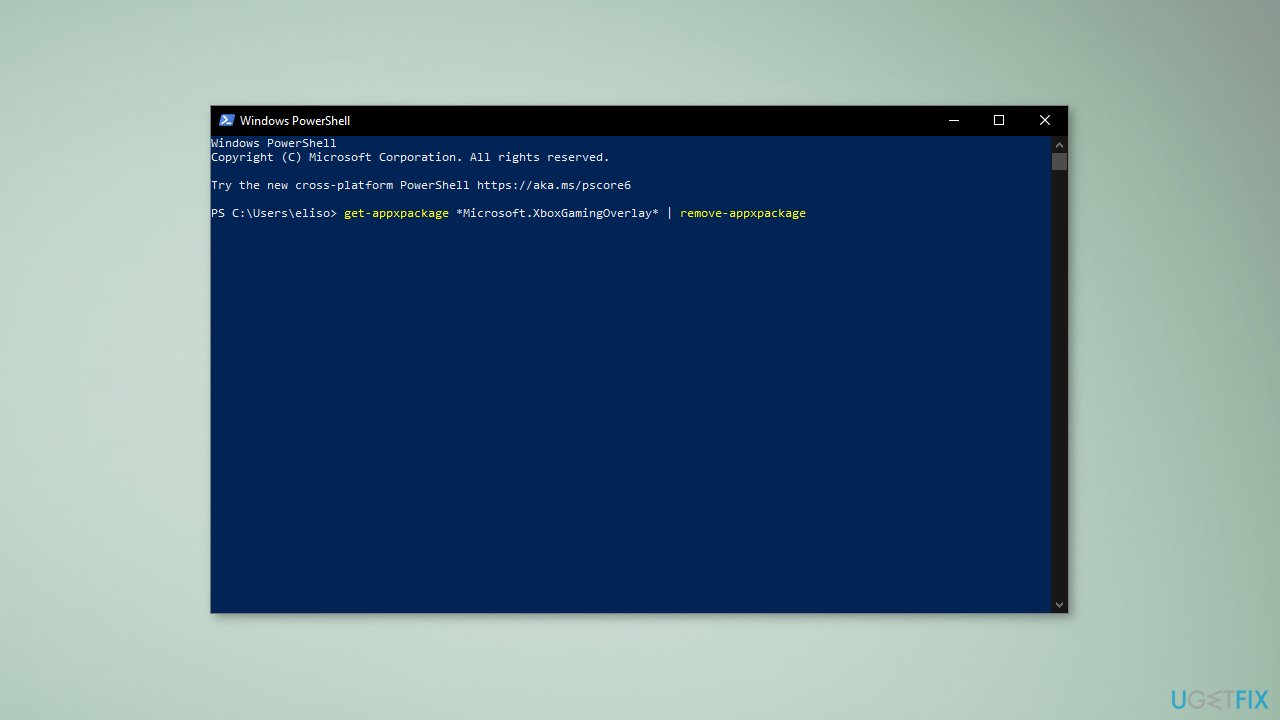
- Click and Run Windows PowerShell as an Administrator
- Copy and paste the command below then press Enter:
get-appxpackage *Microsoft.XboxGamingOverlay* | remove-appxpackage
- Go to the Microsoft Store and download Xbox Game Bar
Bottom line
To fix the Gaming features aren't available error, you can install available Windows updates, add the Windows Media Pack, and enable Game DVR. If these solutions do not resolve the issue, consider scanning your machine with a maintenance tool.
Frequently asked questions
First, ensure that your Windows 10 is updated to the latest version. Then, check the Game Mode settings in the Game Bar and make sure that Game Mode is enabled.
In Windows 11, try resetting the Gaming services by accessing the Settings app, navigating to Apps, and selecting Optional features to reinstall Gaming services.
If the error occurs for specific games, try running them as an administrator or checking for game updates through the game launcher.




Report an issue
What's wrong with this guide? We review every report and update or remove content.
Report received — thank you. We'll review and fix it.
You need a free account to submit a report.
Be the first to comment