How to fix
Gaming Services error 0x80073d27
on Windows
Resolve Gaming Services error 0x80073d27 in Windows 10/11 effortlessly with expert-tested solutions. Fix it in minutes and enjoy uninterrupted gaming!

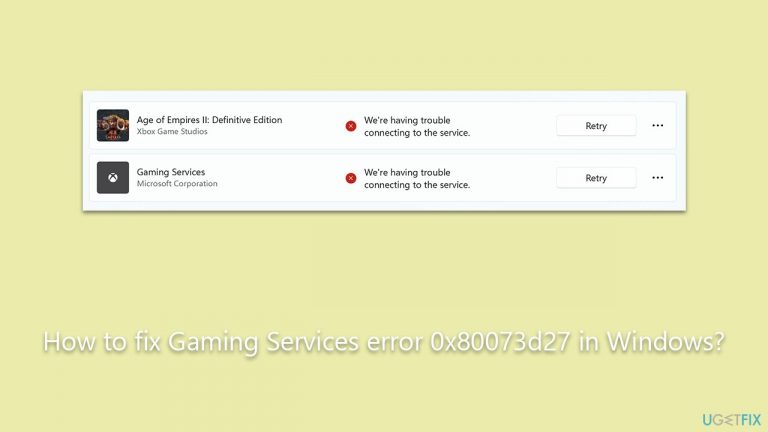
What causes How to fix Gaming Services error 0x80073d27 in Windows?
- Corrupted system files
- Outdated system files
- Compatibility issues with the Xbox app
- Incorrectly configured system settings
- Traces of previous installations of Gaming Services
Repairs Windows system files, removes malware, and restores a clean OS state — without reinstalling.
So I keep being asked to install Gaming Services in the Xbox app, but I keep receiving a 0x80073d27 error when I try. What can I do to fix this?
Gaming Services are an essential component within Windows 10 and Windows 11 operating systems, allowing the Xbox app to function correctly. This system application plays a crucial role in facilitating seamless gameplay and interaction with Xbox games on your PC, serving as the foundation for various gaming functionalities such as installations, updates, and in-game purchases.
However, some users encounter an issue identified by the error code 0x80073d27 when trying to install Gaming Services. This specific error prevents the successful installation of the service, consequently hindering access to many games on their PCs.
The root cause of the 0x80073d27 error could be multifarious, ranging from system-related glitches to more intricate software conflicts. One of the common culprits is corrupted or outdated system files that could potentially interfere with the operation of the Gaming Services.
Another possibility might be compatibility issues with the current version of the Xbox app or the Windows OS. Yet, the user may also run into this problem due to incorrectly configured system settings or if there are traces of previous installations of the Gaming Services that didn't uninstall properly.
To resolve the error 0x80073d27, users could attempt several troubleshooting steps. It might be as simple as updating the system and the Xbox app to the latest version or performing a clean boot to start the system with a minimal set of drivers and startup programs. More technical approaches could involve resetting the Microsoft Store cache, uninstalling and reinstalling the Gaming Services, or tweaking certain system settings.
In the midst of these error occurrences, it's essential to remember that not all users are comfortable dealing with technical aspects. Therefore, using a professional tool like the [d1] PC repair tool can be a practical solution. This software is designed to automatically diagnose and fix common PC problems, reducing the chances of further system complications and saving valuable time.
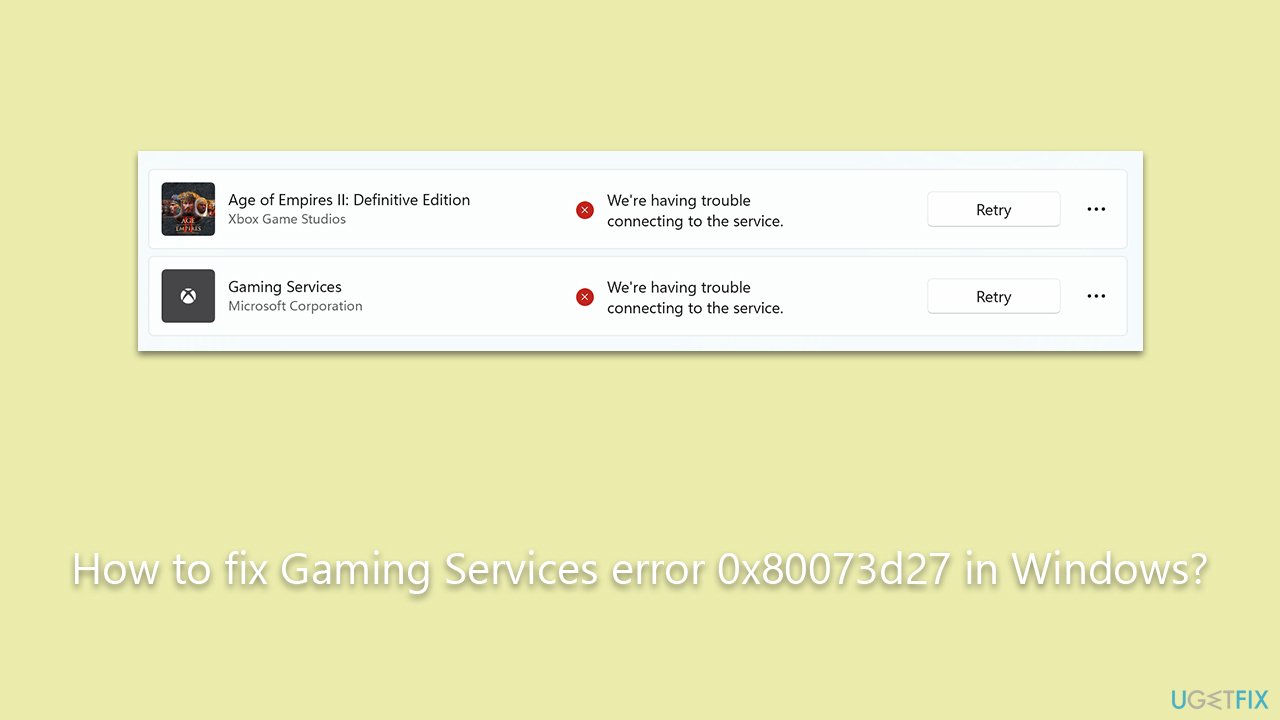
Fix 1. Use Microsoft Store app troubleshooter
A troubleshooter is a built-in tool in Windows designed to diagnose and resolve issues. In this case, it can identify problems with the Microsoft Store app that might be causing the error.
- Type in Troubleshoot in Windows search and hit Enter.
- Pick Additional Troubleshooters/Other troubleshooters option.
- Scroll down to find Windows Store Apps section.
- Click Run the troubleshooter/Run and wait for the troubleshooter to finish scanning the system.
- Follow the on-screen instructions to fix any issues that the troubleshooter has found.
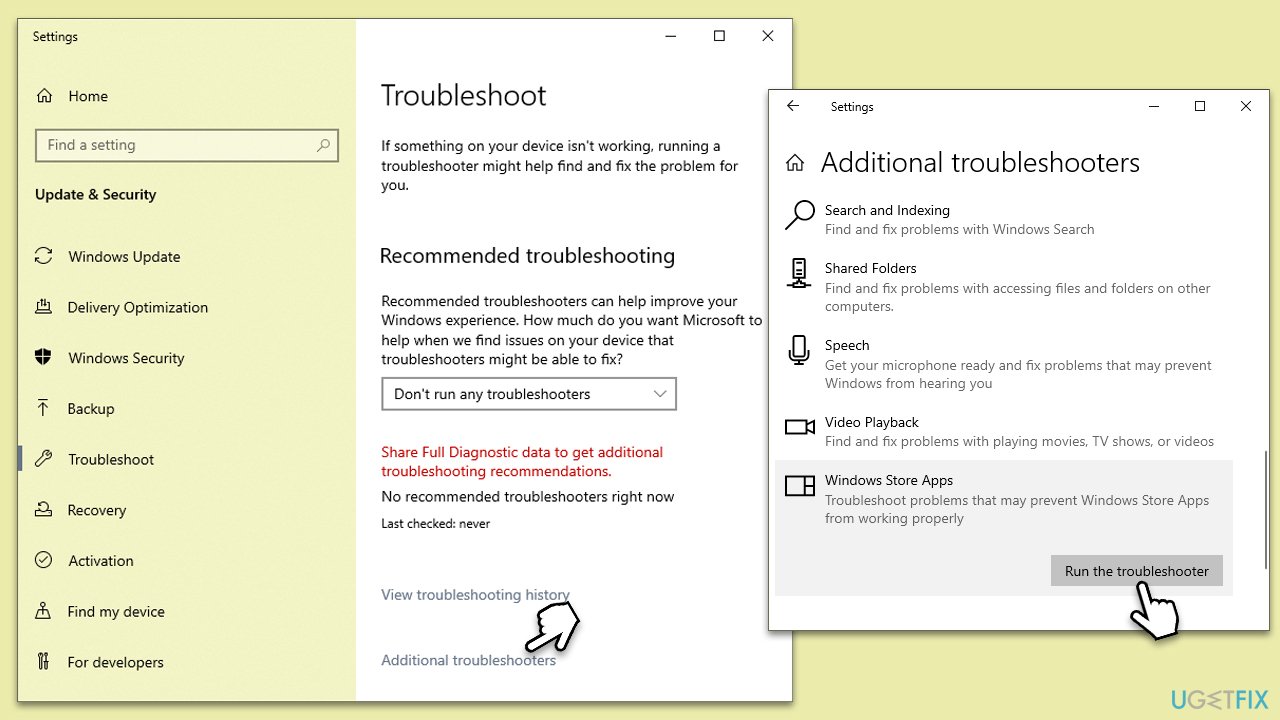
Fix 2. Install all Windows updates
Windows updates often come with bug fixes and improvements that can resolve existing issues. Ensuring your PC is up-to-date can potentially fix the Gaming Services error.
- Type Updates in Windows search and press Enter.
- In the new window, click Check for updates and wait till all the files are downloaded.
- In some cases, optional updates can be available as well, so make sure you install them as well.
- Once done, reboot your system to implement the changes.
Fix 3. Repair Gaming Services and Microsoft Store
Repairing these apps reinstates their default settings, which might resolve the error if it's due to misconfigurations.
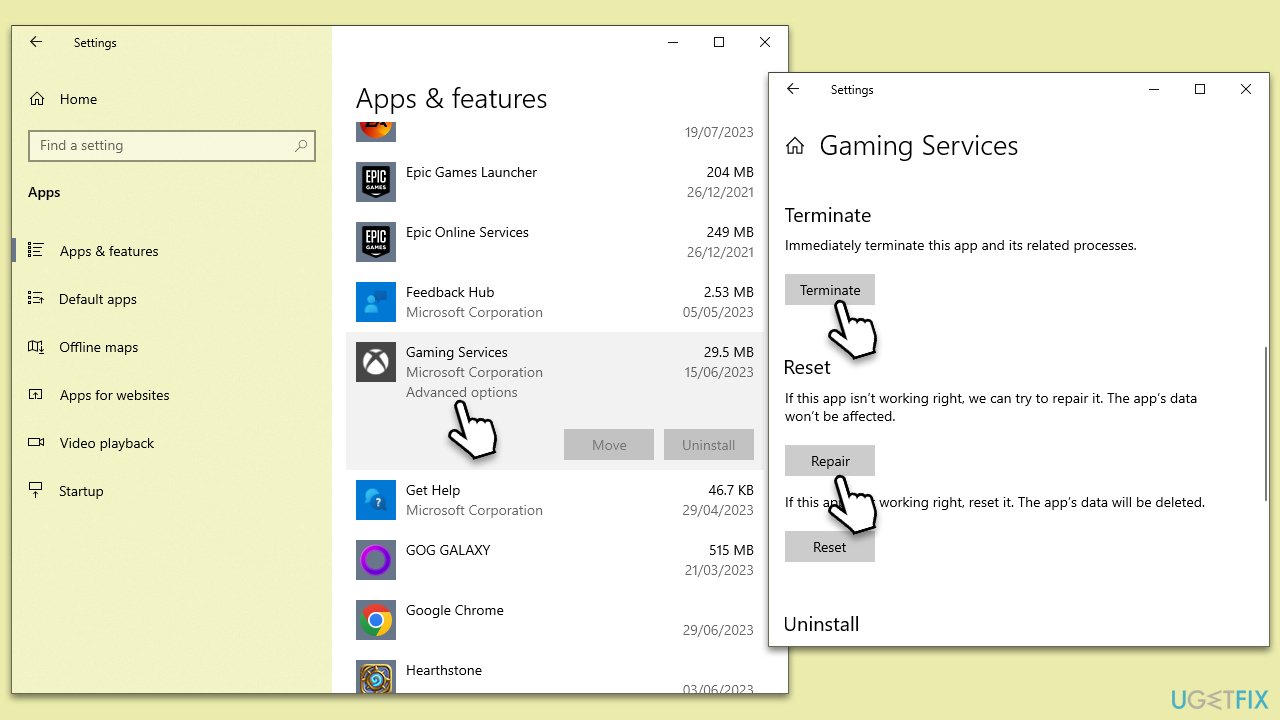
- Right-click on Start and pick Apps and Features.
- Scroll down to find Gaming Services and select Advanced options.
- Click Terminate and then Reset.
- Do the same thing with Microsoft Store.
Fix 4. Reinstall Gaming Services through PowerShell
PowerShell allows you to uninstall and reinstall Gaming Services, which can help if there are issues with the current installation.
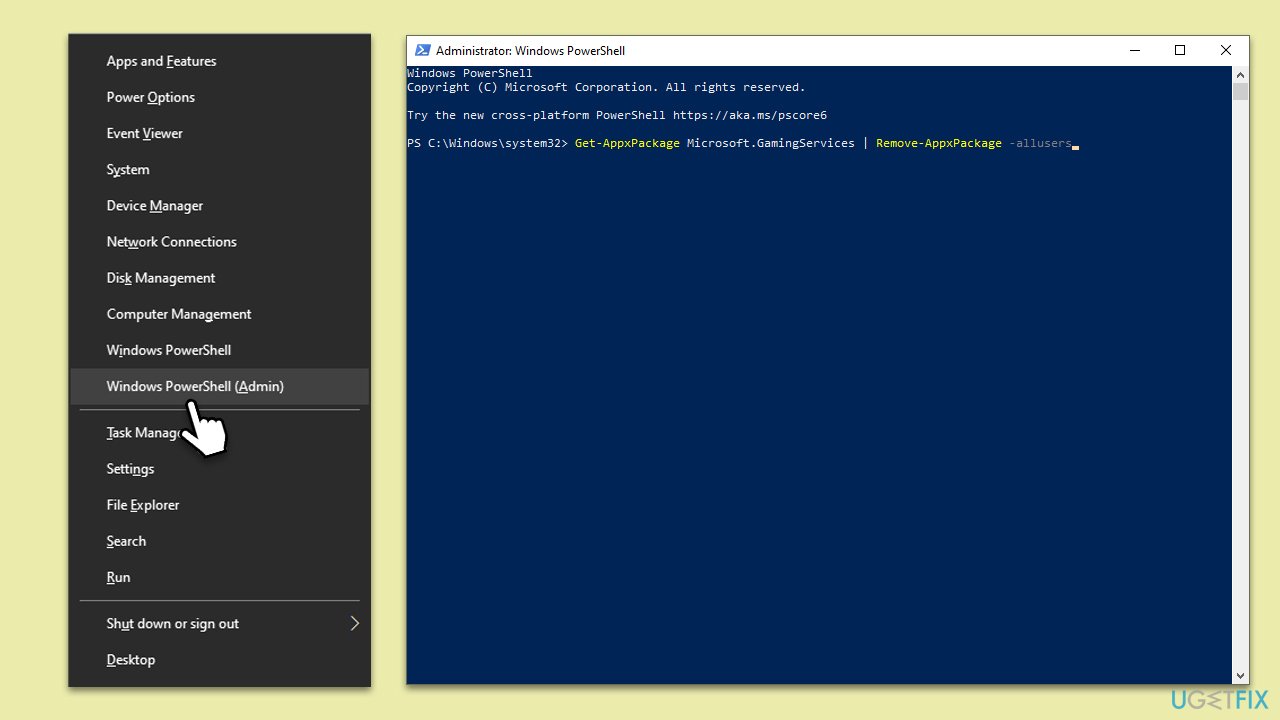
- Press Win + X, then click on PowerShell (Admin).
- Copy and paste the in the following commands:
Get-AppxPackage Microsoft.GamingServices | Remove-AppxPackage -allusers
Remove-Item -Path "HKLM:\System\CurrentControlSet\Services\GamingServices" -recurse
Remove-Item -Path "HKLM:\System\CurrentControlSet\Services\GamingServicesNet" -recurse - Press Enter after each of them, then restart your PC.
- Open PowerShell (Admin) again, then type:
start ms-windows-store://pdp/?productid=9MWPM2CQNLHN - Press Enter and install Gaming Services from the Microsoft Store page that opens.
Fix 5. Run SFC and DISM
System File Checker (SFC) and Deployment Image Servicing and Management (DISM) are Windows utilities that repair corrupted system files. If the error is due to corrupted files, these tools can help.
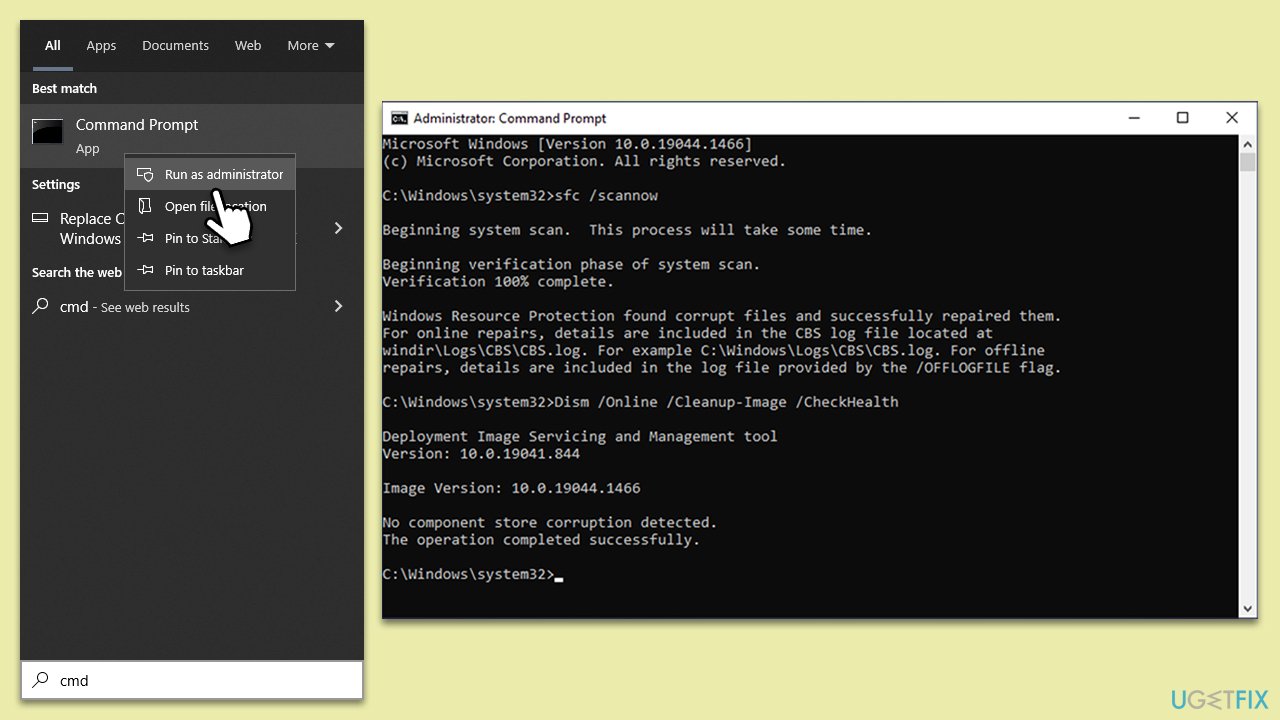
- Type cmd in Windows search, right-click on Command Prompt, and select Run as administrator.
- When UAC shows up, click Yes.
- Type this command and press Enter:
sfc /scannow - Wait for the scan to finish.
- As soon as the scan finishes, Windows will report whether integrity violations were found and if they could be fixed. Regardless of the outcome, use these commands next, pressing Enter after each:
Dism /Online /Cleanup-Image /CheckHealth
Dism /Online /Cleanup-Image /ScanHealth
Dism /Online /Cleanup-Image /RestoreHealth - Close down the Command Prompt and restart your PC.
Fix 6. Clear Microsoft Store cache
Clearing the cache removes temporary files that might be causing conflicts with Gaming Services.
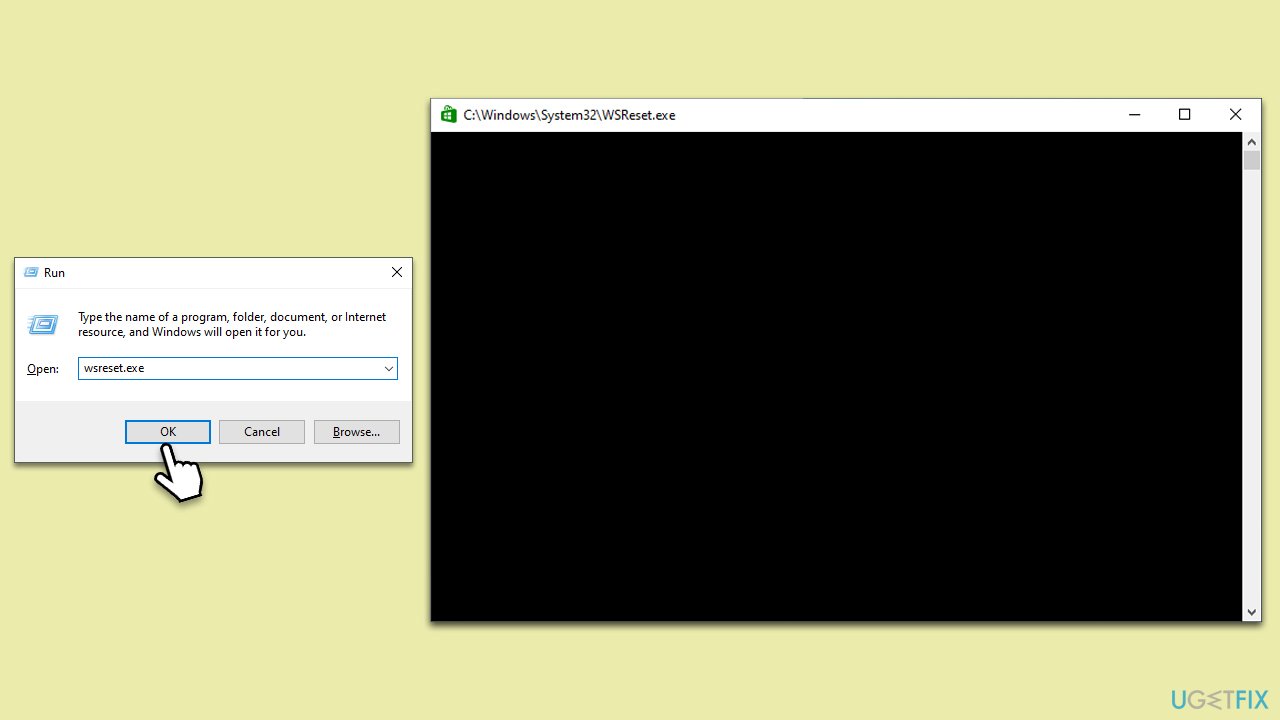
- Press Win + R to open Run.
- Type: wsreset.exe, then press Enter.
- Wait for the process to complete, then restart your PC.
Bottom line
To fix the Gaming Services error 0x80073d27, users can try updating the system and the Xbox app, performing a clean boot, resetting the Microsoft Store cache, or uninstalling and reinstalling Gaming Services. If these steps do not resolve the issue, using a professional PC repair tool may be a practical solution.
Frequently asked questions
The Gaming Services error 0x80073d27 typically indicates a problem with the Gaming Services app, preventing it from functioning properly on your system. This error can affect game installations and updates.
To restart Gaming Services in Windows 11, press Win + R, type 'services.msc', find Gaming Services, right-click it, and select 'Restart'. This may resolve the error and restore functionality.
Yes, you can try resetting the Gaming Services app by running the command 'wsreset.exe' in the Run dialog, or you may need to reinstall Gaming Services through PowerShell to fix the error.




Report an issue
What's wrong with this guide? We review every report and update or remove content.
Report received — thank you. We'll review and fix it.
You need a free account to submit a report.
Be the first to comment