How to fix
GeForce Now error 0xc0f1103f
on Windows
Resolve GeForce Now error 0xc0f1103f on Windows 10 or 11 effortlessly. Follow our proven solutions for a seamless gaming experience. Expert-tested.


What causes How to fix GeForce Now error 0xc0f1103f in Windows?
- App's settings issue
- Network connection issue
- Proxy settings enabled
- NVIDIA-related services not running
- Corrupted app installation
Repairs Windows system files, removes malware, and restores a clean OS state — without reinstalling.
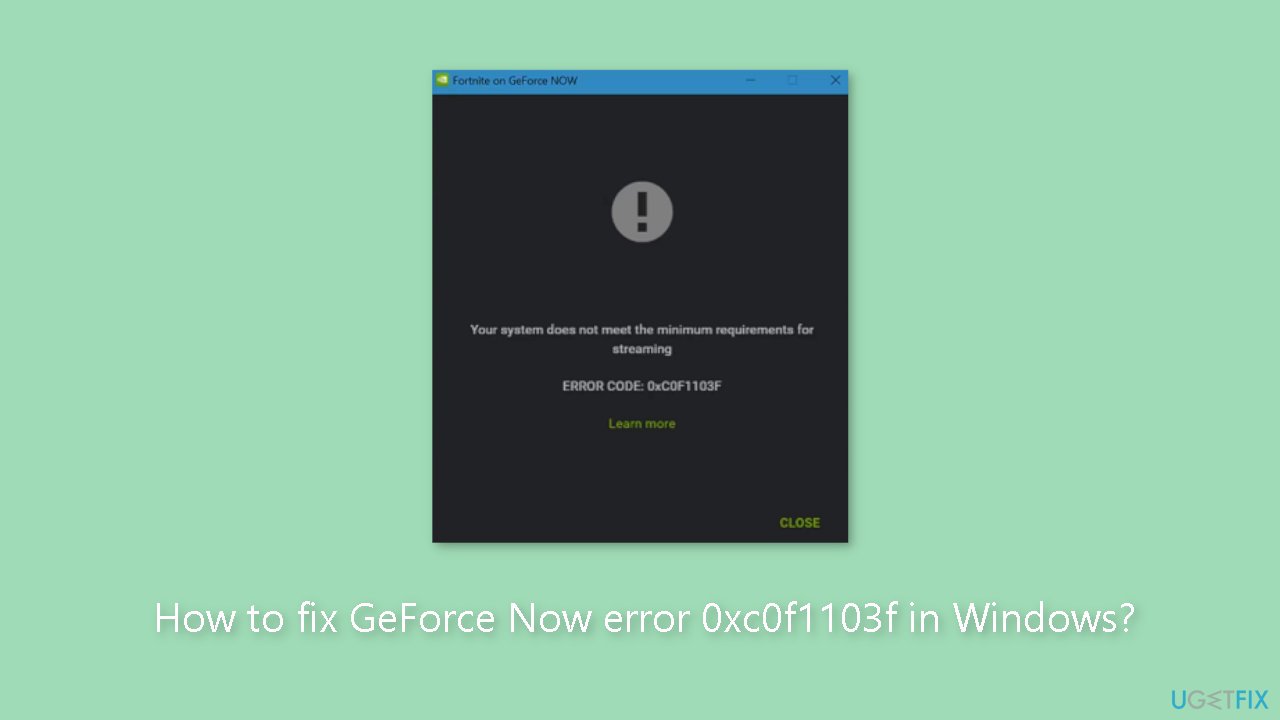
Hello. I tried to use the GeForce Now application but I get the 0xc0f1103f error with the message "Your system does not meet the minimum requirements for streaming." It worked fine previously. What should I do?
GeForce Now is a popular game streaming service that lets users play their favorite games on any device, regardless of hardware requirements. It is a cloud-based gaming platform that requires a constant internet connection to function properly. Users can subscribe to the service and stream games to their devices via remote servers.
However, while using the GeForce Now app on Windows, users may occasionally encounter the error code 0xc0f1103f. This error code usually indicates a problem with the app's settings or a network connection issue. Users may encounter difficulties accessing the platform, which may have an impact on their gaming experience.
Despite some issues, GeForce Now continues to be a popular gaming platform among gamers due to its numerous benefits. Users can play games on low-end devices without the need to upgrade their hardware. Furthermore, GeForce Now has a large game library and allows users to save their progress in the cloud, making it easier to continue playing games across multiple devices.
Users can try several solutions to this problem, including disabling proxy settings, restarting NVIDIA-related services, reinstalling the app, or running the app as an administrator. However, what works for one user may not work for another, and troubleshooting may be required to determine the root cause of the problem.
In this guide, you will find 7 steps that should help you fix GeForce Now error 0xc0f1103f in Windows. However, you can also try using a maintenance tool like [d1] that can fix most system errors, BSODs,[ref en-1] corrupted files, and registry[ref en-2] issues. Otherwise, follow the step-by-step instructions below.
Method 1. Check GeForce Now Server Status
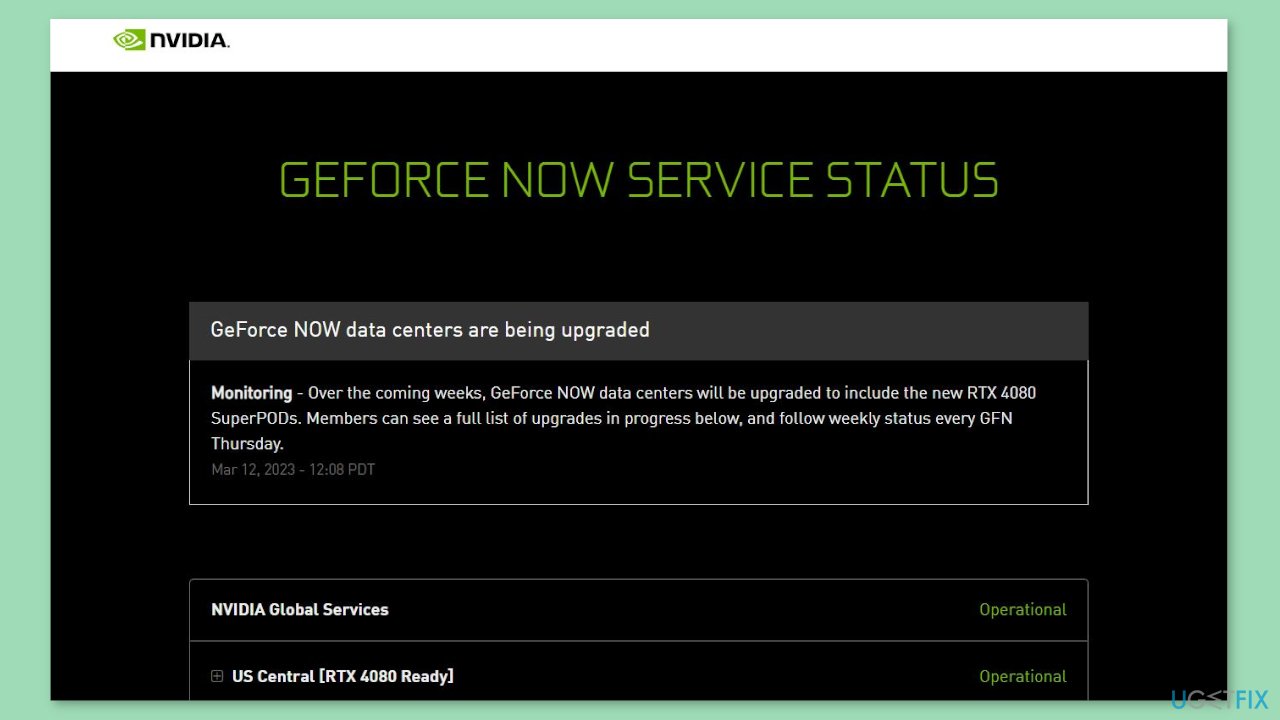
To determine if the GeForce Now servers are experiencing maintenance or downtime, it is advisable to verify their current status. You can also monitor @NVIDIAGFN's Twitter account for any updates regarding ongoing maintenance. If numerous users are experiencing similar issues, there is a possibility that the server is experiencing downtime.
Method 2. Update GeForce Drivers
Outdated drivers[ref en-3] could be the cause of this issue. In this case, you can fix it automatically by using [rev id="DriverFix"], which will scan your PC for missing and out-of-date device drivers. Or you can update them manually:
- Open Settings
- Click on Update & Security
- Click on Windows Update
- Click the Check for updates button
- Click the View optional updates option
- Click the Driver updates tab
- Select the driver you want to update
- Click the Download and install button
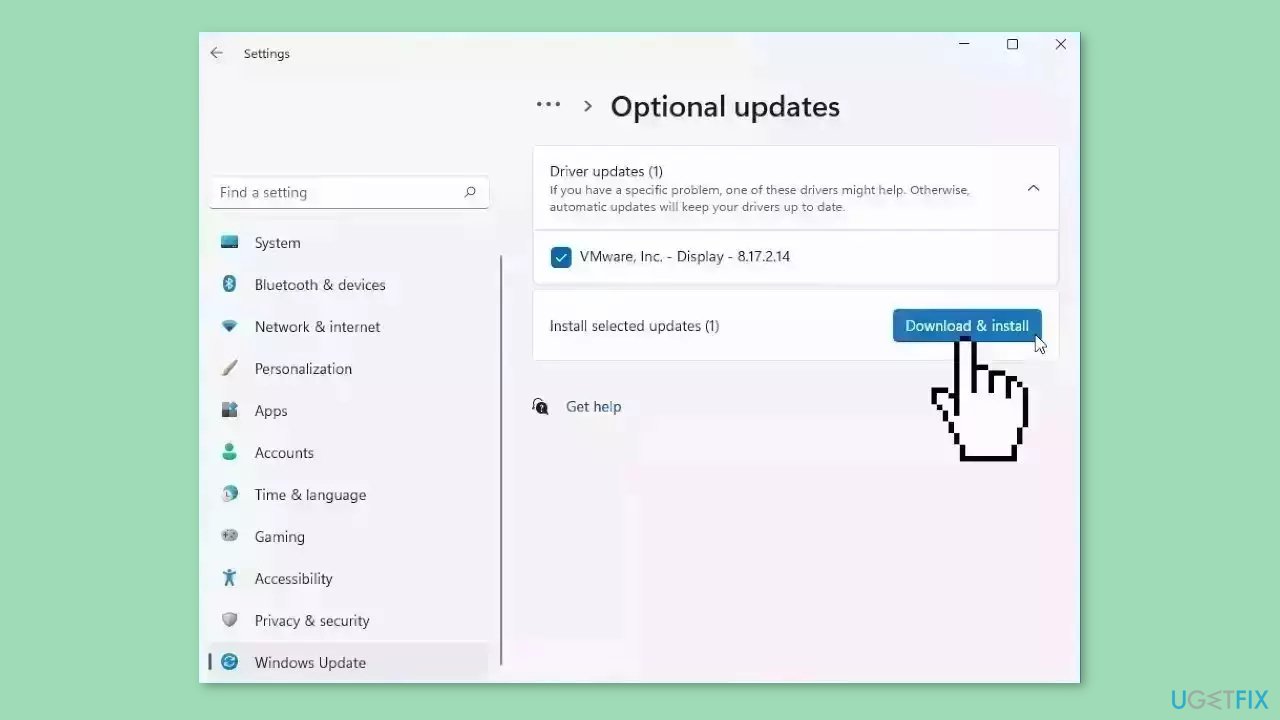
If the View optional updates link is not available after checking for updates, then Windows Update does not have any new drivers or any updates for other products at that particular time.
Method 3. Run the App as an Administrator
Running the application as an administrator will ensure that it does not crash due to a lack of permissions.
- Locate the executable file of the application (in this case, NVIDIA GeForce Now.exe).
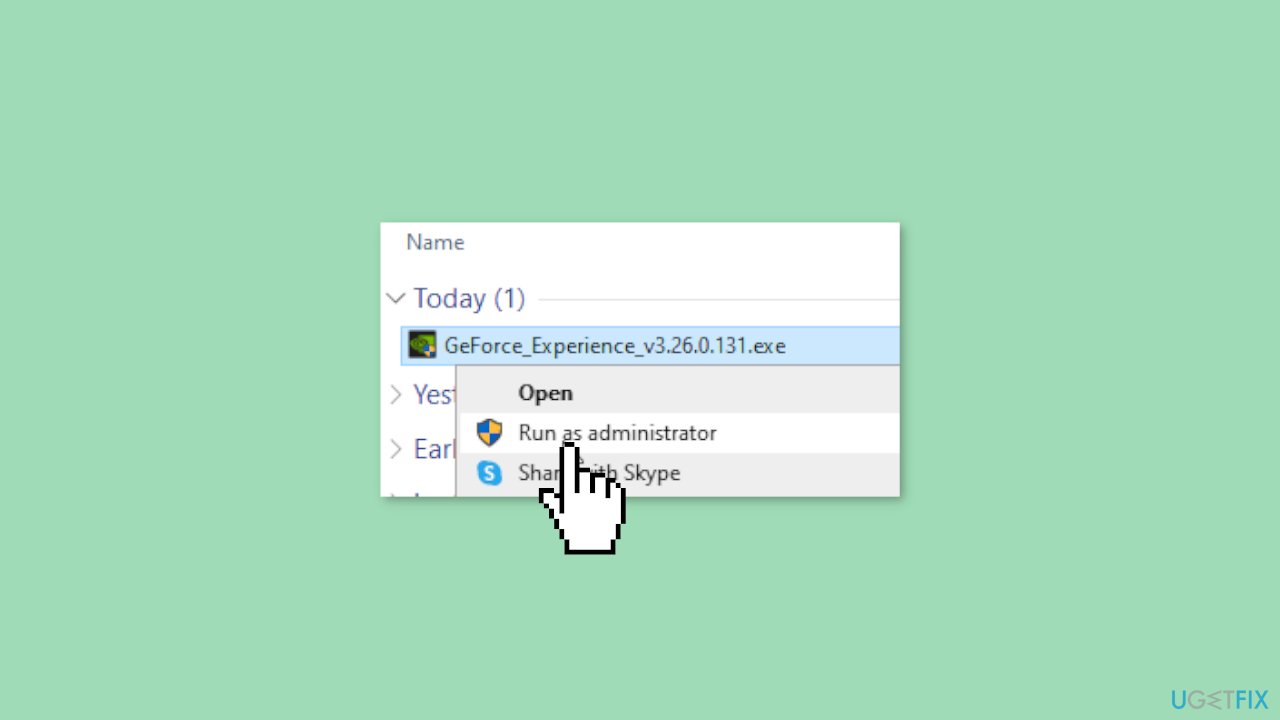
- Right-click on the executable file.
- From the context menu, select Run as administrator.
Method 4. Restart NVIDIA Services
- Click on the Start menu.
- In the search bar, type Services.msc and press Enter.
- Scroll down the list of services and search for any services related to NVIDIA.
- Right-click on each NVIDIA-related service, one at a time.
- Select Restart from the context menu.
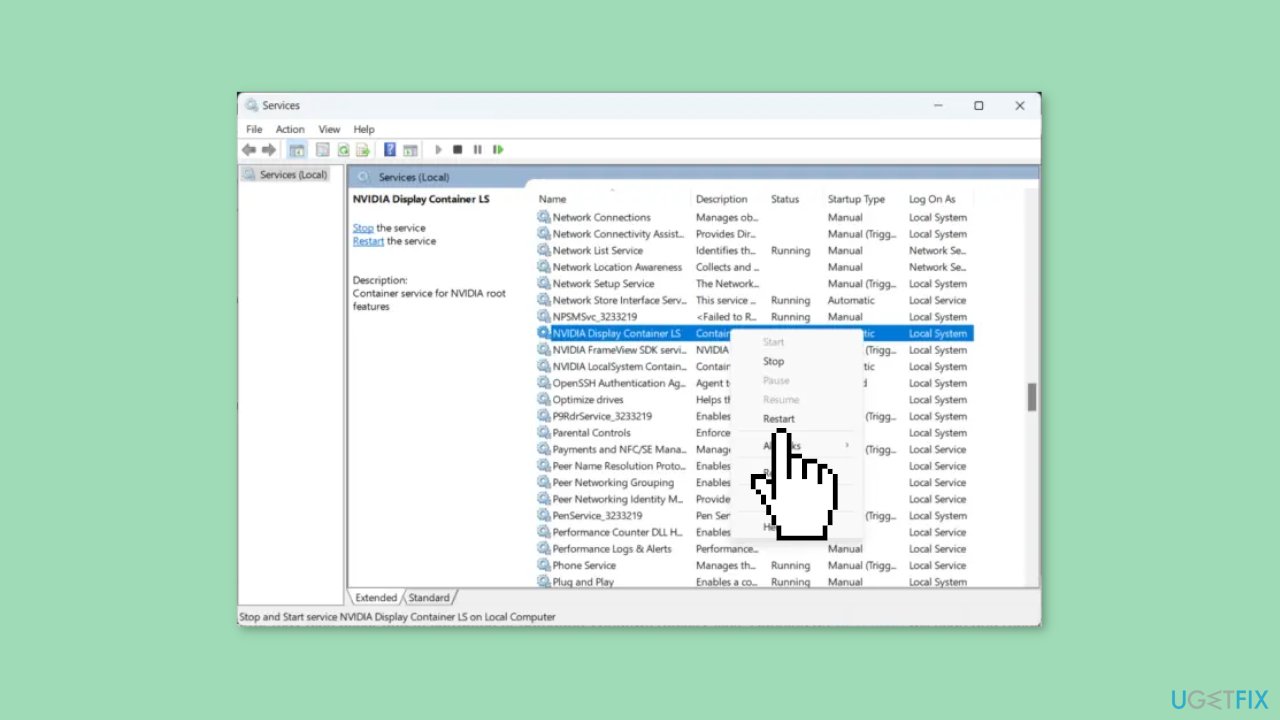
- Once you have restarted all the relevant NVIDIA services, close the Services tab.
- Check if the error code 0xc0f1103f has been resolved.
Method 5. Disable VPN or Proxy Server
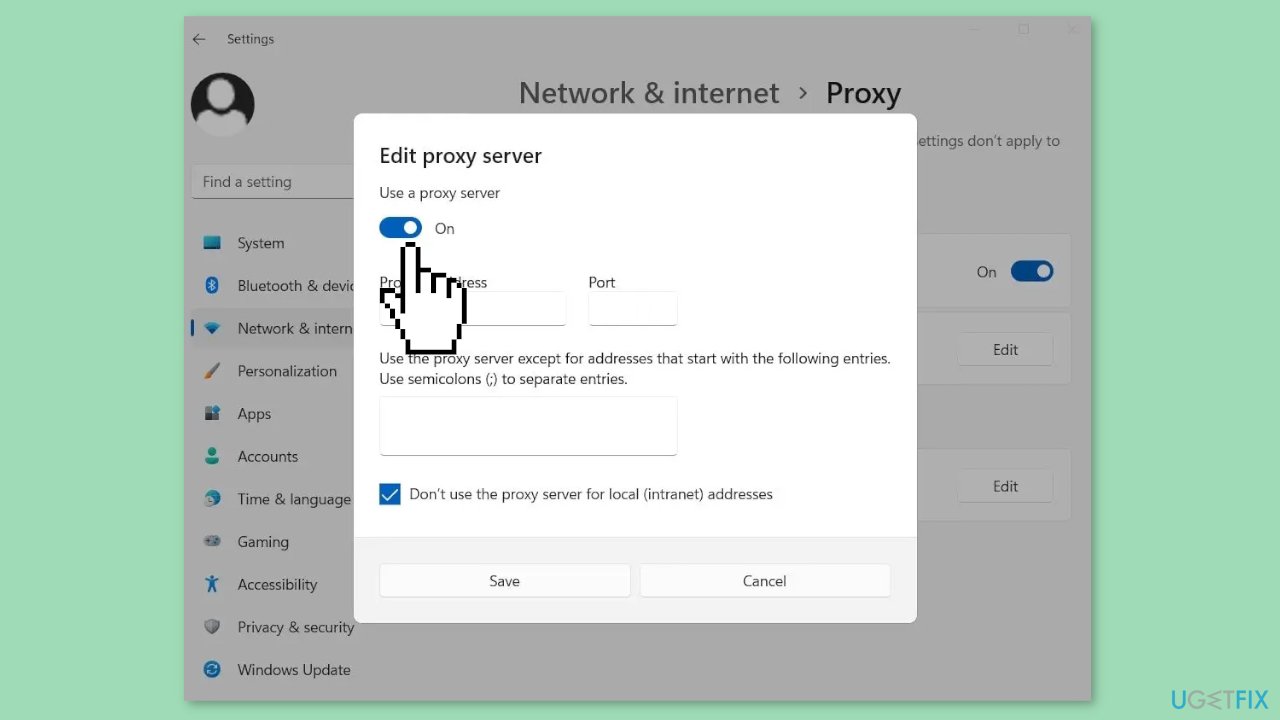
- Press the Windows key + I to open Settings.
- Navigate to Network & Internet > Proxy.
- In the Proxy settings, toggle off the Automatically detect settings option.
- Click on the Set up option next to Use a proxy server and toggle off the Use a proxy server option.
Method 6. Use Integrated Graphics
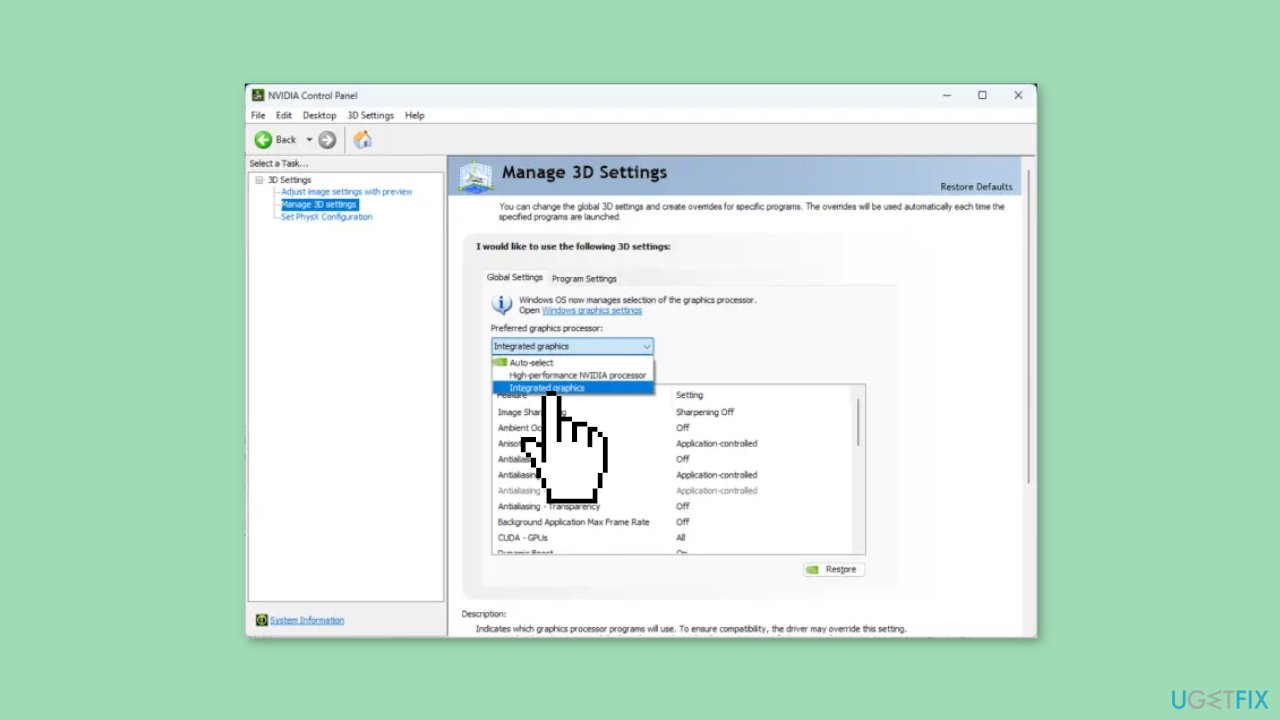
- Open NVIDIA Control Panel.
- Click on Manage 3D Settings.
- In the right pane, navigate to Global Settings.
- In the drop-down below Preferred Graphics Processor, select Integrated Graphics.
- Click Apply to save the changes.
Method 7. Reinstall Geforce Now
- Open the Start menu.
- Search for Add or Remove Programs and click on it.
- Scroll down and find the GeForce Now app.
- Click on the GeForce Now app and select Uninstall.
- Follow the prompts to uninstall the app.
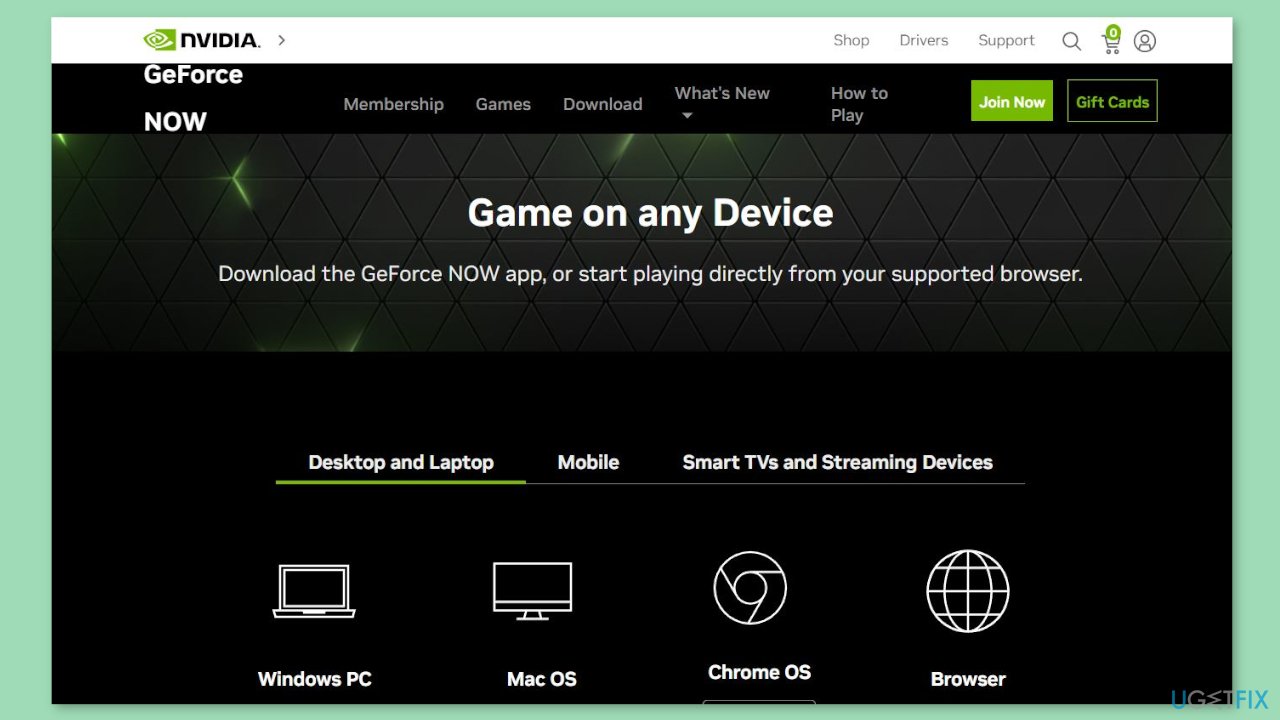
- Once the app is uninstalled, go to the official website of GeForce Now and download the latest version of the app.
- Install the app by following the prompts.
Bottom line
To fix GeForce Now error 0xc0f1103f in Windows, you can try checking the server status, disabling proxy settings, restarting NVIDIA-related services, reinstalling the app, or running it as an administrator. If these solutions do not resolve the issue, consider using a maintenance tool to address potential system errors.
Frequently asked questions
The GeForce Now error 0xc0f1103f is often caused by network connectivity issues, incorrect configuration settings, or outdated graphics drivers on your Windows system.
To troubleshoot the error, try resetting your network settings, updating your graphics drivers, and ensuring your Windows 11 firewall isn't blocking GeForce Now.
Yes, you can resolve the error by clearing the GeForce Now cache, checking for Windows updates, and verifying your internet connection before considering a reinstall.




Report an issue
What's wrong with this guide? We review every report and update or remove content.
Report received — thank you. We'll review and fix it.
You need a free account to submit a report.
Be the first to comment