
How to fix GeForce Now error 0xC192000C in Windows?

Prefer to fix it yourself? The manual steps follow.
- 8methods
- 5 to 30 minutes
- Easy
Applies to Windows 11, Windows 10; GeForce NOW app for Windows and play.geforcenow.com
8 methods in this guide
- What the error means
- Why it appears
- The fixes
- 1. Check the service status
- 2. Turn off VPN and proxy
- 3. Test another game and browser
- 4. Restart app, PC and router
- 5. Change server location
- 6. Clean reinstall of the app
- 7. Driver update and admin run
- 8. Reset network settings
- Still broken: logs and support
- Keep it from coming back
- FAQ
Whenever I try to play any games via GeForce NOW I keep getting an error code 0xC192000C. This is when I'm using my Windows 11 PC. What does this mean and how do I fix this? It happens with every game I try.
GeForce NOW shows error 0xC192000C, "There was a problem starting your session", when its cloud server could not start your game session, and NVIDIA has not published a description of the code. Most often the cause is an outage or a VPN, not your PC. Check the GeForce NOW status page first, then turn off any VPN or proxy.
0xC192000C means GeForce NOW could not start a session for you on its servers. Open status.geforcenow.com first: during an outage only waiting helps (Fix 1). If the service is up, disconnect any VPN or proxy, which NVIDIA advises against with GeForce NOW (Fix 2). If only one game fails, the problem is that game on the server (Fix 3).
| Error | "There was a problem starting your session. Try again." with ERROR CODE: 0xC192000C. |
|---|---|
| Where it appears | In the GeForce NOW app or the browser version, after you select Play on a game and before the stream starts. |
| Main cause | The session could not be started on NVIDIA's side: an outage, a busy or unreachable server region, or a connection that GeForce NOW does not accept, such as a VPN. |
| Fastest fix | Check status.geforcenow.com, then disconnect any VPN or proxy and try again (Fix 1 and Fix 2). |
| Also written as | 0xc192000c, oxc1920ooc (with the letter O), 0xC19200C (one zero short), "error code: 0xC192000C". |
| Affects | Every device GeForce NOW runs on. This page covers the Windows app and the browser version on Windows 11 and Windows 10. |
| NVIDIA's status | No knowledge base article for this code. Threads on NVIDIA's own forum tie it to outages and to single games that fail to start. |
| Related codes | 0xC192000D, 0xC192000E and 0xC1920006 share the same prefix and the same first checks. We could not confirm their exact meaning. |
| Where the cause is logged | In the app's folder %localappdata%\NVIDIA Corporation\GeForceNOW, which NVIDIA support asks for when you report a problem. |
| Time to fix | Minutes when it is a VPN or the app. Nothing to fix on your side during an outage. |
Facts checked on 15 October 2026. Steps written for Windows 11 (25H2 and 26H2) and Windows 10 22H2.
What GeForce NOW error code 0xC192000C means
GeForce NOW runs your game on a computer in an NVIDIA data centre and streams the picture to you. Error 0xC192000C appears at the moment that remote session should begin. The window shows two lines: "There was a problem starting your session. Try again." and "ERROR CODE: 0xC192000C". Your own PC never started the game, so your graphics card and your game files are not the cause.
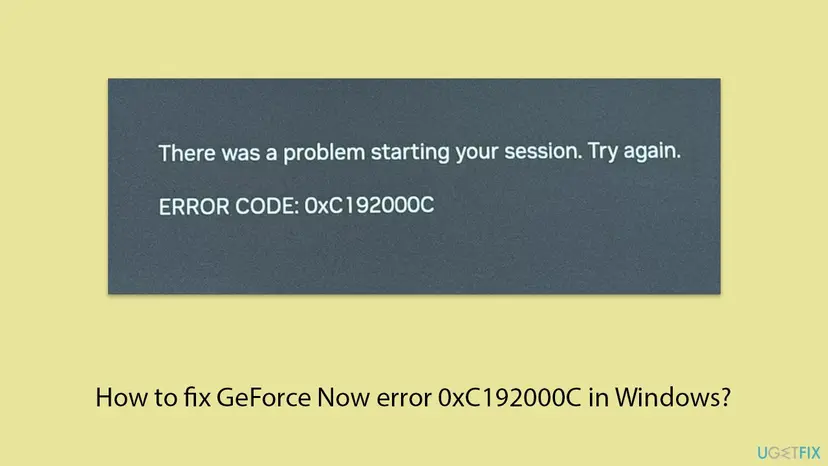
NVIDIA has not published what the number stands for. It has a knowledge base article for the related launch error 0xC0080105, but none for 0xC192000C. People type the code in many ways: 0xc192000c, with the letter O as oxc1920ooc, or one zero short as 0xC19200C. All of them are the same error.
This is the most useful thing to find out first. If every game fails, the cause is the service, your connection or your account. If one game fails and others start, the cause is that game on NVIDIA's servers, and nothing on your PC will change it.
Why GeForce NOW says there was a problem starting your session
Most often the service itself has a problem: an outage, maintenance or a full region. Often the connection is the reason, above all a VPN or proxy. Less often one game is broken on the server after an update. Rarely the app on your PC is damaged.
| Cause | How often | How to tell | Fix |
|---|---|---|---|
| Outage or maintenance of GeForce NOW | Most often | status.geforcenow.com shows an incident, and other players report the same code at the same time. | Fix 1 |
| VPN, proxy or a network that hides your location | Often | A VPN app is connected, or you are on a work, school or hotel network. | Fix 2 |
| One game fails to start on the server | Sometimes | Other games start. Forum threads name the same game. | Fix 3 |
| Damaged app state or an old app version | Sometimes | play.geforcenow.com works in a browser, but the app does not. | Fix 4, Fix 6, Fix 7 |
| Busy or distant server region, or a broken network setting | Rarely | Every game fails in the app and in the browser, and the status page is green. | Fix 5, Fix 8 |
Threads on NVIDIA's forum carry titles such as "Starting Star Birds throws error 0xC192000C", and a game studio published a known issue about launch errors for GeForce NOW players. Users there report that the code goes away when NVIDIA or the studio fixes the game. That is why the third check matters.
How to fix GeForce NOW error code 0xC192000C
Fixes 1 to 3 find out whether the problem is on NVIDIA's side, and most readers stop there. Fixes 4 to 7 repair the app on your PC. Fix 8 resets the Windows network settings when nothing else has helped.
| What you see or have | Start with |
|---|---|
| The status page shows an incident, or friends get the same error. | Fix 1 |
| A VPN, proxy, or work or school network is in use. | Fix 2 |
| One game fails with 0xC192000C, other games start. | Fix 3 |
| The browser version at play.geforcenow.com works, the app does not. | Fix 4, then Fix 6 and Fix 7 |
| Every game fails in the app and in the browser, and the status page is green. | Fix 5, then Fix 8 |
Fix 1. Check the GeForce NOW status page and wait out an outage
1 minuteNo riskEveryone, first. It takes one minute and tells you whether anything on your side can help.
The error is raised when the remote session fails to start. During an outage or maintenance no session can start, so every local fix would be wasted time.
- Open
https://status.geforcenow.comin your browser. - Look for an open incident or planned maintenance at the top of the page.
- Find your region in the list and check that it is shown as working.
- If there is an incident, wait until it is marked as resolved, then select Play again.
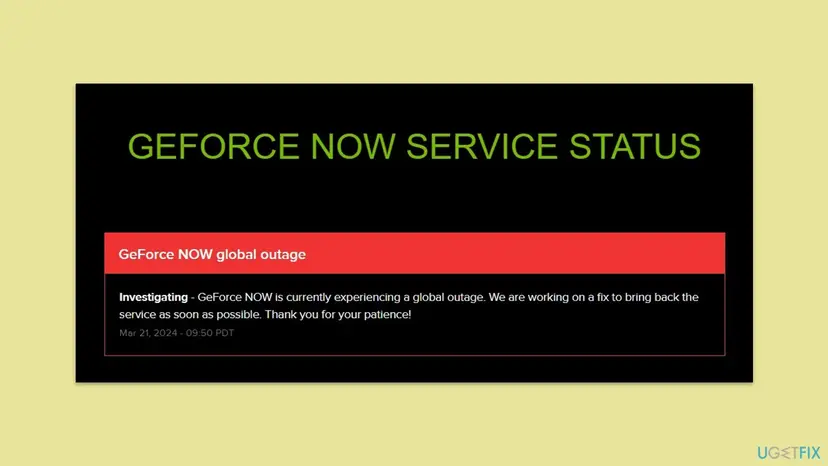
It worked if: The status page shows no incident, or the incident is resolved and the game starts.
If not: The service is up and you still get the error: go to Fix 2.
Fix 2. Disconnect from your VPN and turn off the proxy
3 minutesNo riskA VPN app is connected, a proxy is set in Windows, or you play on a work, school or public network.
NVIDIA's own help article says it is best to turn off any VPN when you use GeForce NOW. A VPN changes where the service thinks you are, which can send you to the wrong region or make it refuse the session.
- Open your VPN app and select Disconnect. Close it from the taskbar corner as well.
- Press Win + I and open Network & internet > VPN.
- Select each connection listed there and select Disconnect.
- Go back to Network & internet and open Proxy.
- Under Manual proxy setup, check that Use a proxy server is off.
- Close GeForce NOW completely and start it again, then select Play.
On Windows 10 the same pages are under Settings > Network & Internet > VPN and Proxy. If GeForce NOW says "disconnect from VPN and try again" while no VPN is on, users report that a privacy feature of the browser, an antivirus web shield or the network of a company can look like a VPN. Try another network, such as a phone hotspot, for one test.
A proxy set by your employer or school may be locked. Do not try to bypass it. Play from a home network instead, or ask the administrator.
It worked if: The session starts and the game begins to load in the stream.
If not: If the error stays with no VPN or proxy, go to Fix 3.
Fix 3. Test another game and the browser version to find where the fault is
5 minutesNo riskThe service is up and no VPN is in use, but you do not know yet whether the fault is one game, the app or the connection.
NVIDIA suggests the browser version at play.geforcenow.com when a game fails to launch in the app. Two quick tests split the causes: one game, the app on your PC, or everything that leaves your network.
- In the GeForce NOW app, start a different game from your library, ideally a free one from another store.
- If that game starts, the first game is the problem. Read the note below and stop here.
- If it also fails, open
https://play.geforcenow.comin Chrome or Microsoft Edge. - Sign in with the same NVIDIA account and start the same game there.
- Note what happened. The chart below tells you which fix to use next.
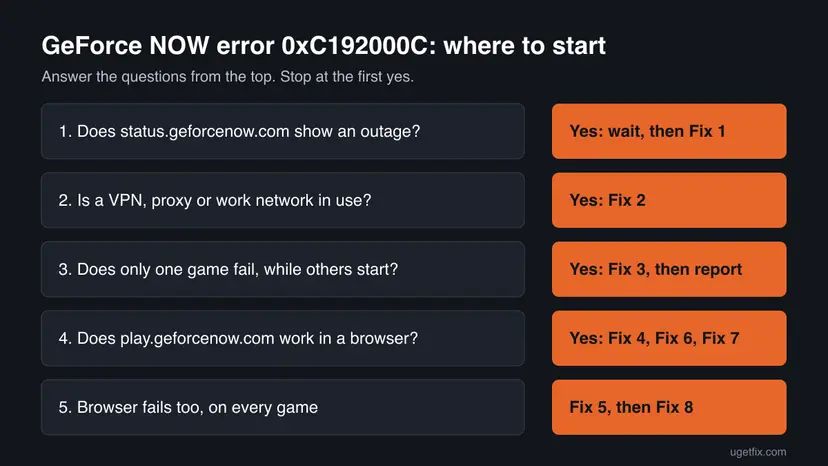
Look at NVIDIA's GeForce NOW forum and the game's own news page for a notice about that game. Users report that such cases are fixed on the server, often after a game update. Report it to NVIDIA with the game name and the store it comes from.
It worked if: You know whether the fault is one game, the app or the connection, and which fix comes next.
If not: Browser works and app fails: Fix 4. Both fail on every game: Fix 5.
Fix 4. Close GeForce NOW completely and restart the PC and router
5 minutesNo riskThe browser version works but the app shows the error, or the error started after the PC woke from sleep.
A session that failed halfway can leave the app holding an old state. Closing every GeForce NOW process and restarting the PC and the router starts both the app and the connection fresh.
- Close the GeForce NOW window.
- Press Ctrl + Shift + Esc to open Task Manager.
- Right-click each process whose name contains GeForce NOW and select End task.
- Restart Windows from Start > Power > Restart.
- Unplug the router for 30 seconds, plug it back in and wait until the internet light is steady.
- Start GeForce NOW and select Play.
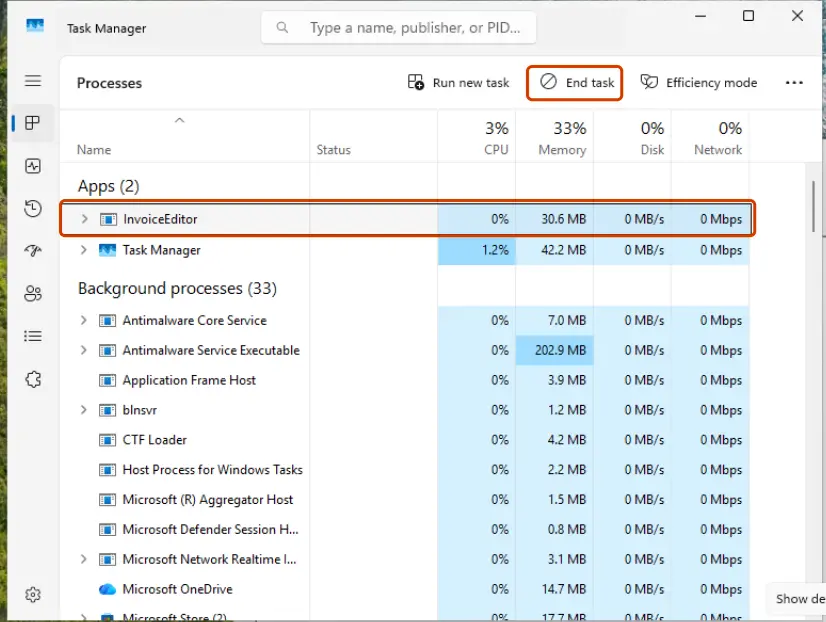
Help with Task Manager: Close a frozen app (Task Manager, Force Quit)
It worked if: The app opens normally and the game session starts.
If not: Go to Fix 5 if the browser version fails as well, or to Fix 6 if only the app fails.
Fix 5. Choose another GeForce NOW server location
3 minutesNo riskEvery game fails in the app and in the browser, the status page is green, and you use no VPN.
NVIDIA lets you pick the service region in the app settings. If the automatic choice lands on a full or unreachable region, a session cannot start there, while a nearby region may accept it.
- Open GeForce NOW and open the menu at the top left.
- Select Settings.
- Find Server location and open the list.
- Choose the region nearest to you that is not the one used before, or Auto if a fixed region was set.
- Close the settings and start the game again.
A region far from you adds delay to the stream. Use it as a test. When the error is gone in your normal region, set it back.
It worked if: The game starts in the other region.
If not: If no region works, the problem is likely your account or your connection. Go to Fix 8, then contact NVIDIA as described below.
Fix 6. Reinstall GeForce NOW with a clean app folder
10 minutesLow riskThe browser version works and the app still fails after Fix 4.
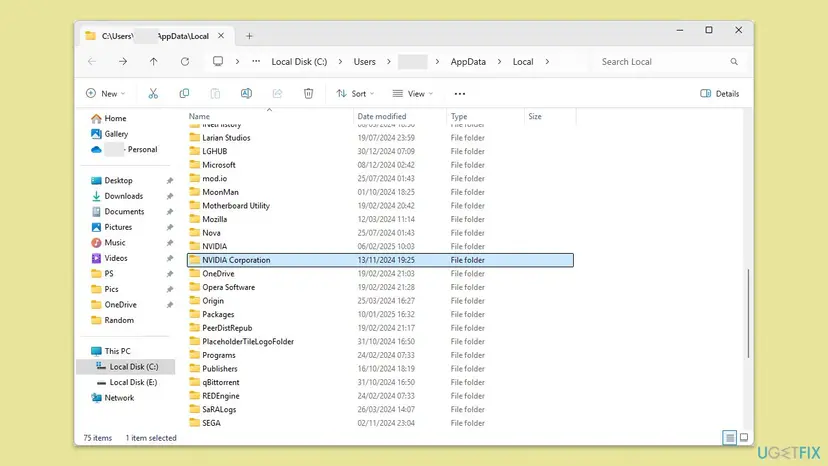
NVIDIA's support articles place the Windows app and its logs in %localappdata%\NVIDIA Corporation\GeForceNOW. Removing the app and that folder clears damaged cache and settings that a normal uninstall leaves behind.
- Close GeForce NOW and end its processes in Task Manager (Fix 4, steps 2 and 3).
- Open Settings > Apps > Installed apps, find NVIDIA GeForce NOW, select the three dots and Uninstall.
- Press Win + R, type
%localappdata%\NVIDIA Corporationand press Enter. - Rename the folder GeForceNOW to GeForceNOW.old. You can delete it once the new install works.
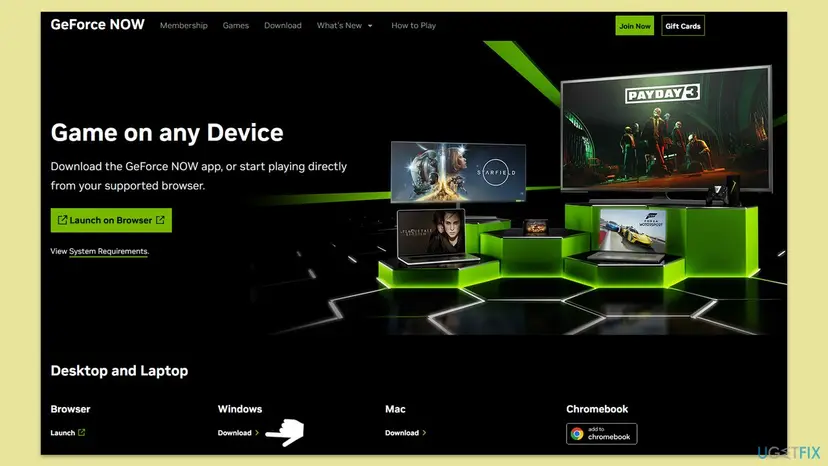
- Open
https://www.nvidia.com/en-us/geforce-now/download/and download the Windows app. - Run the file, sign in and start the game again.
Other ways to remove an app on Windows 11 and Windows 10: Uninstall a program or app in Windows
It worked if: The fresh app signs in, shows your library and the game starts.
If not: If the fresh app still shows the error while the browser works, go on to Fix 7 and update the graphics driver.
Fix 7. Update the graphics driver and run GeForce NOW as administrator
15 minutesLow riskThe app still fails after a clean reinstall, while the browser version works.
For the launch error 0xC0080105, where the app cannot reach files it needs on your PC, NVIDIA advises a driver update, a restart and running the app as administrator. We found no such advice for 0xC192000C, so treat this as a test.
- Update the graphics driver from the maker of your graphics chip, then restart the PC.
- Type GeForce NOW in the search box on the taskbar.
- Right-click the result and select Run as administrator, then Yes.
- Start the game.
Step by step for the driver: Update, roll back or reinstall a driver If running as administrator helps, the option to make it permanent is shown here: How to run a program as administrator or in compatibility mode
It worked if: The session starts from the app.
If not: Keep using the browser version and collect the app logs for NVIDIA, as shown under "If the error is still there".
Fix 8. Reset the Windows network settings
15 minutesRead the warningEvery game fails in the app and in the browser, on a working internet connection, and Fixes 1 to 5 did not help.
A damaged DNS cache, Winsock catalog or a leftover VPN adapter can block the connection to the session server while normal websites still load. The reset puts these parts back to their default state.
The full network reset removes all network adapters, saved Wi-Fi passwords and VPN adapters. Write down your Wi-Fi password and any fixed IP or DNS address first. Start with the commands, which keep them.
Run in an administrator Command Prompt, one line at a time
ipconfig /flushdns
netsh winsock reset
ipconfig /release
ipconfig /renew
The commands and the full reset in Settings, for Windows 11 and Windows 10: Reset the network and flush DNS To test the connection itself first: How to check your internet connection in Windows
It worked if: After the restart the PC is online again and the game session starts.
If not: The cause is not on your PC. Contact NVIDIA with the logs described below.
If the error is still there: collect the logs and contact NVIDIA
When the status page is green, no VPN is on, other networks fail too and the browser version fails as well, the cause is on NVIDIA's side or in your account. Only NVIDIA can see why the server refused the session. Give them the logs so they do not start from zero.
- Reproduce the error once, so the newest log holds it.
- Press Win + R, type
%localappdata%\NVIDIA Corporation\GeForceNOWand press Enter. NVIDIA's article on collecting GeForce NOW logs uses this path. - Compress the folder to a ZIP file.
- Note the time of the error, the game, the store and your server location.
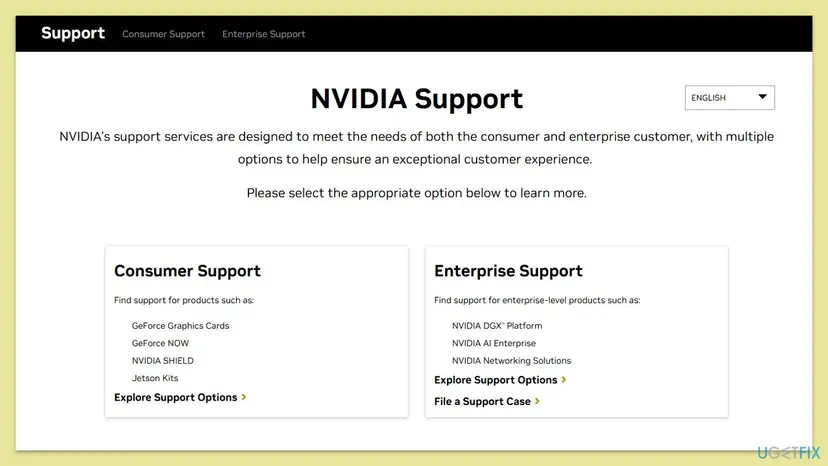
- Open NVIDIA's support site at
https://www.nvidia.com/en-us/support/, start a chat or a request and attach the ZIP file.
- Same code on another device or network: the account or the service, not the PC. Say so to NVIDIA at once.
- Only one game, for days: ask NVIDIA whether the game is still supported on GeForce NOW and whether it is linked to the right store account.
- Not a hardware problem: the game runs on NVIDIA's computer, so no part of your PC except the network can cause this code.
How to keep error 0xC192000C from coming back
- Check status.geforcenow.com before you change anything on the PC.
- Turn off the VPN before you open GeForce NOW, or set it to leave GeForce NOW out if it has that option.
- Keep the GeForce NOW app up to date when it offers an update.
- Keep the browser version as a fallback when the app fails.
- Do not reinstall Windows or change graphics settings for this code. The game runs on NVIDIA's computer.
- Do not download GeForce NOW from sites other than nvidia.com.
- Do not try to bypass a proxy set by your employer or school.
Most cases of this error end on their own when NVIDIA fixes an outage or a game. The steps above make sure your own side is not the reason when that happens again.
Frequently asked questions
What does GeForce NOW error code 0xC192000C mean?
It means GeForce NOW could not start your game session on its servers. The message reads "There was a problem starting your session. Try again." NVIDIA has not published a description of the code itself. In practice the cause is an outage, a VPN or proxy, a busy region, or one game that fails to start on the server. Your graphics card and your game files are not involved, because the game runs on NVIDIA's computer and only the picture is streamed to you.
Why does GeForce NOW tell me to disconnect from VPN and try again?
Because GeForce NOW checks where your connection comes from, and a VPN hides that. NVIDIA's help article on regions says it is best to turn off any VPN when you use the service. Disconnect the VPN in its app and in Settings > Network & internet > VPN, then restart GeForce NOW. If the message appears without a VPN, users report that a work network, a browser privacy feature or an antivirus web shield can trigger it. A test on a phone hotspot shows which one it is.
Is GeForce NOW down right now?
Check status.geforcenow.com. NVIDIA lists outages and maintenance there for every region. If an incident is open, error 0xC192000C and other session errors are expected, and nothing on your PC will fix them. Wait until the incident is marked as resolved and try again. If the status page shows everything working, the cause is more likely your connection, a VPN, the server region or one game. Then follow Fix 2 and Fix 3 on this page.
Why do I get 0xC192000C with every game I try?
When every game fails, the cause is the service, your connection or your account, not a game. Check the status page first, then turn off any VPN or proxy. Next, try play.geforcenow.com in a browser. If the browser works, the app on your PC is the problem and a clean reinstall usually helps. If the browser fails too, change the server location and reset the network settings, then contact NVIDIA with your logs.
Is oxc1920ooc or 0xC19200C the same error as 0xC192000C?
Yes. The code on the screen is 0xC192000C. Many people type the letter O instead of the zero, which gives oxc1920ooc, or leave out one zero, which gives 0xC19200C. GeForce NOW has no separate error with those spellings. The message next to it, "There was a problem starting your session", is the same. Every fix on this page applies whichever way you typed the code.
Are 0xC192000D, 0xC192000E and 0xC1920006 the same problem?
They belong to the same family of GeForce NOW codes, which all start with 0xC192, and they appear in the same place: when a session should start. NVIDIA has not published what each one means, so we could not confirm the difference. The first checks are the same for all of them: the status page, a VPN or proxy, another game and the browser version. If the problem stays, report the exact code to NVIDIA, because support can see more than any public page.
Does reinstalling the GeForce NOW app fix error 0xC192000C?
Only when the app on your PC is the problem. You can tell by testing play.geforcenow.com in a browser with the same account. If the browser version starts the game and the app does not, a clean reinstall helps: remove the app, rename its folder in %localappdata%\NVIDIA Corporation and install a fresh copy from nvidia.com. If the browser fails as well, a reinstall changes nothing, because the problem is the service, the network or the account.
Can my graphics card or PC cause error 0xC192000C?
Very unlikely. The game runs on NVIDIA's servers and your PC only shows the video stream. Your graphics card, memory and game files do not take part in starting the session. The parts of your PC that matter are the network connection, a VPN or proxy, and the GeForce NOW app itself. That is why this page does not ask you to repair Windows system files or change graphics settings.
The message is in another language (ancora niente, sigue sin funcionar, co to za błąd). Is it the same error?
Yes. GeForce NOW shows the same code, 0xC192000C, in every language, and only the text around it is translated. The cause and the fixes are the same. This page uses the English names of menus and buttons. In another language the settings sit in the same places, so you can follow the steps by their position. If nothing works, NVIDIA support also helps in many languages through its regional sites.
Who should I contact if nothing works?
Contact NVIDIA support. Only NVIDIA can see why its server refused your session. Before you start a chat or a request, reproduce the error once, compress the folder %localappdata%\NVIDIA Corporation\GeForceNOW to a ZIP file and note the time, the game, its store and your server location. Attach the ZIP file to the request. If one game fails for days, also ask whether that game is still available on GeForce NOW.
Sources
- NVIDIA Support: How do I change the GeForce NOW service region I connect and play from? (article 5283) (nvidia.custhelp.com)
- NVIDIA Support: When I try to launch a game on GeForce NOW, I get an error message with code 0xC0080105 (article 5549) (nvidia.custhelp.com)
- The Windows Club: GeForce Now error 0xC192000C, Problem starting your session (thewindowsclub.com)
Did this fix work?
One click, no account. It tells the next reader which guides are worth their time.
Questions and experiences: fix GeForce Now error 0xC192000C in Windows
Still broken, or found a fix we did not cover? Ask here: members and our editors answer. Reading is open; writing needs a free account.
…