How to fix
“Getting Windows ready. Don’t turn off your computer”
on Windows
Resolve the "Getting Windows ready" error on Windows 10 or 11 effortlessly. Follow our expert-tested solutions for a quick fix with zero traces left.

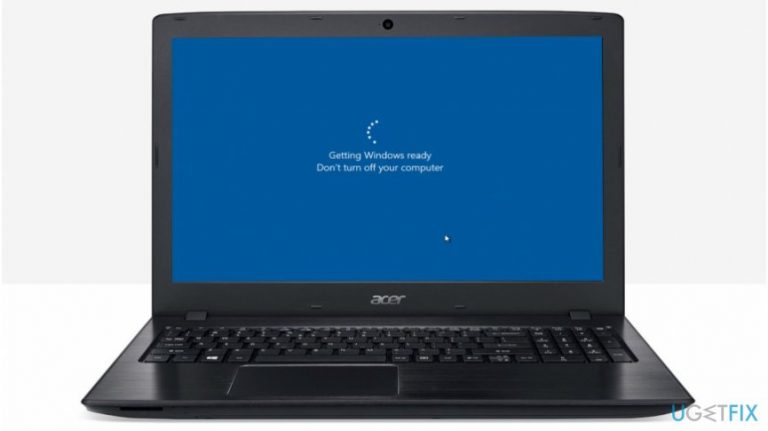
What causes How to fix “Getting Windows ready. Don’t turn off your computer”?
- Incorrectly installed updates
- Potentially unwanted programs (PUPs)
- Cyber threats
- Automatic Windows updates
- Manual operating system upgrade
Repairs Windows system files, removes malware, and restores a clean OS state — without reinstalling.
Hey. I have recently updated my Windows, and when I tried to turn on my computer, it has frozen on "Getting Windows ready. Don’t turn off your computer" screen for several hours now. I have urgent work to do, and cannot use my PC. Could you give me some solutions to work out this issue?
"Getting Windows ready. Don’t turn off your computer" is a problem which might occur after you update Windows OS[ref en-1] and try to turn on/off your computer. Usually, the system takes an excessive amount of time to load or even gets stuck during the process. Likewise, users cannot access their PCs.
Keep in mind that "Getting Windows ready. Don’t turn off your computer" issue might occur out of nowhere if you have set automatic Windows updates. Otherwise, it might appear after a manual operating system upgrade. Unfortunately, experts cannot identify a single trigger which causes this error to appear.
Usually, the cause of "Getting Windows ready. Don’t turn off your computer" Windows 10 error might be incorrectly installed updates or simply potentially unwanted programs (PUPs)[ref en-2] which are interfering with the operating system. Thus, you must make sure that your PC is clean from cyber threats to avoid this issue in the future.
The easiest way to fix "Getting Windows ready. Don’t turn off your computer" problem is just to wait for the Windows OS to launch. Even though it may take a lot of time, later you will be able to run a full system scan to detect related issues and/or eliminate PUPs.
Other ways showing how to fix "Getting Windows ready. Don’t turn off your computer" error are presented at the end of this article. They are easy to understand and complete for regular computer users. Although, experts advise to read the guidelines attentively first to avoid any inconveniences.
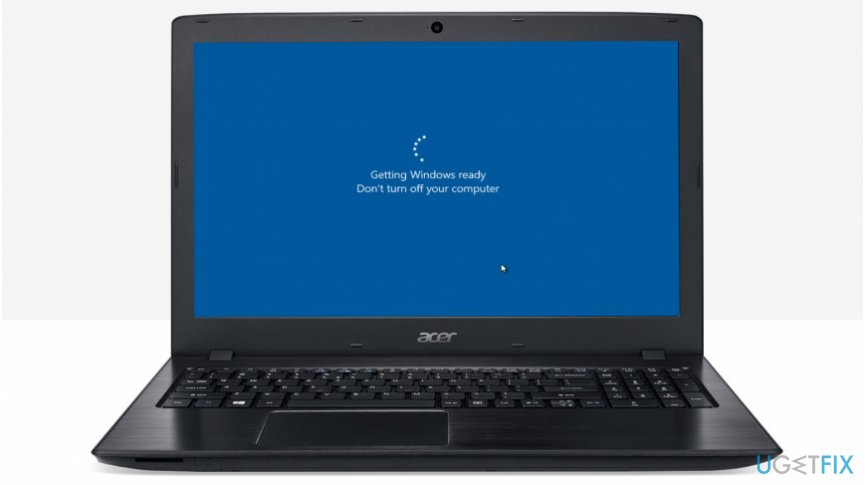
How to fix "Getting Windows ready. Don’t turn off your computer" problem right now
Before starting the manual methods "Getting Windows ready. Don’t turn off your computer" fix, you should check your system for potentially unwanted programs (PUPs) or even malware[ref en-3]. This issue might occur since the system is infected and malicious programs are running in the background.
Therefore, you can automatically fix "Getting Windows ready. Don’t turn off your computer" by scanning your PC with a professional system optimization tool. Our IT specialists recommend using [d1] as it is designed to deal with severe issues that cyber threats trigger. You can find affected files, corrupted programs, and repair needed functions before you go for more difficult solutions.
Restart your computer
In case you have waited for several hours for "Getting Windows ready. Don’t turn off your computer" screen to disappear and nothing happened, you should try to perform the hard shut down. In other terms, you must press and hold the power button for a few seconds instead of turning off the system via software.
Use System File Checker
- Submit cmd in the Windows search box;
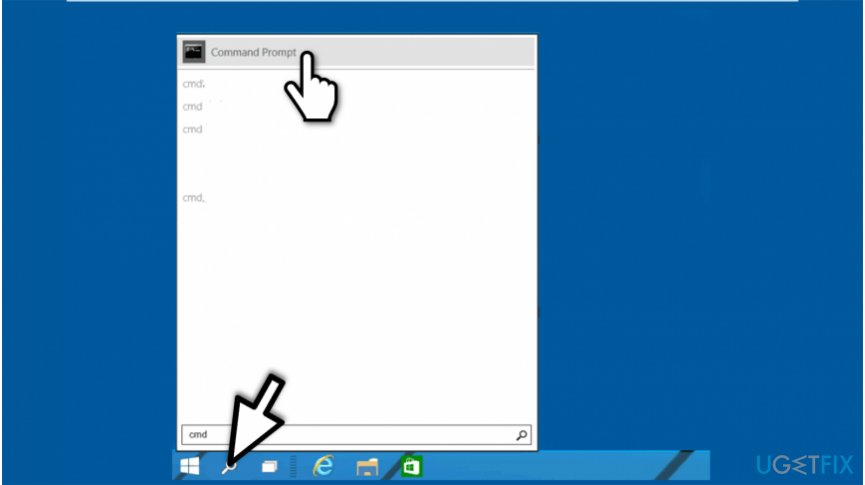
Open command prompt admin - Select Command Prompt Admin;
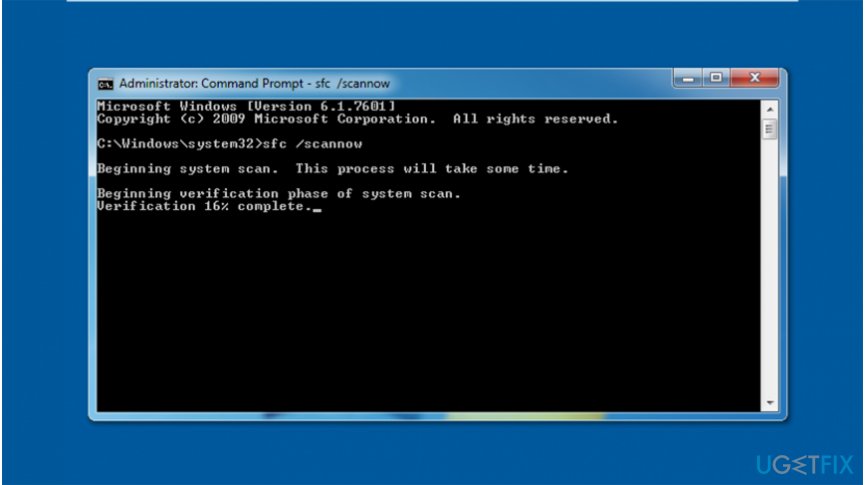
Enter sfc scannow - Type sfc /scannow and hit Enter;
- Follow the on-screen instructions.
Reset your computer
- Insert Windows installation DVD or USB;
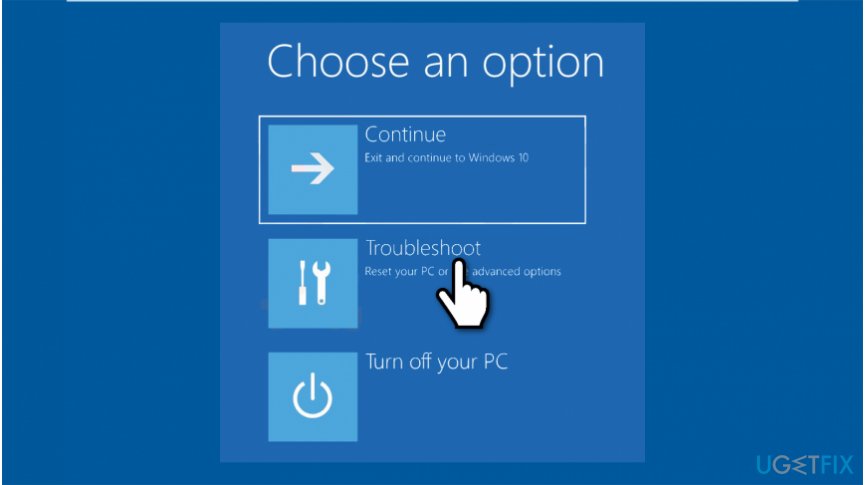
Troubleshoot windows - Boot the system and select Repair your computer;
- Click Troubleshoot;
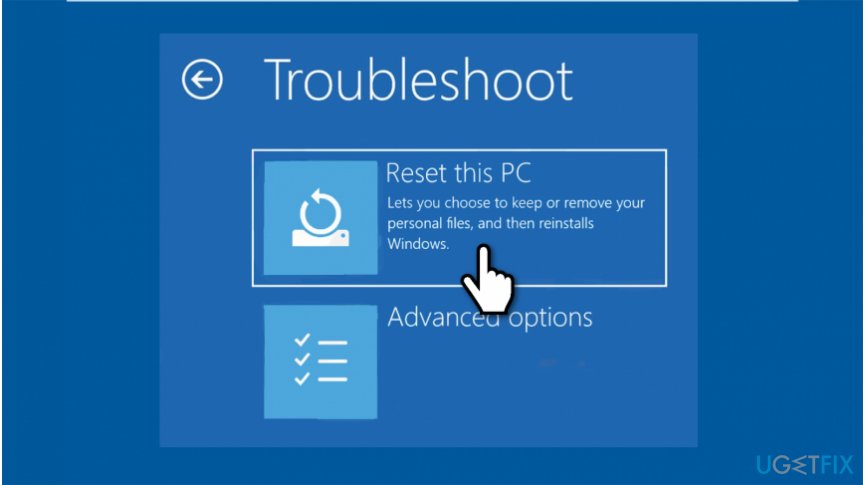
Reset the computer - Got to Reset this PC and choose between Remove everything and Keep my files options;
- Click Reset.
Bottom line
To fix the "Getting Windows ready. Don’t turn off your computer" issue, you can wait for the system to launch, check for potentially unwanted programs, and run a full system scan. If these methods do not resolve the problem, consider following the additional solutions provided at the end of the article.
Frequently asked questions
Try performing a hard reboot by pressing and holding the power button until the computer turns off, then turn it back on. If the issue persists, boot into Safe Mode and run a system file check.
You can attempt to resolve the issue by unplugging any external devices and then restarting your computer. If that doesn't work, consider using the Windows Recovery Environment to troubleshoot further.
It's generally not recommended to turn off your computer during this process, as it may lead to system corruption. If it remains stuck for an extended period, a hard reboot may be necessary.




Report an issue
What's wrong with this guide? We review every report and update or remove content.
Report received — thank you. We'll review and fix it.
You need a free account to submit a report.
Be the first to comment