How to fix
Gigabyte RGB Fusion not working
on Windows
Resolve Gigabyte RGB Fusion issues effortlessly on Windows 10 and 11. Expert-tested solutions ensure your RGB lights shine bright again, fixed in minutes!

What causes How to fix Gigabyte RGB Fusion not working in Windows?
- Software bugs
- Driver incompatibilities
- Outdated software version
- CMOS settings issues
Repairs Windows system files, removes malware, and restores a clean OS state — without reinstalling.
Hello. The Gigabyte RGB Fusion application does not work on my Windows PC. Previously I could control the light effects fine. Is there a way to fix this?
The well-known software program Gigabyte RGB Fusion was created to improve the user's experience when controlling the lighting effects and patterns on compatible hardware parts and devices. Users are given the option to regulate and personalize the lighting in many areas of their system, including hardware like motherboards, graphics cards, and peripherals. This degree of customizing enables users to design visually beautiful and synchronized lighting schemes that correspond to their preferences and styles, greatly enhancing the aesthetics and personalization of a PC setup.
Gigabyte RGB Fusion is not immune to problems and errors, though, and occasionally they may prevent it from functioning as planned. Users who depend on RGB Fusion to create the correct lighting effects or synchronize their RGB components may find it unpleasant when this problem occurs.
Users may experience Gigabyte RGB Fusion issues with Windows in a number of ways. The visual aesthetics and personalization that people have produced or intended for their computer installations are first and foremost disrupted. The desired effects could be defeated by irregular or stuck lighting patterns. The problem can also make it more difficult for users to accurately monitor system temperatures or other crucial indicators when they employ RGB lighting.
Moreover, individuals who have spent a lot of money on high-end hardware components especially made for customization and synchronization may find the inability to control RGB lighting using Gigabyte RGB Fusion to be extremely inconvenient. Users who love RGB aesthetics and lighting effects may find the problem to be a big irritation, which could have an effect on how happy they are with their system as a whole.
There are a number of potential fixes for the Gigabyte RGB Fusion issue, including updating the software, checking for driver incompatibilities, or performing a CMOS reset. These procedures are intended to fix RGB Fusion so that users may once again control their lighting effects and patterns, giving their PC setup the appropriate visual appeal and functionality.
In this guide, you will find 4 steps that should help you fix Gigabyte RGB Fusion not working in Windows. You can also run a maintenance tool like [d1] that can fix most system errors, BSODs, corrupted files, and registry issues. Otherwise, follow the step-by-step instructions below.

Solution 1. Reinstall RGB Fusion
- Type control panel in the search bar and hit Enter.
- Click on Programs > Programs and Features.
- Scroll down in the app list to find Gigabyte RGB Fusion and right-click on it to choose Uninstall.
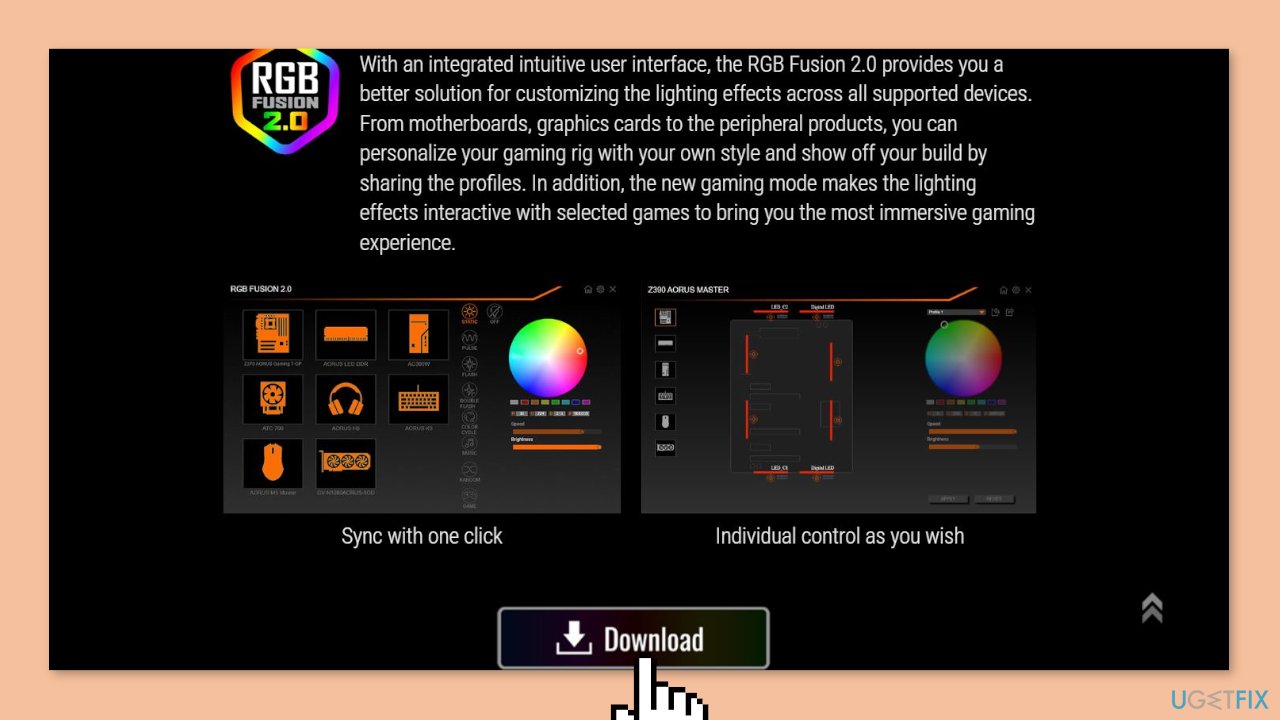
- After the uninstallation, restart your computer and then download & install the latest version of RGB version from the official website.
Solution 2. Uninstall Anti-Cheat Programs
- Press the Windows key + R to open the Run box.
- Type appwiz.cpl and hit Enter to open Programs and Features.
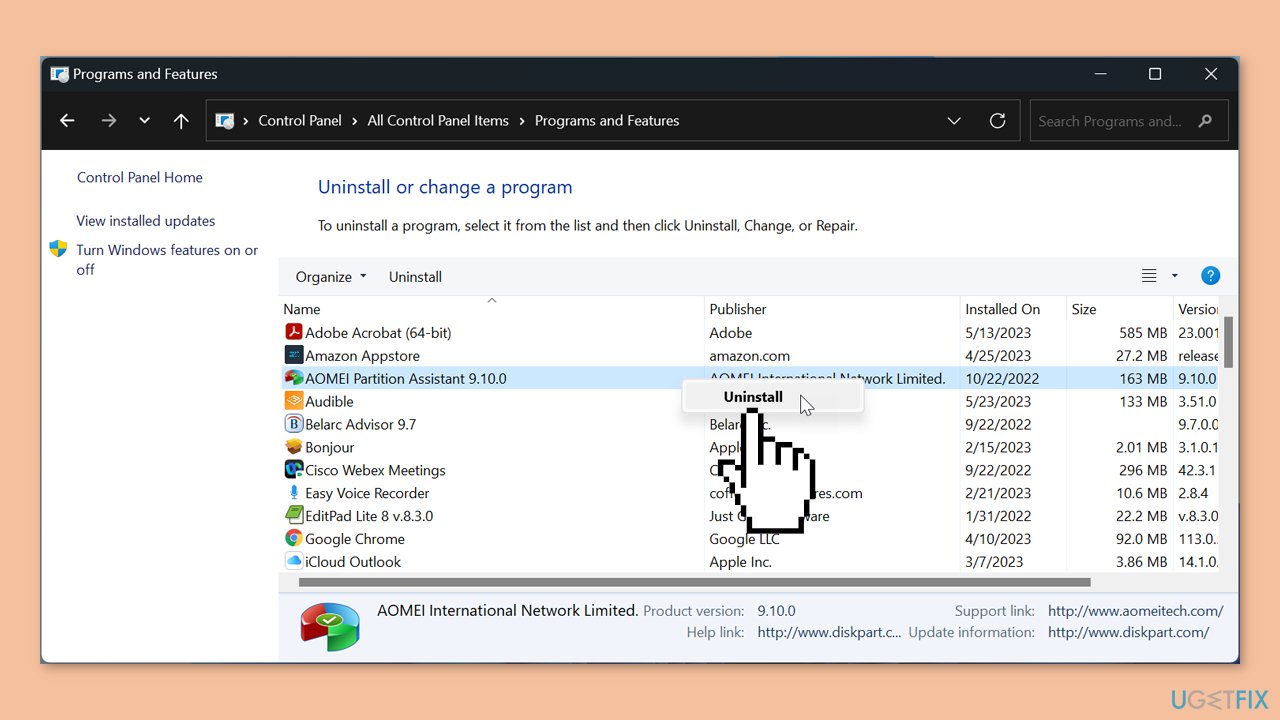
- Now, you can see all the programs installed on your PC, right-click on the app you want to delete and hit Uninstall.
- Follow the prompts on the screen to complete the uninstallation.
Solution 3. Clear CMOS
Another method to resolve the issue of RGB Fusion not opening is to perform a CMOS clear on your motherboard. This action will reset your BIOS settings to their original factory defaults.
- Power off your computer and unplug the power supply.
- Remove the side panel of the computer casing.
- Find the silver, coin-shaped battery on the motherboard and remove it.
- Wait for about 10 minutes and then put the battery back.
- Connect to the power supply and switch on your computer to start clearing the CMOS.
Solution 4. Update Drivers
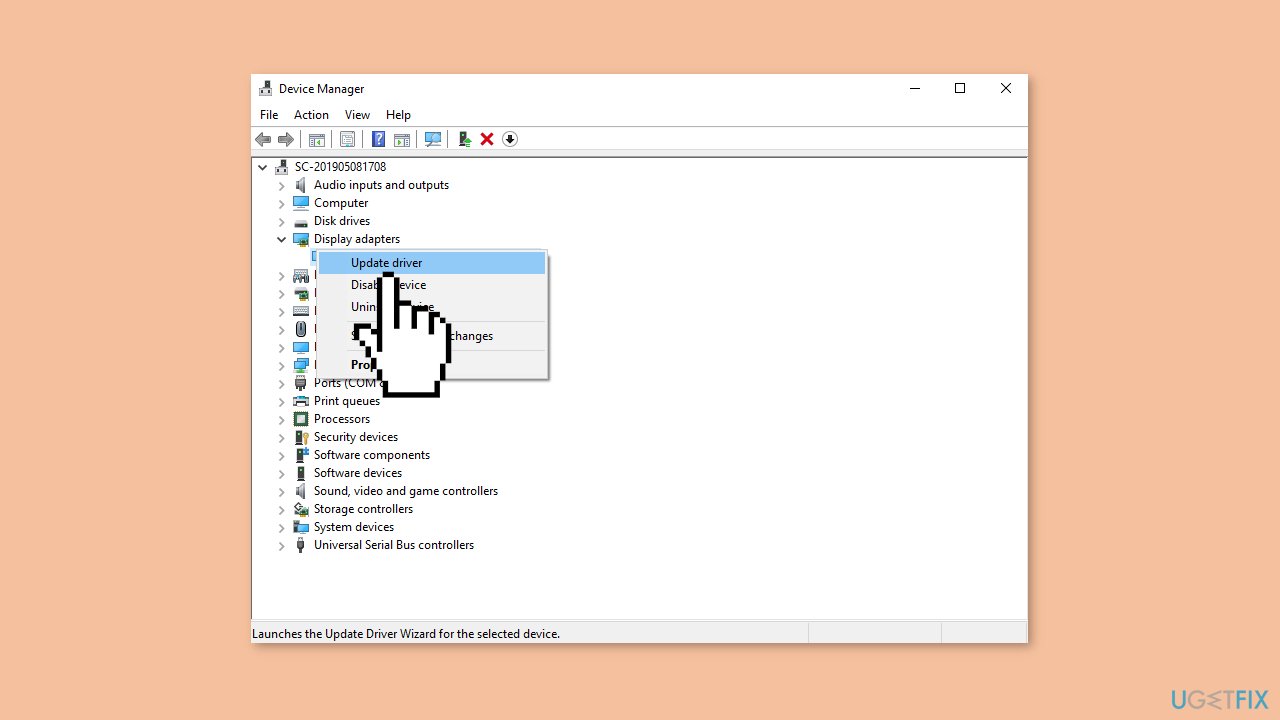
- Right-click on the Start icon and select Device Manager from the quick menu.
- Expand the device category and right-click on your driver to select Update driver.
- Select Search automatically for drivers and follow the instructions on the screen.
You can also use a dedicated utility like [rev id="DriverFix"] that can find the best drivers for your machine and install them automatically.
Bottom line
To fix the Gigabyte RGB Fusion issue, users can try updating the software, checking for driver incompatibilities, or performing a CMOS reset. These steps can help restore control over the lighting effects and patterns. If none of these solutions work, further troubleshooting may be necessary.
Frequently asked questions
First, ensure that your RGB Fusion software is updated to the latest version. Then, check if the RGB settings in the BIOS are enabled and that all RGB components are properly connected.
Make sure that the RGB devices are compatible with the software and check if the necessary drivers are installed correctly. Additionally, try reinstalling the Gigabyte RGB Fusion software to resolve any detection issues.
You can reset the settings by uninstalling the RGB Fusion software, deleting its configuration files, and then reinstalling it from the official Gigabyte website.




Report an issue
What's wrong with this guide? We review every report and update or remove content.
Report received — thank you. We'll review and fix it.
You need a free account to submit a report.
Be the first to comment