How to fix
Gmpopenh264.dll is missing or not found error
on Windows
Resolve the Gmpopenh264.dll missing error on Windows 10 and 11 quickly. Follow our expert-tested solutions for a seamless experience. Fixed in minutes!

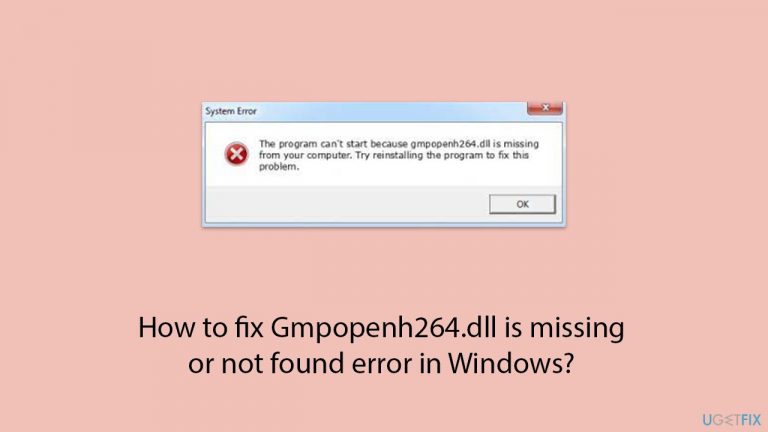
What causes How to fix Gmpopenh264.dll is missing or not found error in Windows?
- Corrupted files
- Damage to the DLL file
- Malware infections
- Improper installation or uninstallation of software
- System crashes affecting DLL integrity
Repairs Windows system files, removes malware, and restores a clean OS state — without reinstalling.
I keep getting this error when I use Firefox: "The program can't start because Gmpopenh264.dll is missing from your computer. Try reinstalling the program to fix this problem." What do I do?
DLL files, or Dynamic Link Libraries, are essential components within the Windows operating system that contain code and data used by multiple programs simultaneously. These files help to promote modularization of code, efficient memory usage, and code reuse, which makes applications run more smoothly and efficiently.
However, DLL files can also be a source of errors and various problems when they go missing or become corrupted, leading to disruptions in software functionality. One such error that Windows users might encounter is the "Gmpopenh264.dll is missing or not found" message.
Gmpopenh264.dll is a specific DLL file associated with the Firefox browser plugin, primarily used for handling video encoding and decoding tasks. This file plays a crucial role in enabling certain functionalities related to video playback and streaming within the Firefox browser.
When the Gmpopenh264.dll file is compromised, the Firefox plugin that depends on it fails to function correctly, leading to the error message. This indicates that the system cannot locate the necessary DLL file required for the Firefox plugin to operate correctly, resulting in errors and potential disruptions in video-related activities.
There could be several reasons why Gmpopenh264.dll error might occur - they usually relate to corrupted files or damage to the DLL file itself. As to why this might happen, it might be malware infections, improper installation or uninstallation of software, or system crashes that affect the integrity of the DLL files.
You can fix the Gmpopenh264.dll missing or not found error using several different methods, for example:
- verifying the integrity of the DLL files;
- fixing or reinstalling the affected software;
- making sure your machine is virus-free.
Below, you will find detailed instructions for all of these (and a few other) steps.
For issues such as corrupted system files, BSODs, broken registry or DLLs, and more, using the [d1] maintenance and repair tool can be very helpful, especially if figuring out the root cause is hard.
Fix 1. Scan for malware
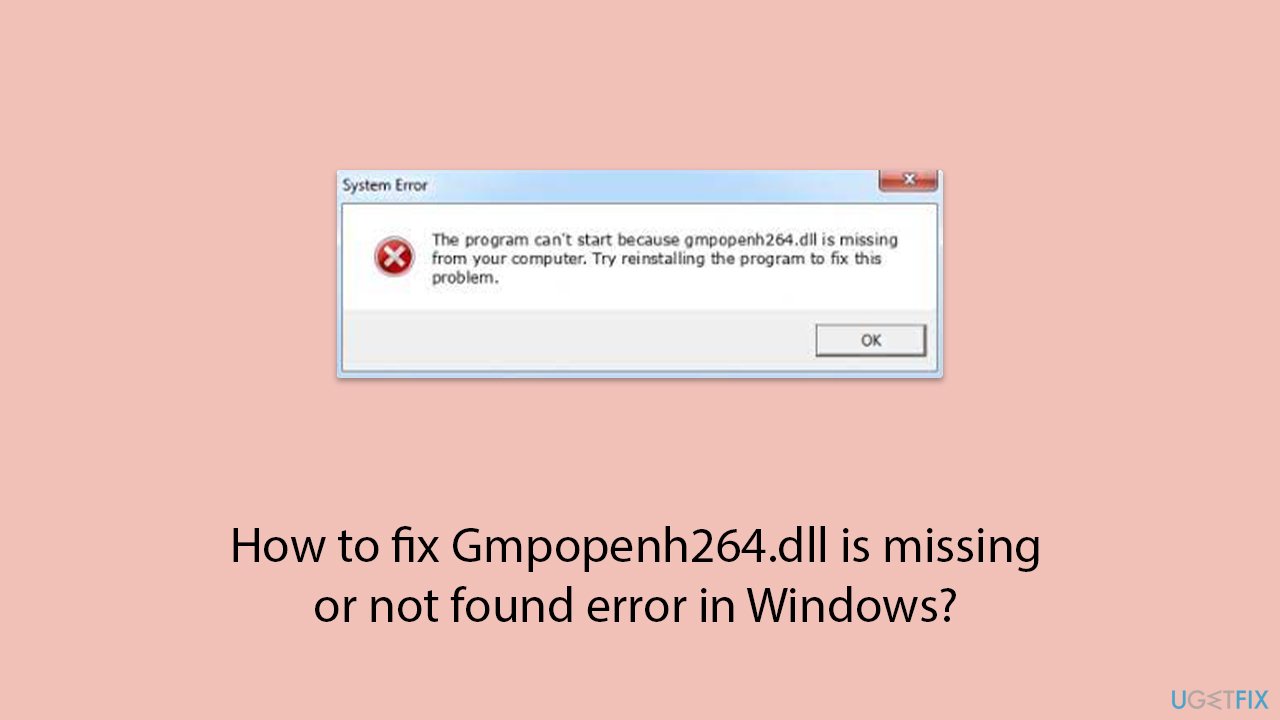
Malware infections can corrupt or delete DLL files, causing errors like Gmpopenh264.dll missing. If you want, you can employ a trusted third-party security software, although Microsoft Safety Scanner or the built-in Windows Defender can do the job just as well:
- Type Windows Security in the Windows search bar and hit Enter.
- Select Virus & threat protection.
- Pick Scan options.
- Choose Microsoft Defender Offline scan and click Scan now.
- Your computer will immediately reboot and begin a deep scan.
Fix 2. Reinstall Firefox
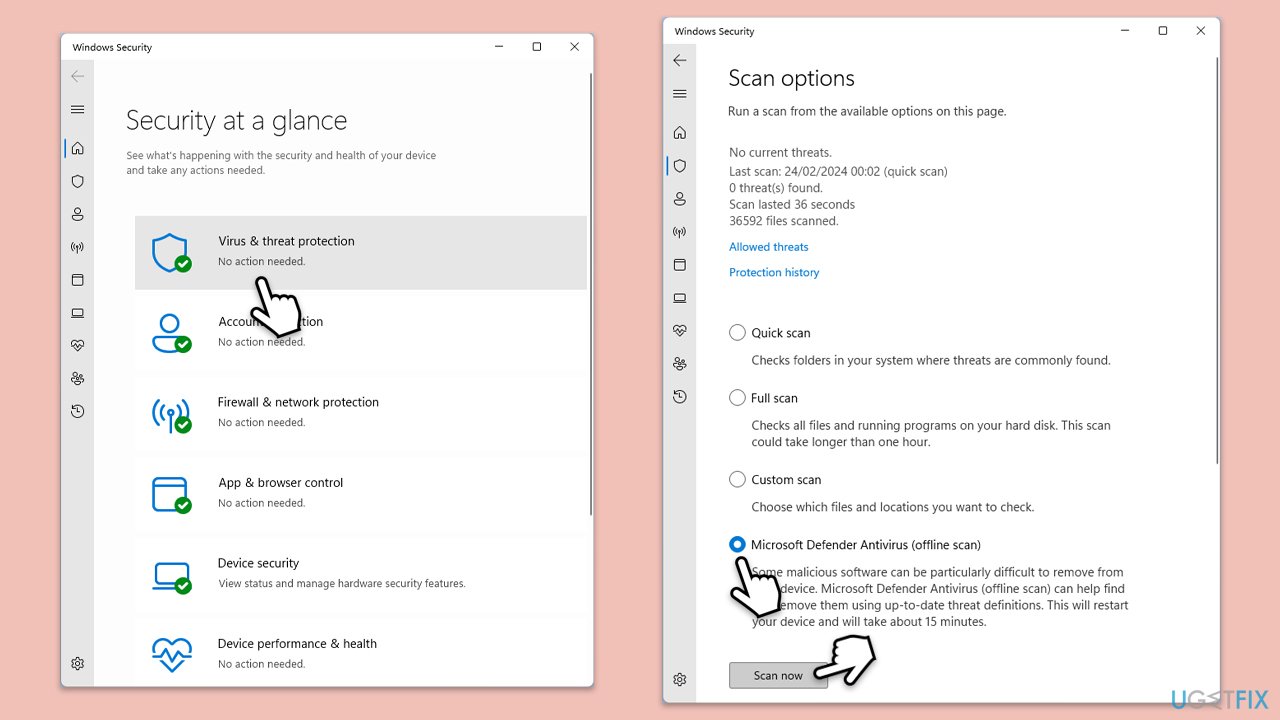
Reinstalling Firefox can replace any missing or corrupted DLL files related to the browser, such as Gmpopenh264.dll.
- Type Command Prompt in Windows search and press Enter.
- Locate Mozilla Firefox in the list.
- Right-click on it and select Uninstall, then follow the prompts.
- Restart your computer.
- Download the latest version of Mozilla Firefox from the official website and install it.
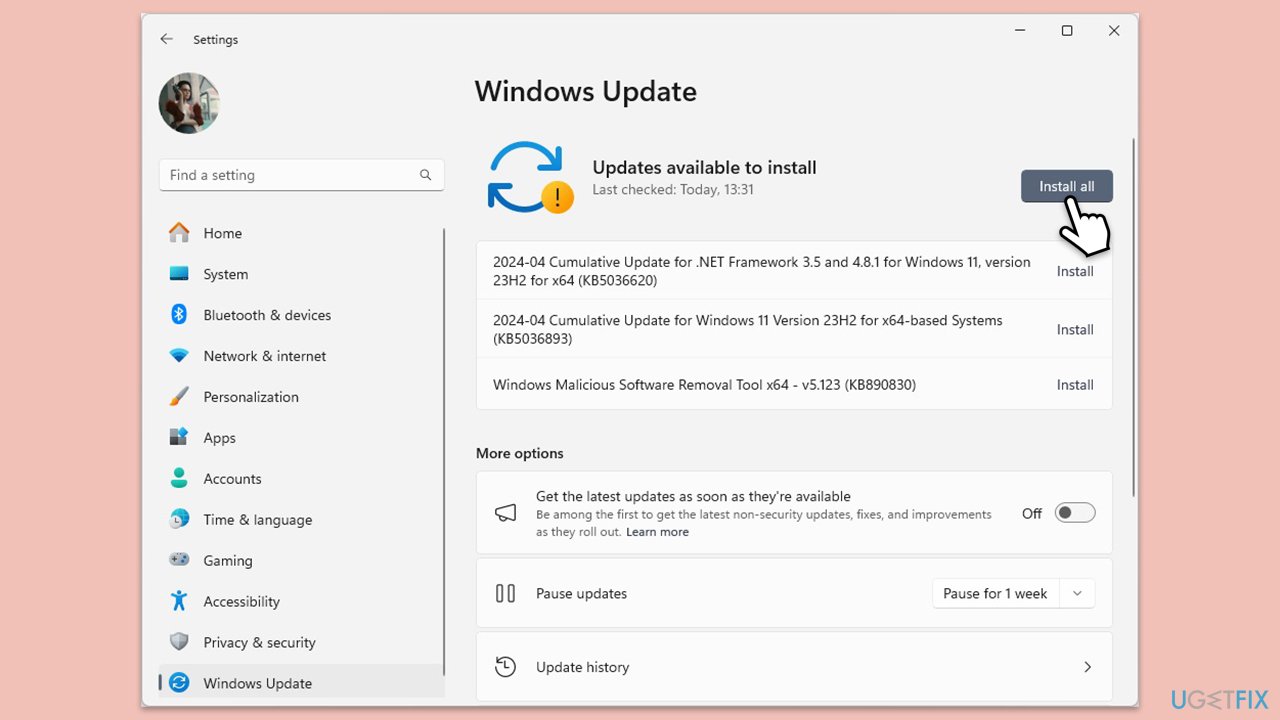
Fix 3. Update your system
System updates can include fixes for DLL errors and other issues, ensuring that your software is up-to-date and stable.
- Type Updates in the Windows search bar and hit Enter.
- If updates are pending, click Download and install. Otherwise, click Check for updates.
- Make sure you choose to install optional updates as well.
- Restart your system to implement the changes.
Fix 4. Repair corrupted files
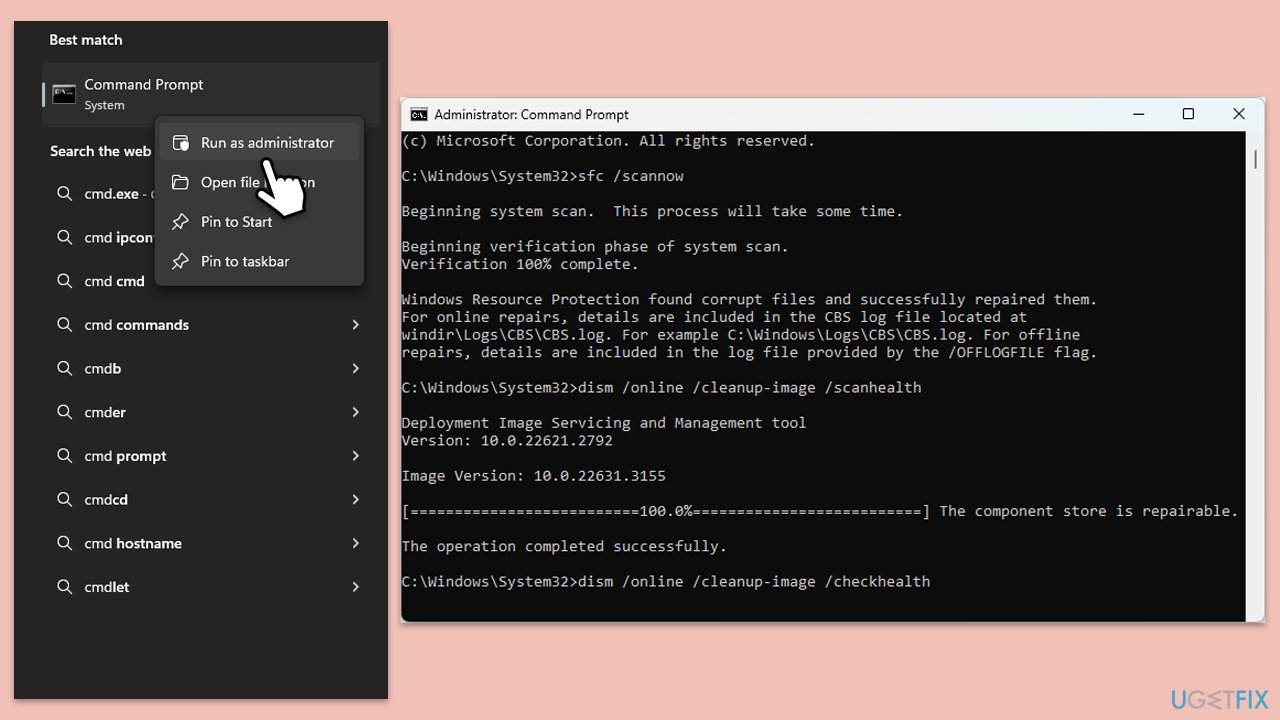
Some built-in tools in Windows can be run to repair system file corruption.
- Type cmd in Windows search.
- Right-click on Command Prompt and pick Run as administrator.
- User Account Control window will show up - click Yes when prompted.
- Then, copy and paste the following command, pressing Enter after:
sfc /scannow - Wait till the scan is finished. If Windows finds system file integrity violations, it will attempt to fix them. After this, use the set of the following commands, pressing Enter each time:
DISM /Online /Cleanup-Image /CheckHealth
DISM /Online /Cleanup-Image /ScanHealth
DISM /Online /Cleanup-Image /RestoreHealth
Note: if you get an error executing this last command, add /Source:C:\RepairSource\Windows /LimitAccess to it and try again. - Close down the Command Prompt and restart your device.
Fix 5. Register the DLL file
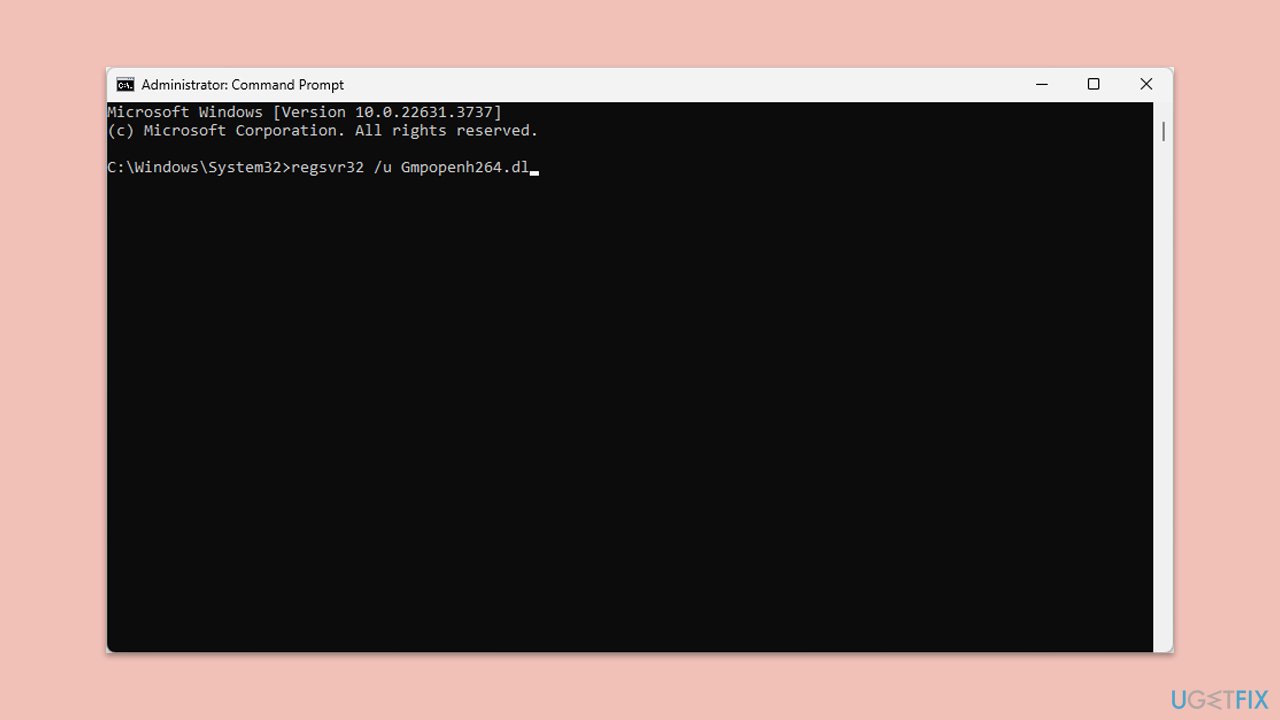
Registering the DLL file ensures it is correctly loaded and recognized by the system.
- Open Command Prompt as administrator.
- In the prompt, type in the following command and press Enter:
regsvr32 /u Gmpopenh264.dl - After that, type the next command and hit Enter:
regsvr32 /i Gmpopenh264.dl - Restart your device to apply the changes.
Bottom line
You can fix the Gmpopenh264.dll missing or not found error by verifying the integrity of the DLL files, fixing or reinstalling the affected software, and ensuring your machine is virus-free. If these methods do not resolve the issue, consider using a maintenance and repair tool to address more complex problems.
Frequently asked questions
This error typically occurs when the gmpopenh264.dll file is either deleted, corrupted, or not properly registered on your system. It can also arise from issues with the software that relies on this DLL file, such as a browser or video player.
You can restore the gmpopenh264.dll file by reinstalling the application that requires it, or by downloading the DLL file from a reputable source and placing it in the appropriate system folder. Ensure to run a virus scan to avoid security risks.
Yes, you can try running the System File Checker tool by executing 'sfc /scannow' in the Command Prompt to repair corrupted files, or use the DISM tool to fix Windows image issues.




Report an issue
What's wrong with this guide? We review every report and update or remove content.
Report received — thank you. We'll review and fix it.
You need a free account to submit a report.
Be the first to comment