
How to fix Google Chrome opening new tabs automatically?

Prefer to fix it yourself? The manual steps follow.
- 8methods
- 2 to 20 minutes
- Easy
Applies to Google Chrome on Windows 11 (25H2, 26H2) and Windows 10 22H2; the Chrome and Google Search settings are the same in Chrome on macOS and Linux
8 methods in this guide
Every time I click on a link in Google Chrome, a new website always opens in a new tab. This is very annoying and I am not quite sure why this happened. How do I fix this?
Chrome opening new tabs by itself has two very different causes: a harmless setting that makes every link open in a new tab, or a site or program that opens tabs without being asked. Check the Google Search setting first, then pop-ups and redirects, then extensions and malware.
If tabs open only when you click a Google search result, open google.com/preferences and untick Open each selected result in a new browser window (Fix 1). If tabs open without any click, set Pop-ups and redirects in Chrome to block (Fix 2), turn off unknown extensions (Fix 3) and scan the PC for malware (Fix 4). Google lists new tabs that will not go away as a sign of unwanted software.
| Error | No error message. Chrome opens a new tab for every link you click, or opens tabs and pages on its own while you browse or when Chrome starts. |
|---|---|
| Where it appears | In Chrome on every site, or only on Google search results, or only on one or two sites. |
| Main cause | The Google Search setting Open each selected result in a new browser window, or a site allowed to use pop-ups and redirects. Less often an extension, unwanted software or a stuck key. |
| Fastest fix | Untick the Search setting at google.com/preferences and save it (Fix 1), then block pop-ups and redirects in Chrome (Fix 2). |
| Also written as | Chrome keeps opening new tabs, Chrome opening tabs by itself, new tab opening automatically in Chrome, tabs opening automatically in Chrome, Google keeps opening new tabs. |
| Affects | Chrome on Windows 11 and Windows 10 22H2. Windows 10 left support on 14 October 2025; Chrome still runs there, but Windows gets no more security updates. |
| Vendor status | Not a known Chrome bug. Google says Chrome blocks pop-ups by default, and lists pop-up ads and new tabs that will not go away as a sign of unwanted software. |
| Is it malware | Possibly, if tabs open without a click, the home page or search engine changed, or extensions came back after you removed them. Fix 4 checks it. |
| Time to fix | 2 minutes for the Search setting and pop-up settings. Up to 20 minutes with a full malware scan. |
Facts checked on 16 October 2026. Steps written for Chrome on Windows 11 and Windows 10 22H2. The Chrome menu paths for pop-ups, redirects, extensions and reset are quoted from Google's Chrome Help, the Search setting from Google Search Help. The Windows steps for Windows Security and Installed apps were not re-checked on a live PC for this edition..
Why Chrome keeps opening new tabs
Chrome opens a link in a new tab when the page or a setting asks for it. Most of the time this is on purpose: a site links to another site and asks for a new tab, or your Google Search settings tell Google to open every result in a new window. Neither is a fault of Chrome.
The second kind is not on purpose. A site opens pop-ups or redirects you to another page, a browser extension or an unwanted program opens tabs, or a key is stuck. Google's help for unwanted software names pop-up ads and new tabs that will not go away as signs of it, together with a changed home page or search engine, hijacked browsing and extensions that keep coming back.
| What you see | What it usually means |
|---|---|
| A new tab opens when you click a Google search result, and nowhere else | The Search setting Open each selected result in a new browser window is on. |
| A new tab or window opens on a site you do not know, often with ads | That site is allowed to use pop-ups and redirects, or a notification subscription is active. |
| Tabs open while you do nothing, on every site | An extension or unwanted software on the PC. |
| Many tabs open one after another, even on a blank page | A stuck Ctrl or T key, or software pressing keys. |
| The home page or search engine changed and pop-up ads appear | Unwanted software. Google advises checking the PC for unwanted programs. |
| Chrome shows a new tab page or old pages every time it starts | Chrome's start-up setting, or an unwanted program that changed it. |
This one question tells you which half of this guide to read. If a new tab opens only after you click, start with Fix 1 and Fix 2. If tabs open with no click at all, go straight to Fix 3 and Fix 4.
What makes Chrome open new tabs, from most to least likely
Google publishes no figures for this problem. The order below follows how readers of this page describe it and how cheap each check is. Each cause points to one fix.
| Cause | How you recognise it | Fix |
|---|---|---|
| Google Search setting to open results in a new window | New tabs only from search results at google.com | Fix 1 |
| A site allowed to use pop-ups and redirects | New tabs or windows with ads or unfamiliar addresses | Fix 2 |
| An unwanted or hijacked extension | Tabs open on every site, the problem came after an install | Fix 3 |
| Unwanted software or malware on the PC | Changed home page or search engine, ads in new tabs, extensions that return | Fix 4 |
| A stuck key | Tabs open even on a blank page, in other programs the keyboard also acts strangely | Fix 5 |
| An outdated Chrome | The problem started with a Chrome that has not been updated for a long time | Fix 6 |
| Changed Chrome settings or a damaged profile | Nothing above explains it | Fix 7 and Fix 8 |
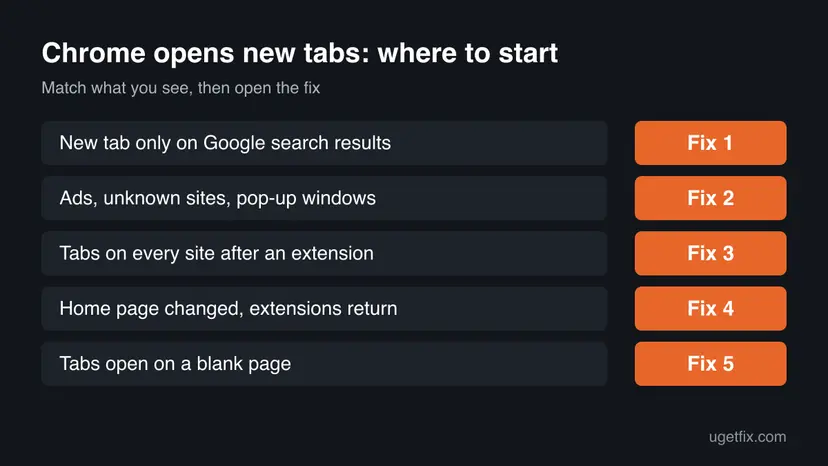
How to stop Chrome opening new tabs automatically
Fix 1 and Fix 2 solve most cases where you click a link. Fix 3 and Fix 4 are for tabs that open on their own. Fix 5 to Fix 8 are for the rest, ending with a reinstall.
| What you see or have | Start with |
|---|---|
| A new tab opens only when you click a Google search result. | Fix 1 |
| New tabs or windows with ads or unknown sites open. | Fix 2 |
| Tabs open on every site and the problem began after you added an extension. | Fix 3 |
| Changed home page or search engine, or extensions that come back. | Fix 4 |
| Tabs open one after another, even on a blank page. | Fix 5 |
| Nothing above fits, and Chrome has not been updated for a long time. | Fix 6 |
Fix 1. Turn off Open each selected result in a new browser window in Google Search
2 minutesNo riskA new tab opens when you click a result on google.com. This is the most common reason people see "every link opens in a new tab".
Google Search has its own setting called Where results open. When it is on, Google asks the browser to open each result in a new browser window, which Chrome shows as a new tab. It is not a Chrome setting, so changing Chrome does not remove it.
- Go to google.com, search for anything and open Google's search settings at google.com/preferences.
- At the top right, check that your Google Account picture is shown. Google says that a Sign in button there means you are not signed in.
- In the Where results open section, make sure the box Open each selected result in a new browser window is not ticked. If it is ticked, untick it.
- At the bottom, select Save.
- Search again and click a result.
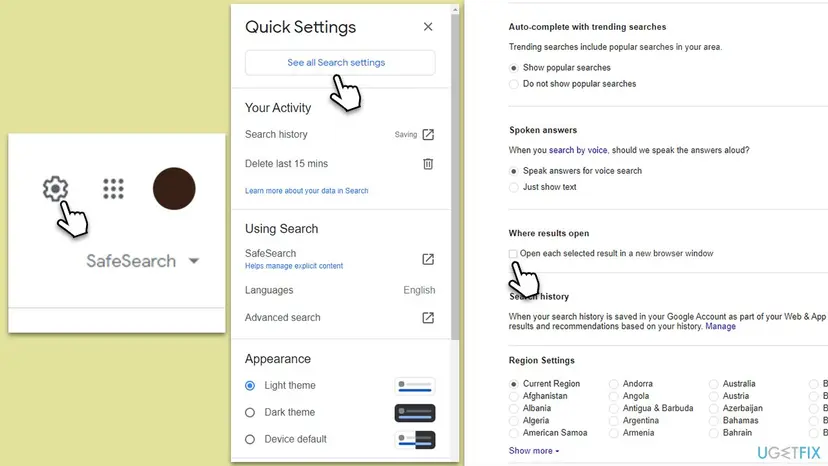
Google says that even if you select this option, Google Image search results always open in a new tab. That is Google's behaviour, not a fault.
Google says the settings save to your account when you are signed in. If the box ticks itself again, sign in to your Google Account in Chrome first, then change and save it. We could not confirm from Google's page how the setting is kept when you are signed out.
It worked if: A click on a search result opens the page in the same tab, and you return with the Back button.
If not: If tabs still open on other sites, or with no click, go to Fix 2.
Fix 2. Block pop-ups and redirects in Chrome
3 minutesNo riskA new tab or window opens on a site, with ads or an address you do not know, or Chrome jumps to another page after a click.
Chrome blocks pop-ups by default. If a site opens tabs anyway, either the default was changed to allow them, or you allowed that one site, or you subscribed the site to notifications.
- In Chrome, select More (three dots) at the top right, then Settings.
- Select Privacy and security, then Site Settings, then Pop-ups and redirects.
- Choose Don't allow sites to send pop-ups or use redirects as the default.
- Under Allowed to send pop-ups and use redirects, find any site you do not trust, select More (three dots) next to it and choose Block.
- To block a whole site and its subdomains, select Add next to Not allowed to send pop-ups or use redirects and enter the address in the form
[*.]example.com.
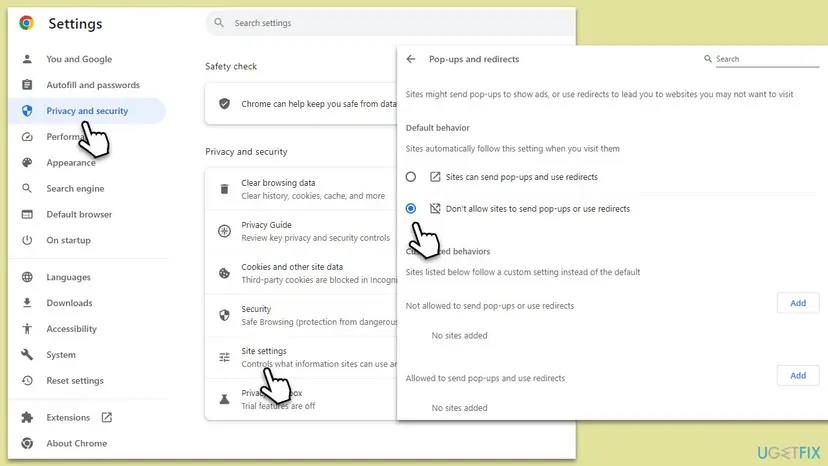
Google also says that if you still get pop-ups after blocking them, you may have subscribed to notifications from a site, or the computer may be infected. To end notifications, open the site, select View site information in the address bar and set Notifications to Block. Chrome applies these changes without a restart.
Google says that on a Chrome device managed at work or school you cannot change this setting yourself, and your network administrator sets it.
It worked if: A site that opened tabs on its own is blocked, and Chrome shows a Pop-up blocked mark in the address bar instead of opening the new tab.
If not: If tabs still open on many sites, an extension or the PC is the cause. Go to Fix 3.
Fix 3. Turn off or remove suspicious extensions
5 minutesLow riskTabs open on every site, the problem began after you added an extension, or you have extensions you do not remember installing.
An extension can open tabs and change pages in every site you visit. Google lists unwanted extensions that keep coming back among the signs of unwanted software, so an extension you do not know is worth removing.
- In Chrome, type
chrome://extensionsin the address bar and press Enter. You can also select More (three dots), then Extensions, then Manage extensions. - Read the list. Note every extension you do not know or did not choose.
- Turn every extension off with its switch.
- Browse for a few minutes. If no new tab opens now, an extension was the cause.
- Turn the extensions back on one at a time, and wait after each. When the problem returns, select Remove on that extension and confirm.
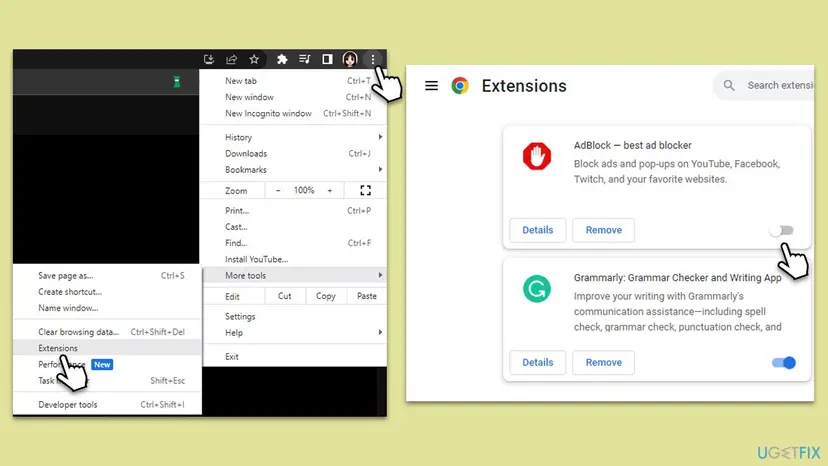
If the extension returns after you remove it, a program on the PC puts it back. That is a sign of unwanted software: go to Fix 4.
It worked if: No new tabs open while all extensions are off, and the one that caused them is removed.
If not: If tabs still open with all extensions off, scan the PC in Fix 4.
Fix 4. Remove unwanted programs and scan the PC for malware
10 to 20 minutesLow riskTabs open with no click, the home page or search engine changed, ads appear in new tabs, or extensions return after you remove them.
Google lists pop-up ads and new tabs that will not go away as a sign of unwanted software or malware, and says to check the computer for unwanted programs before you reset Chrome. A scan finds what the browser settings cannot.
First remove programs you do not know. Open Start, then Settings, then Apps, then Installed apps, select the program and choose Uninstall. This is the path Google gives for Windows. Step by step: Uninstall a program or app in Windows.
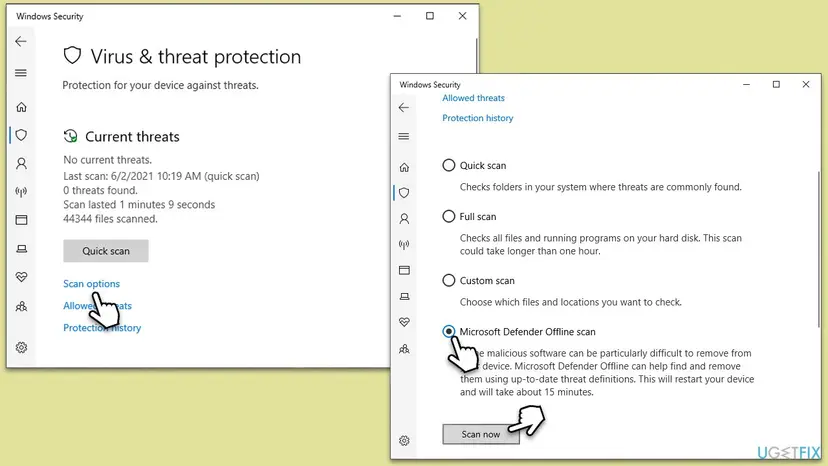
Then scan with Microsoft Defender. The quick scan is in the steps below. If you still suspect an infection, open Scan options and choose Microsoft Defender Offline scan, then Scan now. The PC restarts at once and scans before Windows loads, so save your work first.
- Open Windows Security. Select Start, type Windows Security and open the app.
- Open Virus & threat protection. Select Virus & threat protection. Under Current threats you see when the last scan ran, how long it took and how many files it checked.
- Run a quick scan. Select Quick scan. If Windows Security thinks a deeper scan is needed, it tells you when the quick scan is done.
These steps were written for Windows 11 25H2 and 26H2, Windows 10 22H2. The full page with the other versions and what each result means: How to scan for malware with Microsoft Defender
If another antivirus program is installed, Microsoft Defender Antivirus turns itself off and that program does the scanning. Run its scan instead.
It worked if: The scan reports and removes what it found, and Chrome stops opening tabs after a restart.
If not: If tabs still open after a clean scan, check the keyboard in Fix 5.
Fix 5. Check for a stuck key with the on-screen keyboard
3 minutesNo riskMany tabs open one after another, even on a blank page, or the keyboard also types by itself in other programs.
In Chrome, Ctrl + T opens a new tab. A stuck Ctrl or T key, or a key with dirt under it, can repeat the shortcut and open tab after tab.
- Press Ctrl + Win + O. The on-screen keyboard opens.
- Look at the Ctrl and T keys on it. They light up while the real key is held down.
- If one stays lit with no key pressed, that key is stuck or sending a signal.
- Switch the PC off, clean around the key, or remove the key cap if the keyboard allows it.
- On a laptop, try an external keyboard to test whether the built-in one is at fault.
A held Ctrl key also makes a click on a link open it in a new tab, so a stuck Ctrl produces the same result for every link you click.
It worked if: No key stays lit, and Chrome stops opening tabs on a blank page.
If not: If the keyboard is fine, go to Fix 6.
Fix 6. Update Chrome to the latest version
3 minutesNo riskChrome has not been updated for a long time, or the problem began after Chrome failed to update.
An update brings the newest fixes and security patches. Google does not name a Chrome version that fixed this problem, so this is a low-probability step kept because it costs nothing.
- Select More (three dots) at the top right.
- Select Help, then About Google Chrome.
- Wait while Chrome checks for and downloads the update.
- Select Relaunch when it appears.
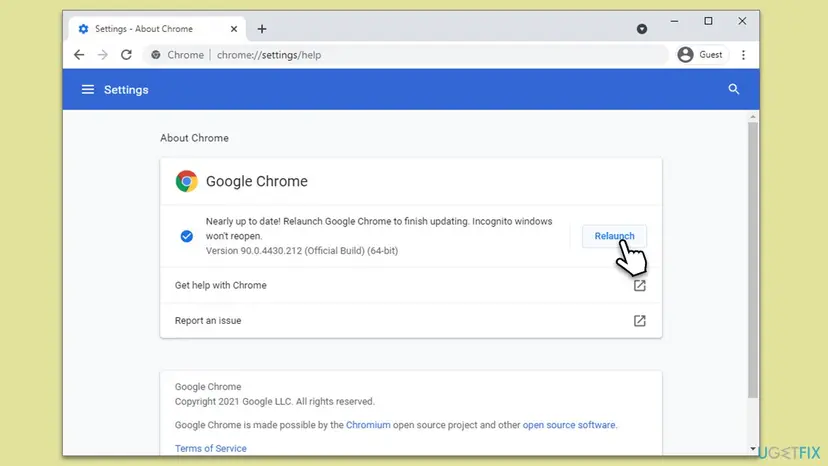
It worked if: The About page says that Chrome is up to date.
If not: If it was already up to date, go to Fix 7.
Fix 7. Clear the cache and cookies as a last test
2 minutesLow riskNothing above explained the tabs and you want one more low-risk test before you reset Chrome.
Google does not list stored cache or cookies as a cause of new tabs. A page can still keep a broken saved state, and clearing it costs only a few sign-ins, so it is kept as a late test and not as a first fix.
Clearing cookies signs you out of most websites. Make sure you know your passwords. To keep them, clear only the cached images and files.
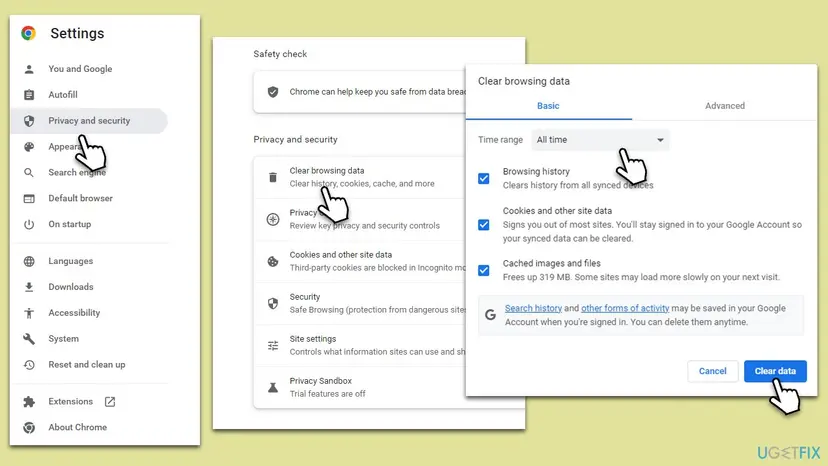
- Open Delete browsing data. Press Ctrl + Shift + Delete. Or select More (the three dots at the top right) > Delete browsing data.
- Choose how far back to delete. Select a time range at the top, such as Last hour. To clear everything, open More next to the ranges and choose All time.
- Choose what to delete. Check Cached images and files. Check Cookies and other site data too if a site will not sign you in. Uncheck anything you want to keep.
- Delete the data. Select Delete from this device.
These steps were written for Chrome for Windows (screenshot: Windows 11 26H2). The full page with the other versions and what each result means: Clear the browser cache and cookies
It worked if: Pages load fresh and you sign in again. New tabs stop opening if a stored page state was the cause.
If not: If nothing changed, reset Chrome's settings in Fix 8.
Fix 8. Reset Chrome settings and, if needed, reinstall Chrome
10 minutesRead the warningEvery fix above failed, and the PC scan found nothing.
Google says Chrome checks at launch whether unwanted programs changed your settings and restores the safe defaults. A manual reset does the same, and a reinstall replaces damaged program files.
Resetting Chrome settings means you have to turn some extensions on again. Turn on only extensions you trust. Bookmarks and passwords stay if you sync your Google Account, so check that sync is on before you reinstall.
- In Chrome, select More (three dots), then Settings.
- Select Reset settings, then Restore settings to their original defaults, then Reset settings.
- To turn trusted extensions back on, select More, then Extensions, then Manage extensions.
- Use Chrome for a while. If tabs still open on their own, close Chrome, open Settings, Apps, Installed apps, select Google Chrome and choose Uninstall.
- Restart the PC and install Chrome again from google.com/chrome.
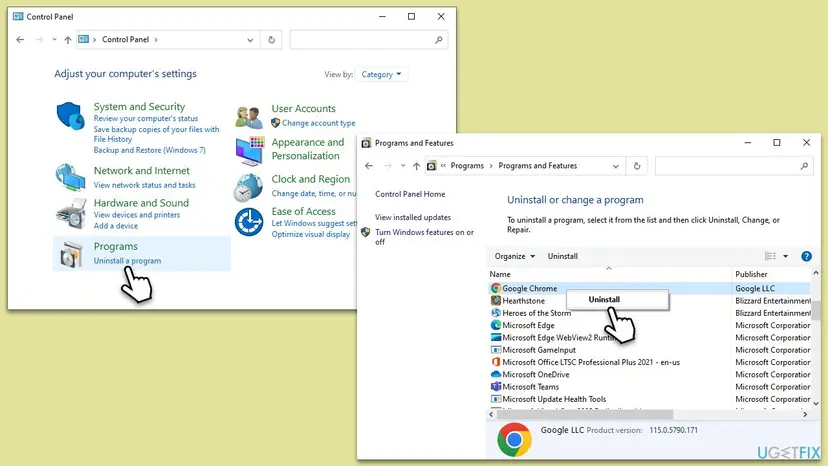
Step by step, with the other Windows ways to uninstall: Uninstall a program or app in Windows.
It worked if: A fresh Chrome opens tabs only when you ask it to.
If not: If a fresh Chrome opens tabs by itself too, the cause is outside Chrome. Read the section below.
Chrome still opens new tabs: what to check next
If a fresh Chrome still opens tabs, narrow it down by what opens, and where.
| What you find | What it points to | Next |
|---|---|---|
| Tabs open only on one site | That site, not Chrome | Block pop-ups and redirects for it, Fix 2, or do not visit it |
| Tabs open when Chrome starts | The start-up setting or an unwanted program | Open Settings, On startup, remove unknown pages. We did not re-check this setting against a Google page for this edition |
| Another browser opens tabs too | The PC, not Chrome | Scan again with an offline scan, Fix 4 |
| Notifications from a site appear, then a tab opens | A notification subscription | Block notifications for the site, Fix 2 |
| On a work PC the settings are locked | Administrator policy | Ask your administrator |
- Type
chrome://settingsin the address bar. Google says Chrome shows a detailed notification of all changes it reversed after a settings hijack. - Note your Chrome version from Settings > About Chrome and the extensions you had on, before you ask for help.
- Post the details in the Chrome Help Community, which Google names as the next step when the reset does not work.
If every browser on the PC opens tabs or ads, or the keyboard types by itself in other programs, the cause is malware, a stuck key or a faulty keyboard. Chrome settings will not fix those.
How to stop Chrome opening unwanted tabs again
- Keep Don't allow sites to send pop-ups or use redirects set in Chrome.
- Go to the program's official website to download a program, not through a pop-up about an update.
- Pay attention to Safe Browsing download warnings.
- Check Manage extensions from time to time and remove those you do not use.
- Do not click pop-ups about a virus or an infected device. Google lists these among the signs of unwanted software.
- Do not download files from sites whose address does not start with HTTPS.
- Do not open password-protected .zip files from unknown senders: Google warns they can bypass antivirus scans.
- Do not turn off or ignore Safe Browsing warnings when a site asks you to.
Most cases end with one setting: the Search option, or a blocked site. If the tabs return after a program install, remove that program first.
Frequently asked questions
Why does Chrome keep opening new tabs?
Most often a setting asks for it: the Google Search option to open each result in a new browser window, or a site you allowed to use pop-ups and redirects. Less often an extension or unwanted software opens them. If the tabs open only when you click a Google result, change the Search setting (Fix 1). If they open with no click, block pop-ups and redirects, then check extensions and scan the PC (Fix 2 to Fix 4).
How do I stop Chrome opening links in a new tab?
Open google.com/preferences, find Where results open and untick Open each selected result in a new browser window, then select Save. That stops Google search results opening in new tabs. For links on other websites, the site decides whether a link opens in a new tab, and Chrome has no setting that changes it for every site. Block pop-ups and redirects if the new tabs are unwanted ones.
Why does Chrome open new tabs by itself with no click?
A site is using a pop-up or a redirect, an extension is opening tabs, or unwanted software is on the PC. Google lists pop-up ads and new tabs that will not go away as signs of unwanted software. Turn off all extensions first, then remove programs you do not know and scan with Microsoft Defender. A stuck Ctrl or T key can also open tabs, so check the on-screen keyboard (Fix 5).
Is Chrome opening tabs a virus?
It can be, but it is not always one. A harmless Search setting opens a tab for every result, and an allowed pop-up site opens tabs too. Suspect malware when tabs open with no click, the home page or search engine changed without your permission, or extensions come back after you remove them. Google names these signs. Scan with Microsoft Defender, including the offline scan, and remove programs you do not know (Fix 4).
Why does Chrome open new windows instead of tabs?
The Search setting is worded as opening each result in a new browser window, and Chrome shows that as a new tab. A site's pop-up can open as a separate small window. Blocking pop-ups and redirects in Site Settings stops those (Fix 2). We could not confirm another Chrome setting that turns tabs into windows, so if it still happens after Fix 1 and Fix 2, scan the PC (Fix 4) and reset Chrome (Fix 8).
How do I make Chrome open tabs automatically at start-up?
This page is about stopping unwanted tabs, but the setting is On startup in Chrome's Settings, where you can have Chrome open the New Tab page, continue where you left off, or open specific pages. We did not re-check its exact wording against a Google page for this edition. If tabs you did not choose open at start-up, check that list for unknown pages and run the malware scan in Fix 4.
Does clearing the cache stop new tabs from opening?
Usually not. Google does not list the cache or cookies as a cause. It is a low-risk test, but it signs you out of most sites, so it comes late in this guide (Fix 7). The settings that matter are in Google Search (Fix 1), Pop-ups and redirects (Fix 2) and your extensions (Fix 3). Clear the cache only after those, and use it to rule out a broken saved page state.
How do I block pop-ups for one site in Chrome?
Open Settings, Privacy and security, Site Settings, Pop-ups and redirects. Under Allowed to send pop-ups and use redirects, select More next to the site and choose Block. If the site is not listed, select Add next to Not allowed to send pop-ups or use redirects and enter its address. Use the form [*.]example.com to catch every pop-up across the site. Chrome applies it at once.
Why do tabs keep opening when I click a link on Google?
Because the Search option Open each selected result in a new browser window is on. Google keeps it in its own search settings, not in Chrome. Open google.com/preferences, untick it and select Save. Sign in to your Google Account first, since Google says settings save to the account when you are signed in. Google Image results open in a new tab whatever you choose.
Sources
- Google Chrome Help: Block or allow pop-ups in Chrome (pop-ups and redirects settings, notifications, work or school devices) (support.google.com)
- Google Chrome Help: Remove unwanted ads, pop-ups & malware (signs of unwanted software, removing programs, reset settings, avoiding malware) (support.google.com)
- Google Search Help: Change your Search browser settings (Where results open, signed in to save) (support.google.com)
Did this fix work?
One click, no account. It tells the next reader which guides are worth their time.
Questions and experiences: fix Google Chrome opening new tabs automatically
Still broken, or found a fix we did not cover? Ask here: members and our editors answer. Reading is open; writing needs a free account.
…