How to fix
Google Chrome update error 0x80040801
on Windows
Resolve the Google Chrome update error 0x80040801 quickly on Windows 10 and Windows 11. Follow our expert-tested guide for a seamless experience!

What causes How to fix Google Chrome update error 0x80040801?
- Internet connection failure
- Google Update Service is disabled
- Firewall blocking googleupdate.exe
- Corruption of system files
- Corruption of Google Chrome installation files
Repairs Windows system files, removes malware, and restores a clean OS state — without reinstalling.
Hey. I wanted to use my older laptop, and I ran into issues with old apps. I tried to update my Google Chrome because it was a while. However, I was greeted with Error Code -7: 0x80040801 instead. The message says that the connection to the Internet is failed, I need to whitelist the executable. I have no idea what to do and why this is happening. Can you help?
Google Chrome update error 0x80040801 is the issue reported by various users. The problem occurs when attempting to update the web browser to the latest one. There might be several reasons people want to do so. One of them - vulnerabilities[ref en-1] found in the application. However, these update errors also can be related to the particular issue with the version of the operating system because most commonly, the error appears in Windows 10.[ref en-2]
Various other issues can trigger the error. The update service controls Google Chrome updates. If that service is disabled, the process of upgrading cannot happen, and the error gets displayed. System optimizing tools can be responsible for the disabling of the service. You can force the start of Google Update Service yourself and solve such an issue.
Another reason why the upgrade service gets blocked is the Firewall of the device. The protection can trigger the error when the connection is blocked between the local executable - googleupdate.exe and the server is stopped. The download cannot happen, and the Google Chrome update error 0x80040801 occurs. This reason can be resolved by whitelisting the service from the firewall settings.
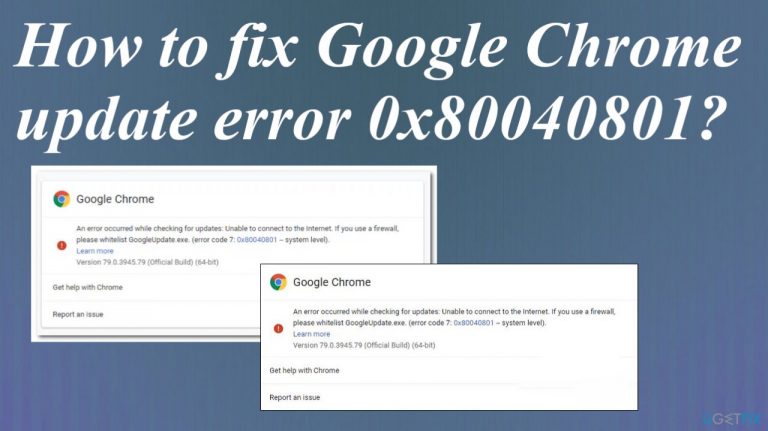
This is the indication of error that appears:
A error occurred while checking for updates: Unable to connect to the Internet. If you use firewall,
please white list GoogleUpdate.exe(error code 7: 0x80040801 – system level).
One of the common reasons why Windows and other devices deliver errors - corruption of files particularly needed for the initiated process or system files. Malware[ref en-3] sometimes can be the reason why system files are damaged or altered. However, even the Google Chrome installation files can get corrupted and lead to the update error.
Users can fix the Google Chrome error 0x80040801 by installing the current version of the browser and clearing the profile cache before installing the latest version from the official website. As for more general issues with system files and data corruption in folders and directories, [d1] can help. You might want to run this application to ensure that system corruption is not responsible for these problems with web browsing.
Option 1. Force start the Google Update Service
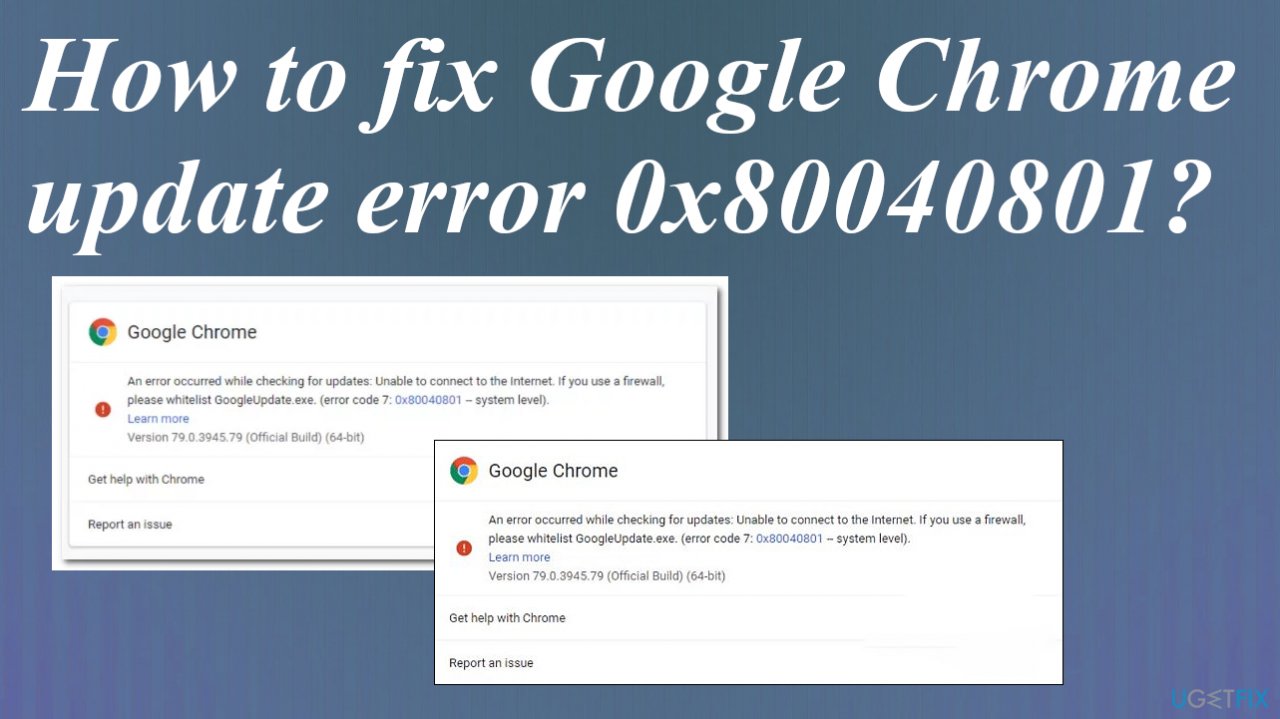
- Press Windows key + R to open up a Run dialog box.
- Type services.msc and press Enter to open up the Services screen.
- Move over to the right side menu and scroll down through the list to locate Google Update Services (gupdate).
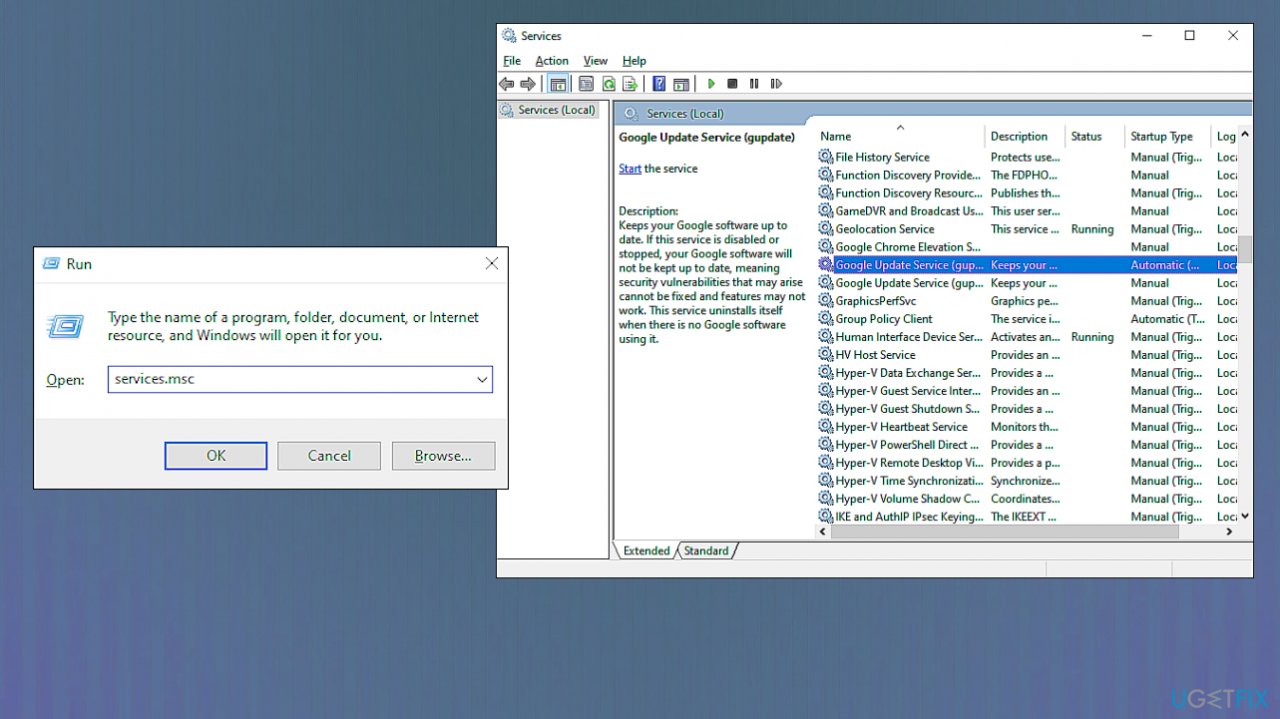
Google chrome update error 0x80040801 services - Right-click on it and choose Properties from the context menu that just appeared.
- Go to the General tab.
- Set the Startup type to Automatic (Delayed Start) and click on start to force start the service before clicking on Apply to Save the changes.
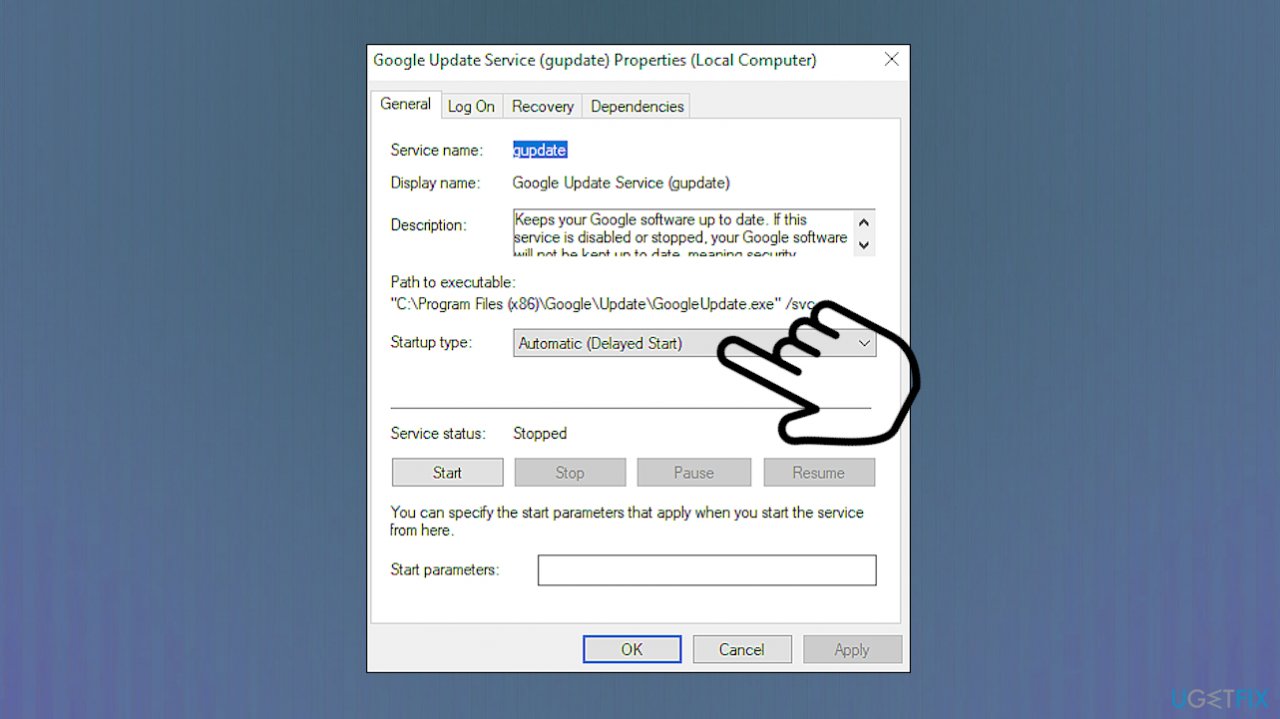
Google chrome update error 0x80040801 startup type - Repeat steps with the Google Update Service (gupdatem).
- Reboot your computer.
- Open Google Chrome once again and check.
Option 2. Change firewall settings
- Press Windows + R keys to open a Run dialogue box.
- Type control firewall.cpl in the text field and hit Enter to launch Windows Firewall.
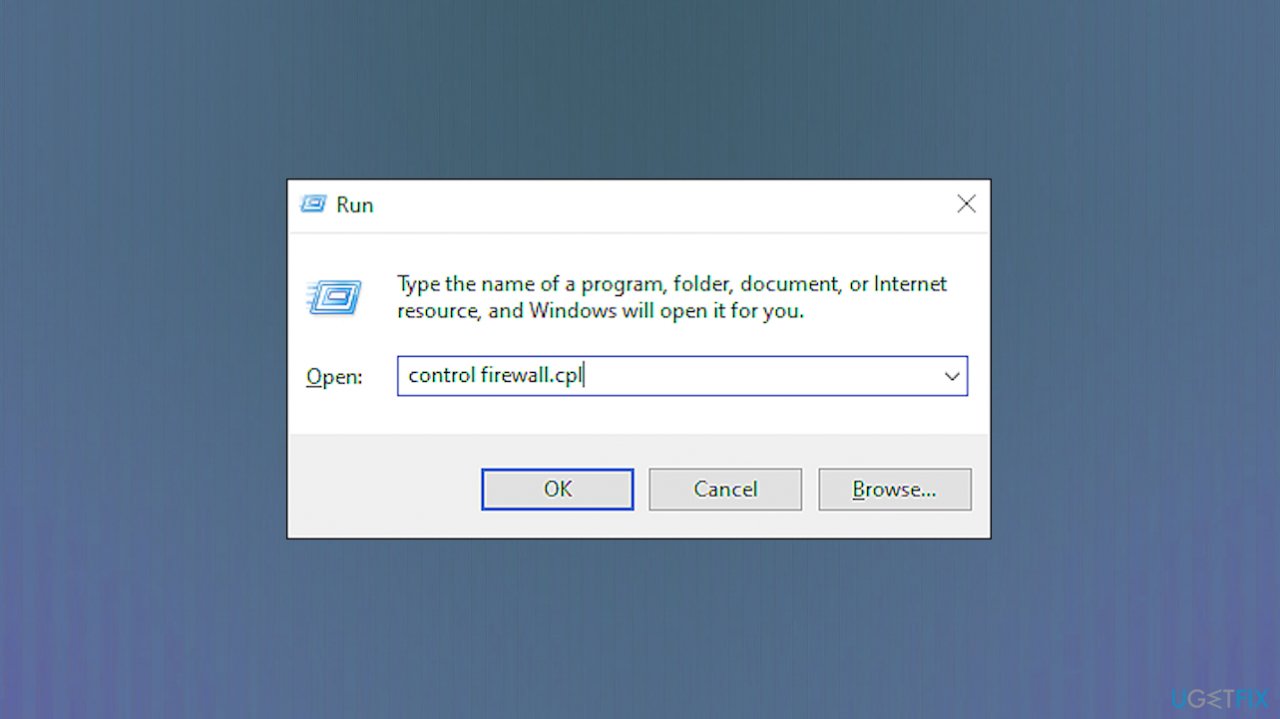
Google chrome update error 0x80040801 control firewall - Select Allow an app or feature through Windows Defender Firewall from the left panel.
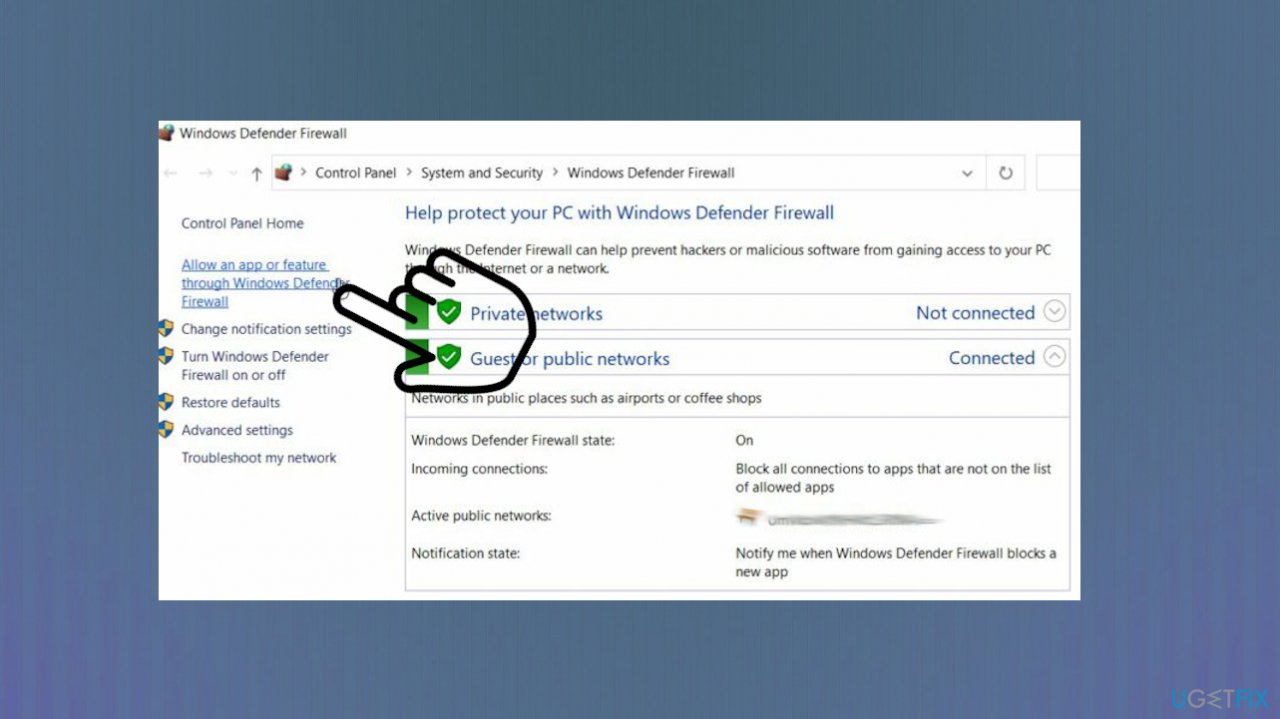
Google chrome update error 0x80040801 firewall - Click on the Change settings button.
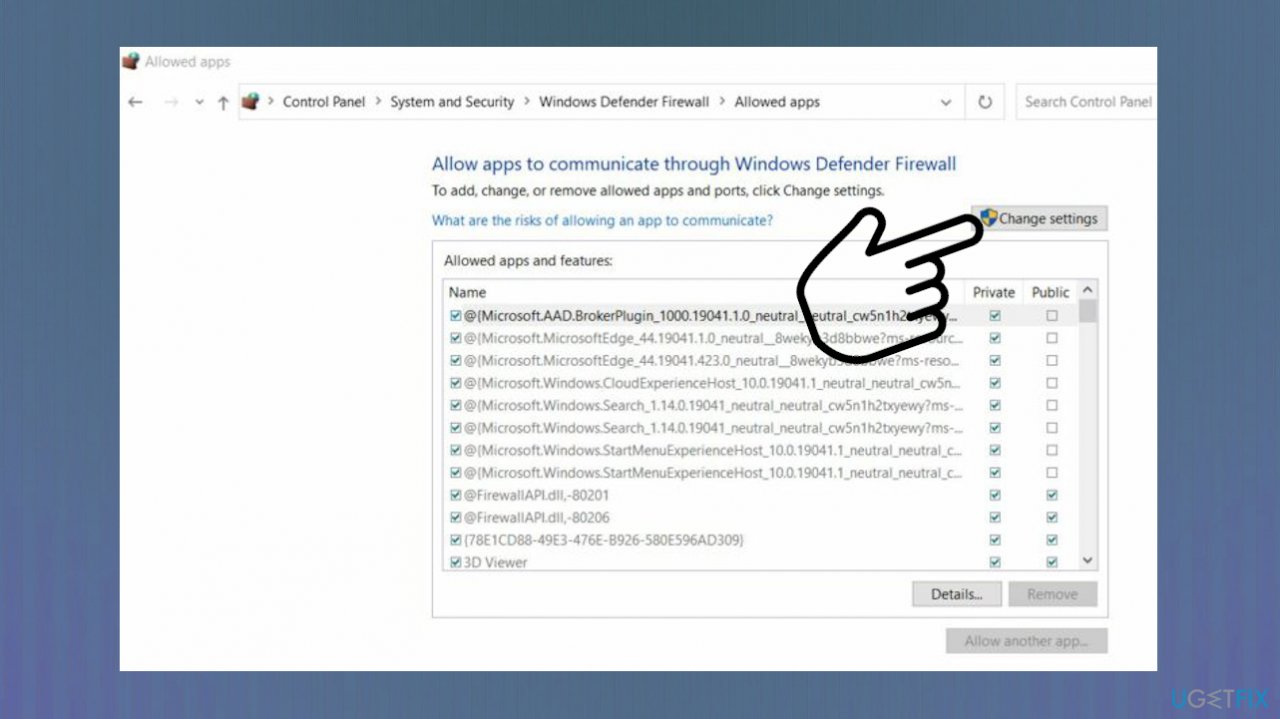
Google chrome update error 0x80040801 defender apps change - Select Yes in the User Account Control prompt.
- Locate googleupdate.exe from the list of options available and checkmark the boxes under both the Public and Private sections.
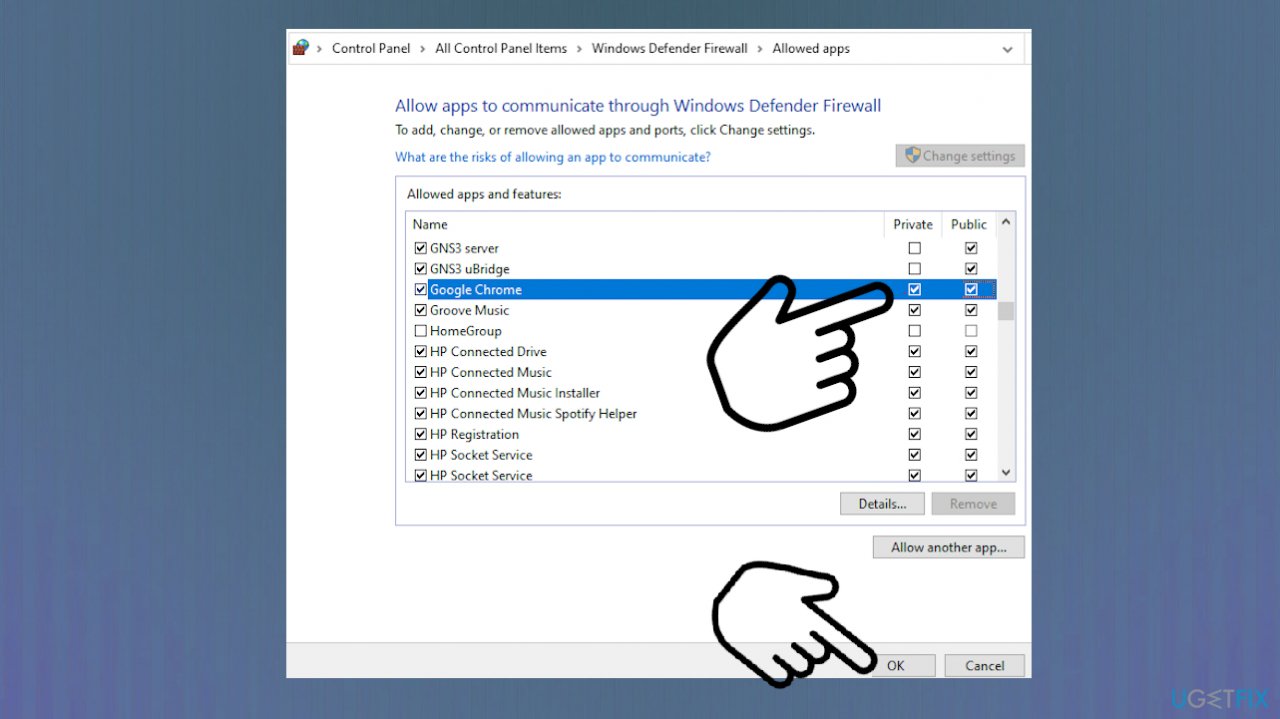
Google chrome update error 0x80040801 apps to communicate - Click on OK to save the changes and check if the issue is resolved.
Option 3. Reinstall Google Chrome entirely
- Press Windows + R keys to launch a Run box.
- Inside the text field of the dialogue box, type appwiz.cpl and hit Enter.
- Locate Google Chrome and right-click on it.
- Click on Uninstall and follow the on-screen instructions.
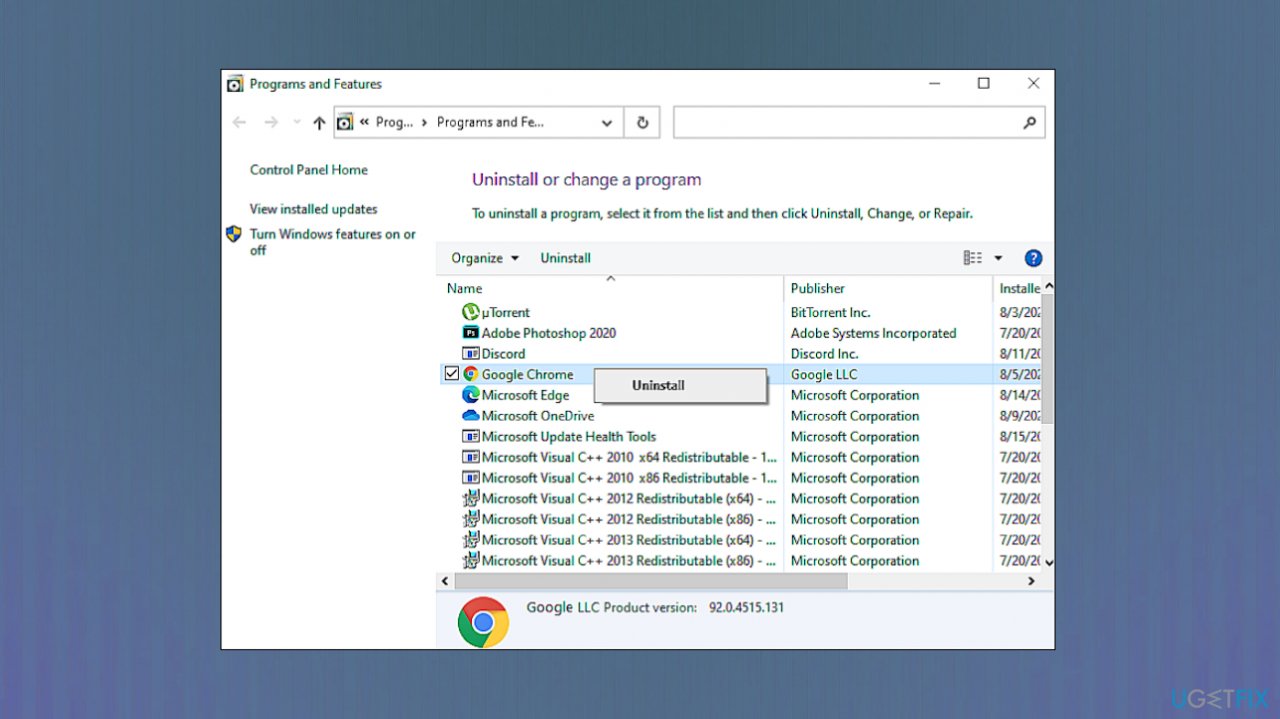
Google chrome update error 0x80040801 uninstall - Once Chrome has been uninstalled, restart your PC.
- Open a Run dialogue box again and type %localappdata%.
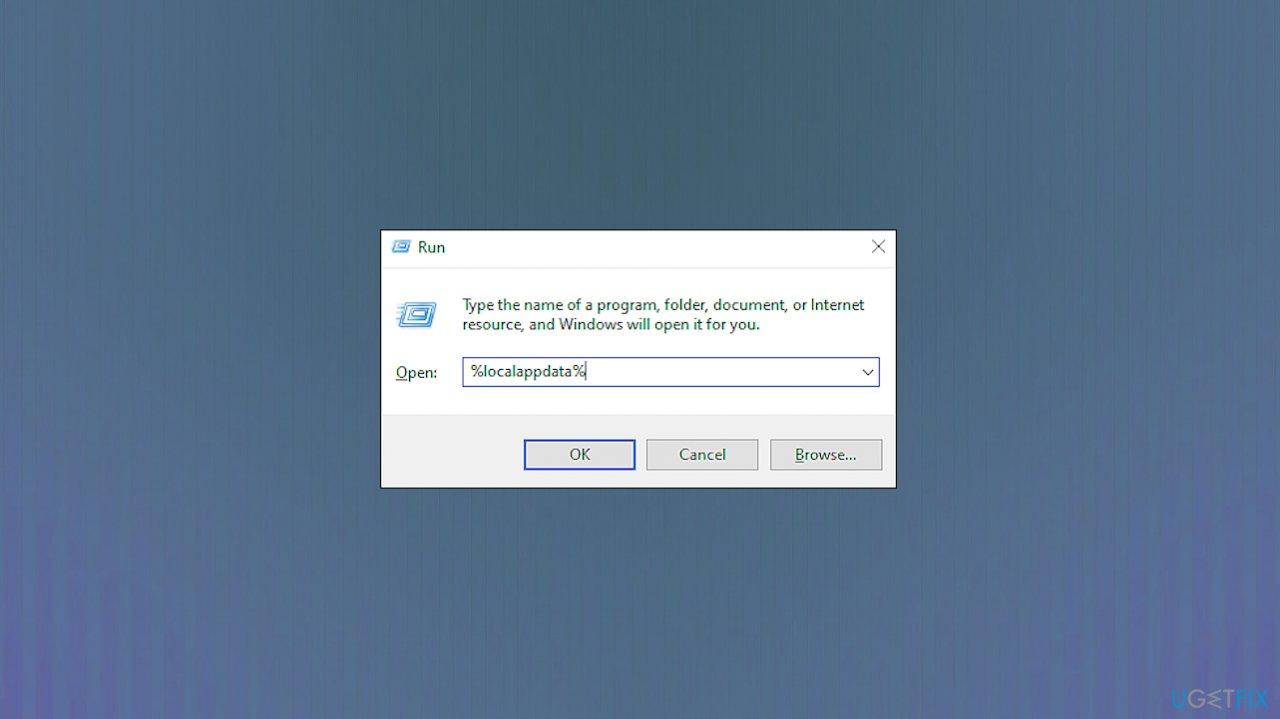
Google chrome update error 0x80040801 localappdata - Hit Enter.
- Locate a folder named Chrome.
- Delete this folder to remove the local data cache.
- Download the browser and install.
Bottom line
To fix the Google Chrome update error 0x80040801, you can start the Google Update Service, whitelist googleupdate.exe in your firewall settings, and check for file corruption. If these solutions do not resolve the issue, consider reinstalling Google Chrome or seeking further technical assistance.
Frequently asked questions
This error typically arises due to issues with your internet connection, firewall settings, or corrupted Chrome files preventing the update process.
Try resetting your internet connection, disabling any active firewalls temporarily, and then attempt the update again; if the issue persists, consider reinstalling Google Chrome.
Yes, ensure that your Windows 10 system is fully updated and that no pending updates are blocking Chrome's functionality; you can check this in the Windows Update settings.




Report an issue
What's wrong with this guide? We review every report and update or remove content.
Report received — thank you. We'll review and fix it.
You need a free account to submit a report.
Be the first to comment