How to fix
Google Chrome won’t launch after June 2023 Windows update
on Windows
Is Google Chrome failing to launch after the June 2023 Windows update? Discover expert-tested solutions to get it working smoothly again!


What causes How to fix Google Chrome won’t launch after June 2023 Windows update?
- June 2023 Windows update
- KB5027231 update conflict
- Malwarebytes antivirus interference
- Third-party antivirus software conflict
- Outdated Malwarebytes version
Repairs Windows system files, removes malware, and restores a clean OS state — without reinstalling.
Hello. I installed the latest Windows update and now the Google Chrome browser doesn't launch. What do I do?
Following the June 2023 Windows update, a large number of users have reported that Google Chrome does not launch on their systems. Users have pointed to the KB5027231[ref en-1] update as a possible source of this issue. It's worth noting that many of those experiencing this problem also have Malwarebytes, a popular antivirus program, installed on their computers.
Malwarebytes acted quickly in response to this situation, developing a temporary fix to address the conflict between their software and Google Chrome.[ref en-2] This temporary fix is intended to disable the anti-exploit protection for Chrome, allowing users to launch the browser without difficulty. Users should ensure that they have the most recent Malwarebytes update, as it will include this temporary fix to help resolve the Chrome launch problem.
Furthermore, Microsoft is aware of the problem and has been working hard to find a permanent solution. Microsoft is expected to release a fix by the end of June that will address the compatibility issues with the KB5027231 update and Google Chrome.
As a result, users affected by the Chrome launch issue are encouraged to keep their systems up to date with the most recent Malwarebytes and Microsoft updates. This ensures that they receive the necessary patches and fixes as soon as they become available, allowing them to resume using Google Chrome without interruption.
This guide will walk you through the steps to temporarily resolve the Google Chrome not launching issue. Step-by-step instructions are provided below.

Method 1. Disable Third-Party Antivirus
If users are experiencing difficulties launching Google Chrome after a Windows update in June 2023, one potential solution is to disable their third-party antivirus software temporarily. Sometimes, antivirus programs can conflict with certain applications, including web browsers like Chrome, causing them to fail to launch or operate properly. By disabling the third-party antivirus, users can determine if it is the root cause of the problem.
Method 2. Set Chrome as a Default Browser
- Press the Windows key + I on your keyboard to open the Settings app.
- In the Settings window, click on the Apps option.
- On the left side of the Apps settings, click on Default apps.
- Scroll down on the right side until you find the Web browser section.
- Click on the current default web browser (usually Microsoft Edge or another browser) to open a list of available options.
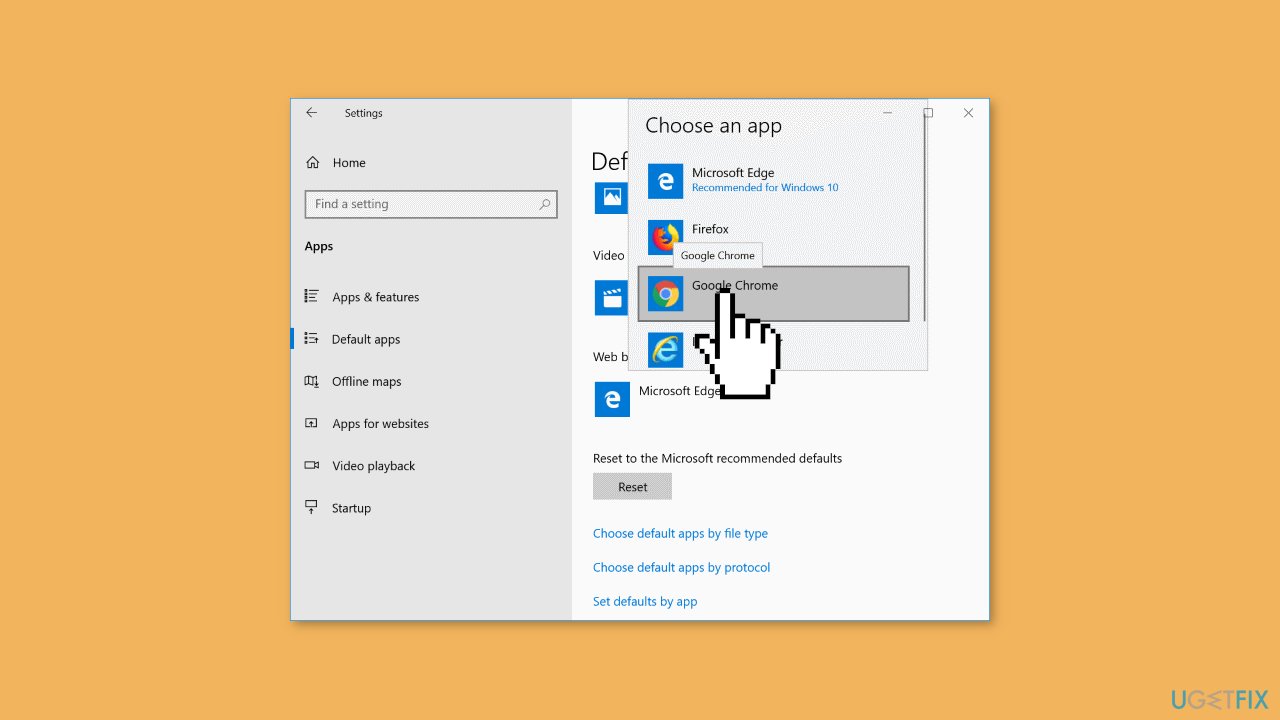
- From the list, select Google Chrome. If Chrome is not listed, make sure it is installed on your computer.
- Once you select Chrome, it will become the new default browser immediately.
- Close the Settings app.
Method 3. Update Malwarebytes
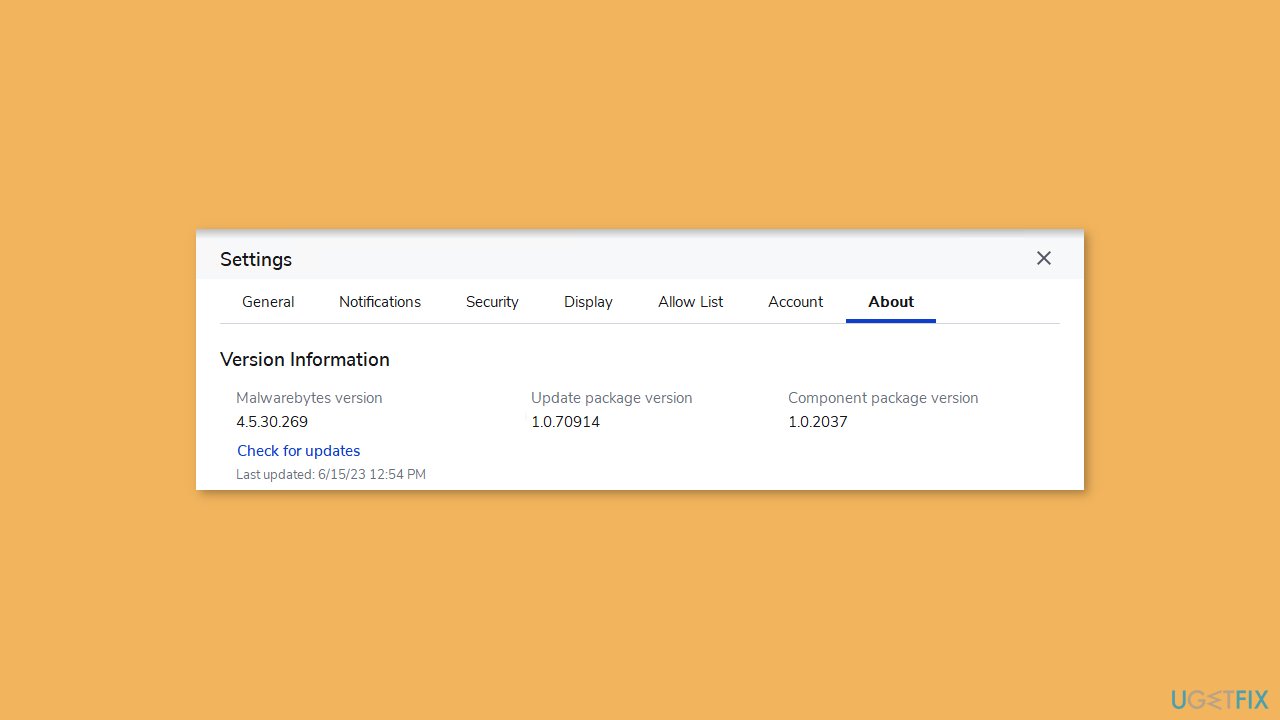
Malwarebytes has recently provided a temporary solution to address conflicts between Chrome and Malwarebytes Premium. This temporary fix disables the anti-exploit protection specifically for Chrome, allowing users to launch the browser without any issues. Please note that this is a temporary measure to restore functionality and ensure users can use Chrome seamlessly. The patch will be automatically distributed to users through the Update package version 1.0.70914 when the product checks for updates. By default, this update check occurs every hour.
Method 4. Uninstall the KB5027231 Update
- Press the Windows key + I on your keyboard to open the Settings app.
- In the Settings window, click on the Update & Security option.
- On the left side of the Update & Security settings, click on Windows Update.
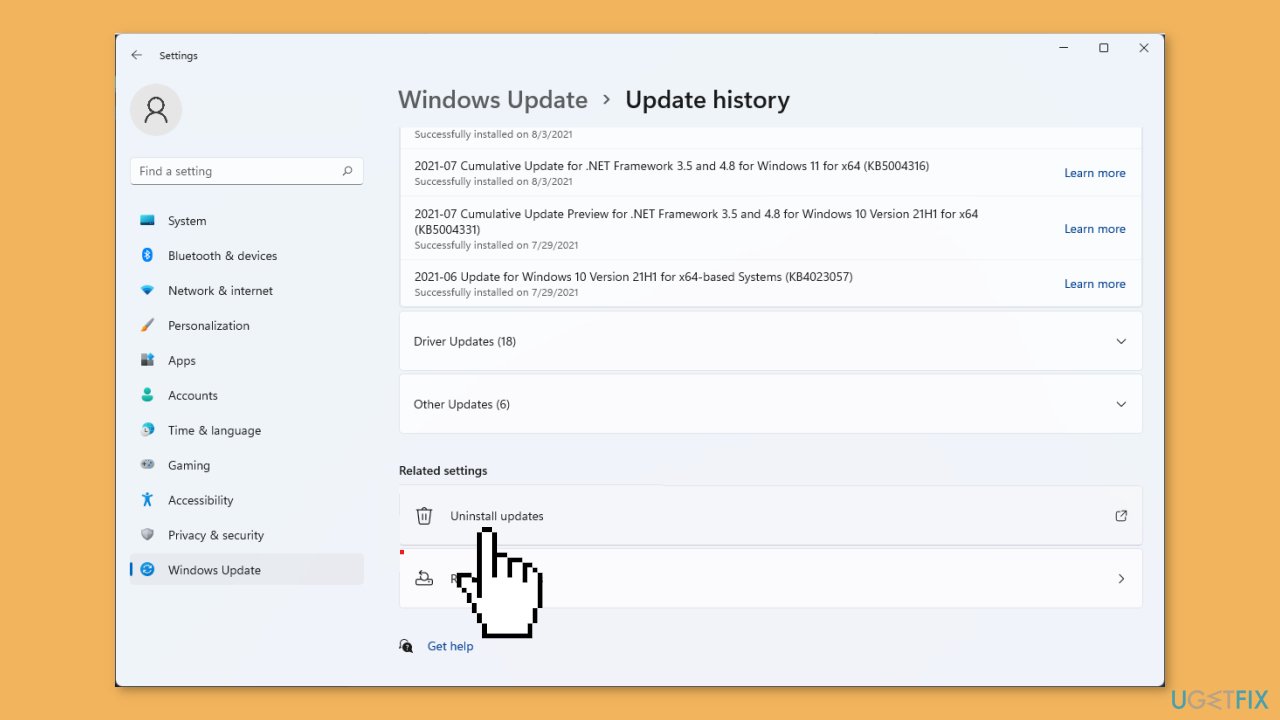
- In the Windows Update section, click on the View update history link.
- Scroll through the list and locate the KB5027231 update.
- Once you find the update you want to remove, click on the Uninstall updates link at the top of the window. This will open the Control Panel with the list of installed updates.
- In the Control Panel window, locate the KB5027231 update and right-click on it.
- From the context menu, select Uninstall. You may be prompted to confirm the uninstallation.
- Follow the on-screen prompts to complete the uninstallation process. The process may take a few moments to complete.
- After the uninstallation is finished, you may be prompted to restart your computer. If so, save your work and close any open programs, then restart your computer.
Bottom line
To resolve the issue of Google Chrome not launching, users can disable third-party antivirus software temporarily and ensure they have the latest Malwarebytes update that includes a temporary fix. Additionally, Microsoft is expected to release a permanent fix by the end of June. If these solutions do not work, users should continue to check for updates from both Malwarebytes and Microsoft.
Frequently asked questions
First, try restarting your computer and then relaunching Chrome. If that doesn't work, consider reinstalling Chrome or checking for any pending Windows updates that might resolve the issue.
You can check the update history in Windows 10 or Windows 11 by going to Settings > Update & Security > Windows Update > View update history, and then see if the issue started after that specific update.
Yes, ensure that your firewall or antivirus settings are not blocking Chrome, and check if any corrupted user profiles or extensions are causing the problem.




Report an issue
What's wrong with this guide? We review every report and update or remove content.
Report received — thank you. We'll review and fix it.
You need a free account to submit a report.
Be the first to comment