How to fix
Google Play error 492
on Windows
Fix Google Play error 492 on Windows 10 and 11 effortlessly with our expert-tested solutions. Get back to enjoying your apps—issues resolved in minutes!

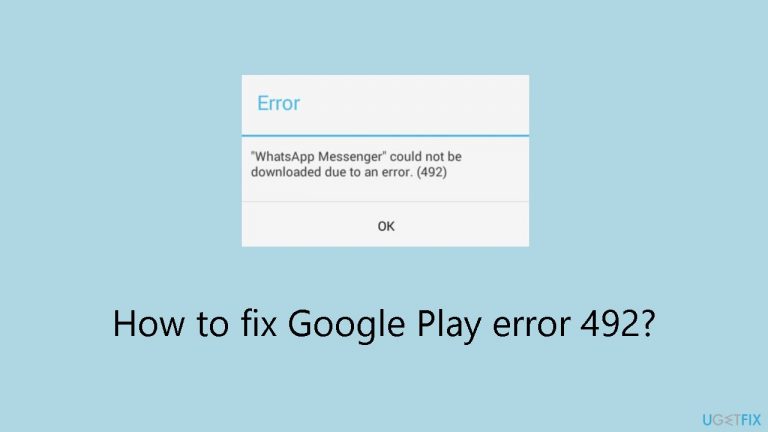
What causes How to fix Google Play error 492?
- Corrupted data in the Google Play Store
- Cached files of particular apps are corrupted
- Unsuccessful downloads
- Unfinished installations
- Missing or incorrectly configured permissions
Repairs Windows system files, removes malware, and restores a clean OS state — without reinstalling.
Hello. I tried updating Google Play apps on my phone but I get the 492 error code. Is there a way to fix this?
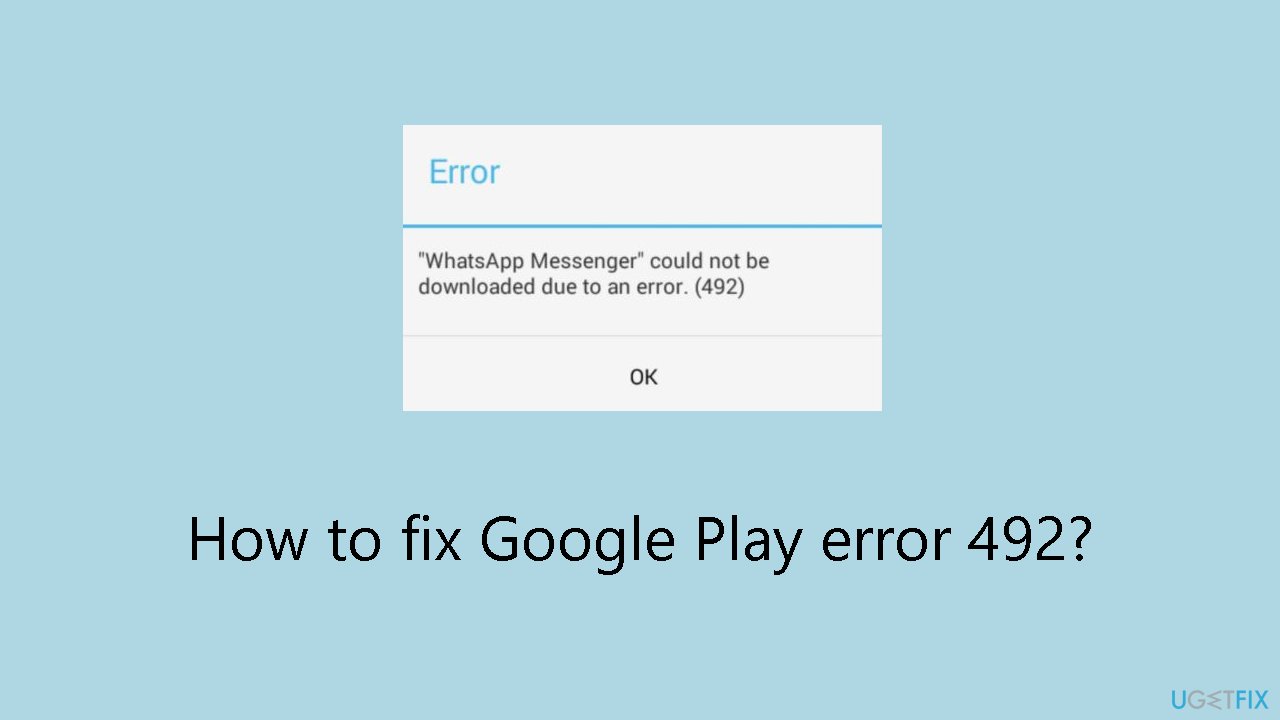
When trying to download or update apps from the Google Play Store, Android users frequently run into the Google Play error code 492. This error can occur in one, several, or all of the apps on a smartphone and is not self-resolving. Often, the Google Play Store's corrupted data or the cached files of particular apps are the source of the issue.
The error suggests that there is a problem with the way the app installation or update process normally operates. The recurrent error 492 may prevent users from using the most recent features, security updates, or enhancements added by program developers. The frustration is compounded by the fact that this issue does not naturally resolve over time.
Corruption in the app cache and files or the Google Play Store is one of the main causes of the problem. This can happen for several reasons, including unsuccessful downloads, unfinished installations, or other problems that compromise the integrity of the data that is being stored. Error 492 can also persist due to missing or incorrectly configured permissions, which are frequently the result of upgrades to the operating system and applications.
The impact on users is evident in the hindrance of app updates and installations, which are essential for optimal app performance, security, and access to new features. Users might not receive important updates on time, which could expose their apps to security threats or prevent them from making use of new features.
Addressing the Google Play error 492 requires users to consider various potential solutions, such as clearing the cache and data of the Google Play Store and affected apps, uninstalling updates, or resetting app preferences. In this guide, you will find 5 steps that should help you fix Google Play error 492. Follow the step-by-step instructions below.
Solution 1. Clear the Play Store Cache
- Open the device Settings.
- Navigate to Apps.
- From the list, select Google Play Store.
- Tap on Storage.
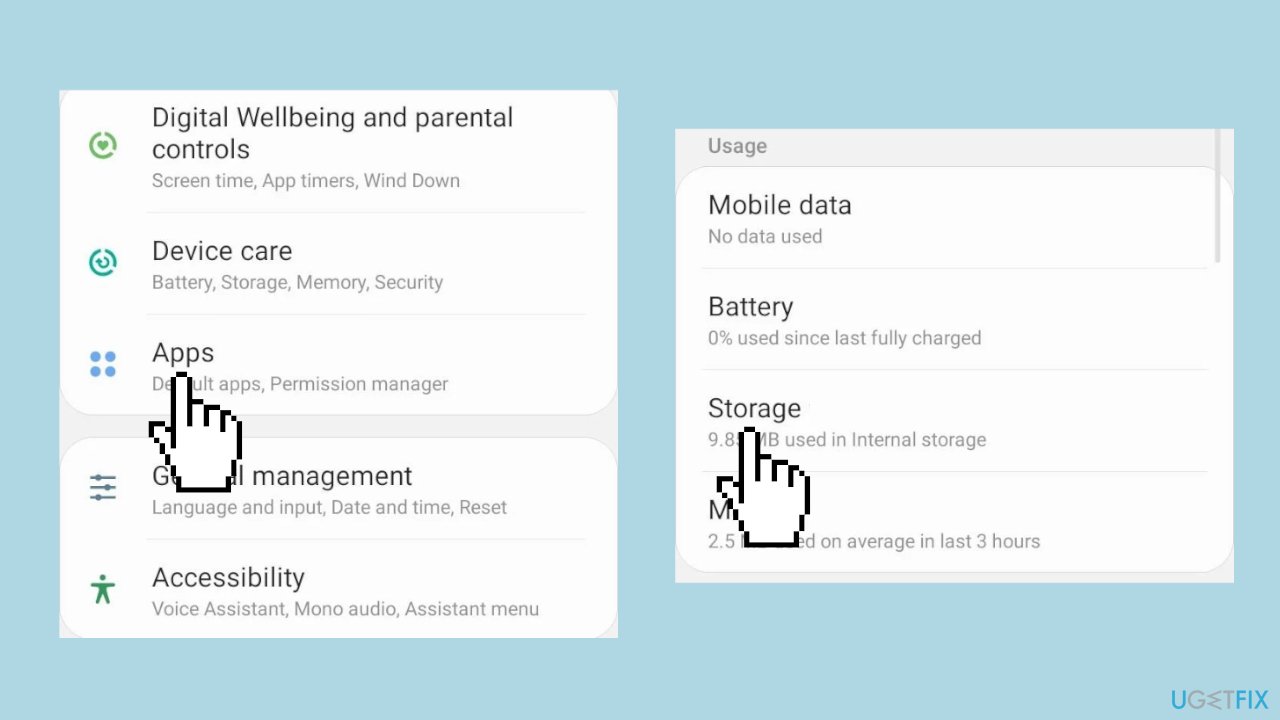
- Clear data and Clear cache individually to remove non-critical files. Confirm if prompted.
- Repeat the process for Google Play Services.
- Check for any improvements after clearing the cache.
Solution 2. Update the Android Version
- Access the device Settings.
- Choose Software update.
- If a newer version is found, tap Download and install.
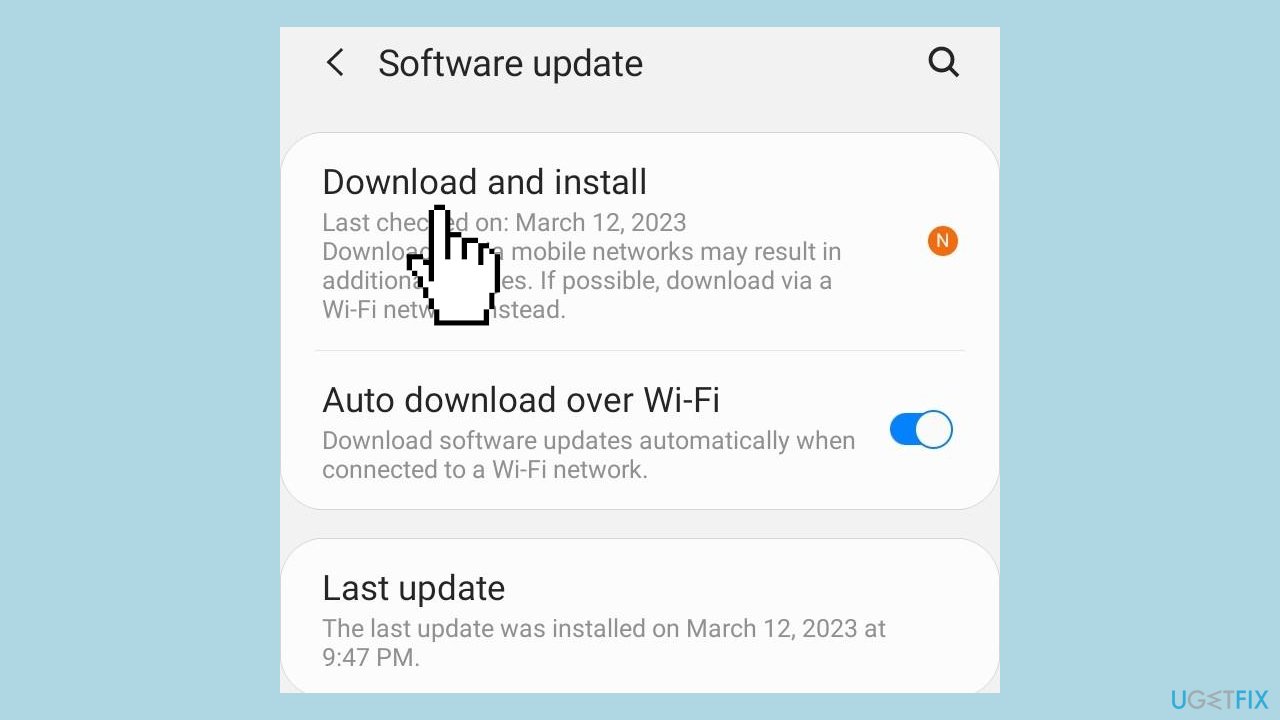
- Start the update by tapping the Download button.
- After the update, restart the device.
- Verify if the Google Play error code 492 is resolved.
Solution 3. Uninstall the Google Play Store Updates
- Open Settings on your device.
- Navigate to Apps and choose Google Play Store from the list.
- Tap the ellipsis (three dots) located at the top right.
- Select Uninstall updates.
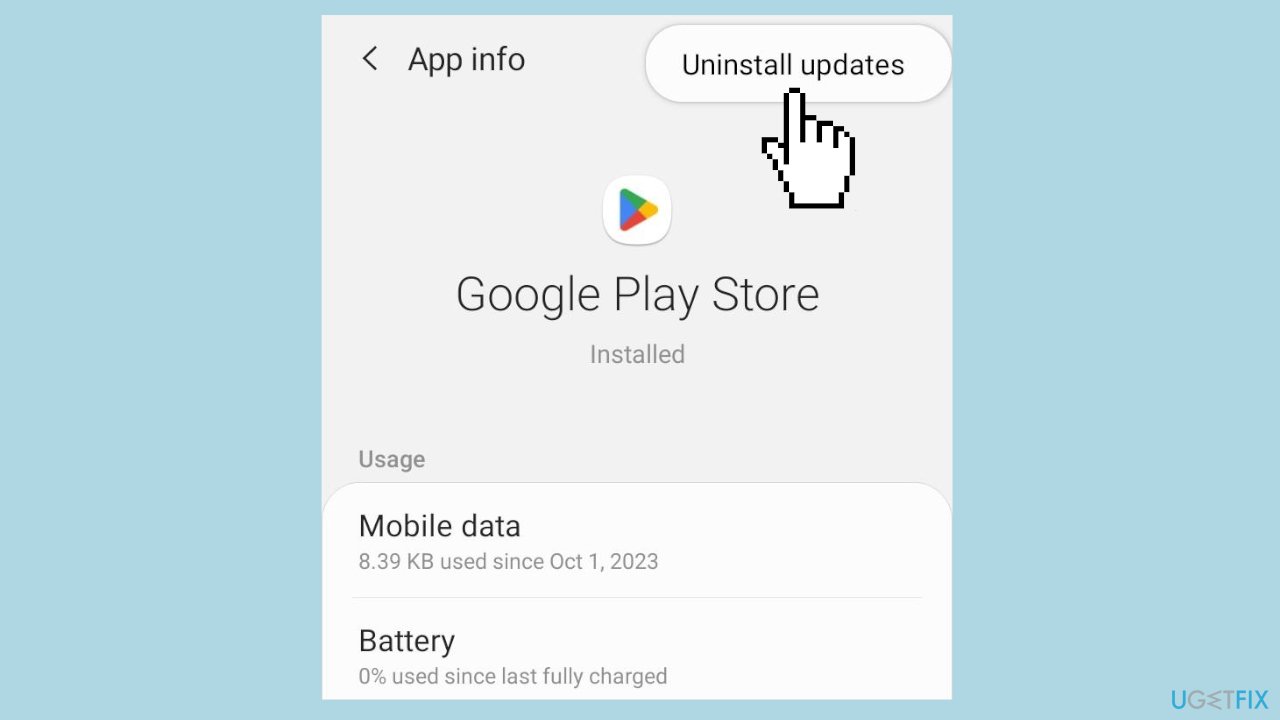
- Confirm by tapping OK in the prompt.
- Wait for the process to complete.
- Check for any improvements after the update is uninstalled.
Solution 4. Reinstall the Affected App
- Access the device Settings.
- Navigate to Apps and select the app that is not updating.
- Tap Uninstall at the bottom.
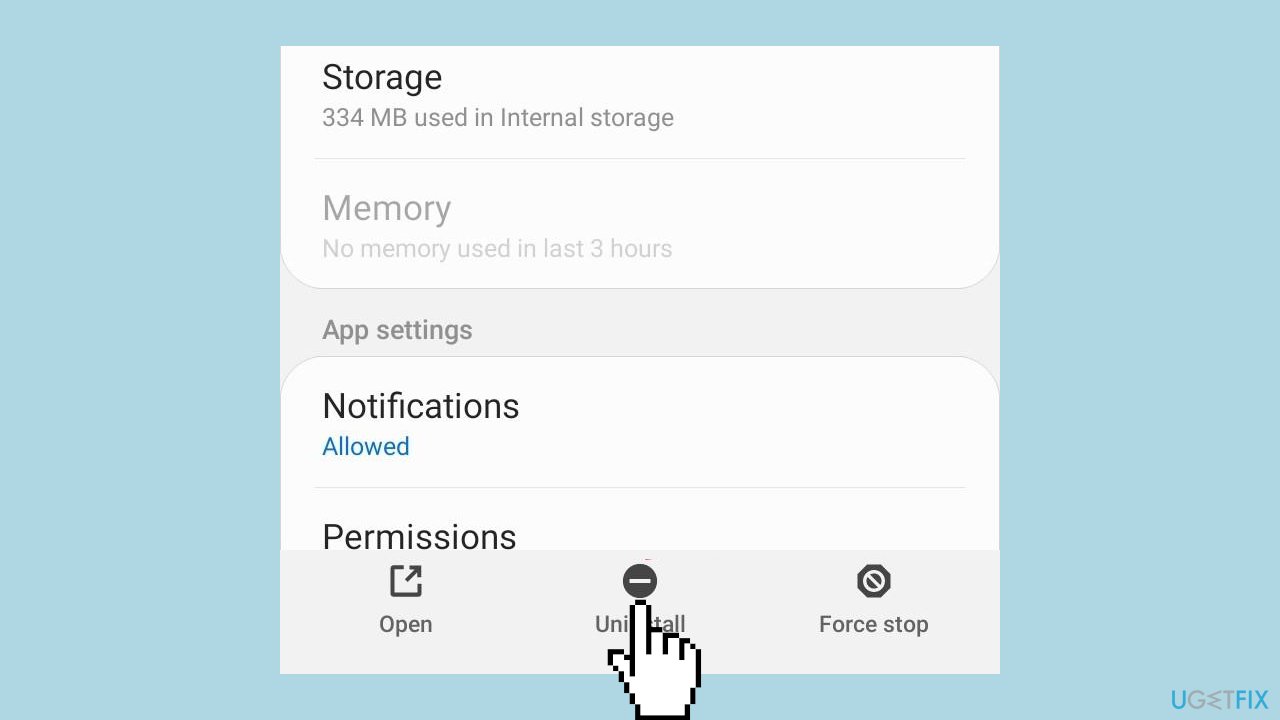
- Confirm by tapping OK in the confirmation prompt.
- Open Google Play Store.
- Reinstall the affected app.
Solution 5. Factory reset the Android Device
- Open Android Settings.
- Tap on General management.
- Select Reset.
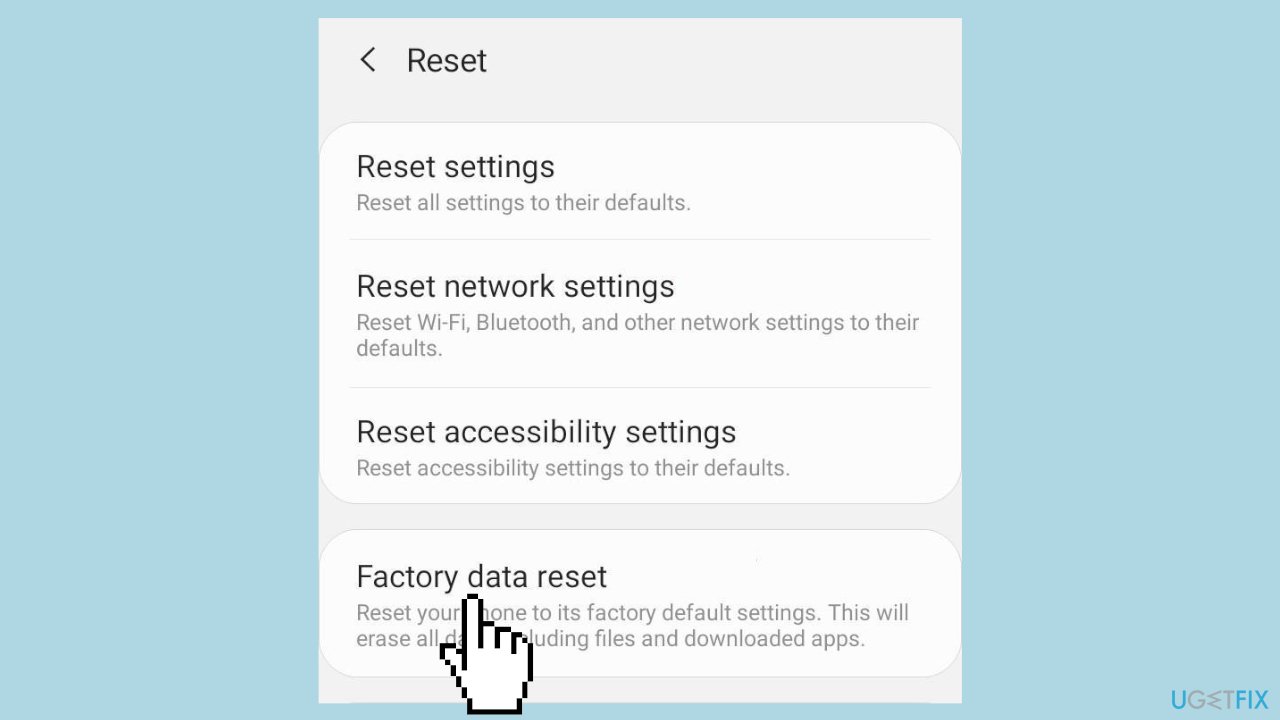
- From the list of options, choose Factory data reset.
- Scroll down and tap on Reset at the bottom.
- Respond appropriately to the confirmation prompt.
Bottom line
To fix Google Play error 492, users can try clearing the cache and data of the Google Play Store and affected apps, uninstalling updates, or resetting app preferences. If these solutions do not resolve the issue, further troubleshooting may be necessary.
Frequently asked questions
To fix Google Play error 492 on Windows 10, clear the cache and data of the Google Play Store and Google Services Framework in your settings. Restart your device after making these changes to see if the issue persists.
Yes, on Windows 11, you can resolve Google Play error 492 by uninstalling and reinstalling the problematic app along with performing a cache deletion for the Google Play Store. Ensure that your Windows updates are also current to avoid compatibility issues.
If clearing the cache does not resolve the error on Windows, consider resetting the Google Play Store app or checking for any pending updates for the app itself. Additionally, ensure that your internet connection is stable.




Report an issue
What's wrong with this guide? We review every report and update or remove content.
Report received — thank you. We'll review and fix it.
You need a free account to submit a report.
Be the first to comment