How to fix
HAL_IOMMU_INTERNAL_ERROR BSOD
on Windows
Resolve the HAL_IOMMU_INTERNAL_ERROR BSOD in Windows 10 and 11 effortlessly with proven solutions. Expert-tested tips for quick fixes!

What causes How to fix HAL_IOMMU_INTERNAL_ERROR BSOD in Windows?
- Corrupted system files
- Faulty external devices
- Driver issues
- Memory problems
- Hardware conflicts
Repairs Windows system files, removes malware, and restores a clean OS state — without reinstalling.
Hello. I was working on my Windows computer when suddenly I got a Blue Screen of Death error. The error read HAL_IOMMU_INTERNAL_ERROR with 0x000001D9 code. What should I do to prevent this? Is there a way to know what caused it?
Known by its bug check number 0x000001D9, the Windows HAL_IOMMU_INTERNAL_ERROR is a catastrophic system problem that causes the infamous Blue Screen of Death (BSOD).[ref en-1] This type of error, which frequently causes desktop freezes and system hang-ups, is a sign of serious problems with the system.
Users may face serious consequences if they experience the blue screen of death, which interferes with regular computer functions and indicates an underlying issue that has to be addressed. As a warning indicator for any hardware or driver[ref en-2] problems that require immediate attention, the blue screen appears.
Disconnecting external devices, including USB drives and peripherals, is one of the first steps in the troubleshooting process. Because computer systems are linked, external devices may occasionally cause disputes or add to system instability. Users can check if the blue screen error still occurs by unplugging these devices and restarting their computers. Consequently, users can locate and isolate the source of the HAL_IOMMU_INTERNAL_ERROR by methodically reconnecting external devices one at a time.
Users must recognize the gravity of the error and take proactive measures to investigate and resolve the issue. Ignoring or neglecting this type of BSOD can lead to persistent system instability and potential data loss. In this guide, you will find 9 steps that should help you fix HAL_IOMMU_INTERNAL_ERROR BSOD error in Windows. Follow the step-by-step instructions provided below.
Method 1. Fix Corrupted System Files
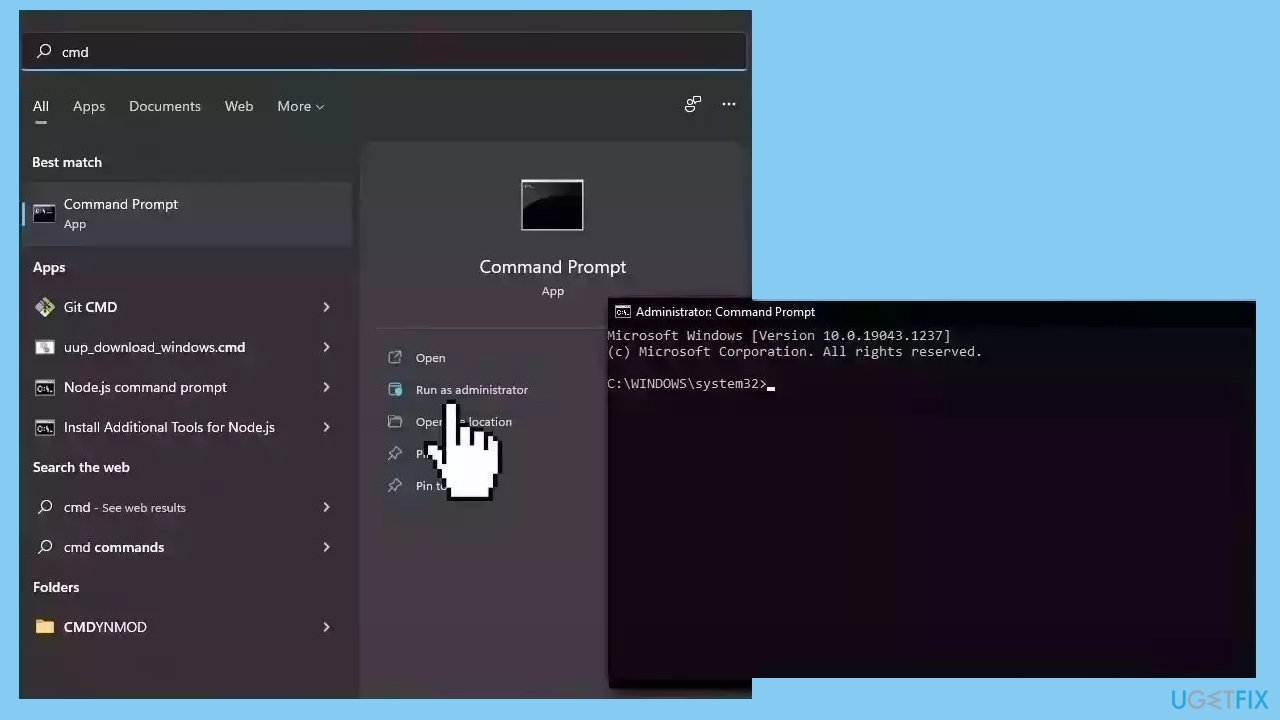
Use Command Prompt commands to repair system file corruption:
- Open Command Prompt as administrator
- Use the following command and press Enter:
sfc /scannow
- Reboot your system
- If SFC returned an error, then use the following command lines, pressing Enter after each:
DISM /Online /Cleanup-Image /CheckHealth
DISM /Online /Cleanup-Image /ScanHealth
DISM /Online /Cleanup-Image /RestoreHealth
Method 2. Run Windows Memory Diagnostic Tool
- Press the Windows key + R to open the Run dialog box.
- Type mdsched.exe and press Enter.
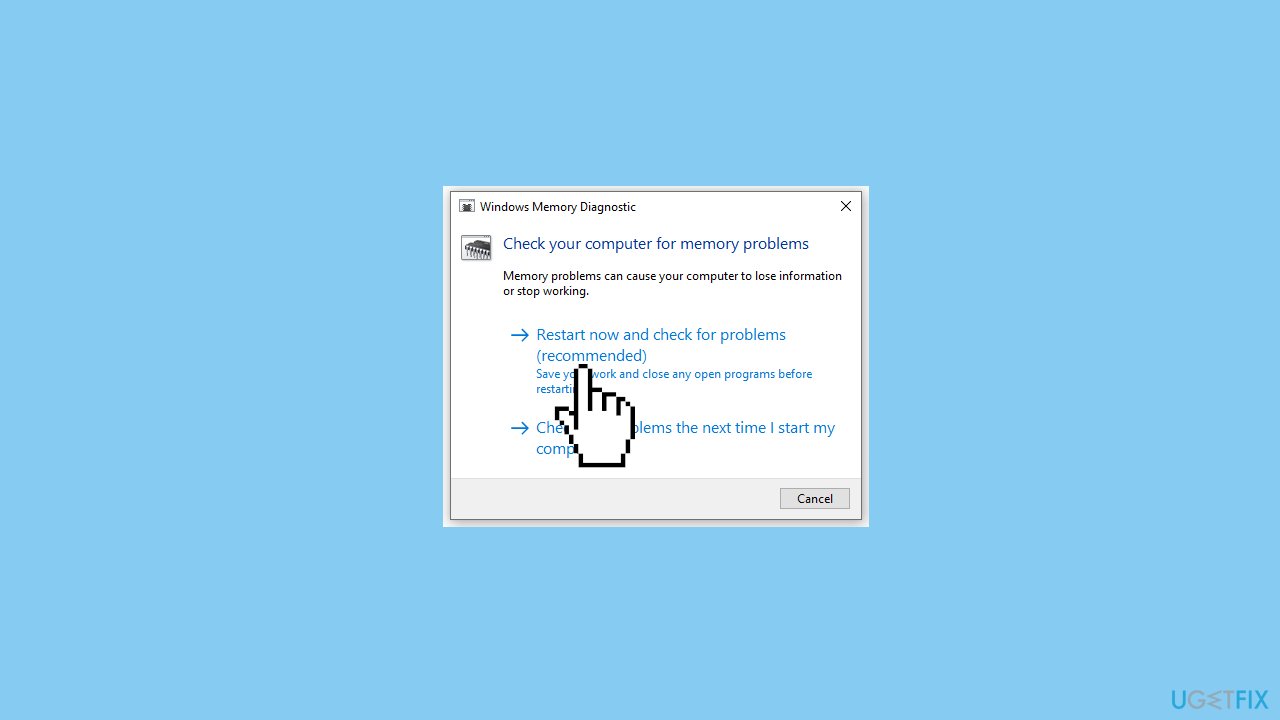
- The Windows Memory Diagnostic window will open.
- In the Memory Diagnostic window, click on Restart now and check for problems (recommended).
- The computer will restart, and the memory test tool will launch.
- A blue screen will display, indicating the progress of the memory test.
- Wait for the test to complete; the duration depends on your memory configuration.
- Once the test concludes, Windows will resume starting up.
- After a few minutes, a pop-up may appear displaying the test results.
Method 3. Check Disk
- Open File Explorer.
- Locate your C drive and right-click on it.
- Choose Properties from the context menu.
- In the Properties window, go to the Tools tab.
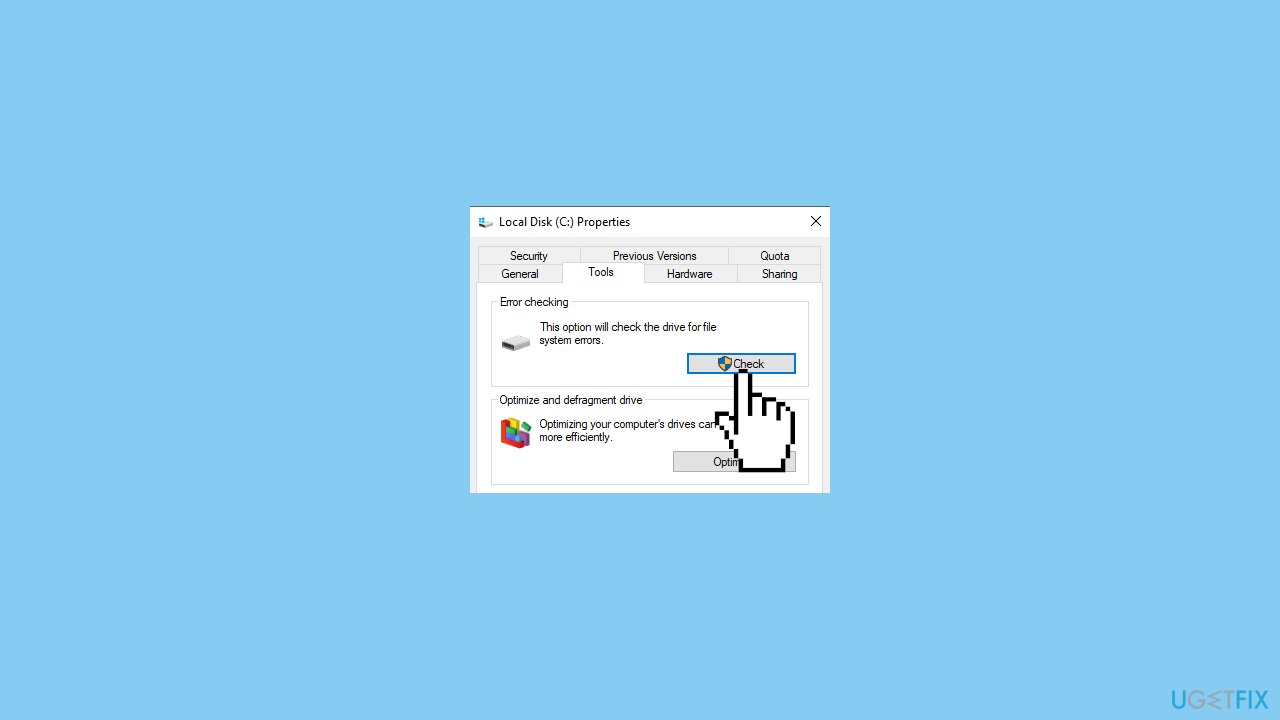
- Under the Error checking section, click on Check.
- If no errors are found during the check, you can proceed by clicking Scan drive.
- If the tool detects errors, follow the provided instructions to fix them.
Method 4. Install Windows Updates
- Press the Windows key + R to open the Run box.
- Type ms-settings:windowsupdate in the text box and press Enter.
- Click the Check for updates button.
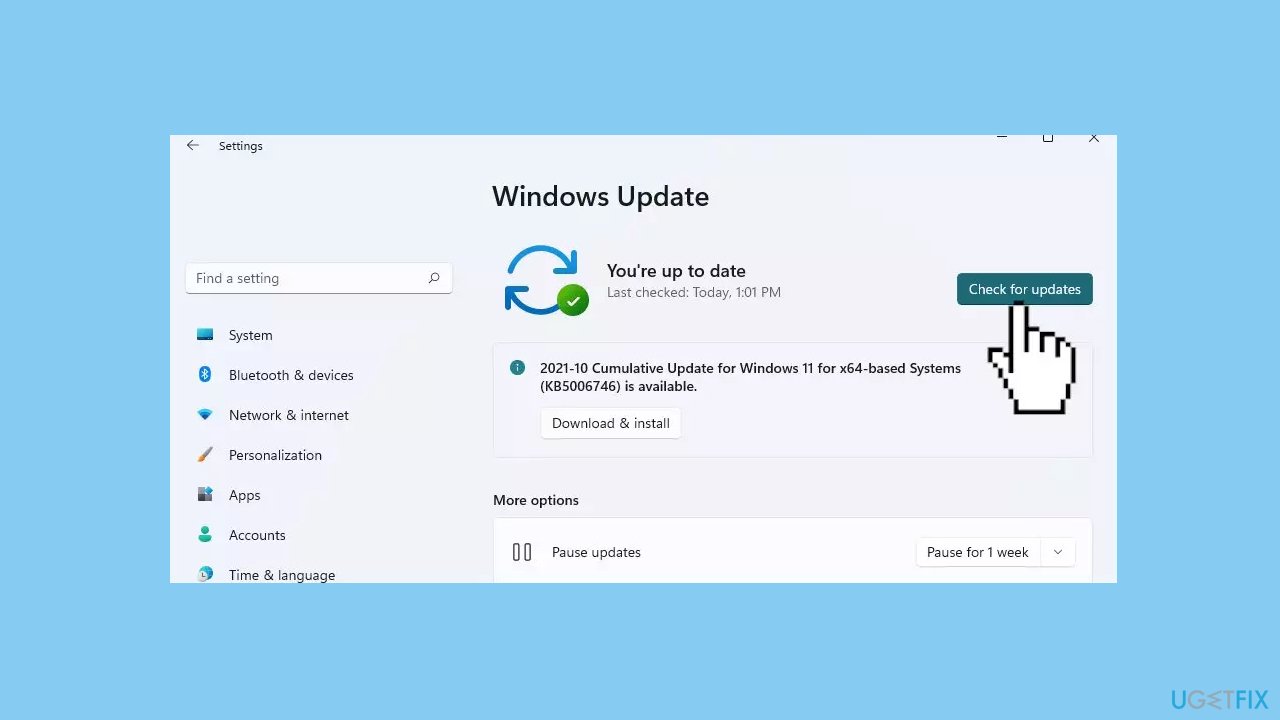
- If a new update is available, click the Download & Install all button.
- Restart your computer after the process is finished and check to see if the problem is fixed.
Method 5. Update Drivers
Outdated drivers could be the cause of this issue. In this case, you can fix it automatically by using [rev id="DriverFix"], which will scan your PC for missing and out-of-date device drivers. Or you can update them manually:
- Open Settings.
- Click on Update & Security.
- Click on Windows Update.
- Click the Check for updates button.
- Click the View optional updates option.
- Click the Driver updates tab.
- Select the driver you want to update.
- Click the Download and install button.
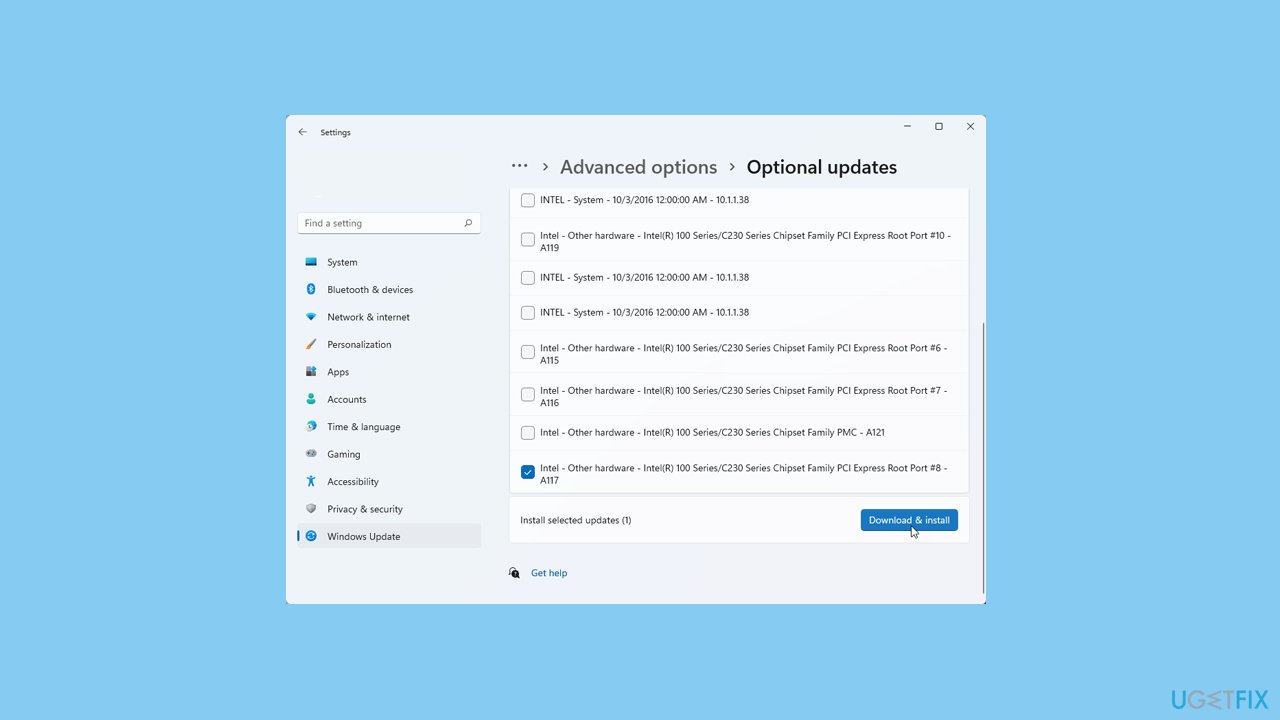
If the View optional updates link is not available after checking for updates, then Windows Update does not have any new drivers or any updates for other products at that particular time.
Method 6. Scan for Malware
A malware infection may be the cause of HAL_IOMMU_INTERNAL_ERROR BSOD in Windows. It is important to run a comprehensive security scan to rule out this possibility and ensure that the computer is not infected. This can help to prevent further issues with the Windows operating system and ensure that it is functioning properly.
If you have access to a security scanner, or if your organization pays for one, you can use it to scan your entire system to check for a virus infection. Otherwise, you can use Windows Defender to scan your system:
- Click on the Windows Start menu or press the Windows key on your keyboard.
- Type Microsoft Defender in the search bar and click on Microsoft Defender Antivirus to open the application.
- Click on the Virus & threat protection option in the left-hand menu.
- Click on the Quick scan or Full scan option, depending on your preference.
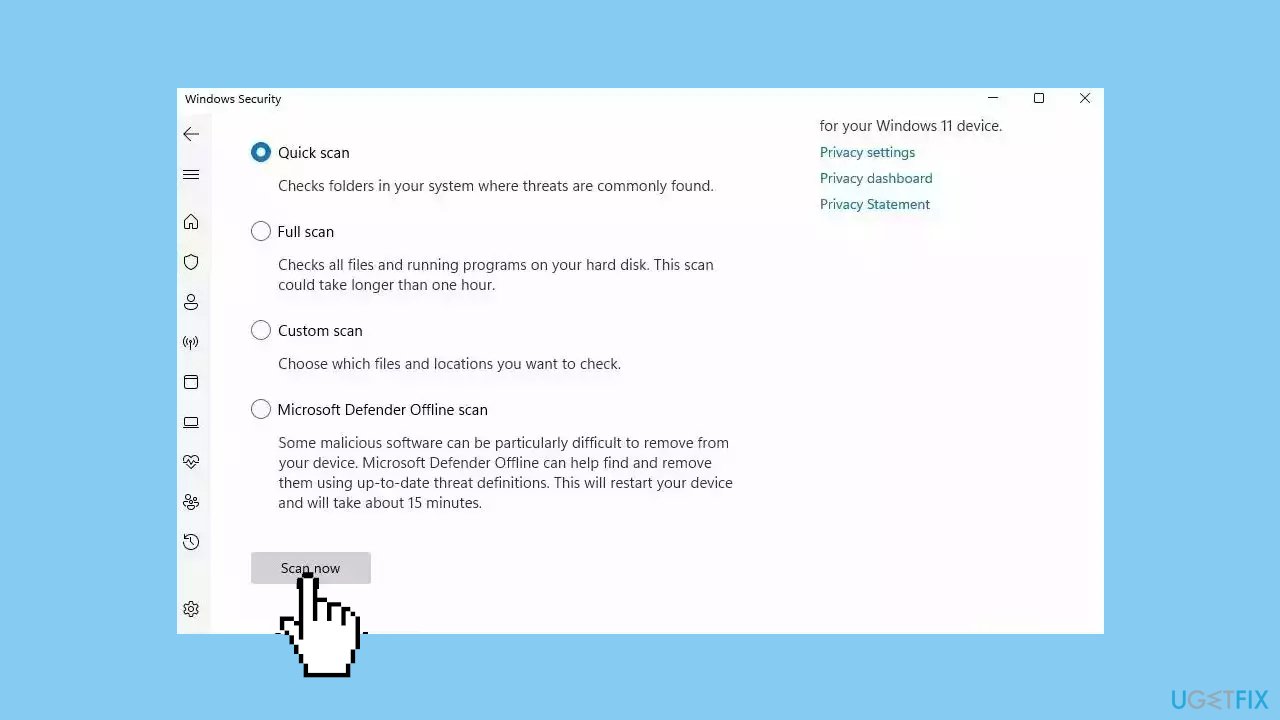
- If you choose Quick scan, Microsoft Defender Antivirus will scan the most vulnerable and commonly infected areas of your computer.
- If you choose Full scan, Microsoft Defender Antivirus will scan your entire computer, including all files, folders, and programs.
- Click on the Scan now button to start the selected scan type and wait for the scan to complete.
- The time it takes will depend on the size of your hard drive and the number of files being scanned.
- Once the scan is complete, you will be informed of any detected threats, and you can choose to quarantine or remove them.
- If no threats are found, Microsoft Defender Antivirus will inform you that your device is secure.
Method 7. Run Disk Cleanup
- Open the Run dialog box by pressing the Windows key + R.
- Type cleanmgr and press Enter to access Disk Cleanup.
- In the Disk Cleanup pop-up window, expand the drive menu.
- Choose the preferred drive for cleanup and click OK.
- Another wizard will appear; select the files you want to delete.
- Click OK to initiate the cleanup.
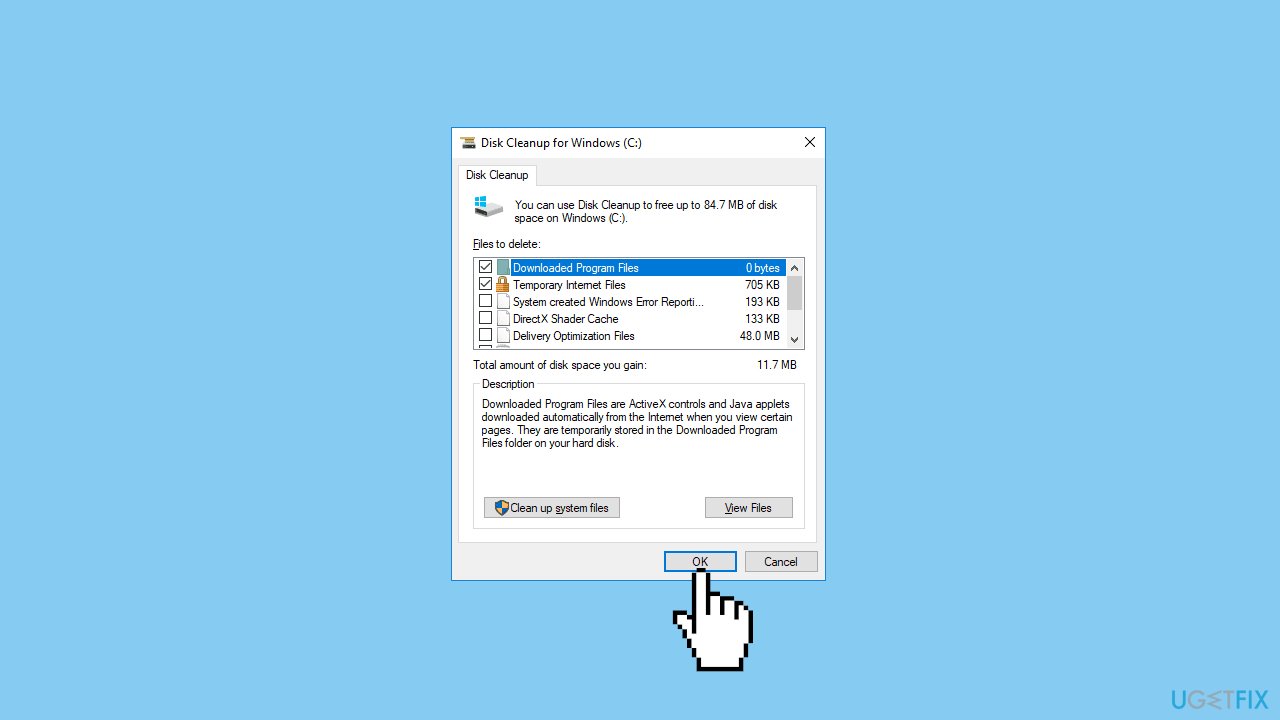
- For a more comprehensive cleanup, click Clean up system files, choose a drive, and select the files to delete. Click OK.
- To free up more space, consider removing older restore points.
- In the More Options tab, click Clean up... in the System Restore and Shadow Copies section.
- Follow the provided guide to remove unnecessary restore points, ensuring to keep the most recent one set before HAL_IOMMU_INTERNAL_ERROR occurs.
Method 8. Use System Restore
System Restore is a feature in Microsoft Windows that allows users to revert their computer's state to a previous point in time. This can be helpful if you have made changes to your system that are causing problems.
- Press the Windows key + R on your keyboard to open the Run box.
- Type SystemPropertiesProtection and press Enter.
- Go to the System Protection tab.
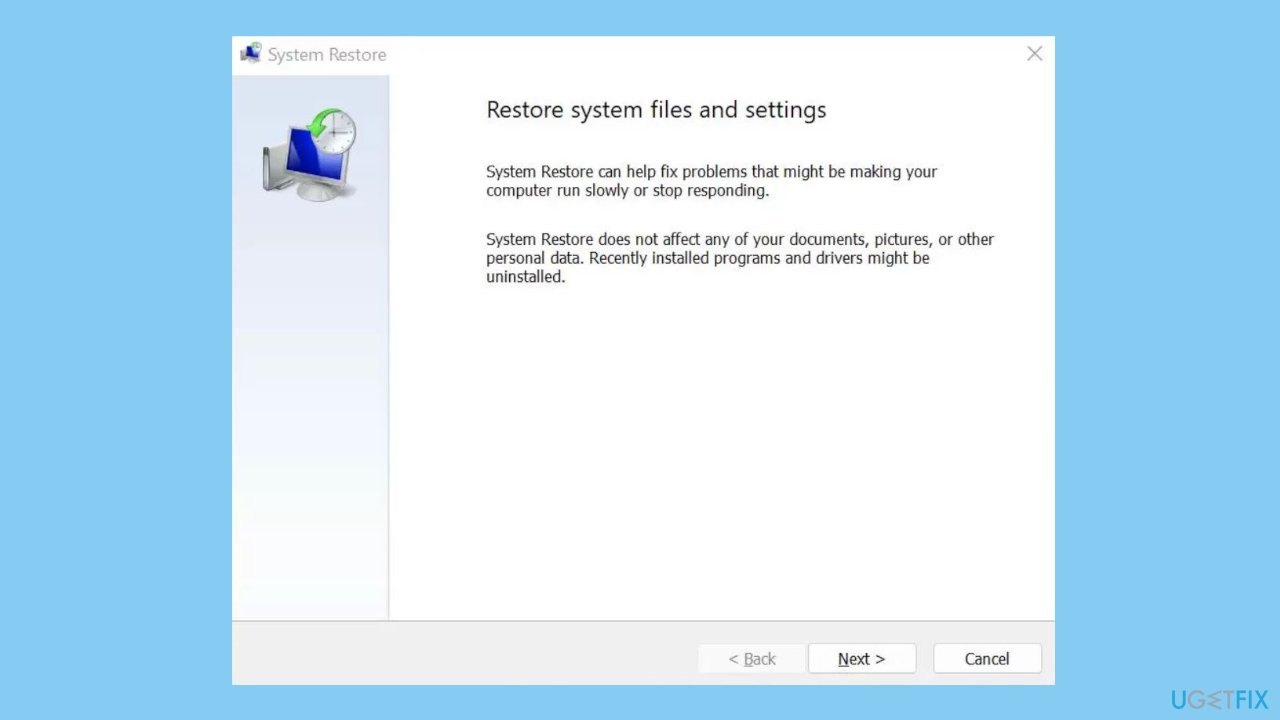
- You will see the System Restore… button. Click it to run System Restore.
- Follow the prompts until you can select a restore point.
- Select the one you want (ideally before the issue started occurring) and go ahead with the process.
Method 9. Run a System Repair Tool
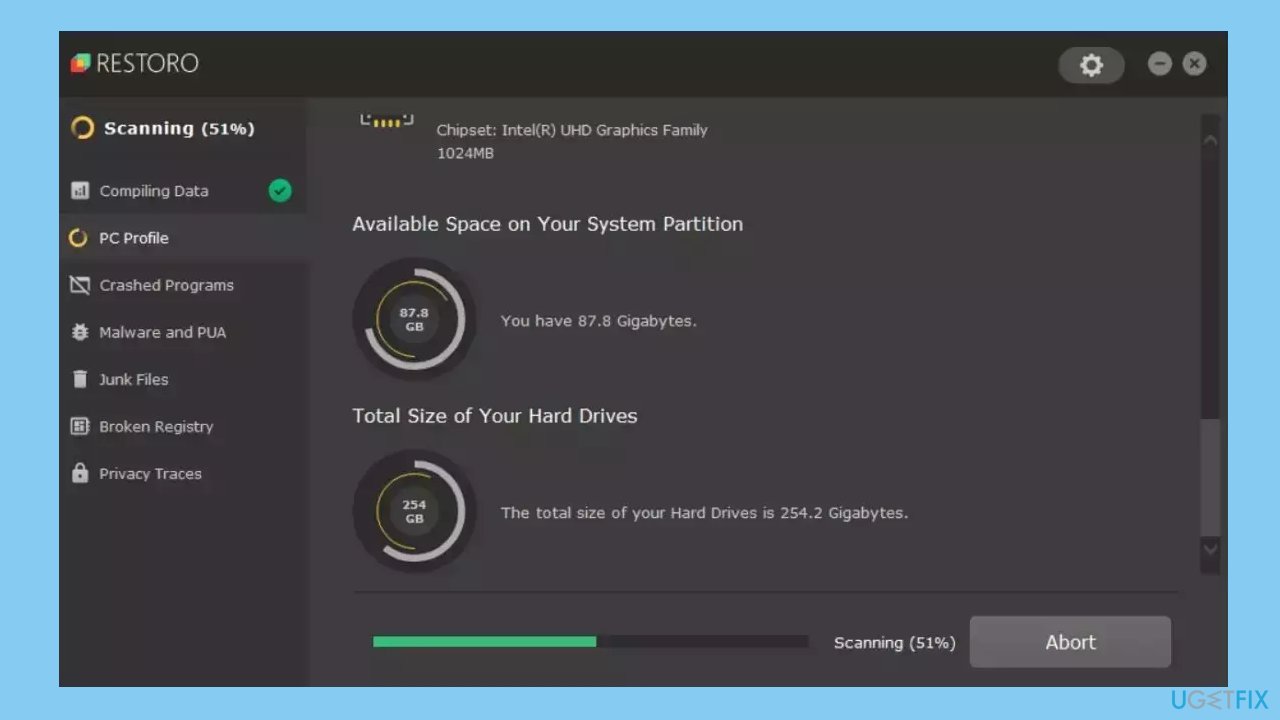
[d1] is a tool that is designed to diagnose and fix problems with a computer's operating system. It can effectively troubleshoot and repair system errors, BSODs, corrupted files, registry issues, and other problems that can cause a computer to perform poorly or become unresponsive. Additionally, it can automatically clear cookies and cache which are often the cause of many malfunctions.
To identify and repair problems, the tool performs a scan of the system and replaces or repairs any damaged or corrupted files and other issues that it finds. While many users have reported that it is effective at fixing certain types of computer problems, it is important to note that it is not a guaranteed solution and may not work for all issues.
Bottom line
To fix the HAL_IOMMU_INTERNAL_ERROR BSOD, you can repair corrupted system files using Command Prompt, run the Windows Memory Diagnostic Tool, and check for faulty external devices. If these steps do not resolve the issue, further investigation into hardware or driver problems may be necessary.
Frequently asked questions
This error is often triggered by issues related to hardware drivers, particularly those involving IOMMU (Input-Output Memory Management Unit) settings or conflicts with system hardware.
To fix this error, you can update your device drivers, particularly for your graphics and chipset, and ensure that your BIOS settings are properly configured for IOMMU.
Disabling IOMMU can potentially resolve the BSOD, but it may also affect performance or functionality of certain applications; it's advisable to try updating drivers first.




Report an issue
What's wrong with this guide? We review every report and update or remove content.
Report received — thank you. We'll review and fix it.
You need a free account to submit a report.
Be the first to comment