How to fix
HaloInfinite.exe Bad Image error
on Windows
Resolve the HaloInfinite.exe Bad Image error in Windows 10/11 quickly and effortlessly. Expert-tested solutions guarantee a smooth gaming experience.

What causes How to fix HaloInfinite.exe Bad Image error in Windows?
- Corrupted game files
- Outdated or corrupt Windows system
- Compatibility issues between the game and system architecture
- Corrupted temporary files
- Malfunctioning DLL file
Repairs Windows system files, removes malware, and restores a clean OS state — without reinstalling.
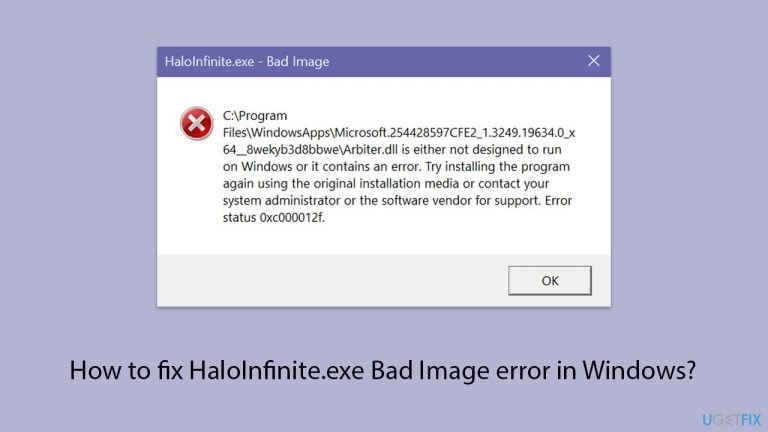
Hi. I was playing Halo Infinite multiplayer just fine last time, yet today I am unable to launch the game at all. Whenever I try to launch it, it says "HaloInfinite.exe - Bad Image." It then says that Arbiter.dll is either not designed to run on Windows or it contains an error.
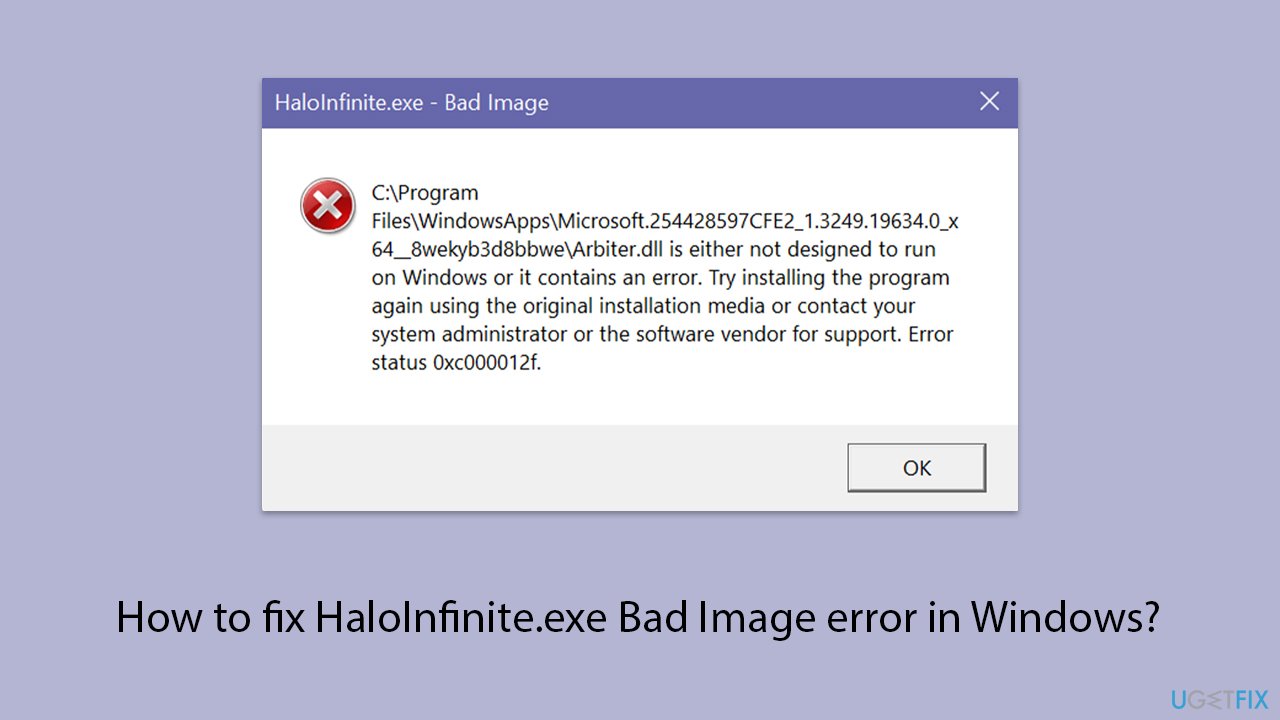
Bad Image errors in Windows are a common issue that typically arises when a system file or an application file is corrupt or incompatible with the operating system. One specific instance of this problem is the HaloInfinite.exe Bad Image error, which can occur during the launch or operation of the Halo Infinite game. This error generally references a particular DLL file, such as Arbiter.dll, and indicates that the file is "not designed to run on Windows or contains an error."
This problem can manifest for several reasons. Primarily, it could be due to corrupted game files or an outdated or corrupt Windows system that conflicts with the operation of Halo Infinite. Additionally, compatibility issues between the game and the system's architecture might trigger this error.
When you encounter the HaloInfinite.exe Bad Image error, it suggests that the game or related components are not functioning as they should. To address this issue, you might consider a few actions. Clearing the Store cache can often resolve conflicts that stem from corrupted temporary files.
Repairing or resetting the Gaming Services or Xbox app can also help by restoring the default settings and files. Reregistering the specified DLL file might fix issues related to that specific file's malfunction. If these steps do not resolve the problem, reinstalling Gaming Services or the game itself could be necessary to ensure all components are correctly installed and updated.
You might use a PC repair tool [d1] for a more comprehensive solution. This tool can automatically diagnose and fix any underlying Windows issues that might be contributing to the HaloInfinite.exe Bad Image error, streamlining the process and potentially saving time and effort.
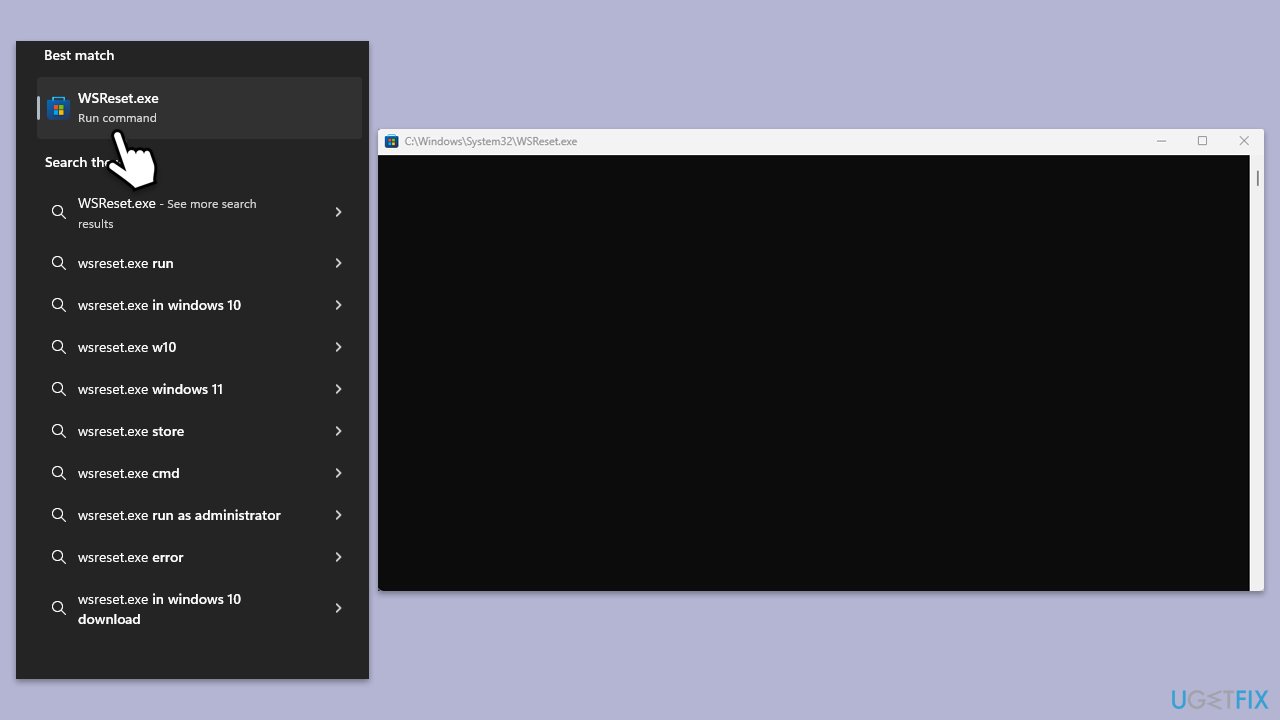
Fix 1. Reset Windows Store cache
Resetting the Windows Store cache clears out any stored data that could be corrupt or outdated, which may be causing issues with applications not functioning correctly.
- Type WSReset.exe in the Windows search bar and press Enter.
- Wait till a black pop-up window shows up – do not close it.
- The pop-up window will close soon, and the Windows Store should reopen.
- Check if the error is gone.
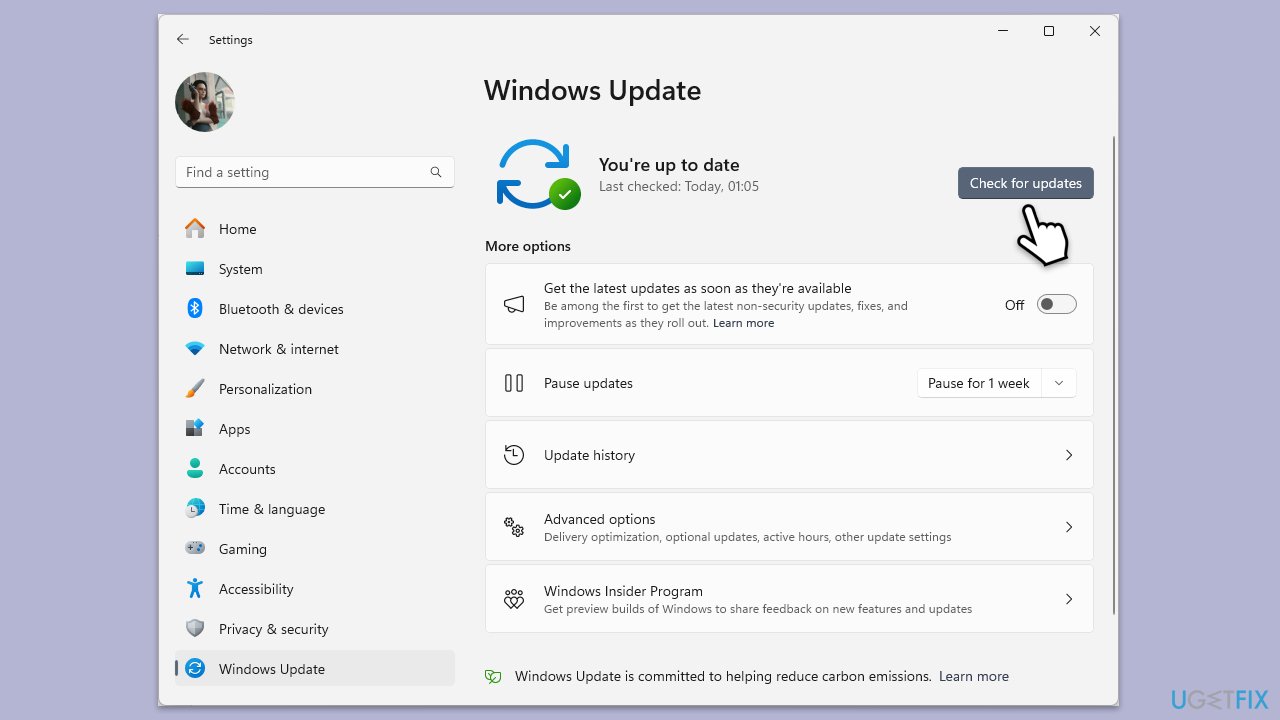
Fix 2. Install all Windows updates
Keeping your system updated is crucial for running applications smoothly, as updates often include bug fixes and enhancements that can resolve existing software conflicts.
- Type Updates in Windows search and hit Enter.
- In the new window, click Check for updates.
- If optional updates are available, install them as well.
- When all the update processes are complete, restart your device.
Fix 3. Update the Xbox app and Gaming services
Updating these services ensures that you have the latest versions, which can fix bugs and improve compatibility with games like Halo Infinite.
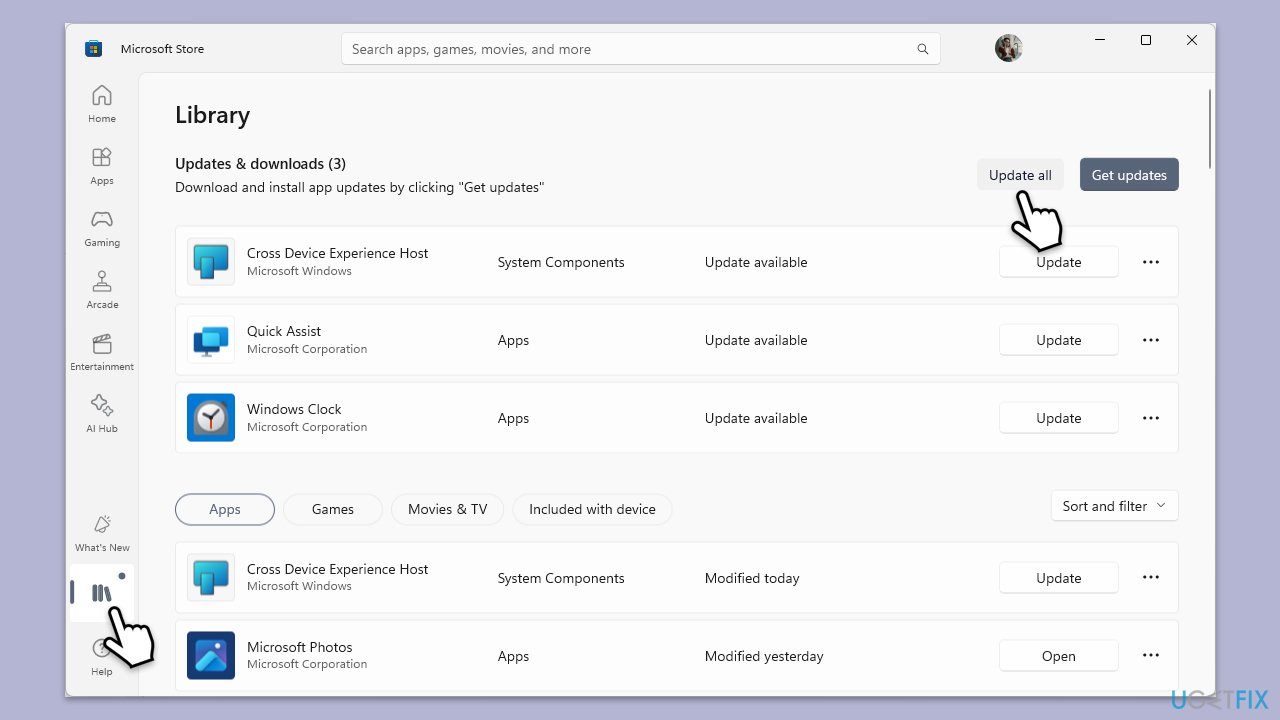
- Open Microsoft Store.
- Click on Library.
- Next, click Get updates and wait (you can also press Update all if updates are pending).
- Alternatively, check for the Xbox app and Gaming services entries and click Update.
- Wait till the apps are updated.
- Restart your device after the update is complete.
Fix 4. Repair corrupted system files
Repairing corrupted files and restoring Windows image files might restore the DLL file as well.
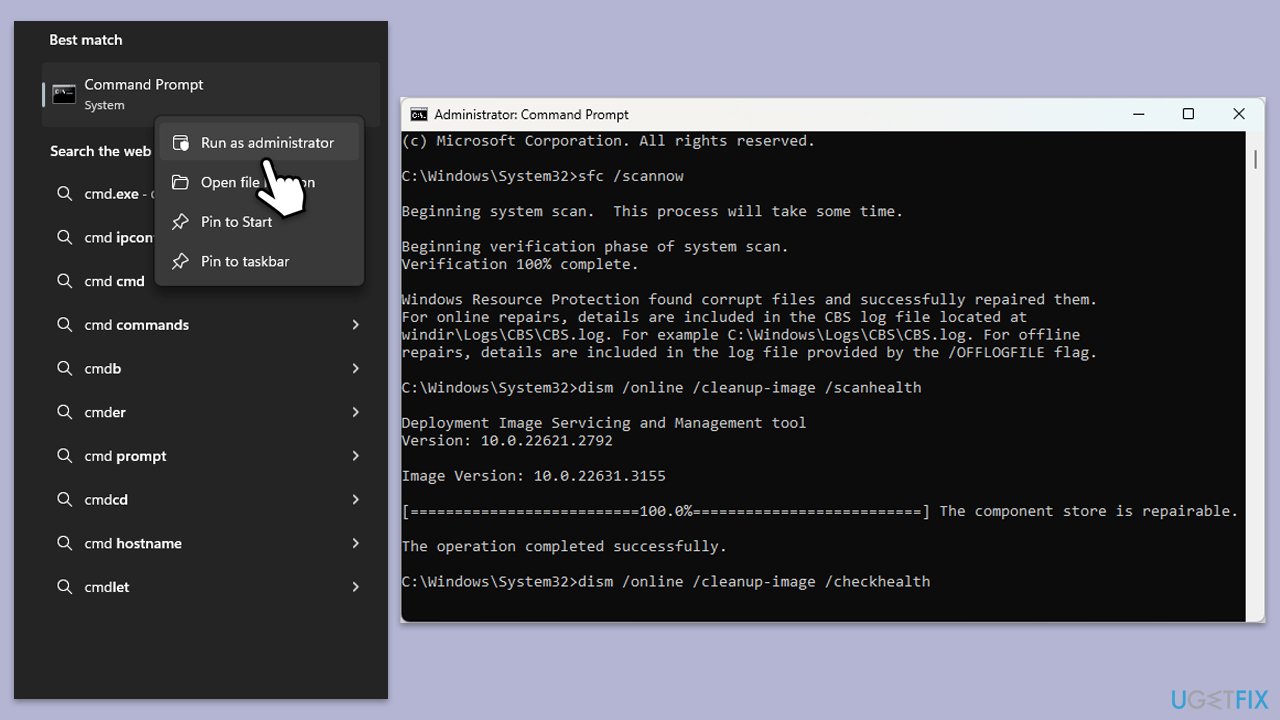
- Type cmd in Windows search.
- Right-click on Command Prompt and pick Run as administrator.
- When User Account Control (UAC) asks whether you want to allow changes, click Yes.
- Use the following command and press Enter:
sfc /scannow - When the scan is complete, you should also run the following commands to repair Windows image files:
DISM /Online /Cleanup-Image /CheckHealth
DISM /Online /Cleanup-Image /ScanHealth
DISM /Online /Cleanup-Image /RestoreHealth - Restart your device.
Fix 5. Reregister the associated DLL file
Reregistering the DLL file that is mentioned in the error message can fix issues specific to that file's interaction with the system and applications.
- Open Command Prompt as an administrator.
- Type regsvr32 /u [DLL name] and press Enter (replace [DLL name] with the file mentioned in the error, e.g., Arbiter.dll).
- Next, type regsvr32 [DLL name] and press Enter.
- Restart your computer.
Fix 6. Repair or reset Xbox app/Gaming Services
Repairing or resetting these apps can resolve issues by restoring the app's configuration to its default state without affecting your data.
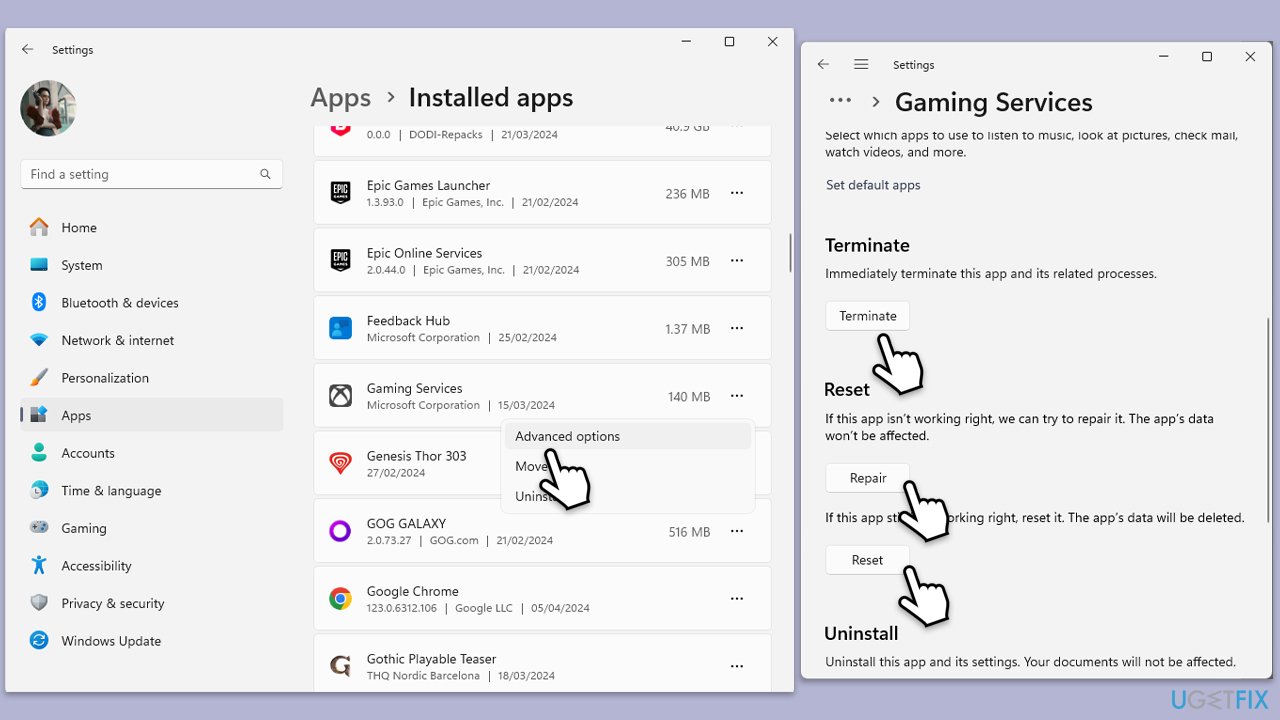
- Right-click on Start and pick Apps & Features/Installed apps.
- Scroll down to locate the Xbox app and click Advanced options.
- Click Terminate and Repair.
- If that does not help, try the Reset option instead.
- Repeat the same with Gaming Services.
Fix 7. Reinstall Gaming Services
Sometimes, previous installations can be corrupt; reinstalling Gaming Services ensures that all components are correctly installed and configured.
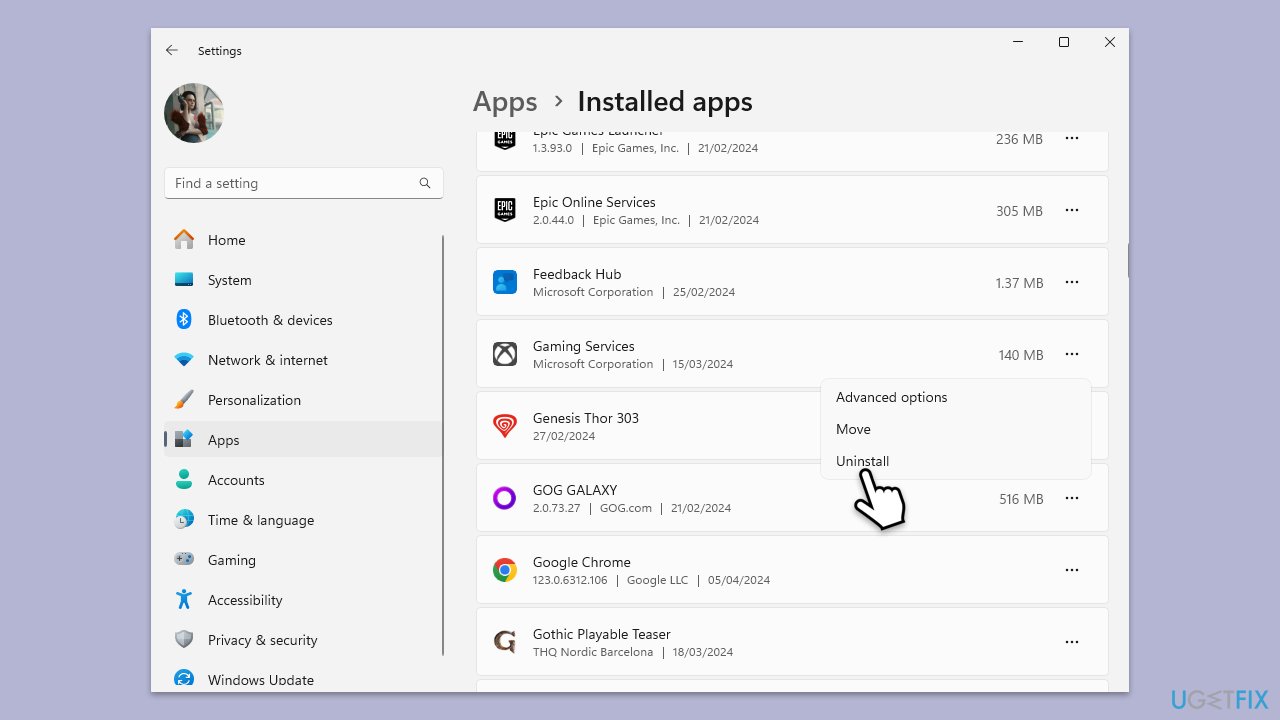
- Right-click on Start and pick Apps & Features/Installed apps.
- Find Gaming Services in the list, select it, and click Uninstall, then follow the on-screen instructions.
- After uninstallation, download Gaming Services from the official Microsoft website and install it by following the on-screen instructions.
Fix 8. Reinstall Halo Infinite
Reinstalling Halo Infinite can resolve problems caused by corrupt game files, ensuring that all game components are fresh and properly configured.
- Navigate to Settings > Apps > Apps & features/Installed apps.
- Find Halo Infinite, select it, and click Uninstall.
- After uninstalling, reinstall Halo Infinite from either the Microsoft Store or your Xbox game library.
Bottom line
To fix the HaloInfinite.exe Bad Image error, you can try resetting the Windows Store cache, repairing or resetting the Gaming Services or Xbox app, and reregistering the specified DLL file. If these solutions do not resolve the issue, consider reinstalling Gaming Services or the game itself.
Frequently asked questions
The HaloInfinite.exe Bad Image error is typically caused by corrupted game files, incompatible system files, or issues with Windows updates. Ensuring that your Windows is fully updated and the game files are intact can help resolve this issue.
You can verify the integrity of game files by opening the game launcher, navigating to the game’s properties, and selecting the option to verify or repair files. This process checks for missing or corrupted files and replaces them automatically.
Yes, you can try running the System File Checker tool by entering 'sfc /scannow' in the Command Prompt to repair corrupt system files, which may resolve the Bad Image error without needing to reinstall the game.




Report an issue
What's wrong with this guide? We review every report and update or remove content.
Report received — thank you. We'll review and fix it.
You need a free account to submit a report.
Be the first to comment