
How to fix Hanging or crashing apps in Windows Store Apps troubleshooter?

Prefer to fix it yourself? The manual steps follow.
- 8methods
- 10 to 40 minutes
- Easy
Applies to Windows 11 and Windows 10; apps installed from Microsoft Store (Photos, Mail, Calculator, Xbox, Netflix and others) and the Microsoft Store app itself
8 methods in this guide
Hello, I ran the Windows Store Apps troubleshooter, and it came back with a result of "Hanging or crashing apps," and it said that the issue is not fixed. How can I resolve this?
"Hanging or crashing apps" with "Not fixed" means the Windows Store Apps troubleshooter saw that a Store app froze or closed, but could not repair it by itself. The result does not name the app. Find the app in Reliability Monitor first, then repair or reset that one app.
The troubleshooter only reports that some Store app hung or crashed; "Not fixed" means its automatic repair did not work. A clean install of Windows is almost never needed. Open Reliability Monitor with perfmon /rel to see which app fails (Fix 1), then select Repair and, if needed, Reset for that app in Settings (Fix 2). If every Store app fails, reset Microsoft Store (Fix 4).
| Error | Hanging or crashing apps, status Not fixed, in the result of the Windows Store Apps troubleshooter |
|---|---|
| Where it appears | In the troubleshooter window under Problems found, after "Troubleshooting was unable to automatically fix all of the issues found." |
| Main cause | One Store app whose data, update or package is damaged. Less often Microsoft Store itself, the clock or the account, or damaged system files. |
| Fastest fix | Find the app in Reliability Monitor (Fix 1), then Repair or Reset it in Settings (Fix 2). |
| Also written as | hanging and crashing apps not fixed, Windows Store apps hanging or crashing apps, Microsoft Store hanging or crashing apps, reset hanging or crashing apps |
| Affects | Windows 10 and Windows 11 22H2 and older, where the troubleshooter still runs. Windows 10 left support on 14 October 2025. |
| Microsoft's status | Microsoft lists Windows Store Apps among the legacy troubleshooters it removes from newer Windows 11 releases, with no Get Help replacement. |
| Where the cause is logged | Reliability Monitor (perfmon /rel) and Event Viewer, Windows Logs > Application, events Application Error (1000) and Application Hang (1002). |
| Time to fix | 10 minutes for one app. Up to 40 minutes if the Store or Windows files need repair. |
Facts checked on 15 October 2026. Steps written for Windows 11 (25H2 and 26H2) and Windows 10 22H2.
What "Hanging or crashing apps: Not fixed" means in the Windows Store Apps troubleshooter
The Windows Store Apps troubleshooter checks the apps that come from Microsoft Store. When it finds that one of them stopped responding (hung) or closed by itself (crashed), it lists the finding Hanging or crashing apps. It then tries its standard repairs. When they do not help, the status reads Not fixed.
The window shows the heading "Troubleshooting has completed", then this line and the table:
The result in the Windows Store Apps troubleshooter
Troubleshooting was unable to automatically fix all of the issues found.
Problems found
Hanging or crashing apps: Not fixed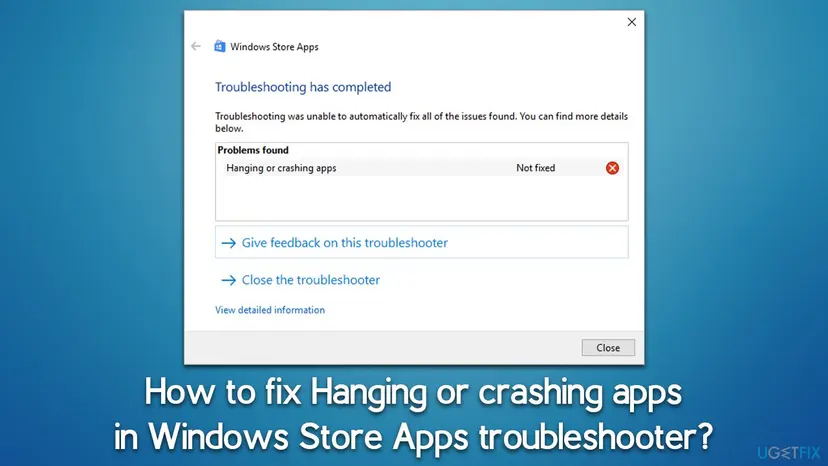
"Hanging or crashing apps" does not name a file, a code or an app. It only says that at least one Store app failed recently. That is why the same generic advice fails for so many people: you first need to know which app it is.
- Hanging means the app window froze and Windows marked it "Not responding". Windows logs it as Application Hang.
- Crashing means the app closed by itself, often right after it opened. Windows logs it as Application Error.
- Not fixed means only that the troubleshooter's automatic repair did not work. It does not mean Windows is broken.
Microsoft lists Windows Store Apps among the legacy troubleshooters it removes from Windows 11 releases after 22H2, and it gets no new Get Help version. On Windows 10 it is under Settings > Update & Security > Troubleshoot. If you cannot find it on Windows 11 25H2 or 26H2, that is why. The fixes below do not need it.
Why Store apps hang or crash: the causes, ranked
Microsoft's own order for problems with Store apps starts with the single app (close it, update it, repair or reset it, reinstall it) and only then moves to Windows. Answers on Microsoft's forum add the Store itself and system files when every Store app fails. Our ranking follows that order:
| Cause | How often | How to tell | Fix |
|---|---|---|---|
| The data or settings of one app are damaged. | Most often | One app crashes at start or freezes on the same screen. Other apps work. | Fix 1, then Fix 2 |
| The app or Windows is out of date, or the app does not support your Windows version. | Often | The crashes began after a Windows update, or the app has not been updated in months. | Fix 3 |
| Microsoft Store or its cache is damaged. | Sometimes | The Store itself crashes, or many Store apps fail at once. | Fix 4 |
| The app's package is damaged or half installed. | Sometimes | Repair and Reset do not help, or the app is missing from Start. | Fix 5 |
| The clock, time zone or Microsoft account sign in is wrong. | Rarely | Apps that need a licence or the internet fail; the clock is wrong. | Fix 6 |
| Other software gets in the way (security suites, tweak tools, overlays). | Rarely | Apps fail on this PC only, after you installed such a program. | Fix 7 |
| Windows system files are damaged. | Rarely | Many apps and system tools fail, not only Store apps. | Fix 8 |
The column "How often" is our reading of Microsoft's support order and the reports on its forum. Microsoft publishes no numbers for this result.
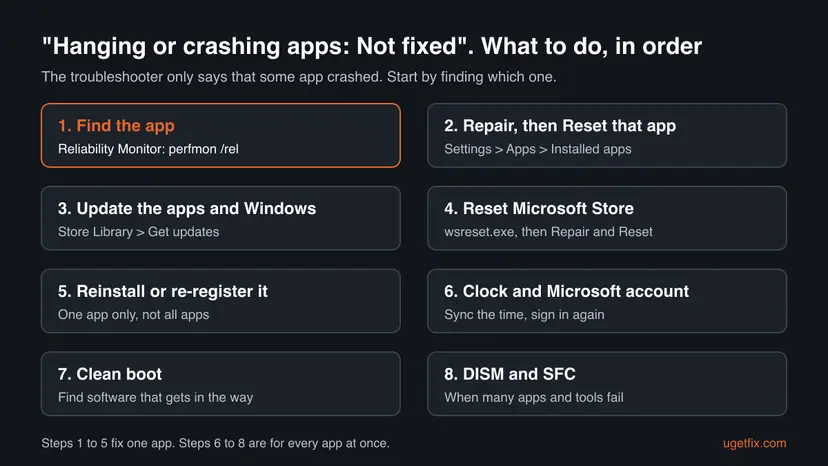
How to fix hanging or crashing apps in Windows 11 and Windows 10
The fixes work on Windows 11 and Windows 10, with both paths where they differ. Start with Fix 1 even if you think you know the app: the log often shows a second one. After each fix, open the app again before you run the troubleshooter; the troubleshooter can keep showing an old finding.
| What you see or have | Start with |
|---|---|
| The troubleshooter says Not fixed and you do not know which app fails. | Fix 1 |
| One app crashes at start or freezes on the same screen. | Fix 2 |
| The crashes started after a Windows or app update. | Fix 3 |
| Microsoft Store itself crashes, or many Store apps fail at once. | Fix 4 |
| The app is missing from Start, or Reset did not help. | Fix 5 |
| Many apps and system tools fail, not only Store apps. | Fix 7, then Fix 8 |
Fix 1. Find which app hangs or crashes in Reliability Monitor
5 minutesNo riskEveryone who got the result "Hanging or crashing apps: Not fixed" and does not know which app it means.
The troubleshooter does not name the app, but Windows records every hang and crash with the app's name and time. With the name you fix one app instead of the whole system.
- Press Win + R, type
perfmon /reland select OK. Reliability Monitor opens with a chart of the last days. - Select the days with a red cross in the Application failures row.
- In the list below the chart, read the lines Stopped working and Stopped responding and was closed. The Source column names the app.
- Double-click a line to see the details, such as the package name and the faulting module.
- For more detail, press Win + R, type
eventvwr.mscand open Windows Logs > Application. - Look for Application Error (event 1000) or Application Hang (event 1002) at the time the app failed.
| What the log names | What it means | Go to |
|---|---|---|
| One app, for example Photos or Netflix | That app's data or package is damaged. | Fix 2 |
| WinStore.App.exe or Microsoft Store | The Store app itself fails. | Fix 4 |
| Many different Store apps | Something shared by all of them is wrong. | Fix 4, then Fix 6 |
| Non-Store programs and Windows tools too | Windows itself is damaged. | Fix 8 |
It worked if: You have the name of the app (or apps) that hang or crash, and the date it started.
If not: If Reliability Monitor shows no app failures, the troubleshooter's finding may be old. Use your apps for a day, and run Fix 3 and Fix 4 if a Store app fails again.
Fix 2. Repair the app, then reset it if Repair does not help
5 minutesRead the warningOne app crashes at start, freezes on the same screen or closes without a message.
Microsoft names Repair and Reset as the step for a Store app that does not work. Repair checks the app's files and keeps its data; Reset deletes the app's local data, which is where a damaged setting or cache usually sits.
Reset removes the app's settings, sign in and offline files. Data synced to an online account comes back after you sign in. Save anything the app keeps only on this PC first, such as local notes or offline downloads.
Close the app first. Right-click it on the taskbar and select Close window, or end it in Task Manager: Close a frozen app (Task Manager, Force Quit)
- Open Installed apps. Select Start > Settings > Apps > Installed apps.
- Open the app's advanced options. Find the app in the list, select the three dots next to it and select Advanced options. Some apps do not have this option: for those, see the section about desktop programs below.
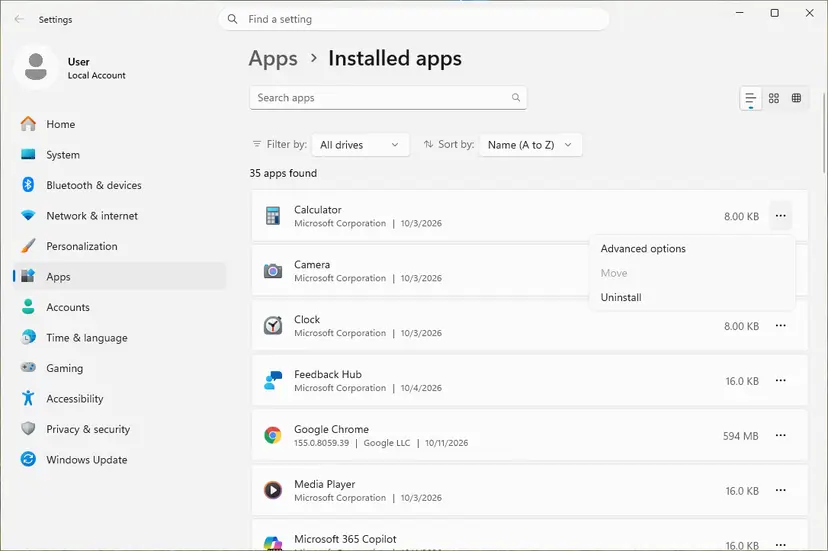
The three dots next to an app open Advanced options. Screenshot: Windows 11 26H2. - Repair first. On the page that opens, select Repair if it is there. The app's data stays. Open the app and check whether it works.

Repair keeps the app data. Reset deletes it. Screenshot: Windows 11 26H2. - Reset if Repair did not help. Select Reset. This deletes the app's data on this PC, including sign-in details and settings. Open the app and set it up again.
These steps were written for Windows 11 25H2 and 26H2. The full page with the other versions and what each result means: How to repair or reset an app in Windows
It worked if: The app opens and stays open. With Reset, it starts like a new install and asks you to sign in.
If not: If the app still crashes after Reset, update it and Windows (Fix 3), or reinstall it (Fix 5).
Fix 3. Update the app, Microsoft Store and Windows
10 to 30 minutesLow riskThe crashes began after a Windows update, or your apps have not been updated for a while.
Microsoft puts updates at the top of its list for Store app problems. An app built for a newer Windows build, or an old app on an updated Windows, can crash at start until both sides match.
- Open Microsoft Store from Start.
- On Windows 11, select Library, then Get updates. On Windows 10, select See more (the three dots), then Downloads and updates > Get updates.
- Wait until every app, including Microsoft Store, is updated.
- Select Start > Settings > Windows Update > Check for updates. On Windows 10: Start > Settings > Update & Security > Windows Update.
- Install what is offered and restart the PC.
- Check on the app's Store page that it supports your Windows version.
It worked if: The Library shows no pending updates, Windows says it is up to date, and the app opens.
If not: If the Store will not update or crashes itself, reset it (Fix 4).
Fix 4. Reset Microsoft Store with wsreset and Repair or Reset
10 minutesLow riskMicrosoft Store itself hangs or crashes, or many Store apps fail at once.
Store apps get their updates and licences through Microsoft Store. A damaged Store cache can leave several apps half updated, and wsreset.exe clears that cache without removing any app.
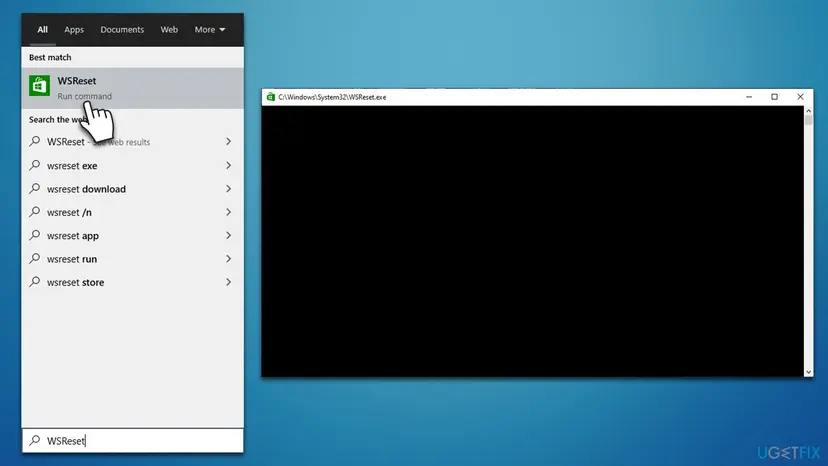
- Clear the Store cache. Press Windows + R, type wsreset.exe and select OK. A blank Command Prompt window opens; after a short while it closes and Microsoft Store opens by itself.

After wsreset, the Store opens and loads again. Screenshot: Windows 11 26H2. - Open System components. If the problem stays, select Start > Settings > System > System components. Next to Microsoft Store, select the three dots and Advanced options. If Microsoft Store is not listed there, look for it in Settings > Apps > Installed apps.
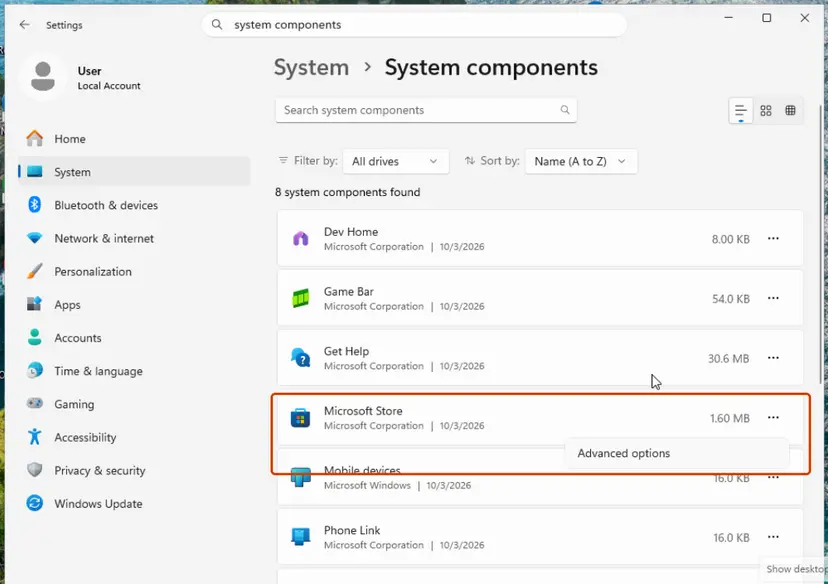
Microsoft Store is listed under System components. Screenshot: Windows 11 26H2. - Repair first. Scroll to Reset and select Repair. Repair keeps the app's data. Open the Store and check whether it works.
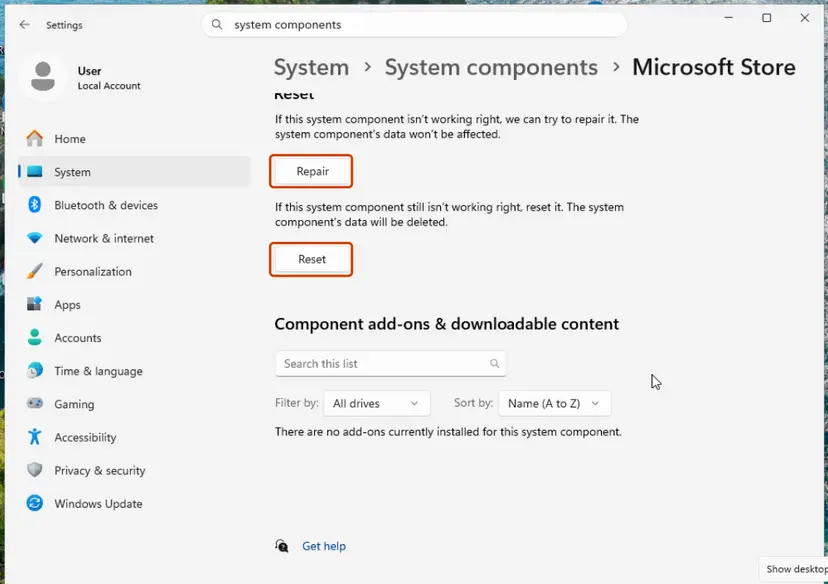
Repair keeps the app's data; Reset deletes it. Screenshot: Windows 11 26H2. - Reset if Repair did not help. Select Reset and confirm. This deletes the Store app's data on this PC; your purchases stay in your Microsoft account. Open the Store and sign in again.
These steps were written for Windows 11 26H2 (build 26300). The full page with the other versions and what each result means: Reset the Microsoft Store
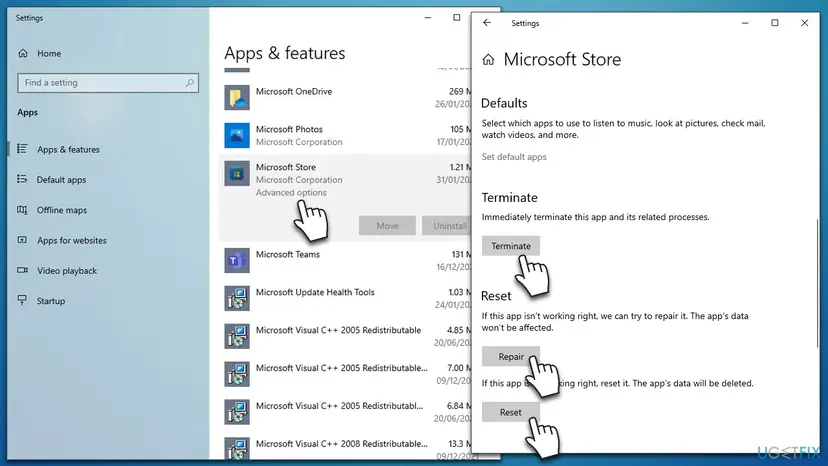
Reset removes the Store's data on this PC and its sign in. Your purchases stay with your Microsoft account.
It worked if: Microsoft Store opens without freezing, and the apps it updates open again.
If not: If one app still fails, reinstall that app (Fix 5).
Fix 5. Reinstall the app, or re-register only that app
10 minutesRead the warningRepair and Reset did not help, the app is missing from Start, or it opens and closes at once.
Microsoft's last step for a single Store app is to reinstall it from the Library. That replaces the app's package. Built-in apps that cannot be uninstalled are registered again instead, which rebuilds their entry in Windows.
Uninstalling removes the app's local data, like Reset does. Back up offline files first. Do not run the command that re-registers all apps on the PC at once: it is often copied for this error, but it can show long red errors for unrelated apps and fixes nothing that the one-app command does not.
- Select Start > Settings > Apps > Installed apps. On Windows 10: Settings > Apps > Apps & features.
- Select the three dots next to the app and Uninstall, then confirm.
- Open Microsoft Store and select Library. On Windows 10: See more > My Library.
- Find the app and select Install.
- If the app has no Uninstall button because it is part of Windows, re-register it with PowerShell as shown below.
Re-register one built-in app, such as Photos or Calculator, step by step: How to re-register Microsoft Store apps with PowerShell
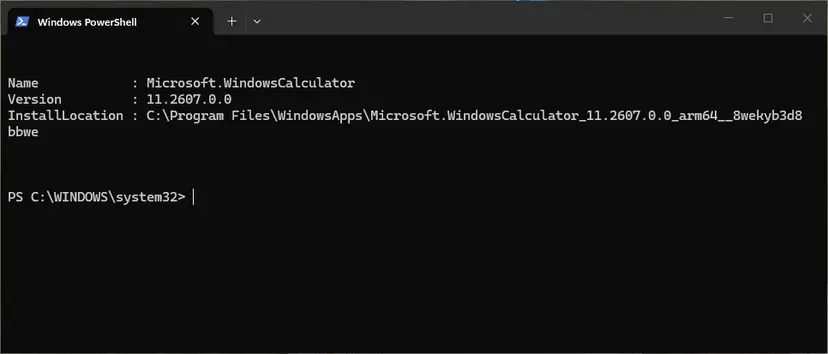
It worked if: The app installs fresh from the Library, or PowerShell finishes without red errors, and the app opens.
If not: If many apps fail after a reinstall, the cause is shared by all of them. Go to Fix 6.
Fix 6. Check the clock and sign in to Microsoft Store again
5 minutesLow riskSeveral apps that need a licence or the internet fail, or the PC clock is wrong.
Microsoft asks you to sign in to your Microsoft account before any other step for Store app problems. Store apps check their licence online, and a wrong clock makes those secure checks fail.
- Select Start > Settings > Time & language > Date & time.
- Turn on Set time automatically and select Sync now.
- Open Microsoft Store, select your profile picture and check that you are signed in with your Microsoft account.
- If you are, sign out, restart the PC and sign in again.
- Open the app that failed.
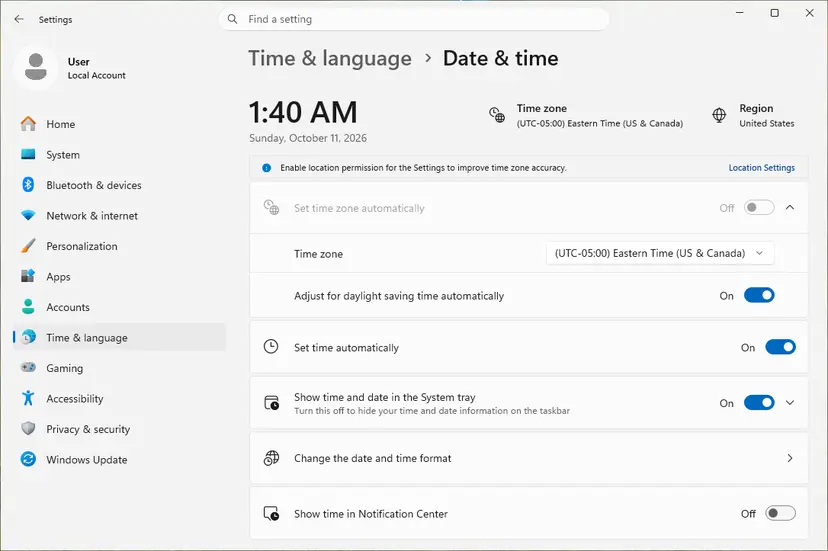
If Sync now fails, the full steps with the Windows Time service: How to fix the date and time in Windows
It worked if: The clock is correct, the Store shows your account, and apps open without asking for a licence.
If not: If apps still fail, test with a clean boot (Fix 7).
Fix 7. Start Windows with a clean boot to find software that interferes
15 to 30 minutesLow riskApps fail on this PC only, often after you installed a security suite, a tweak tool or a screen overlay.
A clean boot starts Windows with Microsoft services only. If the app works then, another program is the cause, and you find it by turning programs back on in groups.
Do not tick Safe boot on the Boot tab of System Configuration for this test. Safe Mode loads fewer drivers and many Store apps do not run in it at all, so the test tells you nothing.
- Open System Configuration. Select Search on the taskbar, type msconfig and select System Configuration from the results.
- Hide Microsoft services. On the Services tab, select the Hide all Microsoft services check box. Only services from other companies stay in the list.
- Disable the remaining services. Select Disable all, then select Apply.
- Open Task Manager. On the Startup tab of System Configuration, select Open Task Manager.
- Disable the startup apps. On the Startup apps tab in Task Manager, select each item whose status is Enabled and select Disable. Write down or take a screenshot of the items you disable: you need the list to turn them back on.
- Confirm the changes. Close Task Manager. On the Startup tab of System Configuration, select OK.
- Restart and test. Restart the PC. Windows now starts in a clean boot environment: try again the thing that failed (run the app, install the update, uninstall the program).
These steps were written for Windows 11 25H2 and 26H2. The full page with the other versions and what each result means: How to perform a clean boot in Windows

It worked if: In the clean boot the app works. Turning programs back on in groups shows which one breaks it.
If not: If the app also fails in a clean boot, repair Windows files (Fix 8). Undo the clean boot afterwards as the procedure shows.
Fix 8. Repair Windows system files with DISM and SFC
20 to 30 minutesLow riskMany apps and Windows tools fail, or no fix above helped.
Store apps run on shared Windows components. Answers on Microsoft's forum point to damaged system files when every Store app hangs. DISM repairs the Windows image and SFC then repairs the files from it.
- Open an elevated command window. Right-click Start and select Terminal (Admin), or type cmd in the search box, right-click Command Prompt and select Run as administrator. Select Yes when Windows asks for permission.

Search for cmd and choose Run as administrator. Screenshot: Windows 11 26H2. - Run DISM first. Type the command below and press Enter. DISM downloads clean copies of damaged components from Windows Update, so it can take several minutes. Wait until it says The operation completed successfully.
DISM.exe /Online /Cleanup-Image /RestoreHealth
DISM /RestoreHealth running. Screenshot: Windows 11 26H2. - Run System File Checker. In the same window, type the command below and press Enter. Do not close the window until the verification reaches 100%.
sfc /scannow
sfc /scannow at 100%. Screenshot: Windows 11 26H2. - Read the result and restart. Compare the last message with the table below this guide, then restart the PC so that repaired files are loaded.

The result line tells you what SFC did. Screenshot: Windows 11 26H2.
These steps were written for Windows 11 24H2 and 25H2. The full page with the other versions and what each result means: Run DISM and SFC to repair Windows system files
It worked if: SFC reports that it found no problems or that it repaired them, and the apps open after a restart.
If not: If SFC reports files it could not repair, read the next section.
If apps still hang or crash: what to read and what is left
Go back to Reliability Monitor (perfmon /rel) and Event Viewer (Windows Logs > Application). Compare the app names and times with the dates you ran each fix. If the list of failures stops after one fix, that fix worked and the troubleshooter's old finding can be ignored.
- One app still fails after Fix 2 and Fix 5: the app itself has a bug. Check its Store page for reviews from the same week and report it to the publisher with the Application Error entry.
- Every Store app fails and SFC could not repair files: reinstall Windows and keep your files and apps. Microsoft's Reset this PC and the in-place repair both keep personal files: Reinstall Windows without losing files
- What to send to support: the app name, the Event Viewer entry (event 1000 or 1002 with the faulting module), the build from
winver, and the fixes you tried. - When it may be hardware: apps of every kind freeze, the PC restarts by itself or shows blue screens. Then test the memory: How to test your RAM with Windows Memory Diagnostic
In 2018, people on Microsoft's forum were told that only a clean install would help. On Windows 10 22H2 and Windows 11 today, the Reset this PC and in-place repair options keep your files, so a full clean install is the very last step.
How to keep Store apps from hanging or crashing
- Let Microsoft Store update apps automatically. Old app versions on a new Windows build are a common cause of crashes at start.
- Install Windows updates, then restart. A pending restart leaves shared components half replaced.
- Close a frozen app instead of forcing the PC off. Task Manager ends the app without damaging other data.
- Be careful with tweak and cleaner tools. Some remove app data or Store components in bulk.
- Keep the clock on automatic. Licences and sign in depend on it.
- Plan the move from Windows 10. It left support on 14 October 2025, and new app versions are tested on Windows 11 first.
Frequently asked questions
What does "Hanging or crashing apps: Not fixed" mean?
It means the Windows Store Apps troubleshooter saw that at least one Store app froze or closed by itself, and its automatic repair did not help. It does not name the app and it does not mean Windows is broken. Open Reliability Monitor with perfmon /rel to see which app failed and when, then repair or reset that app in Settings. Run the troubleshooter again only after the app works; it can keep showing an older finding.
How do I reset hanging or crashing apps?
Reset the one app that fails, not all apps. Select Start > Settings > Apps > Installed apps, select the three dots next to the app, then Advanced options. Select Repair first; it keeps the app's data. If that does not help, select Reset, which deletes the app's local data and sign in. On Windows 10 the path is Settings > Apps > Apps & features. To reset Microsoft Store itself, run wsreset.exe first, as in Fix 4.
Do I need a clean install of Windows to fix it?
Almost never. Old answers on Microsoft's forum from 2018 said a clean install was the only way, but most cases come from one app, which Repair, Reset or a reinstall fixes in minutes. If every Store app fails and SFC cannot repair Windows files, use Reset this PC with Keep my files or an in-place repair. Both keep your personal files, unlike a clean install.
Why can't I find the Windows Store Apps troubleshooter in Windows 11?
Because Microsoft is removing it. Its retirement plan for the old troubleshooters lists Windows Store Apps among those that are removed from Windows 11 releases after version 22H2, not moved to the new Get Help app. Other troubleshooters are under Settings > System > Troubleshoot > Other troubleshooters. You do not need it: the fixes on this page are what it would have tried, plus the steps it skips.
How do I fix hanging or crashing apps on Windows 10?
The fixes are the same as on Windows 11, with older Settings paths. Find the app in Reliability Monitor, then open Settings > Apps > Apps & features, select the app and Advanced options, and select Repair or Reset. Update apps in Microsoft Store under See more > Downloads and updates. Windows 10 left support on 14 October 2025, so check that the app still supports it on its Store page.
Why are all of my apps suddenly crashing?
When many apps crash at once, the cause is something they share: a damaged Microsoft Store cache, a half-installed Windows update, a wrong clock, your Microsoft account sign in, or damaged system files. Reset Microsoft Store with wsreset.exe (Fix 4), install Windows updates and restart (Fix 3), and check the clock and sign in (Fix 6). If programs outside the Store crash too, run DISM and SFC (Fix 8).
What does it mean if an app hangs?
It means the app stopped responding to clicks and keys, but did not close. Windows adds "Not responding" to its title and may dim the window. Windows logs it as Application Hang, event 1002. Wait a minute first, because a large task can look like a hang. If nothing changes, close the app in Task Manager. A hang that repeats on the same screen points to damaged app data, which Repair or Reset fixes.
Microsoft Store itself is hanging or crashing. What should I do?
Reset the Store's cache and data. Press Win + R, type wsreset.exe and select OK, then wait until the Store opens by itself. If it still fails, open Settings > System > System components on Windows 11, or Settings > Apps > Apps & features on Windows 10, select Microsoft Store and Advanced options, and select Repair, then Reset. Your purchases stay with your Microsoft account. Update Windows afterwards.
Should I run the PowerShell command that re-registers all apps?
No, not as a first step. The command that runs Get-AppXPackage for every app is copied on many pages, but it touches every app on the PC, takes a long time and often fills the window with red errors for apps that were fine. Re-register only the one app that fails, by part of its name, as our procedure shows. For Microsoft Store itself, wsreset and Reset do the same job more safely.
Sources
- Microsoft Support: Fix problems with apps from Microsoft Store (Windows 11 and Windows 10) (support.microsoft.com)
- Microsoft Support: Deprecation of Microsoft Support Diagnostic Tool (MSDT) and MSDT troubleshooters (support.microsoft.com)
- Microsoft Q&A: Hanging or Crashing Apps (Windows Store Apps troubleshooter, Windows 10) (learn.microsoft.com)
Did this fix work?
One click, no account. It tells the next reader which guides are worth their time.
Questions and experiences: fix Hanging or crashing apps in Windows Store Apps troubleshooter
Still broken, or found a fix we did not cover? Ask here: members and our editors answer. Reading is open; writing needs a free account.
…