How to fix
“Hard drive not installed” error
on Windows
Resolve the "Hard drive not installed" error on Windows 10 and 11 easily with expert-tested solutions. Get your system running smoothly again!

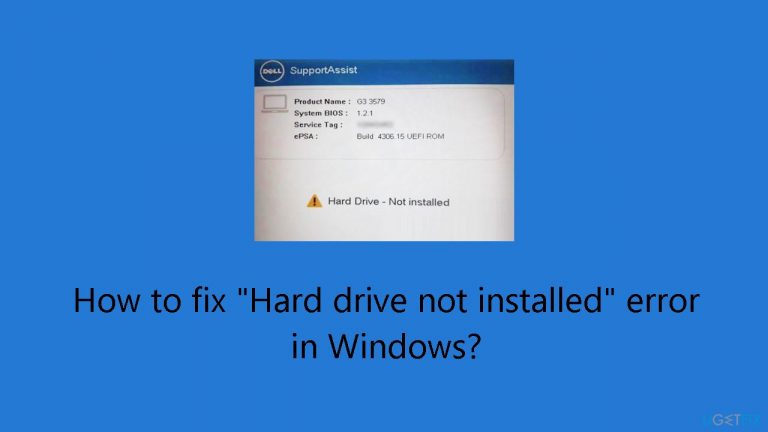
What causes How to fix “Hard drive not installed” error in Windows?
- Boot priority order is not accurate
- Hardware problem
- System unable to detect or recognize the hard disk
- Particular hardware setups in Dell laptops
- Possible data loss
Repairs Windows system files, removes malware, and restores a clean OS state — without reinstalling.
Hello. When I turn on my Windows PC, I get the "Hard drive not installed" error. It is not letting me access the operating system. What should I do?
When a Windows computer displays the "Hard drive not installed" warning, it can be rather upsetting, particularly if it keeps the machine from starting up. This error message usually indicates that the boot priority order is not accurate or there is a hardware problem. It should be noted that the issue is not limited to any one version of Windows; reports of it have been made on systems running both Windows 10 and Windows 11, with Dell laptops being particularly affected.
Users will be severely impacted by this issue, which prevents them from accessing the operating system and their stored data. The error message raises questions about possible data loss and system performance because it indicates that the system is unable to detect or recognize the hard disk.
When their system suddenly becomes unavailable, users could become frustrated and anxious, especially if the error appears out of the blue. Work may suffer and important activities may be postponed until the problem is fixed. Furthermore, the frequency with which this error occurs on Dell laptops raises the possibility of a relationship with particular hardware setups, so users and the manufacturer should take note of this.
Although there are fixes for the "Hard drive not installed" error, you should proceed cautiously and get technical help if necessary. By checking hardware connections or changing the boot priority order in the system BIOS, users can try to troubleshoot the problem. However, due to their intricacy, these duties need a certain level of technical competence, and doing things incorrectly could make the situation worse or cause more issues.
In this guide, you will find 6 steps that should help you fix "Hard drive not installed" error in Windows. If you experience any OS issues, you can run a maintenance tool like [d1] that can fix most system errors, BSODs, corrupted files, and registry issues. Otherwise, follow the step-by-step instructions below.
Method 1. Perform a Hard Reset
- Power off the computer.
- Press and hold the power button for 10 seconds.
- Disconnect the power adapter.
- If using a laptop with a removable battery, remove the battery.
- Unplug all external devices.
- Hold the power button for an additional 15 seconds.
- Reconnect the power cable and battery.
- Turn on the computer.
- Check if the computer starts correctly.
Method 2. Check the Hard Drive Cables
A common cause of the hard drive not being detected is a loose or damaged connection between the hard drive and the motherboard. Fortunately, this issue is usually straightforward to address, whether it involves an internal HDD, SSD, or external hard drive.
To investigate, open your computer's case and locate the hard drive(s), typically small, flat, black boxes. Check for SATA and power cables connecting each hard drive to the motherboard and power supply. Ensure these cable connections are secure and free from any signs of wear. If damaged, replace them with new cables, then access the BIOS setup utility to verify if the system recognizes the drive.
For laptops, the process is more intricate. Opening the back of the laptop case to inspect storage devices can potentially cause irreversible damage. If you find it challenging to open the case on your own, it's advisable to seek assistance from a reputable repair shop to prevent further damage.
Method 3. Check the Date and Time
- Power off your PC and disconnect all external devices and peripherals.
- Press the power button to start the PC.
- While the PC is booting up, repeatedly press the BIOS key; commonly, this is the Delete, F2, or Esc key. Refer to the specific key for your system.
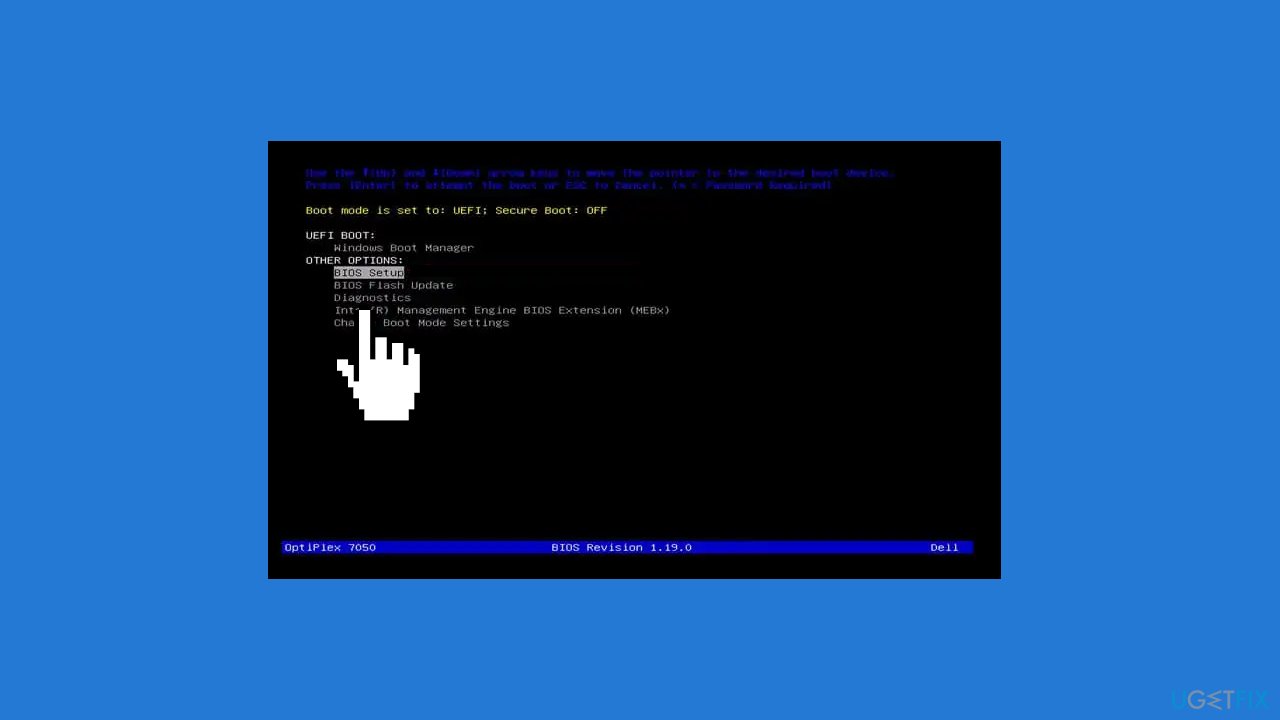
- A basic menu screen will appear. Use the arrow keys to navigate and select the option to enter the BIOS Setup.
- The appearance of this option may vary based on your device, motherboard, and operating system.
- Utilize the enter and arrow keys to navigate through the menus within the BIOS Setup.
- Access the BIOS menu and locate the General tab.
- Expand the General tab in the BIOS menu.
- Choose Date/Time from the options.
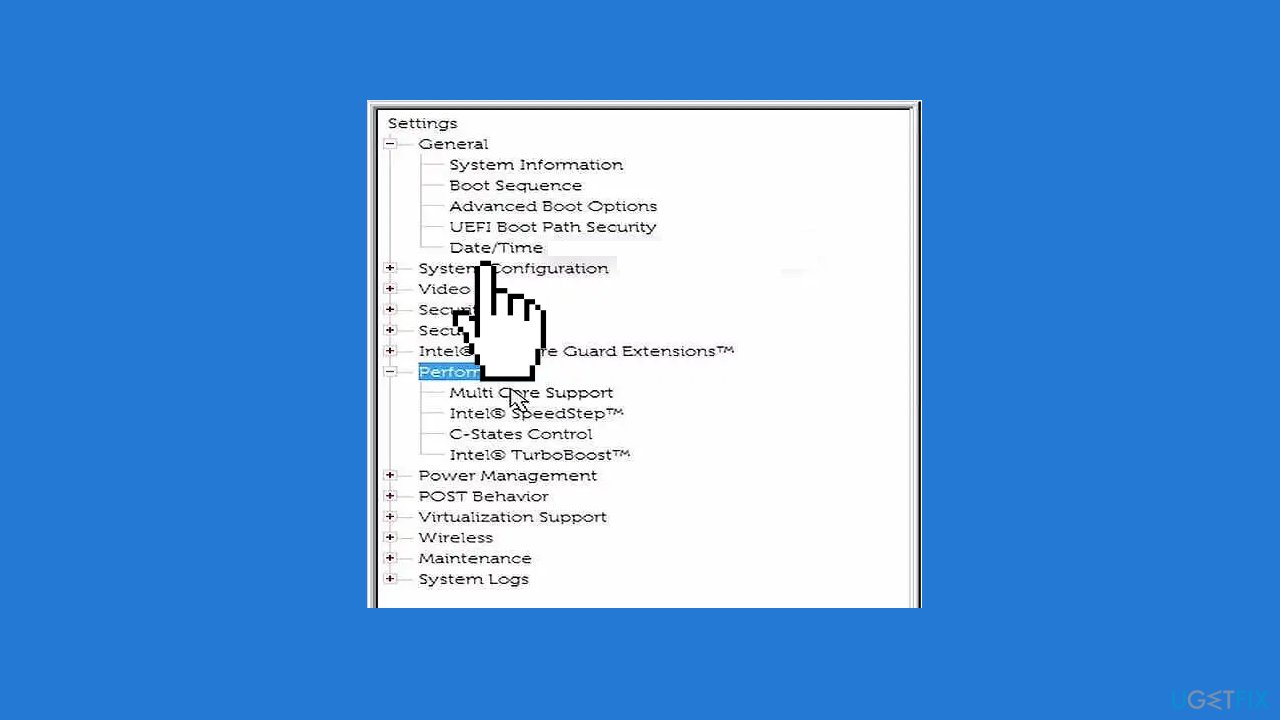
- Set the correct date and time in the Date/Time section.
- Press the Apply button to save the changes.
- Restart your computer to check if it boots correctly.
- If the issue persists and you find yourself needing to reset date and time settings frequently, it may indicate a failing CMOS battery.
- In such a case, procure a replacement CMOS battery to resolve the issue.
Method 4. Change the Boot Mode
- Access the BIOS interface using the previously mentioned steps.
- Navigate to the General tab and select Boot Sequence.
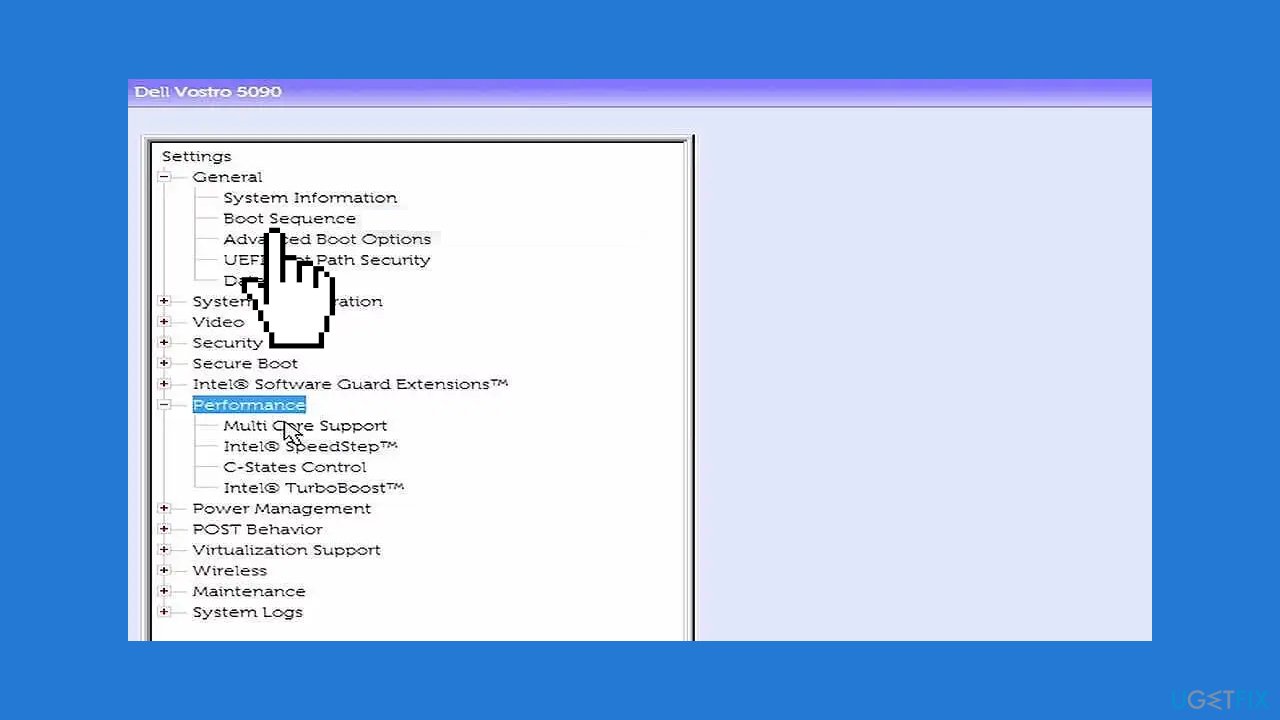
- Within the Boot Sequence menu, modify the boot mode to match your computer's mode.
- Save the changes and exit the BIOS.
- Restart your computer.
- Verify if the computer now boots correctly with the updated boot sequence.
Method 5. Run Hardware Diagnostics
Many computers include a hardware diagnostics feature accessible from the BIOS menu. To access it, reboot your computer and repeatedly press the BIOS key until the menu appears. Once in the menu, choose Diagnostics.
Follow the on-screen instructions to execute various hardware diagnostics tests on your computer. If any errors emerge, make a record of them. After the tests conclude, research each error code to understand its significance. Hopefully, one of them will pertain to your disk drive, providing insights into your issues.
Method 6. Test the Hard Drive with a Different Computer
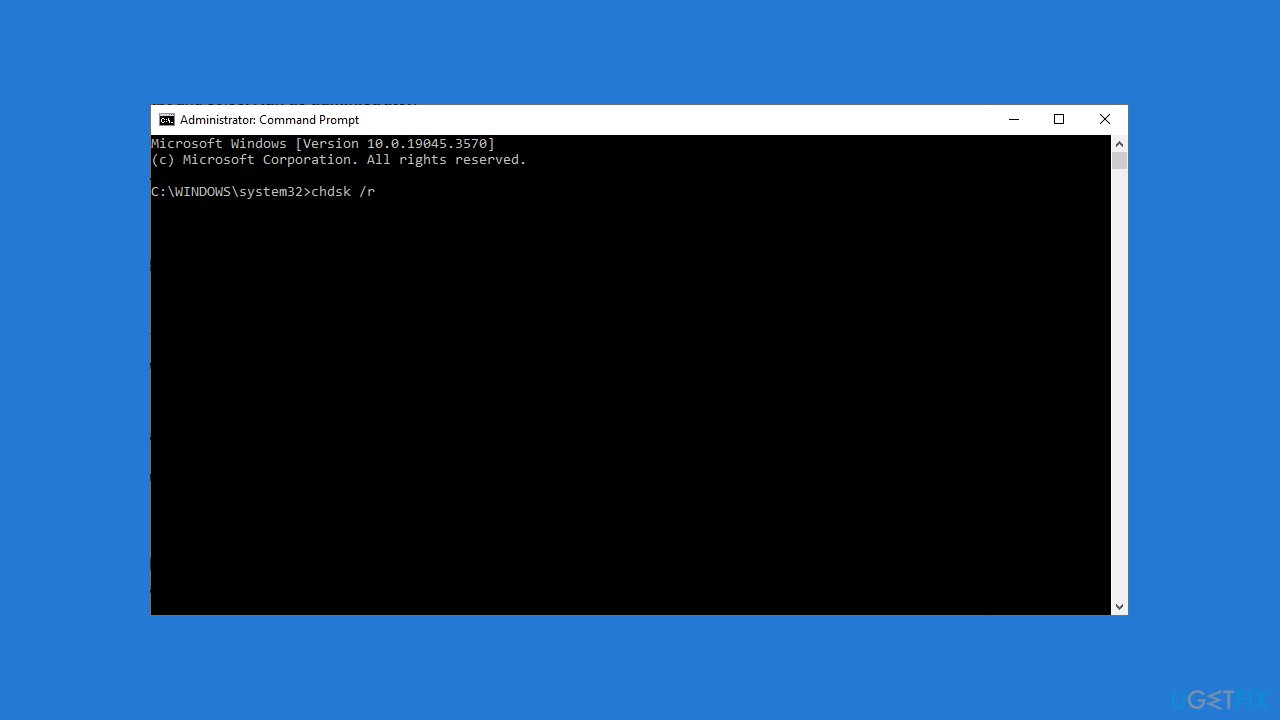
- Press Start and search for Command Prompt.
- Right-click on Command Prompt and choose Run as administrator.
- Type chdsk /r and press Enter to execute Microsoft’s Check Disk utility tool.
- Wait for the scan to complete; if bad sectors are found, the tool will attempt repairs.
- If the issue persists, consider formatting your hard drive. Prioritize data backup as this process deletes all contents, including the Windows operating system.
Formatting:
- Open the Start menu and search for Disk Management.
- Select the top result, right-click on your HDD, and choose Format.
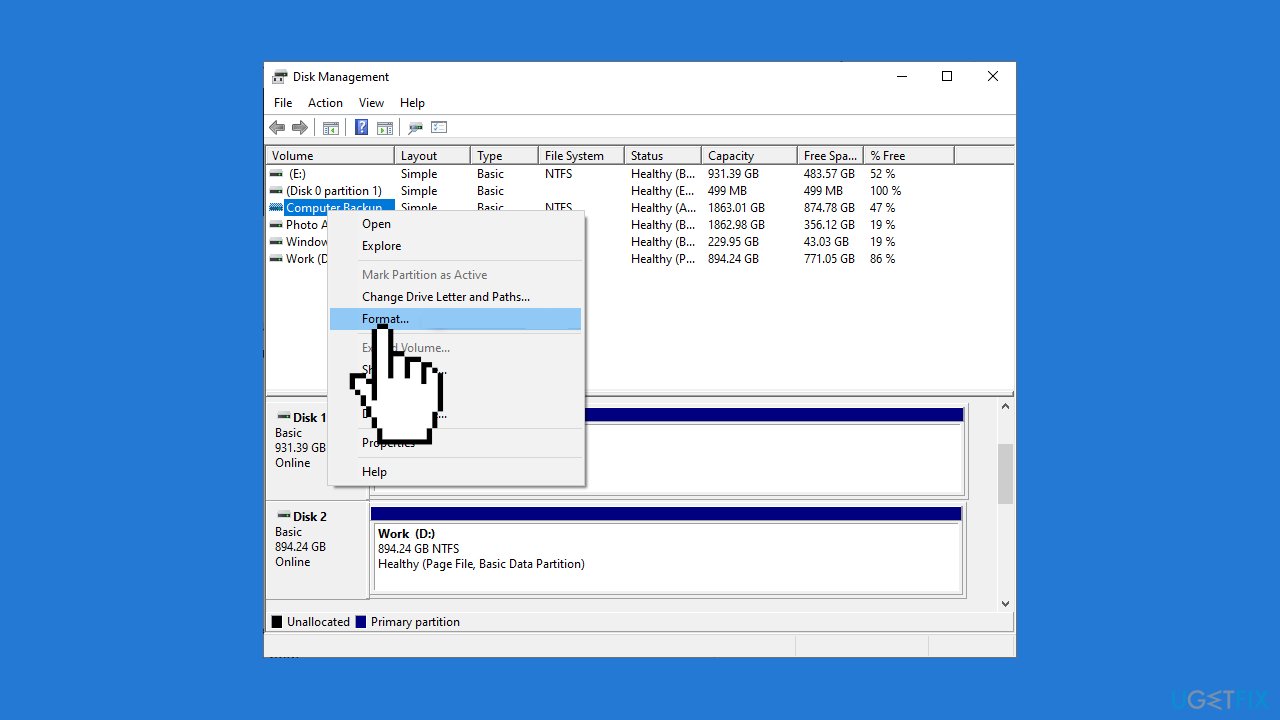
- Choose a file system and click OK to initiate formatting.
- After formatting, reconnect the hard disk to your other computer.
- Note: If your operating system was on this disk, you must create a new Windows installation.
Bottom line
To fix the 'Hard drive not installed' error, users can check hardware connections and change the boot priority order in the system BIOS. If these steps do not resolve the issue, it is advisable to seek technical help or run a maintenance tool to address potential system errors.
Frequently asked questions
First, ensure that your hard drive is properly connected to your computer and that all cables are secure. You can also try accessing the BIOS to see if the hard drive is recognized there.
In Windows 11, you can use the built-in Disk Management tool to check if the hard drive is showing up and initialized. If it appears as unallocated, you may need to create a new volume.
Yes, outdated or corrupted drivers can lead to this error; updating your storage drivers through Device Manager can help resolve the issue on both Windows 10 and Windows 11.




Report an issue
What's wrong with this guide? We review every report and update or remove content.
Report received — thank you. We'll review and fix it.
You need a free account to submit a report.
Be the first to comment