How to fix
HDAudBus.sys BSOD
on Windows
Resolve the HDAudBus.sys BSOD issue in Windows 10 or 11 effortlessly with our expert-tested solutions. Get your PC running smoothly again!

What causes How to fix HDAudBus.sys BSOD in Windows?
- Outdated audio drivers
- Corrupted audio drivers
- Hardware issues
- System overclocking
- Windows update conflicts
Repairs Windows system files, removes malware, and restores a clean OS state — without reinstalling.
Hello. My PC sometimes crashes with a blue screen, and I don't see a pattern at all. During gaming, this happens more often. The referenced file is HDAudBus.sys. I run a high-end PC with Windows 11. What can I do to resolve this?
Experiencing a Blue Screen of Death (BSOD) on a high-end PC, especially during gaming, can be particularly frustrating. The mention of HDAudBus.sys as the referenced file in the error message is a key clue to the root cause of these crashes.
HDAudBus.sys is a system file associated with the High Definition Audio Bus driver in Windows operating systems. It's a part of the Microsoft Universal Audio Architecture (UAA), which supports audio devices under the Windows Driver Model. Essentially, HDAudBus.sys helps facilitate the communication between the operating system and the audio hardware, enabling high-quality audio playback and recording on your PC.
The occurrence of BSOD errors pointing to HDAudBus.sys often indicates issues with audio drivers or conflicts between the operating system and the audio hardware. Such problems can be more pronounced during gaming due to the high demand for system resources, including the audio system. There are several potential factors and solutions to consider:
- Outdated or corrupted audio drivers
- Hardware issues
- System overclocking
- Windows update
If you're facing BSODs with HDAudBus.sys referenced, starting with a driver update is advisable. If that does not help, reinstalling them can provide a solution for some as well. There are also several other steps that can help you fix the HDAudBus.sys Blue Screen, which we describe in detail below.
If you would rather take a more hands-off approach, we recommend employing a powerful PC repair application [d1], which was designed to find corrupted files, damaged registries, and other system inconsistencies and fix them automatically. Otherwise, please follow the instructions below.
Fix 1. Update the audio driver
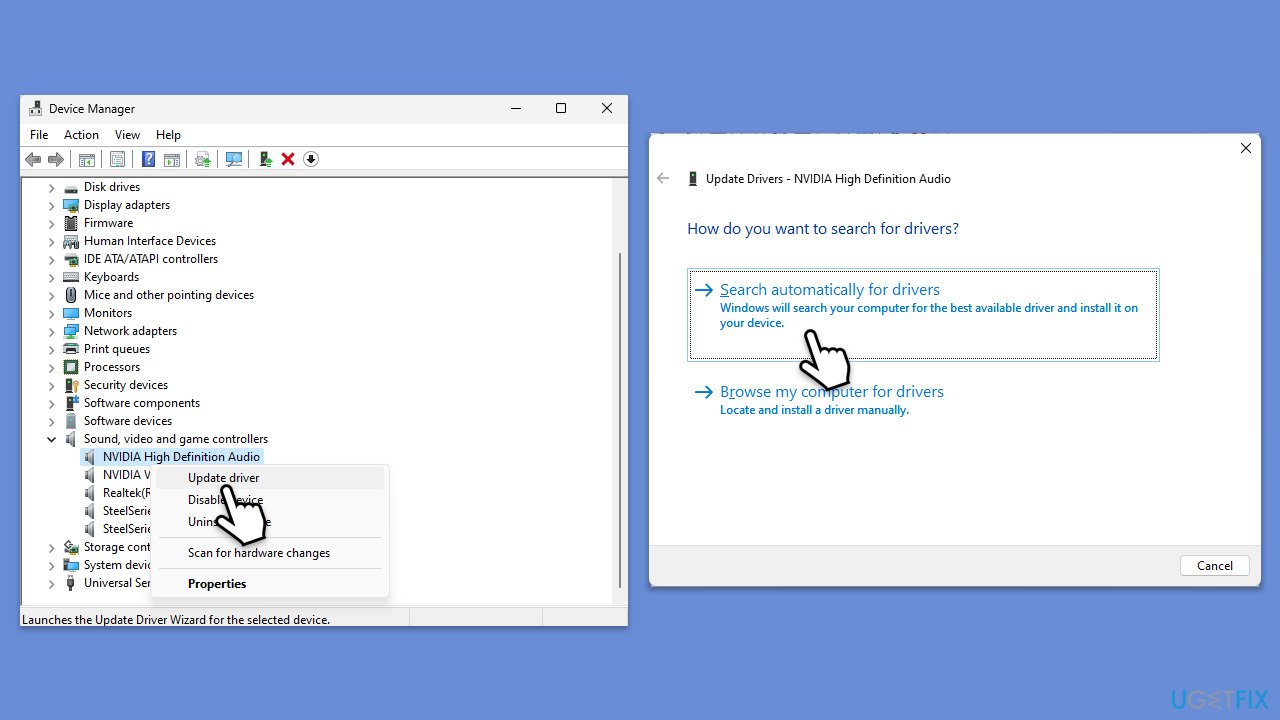
Updating the audio driver can resolve compatibility issues and bugs that might be causing the BSOD. Drivers are regularly updated to enhance performance and fix known issues.
- Press Win + X and select Device Manager.
- Expand the Sound, video, and game controllers section.
- Right-click your audio device and select Update driver.
- Choose Search automatically for drivers.
- Follow the on-screen instructions to complete the update.
- Restart your computer after the update is installed.
If you want a faster solution for your driver issues, you can try using [rev id="DriverFix"] instead.
Fix 2. Reinstall the audio driver
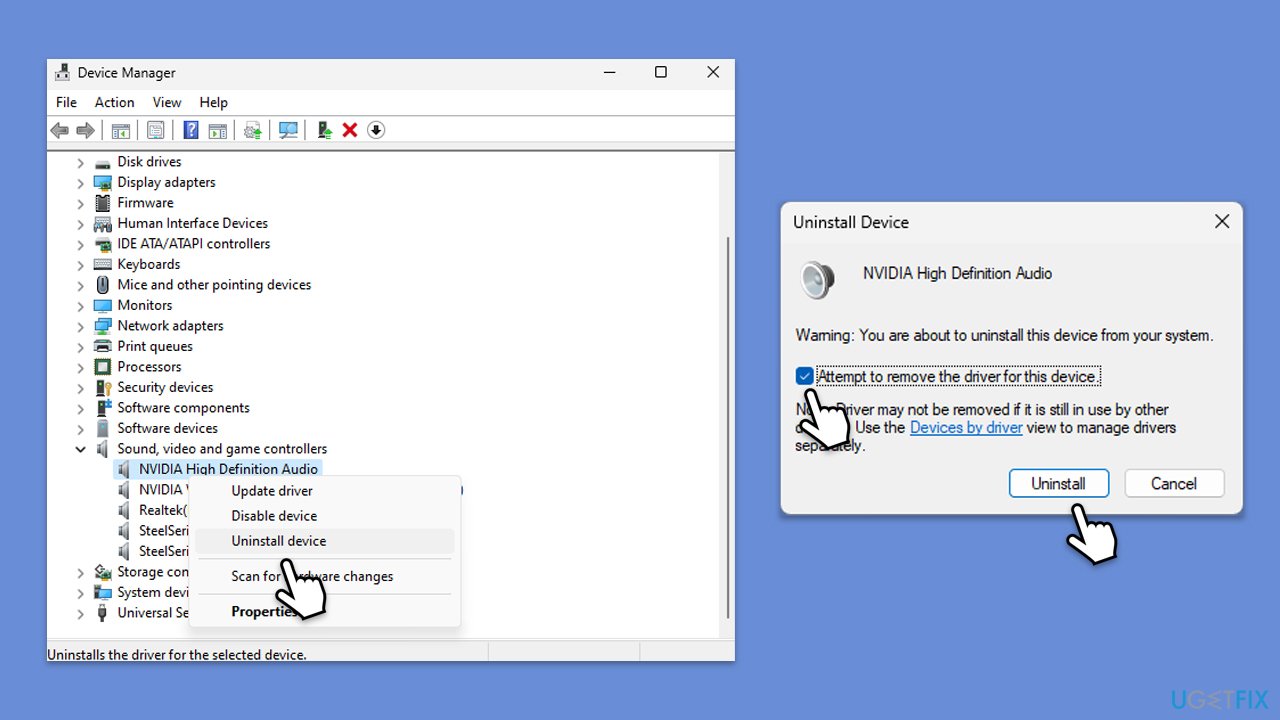
Reinstalling the audio driver can fix problems caused by corrupted or incorrectly configured drivers. This process removes the current driver and installs a fresh copy.
- Open Device Manager again.
- Locate and expand the Sound, video, and game controllers section.
- Right-click on your audio device and choose Uninstall device.
- Tick the Delete the driver software for this device option if available, then click Uninstall.
- Restart your PC. Windows will attempt to reinstall the driver upon boot.
Fix 3. Repair corrupted Windows files
SFC and DISM tools can repair corrupted system files and Windows image files, potentially fixing HDAudBus.sys BSOD crashes.
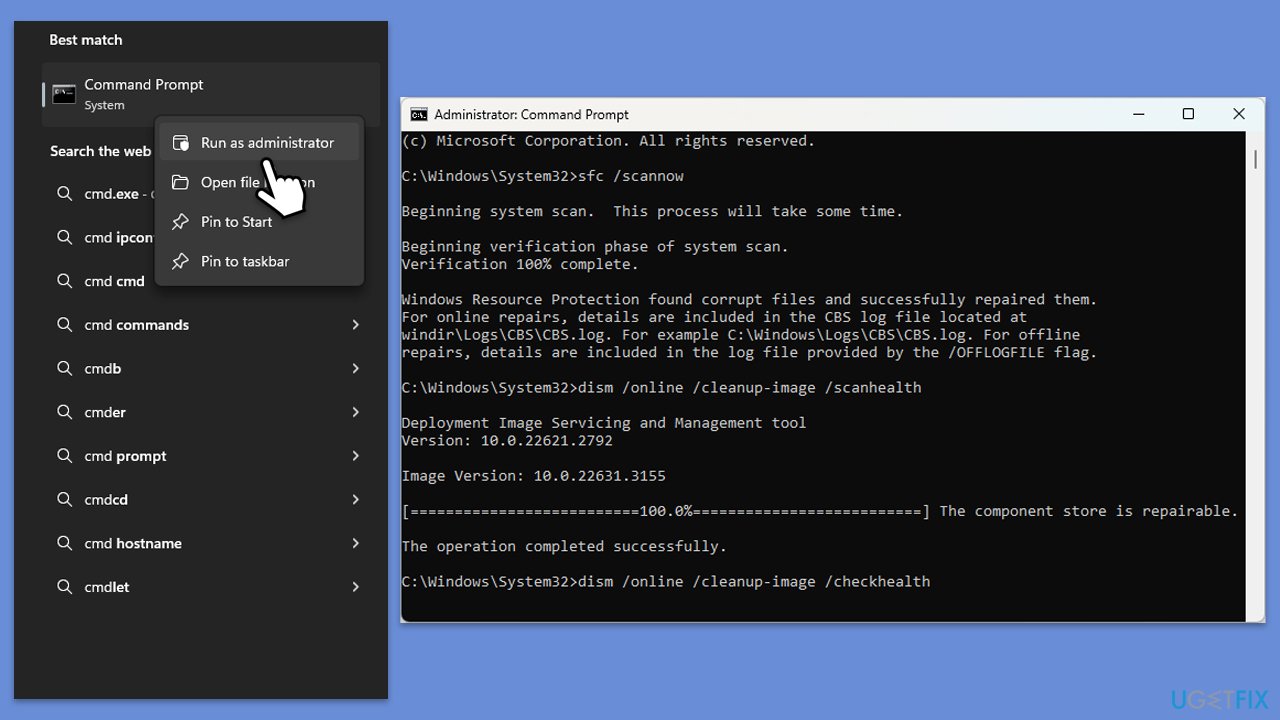
- Type cmd in Windows search.
- Right-click on Command Prompt and pick Run as administrator.
- User Account Control window will show up - click Yes when prompted.
- Then, copy and paste the following command, pressing Enter after:
sfc /scannow - Wait till the scan is finished. If Windows finds system file integrity violations, it will attempt to fix them. After this, use the set of the following commands, pressing Enter each time:
DISM /Online /Cleanup-Image /CheckHealth
DISM /Online /Cleanup-Image /ScanHealth
DISM /Online /Cleanup-Image /RestoreHealth - Close down the Command Prompt and restart your system.
Fix 4. Install all Windows updates
Installing the latest Windows updates can resolve known issues and compatibility problems that might be contributing to the BSODs.
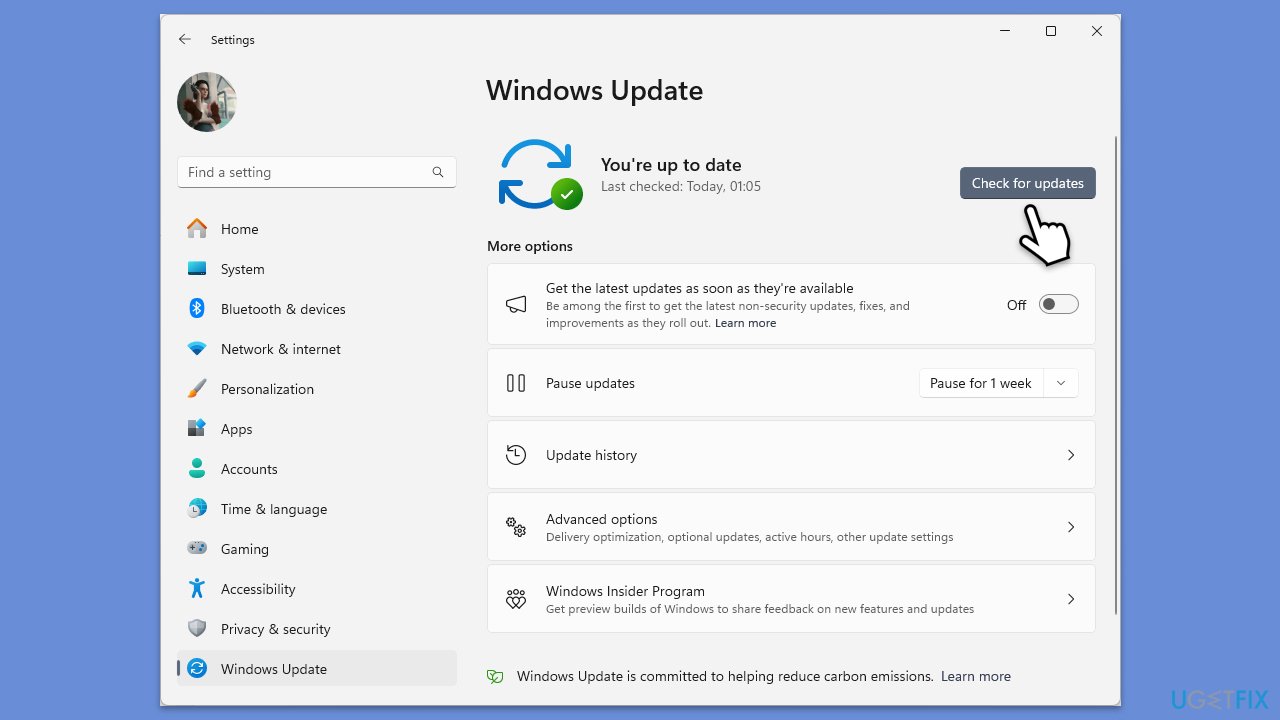
- In Windows search, type Updates and press Enter.
- Click Check for updates and wait till Windows installs update.
- Make sure you also install all optional updates if such are available.
- To implement the changes, reboot your system.
Fix 5. Uninstall the recent Windows update
If a faulty update was installed, it could cause issues, and even BSODs in some cases. If your PC started crashing after an update, you should uninstall it as follows:
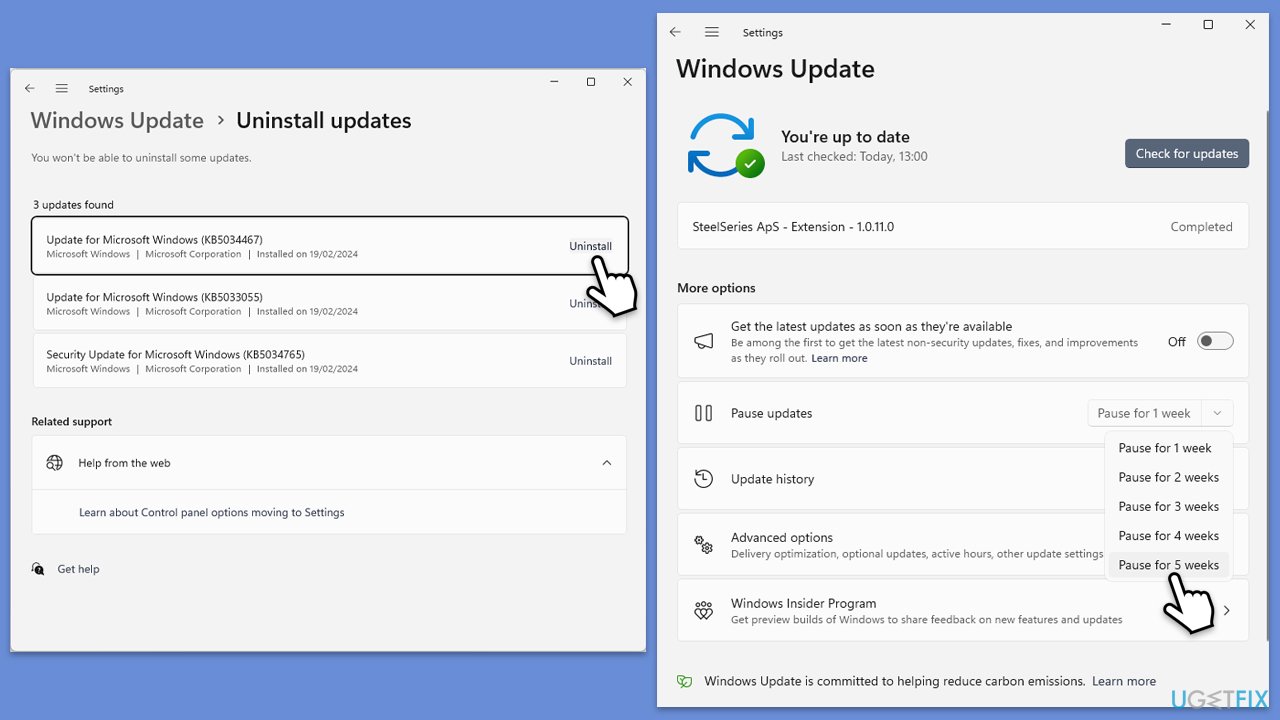
- Type Control Panel in Windows search and press Enter.
- Select Programs > Uninstall a program.
- Click on View installed updates on the left side of the window.
- Uninstall the most recent update.
- Proceed with on-screen instructions.
- Don't forget to pause the update.
Fix 6. Try System Restore
System Restore can revert your system's state to a previous point in time, potentially bypassing the BSOD issue. This method is useful if the BSODs started occurring recently.
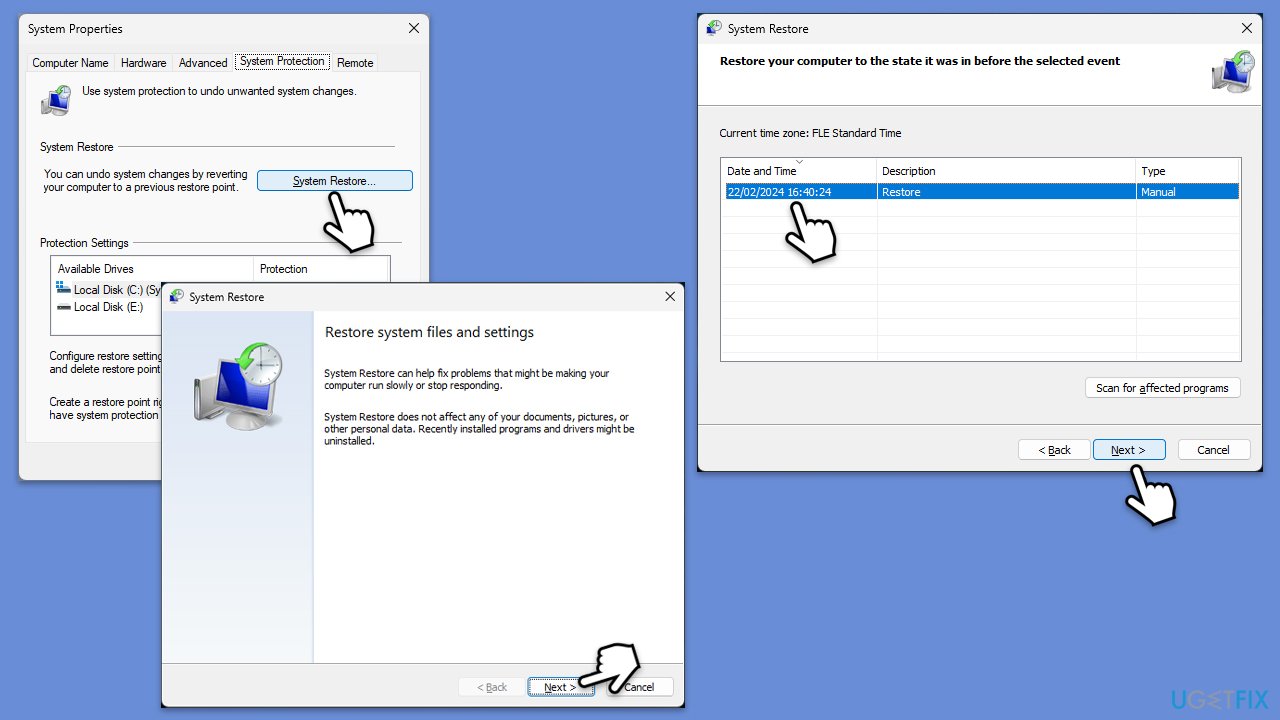
- Type Create a restore point in the Windows search bar and press Enter.
- In the System Properties window, click System Restore.
- Choose a restore point from before the utility.exe error started occurring.
- Click Next and follow the on-screen instructions to complete the system restore.
- Restart your computer after the process is finished.
Bottom line
To resolve the HDAudBus.sys BSOD, start by updating your audio drivers, as this can fix compatibility issues. If updating does not help, consider reinstalling the drivers or checking for hardware problems. If none of these solutions work, using a powerful PC repair application may be beneficial.
Frequently asked questions
The HDAudBus.sys BSOD error is typically caused by outdated or corrupted audio drivers, hardware conflicts, or issues with the audio subsystem in Windows 10 and 11.
To update your audio drivers in Windows 10 or 11, go to Device Manager, expand the 'Sound, video and game controllers' section, right-click your audio device, and select 'Update driver'.
Yes, you can run the System File Checker by opening Command Prompt as an administrator and typing 'sfc /scannow' to repair any corrupted system files related to HDAudBus.sys in Windows 10 and 11.




Report an issue
What's wrong with this guide? We review every report and update or remove content.
Report received — thank you. We'll review and fix it.
You need a free account to submit a report.
Be the first to comment