How to fix
Hdcp error
on Windows
Resolve HDCP errors on Windows 10 and 11 easily with expert-tested solutions. Get your streaming back on track in minutes, with zero traces left.

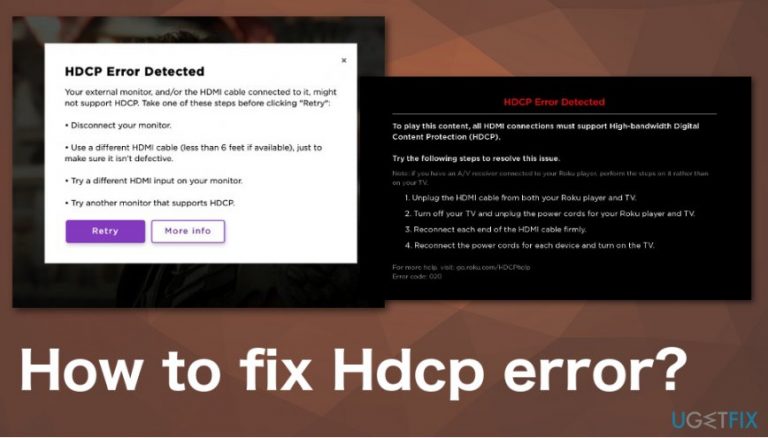
What causes How to fix Hdcp error?
- Poor physical connection between devices
- Incompatible HDMI cables
- Issues with the source device
- Malware or corrupted software on the PC
- Unprotected content being played
Repairs Windows system files, removes malware, and restores a clean OS state — without reinstalling.
Hello. I need a solution for the error on my Apple TV. HDCP Error messages appear on the television frequently and I tried to turn it off and on again, but this hasn't taken me anywhere. Unplugged HDMI and tried other methods found online. I can't get rid of it. What you can suggest that could help me to fix this Hdcp error?
HDCP Error Detected is the common issue that appears on smart devices.[ref en-1] It generally indicates the problem with a physical connection or communications between the additional device and TV. It can occur when the user plays with unprotected content on Xbox One, for example.
HDCP - High-bandwidth Digital Content Protection is an anti-piracy protocol built into the HDMI cable standard, but the common error shows that it doesn't work very well. Issues affect the viewing experience for customers.[ref en-2] Since this is the issue with poor communication between your TV and source device, you can fix HDCP error.
The protocol is created to protect content creators and distributors. Various companies and industries use different ones but DMR locks purchases you make. HDCP Error causes headaches for regular consumers because enjoying regular TV activities becomes difficult. 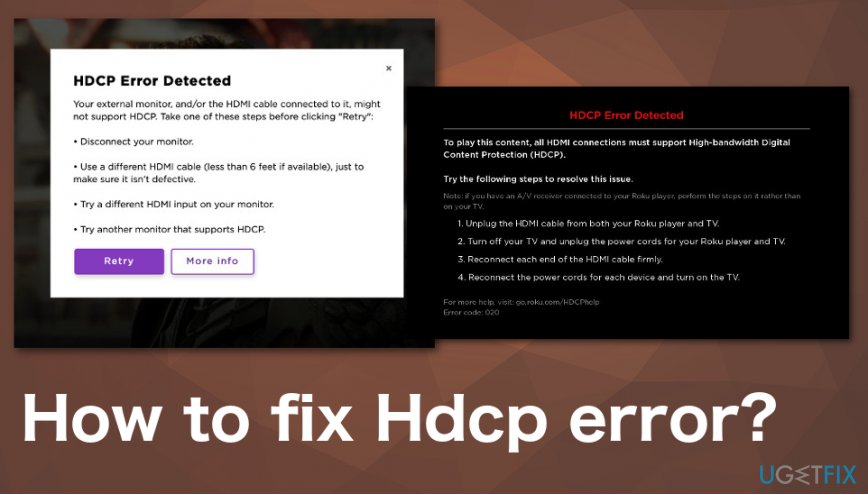
How to fix Hdcp error
Since such devices need to be connected to the internet, people can jump to conclusions and think that malware got installed and hacked the system.[ref en-3] However, that is not the case since HDCP was developed by Intel and is used with HDMI and other digital video standards like DisplayPort and Digital Visual Interface.
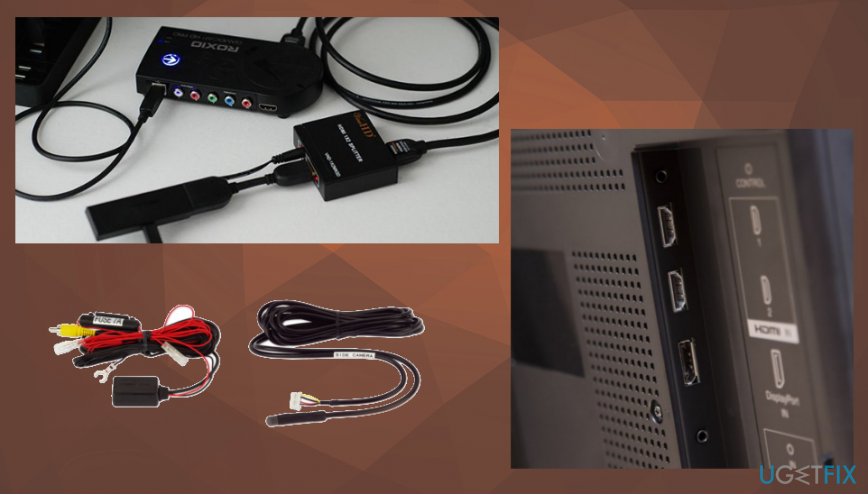
It provides an encrypted connection between a contend outputting device on one end and a receiving device on the other. For example, it connects the cable box with an HDTV. So to fix Hdcp error you need to check all the cables, connections and receivers. It can appear on the computer, so you can scan the PC using [d1] to make sure there is nothing corrupted or malicious before you proceed with manual methods.
There is a reason for general compatibility issue that causes HDCP Error Detected when your Roky device, TV or AVR or even the HDMI cable is not compatible with the HDR resolutions, for example. Some settings should be revised and set to correct HDR ones, so everything works as supposed to.
Fix Hdcp error on Roku player
- Unplug each end of the HDMI cable on both devices including your Roku player, TV, AVR.
- Power off the devices and unplug the power cord.
- Remove the cord from the Roku player.
- Reconnect both ends of the HDMI and make sure the attachment is firm and secure.
- Reconnect the power cord and wait for both devices to power on.
- Try to view the content that caused issues again.
You can also try to connect a different HDMI input on your device or a cable that has no defects.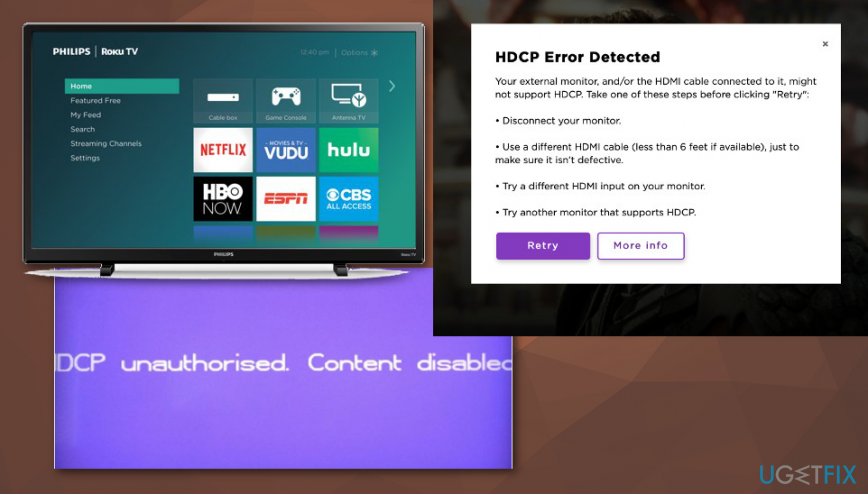
Fix HDCP Error Detected on your computer
- Try different HDMI input on the external monitor.
- Try different cable to make sure the cable you used before is okay.
- Try different external monitor.
- Try connecting the PC to a TV that supports HDCP.
- Make sure bot devices support HDCP.
Bottom line
To fix the HDCP error, check all cables, connections, and receivers. Additionally, scan your PC for any corrupted or malicious software. If none of these solutions work, consider seeking professional assistance.
Frequently asked questions
An HDCP error indicates that your device is unable to establish a secure connection with your display device due to High-bandwidth Digital Content Protection issues. This can often prevent video playback from protected sources.
To troubleshoot an HDCP error on Windows 11, start by checking your HDMI or DisplayPort connections and ensure that both your source device and display support HDCP. You can also try updating your graphics drivers or changing your display settings.
Upgrading to Windows 10 or Windows 11 can help resolve HDCP errors if the issue is related to outdated system files or drivers, as newer versions come with improved compatibility and support. However, it's important to ensure that your hardware also supports HDCP.




Report an issue
What's wrong with this guide? We review every report and update or remove content.
Report received — thank you. We'll review and fix it.
You need a free account to submit a report.
Be the first to comment